

You click Outlook, the loading screen appears for a second — or nothing happens at all — and the app never opens. Sometimes it gets stuck on “Loading Profile” or “Processing”. Sometimes Windows shows “Cannot start Microsoft Outlook. Cannot open the Outlook window.”
This is one of the most common Outlook problems on Windows 11, and in most cases it is not a serious failure. A stuck background process, a faulty add-in, a damaged profile or a corrupt data file is usually blocking startup, and each of those can be fixed in a few minutes.
This guide covers both Classic Outlook and the New Outlook app, because the fixes are different for each. Work through the fixes in order — the first few solve this for most people, and the later fixes are only needed if the early ones do not work.
Quick Answer: First, end Outlook in Task Manager and restart your PC. Then open Outlook in Safe Mode with
outlook.exe /safe. If it opens in Safe Mode, a faulty add-in is the cause — disable your add-ins. If it does not open even in Safe Mode, repair the data file or create a new Outlook profile. For the New Outlook app, use Settings > Apps > Outlook (New) > Advanced options > Repair, then Reset.
Why Is Outlook Not Opening on Windows 11?
Outlook usually fails to open for one of these reasons:
- Outlook is already running in the background. A crashed or stuck
OUTLOOK.EXEprocess blocks a new window from opening. - A faulty add-in. Add-ins load at startup, and one broken add-in can crash Outlook before the inbox appears.
- A corrupt Outlook profile. The profile stores your account and settings, and damage here stops startup completely.
- A damaged data file (.ost or .pst). Classic Outlook stores mail locally, and a corrupt file can freeze it on the Loading Profile screen.
- A broken Office or New Outlook installation. A half-finished update is a very common trigger — many people notice this problem right after a Windows or Office update.
- Corrupt cache or view settings. Damaged navigation pane, view or cache files can prevent the window from loading.
A quick test before you start: Open Outlook on the web at outlook.com in your browser. If your email loads there, your account is fine and the problem is on this PC — which is exactly what the fixes below solve.
Use this simple rule as you go:
- Outlook opens in Safe Mode? The problem is almost certainly an add-in. Go to Fix 3.
- Outlook does not open even in Safe Mode? The problem is more likely your profile or data file. Go to Fix 7 and Fix 10.
Fix 1: End Outlook in Task Manager and Restart Your PC
Before changing any settings, make sure Outlook is not already running silently in the background. This takes 30 seconds and fixes a surprising number of cases.
- Press Ctrl + Shift + Esc to open Task Manager.
- In the Processes tab, look for Microsoft Outlook or OUTLOOK.EXE.
- Select it and click End task.
- Wait 10 seconds, restart your PC, and then try opening Outlook normally.

If Outlook still does not open, move to Safe Mode.
Fix 2: Open Outlook in Safe Mode
Safe Mode starts Classic Outlook without any add-ins. It is the fastest way to find out whether an add-in is causing the crash.
- Press Windows key + R to open the Run box.
- Type
outlook.exe /safeand press Enter. - If asked, choose your Outlook profile and click OK.

If Outlook opens normally in Safe Mode, do not stop here — an add-in will crash it again in normal mode. Continue to Fix 3 to find and disable it. If Outlook still does not open in Safe Mode, skip to Fix 4.
Fix 3: Disable Add-Ins One by One
While Outlook is open in Safe Mode:
- Click File > Options > Add-ins.
- At the bottom, set Manage to COM Add-ins and click Go.
- Uncheck all add-ins and click OK.
- Close Outlook and open it normally.

If Outlook now opens, one of those add-ins was the problem. Re-enable them one at a time, restarting Outlook after each one, until the crash returns — that last add-in is the culprit. Common troublemakers include old antivirus email scanners, PDF tools, and meeting add-ins from apps you no longer use. Leave the faulty one disabled or uninstall it.
Fix 4: Reset the Navigation Pane and View Settings
Corrupt window and view settings are behind the exact error “Cannot open the Outlook window”. Two commands rebuild them, and neither deletes your email.
- Close Outlook completely (use Fix 1 if needed).
- Press Windows key + R.
- Type
outlook.exe /resetnavpaneand press Enter. - If Outlook still does not open, run the Run box again with
outlook.exe /cleanviewsand press Enter.

/resetnavpane clears and rebuilds the navigation pane for your current profile. /cleanviews resets custom views back to the default. You may lose custom view layouts, but your mail, calendar and contacts are not affected.
Fix 5 (New Outlook Only): Repair or Reset the New Outlook App
If you use the New Outlook app (the one that came with Windows 11), Classic Outlook commands like /safe and /resetnavpane do not apply. Use the Windows app repair instead.
- Open Settings with Windows key + I.
- Go to Apps > Installed apps.
- Find Outlook (New), click the three dots next to it, and choose Advanced options.
- Click Repair first and try opening Outlook.
- If it still does not open, go back and click Reset, then sign in again.

Repair keeps your accounts and data. Reset clears the app’s local data and signs you out, so you will need your email password afterwards — but your emails themselves stay safe on the server.
Fix 6: Clear the Outlook Cache
A corrupt cache can freeze Outlook at startup. Clearing it is safe — Outlook rebuilds these files automatically.
For Classic Outlook:
- Close Outlook completely.
- Press Windows key + R, type
%localappdata%\Microsoft\Outlookand press Enter. - Open the RoamCache folder, select all files with Ctrl + A, and delete them.
- Open Outlook again.

For the New Outlook app:
- Close the app completely.
- In File Explorer’s address bar, open
%localappdata%\Microsoft\Olkand delete the Olk folder. - Do the same for
%localappdata%\Microsoft\OneAuthand delete the OneAuth folder. - Restart your PC and open Outlook. You will be asked to sign in again, because OneAuth stores cached sign-in data.

Fix 7: Repair Your Outlook Data File (OST / PST)
If Outlook does not open even in Safe Mode, the local data file is a prime suspect.
For Microsoft 365, Outlook.com and IMAP accounts (.ost file): The .ost file is only a copy of what is on the server, so it can be safely rebuilt. Close Outlook, go to C:\Users\[YourName]\AppData\Local\Microsoft\Outlook\, rename the .ost file to .ost.bak, and reopen Outlook. It will download a fresh copy — this can take a while on a large mailbox, so leave it to finish.
For POP accounts (.pst file) — use the Inbox Repair Tool:
- Close Outlook.
- Find
SCANPST.EXE, usually inC:\Program Files\Microsoft Office\root\Office16\(the folder name changes with your Office version). - Open it, browse to your .pst file, and click Start.
- If errors are found, click Repair. The tool makes a backup copy first.
- Reopen Outlook.

Back up your .pst file before repairing if it contains mail that exists nowhere else, for example an old POP account.
Fix 8: Repair Microsoft Office
A failed or incomplete Office update can leave Outlook’s program files damaged. The built-in repair fixes this without removing your accounts.
- Close all Office apps.
- Right-click the Start button and select Installed apps.
- Find Microsoft 365 (or your Microsoft Office version), click the three dots, and choose Modify.
- Choose Quick Repair first and click Repair.
- If Outlook still does not open, repeat the steps and choose Online Repair. This takes longer, needs an internet connection, and redownloads Office files.

Fix 9: Update Windows and Office
If this problem started after an update, a later update often contains the fix — and if it started because an update never finished, completing it matters just as much.
- Open Settings > Windows Update and click Check for updates. Install everything offered, then restart.
- To update Office when Outlook itself will not open, open another Office app such as Word.
- In Word, go to File > Account > Update Options > Update Now.
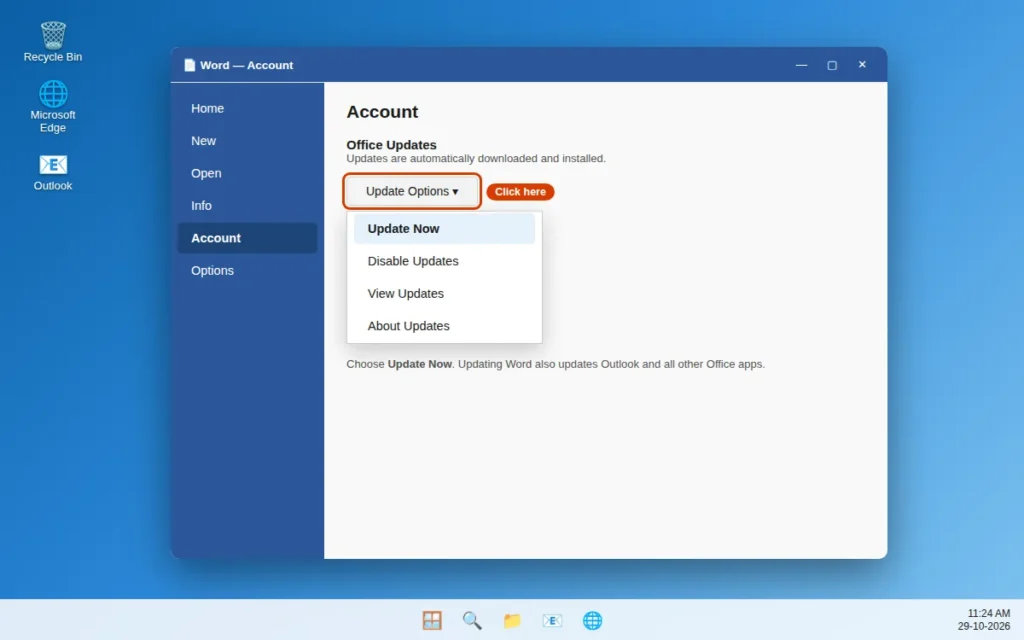
Updating one Office app updates all of them, including Outlook.
Fix 10: Create a New Outlook Profile
Your Outlook profile is not your email account — it is the Windows-side container that stores account settings. When it becomes corrupt, Outlook may refuse to start even though the app and your data are fine. A new profile is one of the most reliable fixes in this guide, and it does not delete your old one.
- Close Outlook.
- Open Control Panel and click Mail (Microsoft Outlook). Tip: type “Mail” in the Windows search box if you cannot find it.
- Click Show Profiles.
- Click Add, type a name such as “Outlook New”, and click OK.
- Follow the wizard and add your email account.
- Back in the Mail window, under “When starting Microsoft Outlook, use this profile”, select your new profile and click Apply.
- Open Outlook.

If Outlook opens with the new profile, keep using it. You can delete the old profile later, once you are sure everything — including any local .pst files — is working.
Fix 11: Run System File Checker and Rule Out a Service Outage
Two quick checks remain before reinstalling anything.
Check Windows itself: Corrupt Windows system files can stop apps from launching.
- Type
cmdin Windows search, right-click Command Prompt, and choose Run as administrator. - Type
sfc /scannowand press Enter. - Wait for the scan to finish, restart your PC, and try Outlook again.

Check whether the problem is even on your PC: Open Outlook on the web, or check Microsoft’s service health page. If Outlook is down for everyone, or if a Microsoft 365 outage is in progress, no local fix will work — you simply have to wait for Microsoft to restore the service, and you can follow updates in our Tech News section.
Fix 12: Reinstall Office or Outlook as a Last Resort
Only do this if nothing above worked.
- Download Microsoft’s Support and Recovery Assistant (SaRA) tool from Microsoft’s support site — it removes Office more cleanly than a manual uninstall.
- Uninstall Office with the tool, then restart your PC.
- Reinstall Office or Microsoft 365 from your Microsoft account page at office.com, and apply all updates before opening Outlook.
For the New Outlook app, a simpler version often works: uninstall Outlook (New) from Settings > Apps > Installed apps, restart, and reinstall it from the Microsoft Store — or open Classic Outlook and use the “Try the new Outlook” toggle to reinstall it.
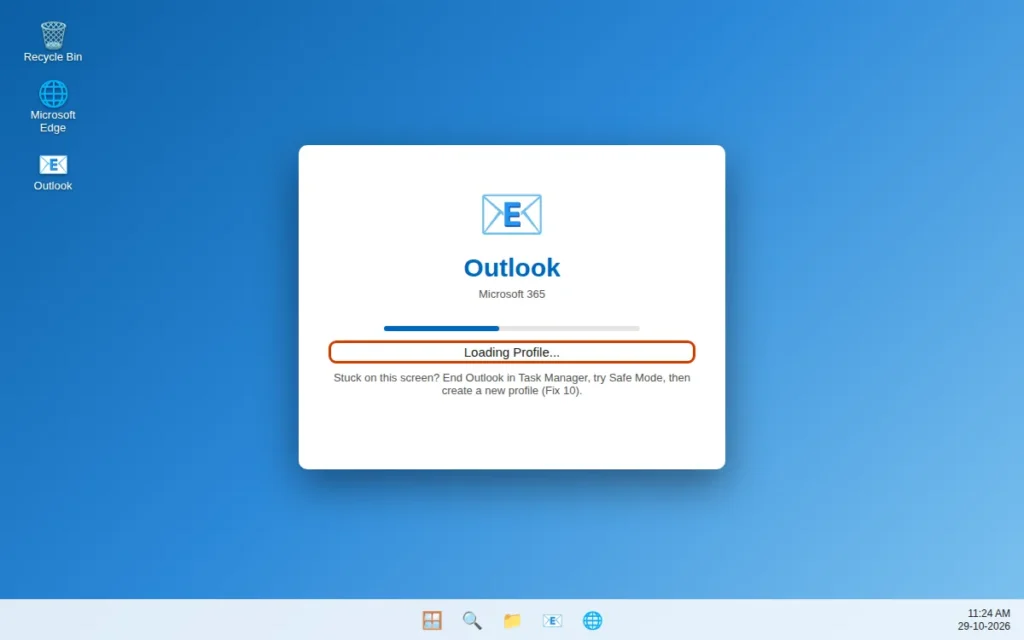
Outlook Stuck on “Loading Profile” or “Processing”? Read This
These two screens deserve a special mention because they are searched for so often:
- Stuck on Loading Profile usually means an add-in, a corrupt profile, or a damaged data file — the same causes as above. Try, in order: Fix 1 (End task), Fix 2 (Safe Mode), disconnecting from the internet temporarily and opening Outlook offline, then Fix 10 (new profile).
- Stuck on Processing is often Outlook waiting on a server response that never arrives. Check your internet and VPN connection, try Outlook on the web, and if you are on a work account, ask whether your organisation’s mail service is having problems before changing settings on your PC.
Outlook Not Opening on Mac? Quick Fixes
The causes are similar, but the steps differ slightly:
- Force quit: Open Activity Monitor, select Microsoft Outlook, and force quit it.
- Update Outlook: Open Microsoft AutoUpdate from Help > Check for Updates — an outdated Outlook on a newer macOS is a frequent cause.
- Create a new profile: From the Finder, open Outlook’s Profiles / Accounts settings and add a fresh profile to test.
- If it still fails, remove and re-add your account, or reinstall Outlook from the App Store / your Microsoft account.
How to Stop Outlook From Breaking Again
- Keep Windows and Office updated — most startup failures follow a half-finished update.
- Remove add-ins you do not use, instead of leaving them enabled.
- Do not force-shut your PC while Outlook is open; let it close properly so data files are not damaged.
- Keep your mailbox size under control by archiving old mail, especially on POP accounts with large .pst files.
- Run a full antivirus scan once in a while — malware can also block apps from opening. Use Windows Security > Virus & threat protection > Scan options > Full scan.

Frequently Asked Questions
Why won’t Outlook open on Windows 11?
The most common reasons are a stuck background Outlook process, a faulty add-in, a corrupt Outlook profile, a damaged .ost or .pst data file, or a broken Office update. Start with Task Manager and Safe Mode to narrow it down quickly — Safe Mode alone tells you whether an add-in is to blame.
How do I open Outlook in Safe Mode?
Press Windows key + R, type outlook.exe /safe, and press Enter. Choose your profile if asked. Safe Mode opens Classic Outlook without add-ins, which makes it the best first test for startup crashes.
Will repairing Outlook or Office delete my emails?
No. Quick Repair and Online Repair fix program files and do not delete emails, accounts or settings. Emails stored on a server (Microsoft 365, Outlook.com, IMAP) are not stored only on your PC at all. The one place to be careful is a local .pst file from a POP account — back it up before running SCANPST repairs or deleting a profile.
Why is Outlook not opening but running in Task Manager?
Outlook has frozen or crashed in the background while its process, OUTLOOK.EXE, is still running, and Windows will not open a second window. End the process in Task Manager, restart your PC, and open Outlook again.
How do I fix “Cannot start Microsoft Outlook. Cannot open the Outlook window”?
That specific error is usually corrupt navigation pane settings. Close Outlook, press Windows key + R, run outlook.exe /resetnavpane, and try again. If it persists, test Safe Mode and then create a new Outlook profile.
What is SCANPST.EXE and is it safe?
SCANPST.EXE is Microsoft’s official Inbox Repair Tool, included with Office. It scans .pst data files for damage and repairs errors, creating a backup file before it changes anything. It is safe to use, but it cannot fix every type of severe corruption — which is why a backup matters for POP accounts.
Outlook opens in Safe Mode but not normally. What should I do?
An add-in is almost certainly the cause. While in Safe Mode, go to File > Options > Add-ins > COM Add-ins > Go, uncheck all add-ins, restart Outlook normally, then re-enable add-ins one by one until you find the one that brings the crash back. Leave that one disabled.
Do these fixes also work on Windows 10?
Yes. Every fix in this guide works on Windows 10 as well as Windows 11. A few menu names differ slightly — for example, Office repair on Windows 10 is found under Control Panel > Programs and Features > Microsoft Office > Change, instead of Settings > Installed apps.
Still stuck? Tell us the exact error message you are seeing on our Contact page — servicedesk@howtofixerroronline.com, available 24 hours — and read our related guides in the Outlook Errors category for problems like Outlook not receiving emails, Outlook search not working, and Outlook stuck on Loading Profile.
Leave a Reply