
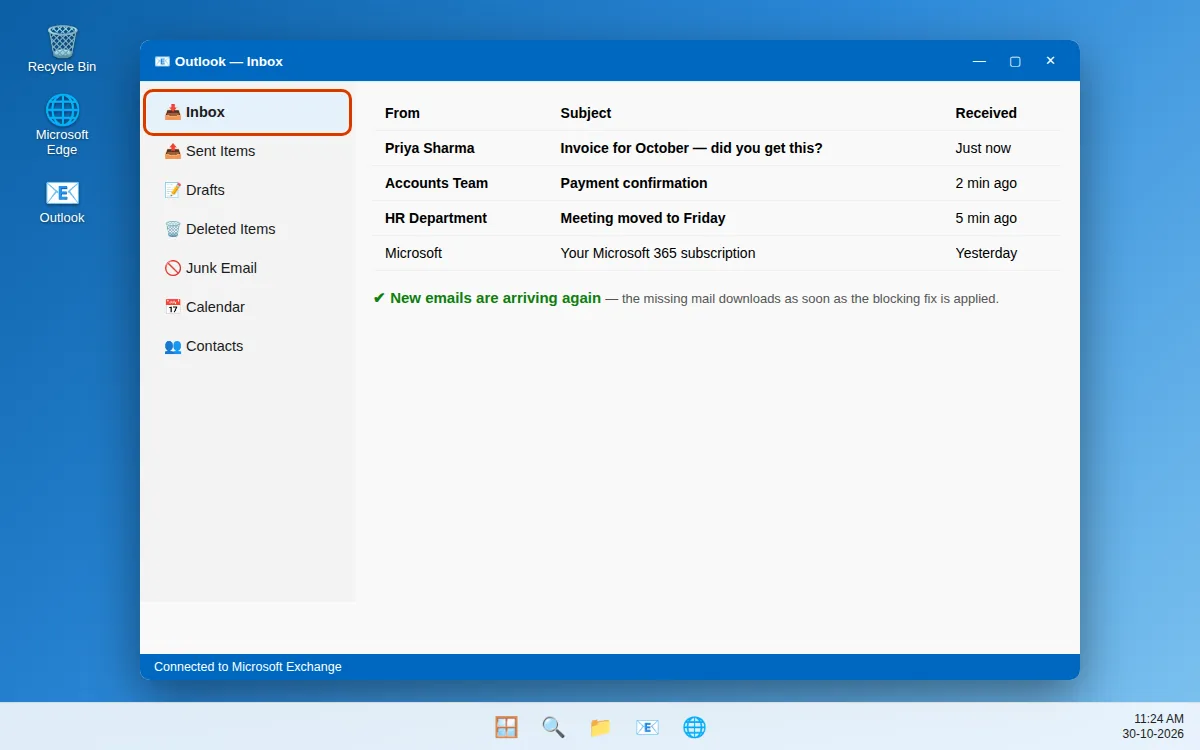
People say they emailed you hours ago, but nothing new has arrived. Your inbox just sits there — no error, no warning, and even a test email to yourself never appears. Missing mail is stressful precisely because Outlook rarely tells you why.
The good news is that the emails are usually not lost. In most cases they reach your account and are then stopped, diverted, or simply not downloaded by the Outlook app on this PC. A full mailbox, a rule quietly moving mail, a stuck cache file, or Outlook sitting in offline mode covers most cases.
This guide covers both Classic Outlook and the New Outlook app on Windows 11, plus Outlook.com and Microsoft 365 accounts. Work through the fixes in order — Fix 1 takes one minute and locates the problem.
Quick Answer: First, open outlook.com in your browser. If the missing emails are there, your account is fine and the problem is the app — press F9 to force a Send/Receive, check Work Offline is off, and check Junk and the Other tab. If they are missing on the web too, check mailbox storage (a full mailbox rejects new mail), rules, and blocked senders.
Why Is Outlook Not Receiving Emails?
Outlook usually stops receiving mail for one of these reasons:
- The mail is being diverted. A rule, a filter, or the Junk filter is moving new messages to another folder, Junk Email, or Deleted Items.
- Your mailbox is full. When an Outlook.com or Microsoft 365 mailbox reaches its storage limit, the server refuses new mail until you free up space.
- Outlook is offline. Work Offline mode, or a lost internet connection, stops the app contacting the server at all.
- Send/Receive is stuck. A corrupt setting or a damaged cache (.ost) file can leave the app checking forever without downloading.
- The account itself has a problem. An expired password or damaged account settings can silently break the connection.
- Microsoft’s service is down. Occasionally the outage is at Microsoft’s end, and no PC setting will help until it is fixed.
Use this rule as you go:
- Missing in the app but present on the web? The app or its cache is the problem — Fixes 6, 7 and 8.
- Missing everywhere, including the web? The account is the problem — Fixes 2 to 5, then Fix 10.
Fix 1: Test Outlook on the Web and Check Your Internet
Before touching any settings, find out whether the missing emails reached your account at all. This test splits the problem in half.
- Open your browser and go to outlook.com (work/school accounts: outlook.office.com). Sign in with the same account.
- Look for the missing emails in the web inbox — use search to find the sender’s name.
- Check the basics too: open another website to confirm your internet works, and disable your VPN for a minute — some VPN servers interfere with mail sync.
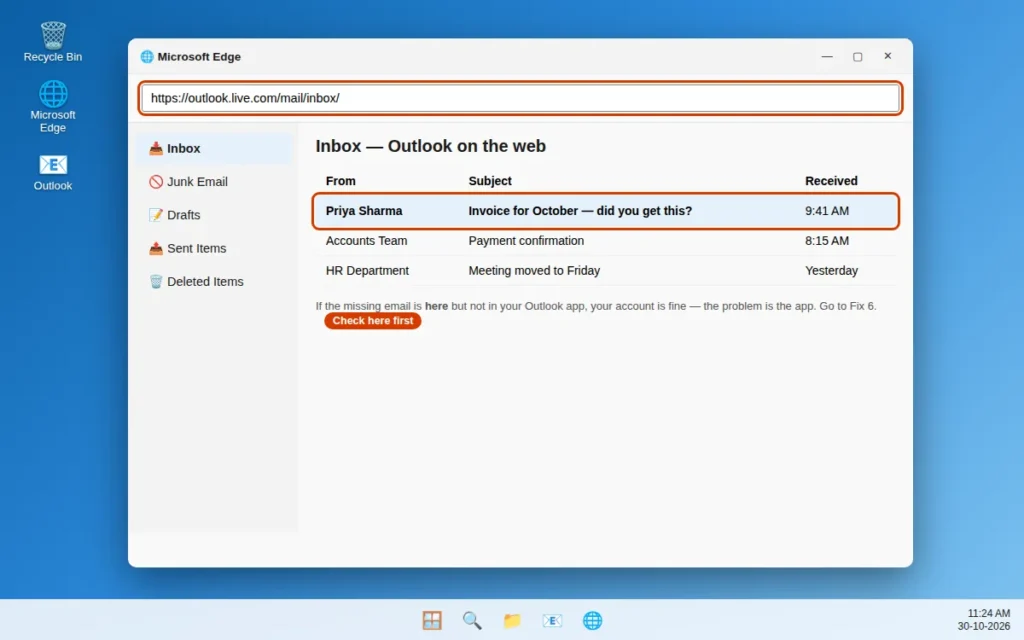
Reading the result:
- On the web but not in the app: your account is fine. Skip to Fix 6 and work down.
- Not on the web either: the problem is at account level. Continue with Fix 2.
Fix 2: Check Junk Email and the Focused Inbox “Other” Tab
This sounds obvious, but it is the most common answer. The Junk filter and Focused Inbox both move mail out of the inbox you are staring at, without telling you.
- Open the Junk Email folder and look for the missing messages. Junk is kept for 30 days, so recent mail should be there.
- If you use Focused Inbox, click the Other tab at the top of your inbox — newsletters and automated mail land there, and occasionally a real sender does too.
- Found a genuine email in Junk? Right-click it and choose Junk > Not junk (New Outlook app: Report > Not junk). This moves it back and teaches the filter.
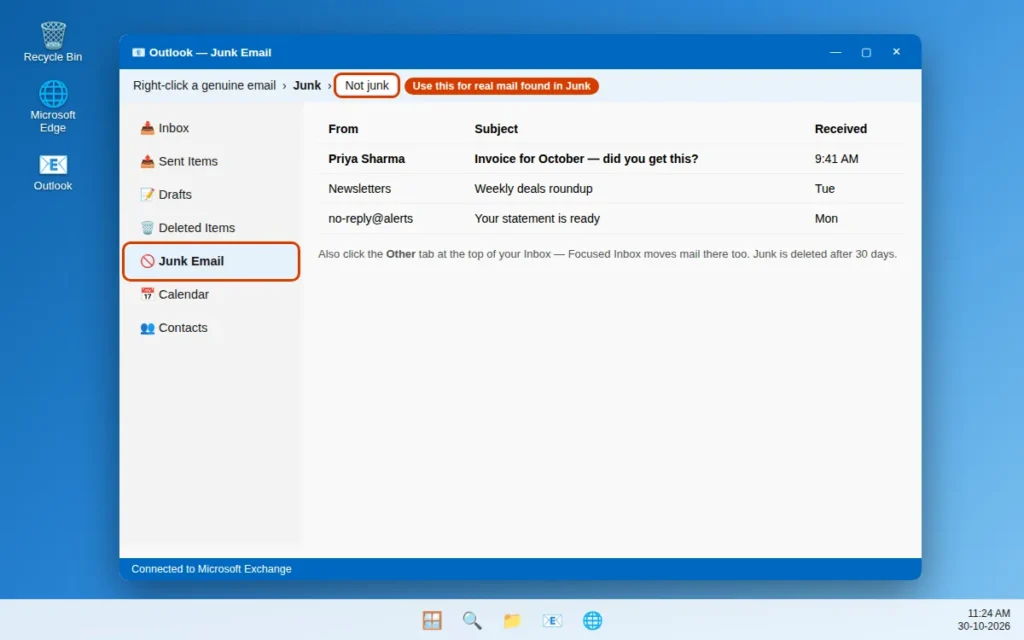
Also check Deleted Items — Fix 3 explains why mail lands there without you deleting it.
Fix 3: Check Your Rules and Filters
Rules run automatically on every incoming message. One old rule — created years ago, or during a previous tidy-up — can quietly move or even delete mail.
In Outlook on the web (these server rules affect every device):
- Click the Settings gear icon, then Mail > Rules.
- Review every rule, especially broad ones that move, forward or delete messages based on words in the subject.
- Delete any suspicious rule, or uncheck it to disable it and test first.
In Classic Outlook: go to File > Manage Rules & Alerts and review the list the same way. In the New Outlook app: Settings > Mail > Rules.
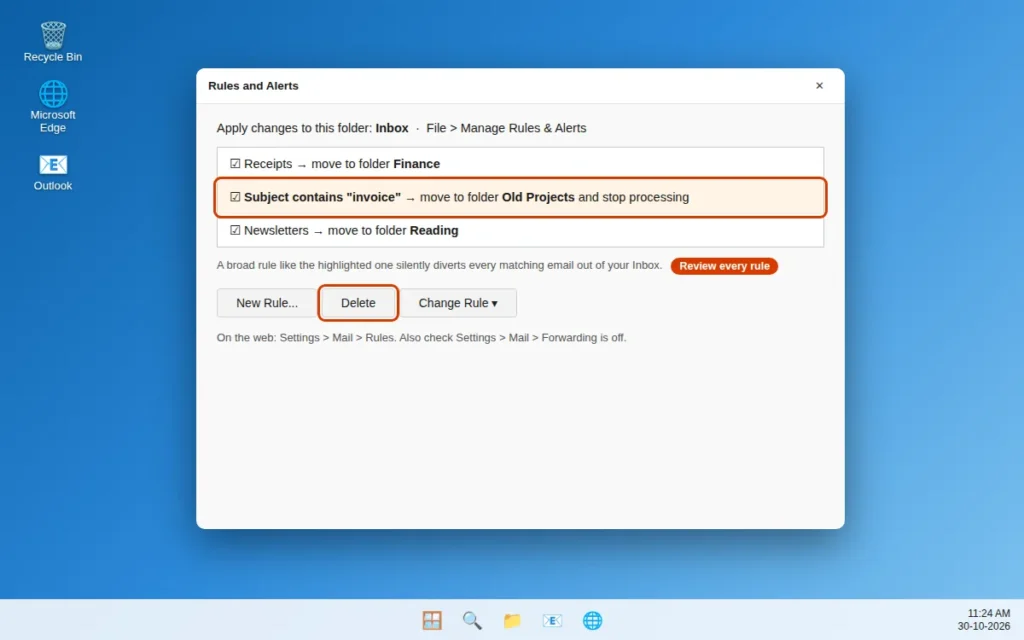
Also check Settings > Mail > Forwarding on the web. If forwarding is on and you did not set it up, turn it off and change your password immediately — it is a classic sign of a compromised account.
Fix 4: Check Blocked Senders and Safe Senders
If mail from one person never arrives while everyone else’s does, that sender is probably on your blocked list — easier to do by accident than you would think. Their messages go to Junk or are deleted unseen.
- On the web, open Settings > Mail > Junk email.
- Under Blocked senders and domains, look for the sender’s address or domain.
- Select the entry and click the delete (trash) icon to remove it.
- Add their address under Safe senders and domains on the same page.
- Ask the sender to resend — already-rejected mail is not delivered again automatically.
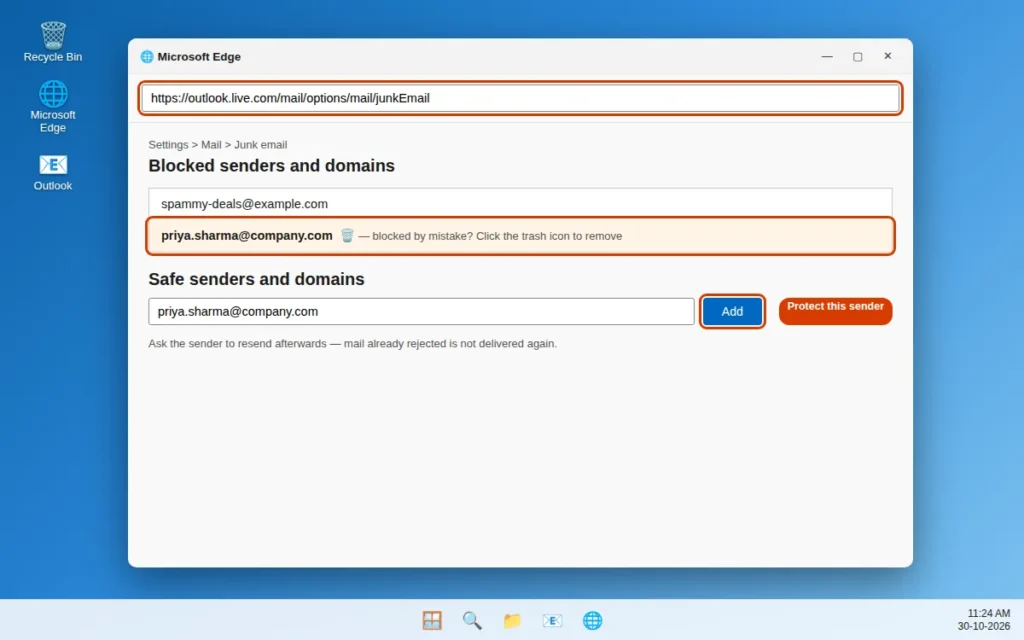
In Classic Outlook, the same lists are under Home > Junk > Junk Email Options; in the New Outlook app, Settings > Mail > Junk email.
Fix 5: Free Up Space When Your Mailbox Is Full
When an Outlook.com or Microsoft 365 mailbox is full, the server cannot accept new mail. Senders may get a “mailbox full” bounce — or the mail fails silently.
- On the web, open Settings > General > Storage to see your usage.
- Near the limit? Empty Deleted Items and Junk Email first (right-click the folder, choose Empty folder), then sort your inbox by size and delete or archive messages with huge attachments.
- Check overall Microsoft storage too — an over-limit OneDrive can block email storage.
- Once space is free, new mail arrives again. Bounced mail must usually be resent.
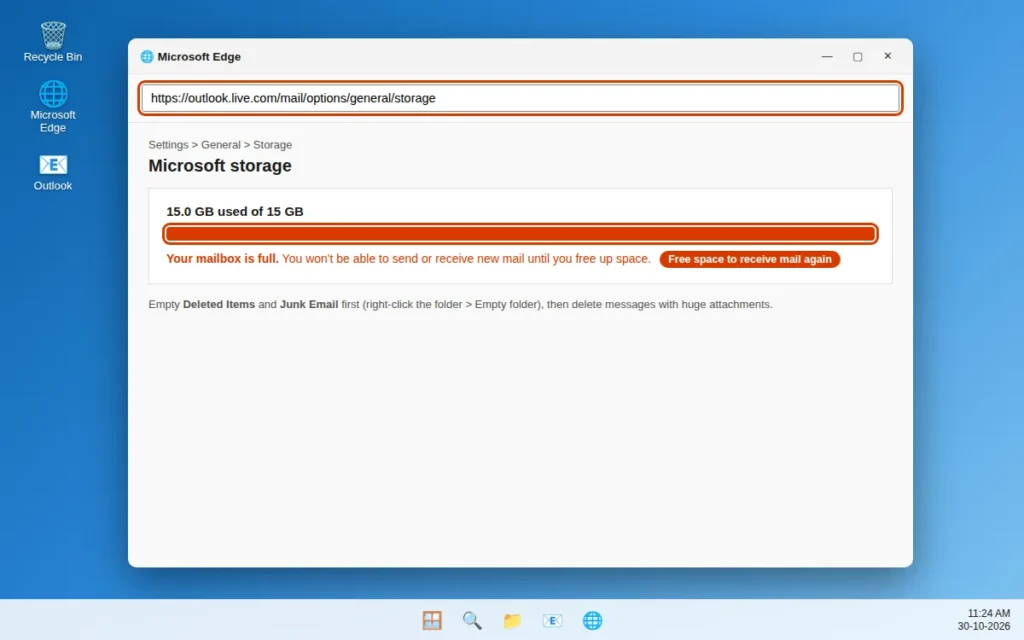
Fix 6: Turn Off Work Offline Mode
Classic Outlook has an offline mode designed for working on a plane. If it gets switched on accidentally, Outlook stops contacting the server completely — the only clue is a small “Working Offline” note in the status bar.
In Classic Outlook:
- Look at the status bar at the bottom. If it says Working Offline or Disconnected, that is your problem.
- Go to the Send / Receive tab and click Work Offline so it is no longer highlighted.
- The status bar should change to Connected, and mail should start downloading.
In the New Outlook app: there is no Work Offline button. If you see an offline notice, restart the app and re-check your connection (Fix 1).
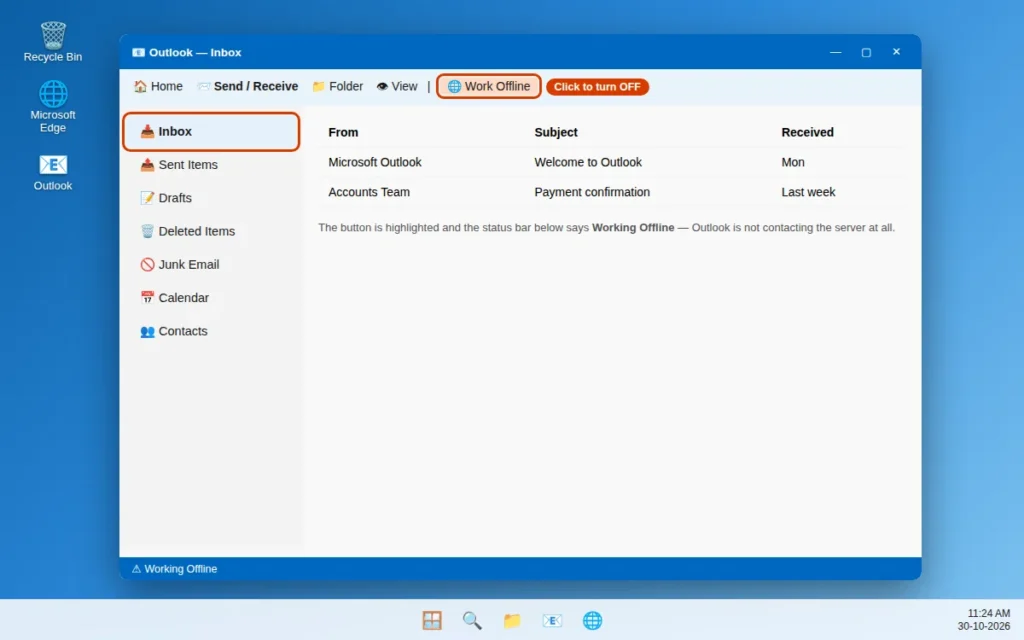
Fix 7: Force a Send/Receive and Check Its Settings
Sometimes automatic checking gets stuck — paused after an error, or frozen on one large message. A manual Send/Receive forces Outlook to contact the server now.
- Press F9 (Classic Outlook) or click Send / Receive > Send/Receive All Folders. In the New Outlook app, click the Sync (refresh) icon above the inbox.
- Watch the status bar. A password prompt usually means the saved password is out of date — enter the current one, and note any error code.
- In Classic Outlook, check the schedule: press Ctrl + Alt + S, select your group, and make sure Schedule an automatic send/receive every is ticked (15–30 minutes is sensible) and Disable scheduled send/receive is NOT.
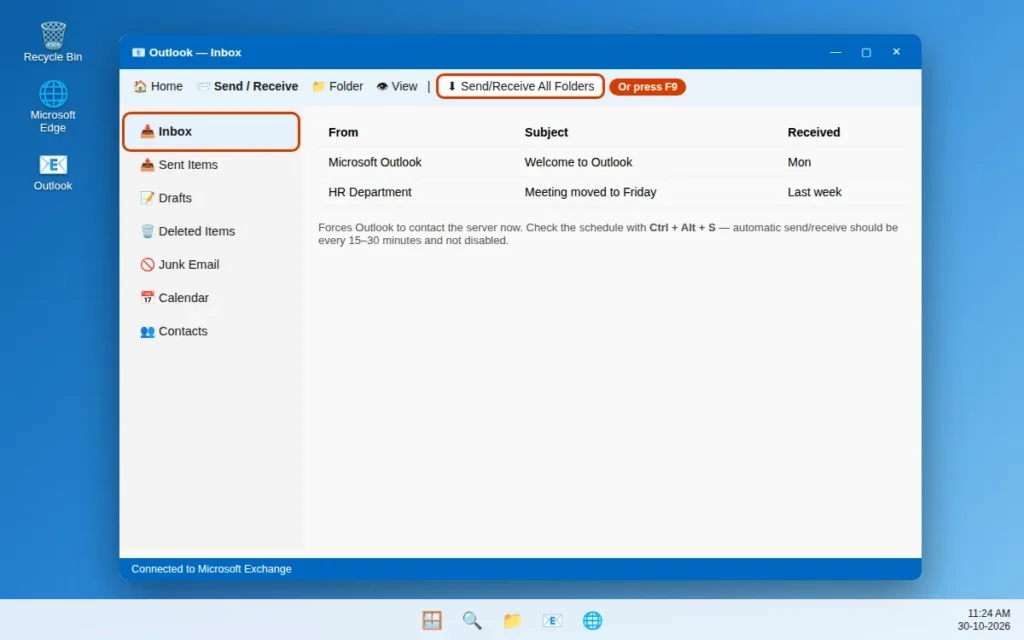
A huge outgoing email stuck in your Outbox can also block the whole cycle. Move it to Drafts, then press F9 again.
Fix 8: Rebuild the Cache (.ost) File for Sync Problems
For Microsoft 365, Outlook.com and IMAP accounts, Outlook displays a local copy of your mailbox stored in an .ost file. If it is damaged, Outlook can look empty or frozen while the server holds all your mail — exactly what Fix 1’s web test reveals.
- Close Outlook completely.
- Press Windows key + R, type
%localappdata%\Microsoft\Outlookand press Enter. - Find your account’s .ost file, right-click it and rename it to add
.bak(for examplename.ost.bak). Renaming keeps a backup — do not delete it yet. - Reopen Outlook. It creates a fresh .ost and re-downloads your mailbox — on a large mailbox, let it finish before judging the result.
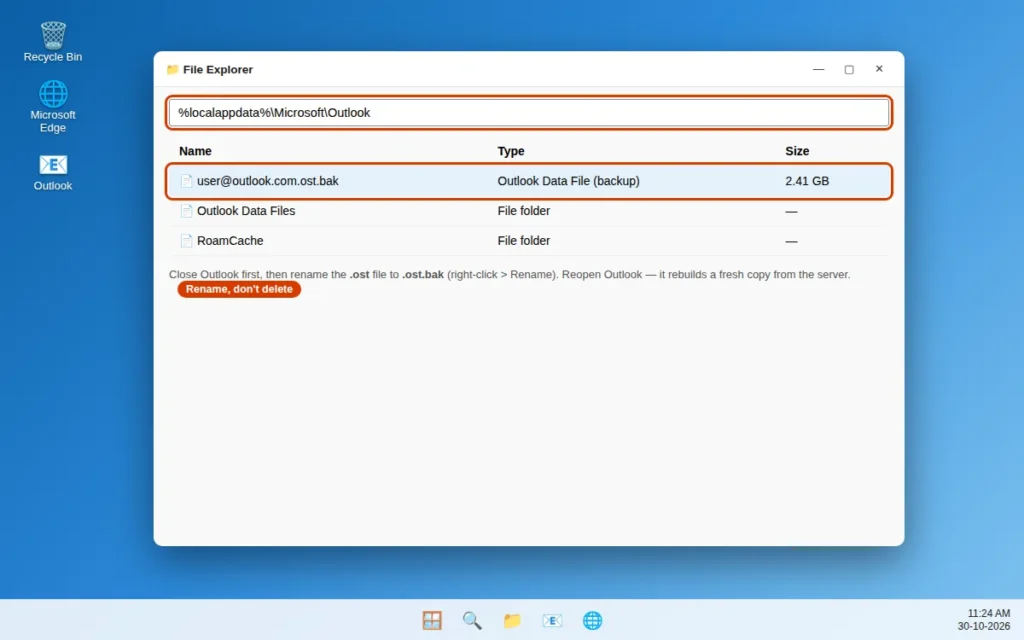
For the New Outlook app, the equivalent is: Settings > Apps > Installed apps > Outlook (New) > Advanced options > Repair, then Reset if Repair is not enough. Your mail is on the server, so neither deletes it. If Outlook will not even open, follow our guide to fixing Outlook not opening on Windows 11 first.
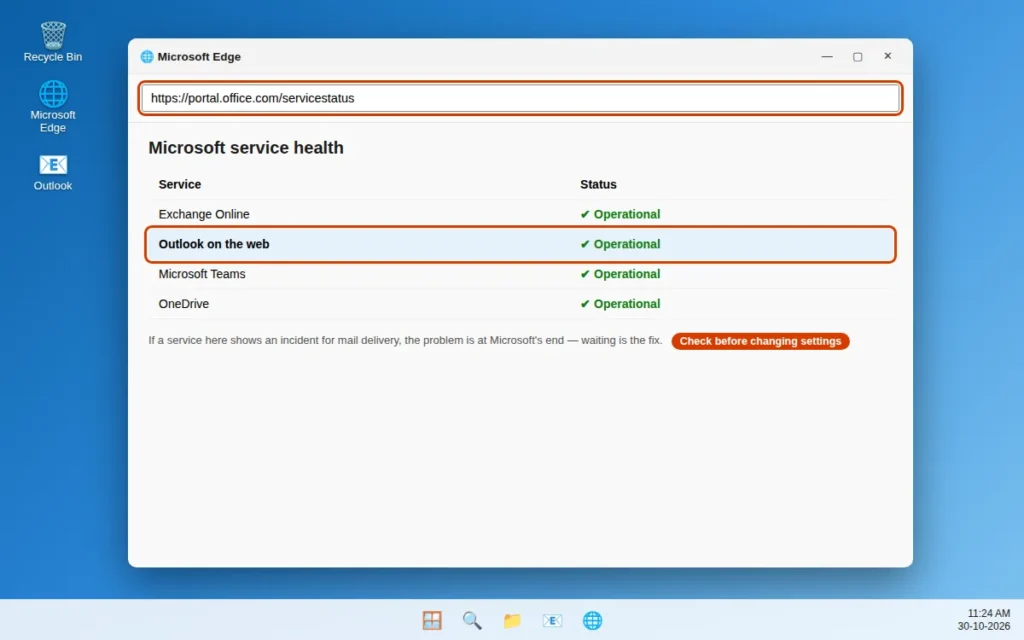
Fix 9: Check Whether Microsoft’s Service Is Down
If mail is missing on the web and your storage, rules and blocked list are all clean, the problem may not be yours. During an Outlook.com or Microsoft 365 outage, incoming mail is delayed until service is restored.
- Open Microsoft’s service status page at portal.office.com/servicestatus, or check the Microsoft 365 Status account on X for live incident posts.
- Look for an active incident mentioning Exchange, Outlook, or mail delivery delays.
- If there is one, there is nothing to fix on your PC — mail is normally delivered once the incident ends, so wait and check back.
Fix 10: Remove and Re-Add the Account, or Create a New Profile
If mail arrives on the web, your mailbox has space, and the cache rebuild did not help, the account settings inside Outlook are likely damaged. Re-adding the account rebuilds the connection from scratch. Mail stays on the server — but for POP accounts, back up the local .pst file first, as POP mail may exist only on this PC.
Remove and re-add (works in both apps):
- Classic Outlook: File > Account Settings > Account Settings. New Outlook app: Settings > Accounts.
- Select the problem account and choose Remove (Classic) or Manage > Remove (New Outlook).
- Restart Outlook, add the account back with File > Add Account or Settings > Accounts > Add account, and sign in.
- Allow time for the first sync to complete before testing.
Or create a new Classic Outlook profile (the old one stays intact):
- Open Control Panel > Mail (Microsoft Outlook) > Show Profiles > Add.
- Name it, add your account, set Always use this profile to the new one, and click Apply.
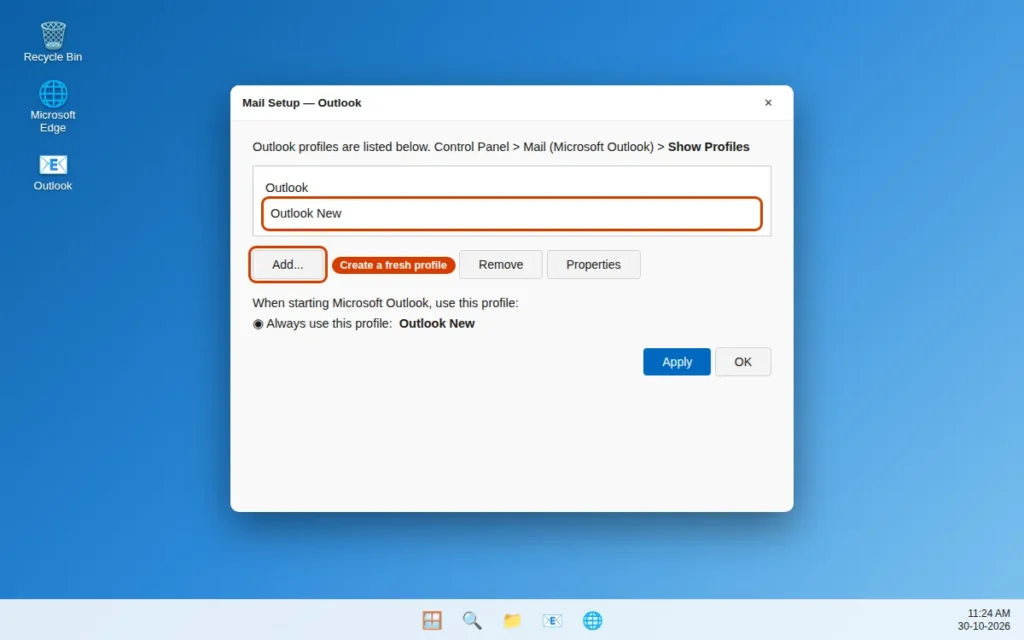
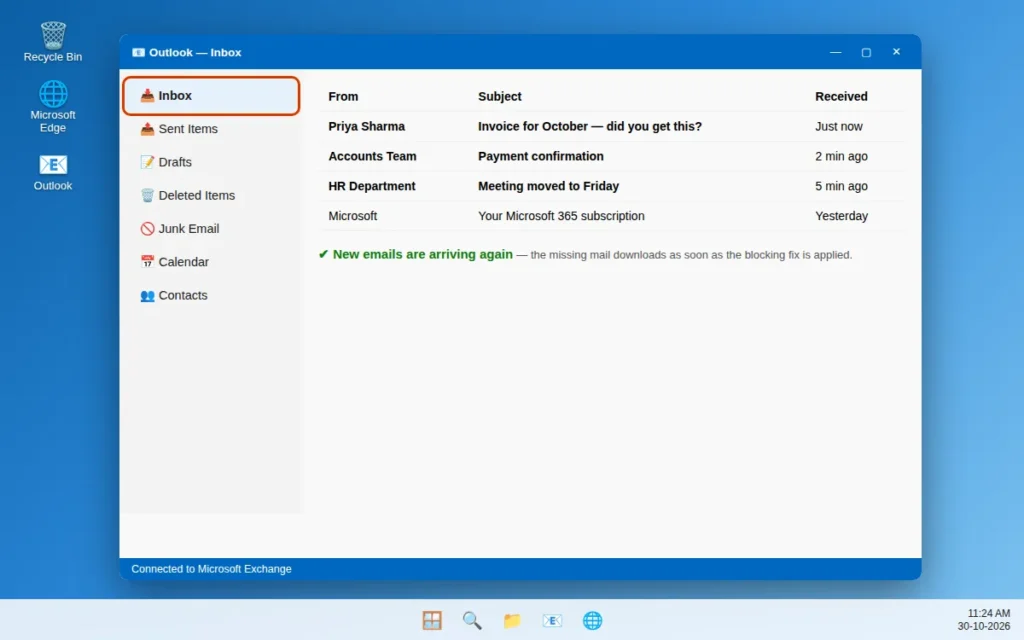
If a fresh profile still receives nothing, the problem is account-side — contact your email provider or Microsoft support with your Fix 1 web-test result.
How to Stop Emails From Going Missing Again
- Check Junk weekly, and mark genuine mail as Not junk so the filter learns. Junk is deleted after 30 days.
- Watch your storage. Delete large attachments regularly and empty Deleted Items.
- Review your rules after any change. After creating a rule, send yourself test emails to confirm nothing is diverted.
- Keep Outlook updated, and do not dismiss repeated password prompts — a stale password warns sync is about to stop.
- Remember the web test. If the app looks wrong, one minute at outlook.com shows whether your mail is safe on the server.
Frequently Asked Questions
Why is Outlook receiving some emails but not others?
That pattern points to filtering, not a connection problem. Check Junk and the Other tab (Fix 2), rules (Fix 3), then blocked senders (Fix 4) — one of them treats certain senders differently. Automated mail is caught most often.
Why am I not receiving emails from Gmail or Yahoo senders?
Usually one of three things: your mailbox was full when they sent (Gmail and Yahoo tell the sender it bounced — ask for a resend after Fix 5), their messages land in Junk because the filter treats external mail cautiously (Fixes 2 and 4), or your organisation’s spam policy is stricter for outside domains. A bounce message’s wording — “mailbox full”, “message blocked” — names the exact reason.
My emails arrive hours late. What causes that?
Delayed delivery is usually a stuck or slow sync, not lost mail. Press F9 (Fix 7), confirm Work Offline is off (Fix 6), and rebuild the .ost cache if it recurs (Fix 8). A near-full mailbox can also process mail slowly.
Will rebuilding the .ost file or re-adding my account delete my emails?
No — for Microsoft 365, Outlook.com, Gmail and other IMAP accounts, mail lives on the server; Outlook downloads a fresh copy. The exception is old POP accounts, where mail may exist only in a local .pst file. Back that up first.
How do I check if Outlook is down for everyone?
Open portal.office.com/servicestatus, or try Outlook on the web — if the web version has no new mail either and your mailbox is not full, it is likely a service issue. Mail is usually delivered once service is restored.
Emails show on my phone but not in Outlook on my PC. Why?
Your account is fine — the phone uses a separate, working connection. The fault is inside the PC app: turn off Work Offline (Fix 6), force a Send/Receive (Fix 7), and if that fails rebuild the .ost cache (Fix 8). These three resolve almost every app-only case.
Why did Outlook suddenly stop receiving emails after an update?
An interrupted update can damage account settings or the cache. Restart your PC to let it finish, then run the web test (Fix 1). Mail on the web? Rebuild the .ost file (Fix 8). Missing everywhere? Re-add the account (Fix 10).
Still stuck? Tell us what the web test in Fix 1 showed — mail present on the web, or missing there too — on our Contact page or at servicedesk@howtofixerroronline.com, available 24 hours. That detail tells us which half of this guide applies to you. See our Outlook Errors category for more guides.
Leave a Reply