
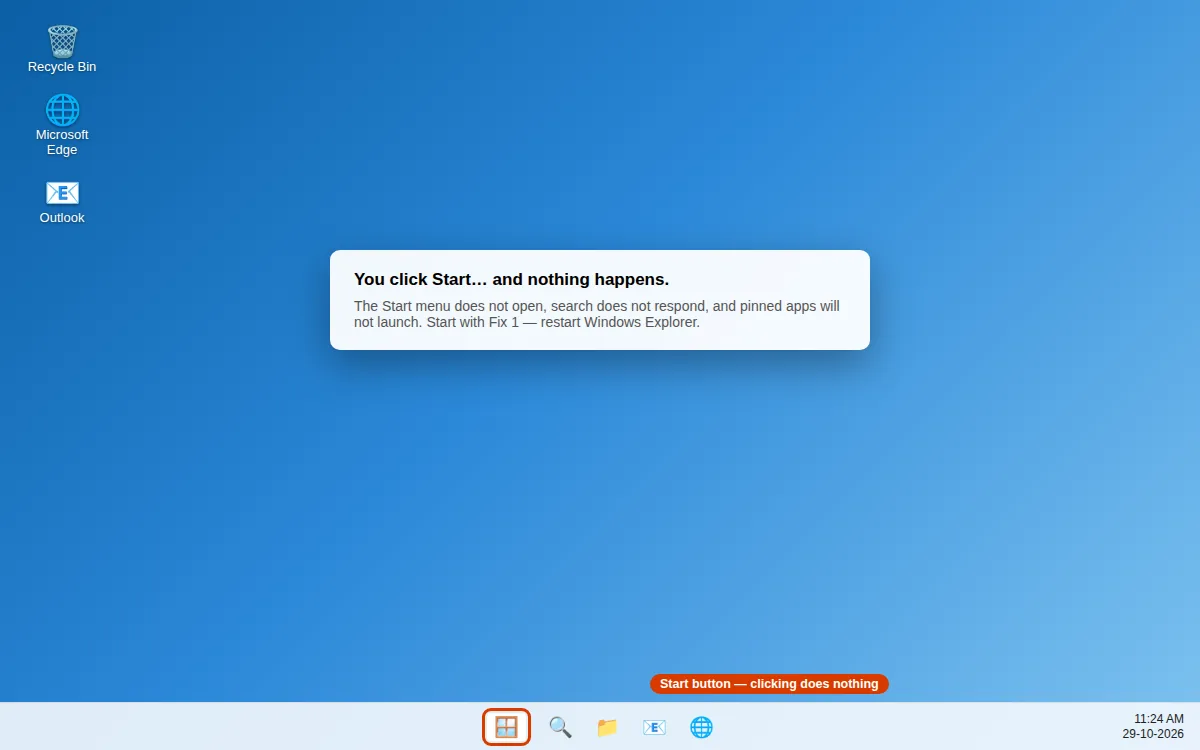
You click the Start button and nothing happens. Or the Start menu opens but freezes, search does not respond, and pinned apps will not launch. Without Start, you cannot easily open apps, search for files, or even shut your PC down properly — so this problem feels much bigger than it is.
The good news is that the Start menu rarely breaks permanently. A stuck Windows Explorer process, a damaged system file, a failed update, or a corrupt user profile is usually behind it, and each can be fixed without reinstalling Windows or losing your files.
Work through these fixes in order, from a 30-second Explorer restart up to System Restore. Every fix works even when Start itself will not open — each starts with a shortcut or alternative route that does not depend on Start.
Quick Answer: First, press Ctrl + Shift + Esc, find Windows Explorer in Task Manager, and click Restart. If that does not fix it, restart your PC, install any pending Windows updates, then run
sfc /scannowand the DISM restore-health command in an admin Command Prompt. If the Start menu works in a new user account, your old profile is corrupt. As an advanced fix, re-register the Start menu packages in admin PowerShell with the Get-AppxPackage commands shown in Fix 8.
Why Is the Windows 11 Start Menu Not Working?
The Start menu in Windows 11 is a separate app package (StartMenuExperienceHost) that runs on top of Windows Explorer and the Windows Search service. When any part of that chain gets stuck or damaged, Start stops responding. The usual causes are:
- Windows Explorer has frozen. Explorer controls the taskbar and Start, so if it hangs, clicks do nothing.
- A Windows update finished badly, or is still pending a restart.
- Corrupt system files that stop Start and search components from loading.
- The Windows Search service is stuck. Start and search are linked, so a broken index can freeze the whole menu.
- A corrupt user profile. If only your account is affected, your profile’s Start layout files may be damaged.
- A background app is interfering — antivirus tools, old taskbar customisation apps and shell extensions are common culprits.
- The Start packages need re-registering after an update or file damage.
A quick test before you start: Press the Windows key. If the menu opens with the key but not a mouse click, the problem is usually Explorer or the taskbar. If neither works, continue with Fix 1.
Use this rule as you go: if Start works in a brand-new account, your profile is the problem (Fix 7). If it fails everywhere, the damage is system-wide — focus on Fixes 4, 5, 8 and 10.
Fix 1: Restart Windows Explorer in Task Manager
Windows Explorer draws the taskbar, desktop and Start button. Restarting it takes about 30 seconds, does not sign you out, and fixes a stuck Start menu more often than any other step here.
- Press Ctrl + Shift + Esc to open Task Manager. If it opens compact, click More details.
- In the Processes tab, scroll to Windows Explorer.
- Select it and click Restart (the button appears at the top once a restartable process is selected).
- The taskbar and desktop icons will vanish for a few seconds and return. This is normal.
- Click Start and test the menu.
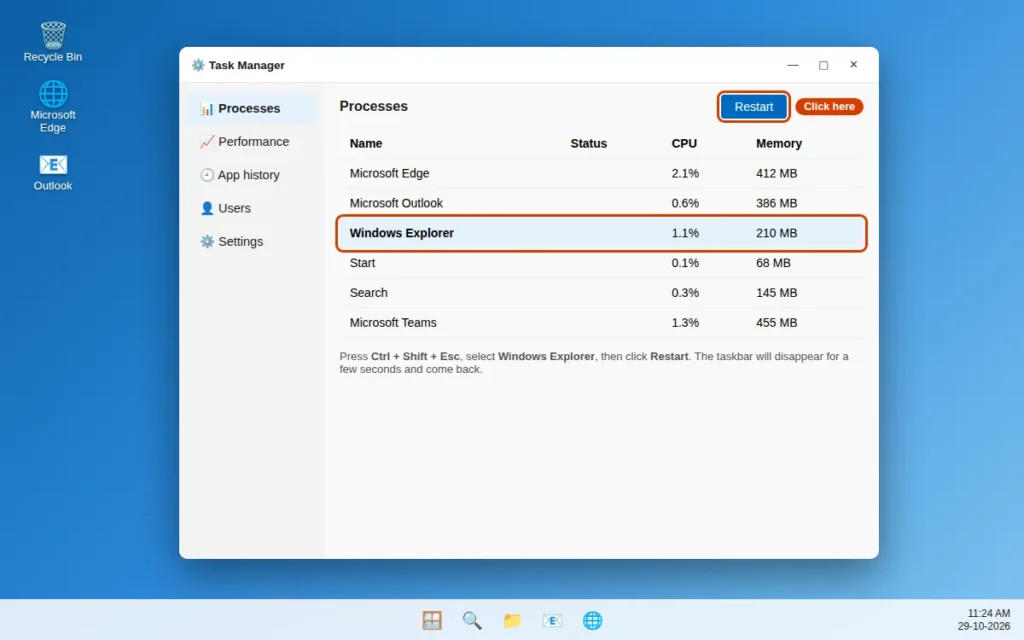
If Windows Explorer is not listed, click Run new task in Task Manager, type explorer.exe, and press Enter. If Start still does not respond after Explorer restarts, move on to a full PC restart.
Fix 2: Restart Your PC (Without Using the Start Menu)
A real restart clears stuck services and completes updates that a shutdown may skip, because Fast Startup can reload the same broken state. Since Start is not working, use this route instead:
- Press Ctrl + Alt + Delete.
- Click the Power icon in the bottom-right corner of the screen.
- Choose Restart — not Shut down.
- After the PC starts again, wait a full minute for background services to load, then test Start.
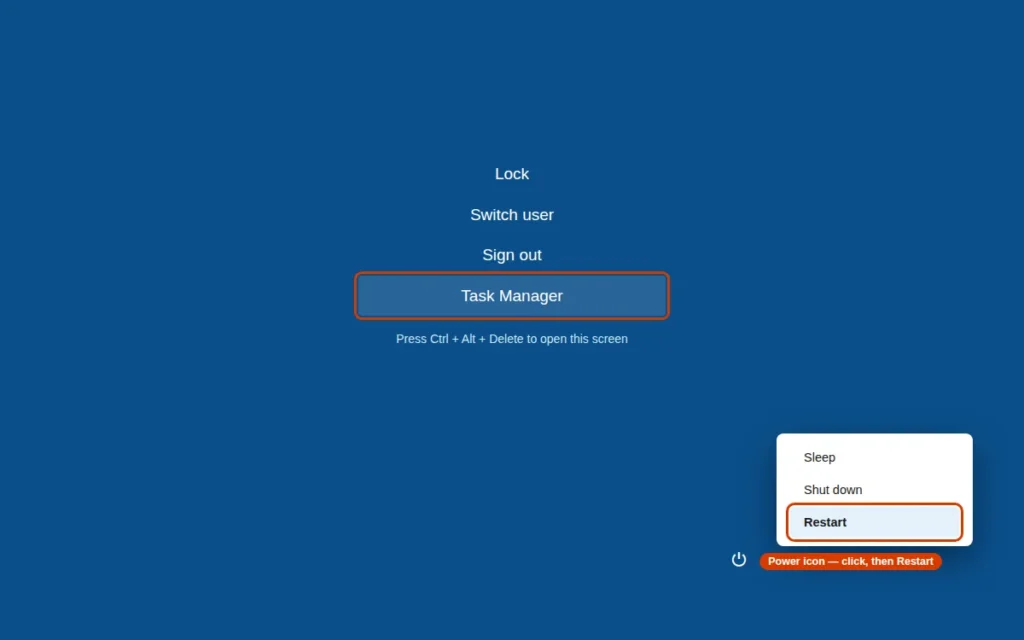
You can also press Alt + F4 on the desktop and choose Restart from the Shut Down Windows box. If Start works after restarting but breaks again within a day, a pending update or background app is likely re-breaking it — continue with Fixes 3 and 9.
Fix 3: Install Pending Windows Updates
Start menu failures very often follow a half-installed update, and Microsoft ships Start and search fixes through Windows Update. Installing everything pending rules out a whole category of causes.
- Press Windows key + I to open Settings directly — this shortcut works even when Start does not.
- Go to Windows Update.
- Click Check for updates and install everything offered.
- If you see Restart required, restart from that screen so the update finishes installing.
- After restarting, open Windows Update once more and check again — some updates only appear after earlier ones finish.
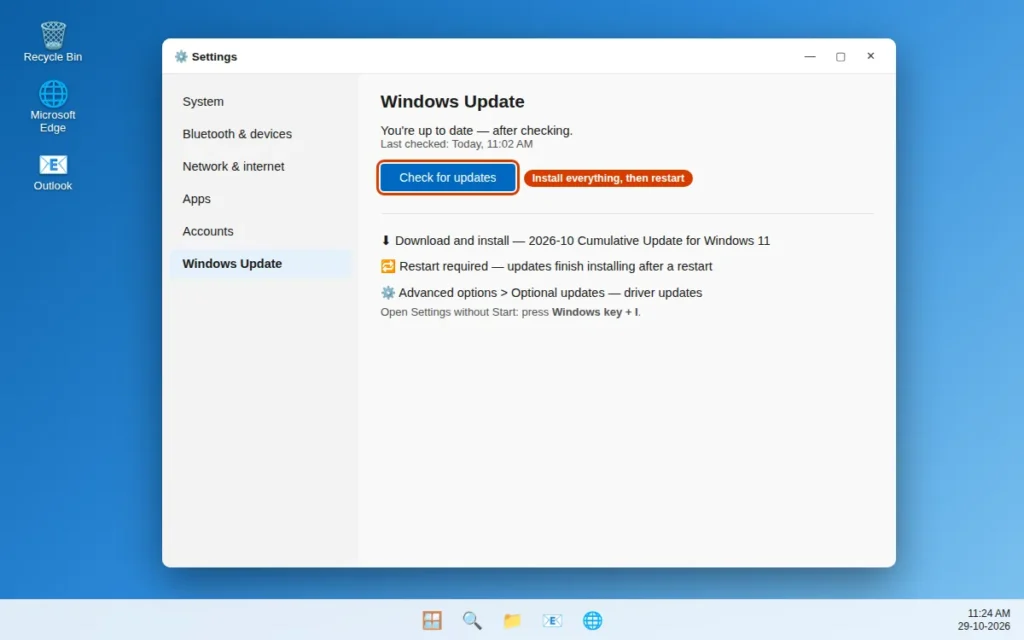
While you are there, check Advanced options > Optional updates for display driver updates — a faulty graphics driver can make the Start menu render incorrectly or appear frozen.
Fix 4: Run System File Checker (SFC)
If core Windows files are damaged, the components Start depends on may fail to load. System File Checker scans protected system files and replaces damaged copies from a backup — it is built into Windows, nothing to download.
- Press Ctrl + Shift + Esc to open Task Manager.
- Click Run new task, type
cmd, tick Create this task with administrative privileges, and click OK. (Use Task Manager for this while Start is broken.) - In the black Command Prompt window, type
sfc /scannowand press Enter. - Wait for the scan to reach 100%. It usually takes 10–20 minutes. Do not close the window early.
- Restart your PC and test the Start menu.
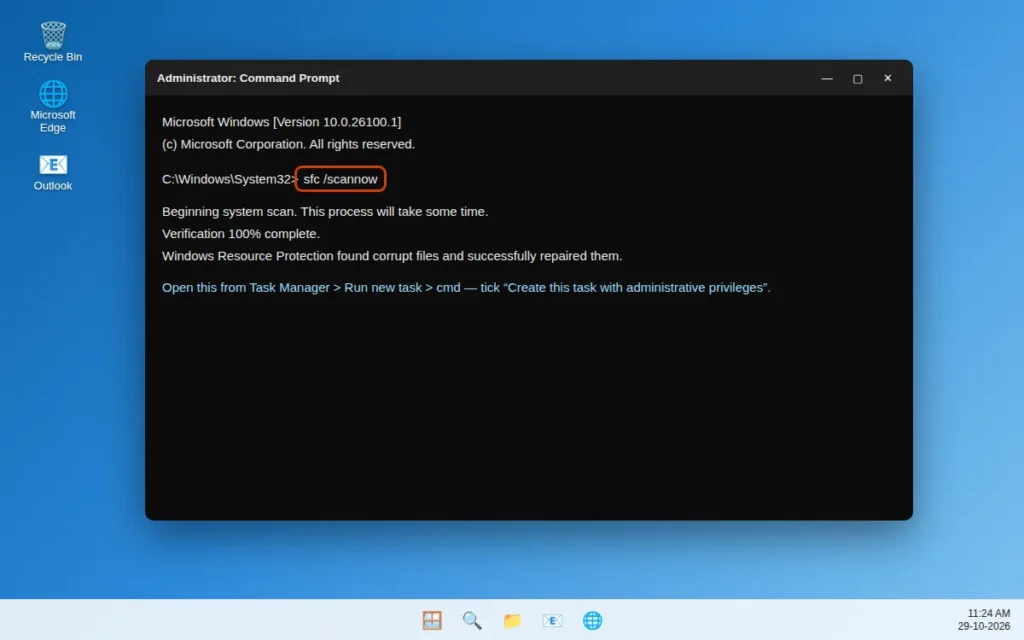
If SFC reports that it “found corrupt files and successfully repaired them”, that was very likely your problem. If it reports corrupt files it could not fix, continue straight to Fix 5 — DISM repairs the backup store that SFC relies on.
Fix 5: Run the DISM Restore-Health Command
DISM (Deployment Image Servicing and Management) repairs the Windows component store itself. When SFC cannot fix files, it is usually because the backup copies are also damaged, and DISM downloads clean replacements from Windows Update.
- Open an admin Command Prompt the same way as in Fix 4 (Task Manager > Run new task >
cmdwith administrative privileges). - Type this command exactly and press Enter:
DISM /Online /Cleanup-Image /RestoreHealth - Stay connected to the internet and wait for 100%. This can take 15–30 minutes and may appear stuck at one percentage — that is normal, do not cancel it.
- When DISM finishes, run
sfc /scannowone more time so it can repair files using the now-healthy store. - Restart your PC and test Start.
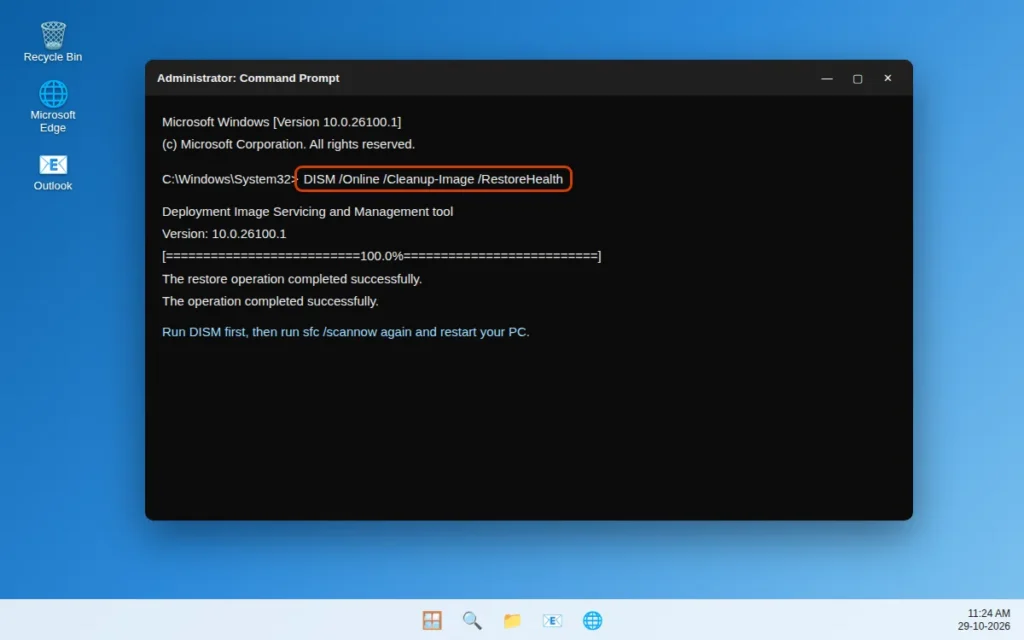
If the Start menu still fails after DISM and a second SFC scan, the issue is more likely a service, package registration or your profile — the next fixes cover each of those.
Fix 6: Restart the Windows Search Service and Rebuild the Search Index
Start and search share components in Windows 11, so if search hangs, Start often hangs with it. Restarting the Windows Search service and rebuilding its index clears a stuck index without touching your files.
Restart the service first:
- Press Windows key + R, type
services.mscand press Enter. - Scroll down to Windows Search.
- Right-click it and choose Restart. If Restart is greyed out, choose Start.
- Double-click Windows Search and confirm Startup type is set to Automatic (Delayed Start), then click OK.
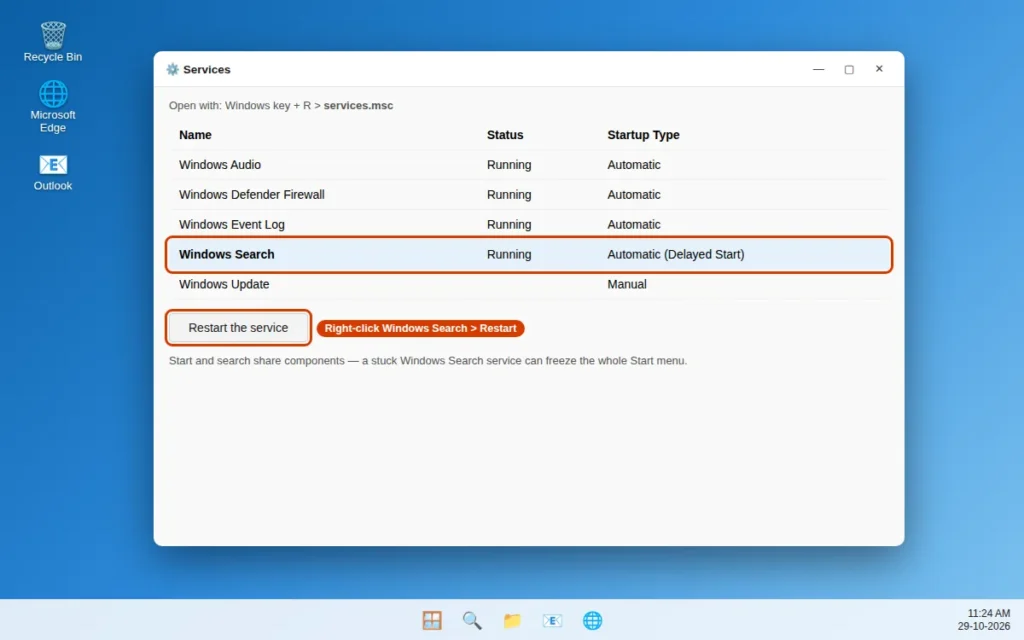
If the menu still freezes when you type, rebuild the index: open Control Panel with control in the Run box, go to Indexing Options > Advanced, and click Rebuild. Search results will be incomplete until it finishes, but Start should respond normally long before that.
Fix 7: Test With a New User Account
This test tells you where the damage lives. A new user account gets a fresh Start layout and profile files. If Start works there, your original profile is corrupt — and no system repair fixes profile-level damage.
- Press Windows key + I to open Settings.
- Go to Accounts > Other users.
- Click Add account. Choose I don’t have this person’s sign-in information, then Add a user without a Microsoft account, and create a local account with any name, such as “Test”.
- Sign out of your account, sign in to the new account, and wait a few minutes while Windows sets it up.
- Click Start and test the menu, search and pinned apps.
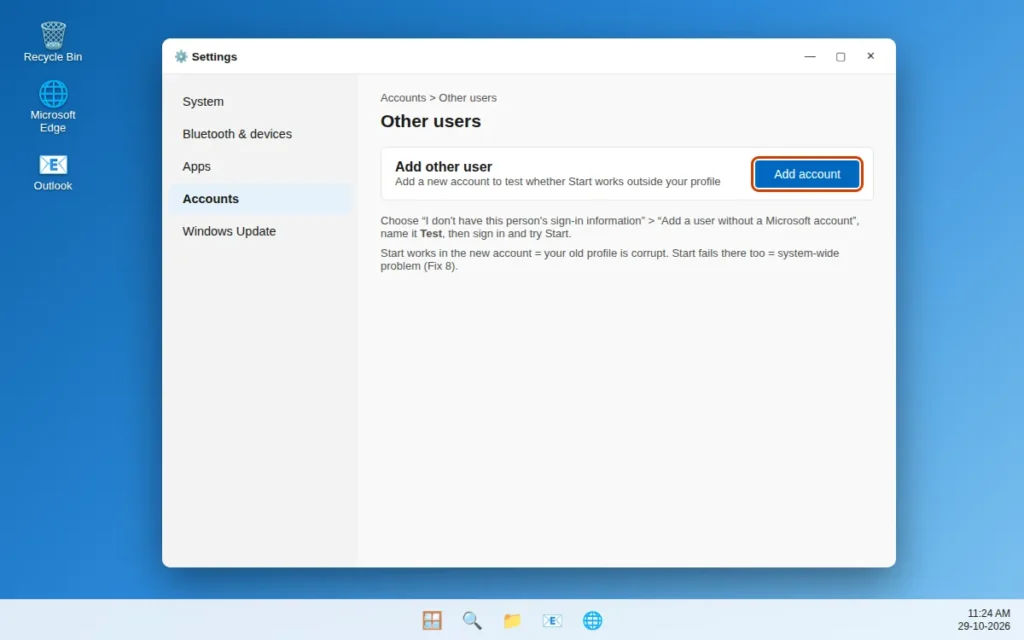
If Start works in the new account: your old profile is corrupt. Keep using the new account and move your documents and photos across from C:\Users\[YourOldName].
If Start fails there too: the problem is system-wide. Return to your normal account and continue with Fix 8.
Fix 8: Re-Register the Start Menu Packages in PowerShell
The Start menu runs as the StartMenuExperienceHost package, supported by ShellExperienceHost. After a bad update these packages can lose their registration, and Start silently stops opening. Re-registering them in PowerShell rebuilds that registration without removing apps or files.
- Press Ctrl + Shift + Esc to open Task Manager.
- Click Run new task, type
powershell, tick Create this task with administrative privileges, and click OK. - Paste this command and press Enter:
Get-AppxPackage -AllUsers Microsoft.Windows.ShellExperienceHost | Foreach {Add-AppxPackage -DisableDevelopmentMode -Register "$($_.InstallLocation)\AppXManifest.xml"} - Then paste this second command and press Enter:
Get-AppxPackage -AllUsers Microsoft.Windows.StartMenuExperienceHost | Foreach {Add-AppxPackage -DisableDevelopmentMode -Register "$($_.InstallLocation)\AppXManifest.xml"} - Red text during the commands is common and usually just progress messages. Wait for the prompt to return, close PowerShell, and restart your PC.
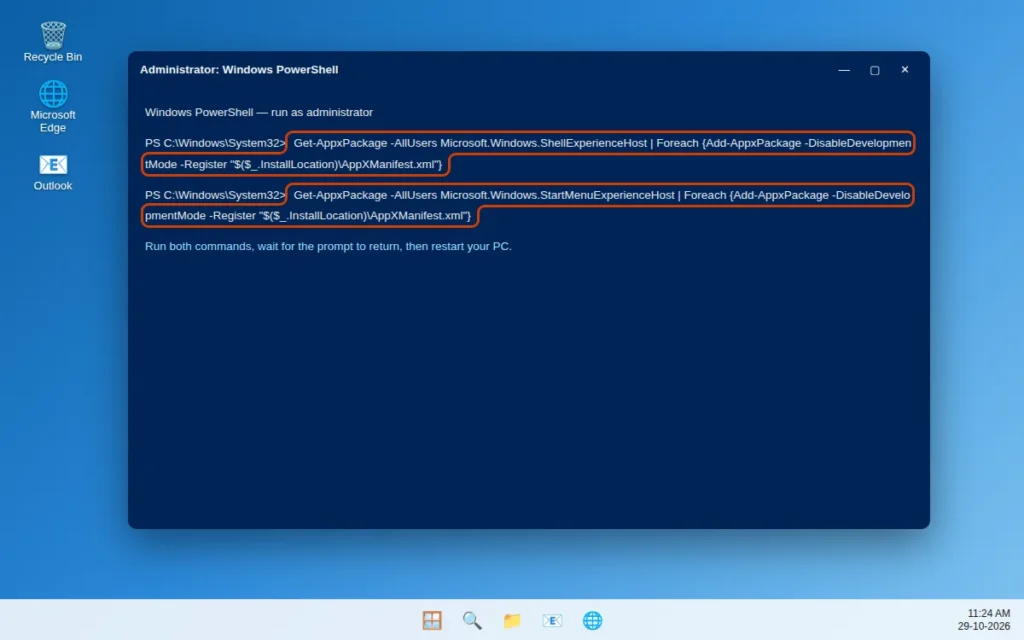
Paste the commands exactly, including -AllUsers — running them without administrator rights is the most common reason this fix appears not to work.
Fix 9: Check for Conflicts With a Clean Boot
If Start worked for a while and then broke again, a third-party service or startup app may be interfering. A clean boot starts Windows with only Microsoft services, which confirms it quickly. This is a test, not a permanent setting.
- Press Windows key + R, type
msconfigand press Enter. - On the Services tab, tick Hide all Microsoft services — this step matters, do not skip it.
- Click Disable all, then go to the Startup tab and click Open Task Manager.
- In Task Manager’s Startup list, disable each enabled app.
- Close Task Manager, click OK in System Configuration, and restart the PC.
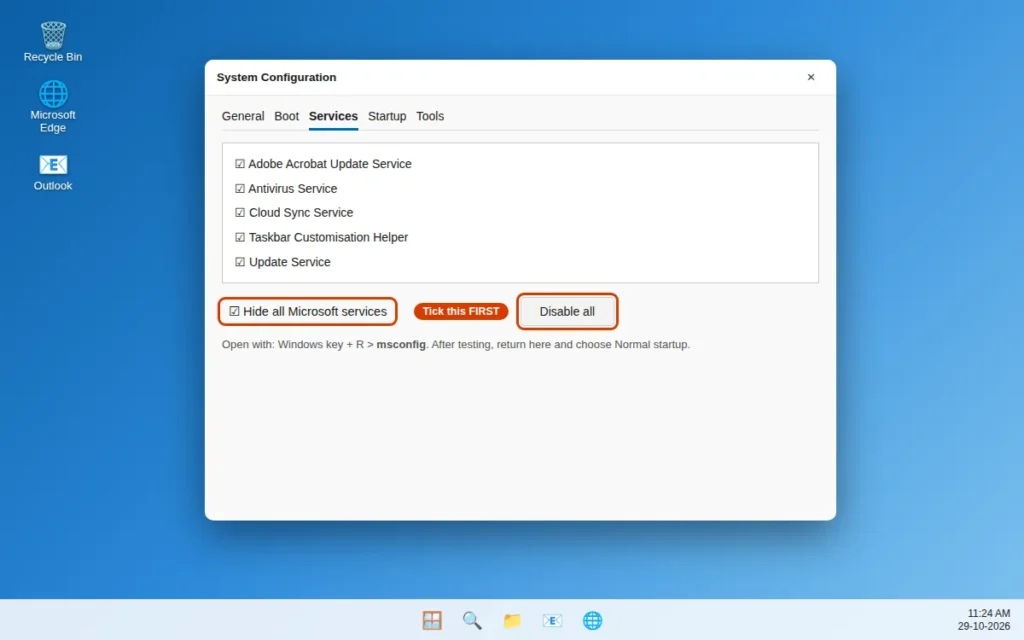
Test Start after the clean boot. If it works, a disabled item is the culprit — old taskbar/Start customisation tools and antivirus extensions are frequent offenders. Re-enable items in small groups, restarting between groups, until Start breaks again; the last group contains the problem app. When finished, open msconfig, choose Normal startup, and restart.
Fix 10: Use System Restore (or Reset the Start Layout)
If Start stopped working on a specific day — typically when an update, driver or new app was installed — System Restore rolls system files and settings back to before that change. It does not delete documents or photos, although apps installed after the restore point may need reinstalling.
- Press Windows key + R, type
rstruiand press Enter. - Click Next and choose a restore point dated before the Start menu broke. Tick Show more restore points if the list is short.
- Use Scan for affected programs to see what will be changed, then click Next > Finish.
- Let the PC restore and restart — do not interrupt it — then test Start.
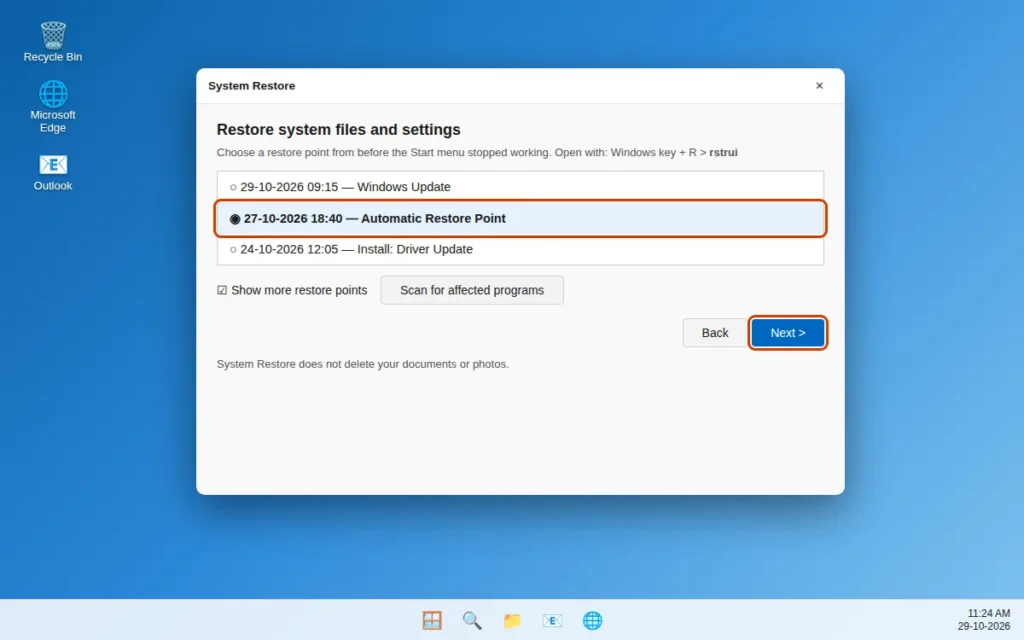
If there is no restore point, the last software option is Settings > System > Recovery > Reset PC with Keep my files. That reinstalls Windows and keeps personal files but removes installed apps, so back up anything essential first and use it only after the other nine fixes.
How to Stop the Start Menu From Breaking Again
- Let updates finish. Do not force-shut the PC during an update, and restart when Windows asks instead of postponing for weeks.
- Restart once a week even if you normally just use sleep. Long uptimes let stuck services build up.
- Be careful with taskbar and Start customisation tools. They hook into the same components this guide repairs, and an update can turn an old version into a conflict.
- Keep System Restore turned on, so Fix 10 is always available.
- Keep a second administrator account. If your profile is ever damaged, a spare account lets you sign in and repair things.
If an app such as Outlook also refuses to open on this PC, our guide to fixing Outlook not opening on Windows 11 covers the app-side causes — stuck processes, Safe Mode tests and profile repairs.
Frequently Asked Questions
Why does my Start button not respond when I click it?
Windows Explorer — the process that draws the taskbar and Start button — has usually frozen, so the click never reaches the Start menu. Restarting Explorer in Task Manager (Fix 1) resolves this more often than any other step. A pending update and corrupt system files are the next most common causes.
How do I open Task Manager if the Start menu is not working?
Press Ctrl + Shift + Esc — it opens Task Manager directly and does not depend on Start. From there you can restart Explorer and use Run new task to open every other tool in this guide.
Will these fixes delete my files or apps?
Fixes 1 to 9 only repair Windows itself and do not delete personal files. System Restore (Fix 10) also keeps personal files, although apps installed after the restore point may be removed. Only the optional Reset PC step removes installed apps, which is why it is the last resort.
Why did my Start menu stop working after a Windows update?
An update can be interrupted, left pending a restart, or can conflict with existing files or third-party taskbar tools. Finishing all pending updates (Fix 3), then running SFC and DISM (Fixes 4 and 5), fixes most post-update cases. If nothing else works, System Restore to a point from before the update is the cleanest rollback.
What does StartMenuExperienceHost do, and is it safe to re-register it?
StartMenuExperienceHost is the built-in Windows process that renders the Start menu. Re-registering it (Fix 8) rebuilds its registration from its own manifest file in your Windows installation — it downloads nothing and does not remove your apps, layout or files.
My Start menu opens but search does not work. What should I try?
Begin with Fix 6: restart the Windows Search service in services.msc, confirm its startup type is Automatic (Delayed Start), and rebuild the search index from Control Panel > Indexing Options > Advanced > Rebuild if typing still freezes.
How do I shut down or restart my PC when Start is broken?
Press Ctrl + Alt + Delete and use the Power icon in the bottom-right corner, or press Alt + F4 on the desktop and choose Restart or Shut down. Avoid holding the physical power button except as a last resort — forced shutdowns can cause the file damage this guide repairs.
Do these fixes work on Windows 10?
Most of them do — Explorer restart, SFC, DISM, updates, a new account and System Restore all exist on Windows 10. Only Fix 8’s package names are Windows 11-specific.
Still stuck? Tell us what happens when you click Start — nothing, a brief flash, or a frozen menu — on our Contact page or at servicedesk@howtofixerroronline.com, available 24 hours. See our Windows Errors category for related guides, including Windows Update and File Explorer problems.
Leave a Reply