
Outlook Error 0x800CCC67: “The Server Responded: 421” — 6 Fixes
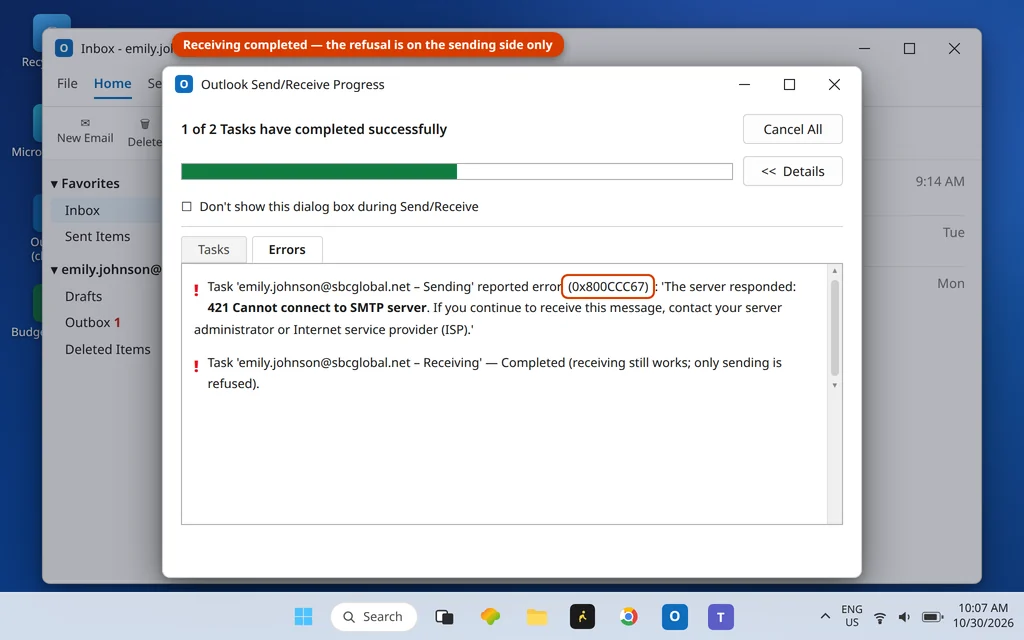
You try to send an email and Outlook fires it straight back with error 0x800CCC67: “The server responded: 421…” Your incoming mail is fine, the message looks fine, but nothing will leave the Outbox. Unlike a dead connection, this error means the mail server answered — it picked up, listened, and then refused the session with a 421 temporary-failure response.
That refusal is not one problem, it is three — and the words after “421” tell you which one you have. Read them first, then jump to the matching fix below. Guessing wastes more time on this code than on almost any other.
This guide is for Classic Outlook on Windows 11 and Windows 10, including Outlook 365 and Outlook 2021/2019. If Outlook will not open at all, start with our Outlook not opening on Windows 11 guide instead.
Quick Answer: Outlook error 0x800CCC67 means your outgoing (SMTP) server refused the sending session with a 421 “temporary failure” reply. If your 421 mentions authentication or just a string of numbers, turn on SMTP authentication (Fix 1) and set the outgoing port to 587 with STARTTLS or 465 with SSL/TLS — never 25 (Fix 2). If your 421 says “Too many messages,” no setting is wrong: you have hit a sending limit, and the fix is to stop and wait (Fix 3).
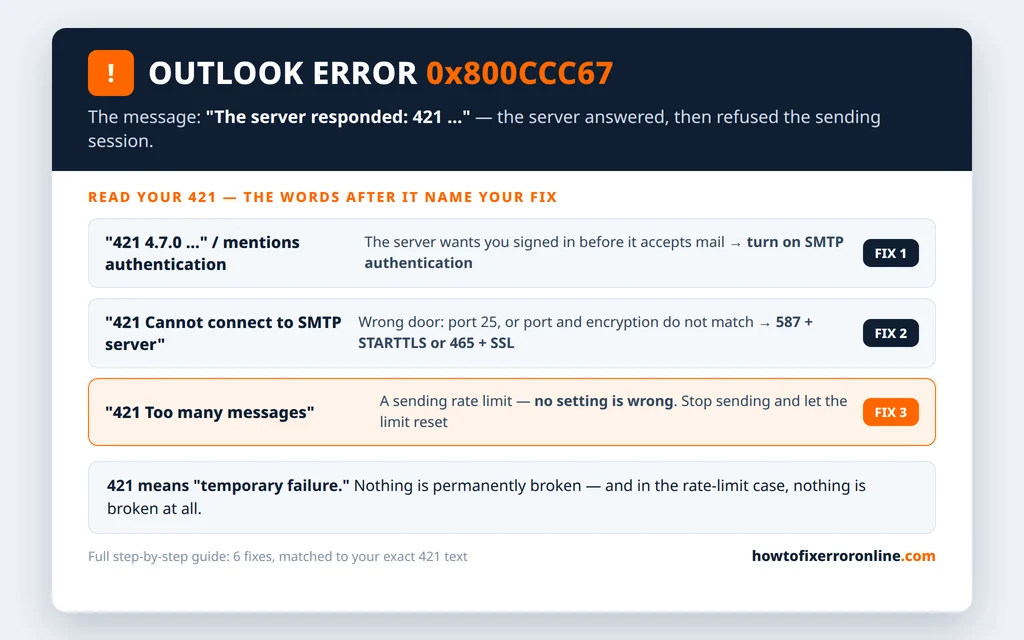
Table of Contents
What Does Outlook Error 0x800CCC67 Mean? Read Your 421 Message
Error 0x800CCC67 appears in the Outlook Send/Receive Progress window, on the Errors tab, in this shape:
“Task ‘account – Sending’ reported error (0x800CCC67): ‘The server responded: 421 …’“
Everything after the 421 is the server explaining itself. The three versions you will actually meet:
| Your 421 text | What it really means | Go to |
|---|---|---|
| “421 4.7.0 …” or a refusal mentioning authentication | The server demands you sign in before it will accept outgoing mail — and Outlook is not signing in | Fix 1 |
| “421 Cannot connect to SMTP server” | The server will not open a sending session on the port/encryption Outlook is using | Fix 2 |
| “421 Too many messages” | You (or your IP address) have sent too much mail too fast — a rate limit, not a settings fault | Fix 3 |
In mail-server language, a 421 reply means “service not available, try again later” — a temporary no. That is the hopeful part of this code: nothing is permanently broken, and in the rate-limit case nothing is broken at all. Work through the fix that matches your 421 text.
Fix 1: Turn On SMTP Authentication
The single most common cause of 0x800CCC67: Outlook is trying to send without signing in to the outgoing server. Years ago many providers allowed that; today almost all of them refuse unauthenticated sending, and 421 is how several of them say it.
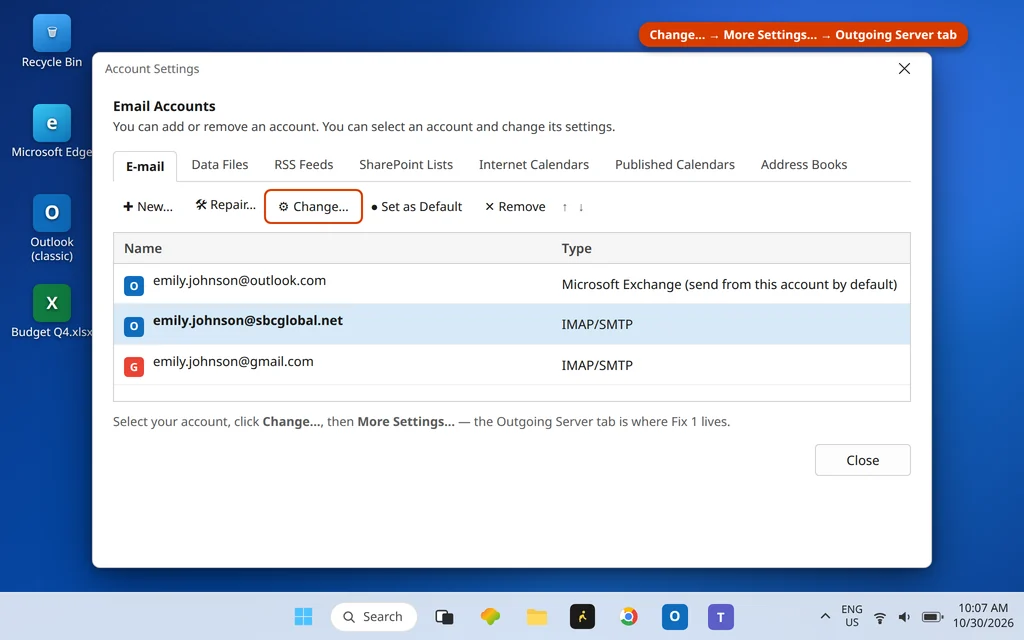
- In Outlook, click File > Account Settings > Account Settings.
- Select your account, click Change…, then More Settings…
- Open the Outgoing Server tab.
- Check “My outgoing server (SMTP) requires authentication”.
- Select “Use same settings as my incoming mail server” — this is correct for nearly every personal and small-business account.
- Click OK, then Next, let Outlook test the account, and send yourself a test email.
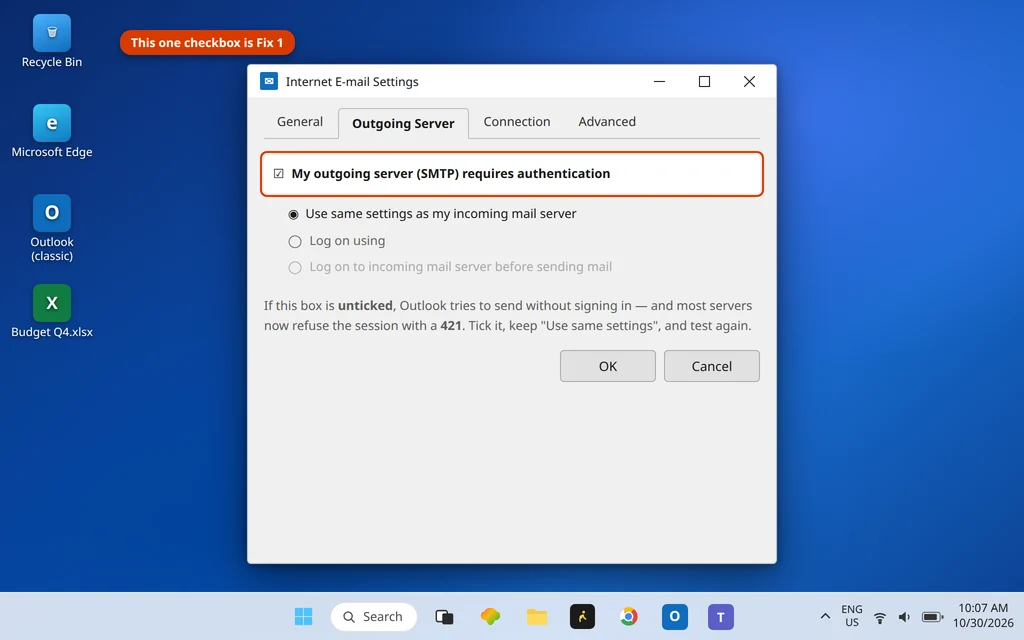
If your provider gave you a different user name for outgoing mail (rare, mostly older business setups), choose “Log on using” and enter those details instead. Everyone else: same settings as incoming.
Fix 2: Fix the SMTP Port and Encryption — 587 or 465, Never 25
If your 421 says “Cannot connect to SMTP server,” the session is being refused because Outlook is knocking on the wrong door. The classic setup behind this: the outgoing port is still 25 — the port internet providers and mail servers increasingly reject outright — or the port and encryption do not match.
- Open File > Account Settings > Account Settings > Change… > More Settings…
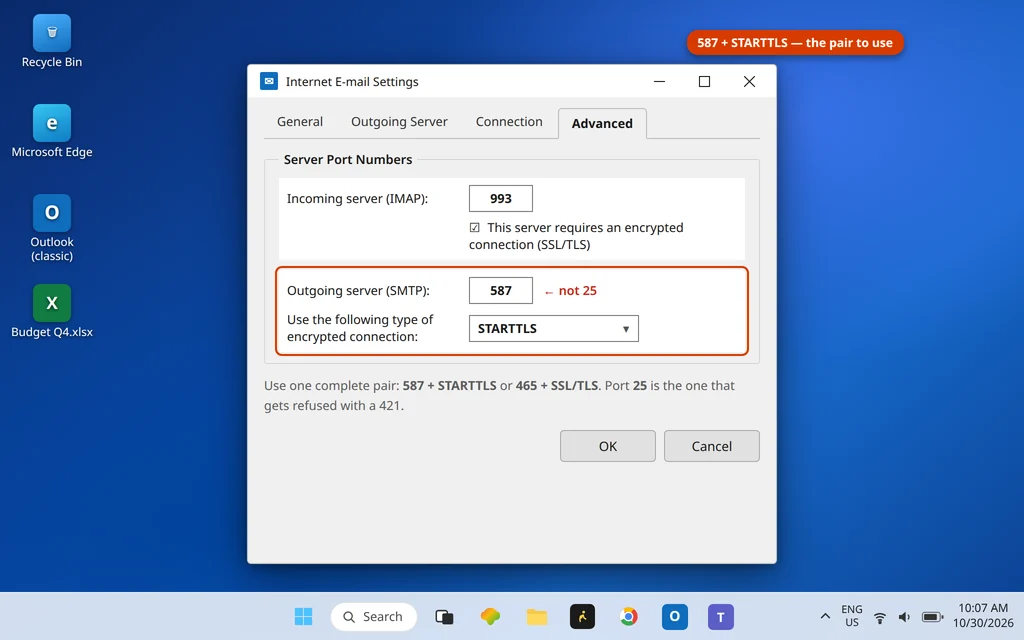
- Open the Advanced tab and set Outgoing server (SMTP) to one complete pair:
- 587 with encryption STARTTLS (also shown as TLS), or
- 465 with encryption SSL/TLS.
- Never mix them: 465 with “TLS” selected, or 587 with SSL, both fail. And port 25 invites exactly this error — the server answers with 421 or refuses the session entirely.
- Click OK > Next and test.
If you are on a provider like Gmail, Yahoo or AT&T, also confirm the outgoing server name while you are in settings (smtp.gmail.com, smtp.mail.yahoo.com, outbound.att.net for AT&T POP accounts) — a wrong name with a 421 is unusual, but a retired name can produce one.
Fix 3: “Too Many Messages”? Wait Out the Sending Limit
If your 421 text says “Too many messages” (sometimes followed by numbers like 2.3.2.3), stop changing settings — nothing is misconfigured. Your provider has decided you are sending too much, too fast: a big mailshot, a burst of messages after a quiet period, or a shared IP address with a bad reputation can all trip it. BT and TalkTalk customers meet this version in support forums regularly, usually mid-way through sending a large batch.
- Stop sending. Every retry while limited can extend the provider’s suspicion window.
- Wait. Most consumer limits reset within a few hours; a full 24 hours is the safe planning figure.
- When you resume, send in smaller batches with pauses between them, rather than one huge burst.
- If you regularly send to large lists, that is a job for a mailing service, not a personal mailbox — providers enforce these limits precisely to stop that pattern.
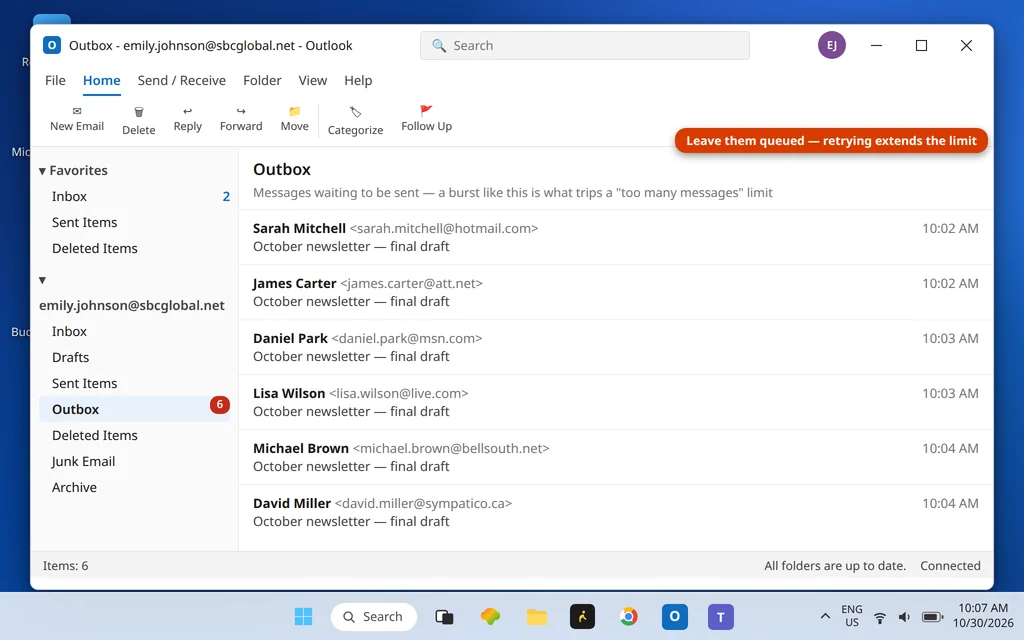
No port change, password reset or repair fixes a rate limit. If the 421 is still there after a full day of not sending, contact your provider — an account-level block may need them to lift it.
Fix 4: Raise the Server Timeout for Slow Servers
A marginal connection or a very busy server can turn a slow greeting into a refusal. Giving Outlook more patience helps the borderline cases:
- In More Settings > Advanced, find the Server Timeouts slider.
- Drag it toward Long — 3 to 5 minutes is a sensible setting for a slow server or large attachments.
- Click OK > Next and test.
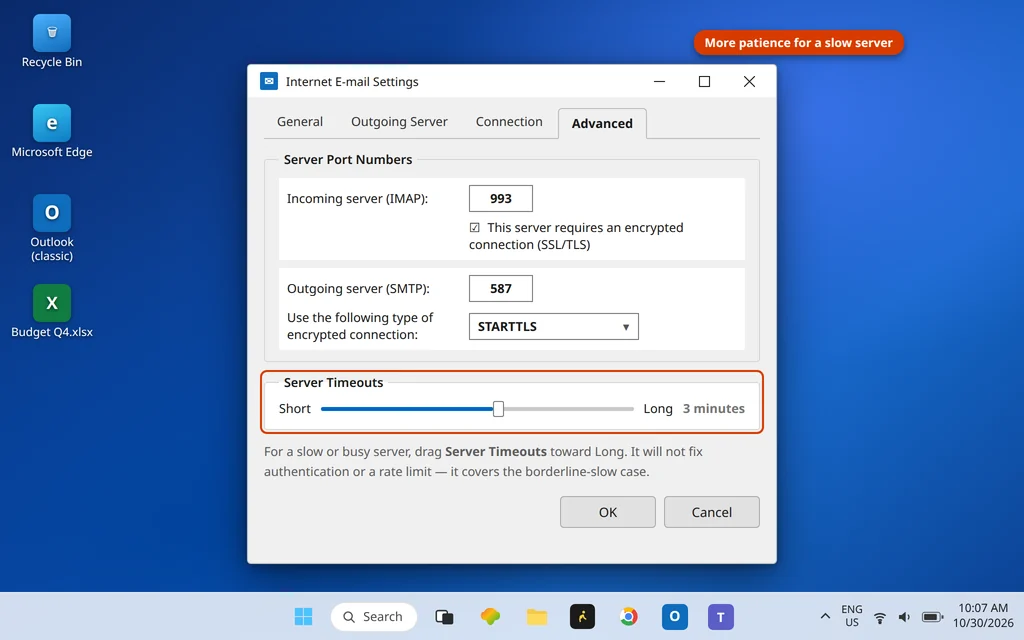
This will not fix an authentication refusal or a rate limit — match it to the slow-server case, where other fixes work sometimes but not reliably.
Fix 5: Check the Firewall, Antivirus — and Whether the Server Is Down
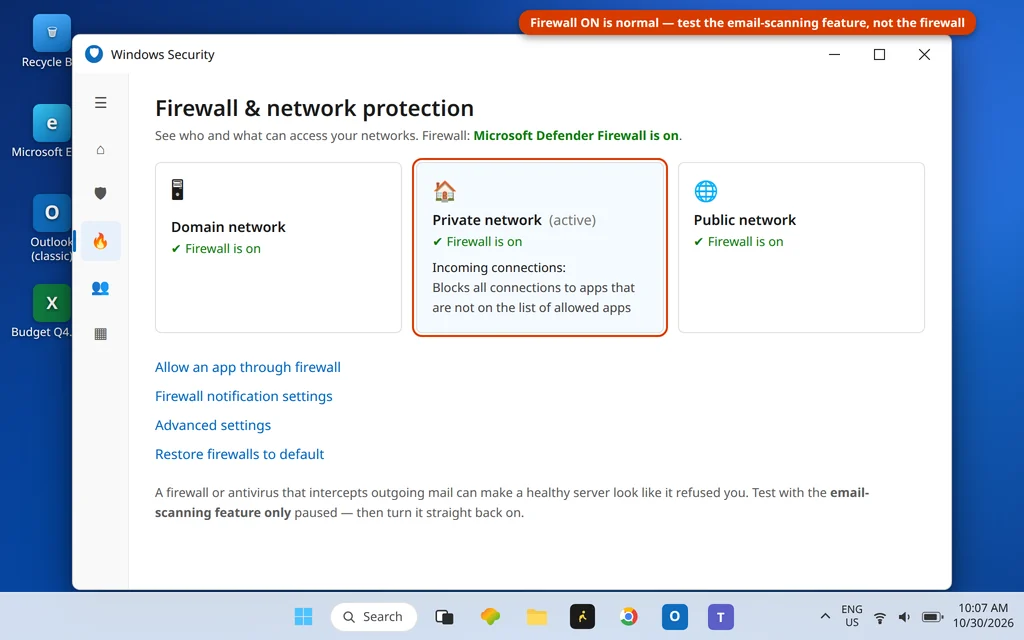
Two outside causes remain. First, security software: an antivirus scanning outgoing mail, or a firewall blocking the SMTP ports, can make the server’s reply look like a refusal. Temporarily pause only the email-scanning feature, send a test, and turn it straight back on. If the test send works, update the antivirus rather than leaving scanning off.
Second, the server itself: a 421 is sometimes the server honestly saying it is overloaded or down for maintenance. Test in two minutes:
- Sign in to your provider’s webmail in a browser and try sending from there.
- If webmail sending fails too, the problem is the provider’s — wait and retry later.
- If webmail sends fine, the problem is local: go back over Fixes 1 and 2 with fresh eyes.
Fix 6: Repair the Data File or Profile — Only If Settings Are Provably Right
If authentication is on, the port pair is correct, you are not rate-limited, and webmail sends fine, the account’s stored configuration in Outlook may be damaged. Run SCANPST.EXE (the Inbox Repair Tool, in your Office folder) against the account’s data file, or create a new profile via Control Panel > Mail > Show Profiles > Add and add the account fresh with the settings from Fixes 1 and 2. For IMAP and Microsoft 365 accounts this is safe — mail lives on the server. Treat this fix as the last resort it is: on this error code, it is almost never the answer.
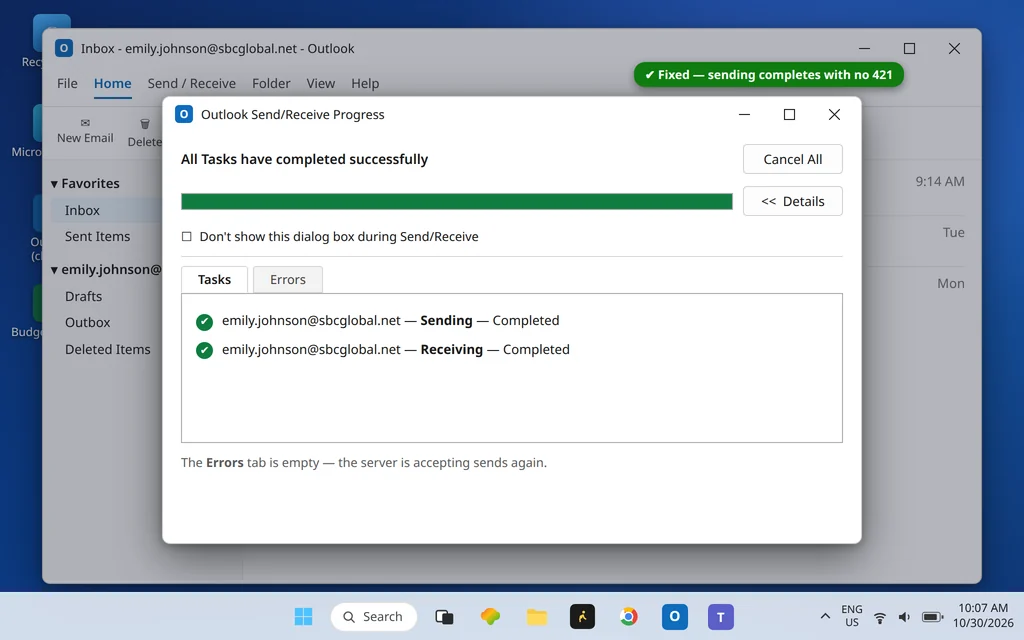
When the right fix lands, sending completes cleanly and the Errors tab stays empty:
0x800CCC67 vs 0x80042109 — Refused vs Never Connected
These two codes are SMTP cousins and are confused constantly. 0x800CCC67 means the server answered and refused the session with a 421 — authentication, port/encryption mismatch, or a rate limit. 0x80042109 means Outlook could not open the connection at all — no answer, usually a blocked port 25 or a dead server name. If your error is the cannot-connect one, use our Outlook error 0x80042109 guide. Both codes, and the rest of the family, are decoded on our Error Codes hub.
Using the New Outlook? These Steps Are Classic-Only
The More Settings dialogs in this guide exist only in Classic Outlook — the new Outlook for Windows has no SMTP authentication checkbox or port fields to edit, because it signs in with your account instead. If sending fails there with a server refusal, remove the account in Settings > Accounts and add it again, and check whether your provider has limited the account (the “too many messages” case applies there exactly as written above).
Frequently Asked Questions
What does SMTP error 421 mean?
421 is the mail server’s “temporary failure — try again later” reply. It is not one fault: servers use it when they require authentication you have not provided, when they will not accept a session on the port or encryption you are using, when they are too busy, and when you have hit a sending-rate limit. The words after the 421 in your Outlook error say which one applies to you.
How do I fix Outlook error 0x800CCC67?
Read the text after “421” first. Authentication wording → turn on “My outgoing server (SMTP) requires authentication” (Fix 1). “Cannot connect to SMTP server” → set the outgoing port to 587 + STARTTLS or 465 + SSL/TLS (Fix 2). “Too many messages” → stop sending and wait out the limit (Fix 3). The decoder table at the top of this guide matches each wording to its fix.
Is 0x800CCC67 my fault or the server’s?
Both are possible, which is why the 421 text matters. Authentication and port problems are on your side (your Outlook settings). A “too many messages” limit is the server enforcing its rules — arguably triggered by your sending pattern, but only the server can lift it, and only time does. The webmail test in Fix 5 settles it: if webmail cannot send either, it is the server/account side.
What is the difference between 0x800CCC67 and 0x80042109?
0x800CCC67 means the server answered and refused the session (a 421 reply) — look at authentication, port/encryption pairing, or rate limits. 0x80042109 means Outlook could not connect to the outgoing server at all. Same symptom (nothing sends), different failure point, mostly different fixes.
How long does a “too many messages” 421 last?
Providers do not publish exact windows, and they vary. In practice, consumer sending limits usually reset within a few hours; plan on up to 24 hours, and do not keep retrying in the meantime — repeated attempts can prolong the block. Resume with smaller batches. If a full day of not sending changes nothing, contact your provider about an account-level block.
Can a big attachment cause 0x800CCC67?
Indirectly. An oversized message is more often rejected with a size error or stuck in the Outbox (see our email stuck in the Outlook Outbox guide). But a server struggling with a long, large send can end the session with a 421 — if the error appears only on one huge message, split it or share the file with a cloud link instead.
Still seeing error 0x800CCC67? Tell us the full text after “421” in your error and your provider on our Contact page — servicedesk@howtofixerroronline.com, available 24 hours. That one line decides the fix. You can also compare your code with the rest of the family on our Error Codes hub.