
New Outlook Keeps Asking for Your Password? 5 Fixes
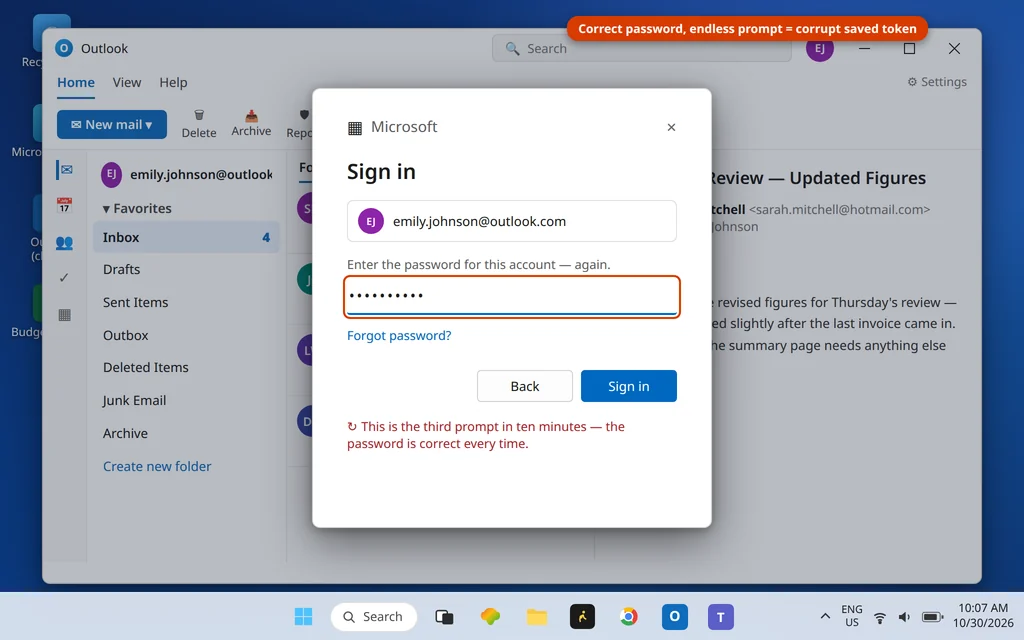
It is the most irritating loop in the new Outlook: a sign-in window appears, you type the password — the correct password, the one that works everywhere else — it is accepted… and ten minutes later the window is back. The new Outlook keeps asking for your password not because the password is wrong, but because the app’s saved sign-in token is damaged. Every prompt hands the server a broken token, gets rejected, and asks again.
When the new outlook keeps asking for password again and again, the fix is to clear the app’s saved sign-in token, not to keep retyping your password.
That root cause matters because the new Outlook stores sign-ins completely differently from Classic Outlook. There is no Credential Manager entry to delete, no mail profile to rebuild, no ScanPST to run — the whole Classic toolbox simply does not exist in this app. (If you use Classic Outlook, your version of this fix is Outlook keeps asking for password — different steps, same symptom.) The new app’s token lives in two folders, Olk and OneAuth, and clearing them is the fix that ends most loops.
Quick Answer: When the new Outlook loops on password prompts, first Repair the app (Settings > Apps > Installed apps > Outlook (new) > Advanced options > Repair). If the loop continues, close Outlook and rename the Olk and OneAuth folders in %localappdata%\Microsoft (add -old) — that clears the corrupt sign-in token (Fix 2). Then, if needed, remove and re-add the account (Fix 3), verify the Microsoft Edge WebView2 Runtime is installed (Fix 4), and clear any stale duplicate account in Windows Settings > Accounts (Fix 5).

Table of Contents
Why the New Outlook Keeps Asking for Password (and Why Classic Fixes Can’t Help)
The new Outlook’s sign-in is essentially a web sign-in living inside the app: the prompt window is rendered by Microsoft’s WebView2 technology, and once you sign in, the app keeps a reusable token — proof of sign-in — in its local state. Two folders hold that state:
- %localappdata%\Microsoft\Olk — the app’s data folder: cached mail, settings, and sign-in state.
- %localappdata%\Microsoft\OneAuth — the shared authentication cache Windows apps use to store account tokens.
If either cache corrupts — an interrupted update and a half-written token are typical — the app presents the stale token, the server refuses it, and the prompt returns. Typing the password perfectly cannot help, because the problem is not the password you type; it is the token the app reuses afterwards.
A useful confirmation before you start: sign in to the same account in a browser (Outlook.com, or your provider’s webmail). If the password works there — and in this loop, it almost always does — the password is innocent and the fixes below are the right ones.
The loop has tells that separate it from a genuine password problem. The prompt comes back on its own rhythm — every few minutes, or every time the app syncs — rather than only when you mistype. Dismissing it with the X often lets mail flow normally for a while, because the app falls back on whatever partial sign-in it still holds. And the prompt may name the account correctly and accept the password without a single error message. A truly wrong password fails loudly and immediately, everywhere; a token loop fails quietly, repeatedly, and only inside this one app.
Fix 1: Repair the App
Always start with the built-in repair — it fixes damaged app files without touching your sign-in or data:
- Open Settings > Apps > Installed apps.
- Find Outlook (new), click ⋯ > Advanced options.
- Click Repair and wait for the check mark.
- Open Outlook and use it normally for a while — one prompt right after a repair can be the app re-establishing its sign-in; a repeating loop is the sign to move on.

Fix 2: Clear the Token Cache — Rename the Olk and OneAuth Folders
This is the new app’s equivalent of Classic Outlook’s Credential Manager fix, and it ends most loops:
- Close Outlook completely (right-click its taskbar icon and close the window; check Task Manager shows no Outlook process).
- Press Windows key + R, type %localappdata%\Microsoft and press Enter.
- Rename Olk to Olk-old.
- Rename OneAuth to OneAuth-old.
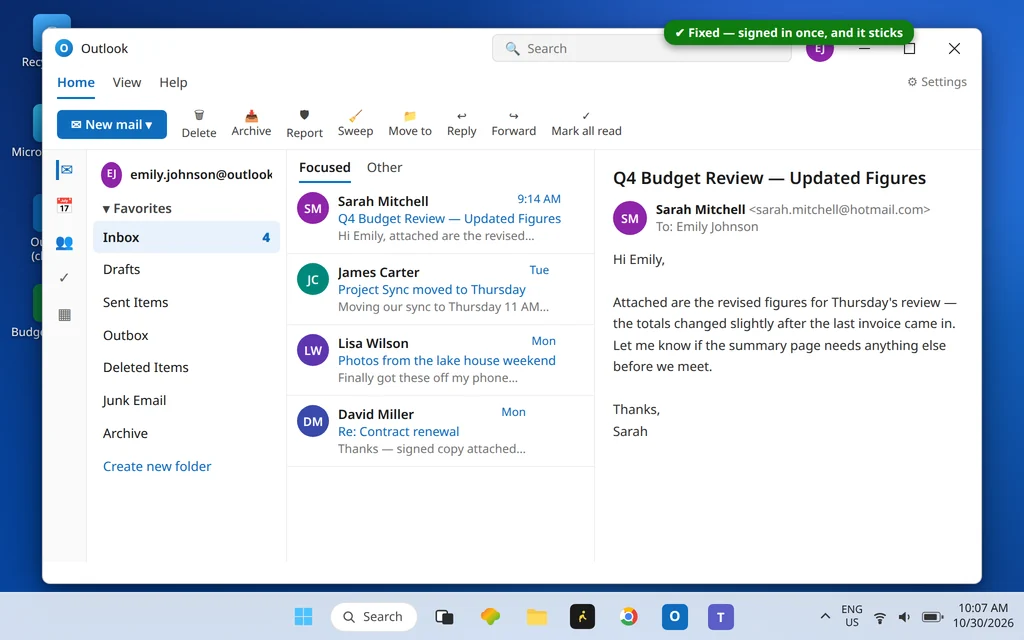
- Open Outlook. It rebuilds both folders fresh and asks you to sign in once — this time the new token is saved cleanly, and the loop stops.

Renaming rather than deleting keeps a safety net: your old local cache still exists if you ever need it. Sign-in tokens are shared — if Teams or OneDrive also prompt once after this, sign in there too; they will use the same fresh cache. Once everything has run cleanly for a few days, the -old folders can be deleted.
Fix 3: Remove and Re-Add the Account
If one specific account loops while others behave, its stored sign-in state is the corrupt piece. Rebuild just that account:
- In the new Outlook, open Settings > Accounts > Your accounts.
- Select the looping account and click Remove.
- Click Add account and sign in again from scratch.

Removing an account in the new Outlook deletes only the app’s local copy and its sign-in state — the mailbox itself stays on the server and syncs back down after you re-add it.
Fix 4: Check the WebView2 Runtime
The sign-in window itself is drawn by the Microsoft Edge WebView2 Runtime. If that component is missing or damaged, the prompt can fail in ways that look exactly like a password problem — looping, blanking, or never completing:
- Open Settings > Apps > Installed apps and look for Microsoft Edge WebView2 Runtime in the list.
- If it is missing, download and install the Evergreen WebView2 Runtime from Microsoft’s official developer page, then restart Outlook.
- If it is present but the loop persists, updating Microsoft Edge itself (Edge > Settings > About) refreshes the same sign-in components — WebView2 versions track Edge’s.

Fix 5: Clear Stale Account Entries in Windows Settings
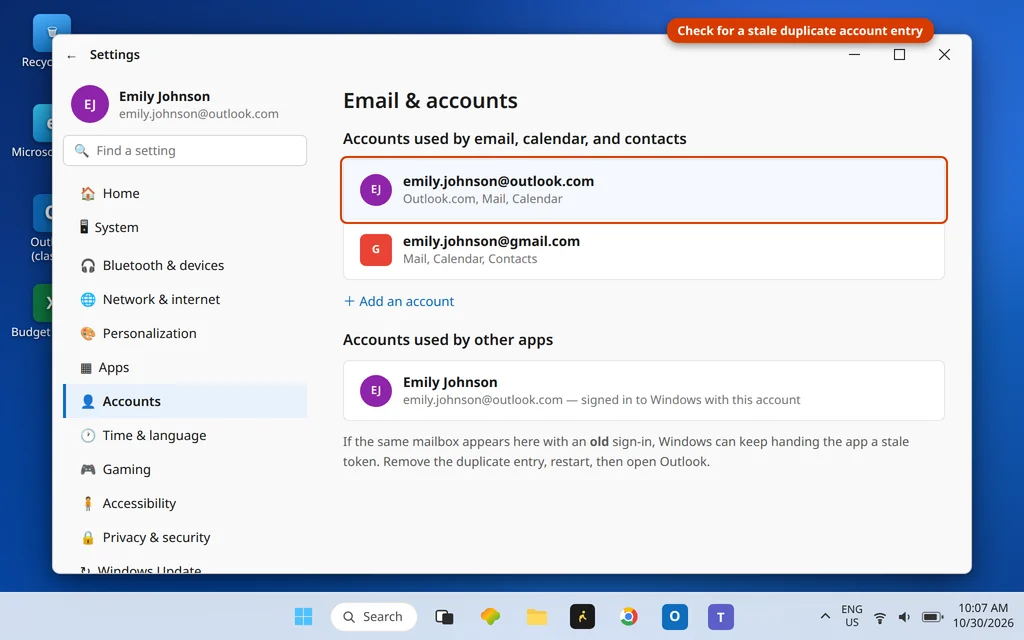
Windows itself keeps account entries that apps can draw on, and a stale duplicate — the same mailbox saved long ago with an old password — can keep feeding the app a bad token:
- Open Settings > Accounts > Email & accounts.
- Look under Accounts used by email, calendar, and contacts and Accounts used by other apps for a duplicate or outdated entry for the same mailbox.
- Remove the stale entry (leave your main Windows sign-in account alone if the mailbox is your Windows account — instead, sign out and back in to refresh it).
- Restart the PC, then open Outlook and sign in once.
If Nothing Works: Reset the App
Reset is the last resort: Settings > Apps > Installed apps > Outlook (new) > ⋯ > Advanced options > Reset. It returns the app to a first-run state — all accounts removed, all local data cleared — so you set up from zero. Because Fix 2 already rebuilds the token folders, a loop that survives both Fix 2 and a Reset is rarely the app’s fault: change the account password on the provider’s website (in case it genuinely is being rejected), then sign in with the new one. If prompts appear for a work or school account, your organization may also require a fresh multi-factor authentication approval — complete it fully rather than dismissing the prompt.
Using Classic Outlook Instead?
Stop here — this guide’s fixes do not exist in your app, and yours do not exist in this one. Classic Outlook stores credentials in Windows Credential Manager and mail profiles in the Control Panel, and its password loop has its own dedicated repair path (stale credential entries, profile repair, add-in conflicts). Use the Classic companion guide: Outlook keeps asking for password. Not sure which Outlook you have? The new app has the simplified ribbon and “Outlook (new)” in its Settings app listing; Classic has File > Account Settings with data files and profiles.
How to Stop the Loop Coming Back
- Finish updates. Let Windows and Store updates complete and restart when asked — interrupted updates are a leading cause of the half-written tokens behind this loop.
- Change passwords at the source, then sign in once. Update the password on the provider’s website first; the app then needs exactly one fresh sign-in.
- Complete MFA prompts fully. Dismissing an authenticator approval mid-flow can leave the token in the same half-saved state that starts loops.
- One account, one entry. After removing a mailbox from the app, also remove its stale entry in Settings > Accounts so nothing old is left to resurrect it.
Frequently Asked Questions
Why does the new Outlook keep asking for my password when it is correct?
Because the app is not really asking about your password — its saved sign-in token is corrupt. The app presents the stale token, the server rejects it, and the prompt returns no matter how accurately you type. Clearing the token cache (rename the Olk and OneAuth folders, Fix 2) is the fix that ends most loops.
Why doesn’t Credential Manager fix the new Outlook password loop?
Because the new Outlook does not store its sign-in there. Classic Outlook saves credentials in Windows Credential Manager, so deleting a stale entry works — for Classic. The new app’s tokens live in its OneAuth cache under %localappdata%\Microsoft, which is why this guide clears that folder instead. The Classic fix lives in Outlook keeps asking for password.
What are the Olk and OneAuth folders — is it safe to rename them?
Olk holds the new Outlook’s local data (cached mail, settings, sign-in state); OneAuth is the shared token cache Windows apps use. Renaming them is safe and reversible: the app rebuilds both on next launch and re-downloads your mail from the server. You sign in once more; nothing on the server is touched.
Will removing my account from the new Outlook delete my emails?
No. Removing an account deletes the app’s local copy and its (corrupt) sign-in state only. The mailbox remains on the server — Outlook.com, Microsoft 365, Gmail, Yahoo and IMAP accounts all sync back down when you re-add the account.
What is the difference between Repair and Reset in the new Outlook?
Repair fixes the app’s installed files while keeping its data and your sign-in — always first. Reset wipes the app back to a first-run state: every account removed, all local data cleared. Use Reset only when Repair plus the token-cache fix (Fix 2) have not stopped the loop.
Still looping? Tell us which account type it is (Outlook.com, Microsoft 365, Gmail, an ISP mailbox) and whether the browser sign-in works — that detail pinpoints it — via our Contact page: servicedesk@howtofixerroronline.com, available 24 hours. And if your password prompts are in Classic Outlook, the companion guide is Outlook keeps asking for password.