
Outlook Not Receiving Emails but Can Send? 7 Fixes
Your sent mail goes out instantly — people reply to it — but your Inbox has not shown a new message in hours. Outlook not receiving emails but able to send is one of the most useful symptoms in all of email troubleshooting, because it rules out most of the usual suspects in one stroke. Outlook not receiving emails but can send is a symptom that points straight at the incoming side.
Read that symptom properly and the search space collapses. Sending works, so your account, password and internet connection are all healthy. The fault is on the incoming side only: the IMAP/POP settings Outlook collects with, a sync that has stalled, a rule quietly moving mail, or a mailbox too full to accept more. This guide works through exactly those, in order. (If Outlook is not receiving and not sending — or you are not sure sending works — start with our broader Outlook not receiving emails guide instead, which covers every state.)
Quick Answer: If Outlook sends but does not receive, first verify the incoming server settings (Fix 1 — sending working does not validate them), then force a sync with F9 in Classic or View > Sync in the new Outlook (Fix 2). After that, check the quiet thieves in order: rules moving mail (Fix 3), a full mailbox (Fix 4), the Junk folder and Focused Inbox’s Other tab (Fix 5), and the Blocked Senders list (Fix 6). Rebuilding the local mail file is the last resort (Fix 7).
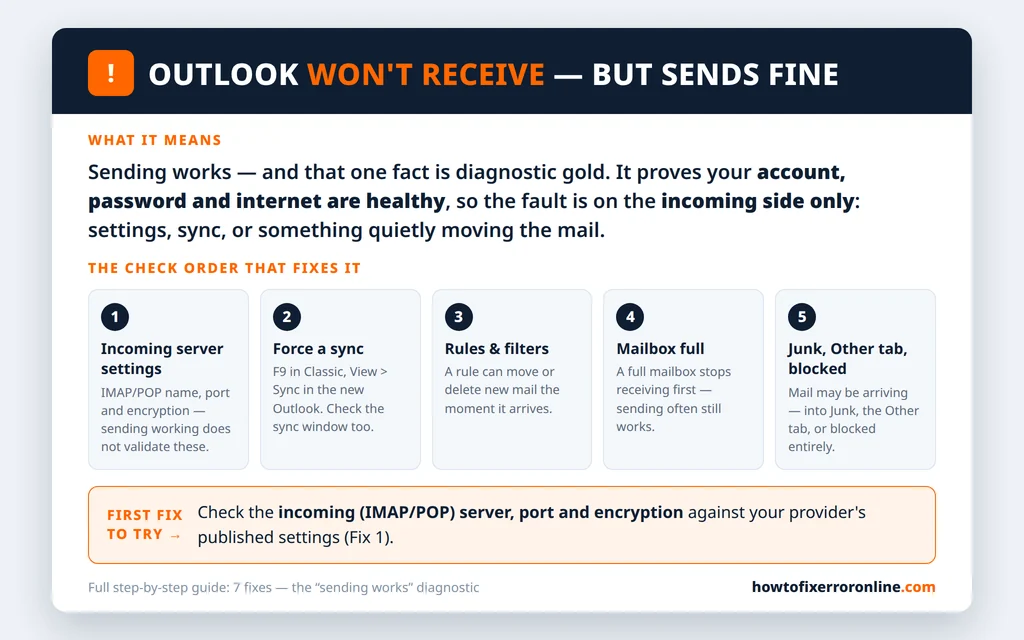
Table of Contents
Outlook Not Receiving Emails but Can Send: What “Sending Works” Tells You
Sending and receiving are two separate conversations with two separate servers. When you send, Outlook logs in to the outgoing (SMTP) server — proof that your password is correct and current, the account is active, and your connection reaches the provider. When you receive, Outlook separately contacts the incoming server (IMAP or POP) with its own server name, port and encryption — settings that sending never touches.
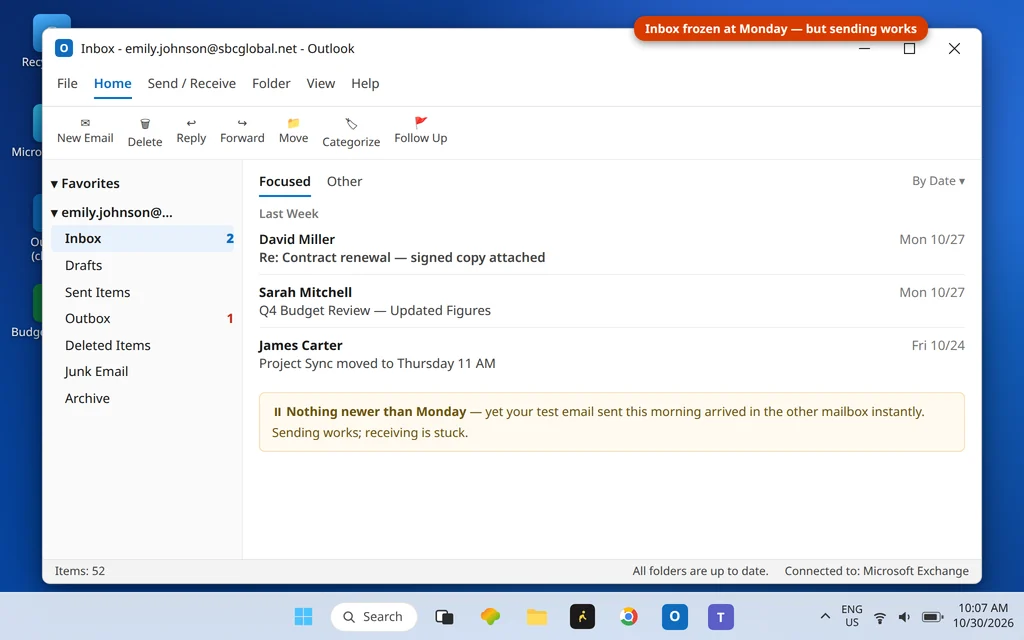
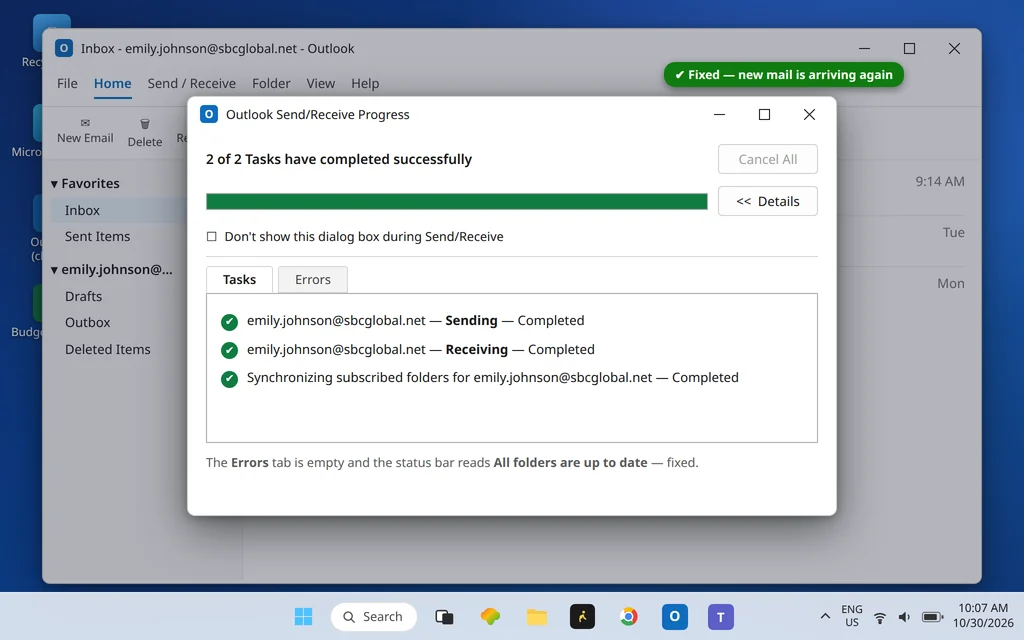
That is why this exact split happens so often: something changed or broke on the incoming side alone — a provider migrated its IMAP server, the sync window shrank, a rule started filing mail elsewhere — while the outgoing side kept working. The screenshot below is the typical scene: a healthy account, sent mail flowing, and an Inbox frozen in time.
If instead Outlook shows Disconnected or Working Offline in the status bar, that is a connection-state problem rather than an incoming-settings problem — fix that first with our Outlook Disconnected guide. And the mirror image of this article — receiving fine but unable to send — is covered by Outlook not sending emails but can receive.
Fix 1: Check the Incoming (IMAP/POP) Server Settings
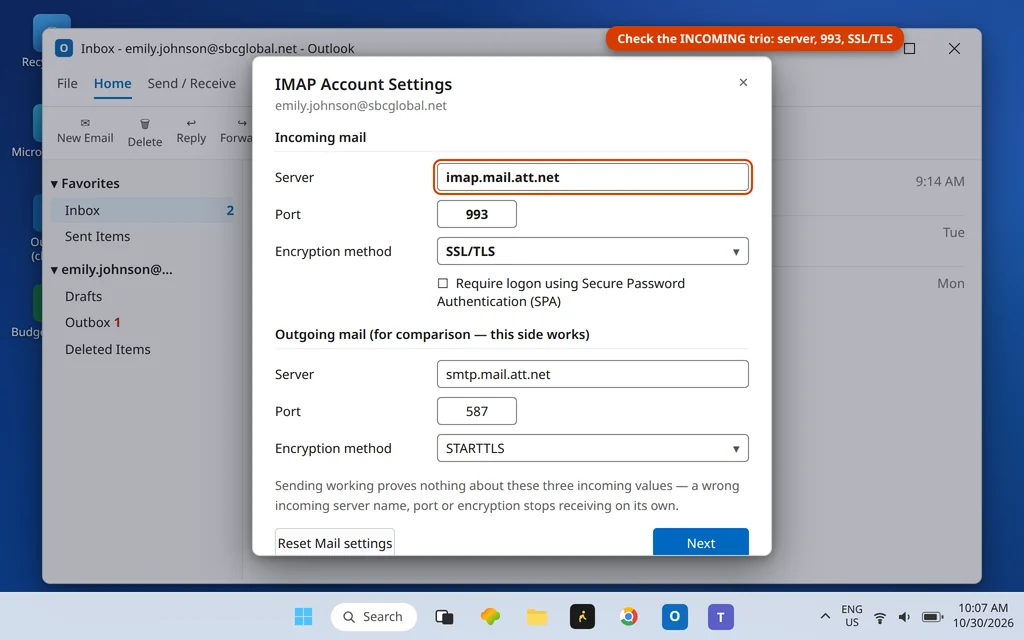
The incoming server has its own name, port and encryption, and a single wrong character stops receiving while sending sails on:
- Go to File > Account Settings > Account Settings, select the account, and click Change.
- Check the Incoming mail server name against your provider’s published setting (for AT&T/Yahoo-family accounts it is
imap.mail.att.net; for POP accounts,inbound.att.net). - Click More Settings > Advanced and verify the pair: IMAP uses port 993 with SSL/TLS (or 143 with STARTTLS); POP3 uses port 995 with SSL/TLS.
- OK > Next > Close, then press F9 to force a full send/receive.
If your error names a code — 0x80042108 is this problem in coded form (“Outlook cannot connect to your incoming (POP3) email server”) — the dedicated guide goes deeper: Outlook error 0x80042108. Every coded guide is also collected in the Error Codes hub.
Fix 2: Force a Sync — and Check the Sync Window
Sometimes nothing is broken; Outlook simply has not pulled. Force it, then watch the result:
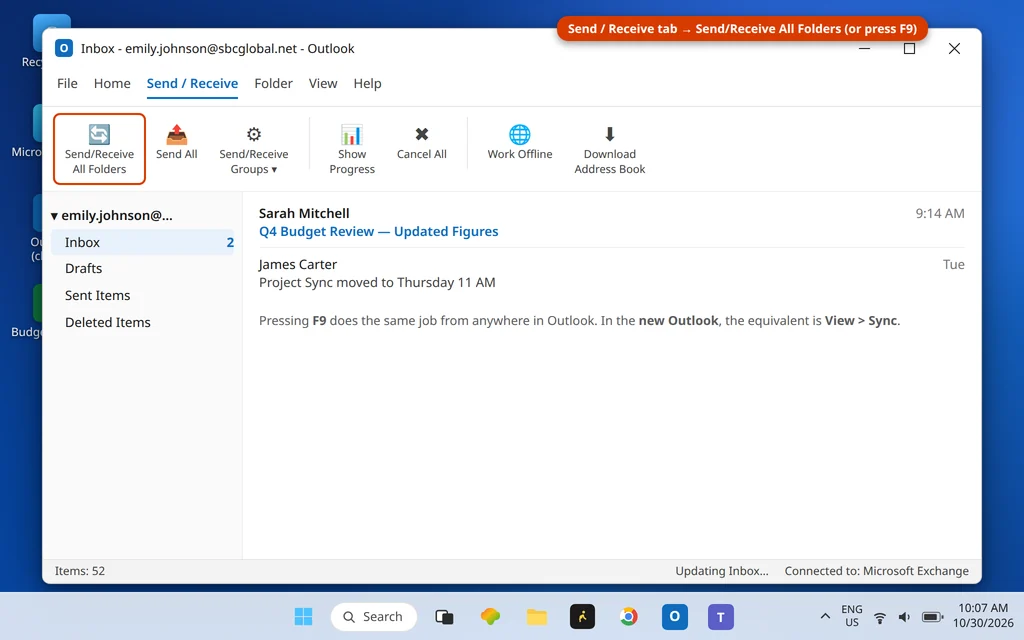
- In Classic Outlook, press F9 (Send/Receive All Folders) and open the Send/Receive Progress window — an incoming error here (a credential refusal, a server timeout) tells you which fix below applies. In the new Outlook, use View > Sync.
- Check the status bar afterwards: it should end at “All folders are up to date”, not stall on “Syncing…” or “Waiting…”.
One quiet setting shrinks what sync brings down: the “Sync this folder” window — right-click the Inbox > Properties > Synchronization in Classic, or the account’s sync settings in the new app — and Classic’s “Days of email to save” slider under File > Account Settings > Change. If that window is set to a few days, older expected mail simply is not downloaded, which can look exactly like “not receiving”.
Fix 3: Check Rules and Filters That Move Mail on Arrival
Rules run the moment mail arrives — before you ever see it — and a rule created months ago (or by accident, from a right-click) can file every new message into a subfolder, an archive, or Deleted Items. Receiving “works”; the mail just never reaches the Inbox:
- Go to File > Manage Rules & Alerts.
- Read every ticked rule, looking for move to folder, delete, or conditions broader than intended (“from anyone”, “with specific words” matching common terms).
- Untick anything suspect and press F9 — or better, send yourself a test from another account and watch where it lands.
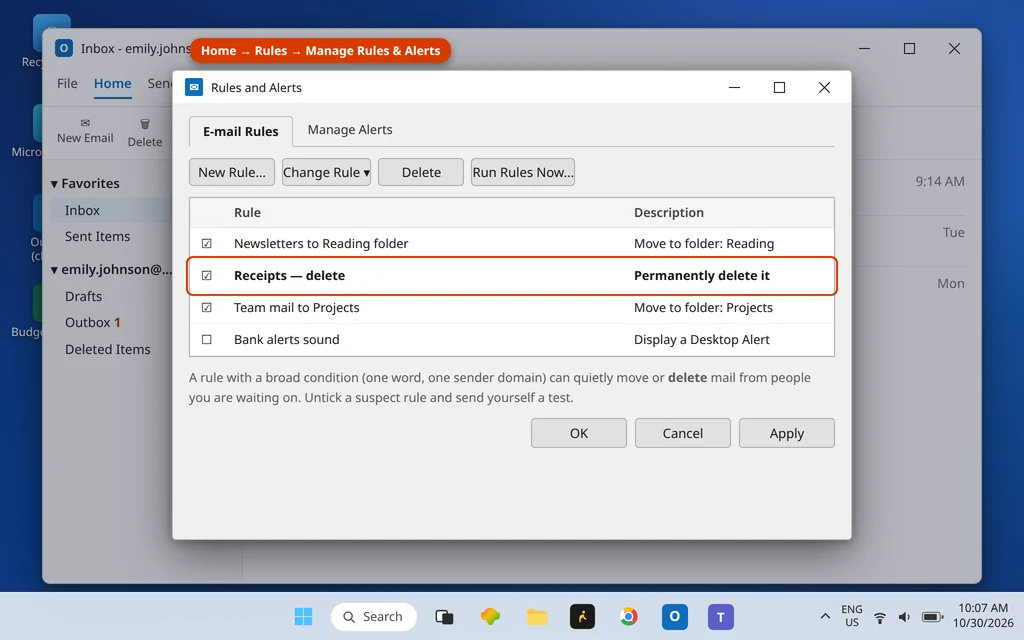
In the new Outlook and Outlook.com, the same check lives in Settings > Mail > Rules — and sweep the Settings > Mail > Forwarding page while you are there: forwarding switched on (especially “do not keep a copy”) produces exactly this symptom.
Fix 4: A Full Mailbox Stops Receiving First
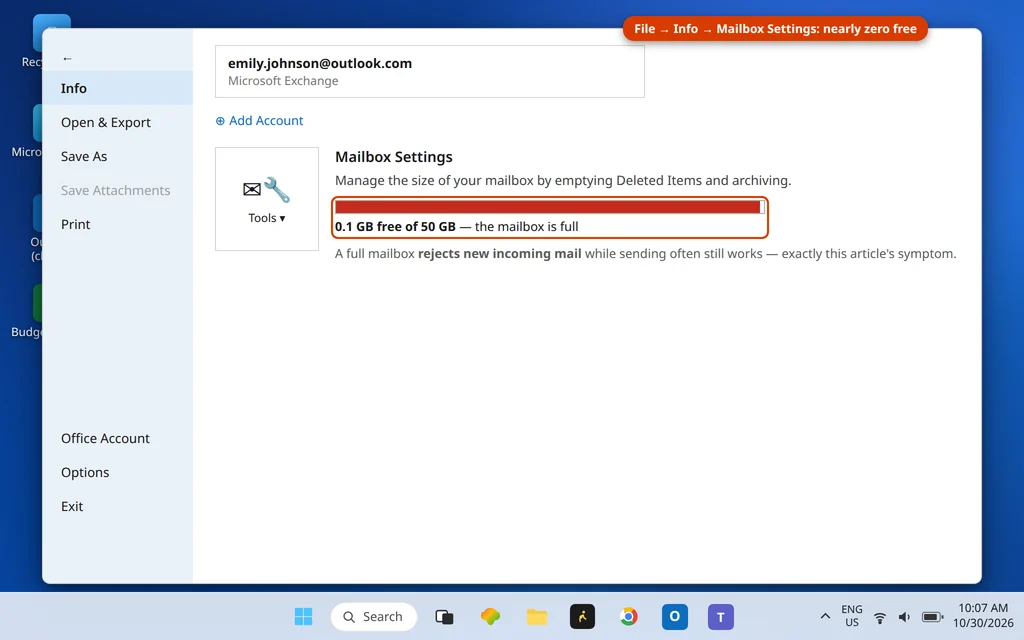
When a mailbox hits its storage limit, providers typically refuse new incoming mail while still letting you send — the purest form of this article’s symptom. Outlook tells you:
- File > Info shows Mailbox Settings with a storage bar — if it is at or near full, that is your answer.
- Free space by emptying Deleted Items and Junk Email, then archiving or deleting the largest old messages (sort a big folder by Size).
- Wait a few minutes after freeing space; receiving usually resumes on its own, then press F9.
Fix 5: Check Junk — and the Focused Inbox “Other” Tab
Before assuming mail is not arriving, confirm it is not arriving somewhere else. Outlook’s Focused Inbox splits mail into Focused and Other tabs, and anything it judges less important silently lands in Other — no notification, no badge you would notice:
- Click the Other tab at the top of the message list and look for the missing mail.
- Check the Junk Email folder too — aggressive filtering is the other silent destination.
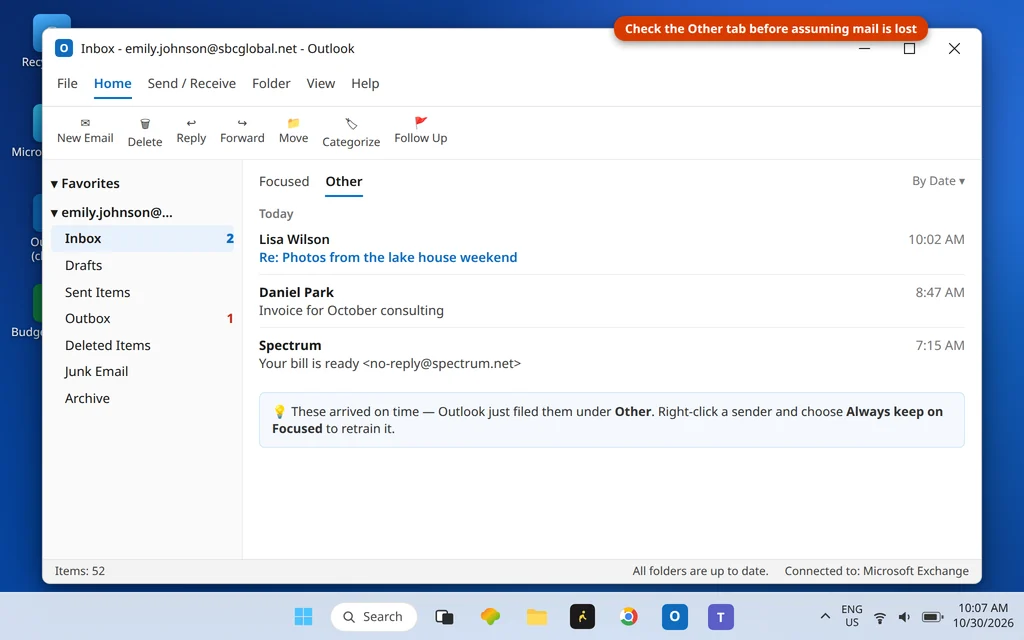
Found the mail in Other? Right-click it and choose Move to Focused (and “Always move to Focused” for that sender) to train the filter. Mail repeatedly landing in Junk has its own deeper guide: Outlook emails going to Junk.
Fix 6: Check the Blocked Senders List
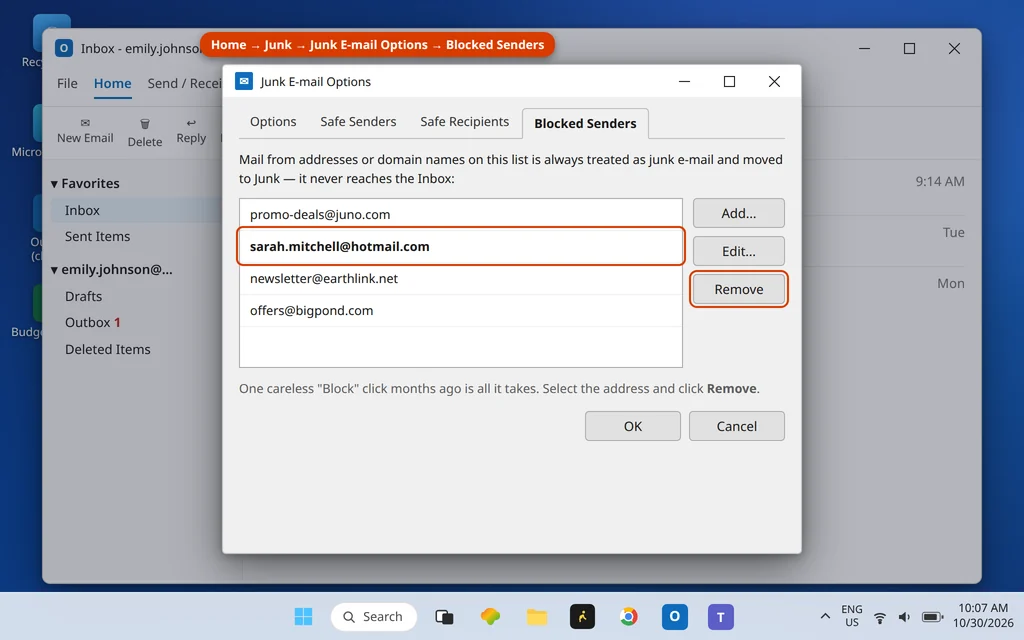
If one particular person’s mail never arrives while everyone else’s does, the Junk filter’s blocked list is the likely home of the problem — a sender can land there from one careless right-click:
- Home tab > Junk > Junk Email Options > Blocked Senders.
- Scan the list for the missing sender’s address or domain.
- Select it, click Remove, then OK — and ask them to resend, or test from that account.
Fix 7: Rebuild the Local Mail File (Last Resort)
If the settings are right, sync completes without errors, and mail genuinely reaches the account (check by signing in to your provider’s webmail — if it is there, the account is fine and Outlook’s local copy is the fault), rebuild that copy:
- Classic Outlook: the local cache is the account’s .ost file. Close Outlook, open File Explorer to
%localappdata%\Microsoft\Outlook, rename the .ost to .old, and reopen Outlook — it rebuilds the file from the server. IMAP and Exchange mail lives server-side, so nothing is lost. - New Outlook: remove the account (Settings > Accounts > Your accounts > Remove) and add it again for the same fresh start.
Still Nothing? The Full Not-Receiving Guide
This guide owns one specific pattern: sending provably works. If your situation is broader — Outlook not receiving and not sending, a brand-new account that never received, mail missing after a migration, or anything the seven fixes above did not touch — the complete reference is our main guide: Outlook not receiving emails. It covers cache rebuilds, profile repairs and the Junk deep-dive that sit outside this article’s “sending works” scope. Microsoft also walks through the same send/receive checks in its support article, I can’t send or receive messages in Outlook.
Frequently Asked Questions
I can no longer receive emails using Outlook, but I can send them. Why?
Because the incoming side has its own settings and machinery that sending never uses. The usual causes, in order, are: wrong or migrated IMAP/POP server settings (Fix 1), a stalled sync or a shrunken sync window (Fix 2), a rule moving mail on arrival (Fix 3), a full mailbox refusing new mail (Fix 4), or mail being filed into Junk, the Other tab, or blocked entirely (Fixes 5 and 6).
How is this different from Outlook not receiving emails at all?
Scope. “Not receiving at all” can include accounts that also cannot send, broken profiles and connection failures — the broad guide, Outlook not receiving emails, covers those. This article is only for the case where sending works, which proves the account, password and connection are healthy and limits the fault to the incoming side.
Can a full mailbox stop me receiving but still let me send?
Yes — it is one of the classic causes of this exact split. Providers refuse new incoming deliveries when storage is exhausted, while outgoing mail (which adds almost nothing to storage) keeps working. Check File > Info > Mailbox Settings, empty Deleted Items and Junk, and receiving normally resumes within minutes.
Why do emails land in the Other tab or Junk instead of my Inbox?
Focused Inbox sorts mail it considers lower priority into the Other tab, and the Junk filter files suspected spam into Junk Email — both silently. If the “missing” mail is sitting in either place, receiving was never broken; the sorting was. Move a message to Focused or mark it Not Junk to train the filters for that sender.
Will rebuilding the .ost file delete my emails?
No — for IMAP and Exchange accounts the mailbox lives on the server, and the .ost is only a local cache. Renaming it makes Outlook download a fresh copy. The caution applies to old POP accounts that stored mail only locally: back up the data file first in that case.
Still not receiving? The most useful detail you can send us is whether the missing mail appears in your provider’s webmail — that one fact separates an Outlook fault from an account fault. Reach us via our Contact page: servicedesk@howtofixerroronline.com, available 24 hours. If sending is the broken half instead, the mirror guide is Outlook not sending emails but can receive.