

New Outlook Not Syncing: 6 Fixes for Mail That Won’t Update
Your phone shows three new emails. Your PC, running the new Outlook for Windows, shows an inbox from this morning — no error, no warning, just mail that quietly stopped updating. Or the opposite problem: new mail arrives, but anything older than a few weeks has vanished. Or the main inbox is fine and it is the shared mailbox that never changes. If new outlook not syncing is the problem on your PC, the three behaviors below explain almost every case.
The new Outlook syncs differently from Classic, and most “not syncing” reports come down to three behaviors that are specific to it: sync is partly manual (nothing polls the way Classic’s Send/Receive did), an automapped shared mailbox does not auto-sync its Inbox, and an offline retention window hides older mail that is perfectly safe on the server. This guide works through those three first, then the general repair steps.
Quick Answer: Press View > Sync (or hit F9) to force a sync right now (Fix 1), and check Offline mode is off in Settings > General > Offline (Fix 2). If it is a shared mailbox that won’t update, that is expected behavior for automapped mailboxes — sync it manually or add it as its own account (Fix 3). If older emails are missing, raise the “Days of email to save” setting (Fix 4). Then reset the Store cache with wsreset.exe (Fix 5) and Repair/Reset the app (Fix 6).
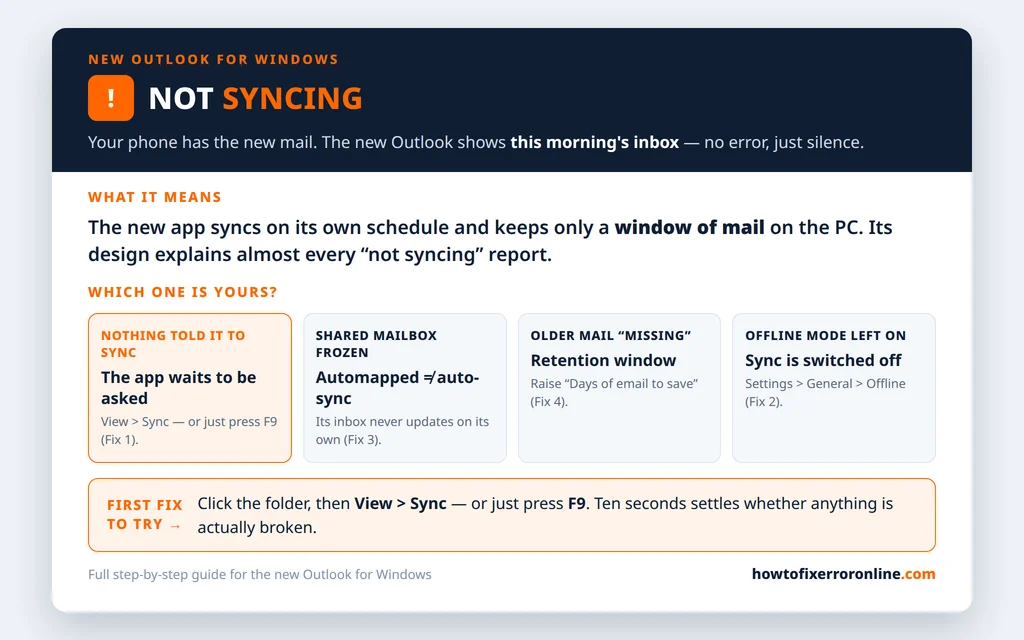
Table of Contents
How Syncing Works in the New Outlook
Classic Outlook ran a scheduled Send/Receive cycle you could watch, with progress dialogs and error codes. The new Outlook is quieter: it syncs in the background when it decides to, shows no progress window, and reports almost nothing when it stops. That silence is why this problem feels mysterious — there is usually no error to search for.
What you can rely on:
- View > Sync on the View tab forces an immediate sync of the selected account/folder — and the old F9 shortcut still works. (In Classic, the same job lives on the Send/Receive tab; that tab does not exist here.)
- Offline mode is a real setting in the new app (Settings > General > Offline). If it is on, nothing syncs at all, by design.
- Mail older than the retention window is not downloaded — it is not deleted, just not kept on this PC until you widen the window.
One boundary before the fixes: if the app’s status shows Disconnected, or mail is not arriving at all in any form, that is a connection/account problem rather than a sync-behavior one — see our Outlook disconnected guide, and for the broad not-receiving picture, Outlook not receiving emails. And if it is your calendar that will not sync, that is a different surface entirely — see Outlook calendar not syncing. This guide is about the mail view not updating.
Fix 1: New Outlook Not Syncing — Sync Manually With View > Sync (or F9)
Always start here, because a surprising share of “not syncing” reports end here: the app simply has not run a sync cycle for the folder you are looking at.
- Click the folder that looks stale (the Inbox, usually).
- Open the View tab on the ribbon and click Sync.
- Or just press F9 — the shortcut carried over from Classic.
- Give it a few seconds; new messages appear without any progress dialog.
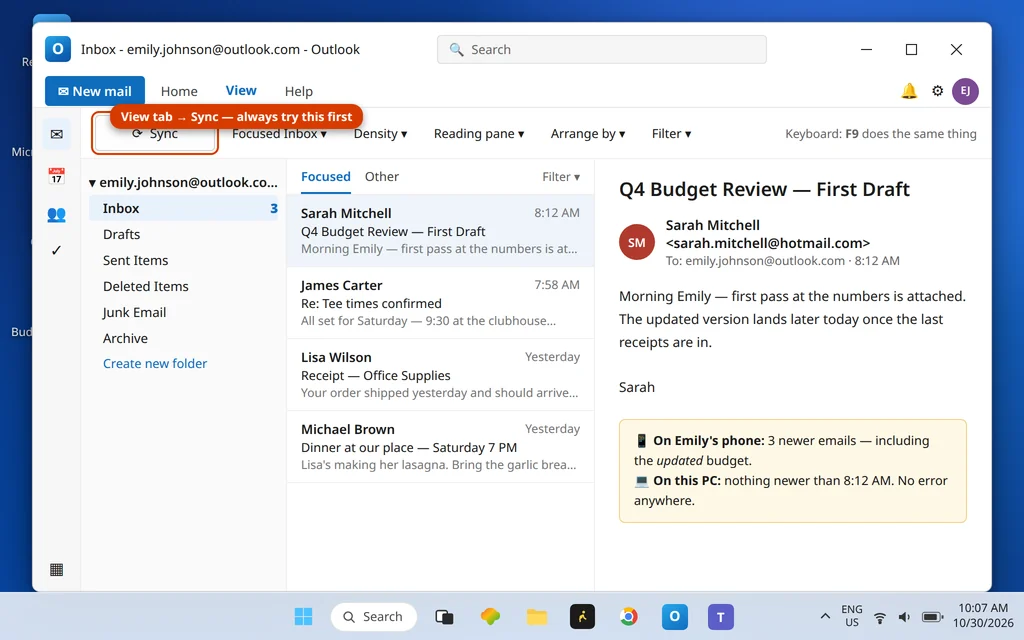
If mail arrives, your “sync problem” was the app’s leisurely automatic schedule. Sync manually whenever the inbox looks behind, and check Fix 2 to make sure nothing is holding it back permanently.
Fix 2: Turn Off Offline Mode
Offline mode stops all syncing while leaving the app looking normal — and it can be switched on accidentally or left on after working on a plane.
- Click the gear icon (Settings).
- Go to General > Offline.
- Make sure Offline mode is toggled Off.
- Return to the Inbox and press F9.

Fix 3: Shared Mailbox Not Syncing
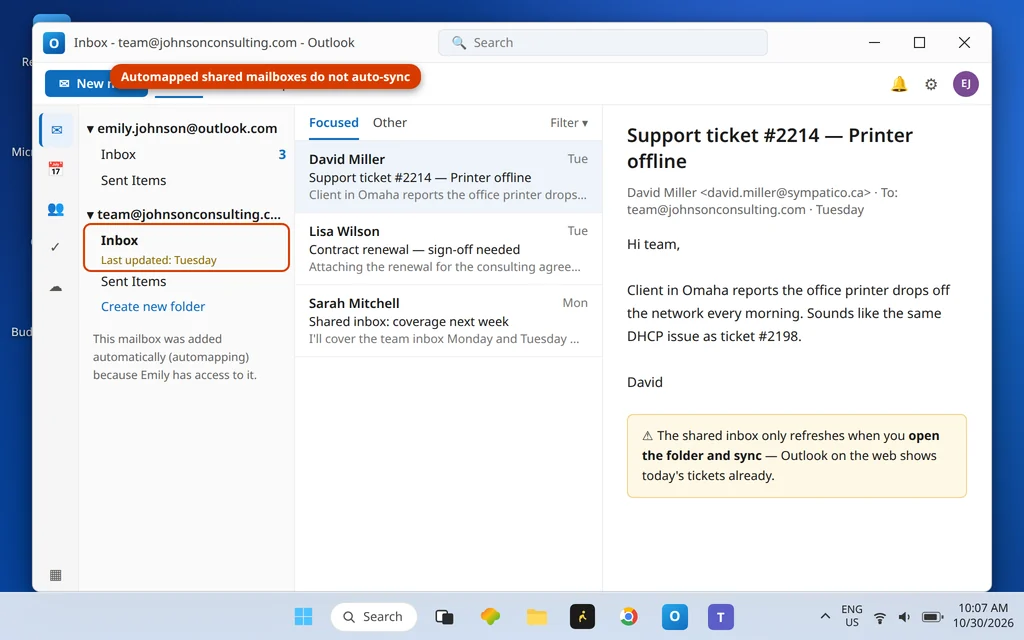
This one is not a fault — it is documented behavior. A shared mailbox that was automatically mapped to your account (it appeared on its own because an admin granted you access) does not automatically sync its Inbox in the new Outlook. Your own mail updates; the shared mailbox sits frozen until you touch it. Microsoft documents the same behavior in Sync a shared mailbox in new Outlook.
Two ways to live with it, one way to fix it properly:
- Sync it manually: select the shared mailbox’s Inbox and press View > Sync (or F9) whenever you check it.
- Add it as its own account (the real fix): go to Settings > Accounts > Your accounts > Add account, enter the shared mailbox’s address, and sign in with your own credentials when prompted (you are signing in as yourself, with your delegated access). As a full account, it syncs like your own mailbox.
- If the shared mailbox does not appear at all, that is an admin-side mapping issue — your IT admin needs to grant or re-apply the permission.
Fix 4: Older Emails Missing — Raise “Days of Email to Save”
If recent mail syncs fine but older mail is “gone,” nothing is lost — the new Outlook only keeps a window of mail offline, and the window is set shorter than your history.
- Click the gear icon (Settings) > General > Offline.
- Find Days of email to save.
- Raise it — to several months, a year, or the maximum offered — depending on how far back you need local access.
- Press F9 and give the app time; older mail downloads progressively, newest first.

Mail outside the window still exists on the server the whole time — searching may surface it even before it is fully downloaded, and it is always visible in webmail. Nothing in this fix deletes anything.
Fix 5: Reset the Microsoft Store Cache (wsreset.exe)
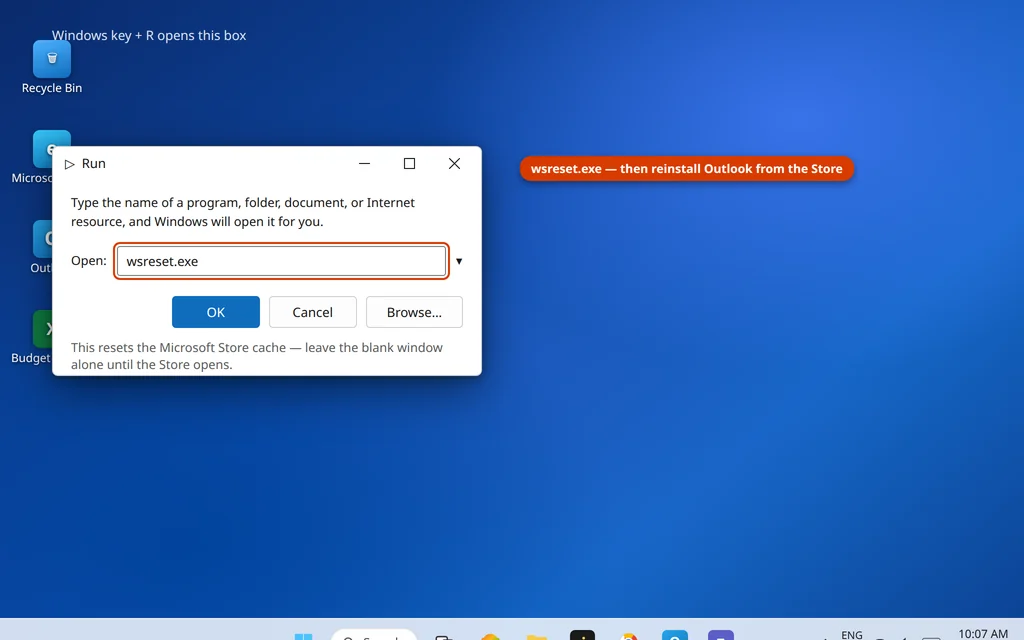
The new Outlook is a Store app, and a corrupt Store cache can leave it half-updated and quietly unable to sync. Resetting the cache is a Microsoft-supported, harmless step:
- Press Windows key + R.
- Type
wsreset.exeand press Enter. - A blank window opens while the cache clears; the Microsoft Store opens by itself when it is done.
- Reopen Outlook and press F9.
Fix 6: Repair or Reset the App
If sync is still broken after the behavioral fixes, treat it like any other damaged app state:
- Settings > Apps > Installed apps > Outlook > … > Advanced options (Windows Settings, not Outlook’s).
- Click Repair first; test sync with F9.
- If that fails, click Reset, sign in again, and re-add accounts that do not reappear.
- As the last step, remove the account in Outlook’s Settings > Accounts > Your accounts and add it fresh.

The full app-repair stack — including the Olk folder rename, which also clears a damaged sync state — is in our new Outlook “Something went wrong” guide; if the app shows that error page instead of opening, start there.
How to Stop Sync Problems Coming Back
- Sync manually when it matters. Before checking for an expected email, press F9 — the automatic schedule is leisurely by design.
- Add shared mailboxes as accounts if you rely on them daily; automapped ones will never auto-sync their Inbox.
- Set “Days of email to save” once, generously — the “missing old mail” scare is almost always this window.
- Keep the app updated through the Microsoft Store Library; sync bugs are a frequent quiet fix in updates.
After the right fix, the inbox refreshes and the missing mail is simply there:

Frequently Asked Questions
How do I refresh the new Outlook manually?
Click the folder you want to update, then View > Sync on the View tab — or press F9, the same shortcut Classic Outlook used. There is no progress window; new mail just appears. If a manual sync changes nothing at all, check Offline mode (Fix 2) and work through the rest of this guide.
Why is my shared mailbox not syncing in the new Outlook?
Because the new Outlook does not automatically sync the Inbox of an automapped shared mailbox — one that appeared automatically when an admin granted you access. Select it and sync manually with View > Sync, or add the shared mailbox as its own account (Settings > Accounts > Add account, using its address and your sign-in) so it syncs fully like your own mailbox.
Why are my older emails missing in the new Outlook?
They are not missing — they are outside the offline window. The new Outlook keeps only a set span of mail on the PC, controlled by Days of email to save in Settings > General > Offline. Raise it and sync; older mail downloads again. It remained on the server the entire time, which is why it shows in webmail and on your phone.
Is F9 the same in the new Outlook as in Classic?
Yes — F9 still forces a sync in the new Outlook, exactly as Send/Receive All did in Classic. The difference is presentation: Classic showed the Send/Receive progress dialog with its Tasks and Errors tabs; the new app syncs silently with no dialog and almost no error reporting, which is why sync problems here feel invisible.
The new Outlook shows “Disconnected” and nothing syncs. Is that this problem?
Not quite — a Disconnected status means the app has lost its connection to the account entirely, which is a connection-state problem with its own fix list (sign-in state, Work Offline in Classic terms, account health). See our Outlook disconnected guide for that case; this guide covers an app that is connected but not updating.
Still not syncing? Tell us which pattern matches yours — everything stale, just a shared mailbox, or only older mail missing — via our Contact page: servicedesk@howtofixerroronline.com, available 24 hours. It is also worth confirming the mail exists on the server by checking webmail; if it is not there either, our Outlook not receiving emails guide is the right next step.