
Outlook Calendar Not Syncing? 9 Fixes
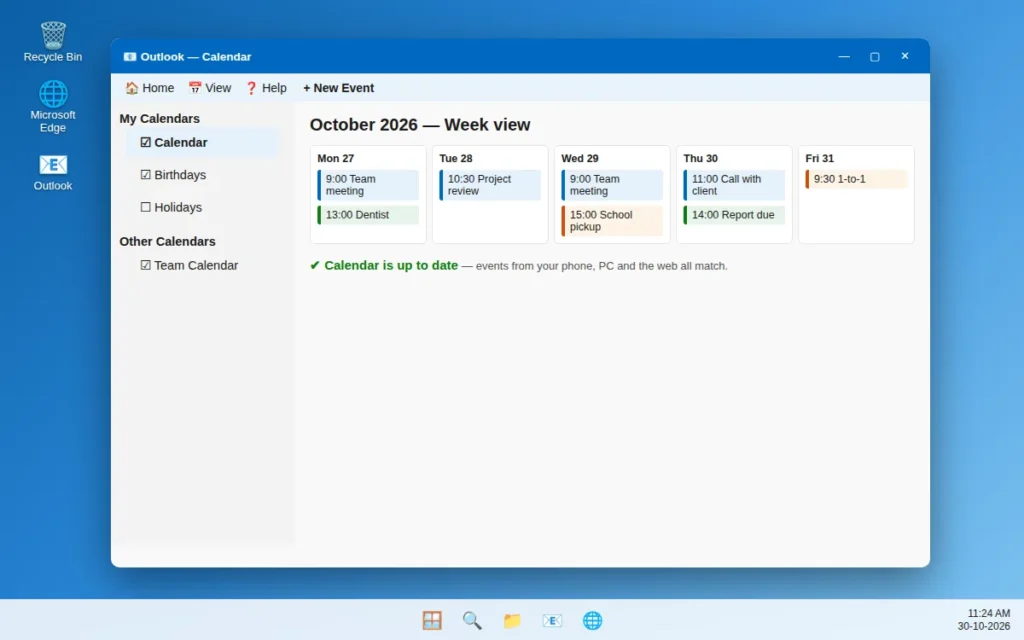
You add a meeting on your phone, and it never shows up in Outlook on your PC. Or a colleague moves an appointment, everyone else sees the new time, and your calendar still shows the old one. When your Outlook calendar is not syncing, your events are usually safe — they are stored online, in your account. One device has stopped copying the latest changes.
Most cases come from a hidden calendar, a signed-out account, or an old copy stored on the device. Work through the fixes in order. After each one, wait a minute, then add a test event called “Sync test” and check your other device.
If Outlook will not open at all, fix that first with our guide to Outlook not opening on Windows 11, then come back here.
Quick Answer: Make sure the right calendar is ticked and visible, and that you are online and signed in. On your phone, check the calendar is ticked in the Outlook app, then use Reset Account in its settings. Next, check your calendar on Outlook on the web — that shows if the problem is one device or your whole account. If events are missing only on your PC, widen the sync slider (Fix 5) or rebuild the local copy (Fix 6). Last step: remove and re-add the account.
Why Is Outlook Calendar Not Syncing?
It usually comes down to one of these causes:
- The calendar is hidden. An empty tick box means its events are just not shown, so they look missing.
- You are offline or signed out. A changed password or weak connection leaves Outlook showing old events.
- The copy on your device is damaged. Outlook keeps a copy of your mailbox on your PC so it opens fast. If it breaks, new events stop arriving (Fixes 5–6).
- A shared calendar changed. If the owner changed who can see it, your copy stops updating.
Fix 1: Check the Right Account and Calendar Are Selected
In Classic Outlook (the desktop version with File, Home and Send / Receive tabs):
- Click Calendar in the bottom-left of the window.
- Look at the list on the left, under My Calendars.
- Tick the box next to the calendar you want to see.
- With more than one account, check under each account name too — the event may be in a different account’s calendar.
In the New Outlook: click Calendar in the left-hand bar, find your account in the list, and make sure the calendar under it is ticked.
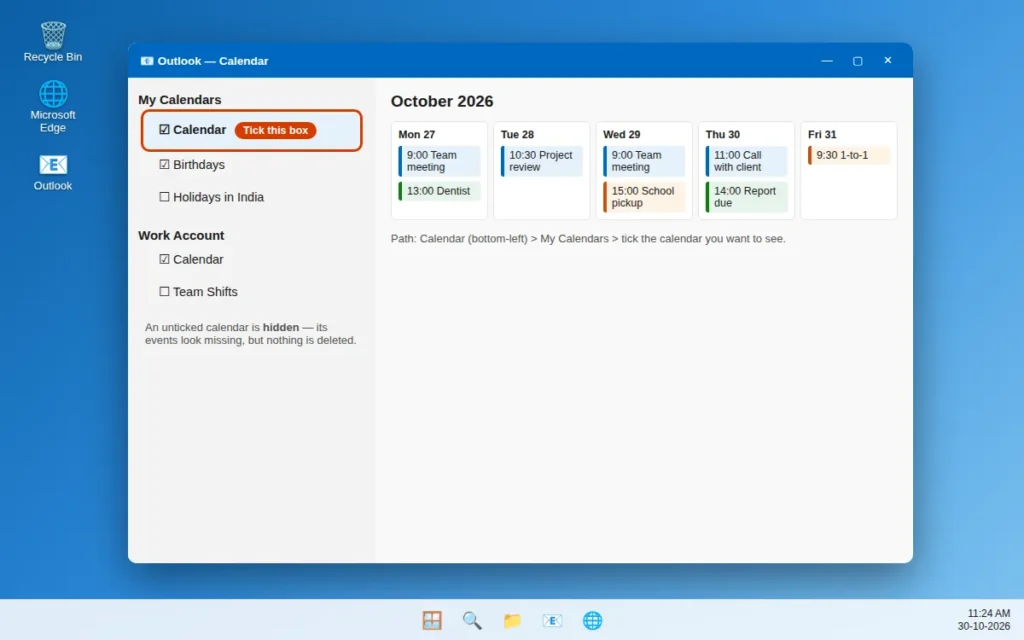
If the box was empty, your problem is solved — the calendar was just hidden.
Fix 2: Check Your Internet Connection and Sign-In Status
Outlook cannot copy new events while it is offline or signed out.
- Open any website in your browser. If it does not load, fix your connection first, or try another Wi-Fi network.
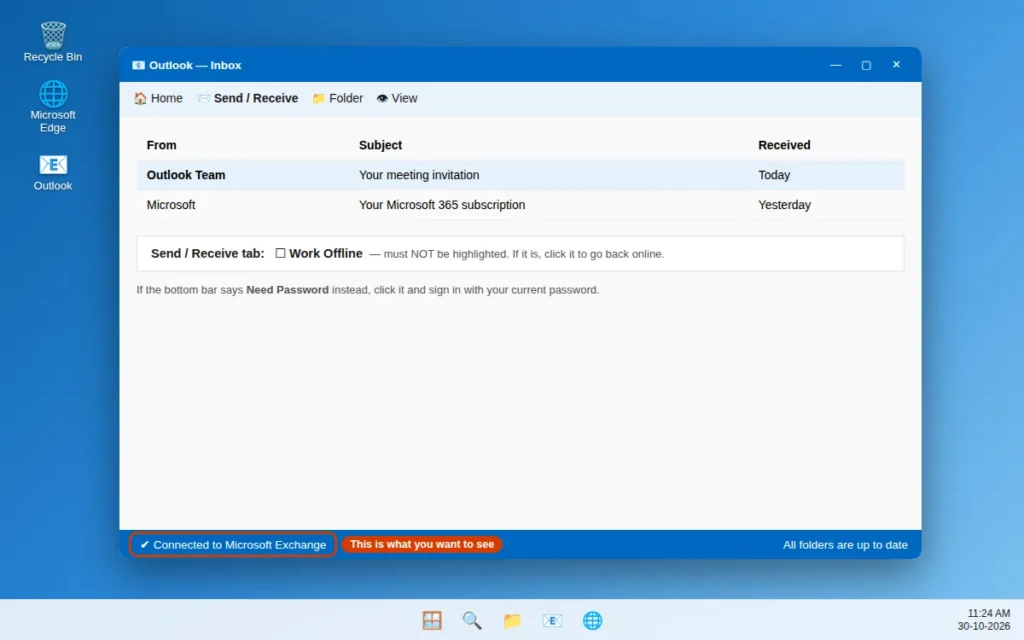
- In Classic Outlook, check the thin bar at the bottom of the window. It should say Connected to Microsoft Exchange. If it says Need Password, click it and sign in with your current password.
- Click the Send / Receive tab. If Work Offline is highlighted, click it to turn it off — while it is on, nothing syncs.
- In the New Outlook, click the Settings gear, then Accounts, and make sure your account is signed in.
Fix 3: Refresh the Calendar in the Outlook App on Your Phone
There is no calendar on/off switch inside the Outlook phone app itself, so do not hunt for one. The real checks are these two, the same on Android and iPhone.
First, make sure the calendar is switched on in the app’s list:
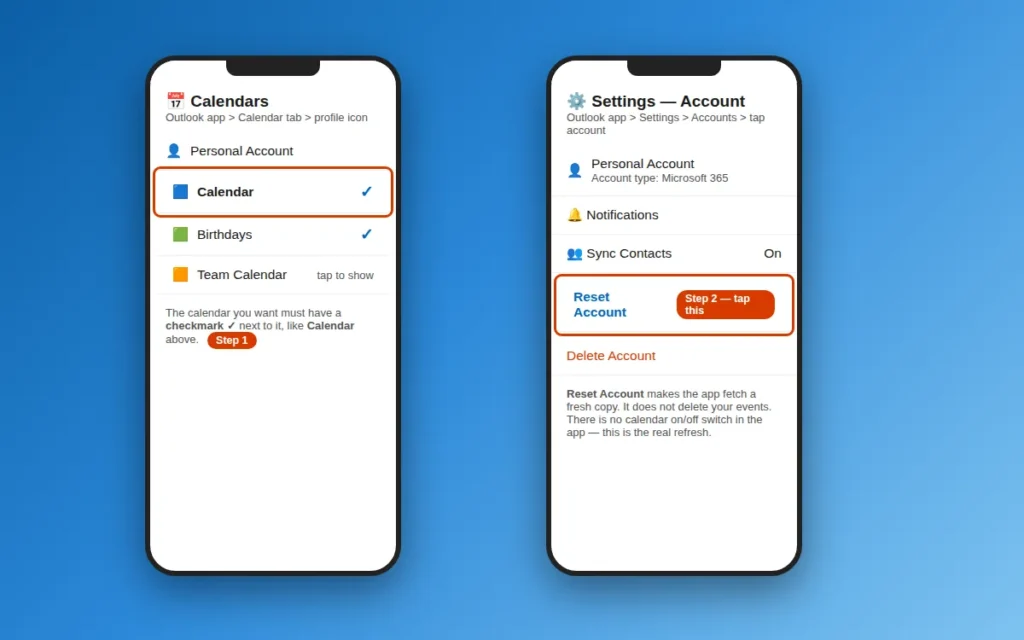
- Open the Outlook app, tap the Calendar tab at the bottom, then tap your profile icon in the top-left corner.
- Your calendars are listed under your account. Make sure there is a checkmark next to the one you want. Tap it if there is not.
Then refresh the account — Microsoft’s own fix for a stuck account:
- Tap your profile icon, then the Settings gear, then Accounts, then the account that is not syncing.
- Check the account type at the top. If it says IMAP or POP, that type cannot sync calendars at all — it is email only, and would need to be added again as a Microsoft 365, Exchange or Outlook.com account.
- Otherwise, tap Reset Account. The app fetches a fresh copy of your account. It does not delete your events.
- Go back to the Calendar tab, wait a minute, and check again.
Use your phone’s own Calendar app instead? That app does have an on/off switch. On iPhone: Settings > Calendar > Accounts, tap your account, and turn Calendars on — or off and on again if it already is.
Fix 4: Check the Calendar on Outlook on the Web
This test cuts the problem in half.
- In a browser, go to outlook.com, sign in with the same account, and click Calendar in the left-hand bar.
- Look for the missing event, and add a test event there.
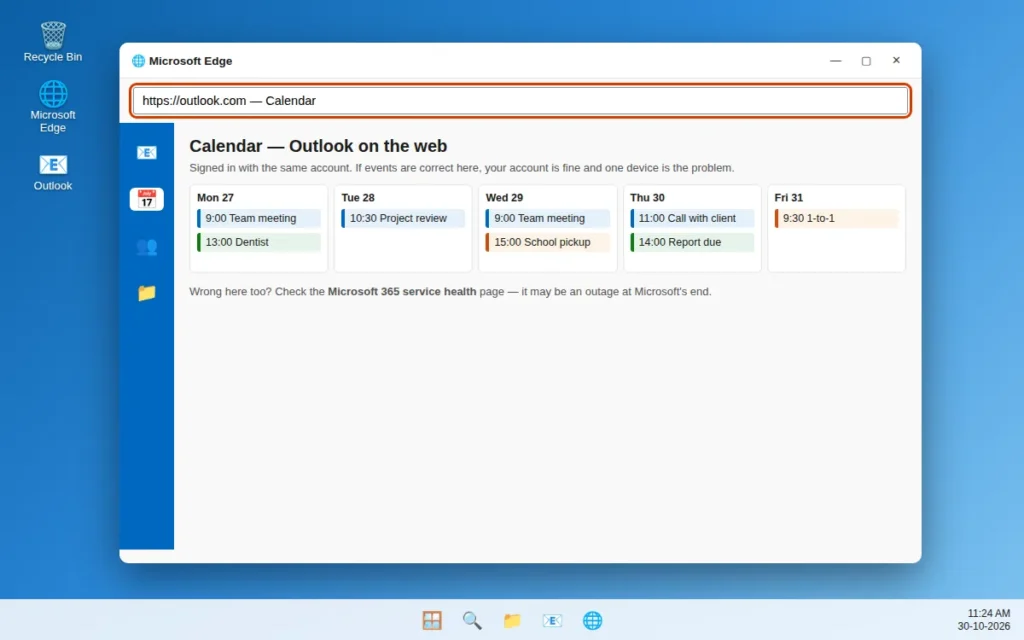
Now read the result:
- Web is right, PC or phone is wrong. Your account is fine; the problem is that one device. Carry on below for a PC, or use Fix 3 and Fix 8 for a phone.
- Web is wrong too. Check you are signed in to the right account, then check the Microsoft 365 service health page online. If Microsoft lists an Outlook problem there, it is an outage at their end — no device setting will fix it, and you just have to wait.
- A shared event is missing for you, but not for others. That points to sharing settings — go to Fix 7.
Fix 5: Widen the Cached Exchange Mode Sync Slider
In plain words, Cached Exchange Mode means Outlook keeps a copy of your mailbox on your PC, so it opens fast and works offline. A slider controls how much history that copy holds — if it covers only a few months, older appointments may not be in the copy, so they look unsynced.
- In Classic Outlook, click File > Account Settings > Account Settings.
- Click your Microsoft 365, Exchange or Outlook.com account, then Change.
- Make sure Use Cached Exchange Mode is ticked.
- Drag the Download email for the past slider right — pick 1 year, or All for old events. The account’s calendar data downloads with the same setting.
- Click Next, then Done, and restart Outlook.
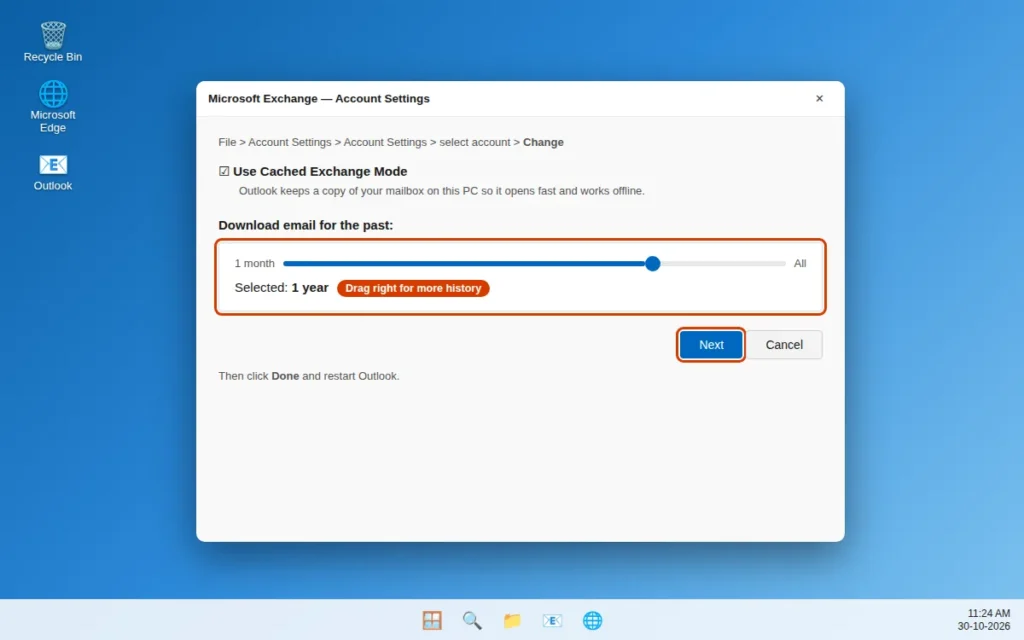
Give it a few minutes to download before judging it.
Fix 6: Rebuild the Local Copy (the .ost File)
The copy Outlook keeps on your PC sits in a file ending in .ost. If it is damaged, syncing can stop even when everything else is right. The fix is to let Outlook make a new one. Your real calendar is online, so this is safe for Microsoft 365, Exchange, Outlook.com and IMAP accounts.
For Classic Outlook:
- Close Outlook fully.
- Press Windows key + R, type
%localappdata%\Microsoft\Outlookand press Enter. This opens the folder where the .ost file lives — full path:C:\Users\[YourName]\AppData\Local\Microsoft\Outlook. - Find your account’s file ending in .ost and rename it — for example, change
.ostto.ost.old. Renaming keeps it as a backup. - Open Outlook. It builds a new file and downloads your mail and calendar again, which can take a while on a big mailbox.
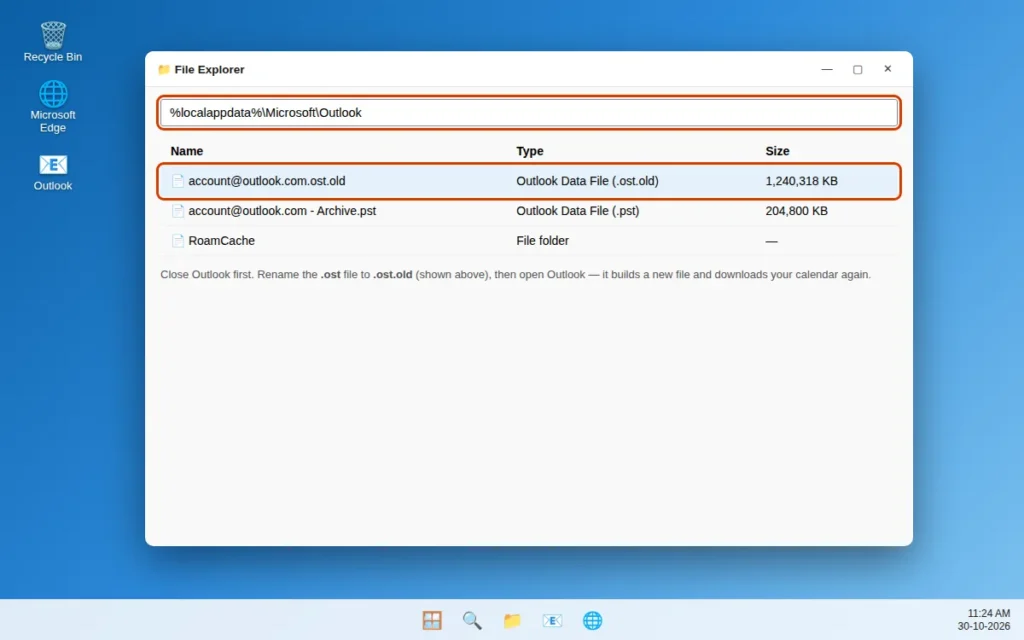
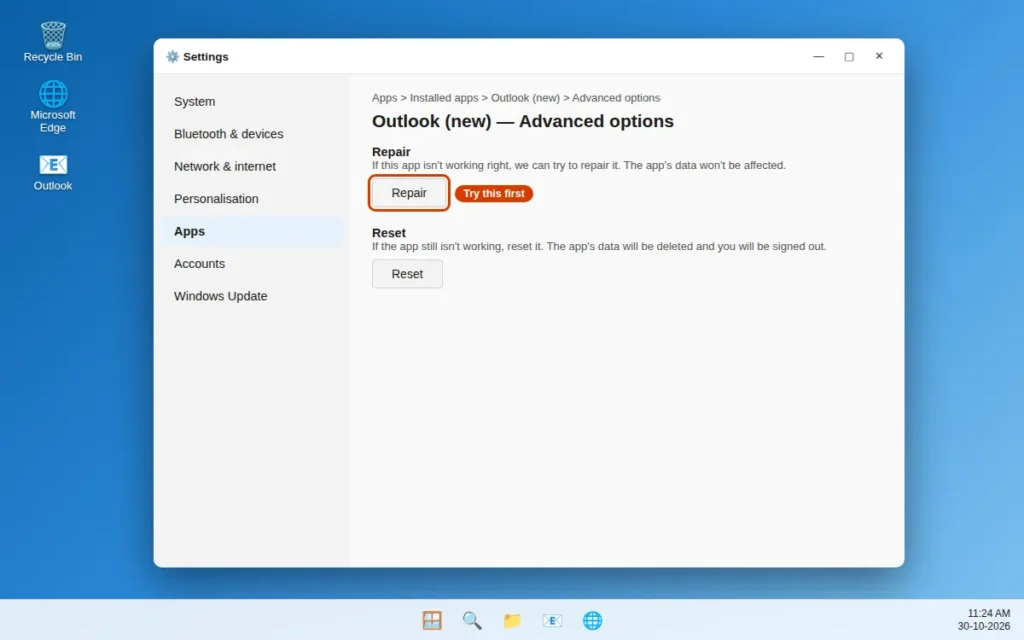
For the New Outlook app — use Repair, then Reset:
- Open Settings with Windows key + I, then Apps > Installed apps.
- Find Outlook (new), click the three dots next to it, and choose Advanced options.
- Click Repair first, then open Outlook and test the calendar.
- Still stuck? Go back and click Reset. Reset clears the app’s saved data on this PC and signs you out, so sign in again after. Your online calendar is not touched.
Fix 7: Check a Shared Calendar — Permissions, Then Remove and Re-Add
Shared calendars fail in their own way: your own calendar syncs fine, but a family, team or colleague calendar freezes.
- Ask the owner to check you still have permission. If they changed the sharing settings or stopped sharing, your copy stops updating — only the owner can fix that.
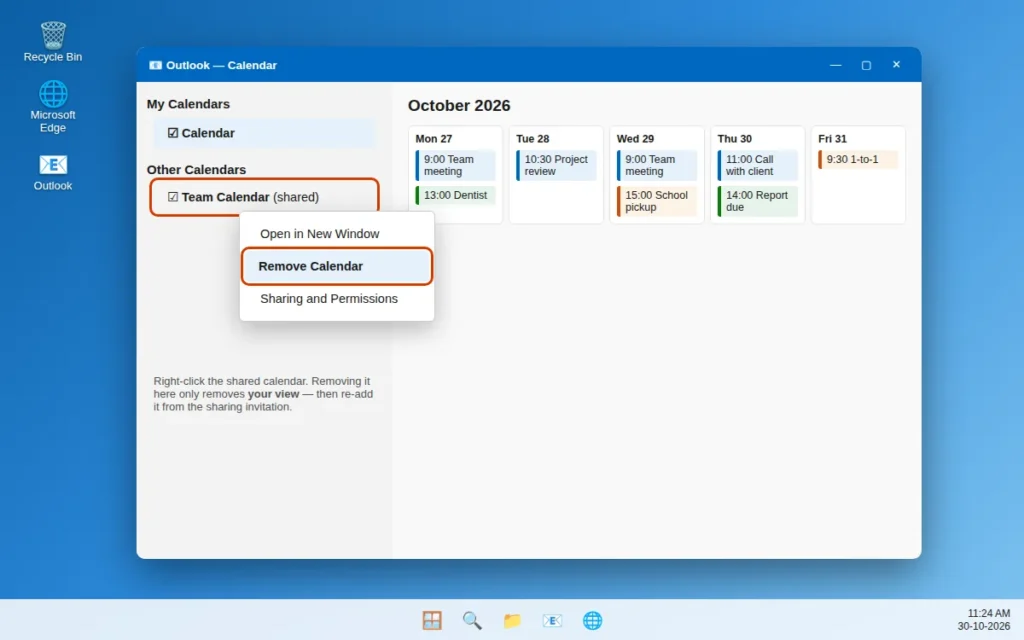
- Remove it from your list: right-click the shared calendar in the left-hand list and choose Remove Calendar or Delete Calendar. This only removes it from your view — it does not delete the owner’s calendar.
- Add it again. Easiest way: open the original sharing invitation email and click Accept. In Classic Outlook you can also use Add Calendar > Open Shared Calendar and type the owner’s name. Then ask the owner to add a test event and check you can see it.
Fix 8: Update Outlook, Office, Windows and the Phone App
Microsoft fixes sync bugs in updates, and one old device can fall out of step.
On your PC:
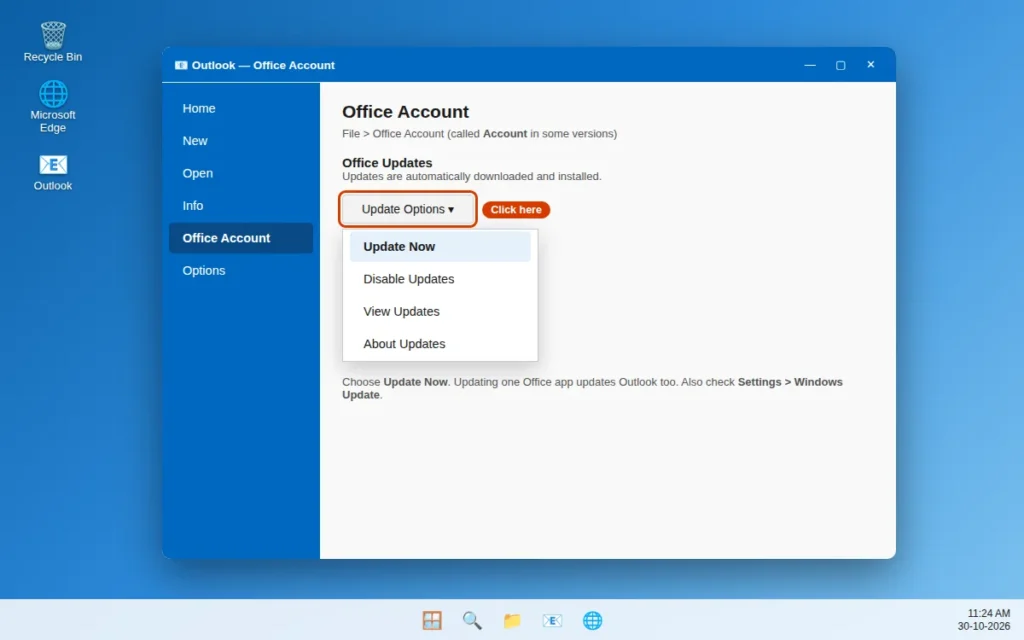
- In Classic Outlook, click File > Office Account > Update Options > Update Now. In some versions that page is called Account. Updating one Office app updates Outlook too.
- For the New Outlook, open the Microsoft Store, click Library, and install any Outlook update listed.
- Open Settings > Windows Update, click Check for updates, install what is offered, and restart.
On your phone: open the Google Play Store (Android) or App Store (iPhone), search Microsoft Outlook, and tap Update if you see it.
Fix 9: Remove and Re-Add the Account
Save this for last. It takes the account off that device and sets it up fresh, clearing almost any stuck setting. Nothing online is deleted, but you will need your password. Work and school accounts may also ask you to approve sign-in in an authenticator app — a phone app that confirms it is you signing in.
In Classic Outlook: click File > Account Settings > Account Settings, click the account that is not syncing, then Remove and confirm. Restart Outlook, then use File > Add Account and follow the sign-in steps.
If it still will not set up cleanly, try a fresh Outlook profile (the box Outlook keeps accounts and settings in): Control Panel > Mail (Microsoft Outlook) > Show Profiles > Add, add your account, and set Outlook to always use it.
In the New Outlook: go to Settings > Accounts, open the account, remove it, then add it again with Add account.
In the Outlook phone app: tap your profile icon, then the Settings gear, then Accounts, tap the account, then Delete Account > Delete From This Device. Then add it again — these are the exact steps Microsoft gives for this problem.
After re-adding, leave Outlook open on a good connection — a large calendar can look empty for a few minutes, then fill in at once. Normal syncing takes only a minute or two.
How to Stop Outlook Calendar Not Syncing Again
- Use the same account on every device, and update your password everywhere when you change it.
- Keep Outlook, Office, Windows and the phone app updated, and do not set the Fix 5 slider too short.
- When sync looks broken, check outlook.com first — it shows instantly if your events are safe online.
Frequently Asked Questions
Why is my Outlook calendar not syncing with my phone?
Usually the calendar is not ticked in the Outlook app’s list, or the phone account is IMAP or POP, which cannot sync calendars. Follow Fix 3: check the tick and account type, then tap Reset Account.
Why do events show on the web but not on my PC?
Your account is fine — the problem is the copy on your PC. Check the calendar is ticked (Fix 1), widen the slider (Fix 5), and if needed rebuild the .ost file (Fix 6).
Will rebuilding the .ost file delete my calendar?
No. The .ost file is only a copy. Your real calendar is online, and Outlook downloads it fresh. Renaming the old file keeps a backup for free.
Why did a shared calendar stop syncing?
Usually the owner changed the sharing settings, or the link to that calendar got stuck. Ask the owner to check your permission, then remove and re-add the calendar (Fix 7).
Does Work Offline stop the calendar from syncing?
Yes. Work Offline, on the Send / Receive tab, cuts Outlook off from the server on purpose. Click it again to go online, and check the bottom bar says Connected.
What if none of these fixes work?
Check the Microsoft 365 service health page for an outage, then remove and re-add the account (Fix 9). If a work or school account still fails, ask your IT team to check it.
Still not syncing? Tell us which device is wrong, and what the calendar shows on outlook.com, via our Contact page — servicedesk@howtofixerroronline.com, available 24 hours. More help is in our Calendar Problems category.