
New Outlook “Error Downloading File Content”: 5 Fixes for Attachments That Won’t Download
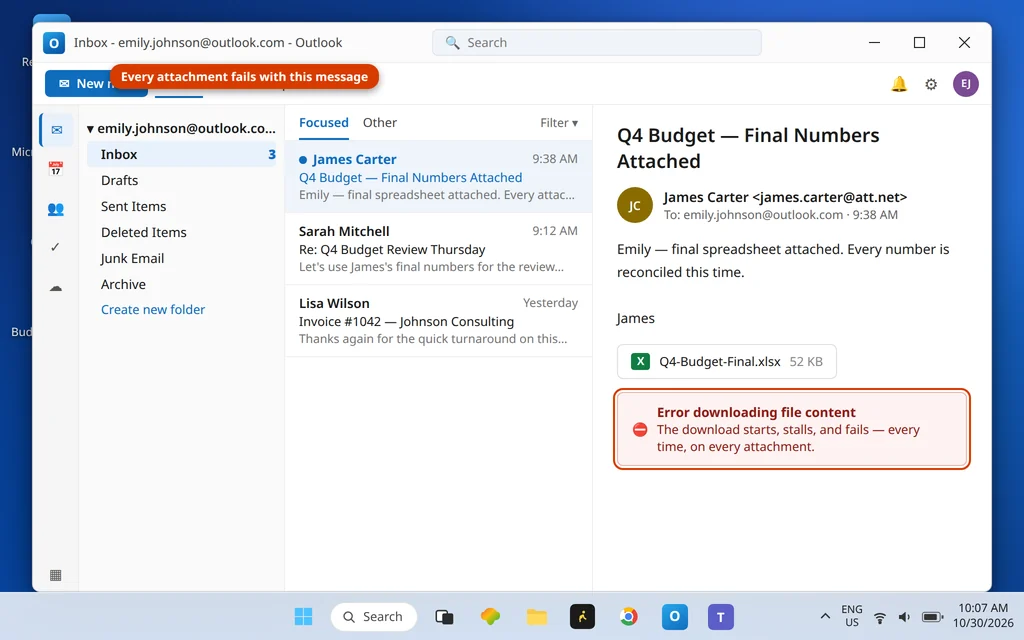
The email is right there. The attachment is right there — paperclip, file name, size, all normal. But when you click it, the new Outlook gives up with a short, unhelpful message: “Error downloading file content.” The same file opens perfectly in webmail, which makes it feel like the email itself is somehow broken. That is the new outlook error downloading file content problem in a nutshell.
It is not the email. In the new Outlook, this exact message has a signature cause that generic attachment guides miss: before it can show or save an attachment, the app downloads it into a local Attachments folder inside its data folder (%userprofile%\AppData\Local\Microsoft\Olk). If that folder is missing or damaged, every download fails the same way — the app literally has nowhere to put the file. Recreating the folder is Fix 1, and it is the fix most people need.
Quick Answer: Close Outlook, open %userprofile%\AppData\Local\Microsoft\Olk in File Explorer, and if the Attachments folder is missing, create it — right-click > New > Folder, named exactly Attachments — then reopen Outlook (Fix 1). While you work: use the attachment’s dropdown > Save to OneDrive as a workaround (Fix 2). Files like .exe, .cmd, .com and .cab are blocked outright and never download (Fix 3). Also check disk space and, on work accounts, admin policy (Fix 4), plus time zone mismatches that break previews (Fix 5).
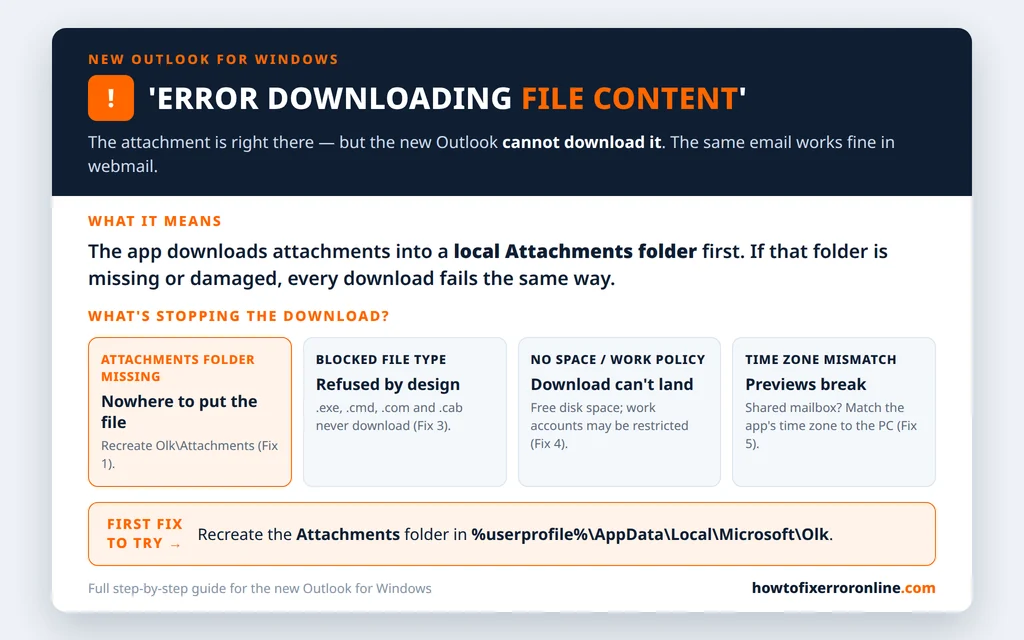
Table of Contents
New Outlook Error Downloading File Content: Why Downloads Fail
The new Outlook does not stream attachments straight from the server to your screen. When you open or save one, it first caches the file locally in the Attachments subfolder of its Olk data folder — the same app-data area that holds the rest of the app’s local state. That design gives this error a short, specific cause list:
- The Attachments folder is gone or corrupt — deleted by a cleanup tool, damaged by an interrupted update, or never created properly. Every download then fails with “Error downloading file content,” on every email, while webmail works fine. That pattern — all attachments, only in the app — is the tell.
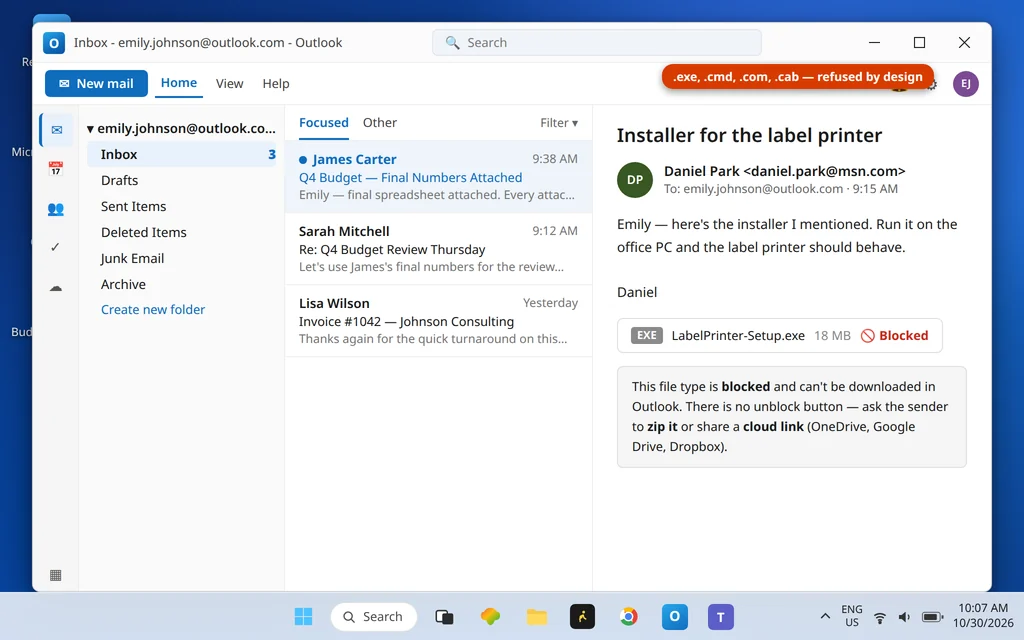
- The file type is blocked — Outlook refuses certain executable types outright, which presents as a download that simply will not happen.
- Nowhere to save it — a nearly full drive, or an admin policy on a work account restricting downloads.
- A time zone mismatch — especially with shared mailboxes, this breaks attachment previews even when downloads work.
If only one email’s attachment fails while others download normally, suspect that message or its file type first (Fix 3). If everything fails, start at Fix 1.
Fix 1: Recreate the Olk Attachments Folder
This is the signature fix for this exact error string:
- Close the new Outlook completely.
- Press Windows key + R, type
%userprofile%\AppData\Local\Microsoft\Olkand press Enter. File Explorer opens inside the Olk folder. - Look for a folder named Attachments.
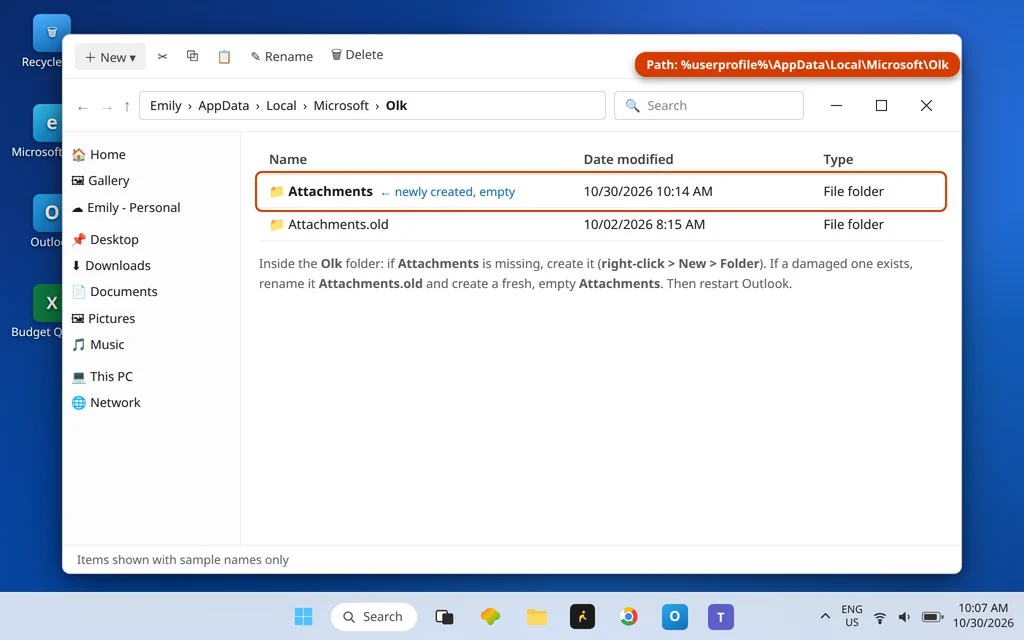
- If it is missing: right-click an empty area > New > Folder, and name it exactly Attachments.
- If it is there but downloads still fail: rename it to Attachments.old, then create a fresh Attachments folder the same way. (The old one keeps any cached files safe until you are sure.)
- Reopen Outlook and try the download again.
Do not delete anything else inside Olk while you are there — the rest of the folder holds the app’s local state, and the general repair for that is the Reset in the last section, not manual tidying.
Fix 2: Save to OneDrive Instead (Workaround and Test)
While you fix — or to prove the email itself is fine — bypass the local cache entirely:
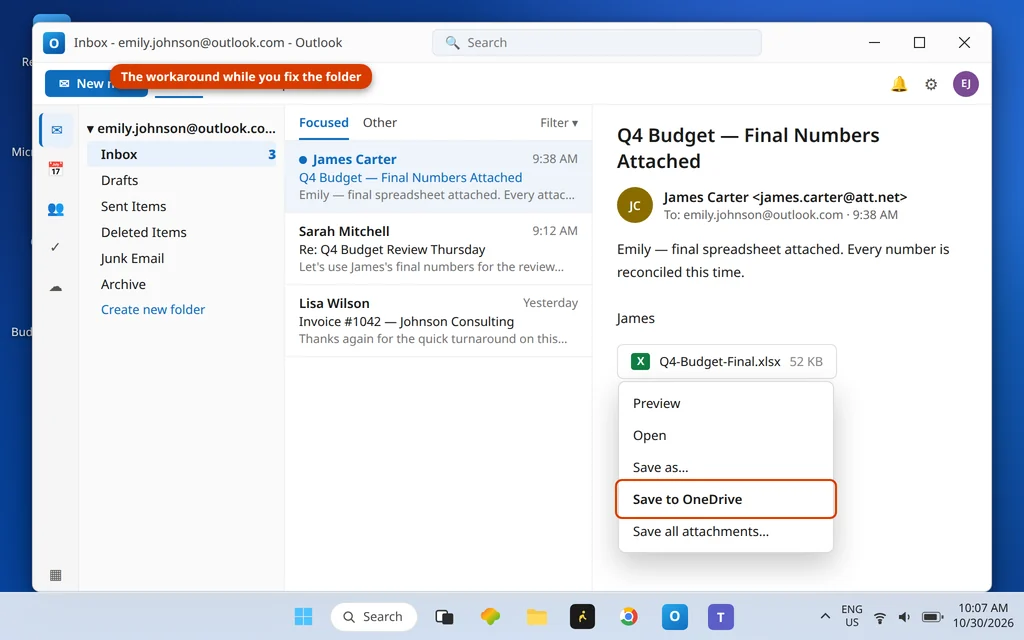
- Click the dropdown arrow on the attachment (not the file name itself).
- Choose Save to OneDrive (or Save all attachments > OneDrive if there are several).
- The file lands in your OneDrive, where you can open or download it normally.
A second workaround in the same spirit: forward the email to yourself and download the attachment from the fresh copy. If OneDrive saving works while direct download fails, you have confirmed the problem is the app’s local download path — Fix 1 territory — not the email or your account.
Fix 3: Blocked File Types Are Refused Outright
Some attachments are not failing — they are refused. Outlook blocks executable file types by design, including .exe, .cmd, .com and .cab (and a longer list of similar types). There is no setting to unblock them, in the app or in Classic. Microsoft publishes the full list of blocked file types in its support article on blocked attachments in Outlook.
What to do instead:
- Ask the sender to zip the file and resend it, or
- Ask them to share it with a cloud link (OneDrive, Google Drive) instead of attaching it.
If a colleague “sent you the program” and it will not download, this is almost certainly why — and it is the block working as intended.
Fix 4: Check Disk Space and Admin Policy
Two external limits can fail downloads without any dramatic error of their own:
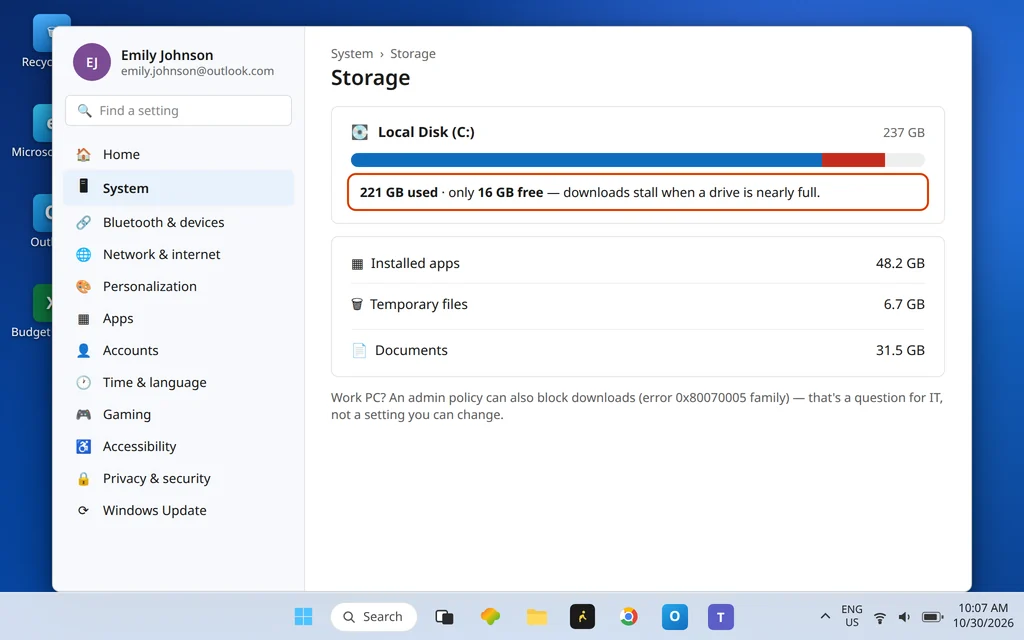
- Disk space: the app needs room to cache the file locally. Open Settings > System > Storage and check the free space on your Windows drive. If the drive is nearly full, free space (empty the Recycle Bin, clear Downloads, let Storage Sense run) and retry.
- Admin policy (work/school accounts): your organization can restrict attachment downloading on managed accounts. The quick test: does the same file download on a personal account in the same app, or in webmail on the same account? If it works elsewhere but not on the work account in any app, it is policy — your IT team is the fix, and no local step overrides it.
Fix 5: Fix a Time Zone Mismatch (Broken Previews)
If attachments download but previews fail — most noticeably with shared mailboxes — check that the time zones agree:
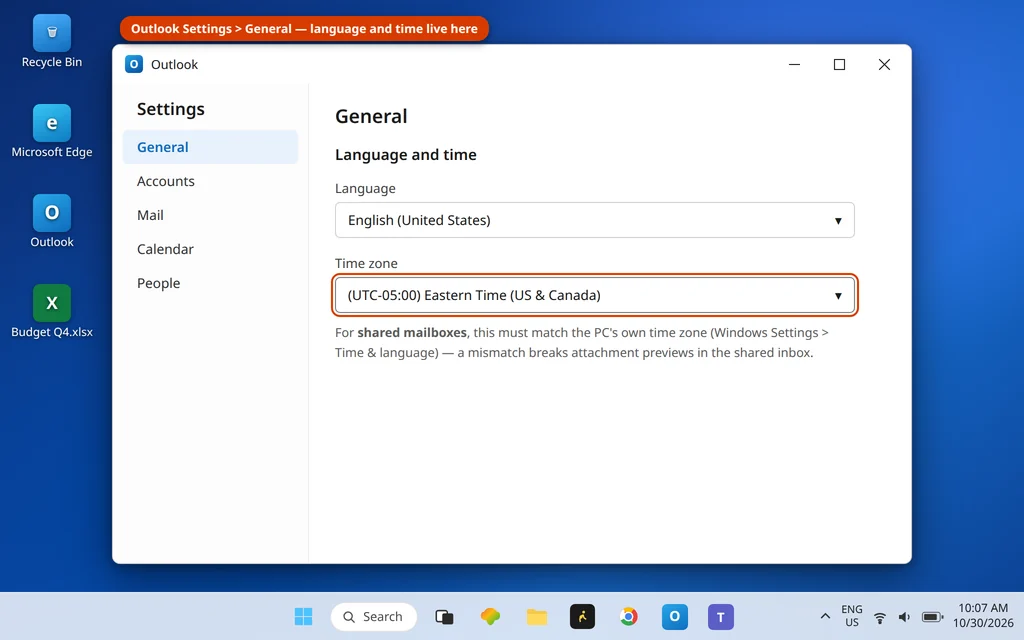
- In the new Outlook, open Settings > General > Language and time and note the time zone.
- Compare it with Windows: Settings > Time & language > Date & time.
- If they differ, set the Outlook one to match your PC, restart the app, and try the preview again.
Last Step: Repair or Reset the App
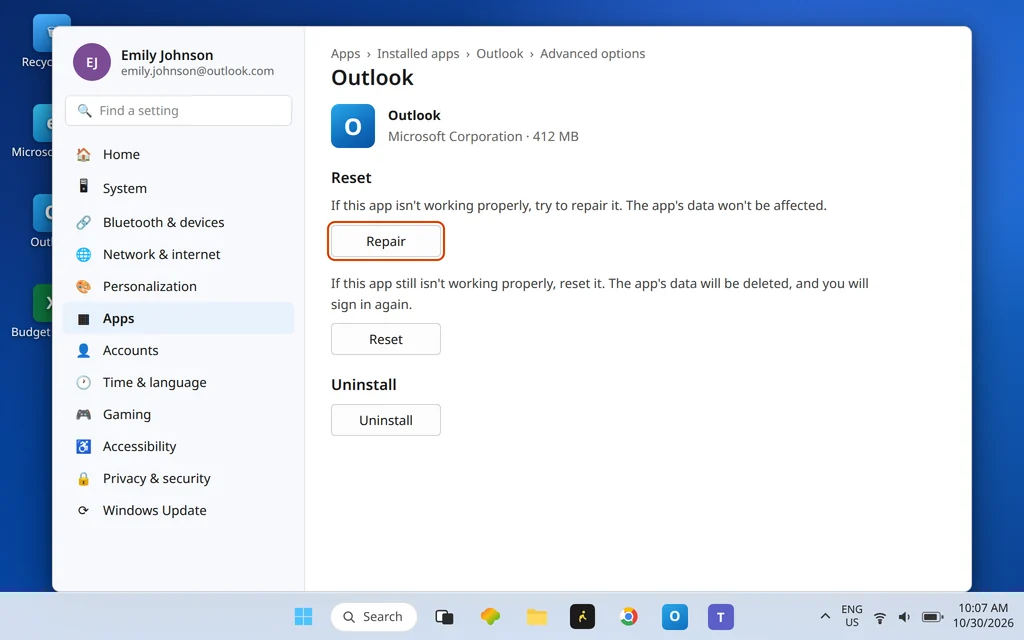
If the Attachments folder exists, the file type is fine, space is available and downloads still fail across the board, the app’s local state is damaged more broadly. Use the standard app repair — Settings > Apps > Installed apps > Outlook > Advanced options > Repair, then Reset if needed — which is also the backbone of our new Outlook “Something went wrong” guide, where the full app-repair stack (including the Olk folder rebuild) lives. Sign in again afterwards; your mail is on the server and is not affected.
How to Stop Attachment Download Errors Coming Back
- Keep cleanup tools away from AppData. Aggressive “PC cleaner” utilities deleting folders inside
%localappdata%\Microsoft\Olkare a prime suspect when this error appears out of nowhere — the Attachments folder goes with them. - Keep some free disk space on the Windows drive; the app caches every attachment locally before showing it.
- Send executables the modern way — a zipped file or a cloud link — so Fix 3 never applies to mail you receive from people who know the rule. Mention it to regular senders once.
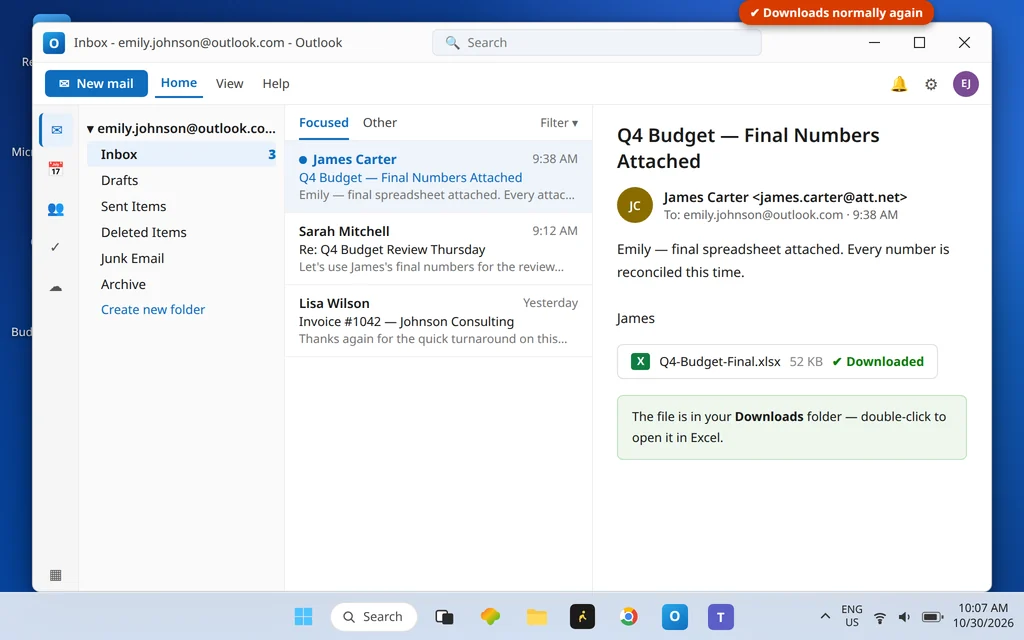
Once the folder is back, the same attachment downloads and opens normally:
Frequently Asked Questions
Why does the new Outlook say “Error downloading file content”?
Because the app could not complete the local download of the attachment — and the signature cause is that its local Attachments folder (inside %userprofile%\AppData\Local\Microsoft\Olk) is missing or damaged, so the file has nowhere to land. Recreate the folder (Fix 1). Blocked file types, a full drive, admin policy and time zone mismatches cover the remaining cases in this guide.
From the new Outlook, Excel attachments are not opening in Microsoft apps. Is that the same problem?
Related, but one step further along: if the attachment downloads and then will not open in Excel or Word, the download path is working and the issue is the file opening/association side — check that the file fully downloaded, and open it from the saved copy in File Explorer rather than the preview. If it will not even download (“Error downloading file content”), you are in this guide’s territory — start with Fix 1.
Where is the Olk folder, and what is the Attachments folder inside it?
The Olk folder is the new Outlook’s local data folder: %userprofile%\AppData\Local\Microsoft\Olk (paste that path into the Run box or File Explorer’s address bar). Inside it, the Attachments folder is where the app caches attachments it downloads for preview and saving. It is a cache, not your mailbox — recreating it loses nothing, because the real attachments live with the emails on the server.
Why won’t Outlook download an .exe attachment at all?
Because that is deliberate. Outlook blocks executable types — .exe, .cmd, .com, .cab and similar — outright, with no user setting to override it, since attachments of those types are a classic malware route. Ask the sender to zip the file or share it through a cloud link instead (Fix 3).
The attachment downloads fine in webmail but not in the app. Why?
That split is the fingerprint of the app-side causes: webmail does not use your PC’s Olk folder, disk cache or app settings, so it works — while the app fails on its missing Attachments folder, its cache, or its local state. It rules out your account, the email and the sender, which is why this guide’s fixes are all on the PC. If downloads fail in webmail too, the problem is account- or sender-side instead.
Still getting “Error downloading file content”? Tell us whether it fails on every attachment or just one, and whether webmail works, via our Contact page: servicedesk@howtofixerroronline.com, available 24 hours. The wider error list is on our Error Codes hub, and if the app itself will not open, start with new Outlook “Something went wrong”.