
Citrix ICA File Opening with Word? Set Citrix Workspace as the Default
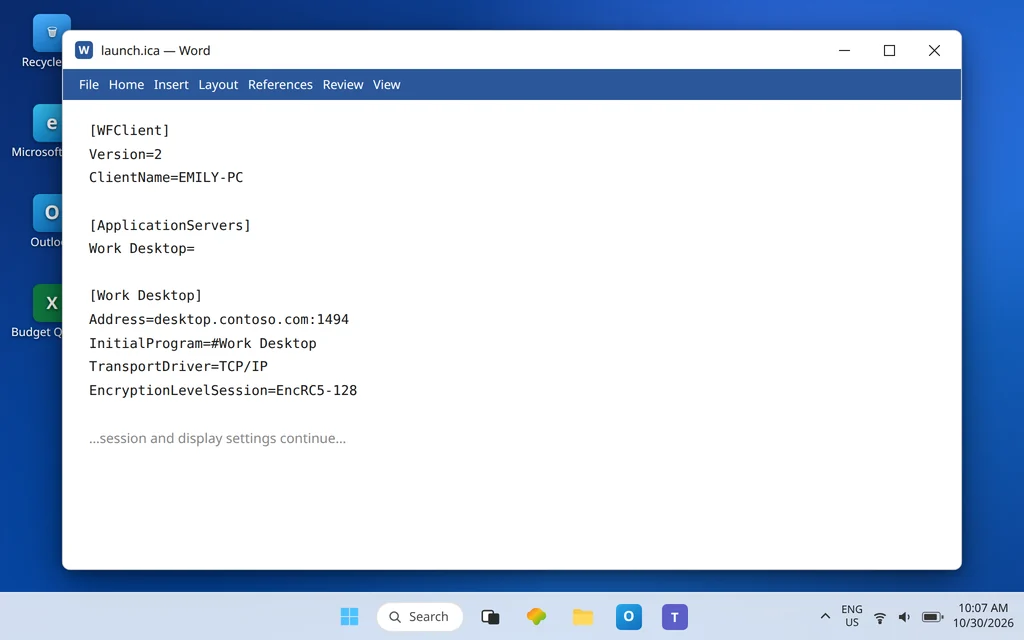
Double-click a Citrix launch file and instead of your work desktop, Microsoft Word opens — filled with strange lines like [WFClient], version numbers, and a server address. It looks like a broken document. It is not a document at all, and Word opening it is the whole problem. This guide fixes citrix ica file opening with word by changing the default app to Citrix Workspace.
That file, ending in .ica, is the ticket your Citrix portal created when you clicked an app or desktop. Windows is currently set to open that ticket with Word, so Word dutifully displays it — the way it would display any text. Hand the .ica file type back to the Citrix Workspace app and the same double-click starts your session instead.
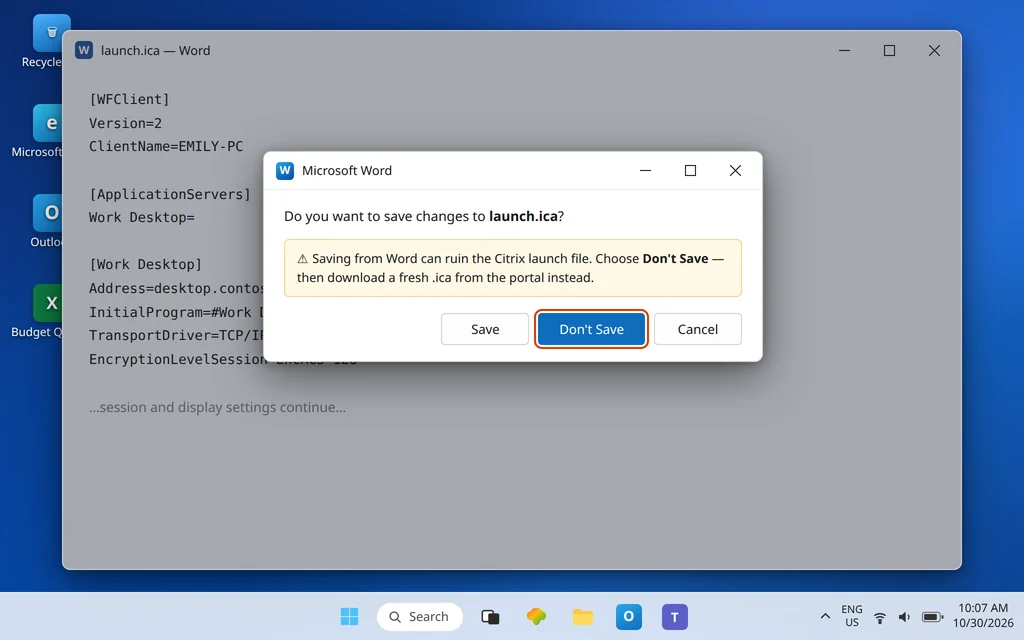
First, one urgent instruction that the rest of this guide explains: if Word has your .ica file open right now, close it without saving. Do not click Save, even out of habit. Then work through the fixes below. Related flavors: if the file opens a media app instead, see Citrix ICA File Opening with Media Player; if clicking in the portal produces nothing at all, see ICA File Not Opening in Citrix Workspace App. If Word itself is the app misbehaving on your PC more generally, our Microsoft Word Not Opening guide covers that side.
Quick Answer: An .ica file is a small text launch ticket for Citrix — not a Word document. Close Word without saving (saving can ruin the file; just re-download a fresh one instead). Then open Settings > Apps > Default apps, search .ica,
and set the default to Citrix Connection Manager — that is the Citrix Workspace launcher Windows lists. Future portal clicks will open in Citrix, not Word.
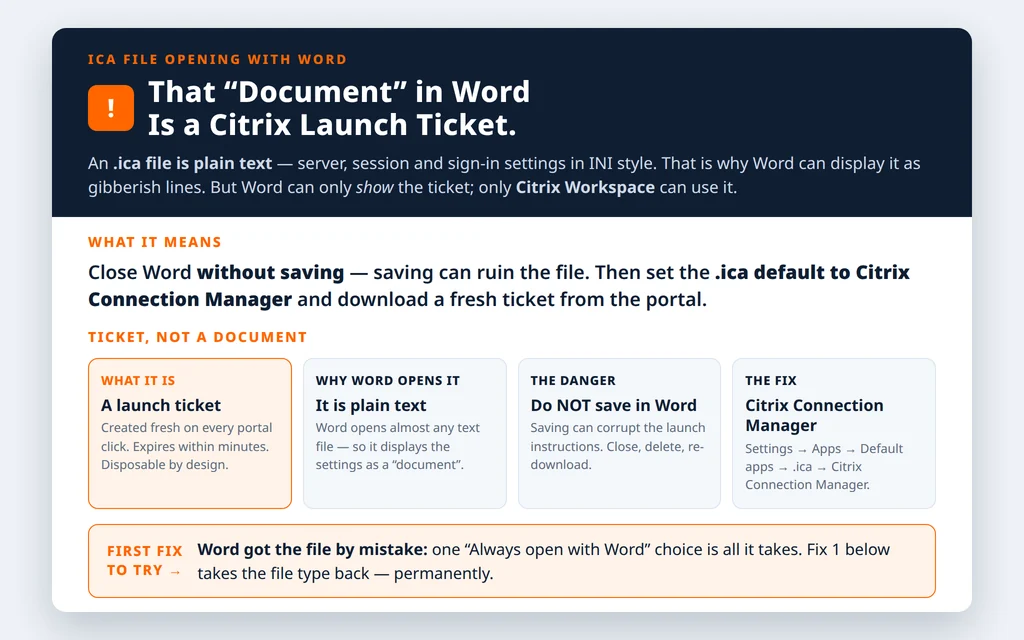
Table of Contents
citrix ica file opening with word: what an .ica file actually is
ICA stands for Independent Computing Architecture, Citrix’s connection technology. When you click a desktop or app in your portal, the portal generates a fresh .ica file containing, in plain text, everything the Citrix client needs for that one launch: which server to connect to, session and display settings, encryption, and authentication details. It is formatted like an old-style Windows INI settings file — headings in square brackets, one setting per line.
That plain-text design is exactly why Word can display it. Word will open almost any text file and present it as a document. The “gibberish” on screen is not corruption; it is the launch instructions, readable because they were never hidden. But Word can only show the ticket — it cannot use it. Only the Citrix Workspace app can read those instructions and build the connection.
Two practical consequences follow:
- The file is disposable. It is created fresh for every launch and expires within minutes. You never need to keep, organize, or back up .ica files.
- The file is fragile in an editor. If Word saves changes back into it — even something invisible like formatting metadata — the instructions may no longer parse correctly and the launch will fail. That is why the rule is: close without saving, delete if in doubt, and click the app in the portal again for a fresh file.
Fix 1 — Set the .ica default to Citrix in Windows Settings
This removes Word’s assignment and gives the file type to Citrix permanently:
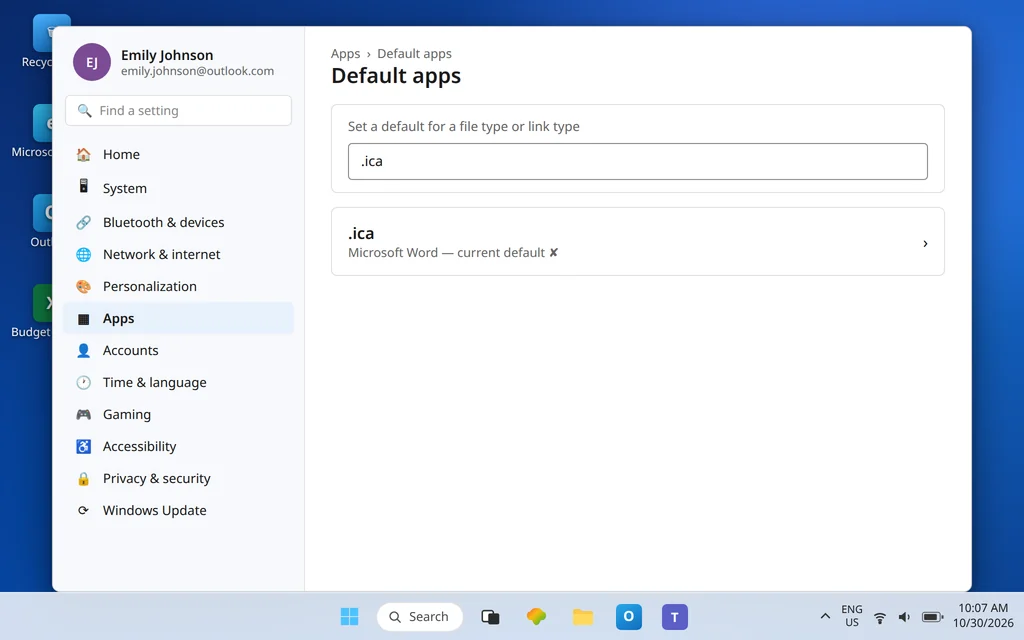
- Open Settings > Apps > Default apps.
- In the box under Set a default for a file type or link type, type .ica.
- Click the current default — which will show Word (or Microsoft Word).
- Choose Citrix Connection Manager from the list.
- Click Set default.
About that name: Windows does not list this entry as “Citrix Workspace.” The program that opens .ica files is the Workspace app’s launcher component, Citrix Connection Manager (wfcrun32.exe, stored in C:\Program Files (x86)\Citrix\ICA Client\). Selecting it is selecting Citrix Workspace — the store simply labels the component, not the suite. On the Windows 10 equivalent screen (Default apps > Choose default apps by file type), the same Citrix Connection Manager entry is the one to pick for .ica.
Test with a fresh launch: go back to the portal, click your app, and open the newly downloaded file. Word should stay closed and a Citrix session should start.
Fix 2 — Use the “How do you want to open this file?” prompt correctly
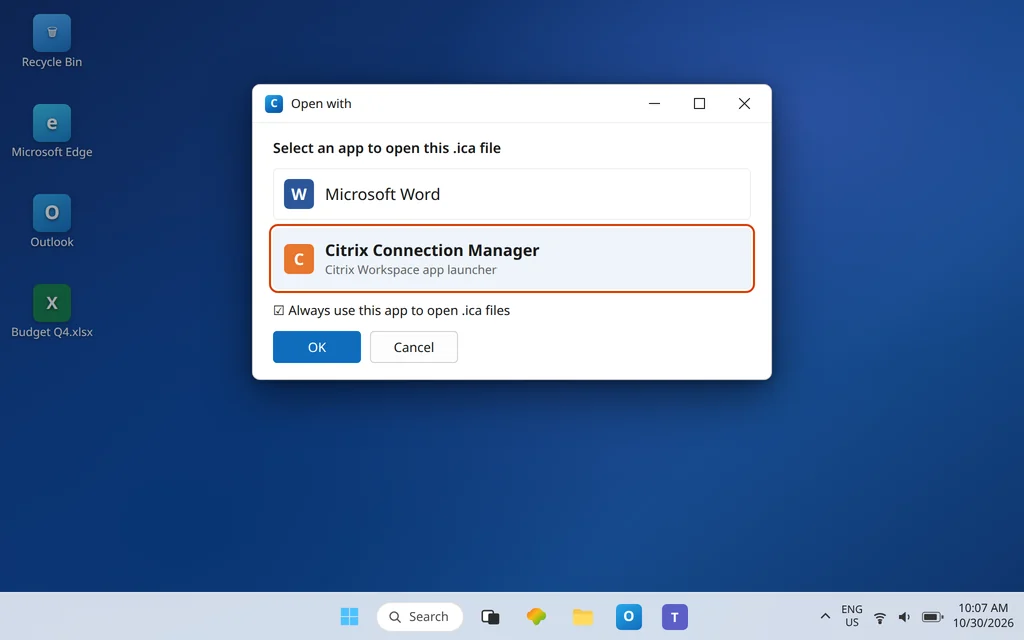
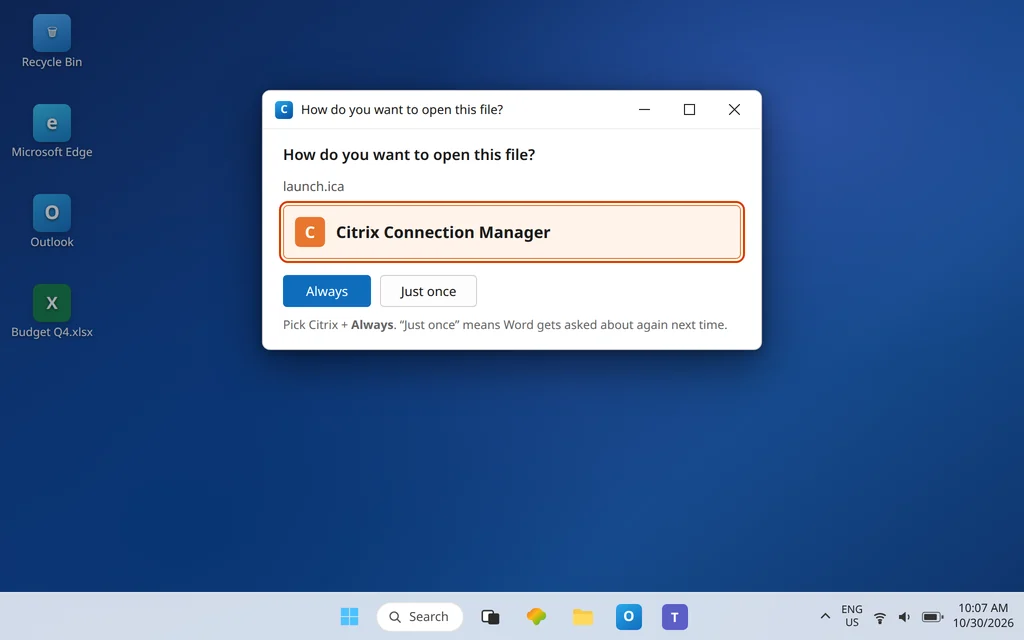
Often, the way Word got the job in the first place is the Windows prompt that appears for a new file type: “How do you want to open this file?” The good news is the same prompt is a complete repair kit — when you see it for an .ica file:
- In the list, select Citrix Connection Manager. If it is not visible, click More apps, then Choose an app on your PC and browse to
C:\Program Files (x86)\Citrix\ICA Client\wfcrun32.exe. - Tick Always use this app to open .ica files before confirming (in Windows 11, choose the Always button rather than Just once).
The tick box/button is the difference between a one-time open and a repaired default. Miss it, and Word returns on the very next download — the single most common reason people report that “the fix didn’t stick.” You can trigger the same choice deliberately any time: right-click an .ica file, choose Open with > Choose another app, and make the same selection with Always.
Fix 3 — No Citrix entry anywhere? Reinstall Workspace
If Citrix Connection Manager appears in neither Settings nor the Open with list, and the ICA Client folder does not exist, then Citrix Workspace app is not installed on this PC — Word won by default because it was the only volunteer. Install the current Citrix Workspace app for Windows from Citrix (or your organization’s approved installer), restart the PC, and repeat Fix 1. A proper install registers Citrix Connection Manager for .ica automatically.
If Workspace was installed but its entry has vanished or selecting it changes nothing, an uninstall-and-reinstall is still the cleanest cure: it rewrites the file-type registration that both Word’s takeover and a damaged install can leave behind.
Fix 4 — Remove Word’s grip for good
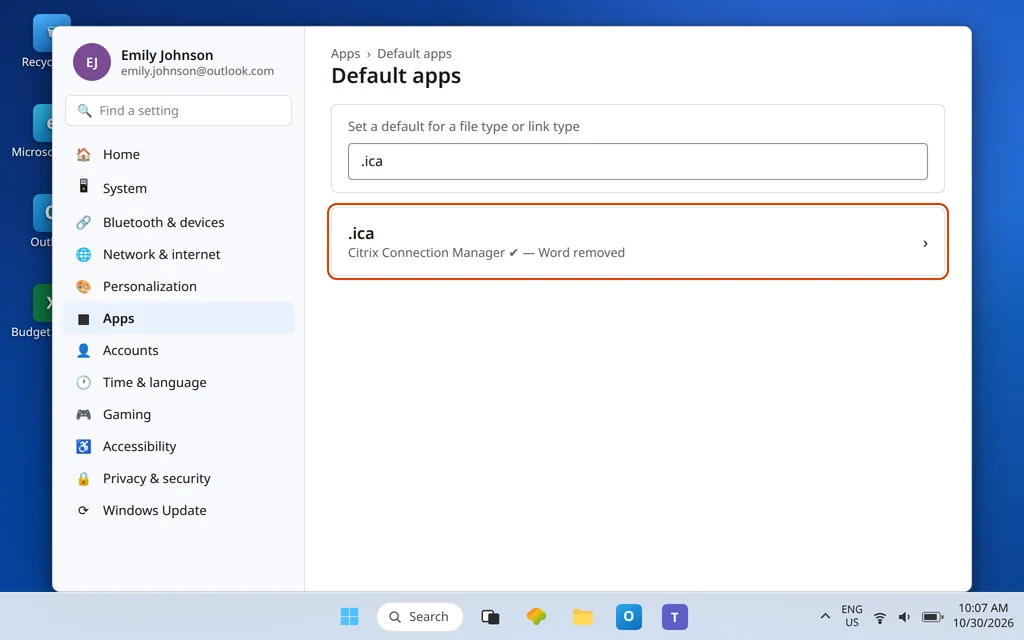
After Fix 1 or 2, verify the eviction actually happened and tidy up:
- Re-open Settings > Apps > Default apps, search .ica, and confirm the default now reads Citrix Connection Manager — not Word.
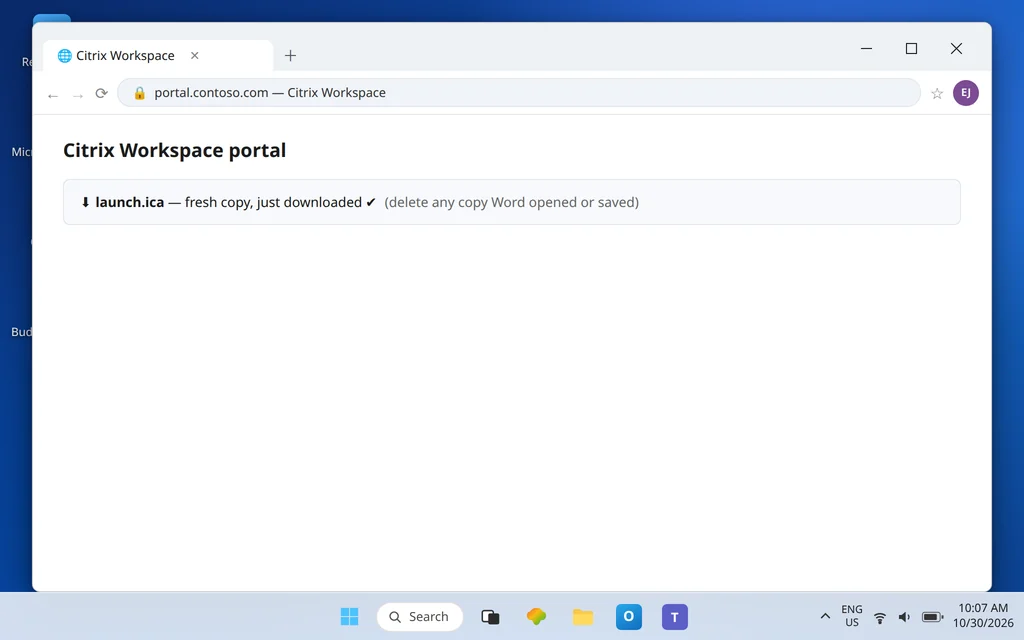
- Delete the old .ica files from Downloads. Any copy Word opened (and especially any copy Word may have saved) should never be reused; the portal will always make a fresh one.
- In the browser, open the next downloaded .ica from the downloads panel menu and choose Always open files of this type, and accept the prompt to always allow your portal to open Citrix links. That keeps future launches automatic, with no prompt where Word could be picked by accident again.
If .ica keeps flipping back to Word after restarts on a work PC, something is reapplying it — typically a device policy. At that point, involve your IT team and tell them the extension and the desired default (Citrix Connection Manager) by name; that saves them a diagnostic step.
Fix 5 — Word opens only from the browser? Check the download handoff
Sometimes the split is oddly specific: double-clicking an .ica file in Downloads launches Citrix correctly (your Fix 1 worked), yet clicking in the portal still opens Word. That means the browser is holding its own memory of what to do with the download, separate from the Windows default. In Edge or Chrome, open the browser’s Downloads list, find a recent .ica entry, and check what its menu offers — if an “open with” habit was set there, clear it by opening the fresh file once and choosing the Citrix option with Always open files of this type. Also accept the portal’s prompt to always allow opening Citrix links when it appears. Once the browser hands the file to Windows instead of deciding itself, the Windows default you set — Citrix Connection Manager — takes over and Word is out of the chain entirely. Firefox shows the same choice in its download dialog (“Do this automatically for files like this from now on”), tied to the app you select there: choose Citrix Connection Manager in that dialog if Firefox is your portal browser. Citrix also explains how browsers handle .ica files in its official guide.
Confirm it worked
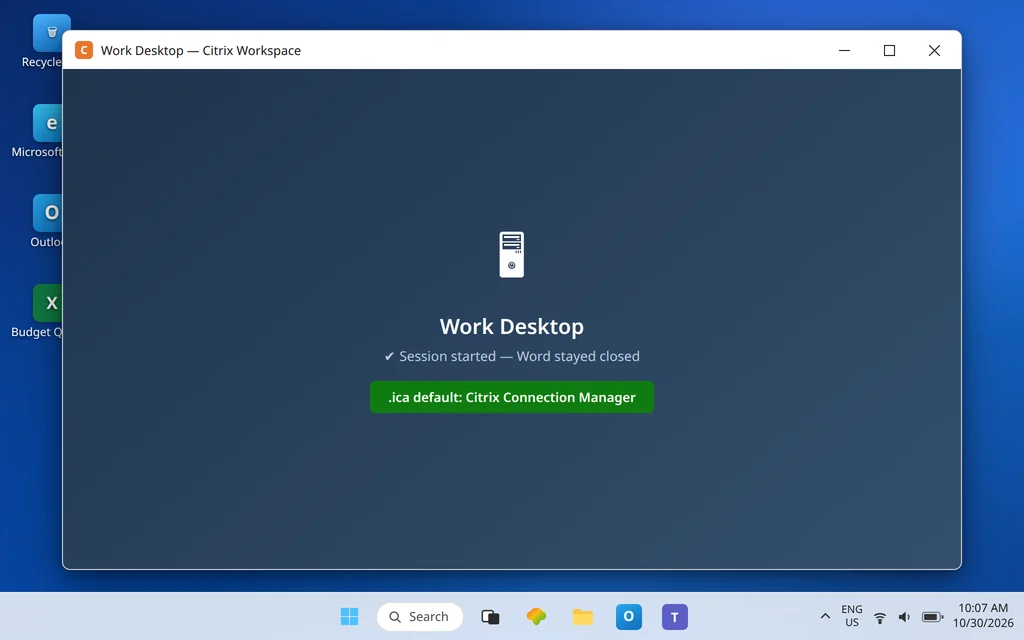
Click your app or desktop in the portal. The fresh .ica file should trigger a Citrix session window — Word should not open, flash, or appear in the taskbar at all. Double-clicking an .ica file in Downloads should do the same. If you can launch twice in a row with Word staying closed, the association is repaired.
How to stop it happening again
- Never edit or save an .ica file. If one opens in Word or any editor by accident, close it without saving and download a fresh copy.
- Always means always. Whenever the Open with prompt appears for .ica, pick Citrix Connection Manager with the Always option — one careless “Just once… with Word” undoes the repair.
- Keep Workspace installed. If Workspace is removed, Windows will eventually offer the file type to whatever text-friendly app volunteers — often Word or Notepad.
Frequently asked questions
Why does my Citrix file open in Microsoft Word?
Because Windows has Word set as the default app for the .ica extension. An .ica file is plain text, so Word can display it as a page of settings lines — but it cannot launch anything. Changing the .ica default to Citrix Connection Manager (Fix 1) sends future files to the Citrix Workspace launcher instead.
Is an .ica file a Word document?
No. It is a one-time launch ticket generated by your Citrix portal: a small text configuration file (server, session, encryption, and sign-in details in INI style) that tells the Citrix Workspace app how to connect. It is not meant to be read, edited, printed, or kept — it expires within minutes and a fresh one is created on every portal click.
What happens if I saved the file while it was open in Word?
Treat that copy as ruined. Saving from Word can alter the file so the Citrix client can no longer use it. There is nothing to recover and nothing lost: delete the saved copy, go back to the portal, and click the app again to generate a clean, fresh .ica file.
How do I open an .ica file correctly?
Double-click it — after the default is set to Citrix Connection Manager. Or right-click it, choose Open with, select Citrix Connection Manager with Always ticked. The Citrix session should start within seconds. Opening it in Word, Notepad, or a browser only shows you the text; it never starts the session.
The prompt says “How do you want to open this file?” every time. How do I make it stop?
The prompt returns when no permanent default is stored. Select Citrix Connection Manager and make sure you tick Always use this app to open .ica files (or click Always in Windows 11) before confirming. Choosing the app without the Always option opens it once and asks again next time.
Word is not the problem — nothing happens when I click in the portal. Where do I look?
That is the silent-launch variant, covered step by step in ICA File Not Opening in Citrix Workspace App: check the Workspace install, the browser’s “always allow” prompt, and a Workspace reset.
Word still hijacking your Citrix launches? Contact us at servicedesk@howtofixerroronline.com or through our Contact page and tell us what Settings shows as the default for .ica and whether Citrix Connection Manager appears in your Open with list. We will never ask for your password.