
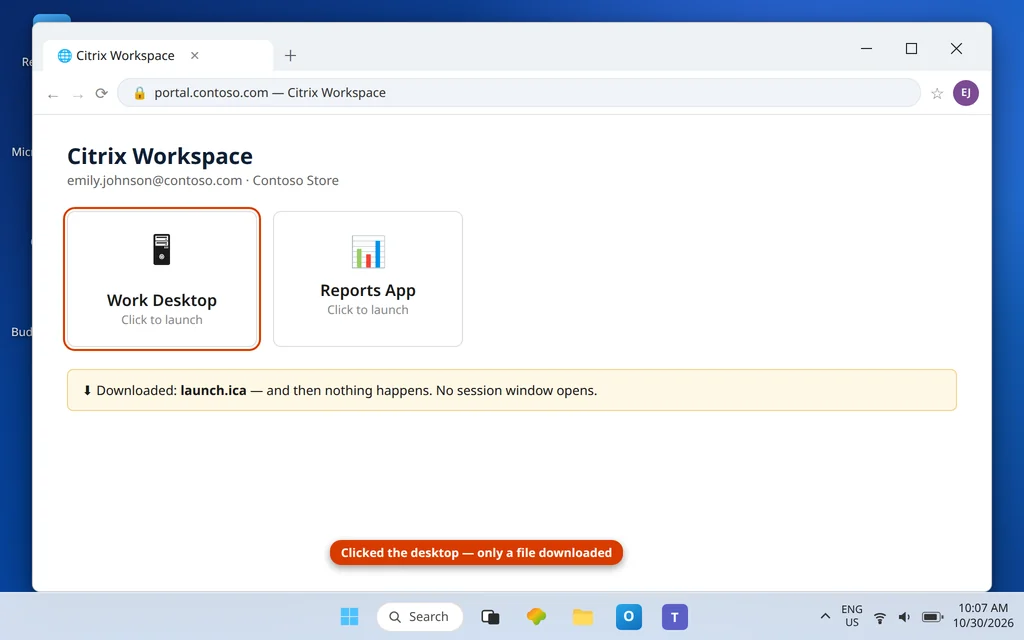
ICA File Not Opening in Citrix Workspace App — Desktop or App Won’t Launch
You sign in to your company Citrix portal, click your desktop or app, and… nothing. No window, no error, no spinning icon. Sometimes a small file called launch.ica lands in your Downloads folder and then sits there. Sometimes the browser does not even do that. Either way, the session never starts, and because there is no error message, there is nothing obvious to search for. This guide works through ica file not opening citrix workspace in order, so you can find the broken link fast.
Here is what is actually happening. That click does not open the app directly. The portal creates a tiny launch file — the .ica file — and hands it to the Citrix Workspace app on your PC. The Workspace app reads the file and builds the connection. If any link in that short chain breaks — Workspace is missing or out of date, Windows no longer hands .ica files to Citrix, or the browser never passes the file across — the click appears to do nothing at all.
Work through the fixes in order. Most people are back in by Fix 2 or Fix 3. If your file opens in the wrong program instead, that is a different flavor of the same problem: see Citrix ICA File Opening with Media Player and Citrix ICA File Opening with Word.
Quick Answer: First confirm Citrix Workspace app is installed and current — a missing or outdated Workspace app is the most common cause. Then fix the handoff: open Settings > Apps > Default apps, search .ica, and set it to Citrix Connection Manager. Back in the browser, click the app again and choose Always allow when the browser asks to open the link. Still nothing? Reset Workspace (system tray icon > right-click > Advanced Preferences > Reset) and, if your organization allows it, launch through Citrix Workspace app for HTML5 in the browser as a fallback.
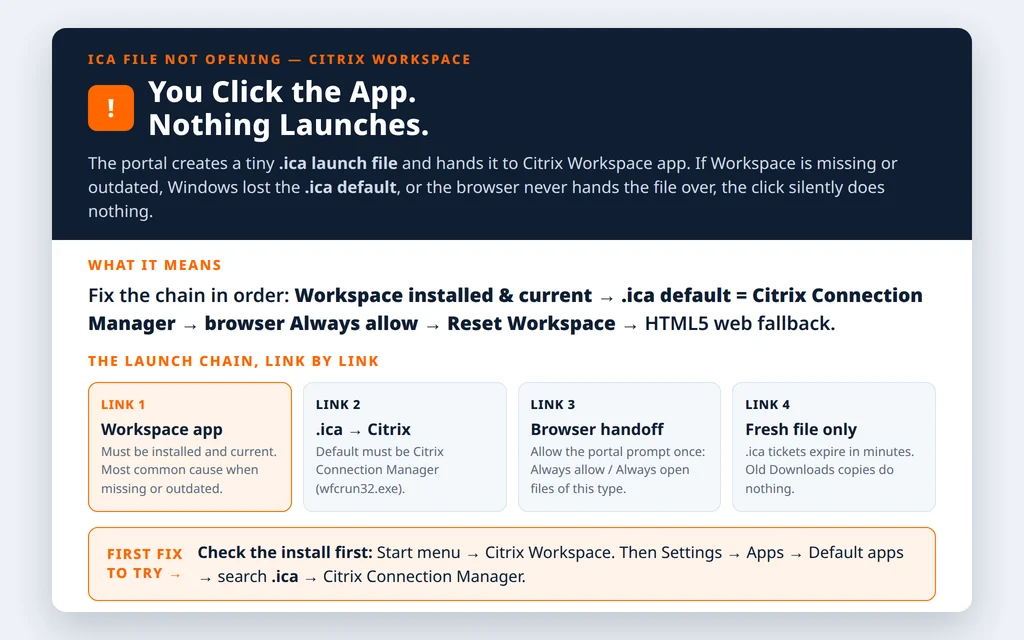
Table of Contents
Fix 1 — ica file not opening citrix workspace: confirm Citrix Workspace app is installed and up to date
Before changing any settings, check the basics. Press the Windows key, type Citrix Workspace, and see whether the app appears. Open it: if it opens, look for an update prompt and accept it, because an outdated client is a very common reason launches silently fail after a portal or Windows update.
If Citrix Workspace is not installed at all, nothing on your PC can open an .ica file — Windows has no program that understands it. Install Citrix Workspace app for Windows from Citrix’s official download page, or use the installer your IT team provides if your organization manages the version. Restart the PC after installing, then click your app in the portal again before moving on.
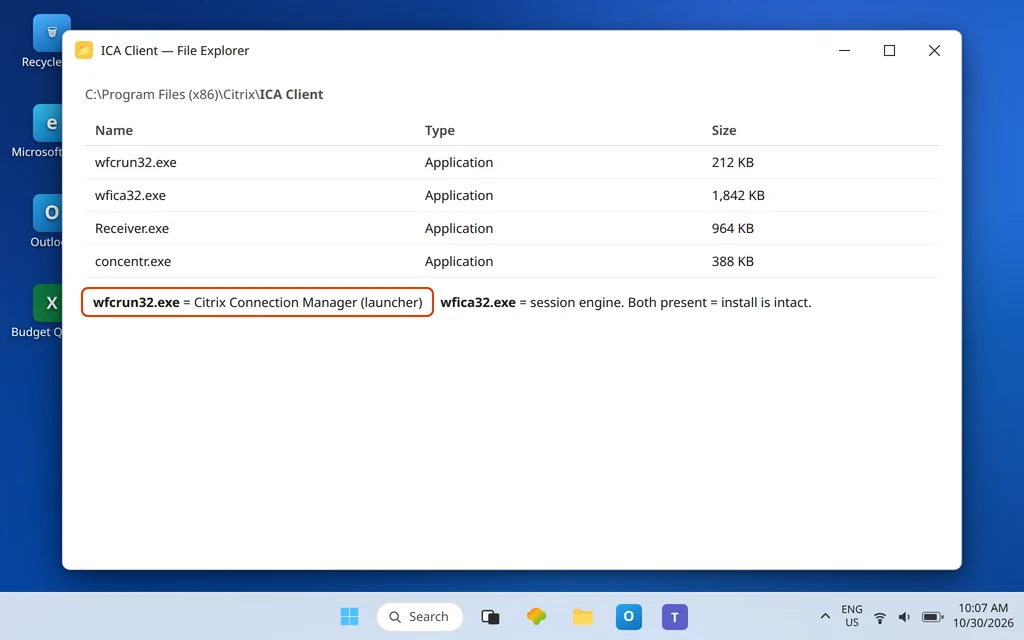
A useful side check: open File Explorer and look in C:\Program Files (x86)\Citrix\ICA Client\. A healthy install contains the two programs that do the launching work — wfcrun32.exe (Citrix Connection Manager, the launcher) and wfica32.exe (the session engine). If that folder is missing or nearly empty, the install is broken and reinstalling is faster than any setting change. Our broader File Explorer Not Responding guide can help if Explorer itself is misbehaving while you check.
Fix 2 — Set .ica files to open with Citrix Connection Manager
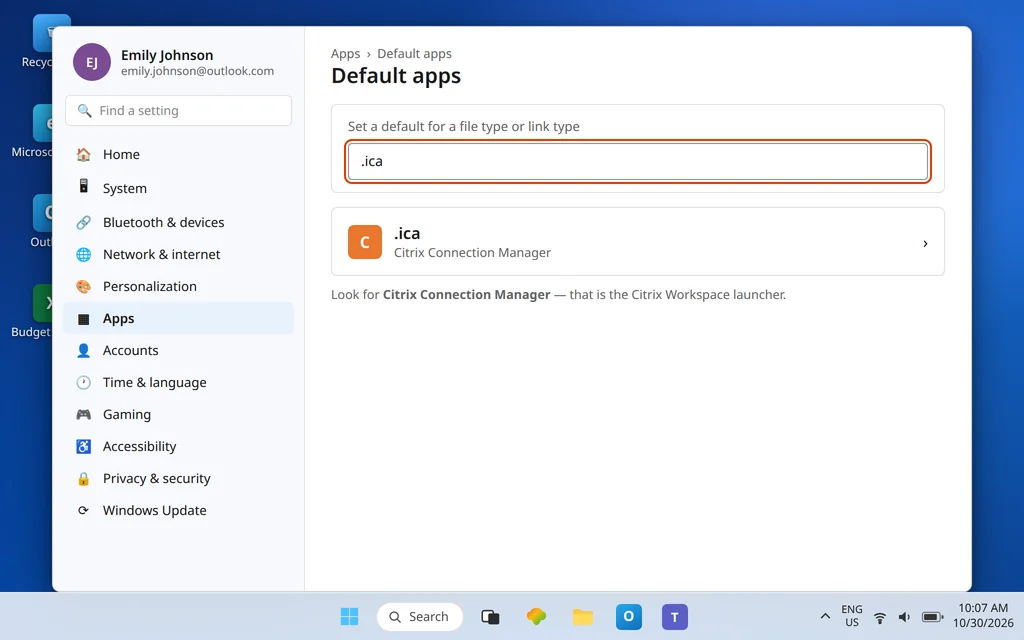
If Workspace is installed but clicks still do nothing, Windows has probably lost the .ica file association — the instruction that says “files ending in .ica go to Citrix.” Fix it in Settings:
- Open Settings > Apps > Default apps.
- In the search box under Set a default for a file type or link type, type .ica.
- Click the current app shown for .ica (or Choose a default if none is set).
- Select Citrix Connection Manager, then click Set default.
The name matters: Windows lists the Citrix handler as Citrix Connection Manager, not “Citrix Workspace.” That entry is the wfcrun32.exe launcher inside the Workspace install, so choosing it is choosing Citrix Workspace. Depending on your version and install type, the wording can vary slightly — if you see a Citrix entry with that name, that is the right one.
Now test it properly. Go back to the portal and click the app again so the browser creates a fresh .ica file — do not double-click an old file from Downloads, because .ica files are single-use launch tickets that expire within minutes. A fresh file should now start the session.
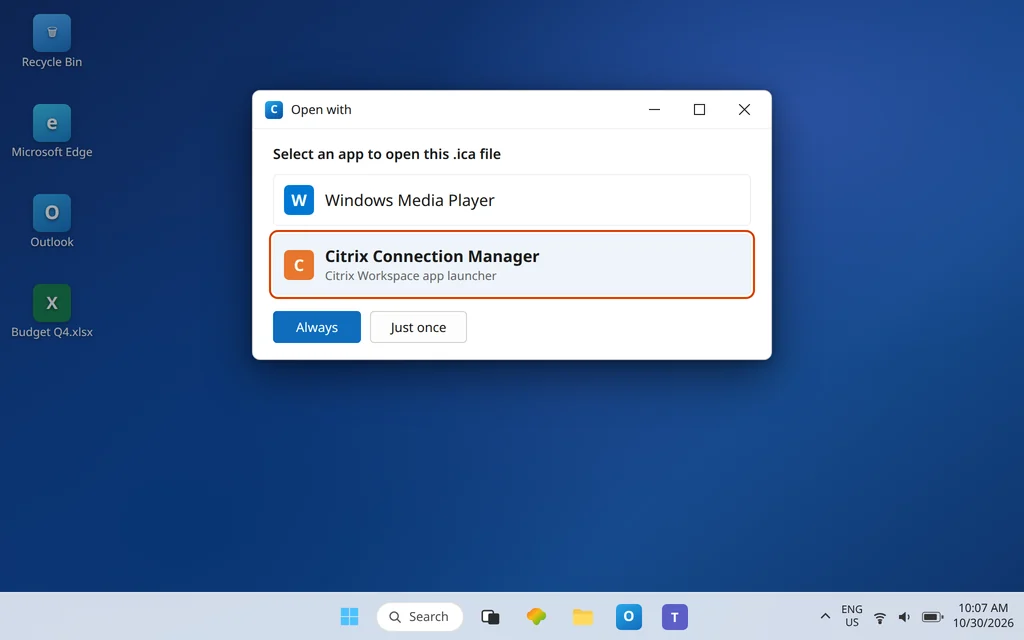
Fix 3 — Right-click the downloaded file and choose Open with
If the Settings route shows no Citrix entry, set the association from the file itself:
- Click the app in the portal and let the browser download the .ica file.
- Open your Downloads folder, right-click the .ica file, and choose Open with > Choose another app.
- Select Citrix Connection Manager and tick Always use this app to open .ica files (in Windows 11, click Always).
- If Citrix is not in the list, click Choose an app on your PC and browse to
C:\Program Files (x86)\Citrix\ICA Client\wfcrun32.exe.
If that folder does not exist, Workspace is not really installed — go back to Fix 1 and reinstall rather than hunting for the file. If the session launches from this manual open, the association is now repaired and portal clicks should work from here on.
Fix 4 — Allow the browser to hand launches to Citrix
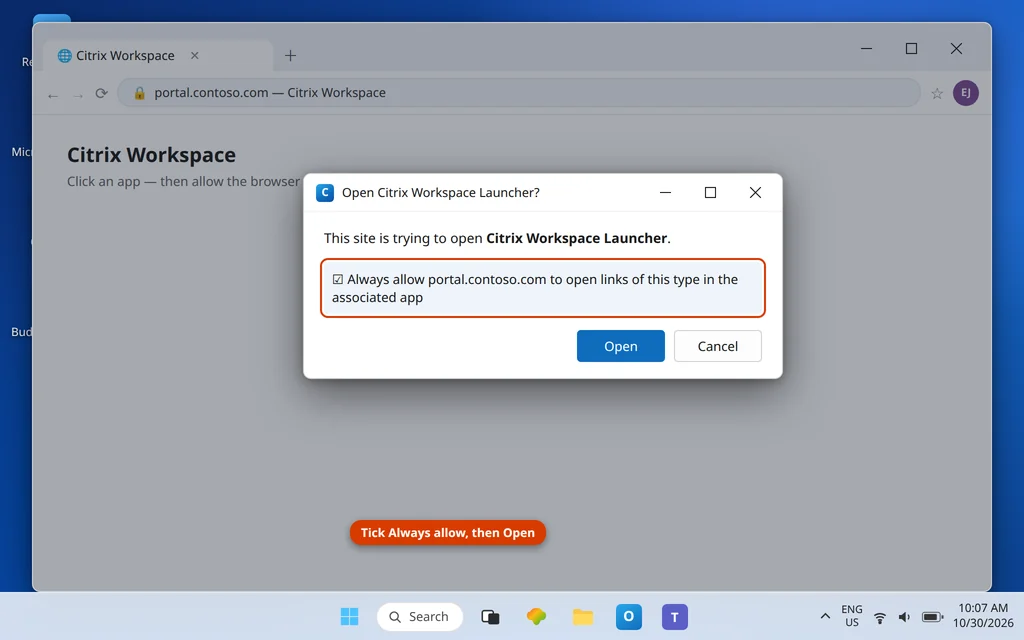
Modern browsers do not silently pass files and protocol links to desktop apps — they ask. If you once clicked Cancel or dismissed that prompt, launches can stall at the browser with no visible error.
Click your app in the portal and watch carefully for a prompt such as “Always allow [your portal] to open links of this type in the associated app” or an Open Citrix Workspace Launcher button. Tick the “always allow” box and confirm. In Microsoft Edge and Chrome, also check the downloads panel: open the menu next to the downloaded .ica file and look for Always open files of this type, so future launches open automatically instead of piling up in Downloads.
If the portal shows a Detect Citrix Workspace app step, run it and allow the browser to open the launcher when asked. That detection is how the portal confirms the local app exists before it trusts it with launches.
Fix 5 — Download a fresh file and clear out the old ones
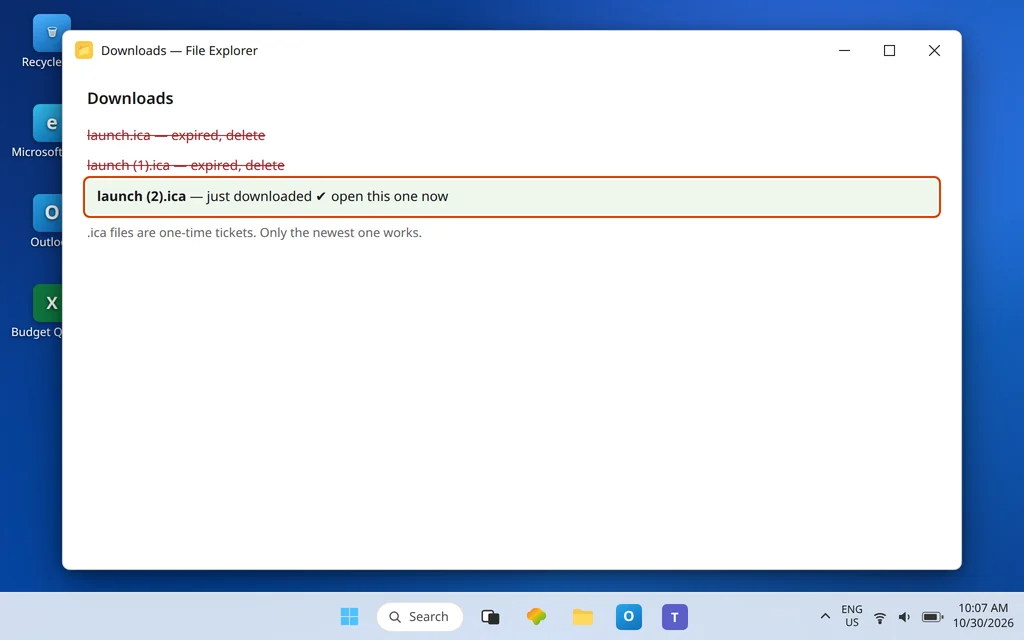
This sounds too simple to matter, but it causes real confusion: Downloads folders fill up with launch.ica, launch (1).ica, launch (2).ica and so on. Every one except the newest is already expired. Double-clicking an expired ticket can produce exactly the “nothing happens” symptom — or a brief flash and then nothing.
Delete the old .ica files from Downloads, return to the portal, click the app once, and open the new file immediately. One click, one fresh file, opened straight away. If a fresh file launched within seconds works while older ones did not, your problem was expired tickets, not the association. Also check that the fresh download actually ends in .ica, as described in Citrix support article CTX697165.
Fix 6 — Reset Citrix Workspace
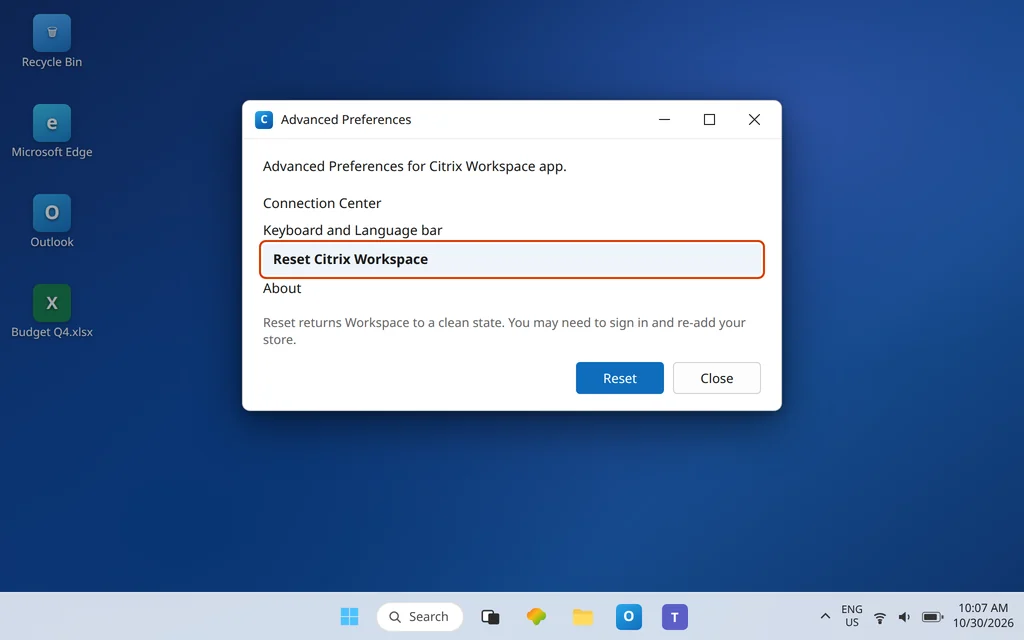
If the association is correct and fresh files still do nothing, the Workspace app’s own settings may be damaged. A reset returns it to a clean state:
- Find the Citrix Workspace icon in the system tray (click the ^ arrow near the clock if it is hidden).
- Right-click it and choose Advanced Preferences.
- Choose Reset Citrix Workspace and confirm.
Workspace will close and rebuild its settings. Open the portal again, sign in, and click your app. Note that a reset can remove saved accounts/stores, so you may need to add your portal address again — and if your organization configures Workspace for you, check with IT before resetting on a managed device.
Fix 7 — Try Citrix Workspace app for HTML5 (no-install fallback)
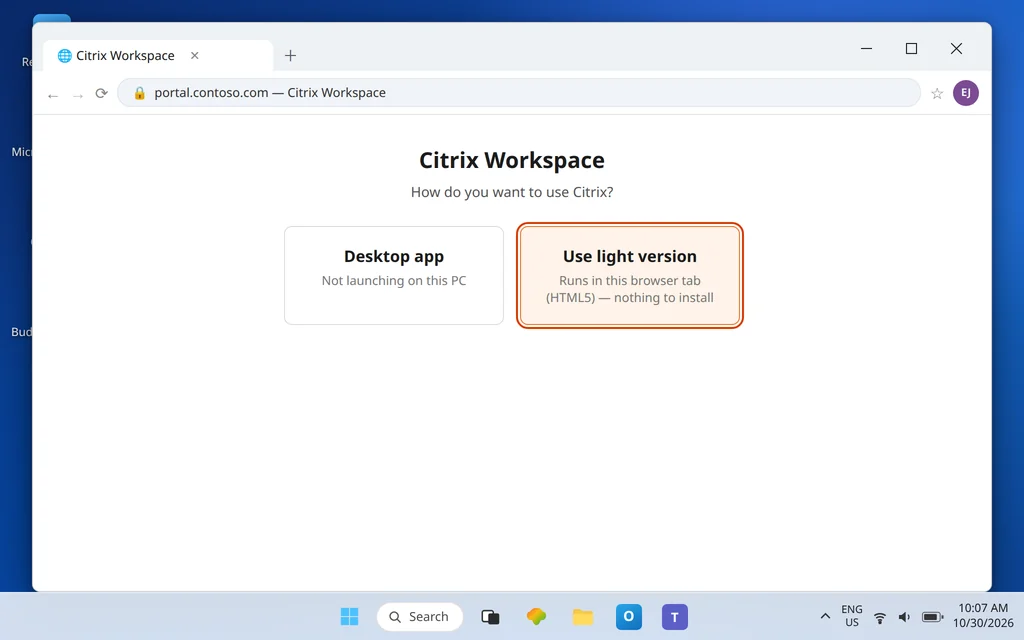
Need to get in now while the desktop app is misbehaving? Many organizations also offer Citrix Workspace app for HTML5, which runs the session inside the browser tab with nothing installed. On the portal sign-in or detection screen, look for an option such as Use light version or Use the web version, or ask your IT team whether the HTML5 client is enabled for your store.
If apps launch fine in the browser but never from the desktop app, you have learned something valuable: your account, the portal, and the servers are healthy — the fault is strictly the local Workspace install. At that point a clean reinstall (uninstall Workspace, restart, install the current version) is the honest final step for the desktop app.
Fix 8 — Advanced check: confirm the association in a Command Prompt
Only if everything above checks out yet launches still fail, verify what Windows thinks the association is. Open Command Prompt and run assoc .ica. A healthy system reports a ProgID in the pattern Citrix.ICAClient.<version>. Running ftype with that ProgID shows the command it points to, which should lead to the Citrix client in the ICA Client folder.
Treat this as a diagnostic, not a repair tool: an association can report that ProgID and still be broken underneath, which is why the Fixes 2–3 repairs and a reinstall outrank command-line tinkering. If the ProgID is missing or points somewhere that is not Citrix, reinstalling Workspace rewrites it cleanly.
Confirm it worked
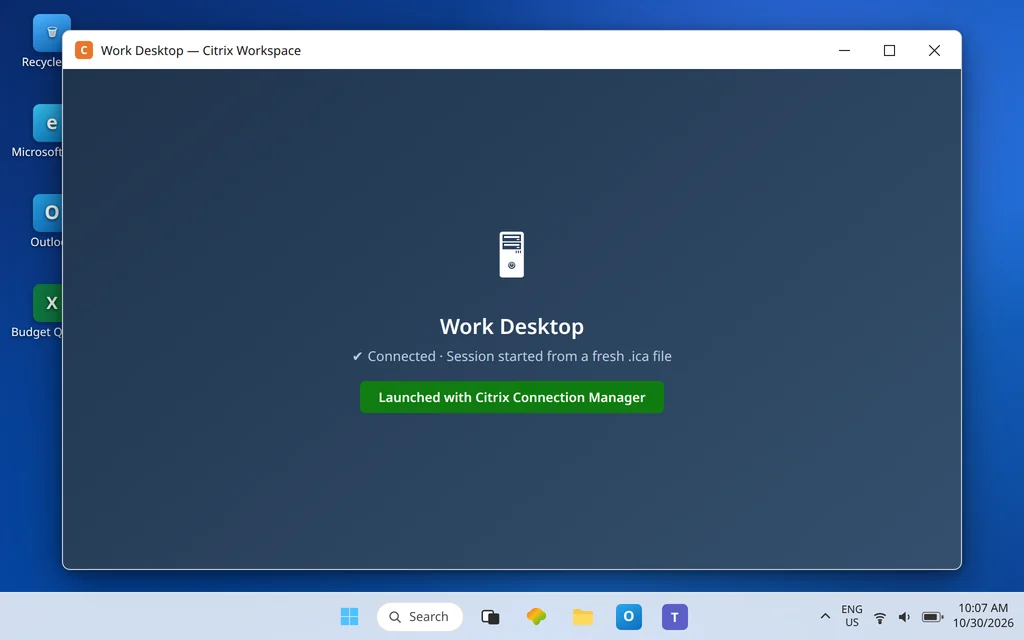
Click your desktop or app in the portal once. A fresh .ica file should hand straight to Citrix Connection Manager, the Citrix session window should appear within seconds, and repeat clicks should behave the same way — no growing pile of files in Downloads, and no manual Open with needed.
How to stop it happening again
- Keep Workspace updated. Portal upgrades and Windows updates both move the goalposts; an old client is the most common repeat offender.
- Always open the fresh file. Delete stale
launch.icacopies from Downloads instead of retrying them. - Do not change the .ica default casually. If Windows ever asks what should open an .ica file, the answer is always Citrix Connection Manager — the wrong one-click choice is what the Media Player guide and the Word guide exist to undo.
- Leave the browser’s “always allow” in place. Clearing site permissions for your portal can quietly remove the handoff you approved in Fix 4.
Frequently asked questions
Why is my ICA file not opening in Citrix Workspace?
The launch chain has three links — Workspace installed and current, Windows handing .ica files to Citrix Connection Manager, and the browser passing the launch across — and the click fails silently when any one breaks. A missing or outdated Workspace app is the most common cause, followed by a lost file association. Fixes 1 and 2 cover both.
What program opens .ica files?
Citrix Connection Manager, the launcher component (wfcrun32.exe) inside the Citrix Workspace app install. In Windows Default apps and Open with lists it appears under that name rather than “Citrix Workspace,” which confuses many people into thinking Citrix is missing from the list.
Why does clicking a Citrix app only download a file?
Because the portal’s job is only to create the launch file. Opening it is the Workspace app’s job. If the file downloads and nothing follows, either Workspace is not installed, the .ica association points elsewhere (or nowhere), or the browser was never allowed to hand the file over — Fixes 1, 2, and 4 in that order.
Can I reuse an .ica file I downloaded earlier?
No, not reliably. An .ica file is a one-time launch ticket with a short lifetime. An expired file typically does nothing or fails immediately. Always click the app in the portal again to generate a fresh file, and open it straight away.
How do I reset Citrix Workspace app?
Right-click the Citrix Workspace icon in the system tray, choose Advanced Preferences, then Reset Citrix Workspace, and confirm. The app rebuilds its settings; you may need to sign in and re-add your store afterward. On a work-managed device, check with IT first.
Can I use Citrix without installing Workspace?
Often, yes. If your organization enables it, Citrix Workspace app for HTML5 (sometimes labeled the light or web version on the portal) runs sessions in the browser with no local install. It is the fastest way to confirm your account works while you repair the desktop app.
Still clicking and getting nothing? Contact us at servicedesk@howtofixerroronline.com or through our Contact page and tell us whether Citrix Workspace appears in your Start menu, what Settings shows as the default for .ica, and what your browser does when you click the app. We will never ask for your password.
Pingback: citrix ica file opening with media player (2026): Set Citrix as Default