
Citrix ICA File Opening with Media Player? Set Citrix Workspace as the Default
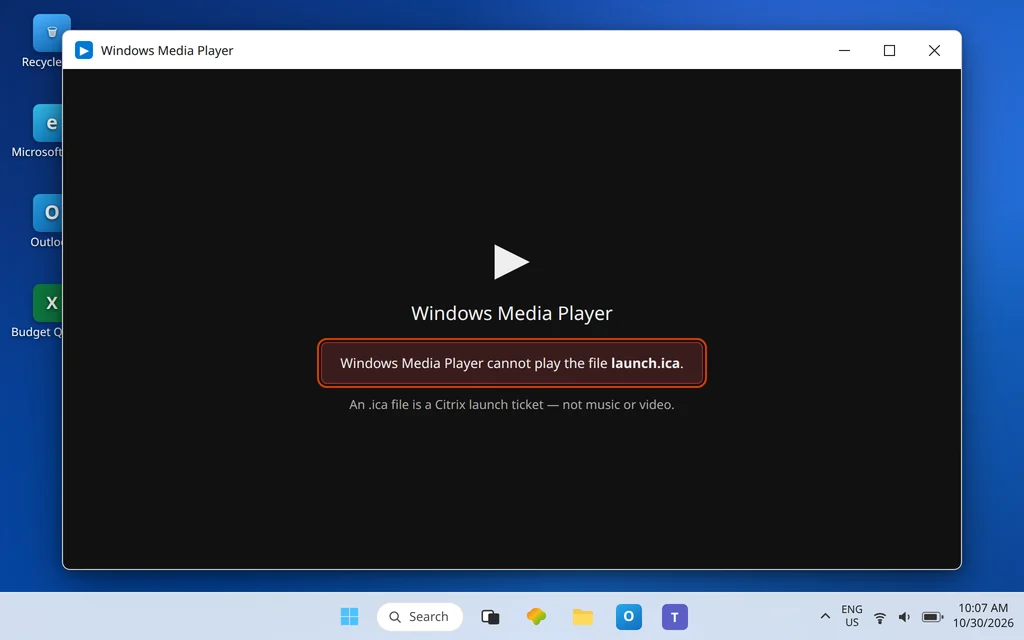
This guide fixes citrix ica file opening with media player, so your launch file opens in Citrix instead of Windows Media Player. You click your app in the Citrix portal, a small launch.ica file downloads, you open it — and Windows Media Player starts up. Media Player cannot play it, cannot connect you to anything, and may show an error about an unsupported file. The Citrix desktop you actually wanted never appears.
Nothing is broken with your Citrix account. Windows has simply been told — usually by one stray click in the past — that files ending in .ica belong to Media Player. An .ica file is not music or video; it is a launch ticket for the Citrix Workspace app. Until you hand the .ica file type back to Citrix, every launch will detour into Media Player.
The repair takes about two minutes, and there are two ways to do it: through Settings > Default apps (the clean way), or by right-clicking the file itself. If instead nothing at all happens when you click a Citrix app, work through ICA File Not Opening in Citrix Workspace App — and if your file opens in Word as a page of text, see Citrix ICA File Opening with Word.
Quick Answer: Open Settings > Apps > Default apps, search .ica in the file-type box, click the Media Player entry, choose Citrix Connection Manager, and click Set default. That entry is the Citrix Workspace launcher (
wfcrun32.exe) — Windows lists it under that name. If Citrix does not appear in the list at all, reinstall Citrix Workspace app; the install is what creates the entry.
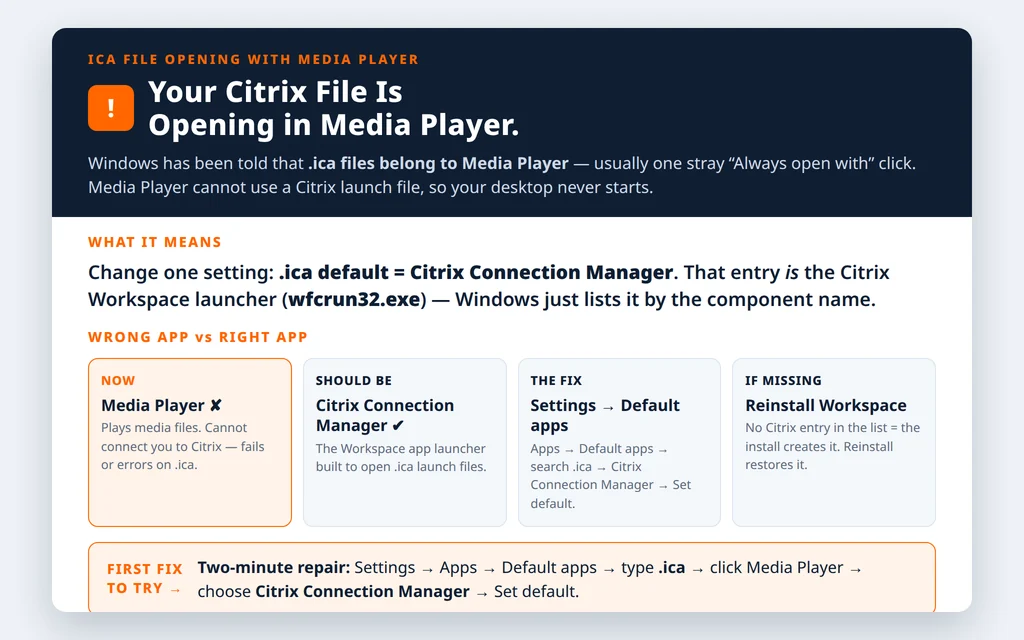
Table of Contents
citrix ica file opening with media player: why it happens
Windows decides which program opens a file purely by its extension. The first time an unfamiliar extension appears, Windows asks “How do you want to open this file?” — and if Media Player was picked once with the Always option ticked (it is an easy misclick, especially when the Citrix entry was missing that day), Windows remembers the choice permanently. Media associations can also change after a media app update or a “reset default apps” event.
Media Player then does exactly what it was told: it tries to open the file, discovers it is a small text configuration file rather than media, and gives up. The file is not damaged, and Media Player has not harmed it — the directions Windows is following are simply wrong. Fix the directions and the problem ends.
Fix 1 — Change the .ica default in Windows Settings
This is the main fix, and it works on Windows 11:
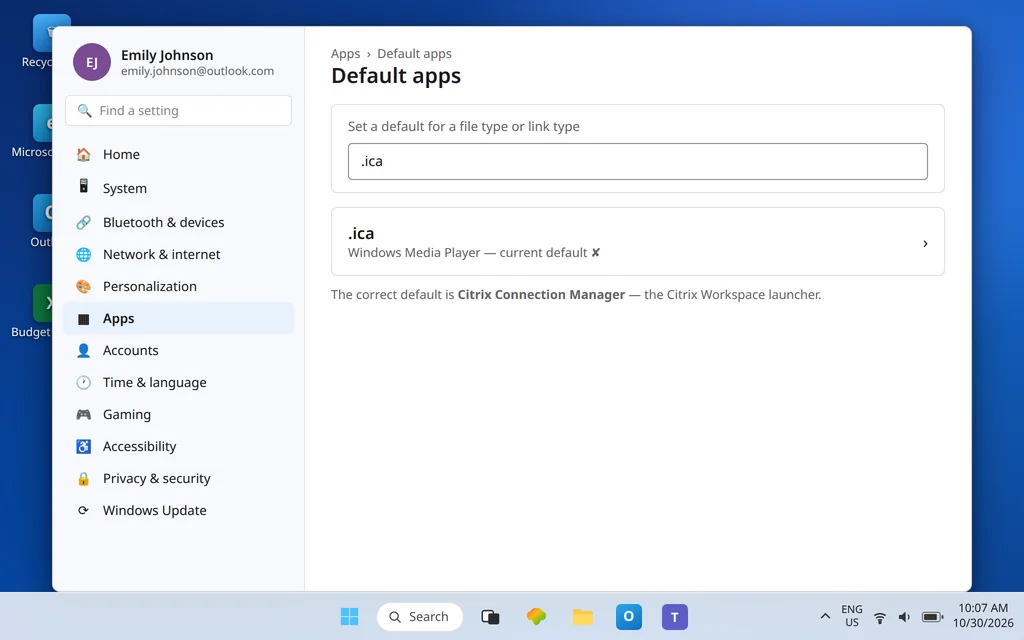
- Open Settings and go to Apps > Default apps.
- Under Set a default for a file type or link type, type .ica in the search box.
- You should see
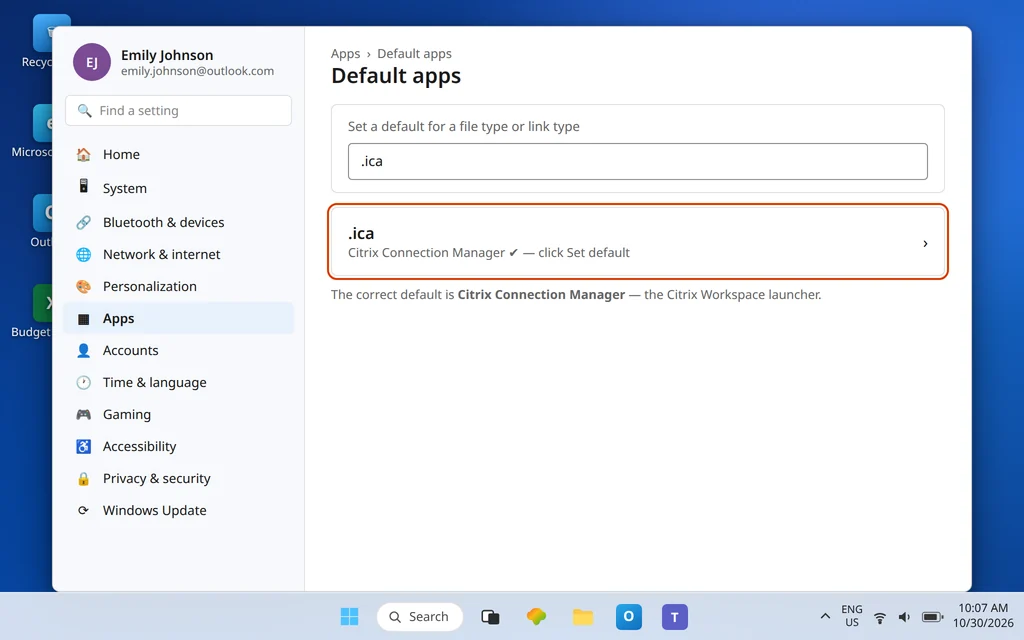
.icawith Media Player (or Windows Media Player) shown as the current default. Click it. - In the list that appears, select Citrix Connection Manager.
- Click Set default.
On Windows 10 the route is similar: Settings > Apps > Default apps > Choose default apps by file type, scroll to .ica, and change the program to Citrix Connection Manager.
One naming warning that saves a lot of confusion: the correct entry is called Citrix Connection Manager, not “Citrix Workspace.” Connection Manager is the launcher program (wfcrun32.exe) that ships inside Citrix Workspace app and exists precisely to open .ica files. Selecting it is setting Citrix Workspace as the default — Windows just uses the component’s name. If you were hunting for an entry literally labeled “Citrix Workspace” and concluded Citrix was missing, it probably was there all along under its real name.
Fix 2 — Fix it from the file: right-click, Open with, Always
Prefer to fix it where the problem shows up? Use the file itself:
- Go to the portal, click your app, and let a fresh .ica file download (or use one already in Downloads).
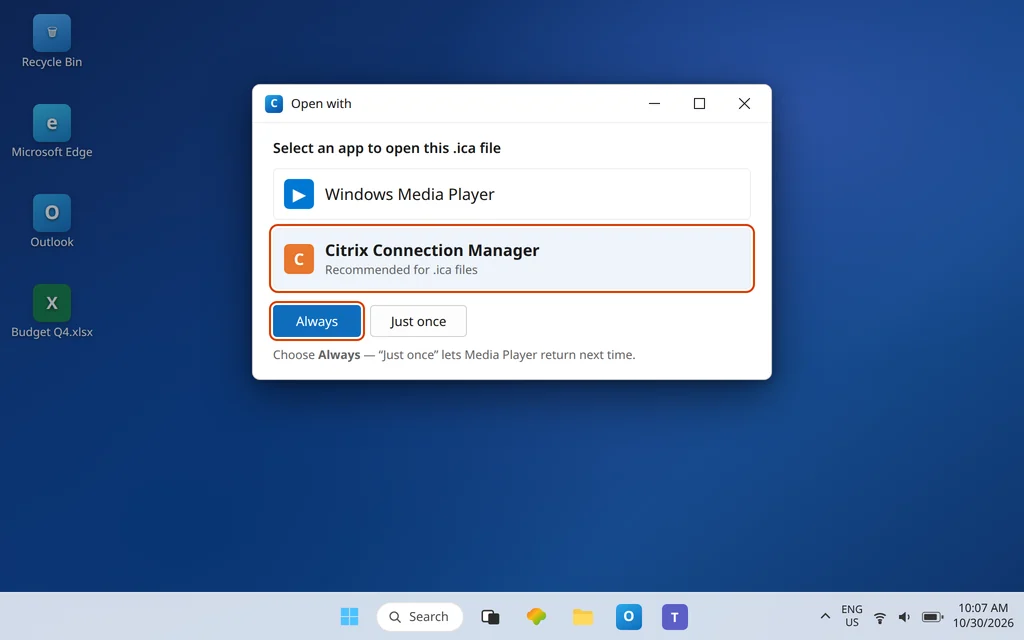
- Right-click the .ica file and choose Open with > Choose another app.
- Select Citrix Connection Manager.
- Tick Always use this app to open .ica files, then click OK (on Windows 11 the buttons read Always / Just once — choose Always).
Choose “Just once” and the session will open this one time, but the next download will go straight back to Media Player. The Always choice is the actual repair; it rewrites the same default that Fix 1 changes in Settings.
Fix 3 — Citrix is missing from the list? Point Windows at the program
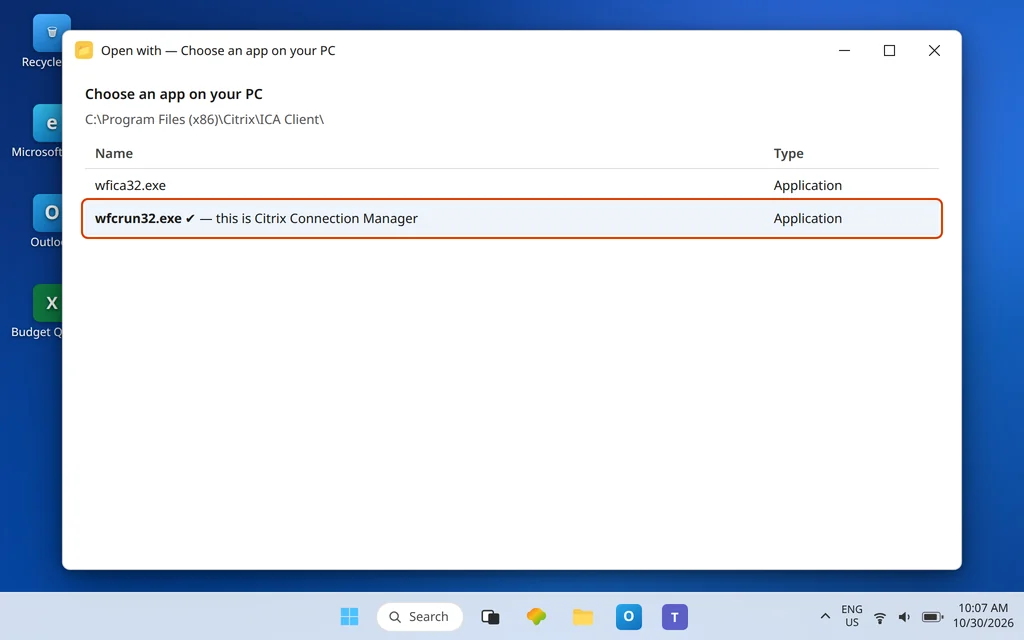
If neither Settings nor Open with offers a Citrix entry, click Choose an app on your PC (or Look for another app on this PC) in the Open with dialog and browse to:
C:\Program Files (x86)\Citrix\ICA Client\wfcrun32.exe
Select wfcrun32.exe and confirm with the Always option. That file is Citrix Connection Manager itself, so browsing to it creates the association directly.
If that folder does not exist on your PC, Citrix Workspace app is not installed (or its install is broken), and no default-app setting can invent it. Download and install the current Citrix Workspace app for Windows from Citrix, restart the PC, and then repeat Fix 1 — a healthy install registers the Citrix Connection Manager entry for .ica automatically. This is also the answer when the Citrix entry was in the list but choosing it changed nothing: reinstalling rewrites a damaged registration cleanly.
Fix 4 — Stop Media Player from grabbing .ica again
With the default corrected, a few habits keep it corrected:
- Never pick Media Player (or any media app) in an “Open with” prompt for work files. If Windows asks about an .ica file again, the only correct answer is Citrix Connection Manager, with Always ticked.
- Be careful with “reset default apps” tools and media-player first-run prompts. Some players ask to become the default for “all supported files” during setup or updates. Declining costs nothing; accepting can reassign extensions you did not intend.
- If .ica flips back on its own after every restart, that points to a managed device policy or a damaged Workspace registration rather than your clicks — reinstall Workspace once (Fix 3), and if it still reverts, your IT team needs to look at the policy applying to the machine.
There is no setting inside Media Player that owns the .ica extension — the assignment lives in Windows Default apps, which is why all repairs happen there and not in the player.
Fix 5 — Make the browser open launches automatically
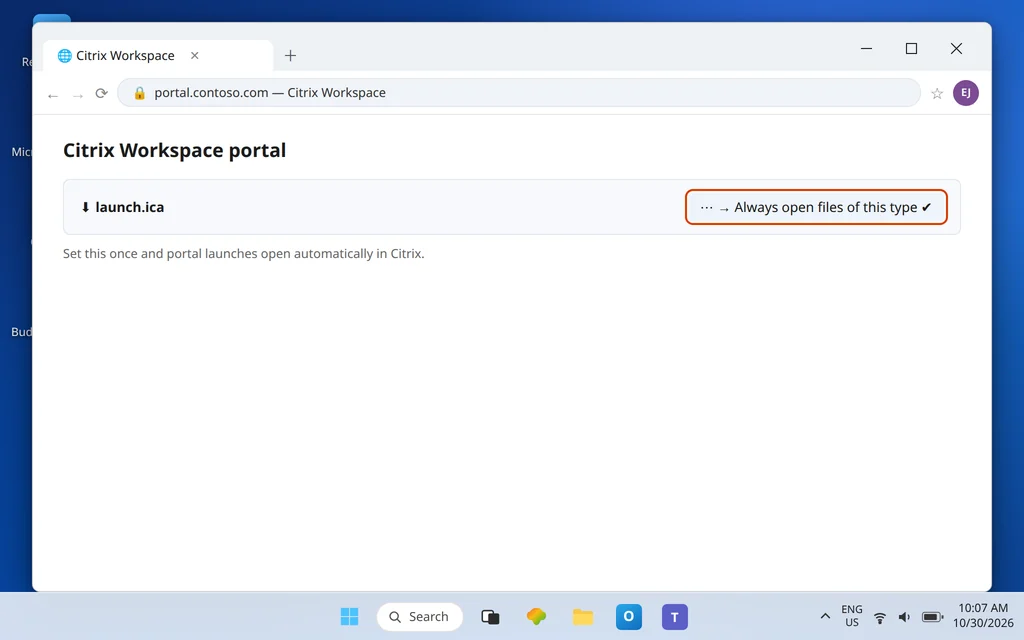
Fixing the Windows default solves double-clicking files. Portal launches have one more layer: the browser. After the default is set, click your app in the portal, open the downloaded file once from the browser’s downloads panel, and use the file’s menu to choose Always open files of this type (Edge and Chrome both offer this). Also accept the browser prompt to always allow your portal to open Citrix links when it appears.
From then on the chain is automatic: portal click → fresh .ica file → Citrix Connection Manager → session. If the browser still only downloads and never opens, the fuller walkthrough is in ICA File Not Opening in Citrix Workspace App.
Fix 6 — If the change will not stick, check for a second .ica handler
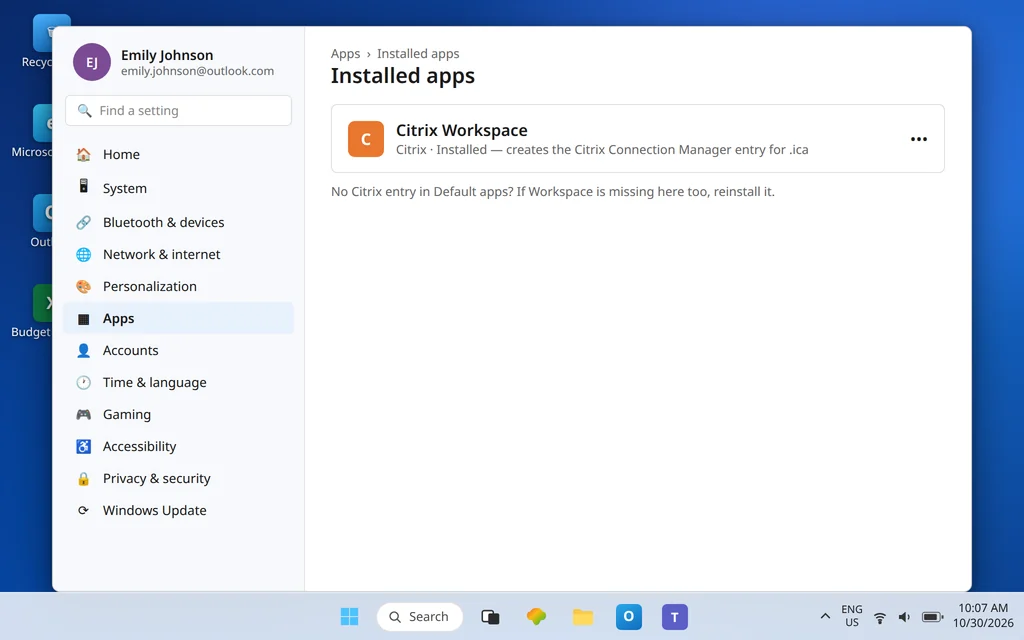
Occasionally the Settings page accepts Citrix Connection Manager, yet the next launch still lands in Media Player. Before reinstalling anything, check whether an old Citrix Receiver install is still present alongside Citrix Workspace app. Two Citrix generations on one PC can register competing handlers, and Windows may be honoring the stale one — which then fails and falls back oddly. In Settings > Apps > Installed apps, if you see both Citrix Receiver and Citrix Workspace, uninstall the older Receiver entry (Workspace is its replacement), restart the PC, and repeat Fix 1. If your organization deployed Citrix for you, ask IT before uninstalling either entry — managed installs should be repaired by the team that owns them.
A second, simpler trap on shared or family PCs: default apps are per user account. Changing the .ica default while signed in as one Windows user does nothing for another. If the problem “only happens for my login,” that is not a mystery — it is this setting, and Fix 1 must be repeated while signed in as the affected user.
Confirm it worked
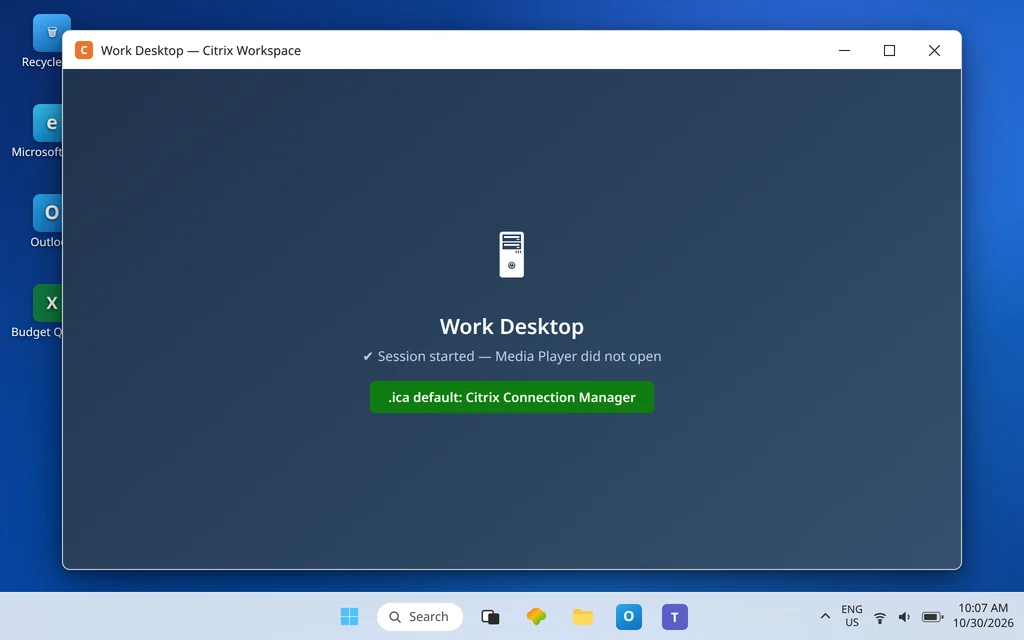
Return to the portal and click your app. A fresh .ica file should open straight into a Citrix session — Media Player should not appear at all. Then double-click any .ica file in Downloads: same result. Finally, re-open Settings > Apps > Default apps, search .ica, and confirm the default now reads Citrix Connection Manager.
How to stop it happening again
- The rule is simple: .ica = Citrix Connection Manager, always. Any prompt suggesting another program for this extension is a wrong turn.
- Keep Citrix Workspace installed and updated. Uninstalling Workspace (or a failed update) removes the Citrix entry, and the next “Open with” prompt is where wrong defaults get chosen.
- Teach the browser once. “Always open files of this type” plus the portal’s “always allow” prompt removes the manual step where mistakes happen.
Frequently asked questions
Why does my .ica file open in Windows Media Player?
Because Windows currently has Media Player set as the default app for the .ica extension — almost always from a one-time “Always open with” choice, a default-apps reset, or a day when Citrix was not installed and Windows offered media apps instead. The file itself is fine. Change the default to Citrix Connection Manager (Fix 1) and launches go to Citrix again.
What should .ica files open with?
Citrix Connection Manager — the launcher component of Citrix Workspace app (wfcrun32.exe, in C:\Program Files (x86)\Citrix\ICA Client\). In Default apps and Open with lists, look for that name; an entry literally called “Citrix Workspace” is usually not how Windows labels it.
I set the default, but Media Player still opens. Why?
Three usual reasons: you clicked Just once instead of Always in the Open with dialog; you tested with the Settings change but a browser setting is still intercepting the download (see Fix 5); or the Workspace registration is damaged, in which case reinstalling Workspace and then repeating Fix 1 is the reliable repair.
Citrix is not in the default apps list at all. What now?
Workspace is missing or broken. Either browse manually to wfcrun32.exe via Choose an app on your PC (Fix 3) if the ICA Client folder exists, or reinstall Citrix Workspace app — the installer recreates the Citrix Connection Manager entry. There is no way to set a default to a program that is not on the PC.
Will Media Player opening the file damage it?
No. Media Player cannot read or change the .ica file; it simply fails to play it. The file is also disposable — it is a short-lived launch ticket. If you are ever unsure about a particular copy, delete it and click the app in the portal again to generate a fresh one.
How do I stop this happening again after updates?
Keep Workspace installed and current so its entry never disappears from the list, choose Always (not Just once) whenever you confirm Citrix Connection Manager, and decline media-player setup prompts that offer to take over defaults for all file types.
Still landing in Media Player? Contact us at servicedesk@howtofixerroronline.com or through our Contact page and tell us what Settings shows as the current default for .ica, and whether a Citrix entry appears in the list at all. We will never ask for your password.
See also: Citrix support article on ICA files failing to open automatically.