
Microsoft Teams Meeting Keeps Disconnecting — Calls Dropping
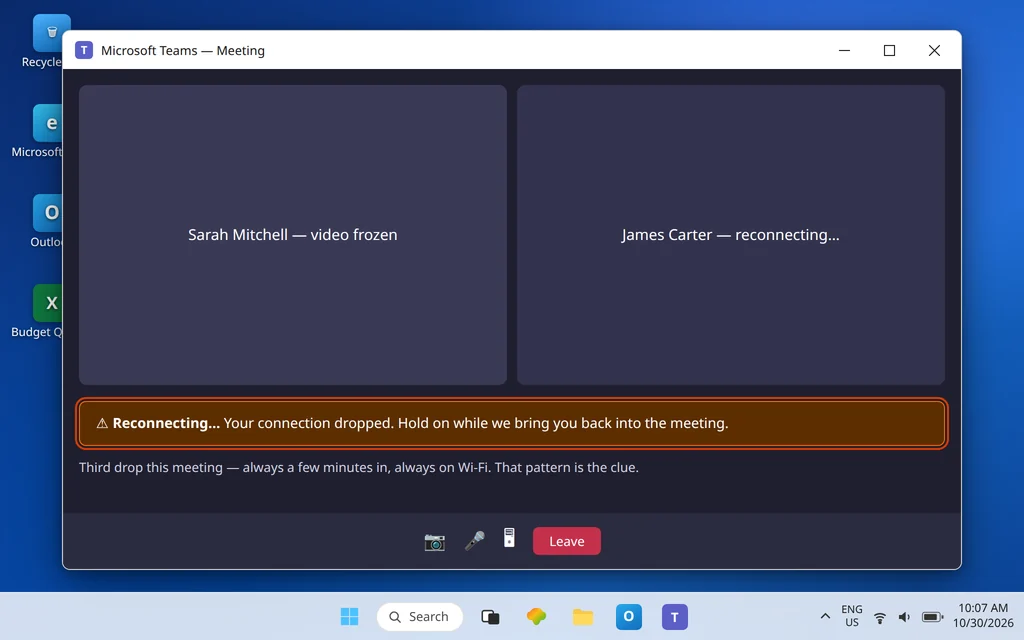
The meeting starts fine. Five minutes in, the voices turn robotic, the screen freezes — and then you are staring at “Reconnecting…” or dropped out of the meeting entirely. You rejoin. It happens again.
This guide is about meetings that connect and then drop. If you cannot get into a meeting at all — the Join button fails, you are stuck outside, or the link will not open — that is a different fault covered by Can’t Join a Teams Meeting. Here, joining works. Staying is the problem.
Microsoft’s own guidance on dropped calls is blunt about where to look first: multiple dropped calls or disconnections are usually a network issue, not a broken Teams install. Both sides need a stable connection, and a single weak link — a struggling Wi-Fi signal, an overloaded connection, a VPN taking the long way round — is enough to drop you repeatedly. Work through the fixes in order: each one either stabilizes the call or tells you which layer to blame.
Quick Answer: Assume it is your connection until you prove otherwise. Restart your router, move closer to it or plug in an Ethernet cable for one full meeting, and pause anything else using the connection. If calls still drop on a wired connection, turn the VPN off and test again, update Teams, and check whether the drops are a Microsoft service incident. Still dropping on every network? Clear the Teams cache and treat it as a client problem — but test the network first; it is the cause in the large majority of cases.
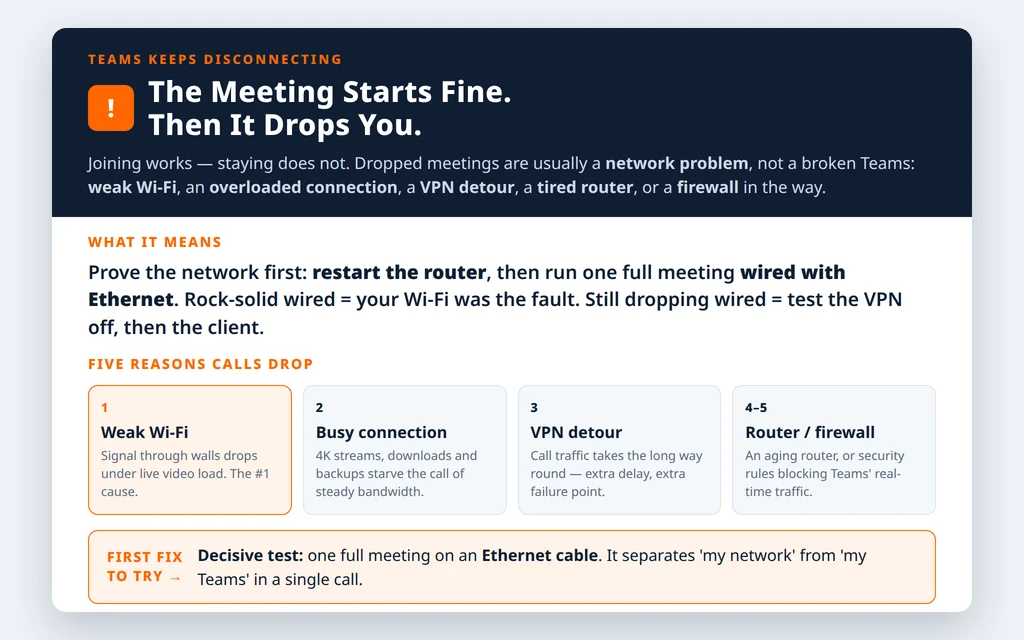
Table of Contents
Fix 1 — Prove whether it is just you, just now, or everyone
Before changing anything, gather three facts — they decide which half of this guide matters:
- Is it only you? If everyone else stays in the meeting while you drop, the fault is on your side: your connection, device, or client. If the whole meeting collapses at once, look at the organizer’s connection or a service incident.
- Is it every meeting, or one? Drops in a single recurring meeting but not others can follow one organizer’s weak connection. Drops everywhere follow you.
- Is Teams itself having a bad day? Check the Microsoft 365 status page or the @MSFT365Status account — Microsoft’s support steps for dropped calls include checking for known service incidents before troubleshooting your own setup. If there is an active incident, the honest fix is to wait it out or dial in by phone if the meeting offers it.
Note the pattern, too: dropping at almost the same number of minutes into every call suggests something periodic — a router, VPN, or security tool cycling — rather than random weak signal.
Fix 2 — Restart the router and modem (properly)
It is a cliché because it works. Routers accumulate faults over weeks of uptime, and a restart clears them:
- Unplug the router (and the separate modem, if you have one) from power.
- Wait a full 30 seconds.
- Plug the modem back in first and let it fully come online, then the router.
- Reconnect your PC and run one full meeting before judging.
Microsoft’s dropped-call guidance includes restarting the Wi-Fi modem for exactly this symptom. If drops return after a day or two and a restart fixes them again, the router itself is aging or overheating — note it for Fix 9 rather than restarting forever.
Fix 3 — Get off weak Wi-Fi: move closer, switch band, or plug in
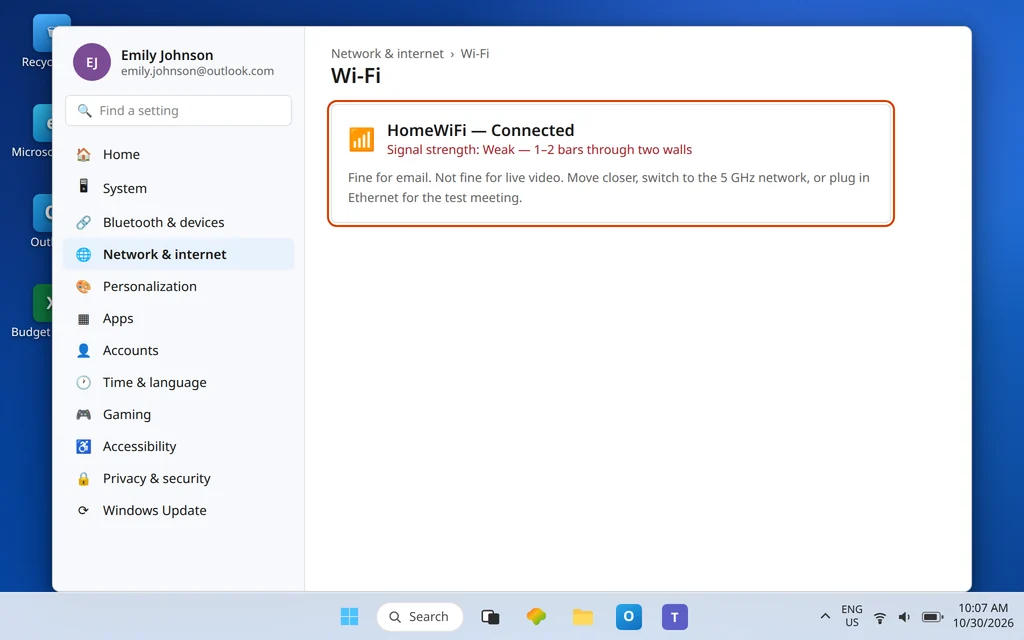
Wi-Fi is the single most common cause of dropping Teams calls. Live video is unforgiving of a signal that has to cross several walls or compete with a houseful of devices:
- Move closer to the router for one meeting — same room, line of sight if you can. If drops stop, your normal spot has a coverage problem, full stop.
- Switch to the 5 GHz network if your router offers both bands. It is faster and less crowded at short range; the 2.4 GHz band travels further but is slower and more congested.
- Plug in an Ethernet cable for the decisive test. Wired removes Wi-Fi from the equation entirely. A meeting that is rock-solid wired and drops on Wi-Fi has told you everything: the fix is coverage (router position, a mesh point, or staying wired for important calls), not Teams settings.
While testing, keep the comparison honest: same meeting type, camera on as usual. A call that survives only with the camera off is still a bandwidth problem — see Fix 4.
Fix 4 — Give the meeting enough bandwidth (and stop competing with it)
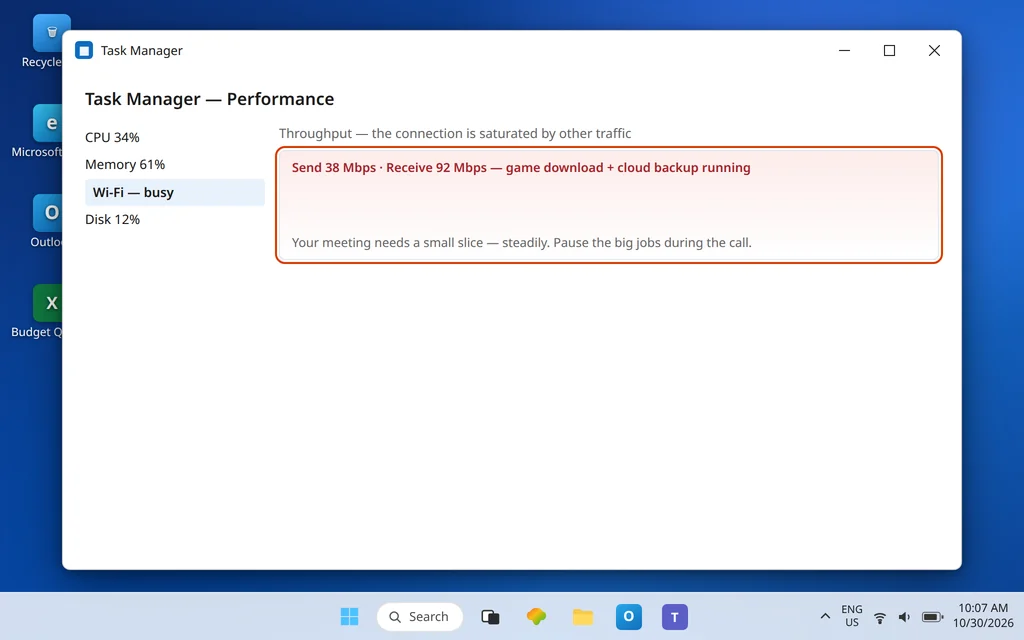
Microsoft’s published bandwidth figures for Teams are smaller than most people expect — and that is exactly why a busy household connection can still starve a call. Per person, a meeting needs roughly 58 kbps each way for audio at the recommended level, while video meetings are recommended at up to 2,500 kbps up / 4,000 kbps down. Teams is designed to protect audio first when bandwidth runs short, which is why the classic sequence is: video freezes, voices go robotic, then the call drops.
For one meeting, remove the competition:
- Pause large downloads, cloud backups, and game updates on your PC.
- Ask the household to pause 4K streaming and big uploads during your call if drops are severe — one 4K stream can use more than your meeting several times over.
- Turn your camera off as a diagnostic, not a lifestyle: if audio-only calls never drop, your connection can carry voice but not your video — more evidence for Fixes 3 and 9.
Fix 5 — Test with the VPN off
A VPN sends your Teams traffic on a detour — sometimes a long one — and adds delay and another point of failure. Microsoft’s dropped-call steps include turning the VPN off and back on as a test. Do it cleanly:
- Disconnect the VPN completely (not just pause one tunnel, if your client offers both).
- Run a full meeting on your normal connection.
- If drops stop, the VPN route is the problem. Reconnect the VPN and tell your IT team the result — many organizations can configure split tunneling so Teams media goes direct while other traffic stays on the VPN, but that is an admin change, not something to improvise yourself.
If your work requires the VPN for Teams, that test result is still valuable evidence to hand to IT rather than a dead end.
Fix 6 — Look at the call itself: network stats during a meeting
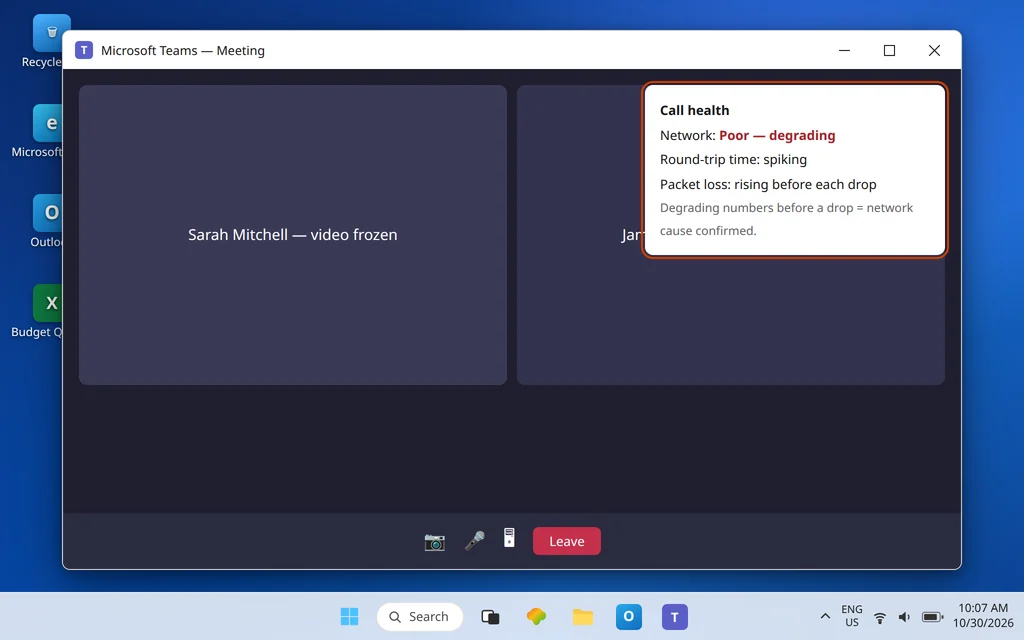
Teams can show you live connection information while a call is running, so you do not have to guess. During a meeting, open the call health / network details view from the meeting’s More options (…) area where your version of Teams offers it, and watch what happens as a drop approaches: a connection quality that degrades, or round-trip times that spike, confirms the network story of Fixes 2–5. If the numbers look healthy right up to an instant, clean disconnect, suspect the client or a security tool instead — that pattern belongs to Fixes 7 and 8.
Take a photo or note of what you see before the drop. “It disconnects” is hard for anyone to help with; “quality degrades for 20 seconds, then it drops, only on Wi-Fi” is a diagnosis.
Fix 7 — Update Teams, restart it properly, and sign out once
With the network tested, turn to the client:
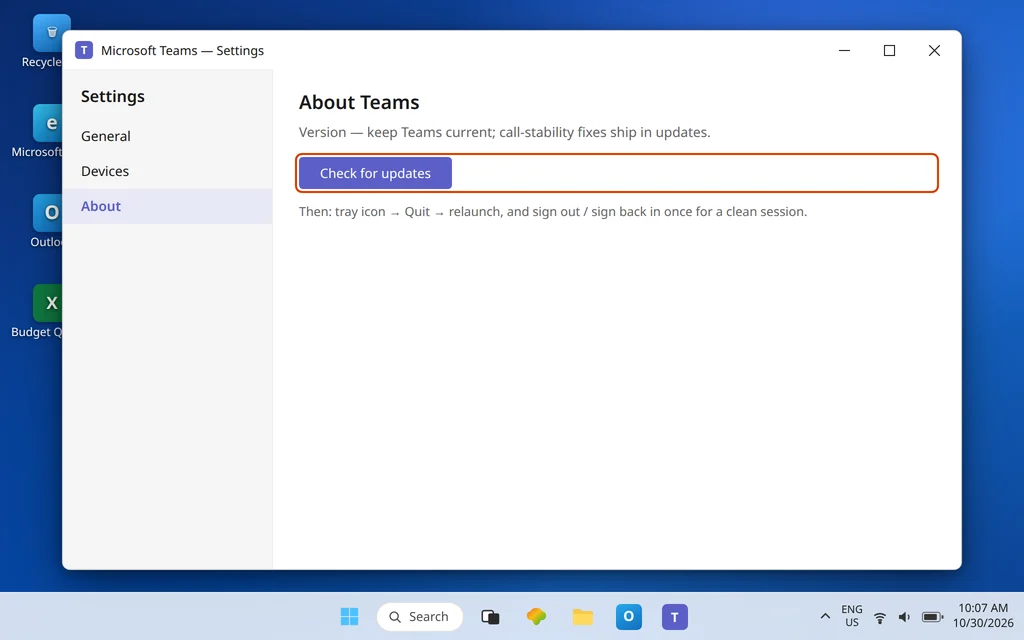
- Update Teams. In the desktop app, open Settings > About (or the … menu) and use Check for updates, then let Teams restart. Microsoft’s Q&A guidance for dropped calls puts updating near the top of the client-side list.
- Fully quit and relaunch. Right-click the Teams icon in the system tray and choose Quit — closing the window is not quitting — then open Teams again.
- Sign out and back in. Click your profile picture, choose Sign out, wait for Teams to close, reopen it, and sign in with your email and password. This refreshes the session cleanly.
- Try Teams on the web at teams.microsoft.com for one meeting. A web meeting that stays up while the desktop app drops points squarely at the desktop client — carry on to Fix 8. A web meeting that drops too points back at the network.
If Teams is unstable in other ways as well — hanging, closing outright — work through Microsoft Teams Keeps Crashing or Freezing alongside this guide, and if the app will not even get past its start screen on some days, Microsoft Teams Stuck on the Loading Screen covers that separate symptom.
Fix 8 — Clear the Teams cache (client corruption last, not first)
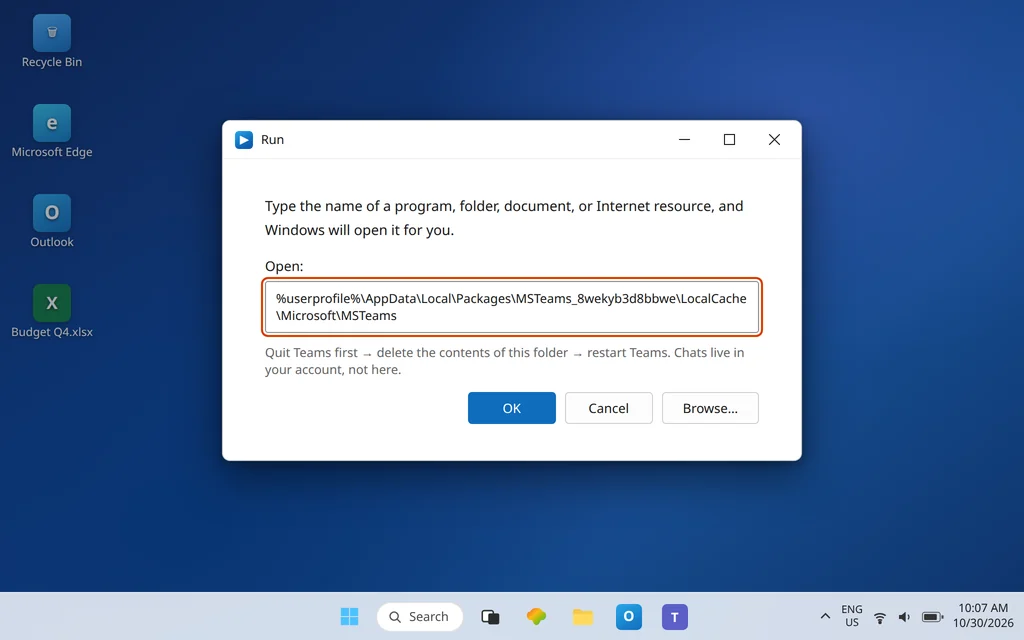
Only after the network tests: a corrupted local cache can produce a client that drops sessions its connection could have held. Microsoft documents two ways to clear the new Teams cache on Windows. The gentler route is Settings > Apps > Installed apps > Microsoft Teams > … > Advanced options > Reset. For the manual route, fully quit Teams first, press Windows + R, open %userprofile%\AppData\Local\Packages\MSTeams_8wekyb3d8bbwe\LocalCache\Microsoft\MSTeams, delete the contents of that folder, and restart Teams. Your chats and meetings live in your account, not in that folder. The first launch afterward takes longer than usual while the cache rebuilds — that is expected.
Fix 9 — Firewall, security software, and the router itself
If calls drop on a known-good wired connection with a healthy client, something between you and Microsoft is interfering:
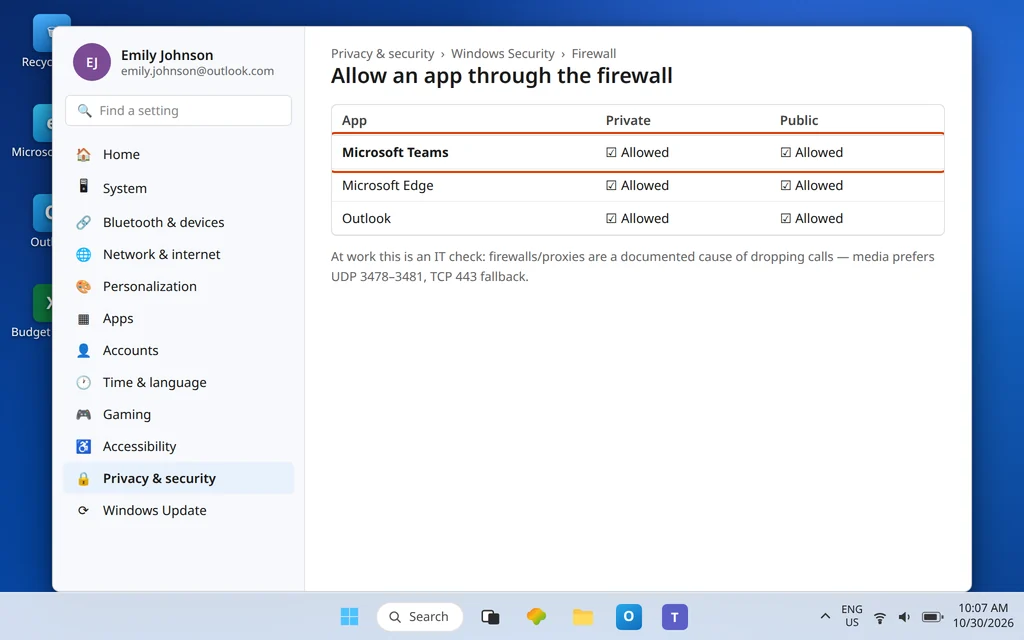
- Firewall and proxy: Microsoft’s network guidance lists firewall or proxy blockers as a known cause of calls that keep dropping, and jitter or packet loss as the cause of robotic, cutting-out voices. At work, this is an IT conversation: they need to allow Teams traffic properly (real-time media prefers UDP ports 3478–3481, with TCP 443 as the fallback path) and can check your calls in the Teams admin center’s Call Analytics. At home, temporarily testing with third-party security software paused — briefly, and only as a test — can identify the culprit; re-enable it immediately and add an exception rather than leaving it off.
- The router: drops that a restart fixes for a day, drops at regular intervals, or drops affecting every device point at the router. Update its firmware from the manufacturer’s app or admin page; if it is old and the drops persist across devices, replacement is the honest fix.
- The pattern test: join a meeting from your phone on mobile data (Teams mobile app) while your PC drops. If the phone holds the meeting, your account and the service are fine — the problem is inside your home network, and you have just proved it.
Confirm it worked
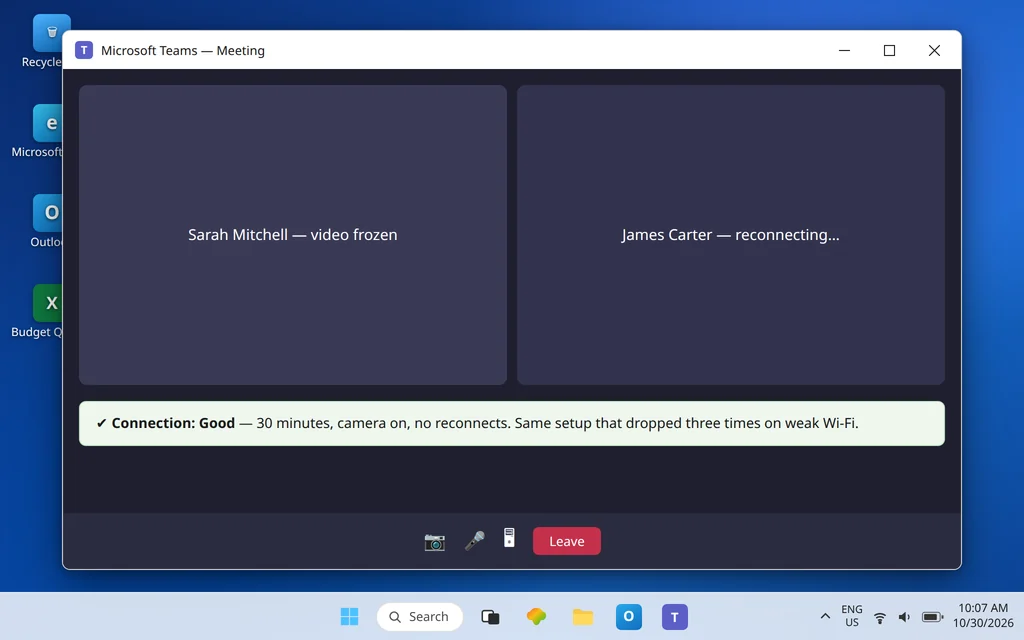
Run one full meeting — at least 30 minutes, camera on, on the same setup that used to drop — and get through it without a reconnect. Then repeat on a second day before calling it fixed, because network faults love to hide. If you changed several things, you have still learned the most useful fact: which single change preceded the first clean meeting. Keep that one; undo nothing else.
How to stop it happening again
- Stay wired for important calls. A cable removes the biggest variable in home calling. If that is impossible, treat your router’s location as furniture that matters: central, raised, and unobstructed.
- Restart the router monthly, not during the crisis. A scheduled restart keeps the slow accumulation of faults from choosing your meeting times for you.
- Update Teams and your router firmware when offered. Call-stability fixes ship in both, quietly and often.
Frequently asked questions
Why does my Teams meeting keep disconnecting?
In most cases, the network between you and Microsoft cannot sustain the call: weak Wi-Fi, a connection busy with other traffic, a VPN route adding delay, or a firewall or proxy interfering. Microsoft’s own dropped-call guidance starts with connection stability for both sides of the call. The wired-Ethernet test in Fix 3 is the fastest way to prove whether your network is the cause.
Is it my internet or is Teams down?
Check three things: whether others in the meeting are dropping too, the Microsoft 365 status page or @MSFT365Status for a service incident, and whether a meeting from your phone on mobile data stays connected. If everyone drops at once and there is an incident posted, it is the service. If only you drop, on every network you try, it is your client or device. If only you drop, on one network, it is that network.
Does a VPN make Teams calls drop?
It can. A VPN routes your call media through an extra server, adding delay and a second failure point, and Microsoft’s troubleshooting for dropped calls includes testing with the VPN turned off and back on. If calls are stable without it, ask your IT team about split tunneling for Teams rather than working around policy yourself.
How much bandwidth does a Teams meeting need?
Less than most people fear, per person: Microsoft’s published figures recommend about 58 kbps each way for audio and up to 2,500 kbps up / 4,000 kbps down for video meetings, and Teams can hold HD video under 1.5 Mbps. The catch is that the connection must deliver that steadily, while sharing with everything else in the house — which is why pausing downloads and streaming during important calls helps.
How do I check my network during a Teams call?
During a meeting, open the call health / network information from the meeting’s More options where your Teams version provides it, and watch quality as problems start. Degrading quality before a drop confirms a network cause; a clean, instant disconnect with healthy numbers points at the client or security software. Note what you saw — it is the evidence that makes Fix 9 a short conversation instead of a long one.
Why do my calls drop at the same time into every meeting?
A regular interval suggests something periodic rather than weak signal: a router cycling or overheating, a VPN re-keying, or security software inspecting on a schedule. Restart the router (Fix 2), test without the VPN (Fix 5), and if the pattern survives both, hand the exact interval to your IT team or router maker — that timing detail is the clue that identifies the culprit.
Still dropping out of meetings? Contact us at servicedesk@howtofixerroronline.com or through our Contact page and tell us whether a wired connection drops too, whether the drops happen at a regular interval, and what the call health view showed before a drop. We will never ask for your password.