
Microsoft Teams Screen Sharing Not Working — Can’t Share
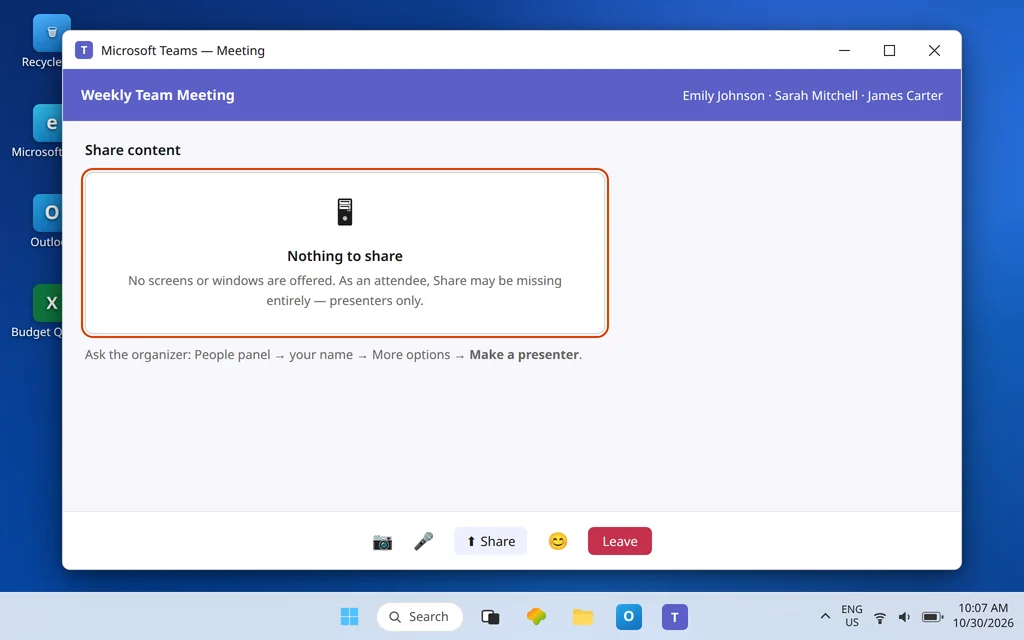
It is your turn to present. You reach for Share — and one of three things happens: there is no Share button, the button is there but the share tray opens empty or does nothing, or Teams tells you sharing is not allowed. Either way, you cannot show your screen at all.
This guide covers exactly that: you cannot share, full stop. Two nearby problems live elsewhere — if your share starts but everyone sees a black screen, that is a separate guide (Article 122, coming in this series), and if your share works but lags badly, see Article 142 when it publishes. Here, we get sharing itself working again.
Work out which of these is happening before you change anything, because they have different owners: a missing role (the meeting will not let you present), a policy block (your organization will not let you present), or a broken client (Teams on your PC cannot offer your screen). The fixes are ordered to separate those three quickly — role first, because it is the most common and the fastest to test.
Quick Answer: In most meetings, only presenters can share. Ask the organizer to make you a presenter (People panel > your name > More options > Make a presenter), or check Meeting options > Who can present is not set to organizers only. If you can share in some meetings but never in your own organization’s, a Teams meeting policy may have screen sharing turned off — that is an admin fix. If sharing fails everywhere including a test meeting with yourself, update Teams, try teams.microsoft.com in Chrome or Edge, and then clear the Teams cache.
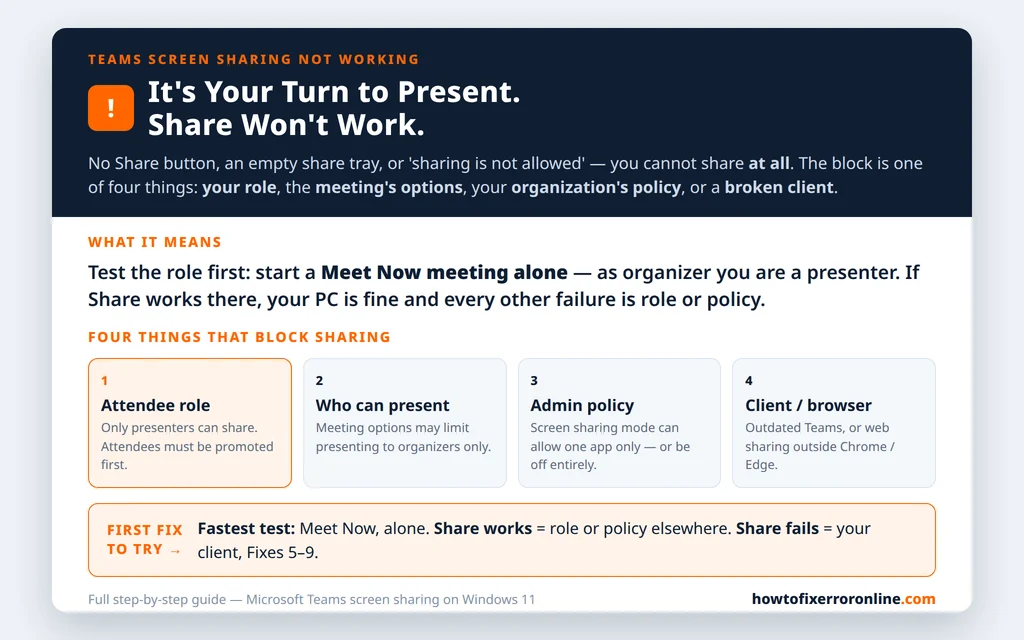
Table of Contents
Fix 1 — Check your role: attendees cannot share
Teams meetings have two roles that matter here. Presenters can share content, among other things. Attendees cannot share until someone promotes them. If you joined an external or tightly run meeting as an attendee, the Share control may be missing or refuse — by design, not by fault.
- In the meeting, open the People panel.
- Find your name and check your role if it is shown; if you are an attendee, ask the organizer or a presenter in chat: “Could you make me a presenter so I can share?”
- The organizer hovers your name, clicks More options (…) and chooses Make a presenter. Your Share control becomes available immediately — no need to rejoin in most cases.
The 60-second test that separates role problems from everything else: start a Meet Now meeting with only yourself. You are the organizer, so you are a presenter. If Share works there, your PC and Teams client are fine — every failure elsewhere is role or policy. If Share fails even there, skip to Fixes 5–8.
Fix 2 — Check Meeting options: “Who can present”
Even presenters-by-default can be locked out by a single meeting’s settings. Organizers control this per meeting:
- As organizer (or ask the organizer): in the meeting, open More options (…) > Settings > Meeting options — or open the meeting from the calendar and choose Meeting options before it starts.
- Find Who can present.
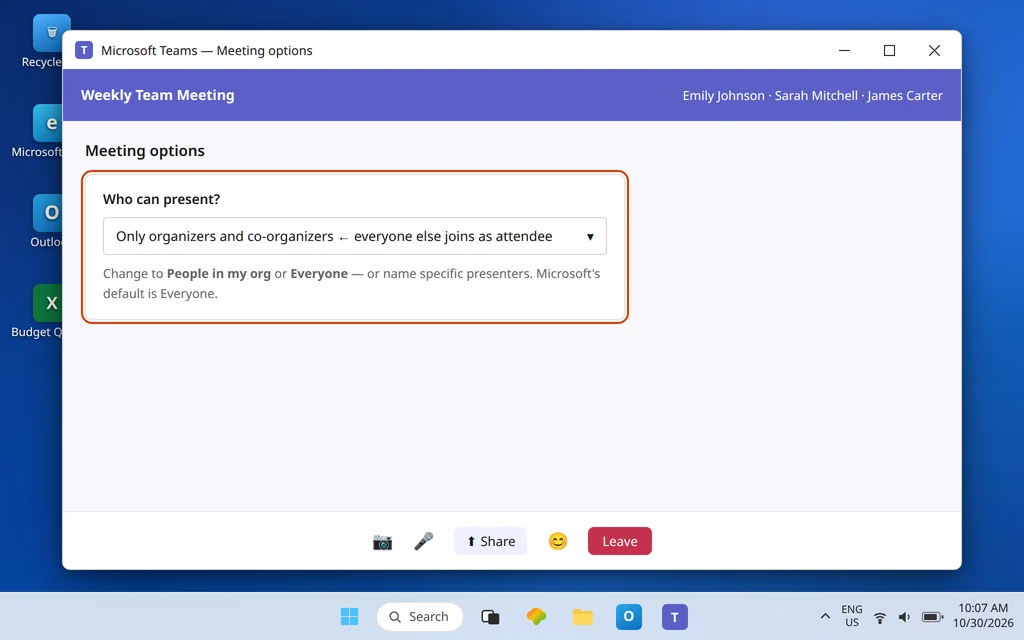
- If it is set to Only organizers and co-organizers, anyone else joins as an attendee and cannot share. Change it to People in my org or Everyone as appropriate for the meeting, or name Specific people as presenters.
Microsoft documents the same choices at the policy level: Only organizers and co-organizers, People in my org and guests, or Everyone — with Everyone as the default. If your meetings consistently start locked down, the default itself may have been changed by your admin, which is Fix 3.
Fix 3 — Ask your admin about the meeting policy (the block you cannot lift yourself)
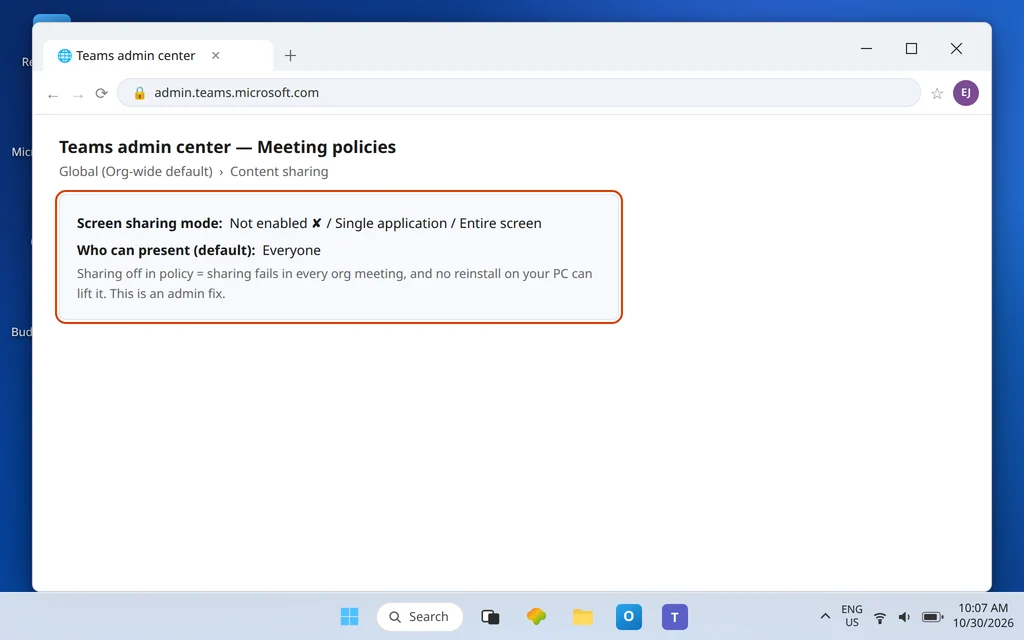
Screen sharing in Teams is governed by a meeting policy in the Teams admin center, and this is the fix you cannot apply from your own PC:
- Under Meetings > Meeting policies > Content sharing, the Screen sharing mode can allow the entire screen, allow a single application only, or be turned off entirely. If it is off for your policy, sharing fails in every meeting your organization hosts, no matter what you reinstall.
- The same policy area carries the Who can present default, and a separate control can stop users sharing content in external meetings hosted by other organizations.
How to tell this is your problem: sharing never works in your org’s meetings, colleagues in your department have the same failure, and the Meet Now test in Fix 1 — hosted by you, under your policy — may also fail. The message to send IT is specific: “Screen sharing fails in all meetings. Please check my meeting policy’s Screen sharing mode and Who can present settings.” That sentence saves a week of back-and-forth. While you wait, present from a colleague’s share (they share, you talk) or share a file in chat as a stopgap.
Fix 4 — Try sharing a window instead of the whole screen
If your policy allows single application sharing only, the full-screen option may be missing while window sharing works — and that can look like “sharing is broken” when it is actually “sharing is restricted.” In the share tray, look carefully at what is offered:
- Screen entries (your displays) — full-screen sharing.
- Window entries (individual open apps) — if only these appear, share the window. For most presentations, a window is the better choice anyway: notifications and other apps stay private.
Also close and reopen the app you want to share if it does not appear in the Window list — Teams lists windows that exist when the tray opens. A minimized window may need restoring to the desktop first before it is offered.
Fix 5 — Update Teams and restart it properly
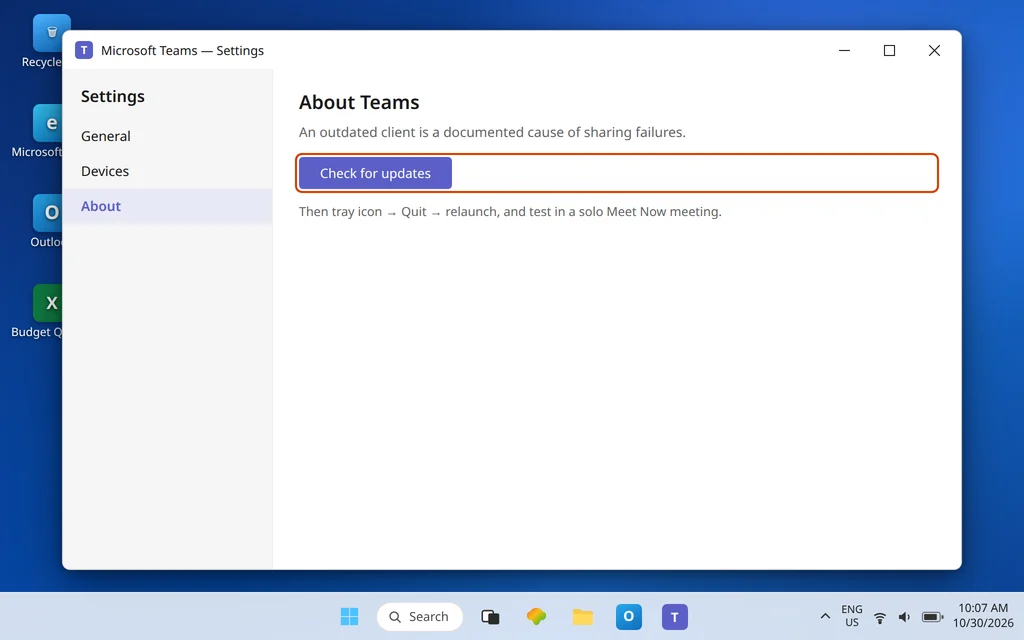
With role and policy cleared, turn to the client. An outdated or half-updated Teams is a documented cause of sharing failures:
- Open Settings > About (or the … menu beside your profile picture) and choose Check for updates. Let Teams download, install, and restart.
- Fully quit Teams once yourself — tray icon > right-click > Quit — then relaunch and rejoin.
- Test in the solo Meet Now meeting from Fix 1 before testing in front of an audience.
If Teams also hangs or closes unexpectedly at other times, the wider stability guide Microsoft Teams Keeps Crashing or Freezing is worth working through in parallel.
Fix 6 — Test in Teams on the web (Chrome or Edge only)
This is Microsoft’s own isolation step: if sharing works in the web app but not the desktop app, the desktop client is the problem; if it fails in both, role or policy is back on the table.
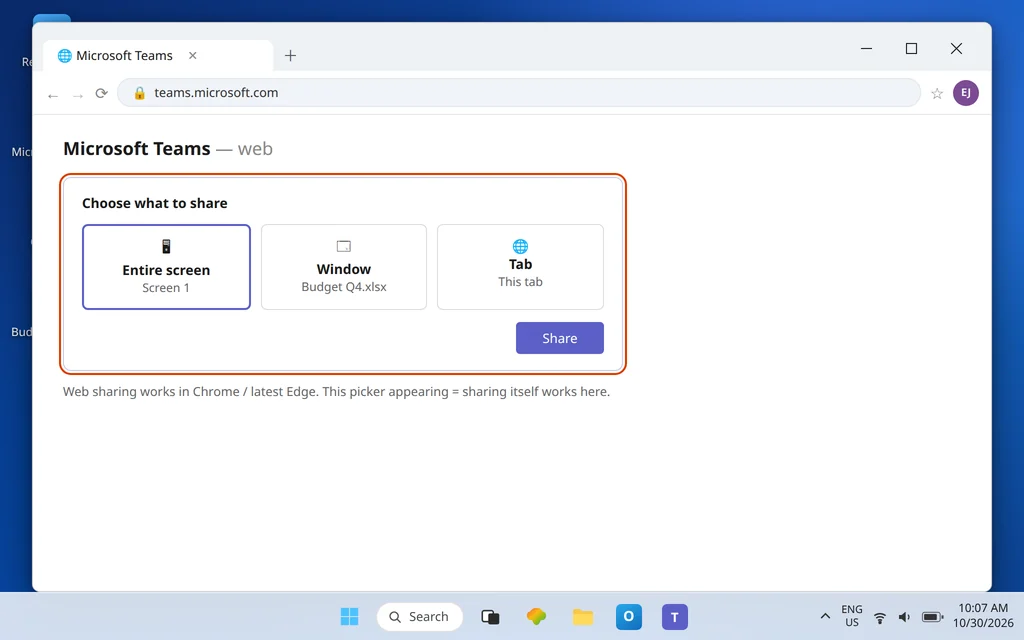
- Open teams.microsoft.com in Google Chrome or the latest Microsoft Edge. Screen sharing on Teams for the web is supported in those browsers — it is not supported the same way in others, so a failure in an unsupported browser proves nothing.
- For a clean test, use an InPrivate / Incognito window so extensions and stale sign-ins stay out of it.
- Join your test meeting, click Share, and when the browser asks which screen or window to share, choose one and confirm. The browser’s own picker appearing means sharing has started working; if Teams shows no Share control even here as organizer, revisit Fixes 2 and 3.
Fix 7 — Check graphics drivers and basic requirements
Screen sharing asks more of your PC than chat does — it captures and encodes your display in real time. Microsoft’s Q&A guidance for sharing failures includes updating the graphics/video driver and confirming the device meets Teams’ hardware requirements:
- Open Device Manager, expand Display adapters, right-click your adapter, and choose Update driver.
- Better still for older PCs: download the current driver from the PC or adapter manufacturer’s site — the built-in search does not always find the newest.
- Restart the PC afterward, then run the solo test again.
An aging laptop that can share a single window but fails on a full high-resolution screen is showing you its limit: share the window (Fix 4) as your standing workaround.
Fix 8 — On a Mac, grant Screen Recording permission
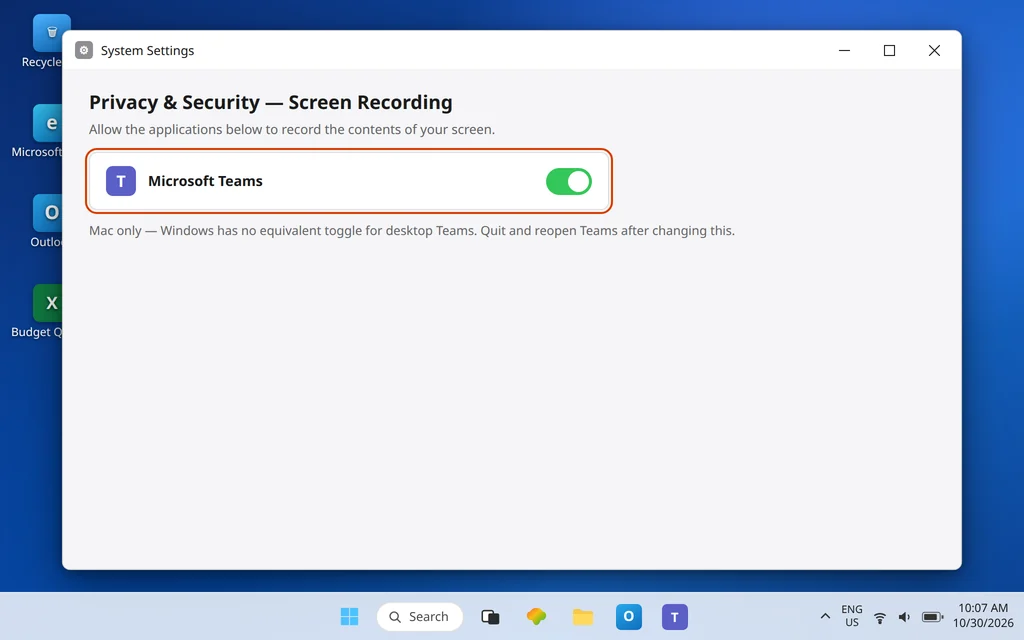
This fix is Mac-only, and on a Mac it is not optional: Teams cannot share what the operating system will not let it record. If you are on Windows, skip this fix — Windows has no equivalent Screen Recording toggle for the desktop app, and any guide telling you to find one is mixing up platforms.
On macOS, open System Settings > Privacy & Security > Screen Recording (older versions: System Preferences > Security & Privacy > Privacy > Screen Recording), confirm Microsoft Teams is listed and turned on, then quit and reopen Teams. If your Mac is managed by your organization, your IT team may control this list — and the new Teams app must be the entry present, not the classic one.
Fix 9 — Clear the Teams cache (late in the order, on purpose)
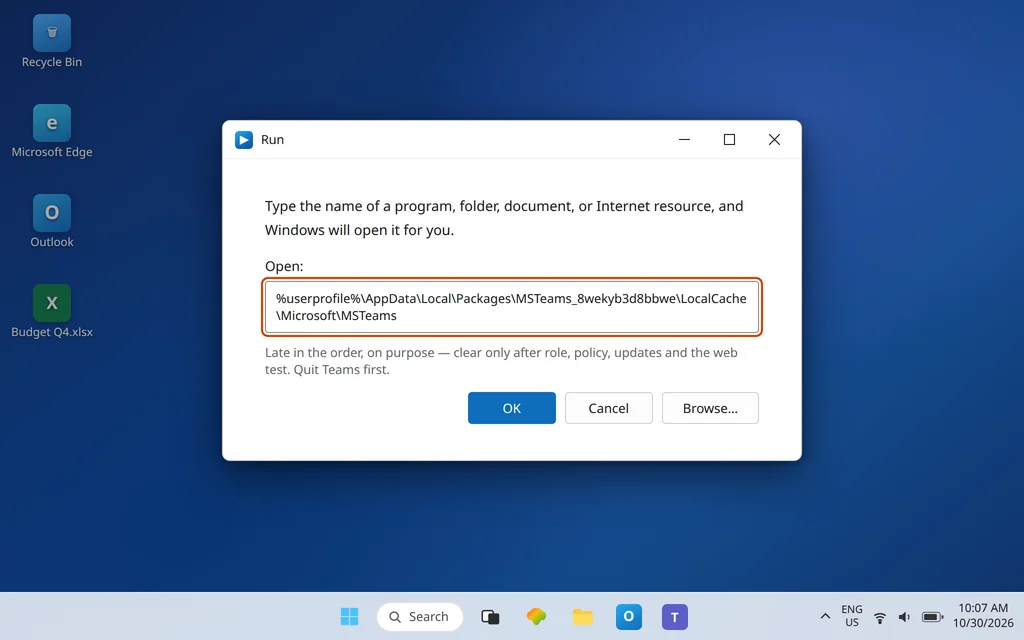
Microsoft positions cache clearing as a targeted step, not a first response — which is why it sits here, after role, policy, updates, and the web test have cleared the other layers. If the share tray opens empty or sharing dies instantly in the desktop app only, clear it:
Settings > Apps > Installed apps > Microsoft Teams > … > Advanced options > Reset is the gentler route. Or fully quit Teams, press Windows + R, open %userprofile%\AppData\Local\Packages\MSTeams_8wekyb3d8bbwe\LocalCache\Microsoft\MSTeams, delete the folder’s contents, and restart Teams. Your meetings and chats are stored in your account and will reload. Then run the solo test once more. If sharing still fails everywhere after a clean client, the evidence points back to policy (Fix 3) or hardware (Fix 7) — say so plainly when you contact support, with the tests you ran. And if joining meetings themselves is also failing, separate that fault with Can’t Join a Teams Meeting rather than treating it as one problem.
Confirm it worked
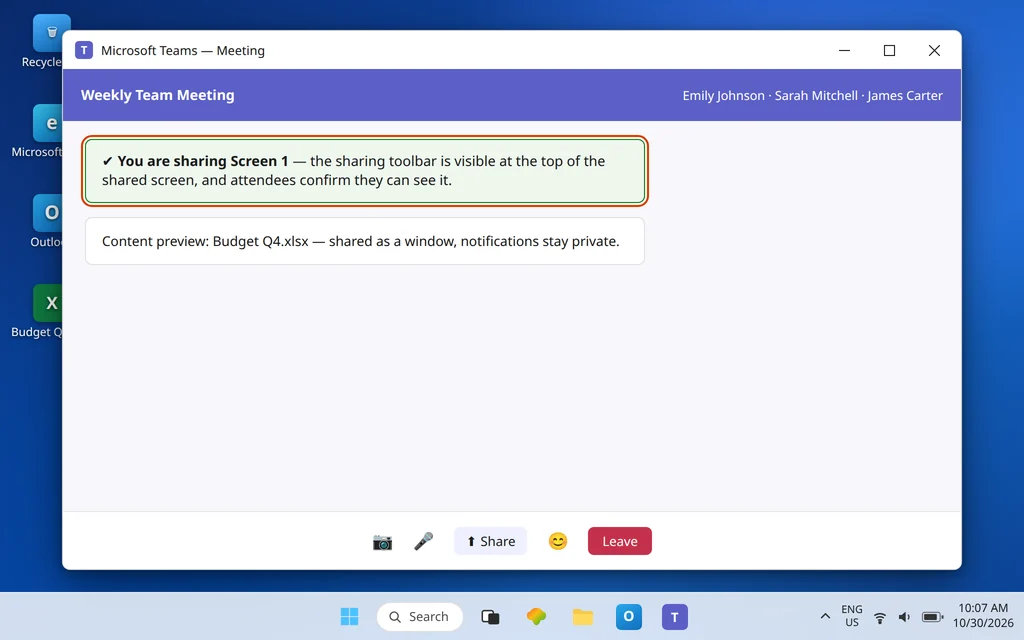
Start a Meet Now meeting alone and share your full screen, then a single window, and confirm the sharing toolbar appears and the preview shows your content. Then join a real meeting where you previously failed and share once, briefly, before the moment you actually need it. If a colleague is available, have them confirm they can see the content clearly — that closes the loop the tray alone cannot.
How to stop it happening again
- Set your meeting defaults once. If you organize meetings where guests present, set Who can present generously in your meeting options template instead of fixing it live, mid-call.
- Rehearse in a solo meeting. Sixty seconds in Meet Now before a big presentation verifies role, client, and content in one pass.
- Keep Teams and graphics drivers updated. Sharing leans on both; stale versions are a recurring cause of “it worked last month.”
Frequently asked questions
Why can’t I share my screen in Teams?
The most common reason is your role: attendees cannot share until an organizer makes them a presenter. After that come the meeting’s Who can present option, an organization meeting policy with screen sharing restricted or off, an outdated client, and — on the web — an unsupported browser. The solo Meet Now test in Fix 1 separates them: if sharing works when you host, your PC is fine.
Why is the Share button missing or greyed out?
A missing or dead Share control usually means you joined as an attendee in a meeting where only organizers and co-organizers can present, or your organization’s policy disables sharing for you. Ask the organizer to make you a presenter. If the button is missing in every meeting including your own, skip straight to the policy conversation in Fix 3.
What is “Who can present” in Teams?
It is the setting that decides which participants join as presenters — and only presenters can share content. Organizers can set it per meeting in Meeting options (Only organizers and co-organizers, People in my org and guests, Specific people, or Everyone), and admins set its default in the Teams admin center meeting policy. Microsoft’s default is Everyone.
Can my company block screen sharing?
Yes. In the Teams admin center, the meeting policy’s Content sharing section includes a Screen sharing mode that can allow the full screen, a single application only, or no sharing at all, and a separate control can prevent sharing in external meetings. If that is your situation, only your admin can change it — Fixes 5–9 will not override a policy.
Which browsers support Teams screen sharing on the web?
Google Chrome and the latest Microsoft Edge. Microsoft’s guidance for isolating sharing problems is to test at teams.microsoft.com in one of those — ideally in a private window. A failure in a different browser is expected behavior, not a fault, so do not troubleshoot your PC based on it.
Other people can share in the same meeting, but I can’t. Why?
That pattern clears the meeting and the service: the difference is you — your role in that meeting, the policy assigned to your account, or your client. Get promoted to presenter first; if you already are one, test the web app (Fix 6). Working on the web but not the desktop means your desktop client needs the update-and-cache path in Fixes 5 and 9.
Sharing still refused? Contact us at servicedesk@howtofixerroronline.com or through our Contact page and tell us whether sharing works in a meeting you host yourself, what your role was in the failing meeting, and whether the web app in Chrome or Edge behaves the same way. We will never ask for your password.