
Microsoft Teams Notifications Not Working — No Alerts at All
The messages are arriving. You can prove it: open Teams and there they all are, chats and mentions and a meeting that started twenty minutes ago, sitting quietly in the list. What never arrived was any alert — no banner popped up, no sound played, nothing announced any of it. Teams has gone completely silent while continuing to work perfectly.
That pattern has a specific shape, and it matters: this article is about no alerts at all. (Alerts that exist but arrive late are a different fault, with different causes.) Total silence almost always means something in the chain is switched off on purpose — a mute, a Do Not Disturb, a quiet-hours schedule — because several different features can each silence Teams completely, and any one of them produces exactly this symptom. We will check them in the order that finds the culprit fastest: Teams’ own settings, then the channel level, then Windows, then the quiet modes hiding in your status and your phone. If, instead, your messages themselves are not sending, that is Microsoft Teams Not Sending Messages — a sending fault, not an alerting one.
Quick Answer: In Teams, open Settings → Notifications and activity and make sure Mute all notifications (except for calls and meetings) is off, and that Chat, Mentions and Replies are set to show in Banner and feed (not feed only). Turn Meeting start notifications on. Then open Windows Settings → System → Notifications: the master switch on, Microsoft Teams on in the app list, and Do Not Disturb off — including its automatic rules. Set your Teams status to Available (Do Not Disturb status suppresses banners), and check the Teams mobile app’s quiet hours. One deliberate note: clearing the Teams cache does not fix notification problems — Microsoft’s own cache guide says so — so this guide does not send you there.
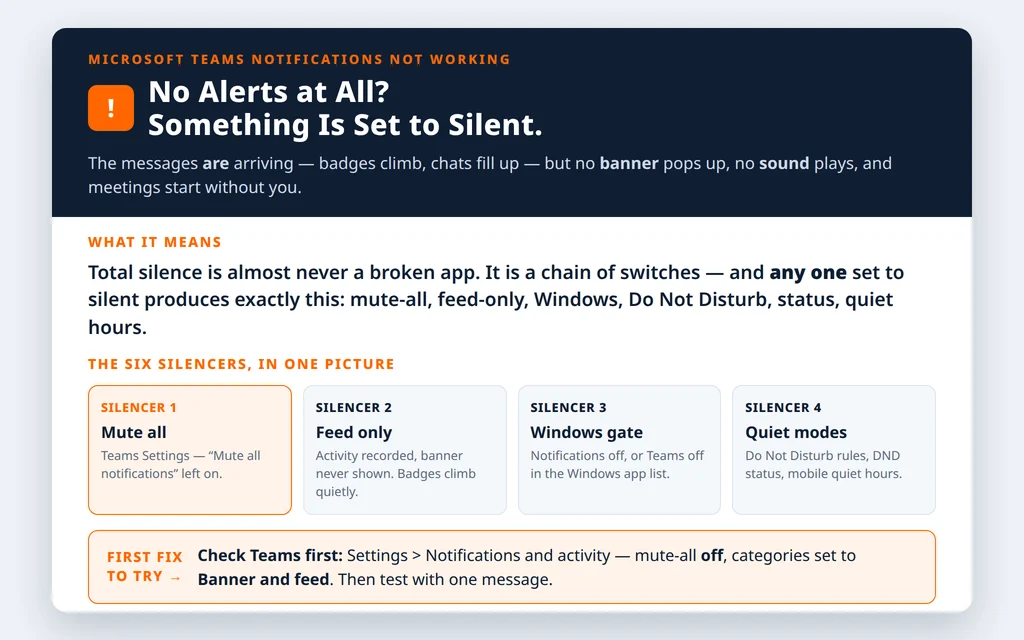
Table of Contents
Fix 1 — Teams Settings → Notifications and activity: the mute-all switch and banner settings
Start where the alerts are decided. Several switches in here can each produce total silence:
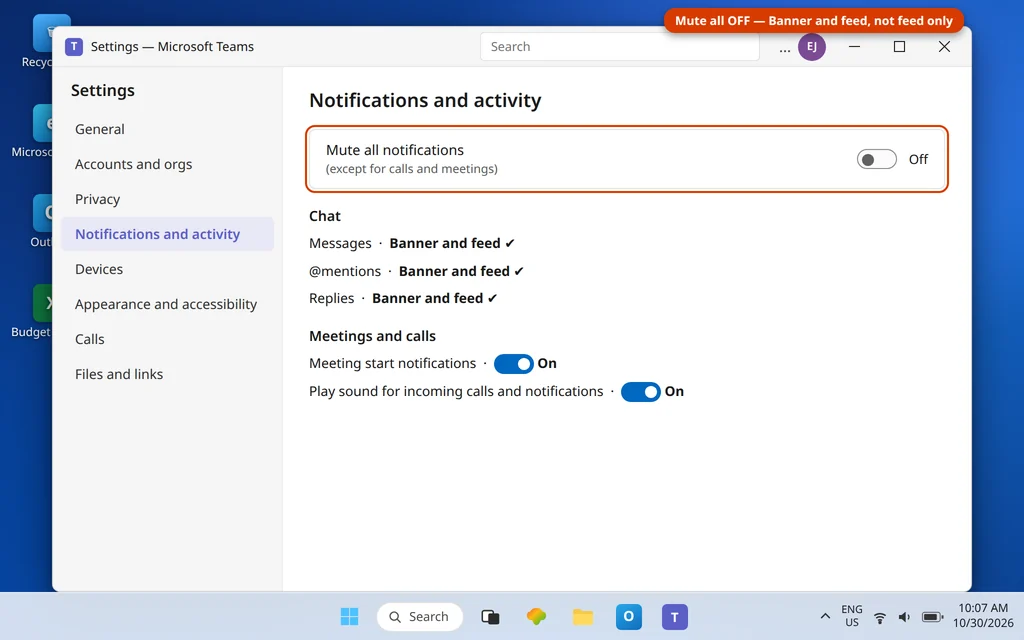
- In Teams, select Settings and more (…) → Settings → Notifications and activity.
- Find Mute all notifications (except for calls and meetings) and turn it off. This single switch silences exactly what its name says, and Microsoft Q&A’s own notification answers check it first.
- Work down the categories — Chat, Mentions, Replies — and set the important ones to show as Banner and feed. Anything set to feed only (or “Only show in feed”) still records the activity, but never pops up or makes a sound: the badges climb while you see nothing, which matches this problem exactly.
- Turn on Play sound for incoming calls and notifications if you rely on sound, and check Meeting start notifications is on, so a started meeting actually announces itself.
Change one thing, then test: have a colleague send you a message (or message yourself from the web version) and watch for the banner before moving on. Testing after each fix is how you know which switch it was.
Fix 2 — Per-channel notification settings: the silent channel override
Even with perfect global settings, an individual channel can be set quieter — and channel posts are where “I never saw it” usually happens.
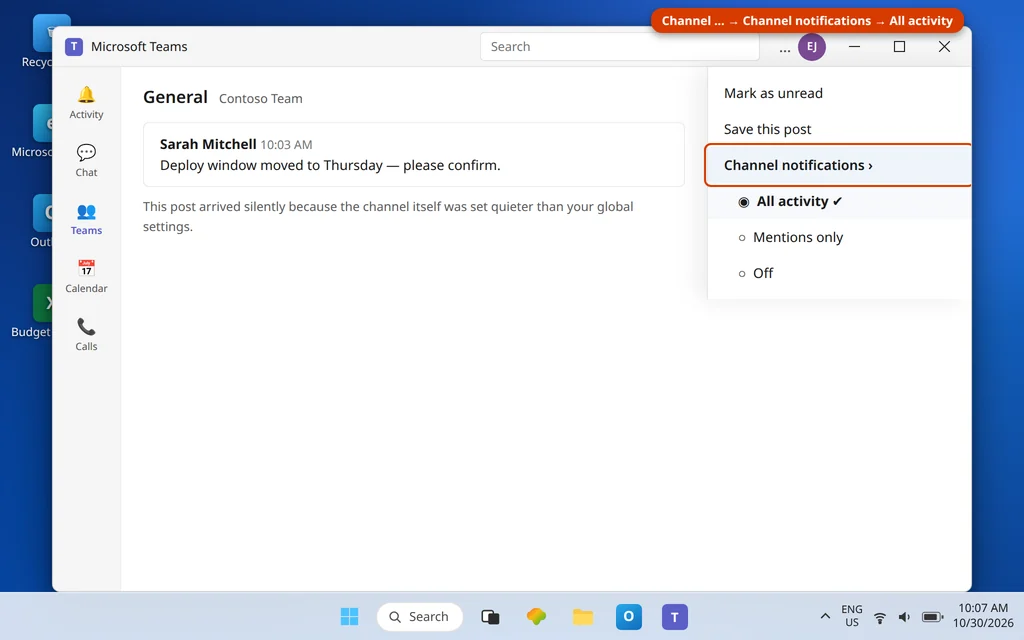
- In the team list, hover over the channel that goes unnoticed, select More options (…) next to its name, and choose Channel notifications.
- Set it to All activity while you are diagnosing (you can refine it later). The quieter options only alert you for mentions, or for nothing.
- Repeat for each channel you genuinely rely on.
Note the normal behavior this reveals: by design, most channel posts do not banner-alert you unless you are mentioned or you have set the channel to All activity. If direct chats alert you fine after Fix 1 but channels never did, this was not a fault at all — it was the default, and Fix 2 is the setting that changes it. Meeting chats have their own mute control too (in the meeting’s chat settings), worth a look if one recurring meeting stays silent while everything else alerts.
Fix 3 — Windows Settings → System → Notifications: the master gate
Teams can ask for a banner all day; Windows decides whether one appears. Two levels matter:
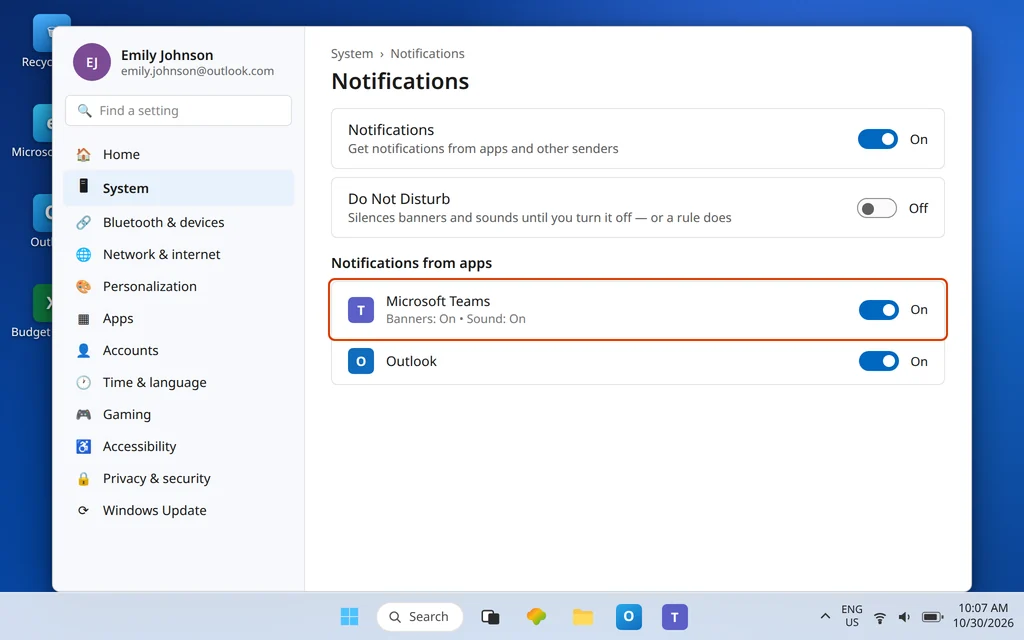
- Open Settings → System → Notifications.
- Turn the master Notifications switch on at the top.
- Scroll the app list, find Microsoft Teams, and turn it on. Open it and confirm banners are allowed there too.
If Teams is missing from the list entirely, Windows has never registered it as a notification sender — a sign out of Teams, a full restart of the app, and signing back in usually re-registers it. Microsoft Q&A answers suggest a reinstall restores the entry in stubborn cases, which is Fix 7’s territory.
Fix 4 — Do Not Disturb and its automatic rules (the one that turns itself back on)
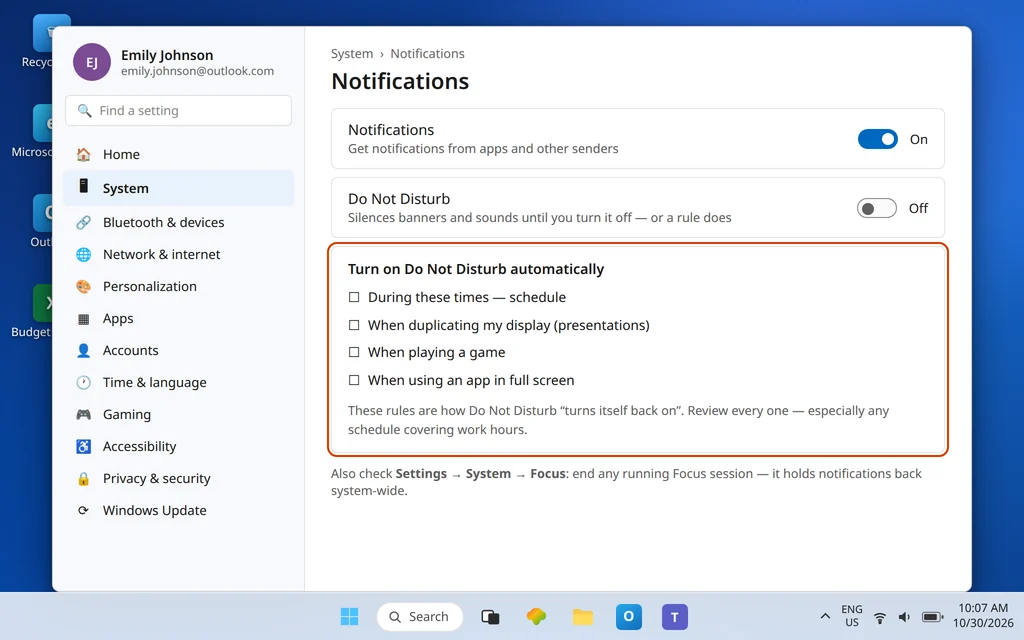
Windows’ Do Not Disturb sits on the same Settings page, and it is the most common reason notifications “stop working” with no memory of changing anything: its automatic rules switch it on by schedule, when you duplicate your display for a presentation, when you play a game, or during set hours — and leave it on.
- Open Settings → System → Notifications.
- Turn Do Not Disturb off.
- Expand Turn on Do Not Disturb automatically and review every rule. Turn off the ones you do not deliberately want — especially any schedule that covers your working hours.
- While you are here, check Settings → System → Focus: if a Focus session is running, end it. Focus sessions hold notifications back system-wide.
If you genuinely need Do Not Disturb sometimes, the same page lets you add Microsoft Teams as a priority app whose alerts still come through — the controlled version of the fix. And if your calendar is involved — you are mid-meeting and miss the next thing — note that Teams also has its own “mute notifications during meetings” behavior, separate from Windows; see Can’t Join a Teams Meeting if meetings themselves are the problem, not just their alerts.
Fix 5 — Your Teams status: Do Not Disturb suppresses banners
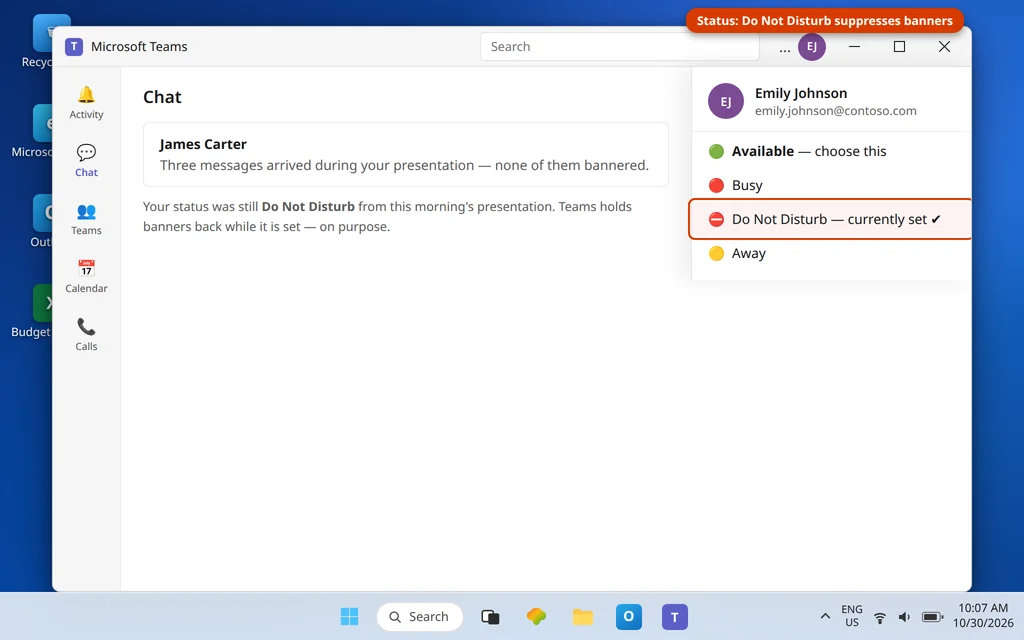
Your presence status is also a notification control. With your status set to Do Not Disturb, Teams deliberately holds back banner alerts (calls and priority contacts are the exceptions). People set it for one presentation and forget it for a week.
- Click your profile picture in Teams.
- Look at the current status. If it says Do Not Disturb, change it to Available.
- Remember the calendar connection: a calendar event marked as focus time, or a meeting you are presenting in, can set this status for you. If it keeps coming back, check the calendar event that is running when it changes.
Microsoft Q&A’s notification answers include this check for a reason — it is invisible from the Settings pages, so it survives a lot of “but I checked all the settings” troubleshooting.
Fix 6 — The phone can be part of it: quiet hours and “active on desktop”
Your phone does not directly switch off desktop banners — but two mobile settings create the same total-silence complaint and are worth ruling out, especially if alerts are missing across devices:
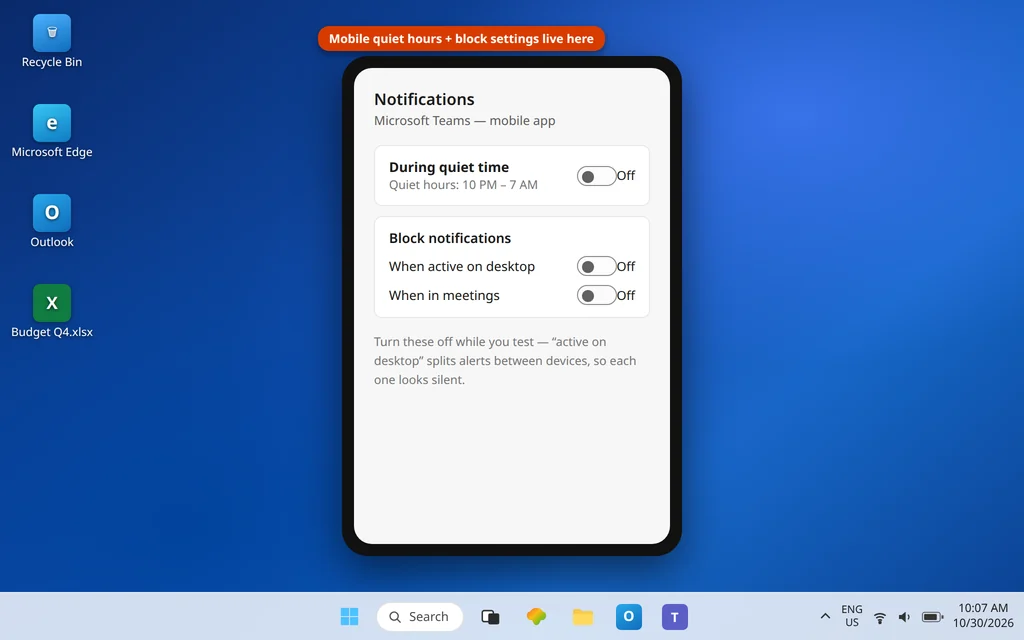
- Quiet hours in the Teams mobile app. Open the mobile app → your profile picture → Notifications → During quiet time / Quiet hours, and turn it off while you test. Quiet hours silence Teams alerts on that device on a schedule.
- “Block notifications when active on other devices.” In the same mobile Notifications area, the block-when-active options can send alerts only to the device you are not looking at. Microsoft Q&A answers for “notifications don’t go through” specifically tell users to turn off When active on desktop while diagnosing. Turn these blocks off, test, then re-enable only the ones you actually want.
Fix 7 — The late fixes: sign out and in, then Repair, then Reset
If every switch above is correct and silence continues, the app’s own state is the suspect. In order:
- Sign out and back in. Click your profile picture → Sign out. Fully quit Teams, reopen it, and sign in. This refreshes the session that notification registration hangs off.
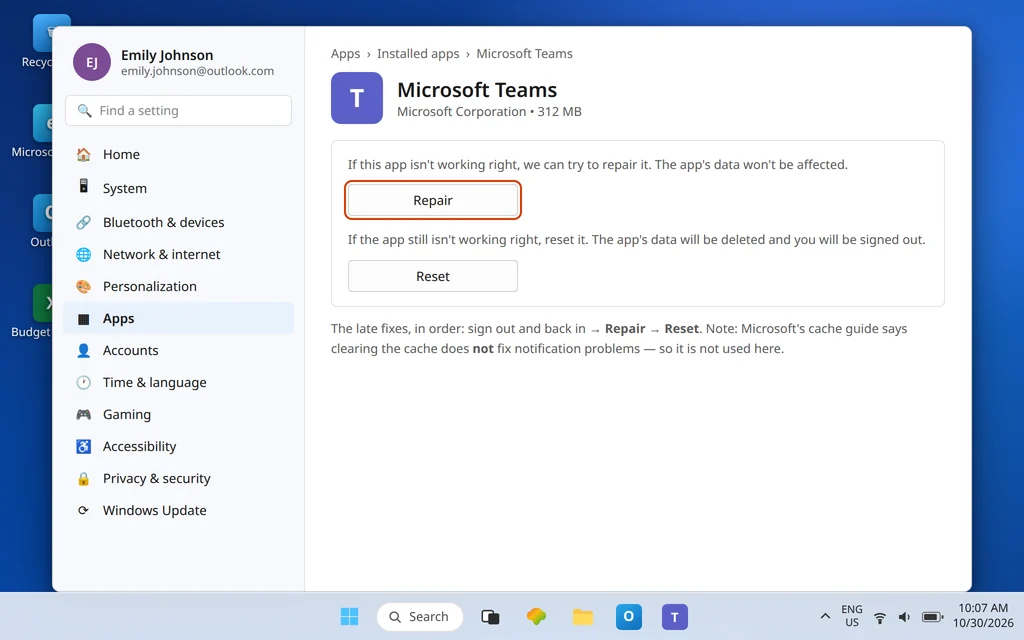
- Repair. Settings → Apps → Installed apps → Microsoft Teams → Advanced options → Repair. Repair keeps your data and sign-in.
- Reset. Same page → Reset only if Repair changed nothing. Reset deletes the app’s local data and signs you out, so it is the last step, not the first.
Deliberately missing from this list: clearing the Teams cache. Microsoft’s cache documentation explicitly says cache-clearing does not fix notification or unread-count problems and removes diagnostic logs — so it is not a notification fix, whatever older guides claim. If overall PC slowness is muting your whole workflow alongside the alerts, PC Slow on Windows 11 is the companion guide.
Confirm it worked
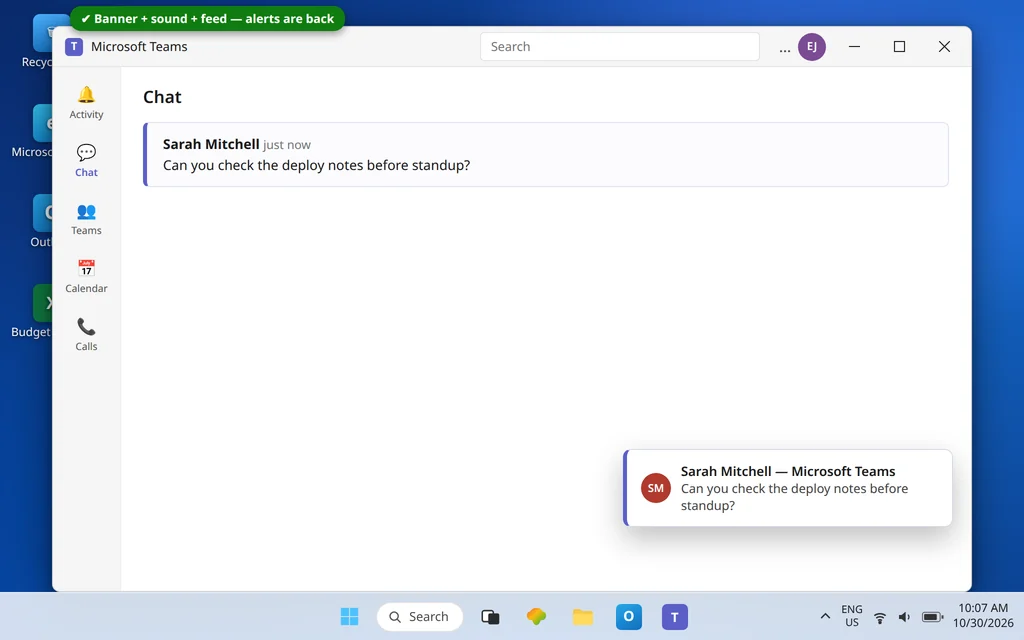
Ask a colleague to send you a direct chat message, an @mention in a channel you set to All activity, and — if you can — to start a scheduled meeting you are invited to. You want three results: a banner appears, a sound plays (if you enabled it), and the Activity feed records all three. Then lock and unlock the PC and repeat the chat test once, so you know alerts survive ordinary use.
How to stop it happening again
- Change one quiet feature at a time. Do Not Disturb, quiet hours, Focus and the mute-all switch all feel identical when they are on. When you deliberately use one, you will know which to undo.
- Set channel notifications deliberately when you join a team: All activity for the channels you own, mentions-only for the rest, instead of inheriting silence by default.
- After presentations, reset your status. Make “back to Available” part of ending a meeting, like stopping the share.
- Review Do Not Disturb’s automatic rules after big Windows updates — schedules have a habit of reappearing with feature updates.
Frequently asked questions
Why am I getting no Teams notifications at all?
Because something in a chain of switches is set to silent: Teams’ Mute all notifications switch, categories set to feed only, a channel set to mentions-only, Windows notifications off for Teams, Windows Do Not Disturb (including an automatic rule), a Do Not Disturb presence status, or mobile quiet hours. Each one alone produces total silence, which is why this guide checks them in a fixed order instead of guessing.
My badge counts go up but no banner ever appears. Which setting is that?
That is the fingerprint of feed only: Teams records the activity and increments the badge, but the category is set to show in the feed without a banner. In Settings → Notifications and activity, set Chat, Mentions and Replies to Banner and feed. If banners are already set there, the same symptom comes from Windows Do Not Disturb suppressing the pop-up while the feed still fills — check Fix 4 next.
Why don’t I get meeting start notifications?
Check three places: Meeting start notifications must be on in Teams’ notification settings; Windows must be allowed to show Teams banners (Fix 3) with Do Not Disturb off (Fix 4); and your status must not be Do Not Disturb (Fix 5). If you are already in another meeting, Teams may also be muting new alerts by design — join the started meeting from the calendar to confirm it exists.
Can my phone’s quiet hours silence my desktop too?
Quiet hours themselves act on the phone. But the mobile app’s block notifications options (“when active on desktop” and similar) split alerts between devices, and Q&A support answers for missing notifications tell users to switch them off while testing. If alerts are missing on both devices, also suspect account-level causes — work through Fixes 1–5 on the desktop, and sign out and back in (Fix 7).
My notifications stopped right after an update. What changed?
Most likely an app-state or registration problem rather than a setting you touched: sign out and back in (Fix 7), confirm Teams appears in the Windows notifications app list (Fix 3), and run Repair if silence continues. This guide intentionally does not use the often-recommended cache clear for this symptom — Microsoft’s own cache guide says it does not fix notification issues.
One channel never alerts me, but chats do. Is that broken?
Usually not — it is the channel’s own notification level. Channel posts alert you by default only when you are mentioned. Open the channel’s More options (…) → Channel notifications and choose All activity for the channels you need to hear from (Fix 2). Leave the rest at mentions-only unless you enjoy noise.
Alerts back — or still silent? Contact us at servicedesk@howtofixerroronline.com or through our Contact page and tell us whether badges still climb while banners stay missing, and what your Teams status shows. We will never ask for your password.