
Microsoft Teams Stuck on the Loading Screen? 9 Fixes
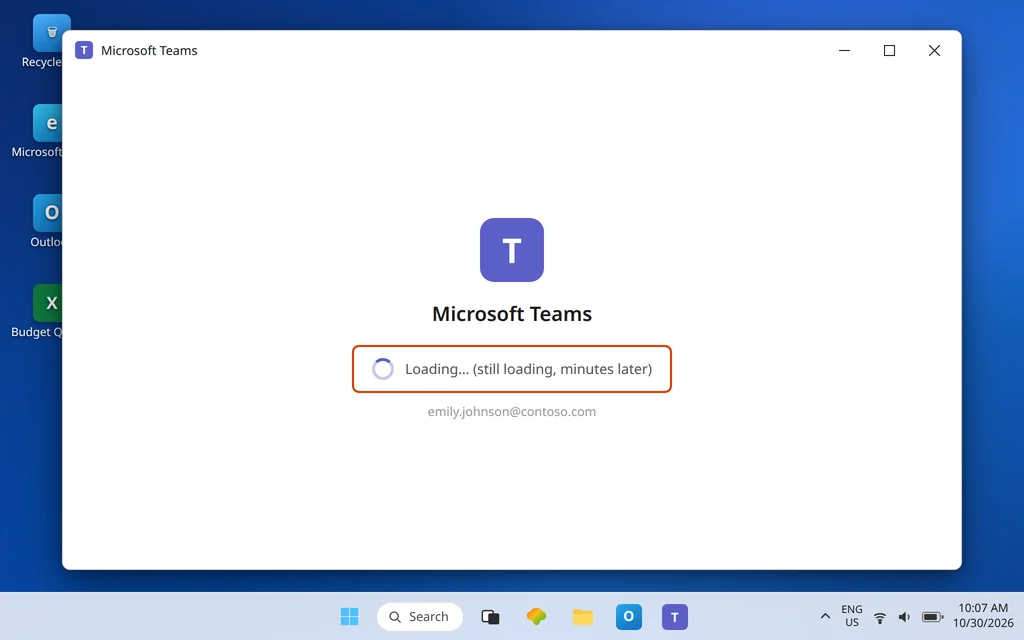
Microsoft Teams opens. The window appears, the logo shows, the spinner turns — and turns, and turns. Your chats never load, your meetings never appear, and waiting does not help: five minutes or fifty, it sits on the loading screen forever. This guide fixes Microsoft Teams stuck on loading screen, from a full quit to a clean reinstall.
That specific symptom matters, because it tells you where the problem lives. Teams is launching — the program starts — but something it loads during startup is damaged, stuck, or unreachable: most often its local cache, sometimes its app data or the web component it renders with, occasionally your sign-in session or the clock it validates against.
That is also how this guide differs from its neighbor: if Teams will not open at all — no window, nothing — that is a separate failure covered in Microsoft Teams Not Opening on Windows 11. Here, we fix the launches-but-never-loads case only, in order from a 30-second restart to a full reset. If the loading problem is really a sign-in loop in disguise, Microsoft Teams Keeps Asking to Sign In takes over from there.
Quick Answer: Fully quit Teams first (system tray icon > right-click > Quit, then End task in Task Manager if it lingers) and relaunch. If it still spins, clear the new Teams cache: quit Teams, press Windows + R, open
%userprofile%\AppData\Local\Packages\MSTeams_8wekyb3d8bbwe\LocalCache\Microsoft\MSTeams, and delete everything inside. Still stuck? Use Settings > Apps > Microsoft Teams > Advanced options — Repair first, then Reset — and test teams.microsoft.com in a browser to separate an app problem from an account or network one.
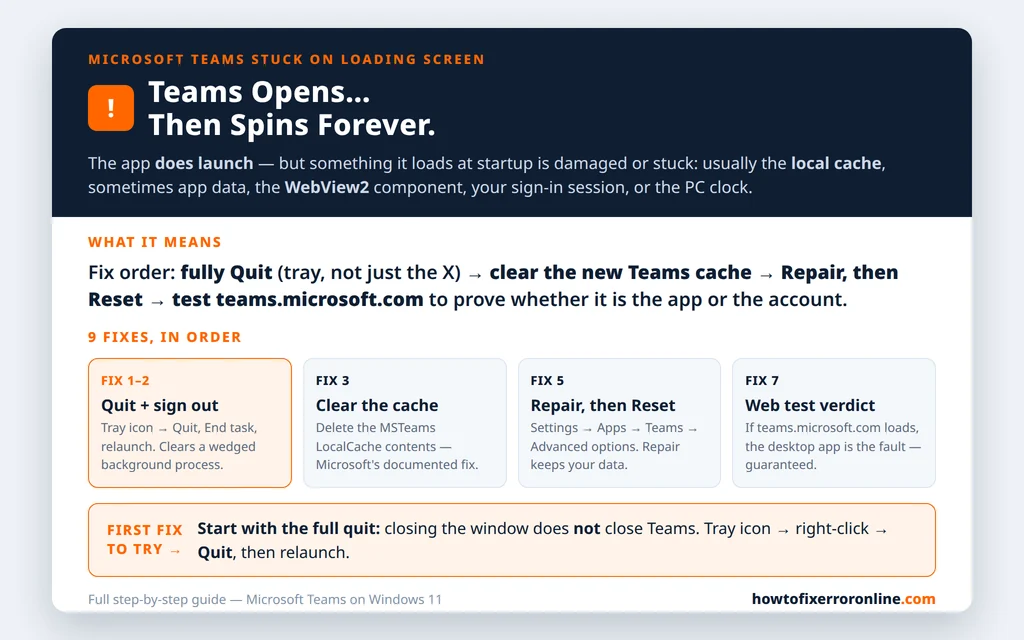
Table of Contents
Fix 1 — Quit Teams completely, then relaunch
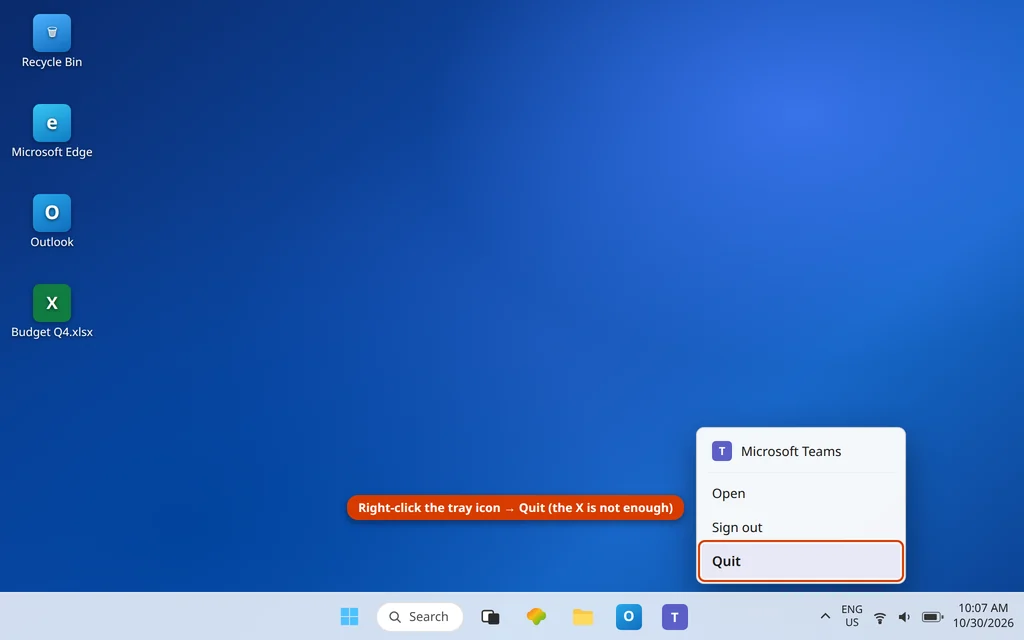
Closing the Teams window does not close Teams. The app keeps running in the system tray, and a hung background process will greet every relaunch with the same loading screen. Quit it properly:
- Click the ^ arrow near the clock to show hidden tray icons.
- Right-click the Teams icon and choose Quit.
- Press Ctrl + Shift + Esc to open Task Manager. If any Microsoft Teams process is still listed, select it and click End task.
- Relaunch Teams from the Start menu and give it a full minute — the first launch after a forced quit rebuilds some state.
If Teams loads normally now, the background process was simply wedged. If it returns to the spinner, continue — the deeper causes are below.
Fix 2 — Sign out from the tray icon, then sign back in
A loading screen can be a sign-in session that never completes. If you can reach the tray icon menu, right-click the Teams icon in the system tray and choose Sign out (on builds that offer it there), then relaunch Teams and sign in fresh with your work account — for our sample user, emily.johnson@contoso.com.
If Teams never gets far enough to offer sign-out, skip this fix — Fixes 3 and 5 clear the same session data from outside the app.
Fix 3 — Clear the new Teams cache
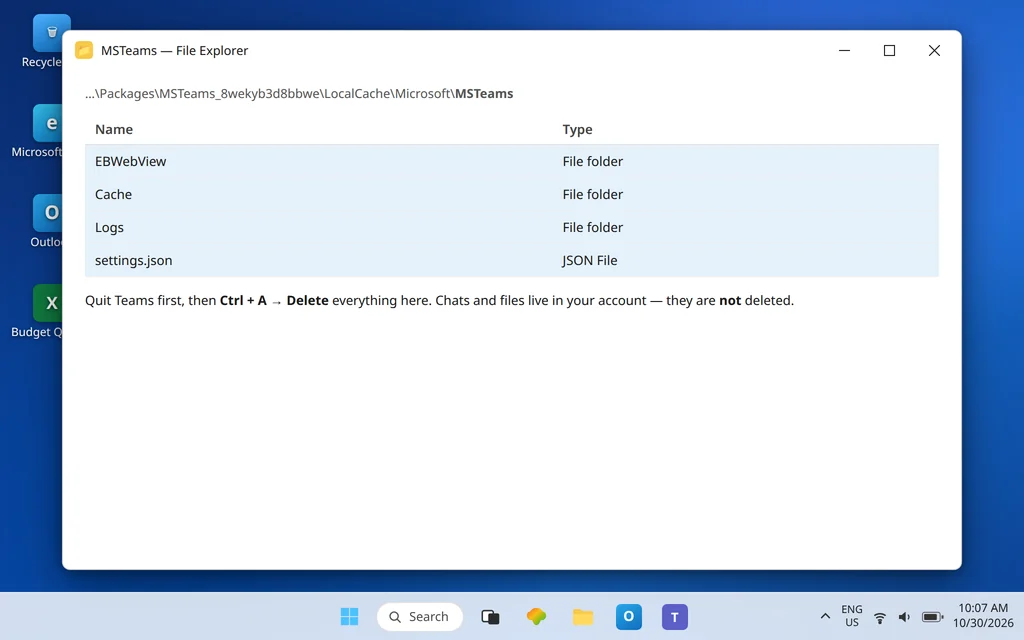
This is the highest-success fix for the loading screen, and it is Microsoft’s own documented route for the new Teams. A damaged file in the cache folder can block startup at exactly the spinning stage, every time, until it is deleted. Your chats and files live in your account, not in this folder — clearing it loses nothing but local temporary data and settings caches. See Microsoft’s official guidance for reconnecting to Teams.
- Quit Teams completely (Fix 1 — this step fails if Teams is still running).
- Press Windows + R to open Run.
- Paste this path and press Enter:
%userprofile%\AppData\Local\Packages\MSTeams_8wekyb3d8bbwe\LocalCache\Microsoft\MSTeams - Select everything inside the folder (Ctrl + A) and Delete it.
- Relaunch Teams. The first launch is slower than usual because the cache rebuilds — that slowness is expected and is not the bug returning.
Fix 4 — Check the Microsoft Edge WebView2 Runtime
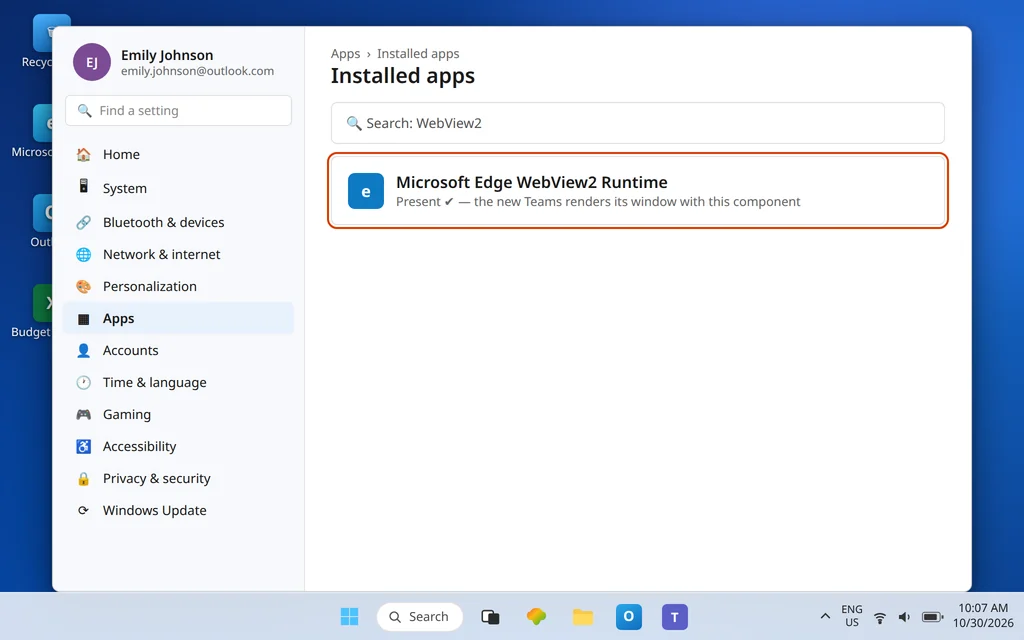
The new Teams renders its interface using the Microsoft Edge WebView2 Runtime — a Windows component that Teams depends on but does not carry entirely by itself. If that runtime is missing or damaged, Teams can open to a shell and spin without ever drawing your chats.
Check Settings > Apps > Installed apps and search for WebView2. If Microsoft Edge WebView2 Runtime is listed, it is present (a Repair of Teams in Fix 5 is the next step). If it is genuinely absent — uncommon, since Windows and Edge normally maintain it — reinstalling Teams and keeping Microsoft Edge updated are the practical ways it gets restored. Do not download “WebView2 repair tools” from random sites; let Windows, Edge, and the Teams installer manage the component.
Fix 5 — Repair Teams, then Reset if Repair is not enough
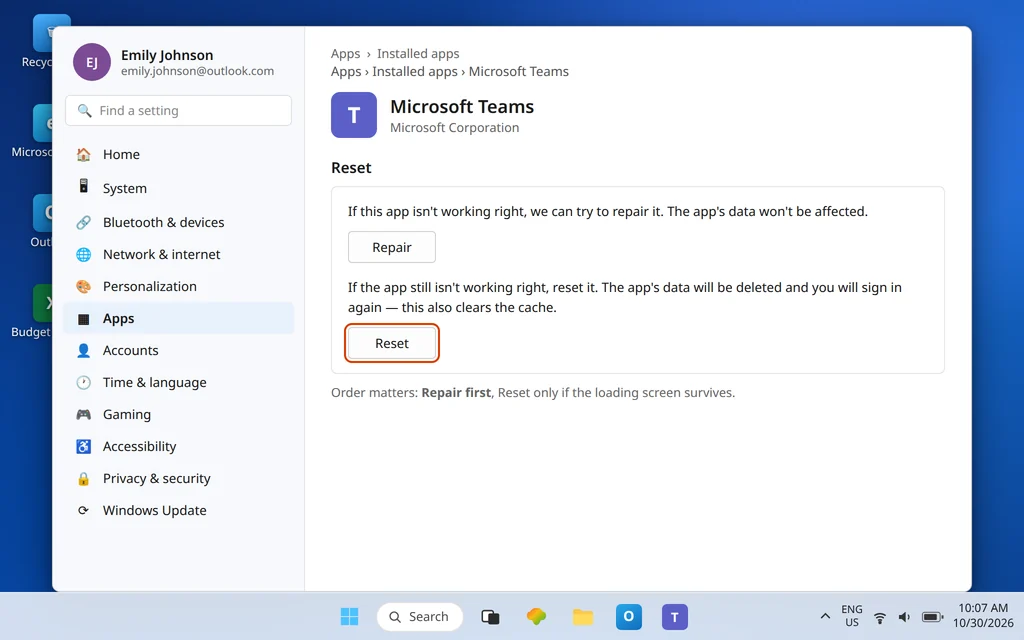
Windows can repair or reset the Teams app package from Settings, and Microsoft’s cache-clearing guidance lists Reset as the in-Settings method of clearing Teams data:
- Open Settings > Apps > Installed apps.
- Find Microsoft Teams, click the … (More options) button, and choose Advanced options.
- Under Reset, click Repair first. Repair attempts to fix the app while keeping its data.
- Relaunch Teams and test. If the loading screen persists, return to the same screen and click Reset. Reset deletes the app’s data — including local settings and the cache — and you will sign in again afterward, exactly as with Fix 3’s manual clear.
Repair before Reset, always: Repair is non-destructive, and a meaningful share of damaged installs recover there without costing you a sign-in.
Fix 6 — Update Teams and Windows
An interrupted or half-applied update can leave Teams in a state that loads forever. If you can borrow a working route in — the web version in Fix 7, for example — check for pending Windows Updates in Settings > Windows Update and install them, then restart. For Teams itself, a Reset (Fix 5) or a fresh install of the current version from Microsoft replaces mismatched app files wholesale. Restart the PC once after updates before judging the result; several Teams components only finish replacing themselves at boot.
Fix 7 — Test Teams on the web to find the real culprit
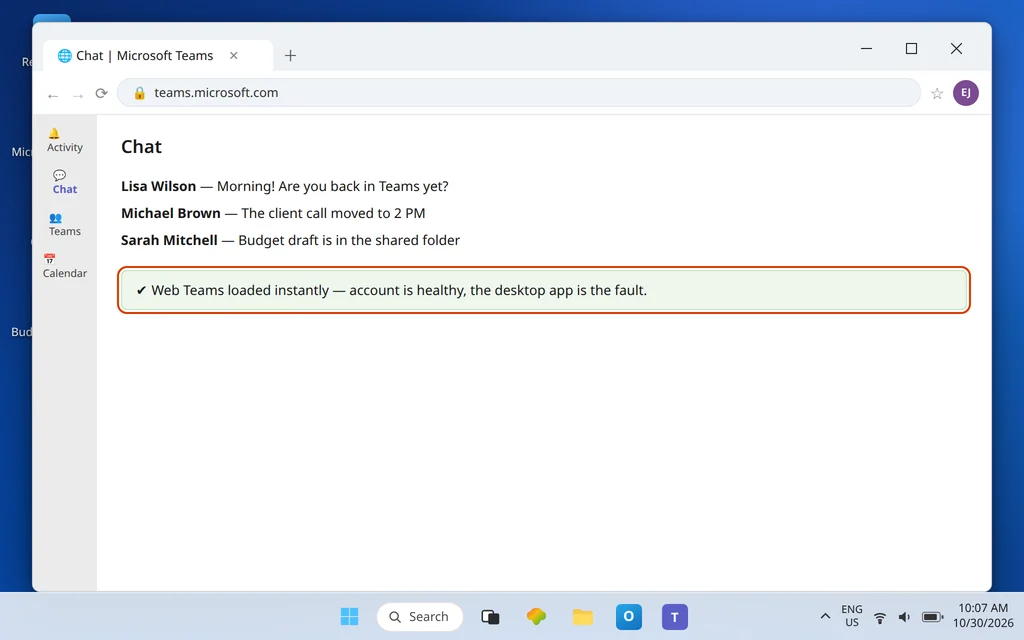
This is a diagnostic, and it is the most informative 60 seconds in the guide. Open a browser, go to teams.microsoft.com, and sign in with the same account.
- Web Teams loads fine: your account, password, and Microsoft’s service are healthy. The fault is the desktop app on this PC — return to Fixes 3 and 5 with confidence, and reinstall as the final step.
- Web Teams also spins or fails: the problem is bigger than the app — think network restrictions, a proxy/VPN interfering, or an account/service issue. Test on a different network if you can, and check whether colleagues have the same problem before reinstalling anything.
You can keep working in the web version while you repair the desktop app; it covers chats, meetings, and files for most day-to-day work, including joining the meeting you are probably already late for — and if joining meetings specifically fails in both places, Can’t Join a Teams Meeting is the dedicated guide.
Fix 8 — Sync your Windows clock
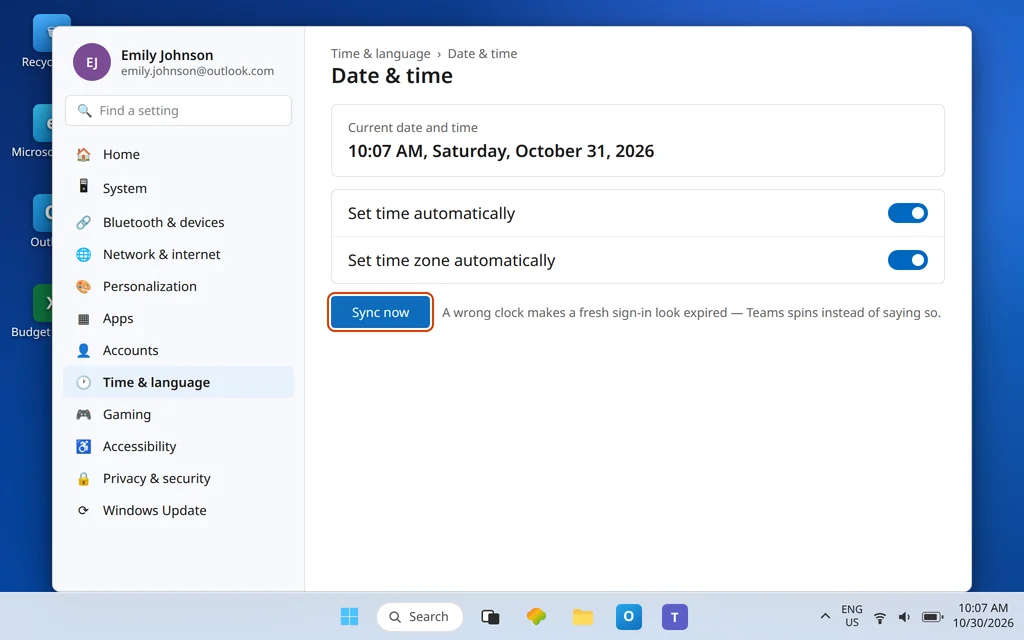
Sign-in tokens and secure connections are validated against your PC’s clock. A clock that has drifted — after a flat CMOS battery, a manual change, or a time-zone mix-up — can make a healthy sign-in look expired or invalid, and Teams may spin instead of explaining.
Open Settings > Time & language > Date & time, turn on Set time automatically and Set time zone automatically, and click Sync now under Additional settings if it appears. Then quit Teams fully (Fix 1) and relaunch.
Fix 9 — Reinstall Teams cleanly
If the loading screen survives cache, Repair, Reset, and updates, remove the app and start clean:
- Settings > Apps > Installed apps > Microsoft Teams > … > Uninstall.
- Restart the PC.
- Download the current Teams installer from Microsoft and install it, then sign in.
A reinstall after a Reset rarely leaves anywhere for the fault to hide: app files, package registration, and local data are all replaced. If a clean reinstall on a healthy web test still spins on loading, the remaining suspects are organization policy or the account itself — hand it to your IT team with your Fix 7 result, which will save them real time.
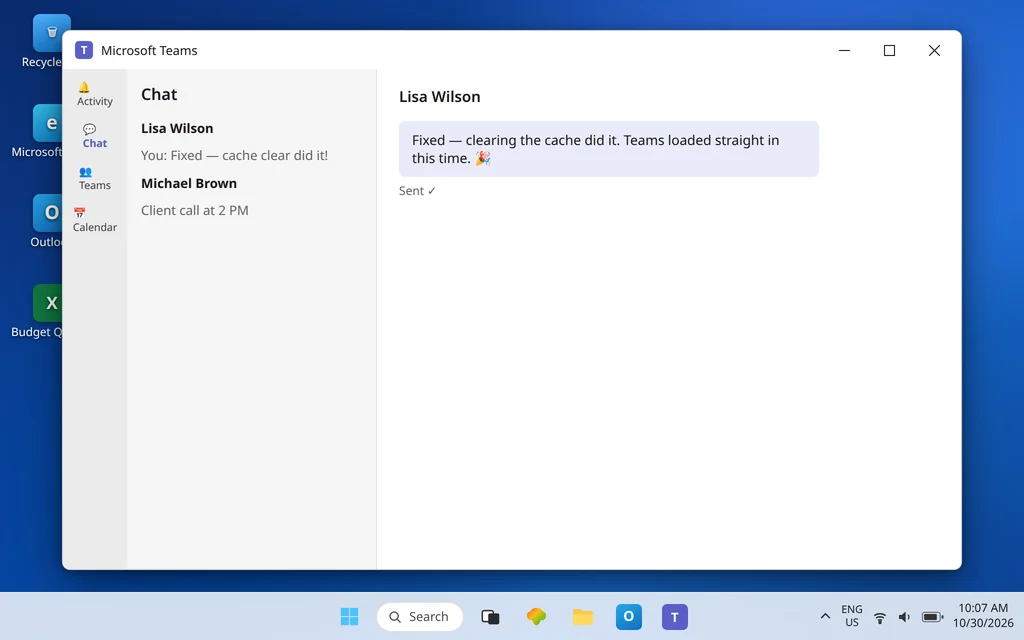
Confirm Microsoft Teams stuck on loading screen is fixed
Launch Teams and watch it pass the loading screen into your chat list within a normal startup time. Close the window, relaunch from the tray, and confirm it loads again — a fix that only works once usually means the cache is re-corrupting or the app data is damaged, and a Reset or reinstall (Fixes 5 and 9) is the durable answer.
How to stop it happening again
- Quit Teams properly before shutdowns when you can, and let Teams and Windows updates finish rather than interrupting them — half-applied updates are a recurring trigger.
- Keep Windows time automatic. It silently protects every sign-in, not just Teams.
- If the loading screen returns regularly, note what changed just before (an update, a VPN change, a password change). Patterns point to causes; one-off cache clears become a chore instead of a cure.
Frequently asked questions
Why is Microsoft Teams stuck on the loading screen?
Most often because something Teams loads at startup is damaged — above all its local cache, which is why clearing the new Teams cache folder (Fix 3) fixes the majority of cases. Other causes include a hung background process, damaged app data (Repair/Reset), a problem with the WebView2 component Teams renders with, a broken sign-in session, or a wrong system clock invalidating that session.
How do I clear the cache in the new Microsoft Teams?
Quit Teams completely, press Windows + R, open %userprofile%\AppData\Local\Packages\MSTeams_8wekyb3d8bbwe\LocalCache\Microsoft\MSTeams, delete everything inside, and restart Teams. That is Microsoft’s documented manual method. The same result can be achieved with Reset in Settings > Apps > Microsoft Teams > Advanced options, which deletes app data including the cache.
Will clearing the cache or resetting Teams delete my chats and files?
No. Chats, channels, and files are stored in your Microsoft 365 account and reappear when you sign back in. What you lose is local state: the cache itself, some display settings, and your current sign-in — you will sign in once more afterward. The first launch after a clear is slower while the cache rebuilds; that is normal.
What is the difference between Repair and Reset for Teams?
Repair tries to fix the app’s files while keeping its data and sign-in intact — always try it first. Reset deletes the app’s data entirely, which includes the cache and saved settings, so you start from a clean slate and sign in again. For a loading screen that survives Repair, Reset is the correct escalation, not a reinstall as the immediate next step.
Teams on the web works, but the desktop app still spins. What does that mean?
Your account and Microsoft’s service are fine; the fault is the desktop app on this PC. That result rules out password, account, and most network causes in one step. Work through the cache clear, Repair, then Reset — and if all three fail, a clean uninstall and reinstall is justified, because the diagnosis is already done.
Teams will not open at all — no window appears. Is that this problem?
No — that is the neighboring failure, and it has its own causes (a dead background process or a broken launch, rather than a stuck load). It is covered in Microsoft Teams Not Opening on Windows 11. If a window does appear and spins forever, you are in the right guide here.
Still watching the spinner? Contact us at servicedesk@howtofixerroronline.com or through our Contact page and tell us how far Teams gets, whether the web version loads for the same account, and what happened after the cache clear. We will never ask for your password.