
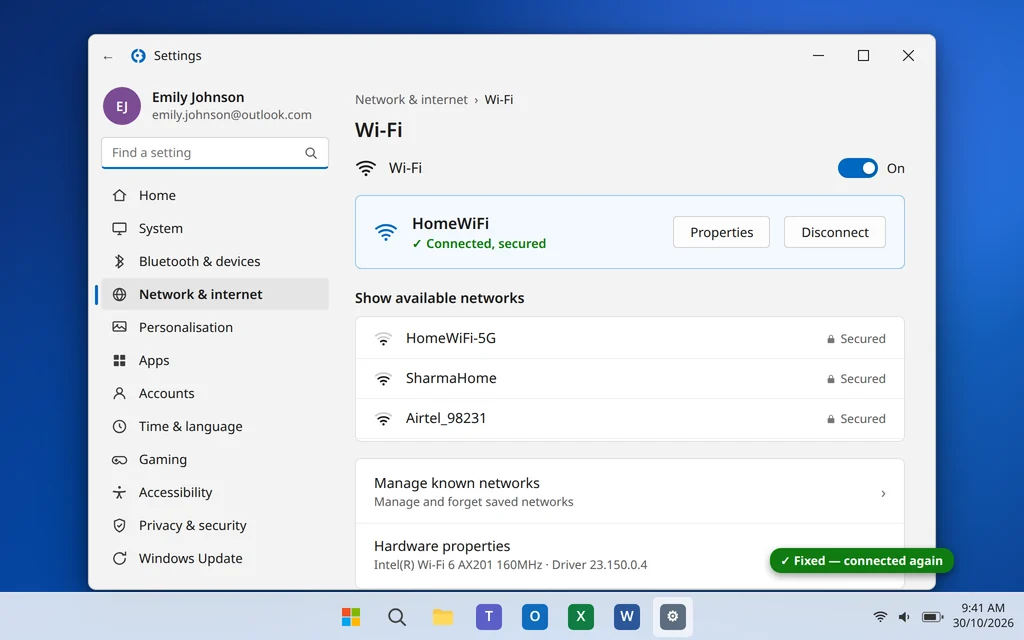
WiFi Not Working on Windows 11? 10 Fixes
Your laptop suddenly refuses to connect to WiFi. Maybe the network name has disappeared from the list, maybe it says “Connected, no internet”, or maybe the WiFi icon itself has vanished from the taskbar. Whatever the version, you are offline — and everything else you need to do waits behind it. If WiFi not working Windows 11 is the problem you are facing, the fixes below will get you back online.
The good news is that WiFi problems on Windows 11 are rarely hardware failures. A stuck adapter, a driver that misbehaved after an update, corrupted network settings or a router that needs a restart account for nearly every case — and this guide covers all of them, from the 30-second checks to the full network reset.
Work through the fixes in order. The early ones solve this for most people, and each fix tells you exactly what to click.
Quick Answer: First, make sure Airplane mode is off and restart both your PC and your router. Then run the built-in troubleshooter (Settings > System > Troubleshoot > Other troubleshooters > Network and Internet). If you are still offline, forget the network and reconnect, update the WiFi driver in Device Manager, and run the network commands and the Network reset from Fixes 7 and 8.
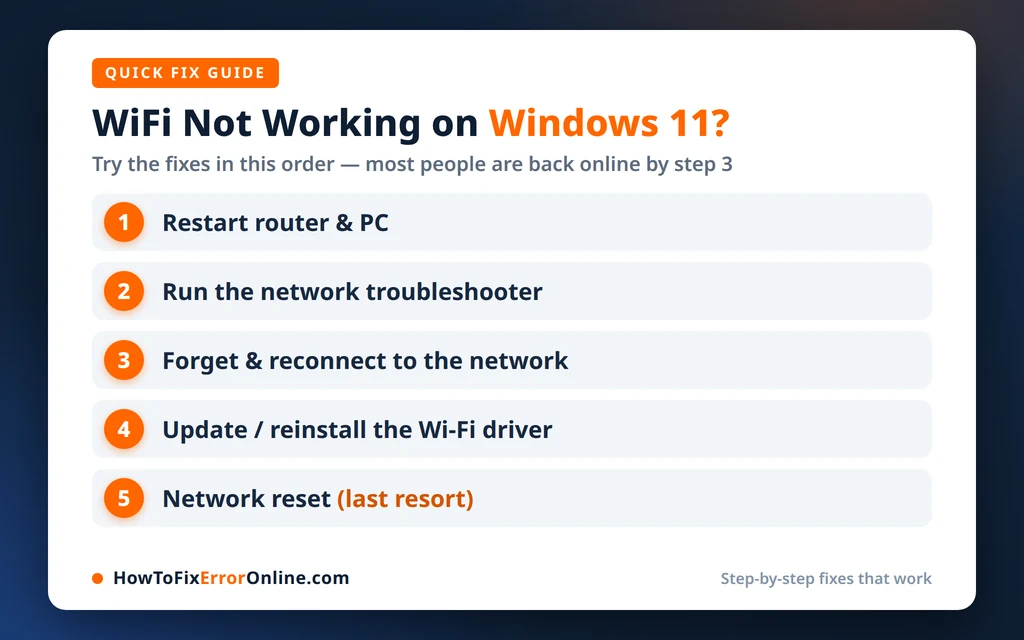
Table of Contents
WiFi Not Working Windows 11: Why It Happens
WiFi depends on a chain: your router broadcasts the network, your laptop’s wireless adapter receives it, a driver and several Windows services manage the connection, and network settings (like DNS) turn that connection into working internet. A break anywhere in the chain takes you offline. The usual causes are:
- Airplane mode is on, or the adapter was switched off by accident (some laptops have a function-key shortcut that does this silently).
- The router needs a restart, or it has dropped its connection to your internet provider.
- A driver problem, often right after a Windows update replaced or broke the WiFi driver.
- Corrupt network settings or cache — old DNS entries, a damaged TCP/IP configuration, or saved settings for the network that no longer match the router.
- Power management turning the adapter off to save battery.
- The WLAN AutoConfig service is stopped — this is the Windows service that manages WiFi connections, so without it, nothing connects.
A quick test before you start: Connect your phone to the same WiFi. If your phone also has no internet, the problem is the router or your provider — start with Fix 1. If your phone works fine, the problem is your PC, and the rest of this guide applies.
Fix 1: The 30-Second Checks — Airplane Mode, Restart, Distance
Before changing any settings, rule out the simple causes. You would be surprised how many “broken” WiFi reports end here.
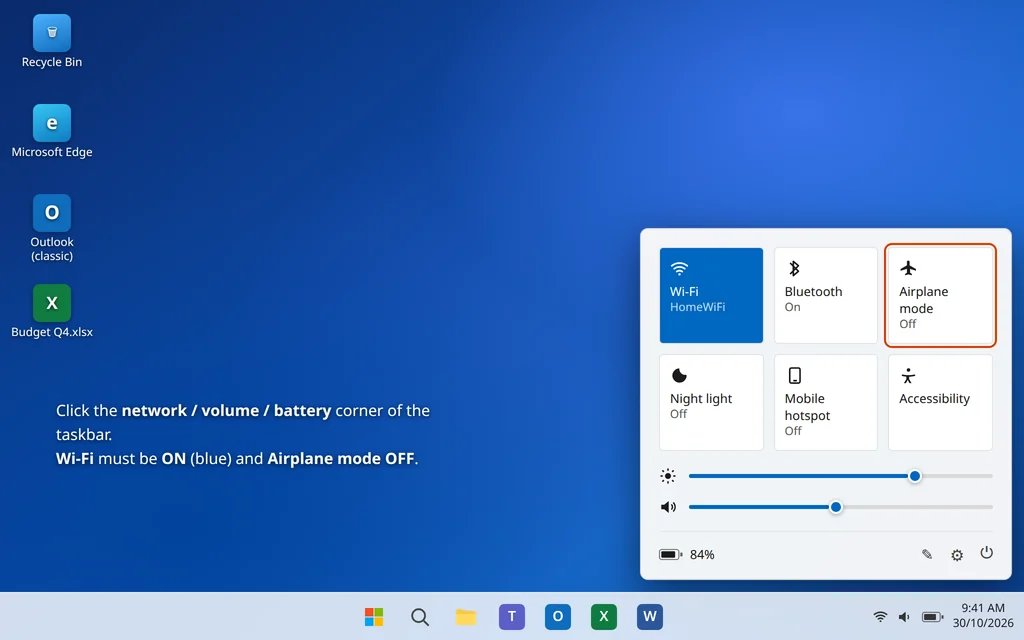
- Click the network/volume/battery icon area in the taskbar corner to open Quick Settings and make sure Airplane mode is OFF and Wi-Fi is ON.
- Restart your PC properly (Start > Power > Restart).
- Restart your router: switch it off or unplug it, wait 30 seconds, plug it back in, and give it 2–3 minutes to fully start before testing.
- Move closer to the router for the test — thick walls and distance weaken the signal enough to cause dropouts.
- If your laptop has a function key with a WiFi/airplane symbol (often Fn + F2 or similar, depending on brand), press it once and check the WiFi state again.
If other devices are offline too and the router restart did not help, contact your internet provider — the fault is likely on their side. If only this PC is affected, continue.
Fix 2: Run the Network Troubleshooter (Get Help)
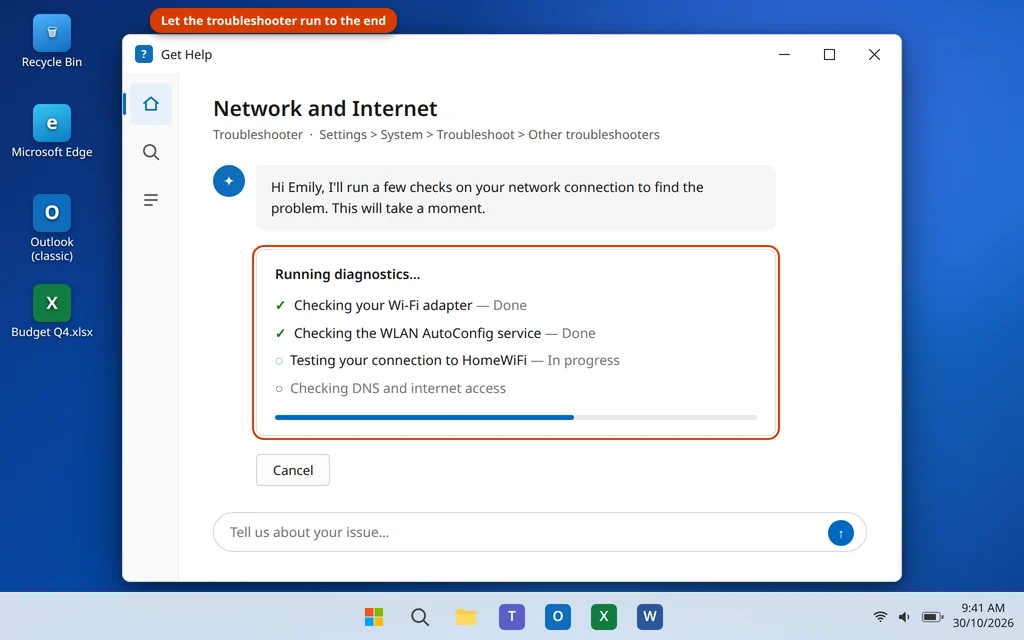
Windows 11’s built-in network troubleshooter now runs through the Get Help app. It automatically checks the adapter, services and settings, and fixes several common problems on its own.
Microsoft’s own guide to fixing Wi-Fi connection issues in Windows covers the same troubleshooter steps in more detail.
- Open Settings > System > Troubleshoot.
- Click Other troubleshooters.
- Next to Network and Internet, click Run.
- The Get Help app opens and runs its checks. Follow any steps it suggests, and let it apply the fixes it offers.
If the troubleshooter reports it could not identify the problem, keep going — it only covers the most common causes.
Fix 3: Forget the Network and Reconnect
Your saved settings for a network can become outdated — for example, after the router password, security type or settings changed. Forgetting the network deletes those saved settings so you can connect fresh.
- Open Settings > Network & internet > Wi-Fi.
- Click Manage known networks.
- Find your network in the list and click Forget.
- Click the WiFi icon in the taskbar, select your network, click Connect, and enter the password again carefully.
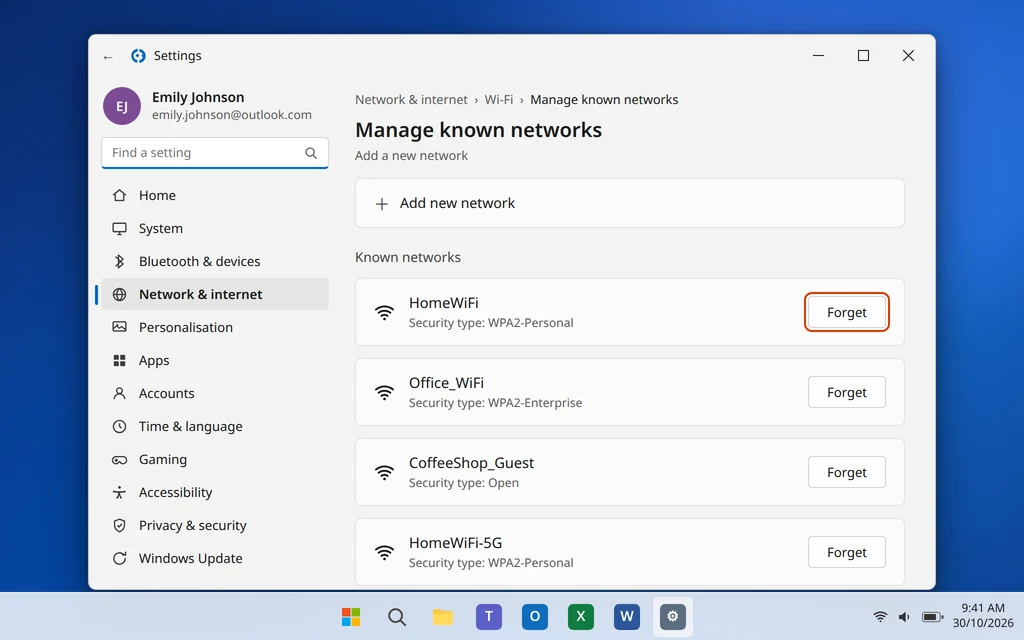
Remember that forgetting removes the saved password, so have it handy before you start — it is often printed on a sticker on the router if it was never changed.
Fix 4: Disable and Re-Enable the WiFi Adapter
Restarting the adapter itself clears many stuck states that a PC restart does not, because the adapter and its driver are fully reloaded.
- Open Settings > Network & internet > Advanced network settings.
- Under Network adapters, find your Wi-Fi adapter.
- Click Disable, wait 10 seconds, then click Enable.
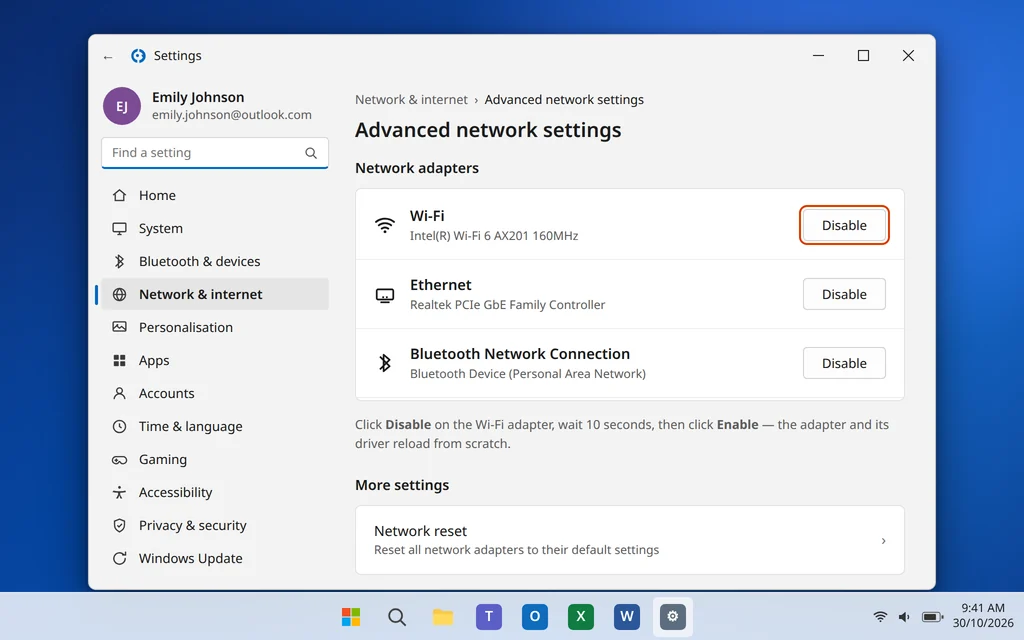
The WiFi icon will disappear and return. Test the connection once the adapter is enabled again. If the adapter is missing from this list entirely, that points to a driver problem or disabled hardware — go to Fix 5, and also check Device Manager for the adapter there.
Fix 5: Update or Roll Back the WiFi Driver
The driver is the software that lets Windows talk to your WiFi hardware, and it is behind a large share of sudden WiFi failures — especially ones that started right after a Windows update.
Update the driver:
- Right-click the Start button and select Device Manager.
- Expand Network adapters and right-click your wireless adapter (its name usually includes “Wireless”, “Wi-Fi”, “802.11” or the maker, such as Intel, Realtek, Qualcomm or MediaTek).
- Choose Update driver, then Search automatically for drivers.
- Restart your PC afterwards, even if Windows says the best driver is already installed.
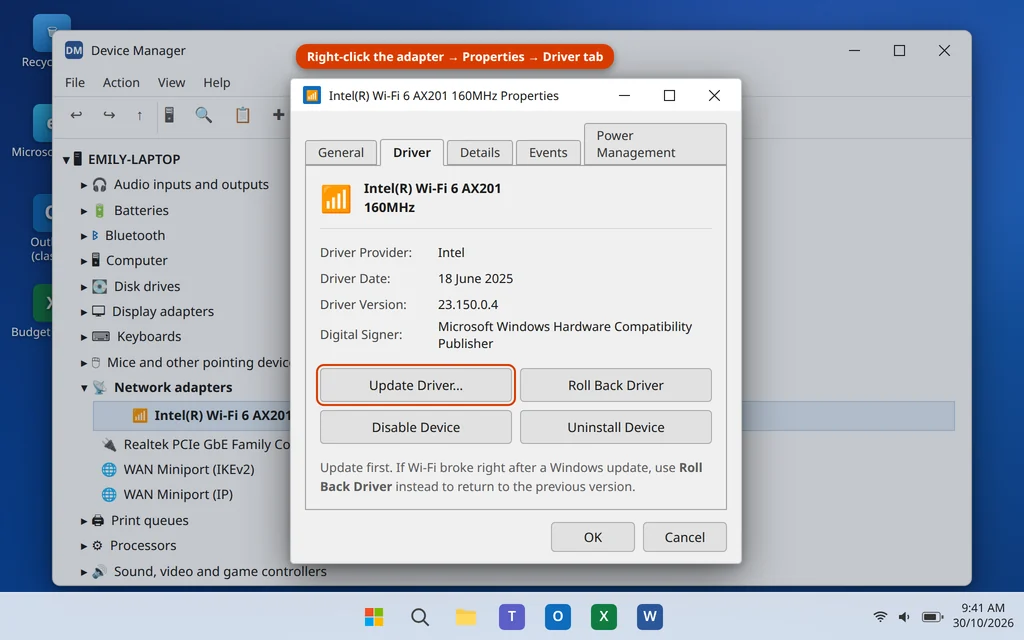
Roll back the driver (if WiFi broke right after an update):
- In Device Manager, double-click the wireless adapter to open its Properties.
- Open the Driver tab and click Roll Back Driver (if the button is grayed out, no previous driver is stored, and this option is not available).
- Choose a reason, confirm, and restart.
One honest tip: Windows’ automatic search only finds drivers Microsoft hosts. If neither option helps, download the latest WiFi driver for your exact laptop model from the maker’s support website on another device and install it from a USB stick.
Fix 6: Stop Windows Turning Off the WiFi Adapter to Save Power
Windows can switch off the wireless adapter to save power — and sometimes it simply never wakes it properly, which looks like random WiFi dropouts or WiFi that is missing after sleep.
- Open Device Manager and double-click your wireless adapter under Network adapters.
- Open the Power Management tab.
- Uncheck Allow the computer to turn off this device to save power.
- Click OK and restart your PC.
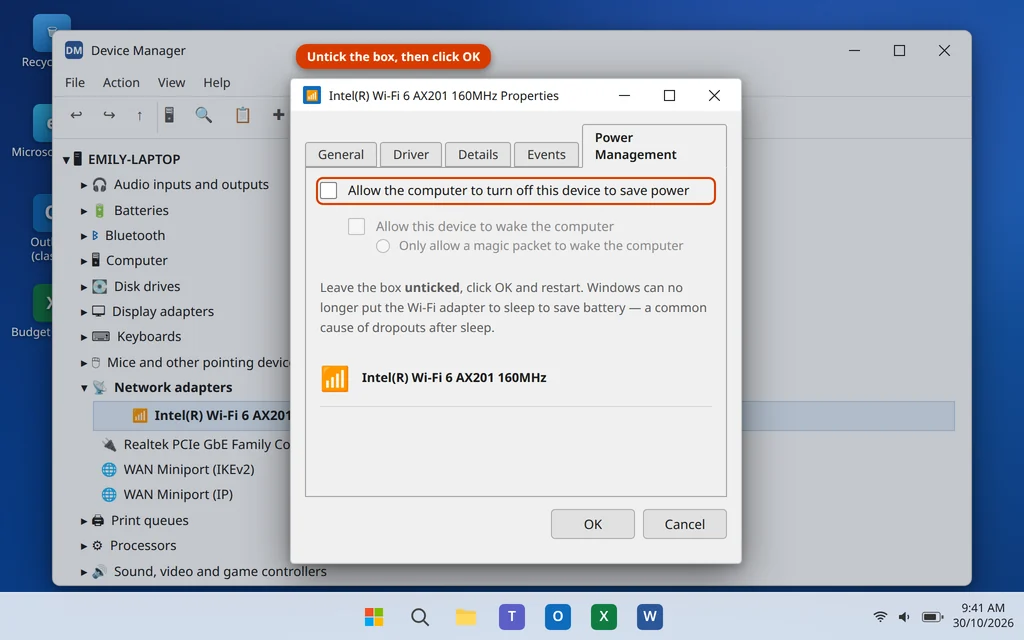
Not every adapter shows a Power Management tab (newer drivers manage power differently). If yours does not have one, skip this fix — it simply does not apply to your hardware.
Fix 7: Reset the Network Stack with Commands (DNS Flush and IP Reset)
Over time, Windows’ network configuration — the TCP/IP stack, the Winsock catalog and the DNS cache — can become corrupt, leaving you connected to WiFi but unable to load anything. These commands reset all of it safely.
- Type
cmdin Windows search, right-click Command Prompt, and choose Run as administrator. (Windows Terminal (Admin) from the Win + X menu works too.) - Type each command below, pressing Enter after each one:
netsh winsock reset
netsh int ip reset
ipconfig /release
ipconfig /renew
ipconfig /flushdns
- Close the window and restart your PC — the resets only take effect after a restart.
- Reconnect to your WiFi network and test.
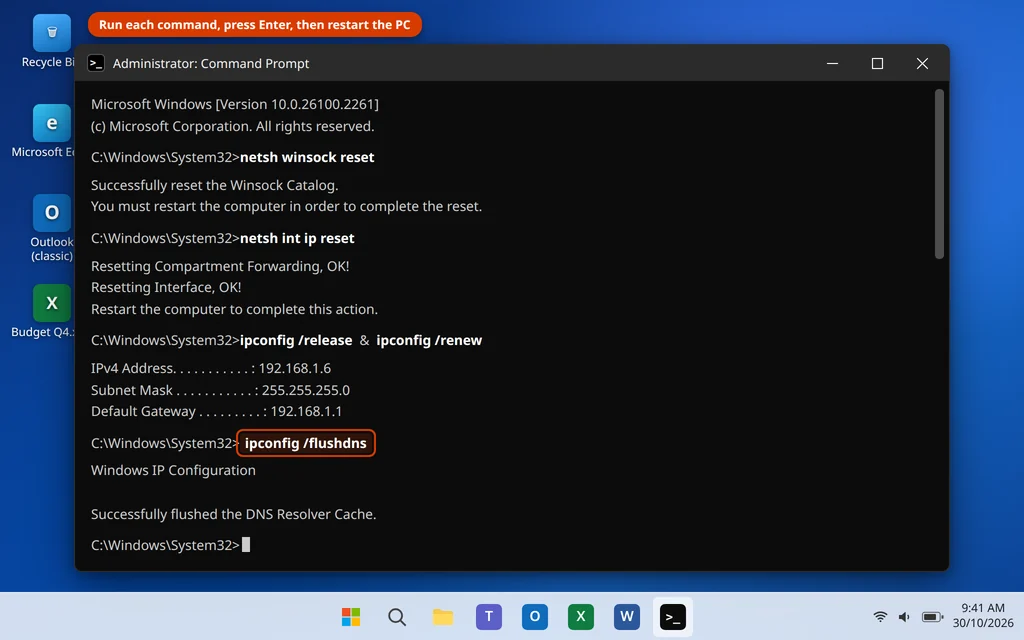
The /release command will briefly drop your connection entirely — that is expected. /renew asks the router for a fresh IP address, and /flushdns empties the cache of website addresses so sites are looked up fresh.
Fix 8: Use the Built-In Network Reset
If nothing so far has worked, Windows has a heavier option: Network reset removes and reinstalls all network adapters and returns every networking setting to its defaults. It is the single most effective fix for stubborn, unexplained WiFi failures.
- Open Settings > Network & internet > Advanced network settings.
- Under More settings, click Network reset.
- Click Reset now and confirm Yes.
- Your PC restarts within about 5 minutes (save your work first).
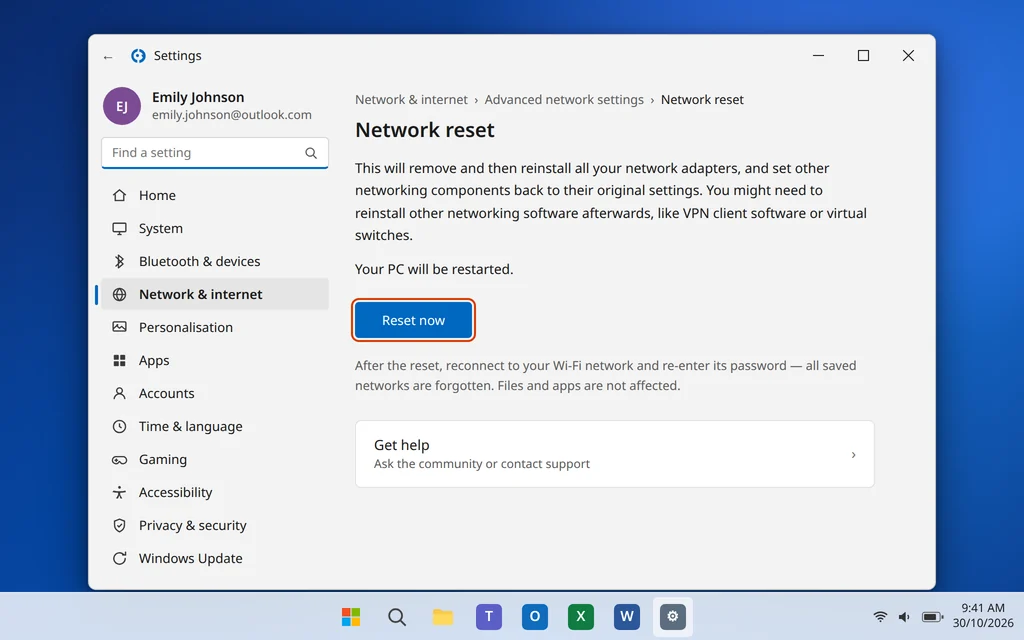
Important: after a network reset you will need to reconnect to WiFi and re-enter its password, and re-pair VPN software or virtual adapters if you use them, because all saved networks are forgotten.
Fix 9: Try the Other Router Band and Check the Channel
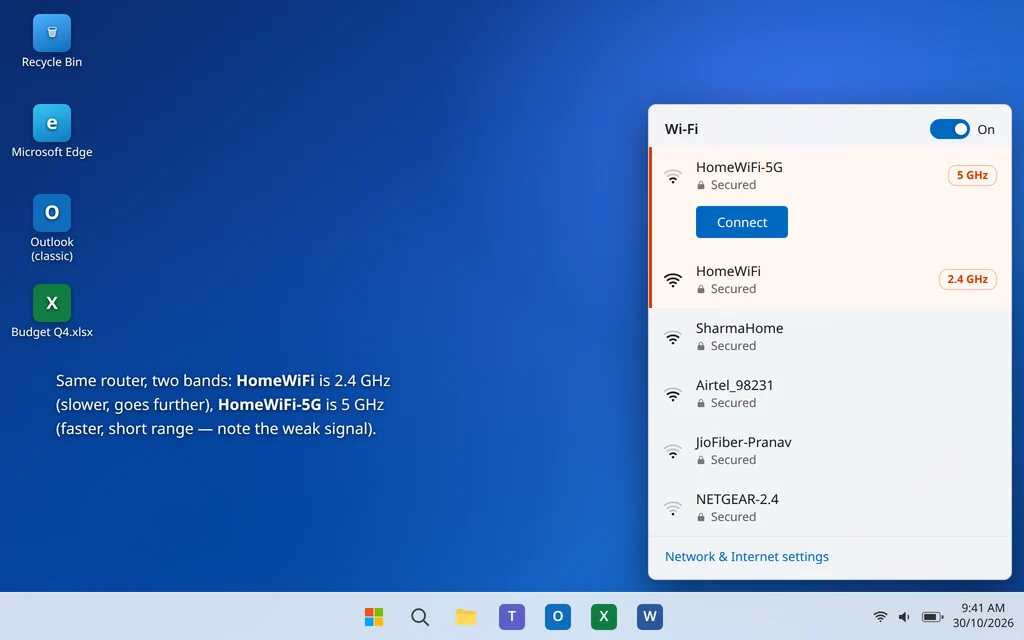
Most routers broadcast two networks: 2.4 GHz (slower, but travels much further through walls) and 5 GHz (faster, but short range). If your laptop connects at 5 GHz at the edge of its range, the connection drops constantly and can look like broken WiFi.
- Open the WiFi list and see whether your router shows two network names (often the 5 GHz one ends in “5G”).
- Connect to the 2.4 GHz network and test for a while — if the dropouts stop, range was the problem.
- If neighboring networks crowd your band, changing the router’s Wi-Fi channel can help. It is done in the router’s settings pages (address and login are on the router’s sticker) under wireless settings; screens differ by brand, so change only the channel — on 2.4 GHz, channels 1, 6 or 11 are the standard non-overlapping choices.
Fix 10: Check the WLAN AutoConfig Service
Windows manages every WiFi connection through a service called WLAN AutoConfig. If it is stopped or set to disabled, the network list may be empty or connections may never complete — and no amount of adapter fixes will help until the service runs again.
- Press Windows key + R, type
services.msc, and press Enter. - Scroll down to WLAN AutoConfig and double-click it.
- Set Startup type to Automatic.
- If Service status does not say Running, click Start.
- Click OK, then try connecting again.
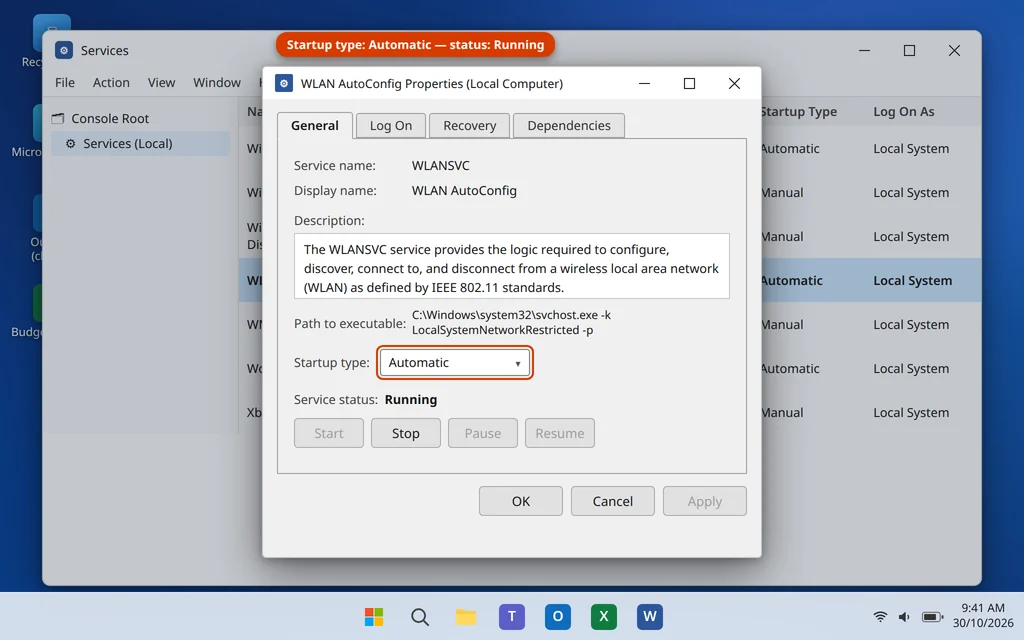
If the service fails to start with an error, restart the PC and try again — a failed service start after the other fixes usually clears once the network stack has been reset (Fix 7).
When It Might Be Hardware — and a Cheap Test
If you have done all ten fixes, other devices work fine on the same router, and this PC still cannot see or hold any WiFi network — including a phone hotspot — the laptop’s wireless hardware may genuinely be failing. The cheap way to confirm before paying for a repair is a USB WiFi adapter: if WiFi works normally through the USB adapter, the built-in adapter or its internal antenna wires are the problem (a common issue after a laptop has been opened for repair). The same fixes journey, by the way, is what solves “connected but no internet” for apps too — when a single program misbehaves while WiFi itself works, the fault is in the app; for example, our guide to fixing Outlook not opening on Windows 11 covers the mail side of that situation.
How to Stop WiFi Problems Coming Back
- Keep the WiFi driver updated from your laptop maker’s support site — check once every few months, especially after big Windows updates.
- Restart your router monthly. Routers are small computers, and a regular restart clears their memory and errors.
- Do not skip Windows updates, but if an update breaks WiFi, you now know the roll-back trick in Fix 5.
- Keep some space and signal: place the router high and central if you can, away from thick walls and metal objects.
- Write your WiFi password somewhere safe — several fixes in this guide make Windows forget it.
Frequently Asked Questions
Why does my laptop say “Connected, no internet”?
Your PC is talking to the router, but the router cannot reach the internet, or Windows cannot look up websites. Restart the router first. If other devices work, run Fix 7 (the network commands, especially ipconfig /flushdns) and Fix 8 (Network reset) — this message is usually a settings or DNS problem on the PC.
Why has the WiFi icon disappeared from my taskbar?
Usually the adapter is disabled, its driver has failed, or the WLAN AutoConfig service is not running. Check Fix 4 (adapter enabled), Fix 5 (driver) and Fix 10 (service), in that order. If the adapter is missing from Device Manager entirely, the hardware may have failed or come loose.
WiFi stopped working right after a Windows update. What should I do?
That pattern almost always means the update changed or broke the WiFi driver. Use Fix 5 and choose Roll Back Driver. If the roll-back button is unavailable, install the latest driver for your laptop model from the maker’s website instead, then use Fix 6 to stop power management interfering.
Will a Network reset delete my files?
No. Network reset only removes network adapters and networking settings, and forgets saved WiFi networks and their passwords. Your documents, photos and apps are untouched. You will just need to reconnect and re-enter WiFi passwords, and re-set-up a VPN if you use one.
How do I know whether the problem is my PC or my router?
Connect another device — a phone is easiest — to the same WiFi. If it also fails, the router or your internet provider is the problem (restart the router, then call the provider). If the other device works normally, the problem is in your PC, and the fixes in this guide apply.
What is WLAN AutoConfig, and is it safe to change?
WLAN AutoConfig is the built-in Windows service that finds WiFi networks and manages connections. Setting it to Automatic and starting it (Fix 10) is simply restoring its normal state — it is the setting Windows ships with, and WiFi cannot work properly without it.
Why is Windows 11 not connecting to WiFi at all?
When Windows 11 is not connecting to any WiFi network, the cause is usually the wireless adapter or its driver, not the networks themselves: work through Fix 2 to bring the adapter back, then Fix 7 to reinstall its driver, and finish with the Network reset (Fix 10) if it still refuses. If it connects to some networks but not yours, the problem sits with the router instead.
My WiFi works everywhere except at home. Why?
That combination points at your router, not the laptop: try the other band (Fix 9), restart the router, and check whether its firmware or settings changed. If the PC fails on every network including hotspots, the problem travels with the PC — work through the fixes from the top.
Still offline after all ten fixes? Tell us your laptop model and the exact message Windows shows on our Contact page — servicedesk@howtofixerroronline.com, available 24 hours — and check our other Windows Errors guides, including the Windows 11 Start menu fixes.