
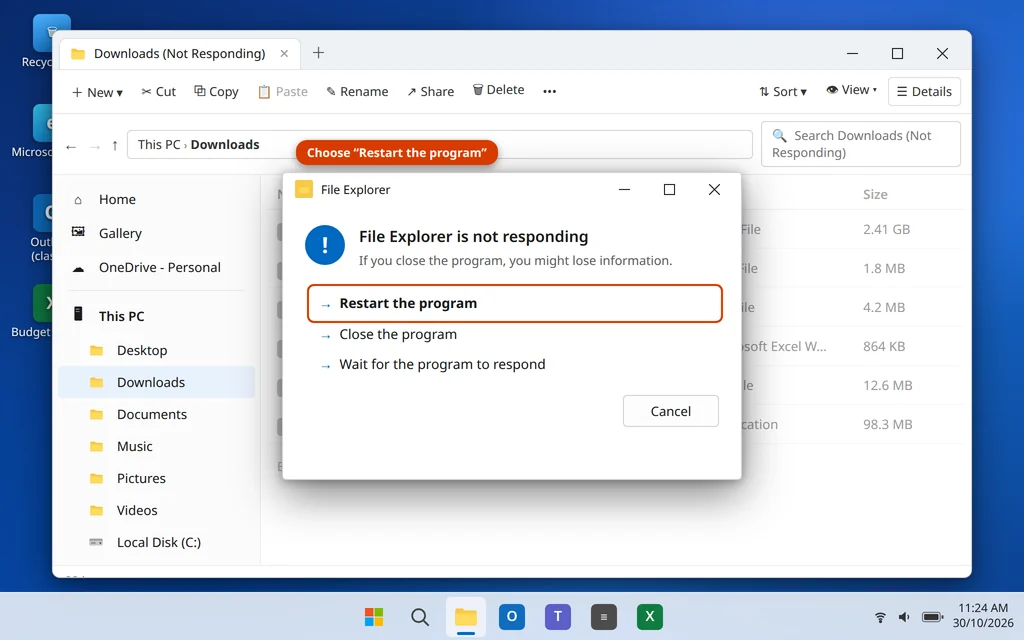
File Explorer Not Responding on Windows 11? 9 Fixes
You open a folder and File Explorer freezes. The window title adds “Not Responding”, the mouse turns into a spinning circle, and a few seconds later the whole taskbar may disappear and come back. When File Explorer is not responding, you cannot browse your files, open documents or even use the Start menu comfortably — Explorer runs all of them.
The good news is that this is rarely a sign of serious damage. In most cases a stuck Explorer process, a cluttered history, the Quick Access view tripping over a missing file, or a faulty right-click extension is behind it. Each cause has a simple fix, and the first one takes about 30 seconds.
Work through these fixes in order. Fixes 1 to 5 clear the problem for most people.
Quick Answer: First, restart Explorer: press Ctrl + Shift + Esc, find Windows Explorer in Task Manager, and click Restart. If it keeps freezing, open File Explorer Options, click Clear next to “Clear File Explorer history”, set Open File Explorer to: This PC, and uncheck the two Quick Access privacy options. Still freezing? Run
sfc /scannowand the DISM command in an admin Command Prompt, install pending Windows updates, and check whether a third-party right-click (shell) extension is the cause.
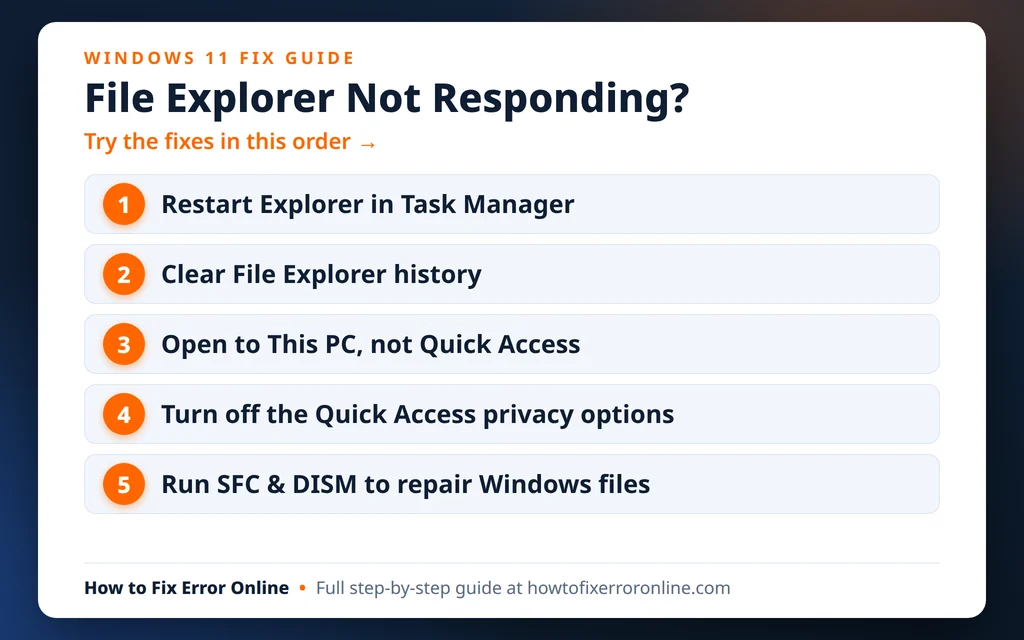
Table of Contents
Why Is File Explorer Not Responding on Windows 11?
File Explorer is not just a folder window — the same Windows Explorer process draws your taskbar, Start menu and desktop. When something makes it hang, everything it controls hangs with it. The usual causes are:
- A stuck Explorer process after a long session, a big file operation or a crashed window.
- Quick Access problems. Explorer can freeze trying to show a recent file or frequent folder that has been moved, deleted or sits on a disconnected network drive or USB stick.
- A build-up of Explorer history and cache, which grows for months without ever being cleared.
- A faulty shell extension. Programs add entries to your right-click menu and Explorer’s panes; one broken extension freezes Explorer every time it loads.
- Corrupt Windows system files, often left behind by an interrupted update.
- A pending or failed Windows update, or an outdated display driver.
- A damaged user profile, if Explorer freezes in your account but works in another.
A quick test before you start: does Explorer freeze only in one folder, or everywhere? If it is only one folder — especially Downloads or a network/USB location — that folder’s contents (or a huge video file whose thumbnail Explorer is struggling to build) are the likely cause: open a different folder first, then apply Fix 3 and Fix 4.
Fix 1: Restart Windows Explorer in Task Manager
Restarting Explorer closes every folder window and reloads the taskbar and desktop — without restarting your PC or closing your other apps.
- Press Ctrl + Shift + Esc to open Task Manager. If it opens small, click More details.
- In the Processes tab, scroll to Windows Explorer.
- Select it and click Restart.
- Your taskbar and desktop icons will vanish for a few seconds and then return. This is normal.
- Open File Explorer and test the folder that froze.
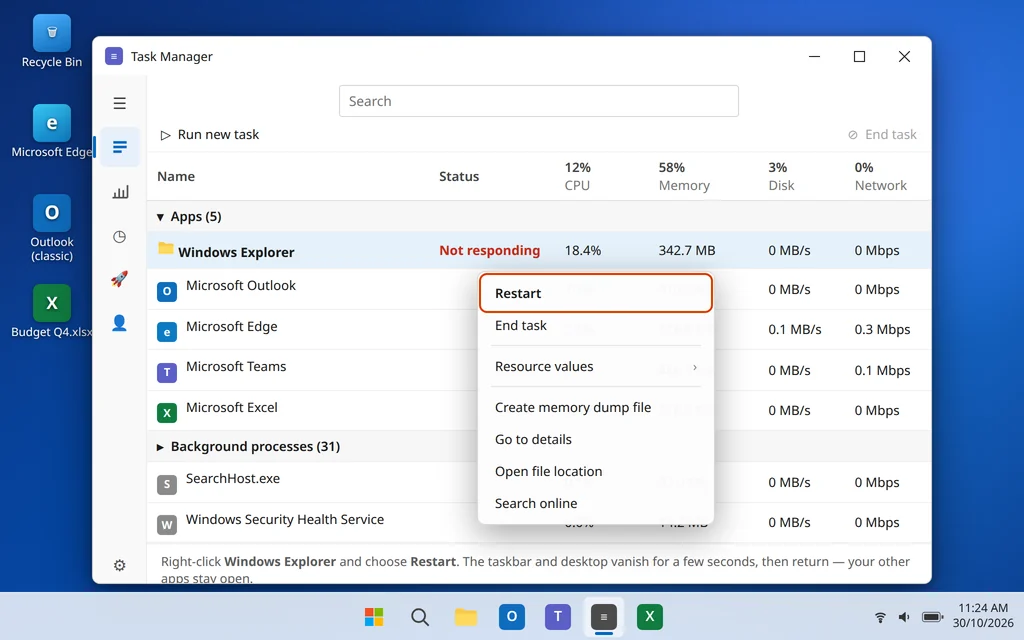
If Windows Explorer is not in the list because it already crashed, click Run new task in Task Manager, type explorer.exe and press Enter to start it manually.
Fix 2: Restart Your PC
If Explorer freezes again soon after restarting it, a full PC restart clears the stuck services and half-finished operations behind it — and completes any update that is waiting for a restart.
- Save your work in other apps first.
- Click Start > Power > Restart (choose Restart, not Shut down — Windows 11’s Fast Startup means Shut down does not fully reset these components).
- After the PC starts, wait a full minute before opening Explorer, so background services finish loading.
If Explorer behaves after a restart but the freezing returns within a day or two, continue with the fixes below — something specific is re-triggering it.
Fix 3: Clear File Explorer History
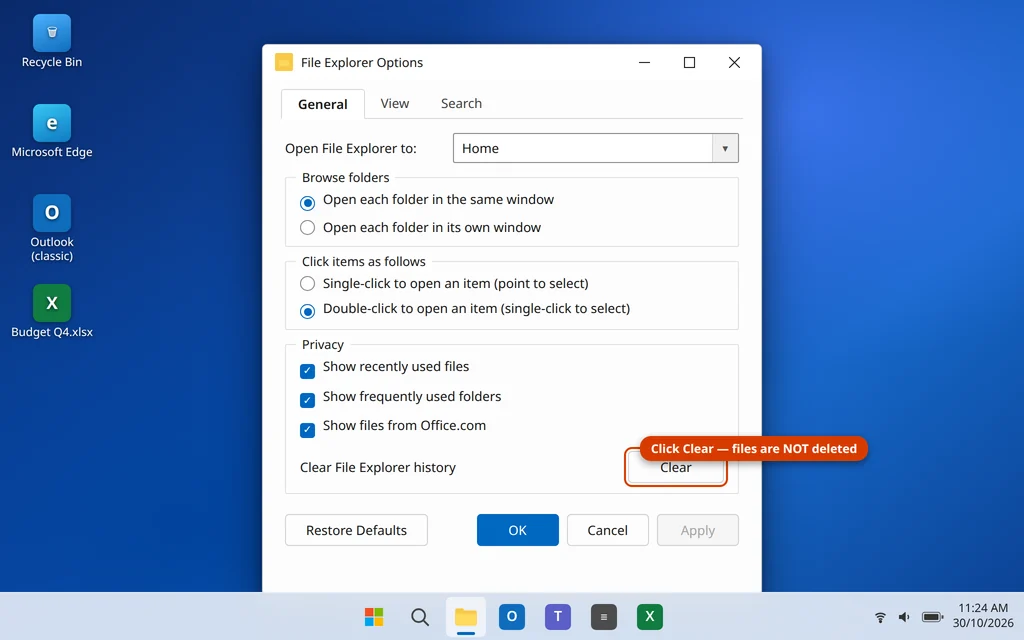
Explorer remembers every file and folder you open, and a very large or damaged history can make new windows hang while it loads. Clearing it takes ten seconds and deletes nothing except the history list itself.
- Open File Explorer Options: type
File Explorer Optionsin Windows search and open it. (If Explorer will not open at all, press Windows key + R, typecontrol.exe foldersand press Enter.) - On the General tab, at the bottom under Privacy, click Clear next to “Clear File Explorer history”.
- Click OK and open File Explorer again.
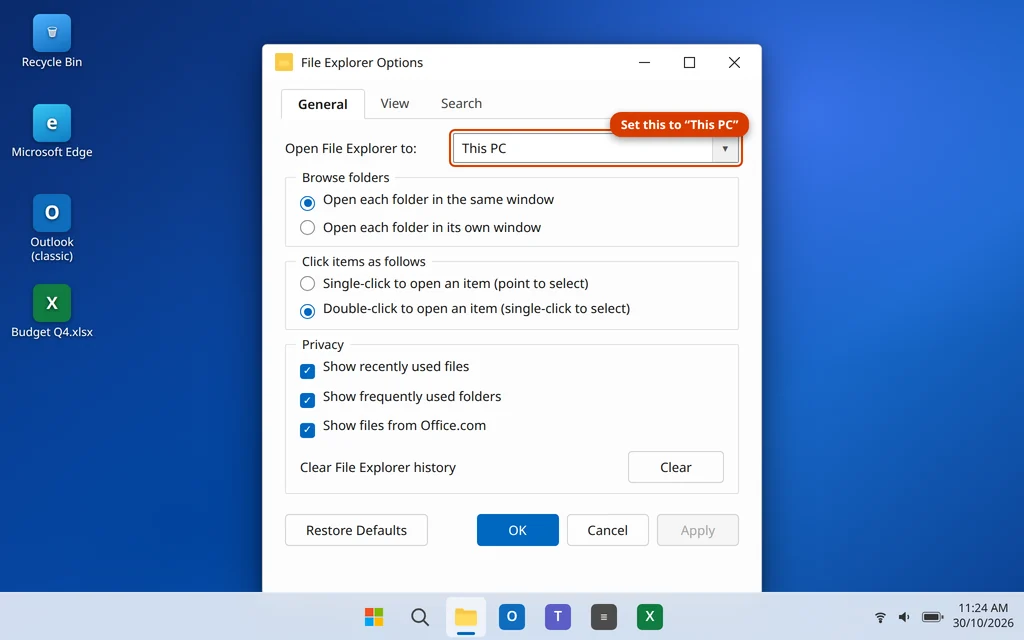
Fix 4: Open File Explorer to “This PC” Instead of Quick Access
By default, every new Explorer window opens at Quick Access (called Home in newer Windows 11 builds), which has to gather your recent files and frequent folders first. If any of those items are missing or on a slow drive, the window hangs before it even opens. Starting at This PC skips that work completely.
- Open File Explorer Options (Windows search, or
control.exe foldersin the Run box). - On the General tab, at the very top, set Open File Explorer to: to This PC.
- Click OK, close all Explorer windows, and open File Explorer again.
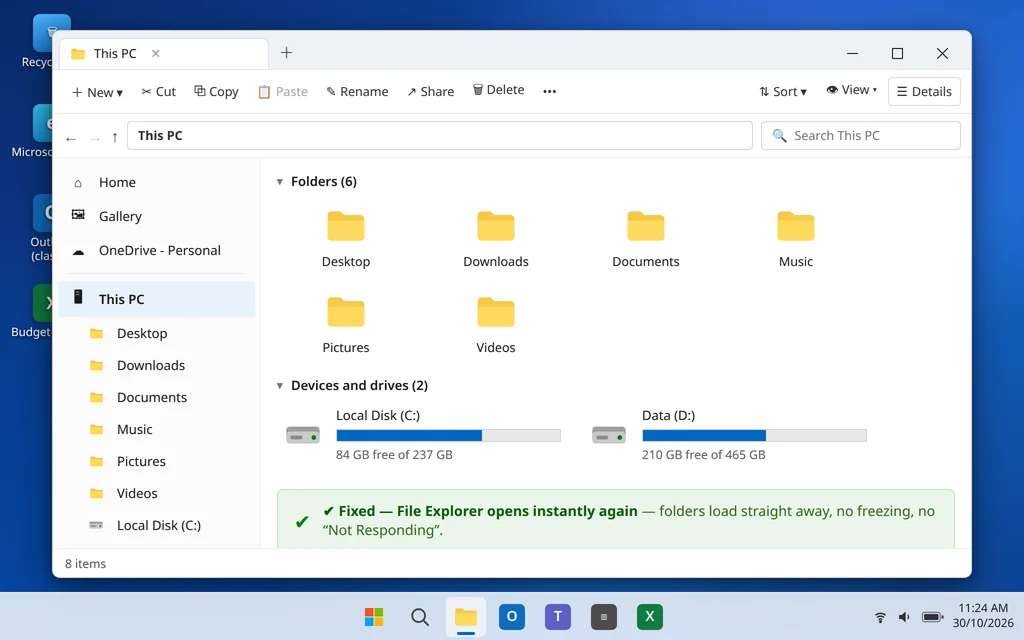
If Explorer now opens instantly, Quick Access was your problem — and Fix 5 makes it safe to use again later if you want it back.
Fix 5: Turn Off the Quick Access Privacy Options
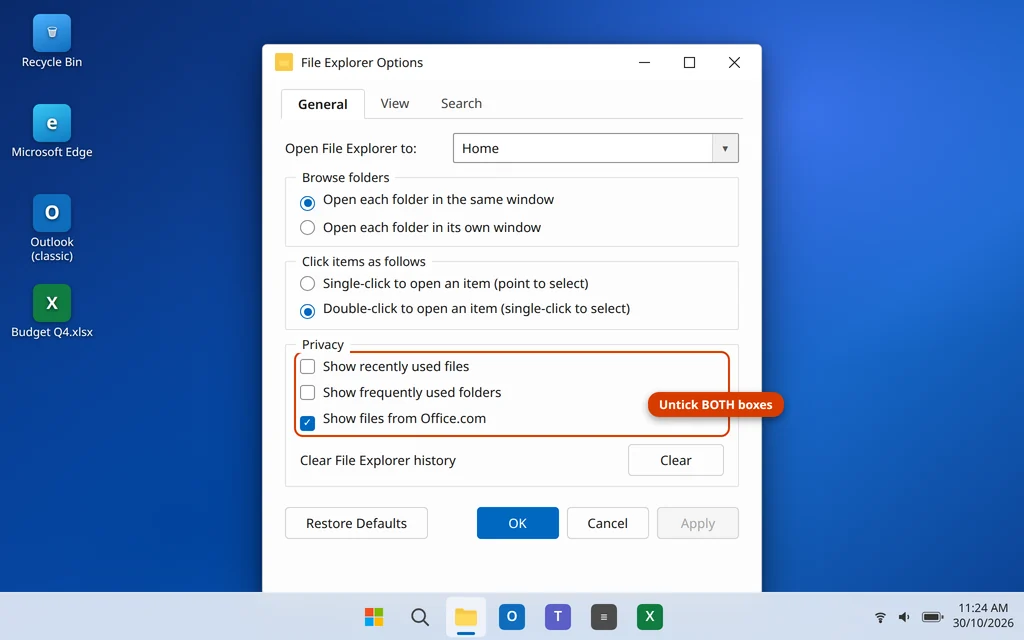
The two privacy checkboxes control whether Explorer tracks and displays your recent files and frequent folders. Turning them off stops Explorer from chasing deleted, moved or disconnected items — a very common freeze trigger.
- Open File Explorer Options > General tab.
- Under Privacy, uncheck Show recently used files and uncheck Show frequently used folders.
- Click Clear once more for good measure, then OK.
- Reopen File Explorer and browse the folders that used to freeze.
You can turn these back on later if you miss them — but if the freezing returns when you do, you know exactly what caused it.
Fix 6: Check for a Faulty Right-Click (Shell) Extension
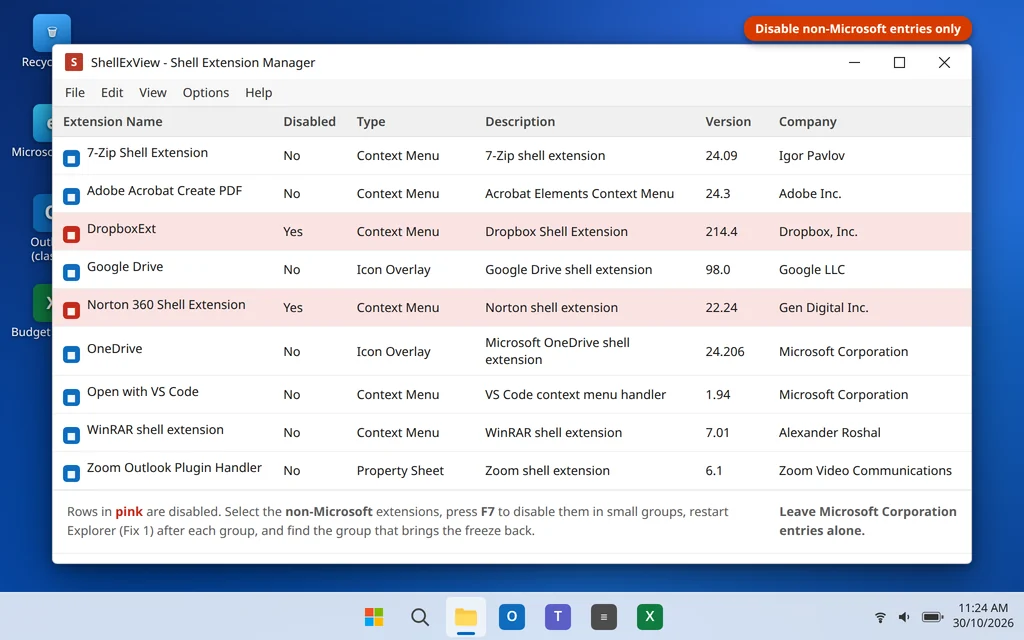
If Explorer freezes mainly when you right-click a file, or right after opening certain folders, suspect a shell extension — the extra menu items and panels added by other programs. One damaged extension can hang every Explorer window.
- Think about timing: did the freezing start after installing a program — a cloud storage app, an archive tool, an antivirus, a media player? Those are the usual sources.
- Update that program first, or uninstall it from Settings > Apps > Installed apps and restart the PC to test.
- For a precise check, advanced users use the free ShellExView tool from NirSoft: run it, sort by company, disable the non-Microsoft extensions in small groups, restart Explorer (Fix 1) after each group, and note which group brings the freeze back — the last group contains the culprit. Only disable third-party extensions; leave Microsoft’s own entries alone.
This step is optional for most people — Fixes 1 to 5 solve the majority of cases — but for right-click freezes it is the fix that actually works.
Fix 7: Run System File Checker and DISM
If core Windows files that Explorer depends on are damaged, it will keep hanging no matter how often you restart it. Two built-in commands repair them.
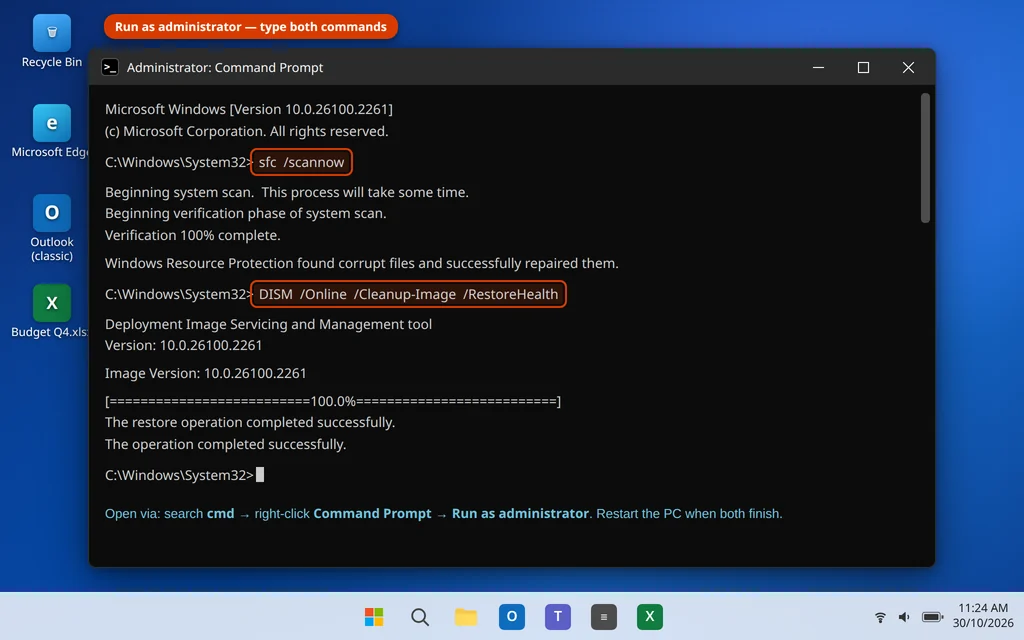
- Type
cmdin Windows search, right-click Command Prompt and choose Run as administrator. - Type
sfc /scannowand press Enter. Wait for the scan to reach 100% (usually 10–20 minutes). - If SFC reports it could not fix everything, run this second command in the same window and wait for it to finish:
DISM /Online /Cleanup-Image /RestoreHealth - Run
sfc /scannowonce more, then restart your PC and test Explorer.
These commands only repair Windows’ own files — they do not touch your documents, photos or apps. This same pair of commands also fixes a Start menu that stops responding, so it is worth knowing.
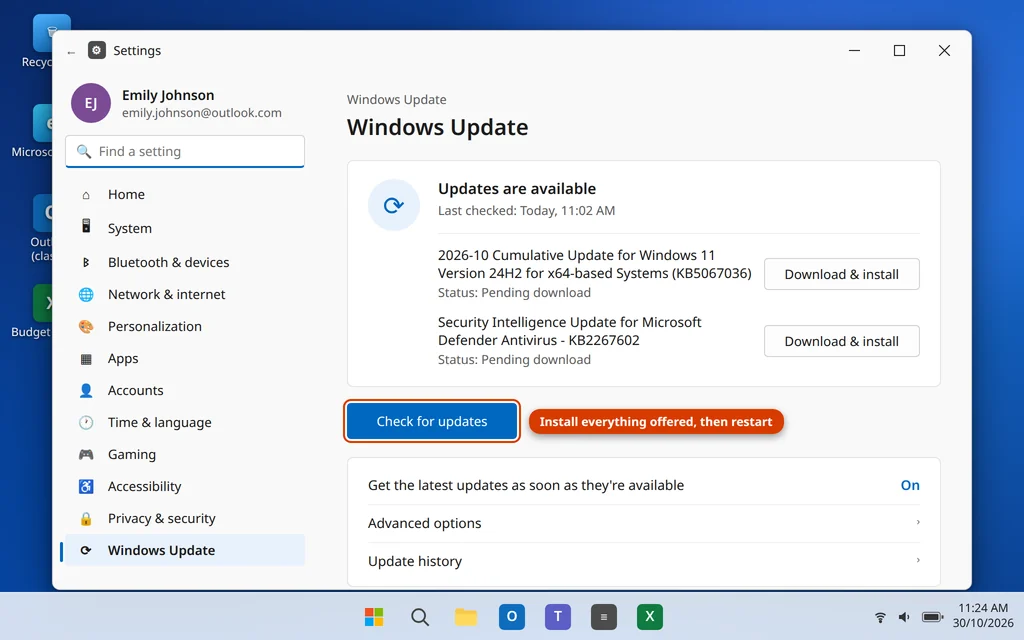
Fix 8: Install Pending Windows Updates
Explorer bugs are regularly fixed through Windows Update, and a half-installed update can itself be the cause of the freezing.
- Open Settings > Windows Update.
- Click Check for updates and install everything offered.
- Restart the PC if Windows asks — several Explorer fixes only take effect after a restart.
- Check again until no more updates are offered.
While you are in Settings, it is also worth checking your PC maker’s support app (or website) for a newer display driver — a faulty graphics driver can freeze Explorer when it builds thumbnails and previews.
Fix 9: Test With a New User Account (and Rebuild the Search Index)
The last check tells you whether the damage is in your user profile or in Windows itself.
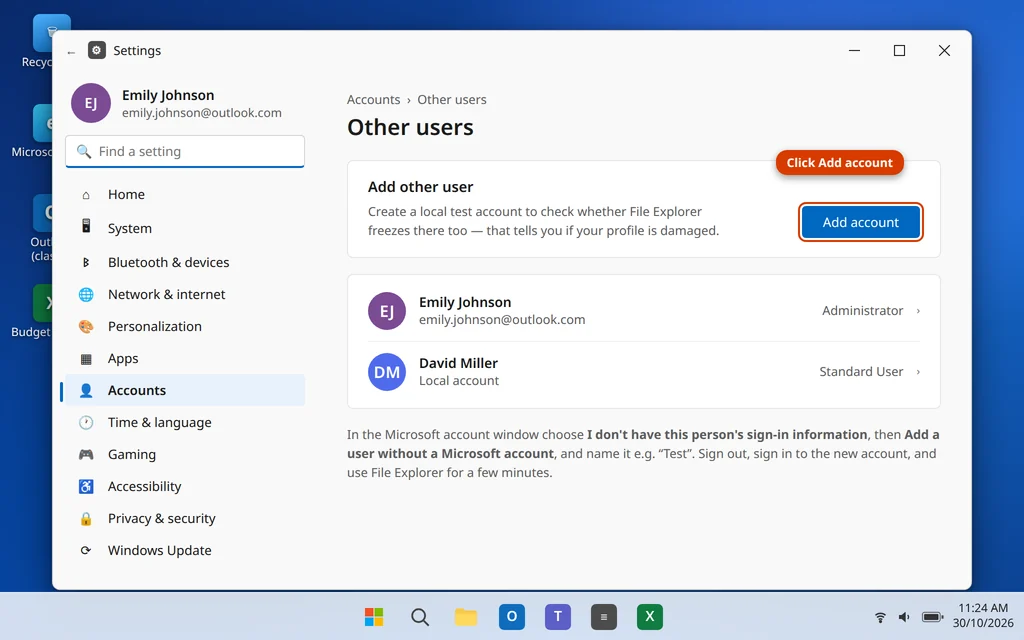
- Open Settings > Accounts > Other users and click Add account.
- Choose I don’t have this person’s sign-in information, then Add a user without a Microsoft account, and create a local account (any name, for example “Test”).
- Sign out, sign in to the new account, and use File Explorer for a few minutes.
- Explorer works fine in the new account: your original profile is damaged. The practical fix is to move your documents and photos from
C:\Users\[YourOldName]to the new account and use it going forward. - Explorer freezes there too: the problem is system-wide — re-run Fix 7 if you skipped it, and consider Settings > System > Recovery > Reset PC with Keep my files as a genuine last resort after backing up.
One related repair if Explorer is slow mainly while searching inside folders: rebuild the search index from Control Panel > Indexing Options > Advanced > Rebuild. Searching is incomplete while it rebuilds, but normal browsing is unaffected. If other Microsoft apps on this PC misbehave too — for example, Outlook refusing to start — the repair steps in our guide to Outlook not opening on Windows 11 are worth working through as well, and Teams users can check our Teams not opening guide.
How to Stop File Explorer From Freezing Again
- Clear Explorer history every few months (Fix 3) — it takes ten seconds.
- Be careful with right-click menu add-ons. Install shell extensions only from programs you trust, and remove ones you no longer use.
- Let updates finish and restart when Windows asks, instead of postponing for weeks.
- Avoid keeping your only shortcuts to network or USB locations pinned in Quick Access — when those drives are away, Explorer waits for them.
- Keep some free space on your system drive. A completely full C: drive makes Explorer’s cache and thumbnails stall.
Frequently Asked Questions
Why does File Explorer keep saying “Not Responding”?
Most often the Explorer process itself is stuck, Quick Access is trying to load a recent item that no longer exists (or is on a disconnected drive), or a third-party right-click extension is hanging it. Restarting Explorer (Fix 1), then clearing history and switching the start view to This PC (Fixes 3–5), solves the majority of cases.
How do I restart File Explorer without restarting my PC?
Press Ctrl + Shift + Esc, find Windows Explorer in the Processes tab, select it and click Restart. The taskbar and desktop disappear for a few seconds and reload — your other apps stay open.
Will clearing File Explorer history delete my files?
No. The Clear button in File Explorer Options only deletes the lists of recently used files and frequent folders. Your actual files and folders are untouched.
File Explorer freezes only when I right-click. What is wrong?
That pattern points to a faulty shell extension — a menu entry added by another program. Update or uninstall recently installed programs first, and if needed use the ShellExView method in Fix 6 to disable third-party extensions in groups and find the culprit.
What is the difference between “Quick Access”/”Home” and “This PC”?
Quick Access (renamed Home in newer Windows 11 builds) shows recent files and frequent folders gathered from across your PC, which Explorer must assemble every time a window opens. This PC simply lists your drives and main folders, so it opens immediately — which is why switching to it (Fix 4) bypasses so many freezes.
Explorer works in a new account but not mine. What should I do?
Your user profile is damaged. Move your documents, pictures and other personal files from C:\Users\[YourOldName] into the new account and use the new account as your main one — profile-level damage like this is not reliably repairable in place (Fix 9).
Can a full hard drive make File Explorer freeze?
Yes. If your system drive is nearly full, Explorer struggles with thumbnails, previews and its cache. Freeing a few gigabytes — emptying the Recycle Bin and Downloads, or uninstalling unused apps — can noticeably calm it down.
Still stuck? Tell us when the freeze happens — on opening, on right-click, or in one folder only — on our Contact page or at servicedesk@howtofixerroronline.com, available 24 hours. If your Start menu is also misbehaving, our Windows Errors guides on this site cover that too.