
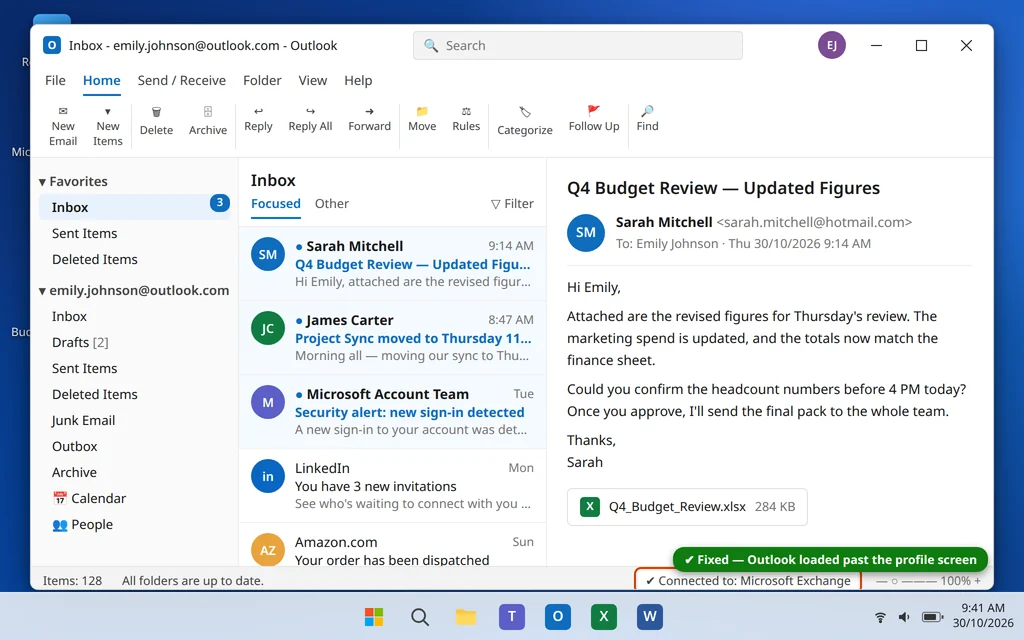
Outlook Stuck on Loading Profile? 8 Fixes
You open Outlook, the blue splash screen appears, it says “Loading Profile” — and that is where it stays. Five minutes later it is still there. You close it, try again, and get exactly the same screen. Few Outlook problems are more annoying, because Outlook never even opens far enough for you to change a setting inside it.
The good news: this freeze almost always has a simple cause. Outlook is waiting on something while it loads your profile — a stuck background process, a server it cannot reach, a faulty add-in, or a damaged data file — and each cause has a fix that works from outside Outlook.
This guide is the focused version of our complete Outlook not opening on Windows 11 guide. If Outlook does not start at all, or shows an error message instead of the Loading Profile screen, work through that guide instead. If your exact problem is the Loading Profile freeze, start here and go in order.
Quick Answer: First, end Outlook in Task Manager and restart your PC. If it still freezes, turn on Airplane mode, open Outlook offline, then turn Airplane mode off again. Next, test Safe Mode with
outlook.exe /safe— if it opens, disable your add-ins. If it freezes in Safe Mode too, rebuild the .ost data file or create a new Outlook profile from Control Panel > Mail.
Table of Contents
Why Does Outlook Get Stuck on Loading Profile?
The Loading Profile stage is when Outlook connects your profile to your mail server and loads your local data file and add-ins. It freezes when one of those steps never finishes:
- Outlook is still running in the background. A previous Outlook session crashed but its process, OUTLOOK.EXE, never closed, so the new window hangs waiting for it.
- Outlook is waiting on the server. A network problem, a VPN issue or a mail server delay can leave Outlook retrying the connection endlessly instead of opening.
- A faulty add-in. Add-ins load during profile loading, and one broken add-in freezes the whole startup.
- A damaged data file (.ost). Your local mailbox copy is loaded at this stage, and corruption here is a classic cause of the freeze.
- A corrupt profile or window settings. The profile Outlook is trying to load may itself be damaged.
A quick test before you start: Open outlook.com in your browser and sign in. If your email loads fine there, your account and Microsoft’s servers are healthy, and the problem is the Outlook app or its files on your PC — which is what the fixes below solve.
Fix 1: End Outlook in Task Manager and Restart Your PC
A crashed Outlook session often leaves its process running silently, and the new window freezes on Loading Profile because it is waiting for that stuck process. Clearing it takes under a minute.
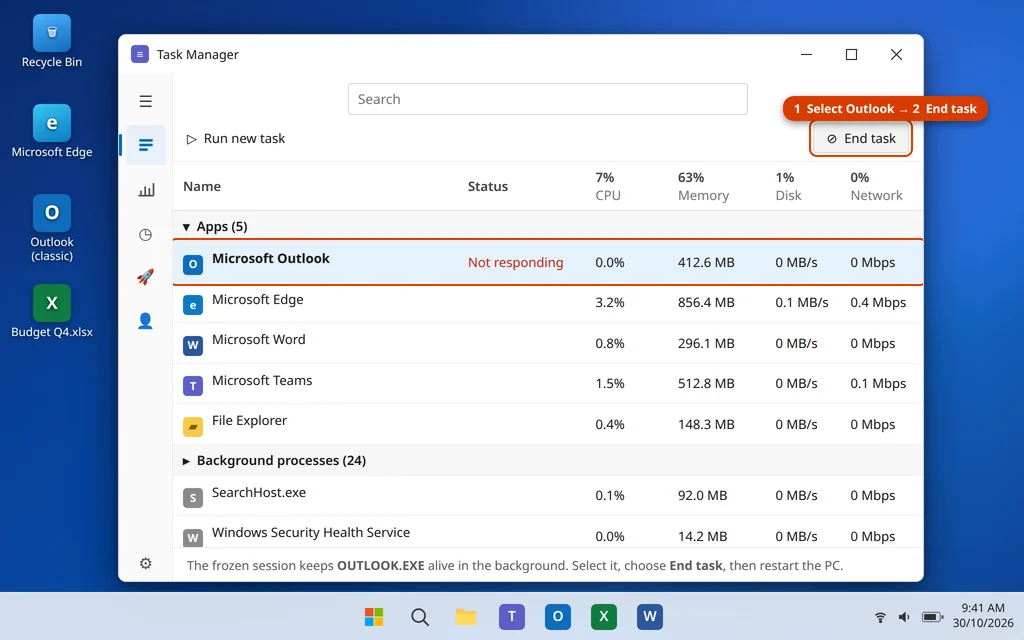
- Press Ctrl + Shift + Esc to open Task Manager.
- In the Processes tab, find Microsoft Outlook (you may also see it listed as OUTLOOK.EXE under Background processes).
- Select it and click End task.
- Wait 10 seconds, then restart your PC — a proper restart, not just closing and reopening Outlook.
- Open Outlook again and give it a full minute on the Loading Profile screen before deciding it is still stuck.
If the freeze comes back, do not keep repeating this fix — the stuck process is a symptom, not the cause. Move on to Fix 2.
Fix 2: The Offline Start Trick — Disconnect, Open, Reconnect
When Outlook freezes while trying to reach the mail server, starting it with no internet connection breaks the loop. Outlook gives up waiting, opens with what it has, and you can then reconnect calmly.
- End Outlook in Task Manager first (Fix 1) so no stuck process is running.
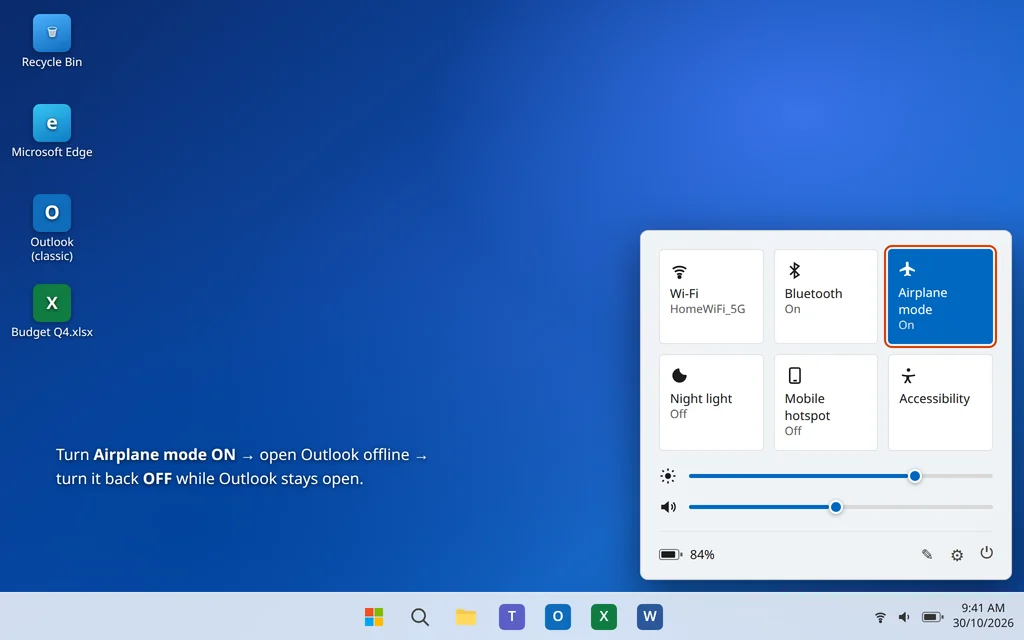
- Click the network/volume/battery icon area in the taskbar corner to open Quick Settings, and turn on Airplane mode. (On a wired PC, unplug the network cable instead.)
- Open Outlook. Without a connection it should move past Loading Profile and open, showing “Disconnected” or “Working Offline” at the bottom.
- Leave Outlook open, open Quick Settings again, and turn Airplane mode off (or plug the cable back in).
- Outlook connects on its own within a few seconds. Watch the status bar at the bottom — it should change to Connected.
If Outlook opens offline but freezes again every time it connects, the problem is likely a damaged data file struggling to sync — go to Fix 5. If Outlook freezes even offline, go to Fix 3.
Fix 3: Open Outlook in Safe Mode and Disable Add-Ins
Safe Mode loads your profile without any add-ins, which makes it the perfect test: if Outlook opens in Safe Mode, an add-in is your culprit.
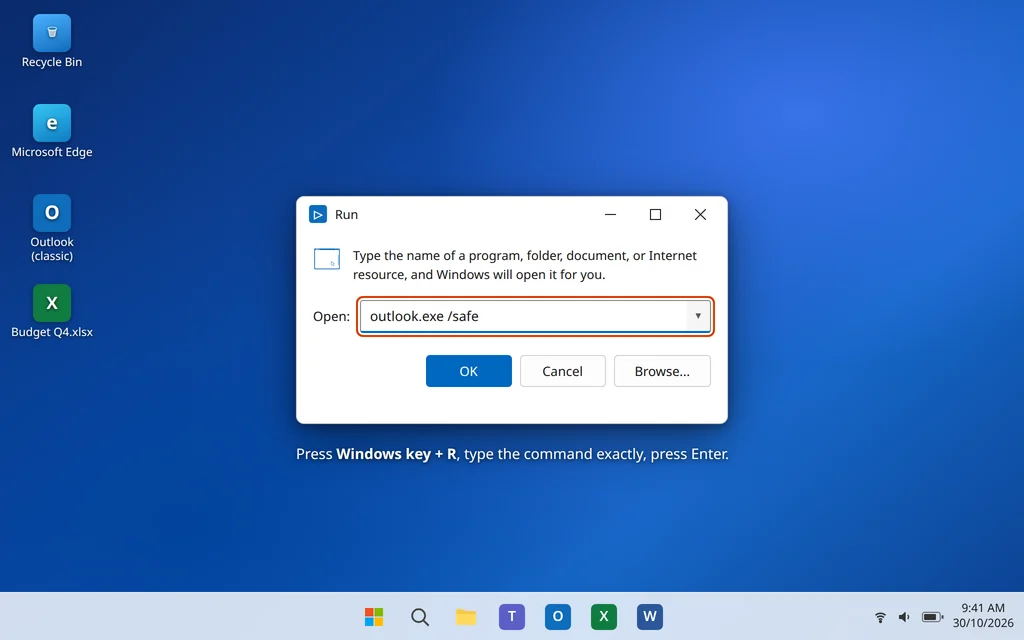
- Press Windows key + R to open the Run box.
- Type
outlook.exe /safeand press Enter. - If a profile picker appears, choose your normal profile and click OK.
If Outlook opens in Safe Mode, disable the add-ins while you are there:
- Click File > Options > Add-ins.
- At the bottom, set Manage to COM Add-ins and click Go.
- Uncheck all add-ins and click OK.
- Close Outlook and open it normally — it should now load past the profile screen.
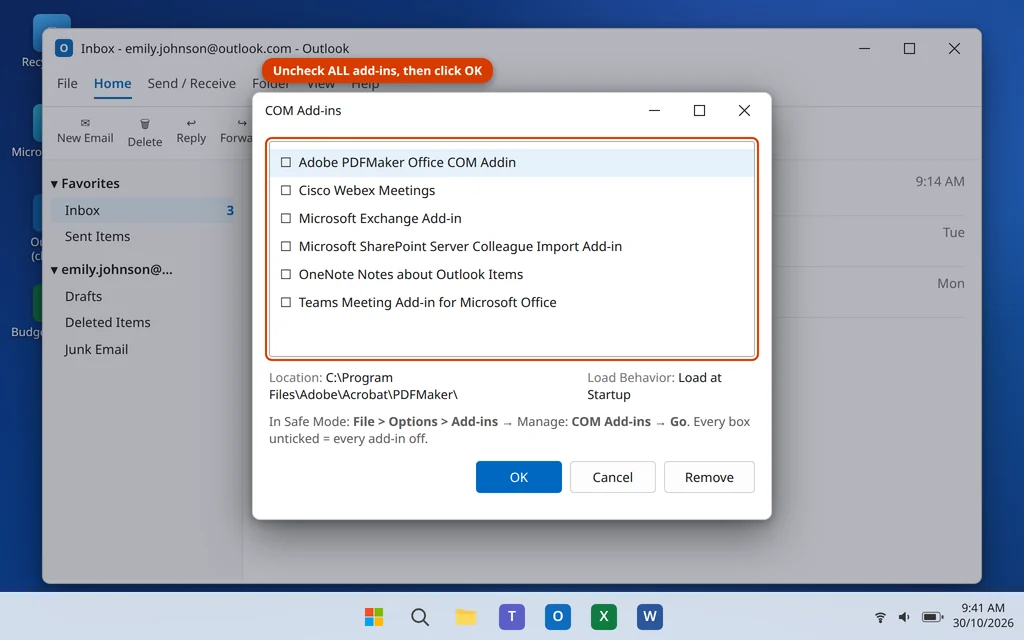
Then re-enable add-ins one at a time, restarting Outlook after each, until the freeze returns — that add-in is the faulty one. Leave it disabled or uninstall it. Old antivirus email scanners, PDF add-ins and meeting tools from software you no longer use are the usual offenders.
If Outlook freezes in Safe Mode too, add-ins are not the problem. Continue to Fix 4.
Fix 4: Reset the Navigation Pane
The navigation pane settings are loaded with your profile, and when they are corrupt, Outlook can hang exactly at the Loading Profile stage. One command rebuilds them, and it does not touch your email.
- Close Outlook completely (use Fix 1 if needed).
- Press Windows key + R.
- Type
outlook.exe /resetnavpaneand press Enter. - Open Outlook normally and see whether it loads your profile.
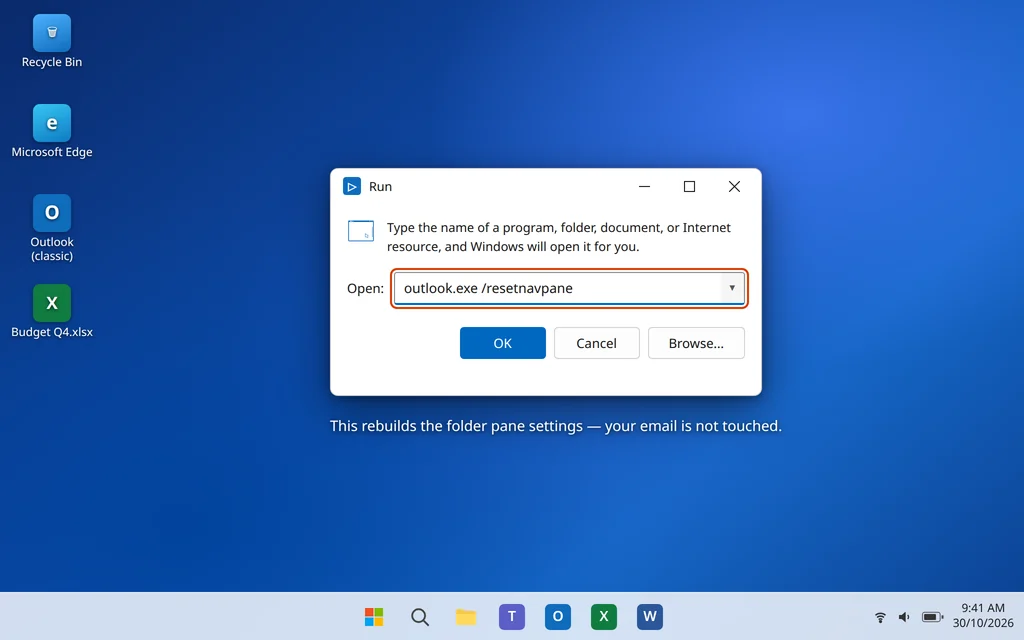
If it still freezes, you can also try outlook.exe /cleanviews, which resets custom views to the defaults. You may lose custom view layouts, but your mail, calendar and contacts are unaffected. If neither command helps, the data file is next.
Fix 5: Rebuild the Outlook Data File (.ost)
For Microsoft 365, Outlook.com and IMAP accounts, Outlook keeps a local copy of your mailbox in an .ost file. If that file is damaged, Outlook stalls while loading it — and the fix is easy, because the .ost is only a copy. The original mail stays on the server, and Outlook simply downloads a fresh copy.
- Close Outlook completely (Fix 1).
- Open Control Panel and click Mail (Microsoft Outlook). (Tip: type “Mail” in the Windows search box if you cannot see it.)
- Click Data Files, select your account’s data file, and click Open File Location…
- In the File Explorer window that opens, find the file ending in .ost, right-click it, choose Rename, and change its name to end in .ost.bak (for example,
yourname.ost.bak). - Close File Explorer and open Outlook. It will create a brand-new .ost file and re-download your mailbox.
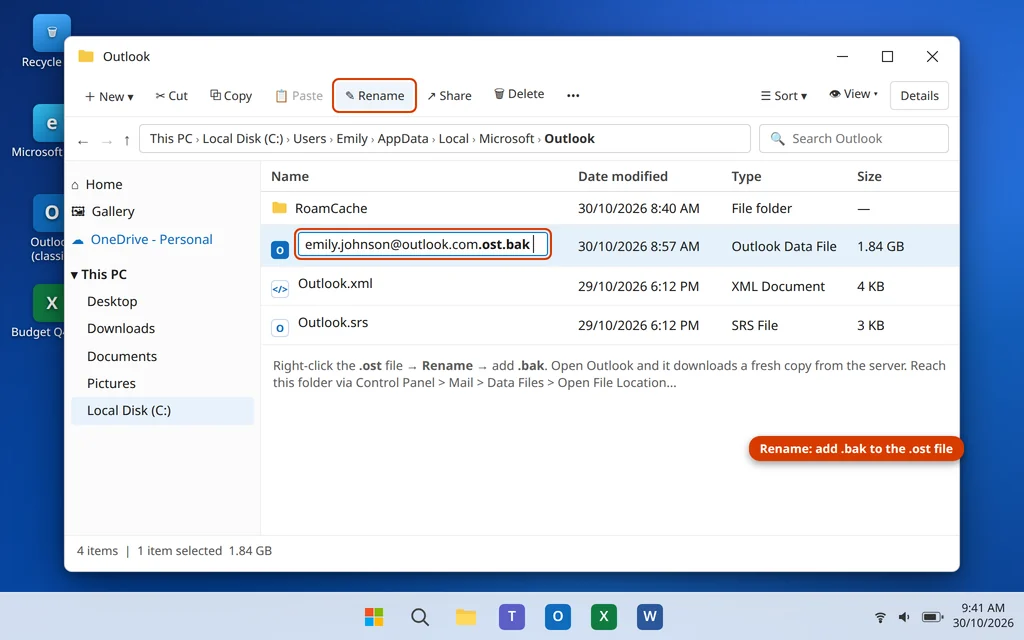
On a large mailbox the re-download can take a while, so leave Outlook open until the status bar says all folders are up to date. Important: never rename a .pst file from an old POP account — it may be the only copy of your mail. For .pst problems, use the Inbox Repair Tool (SCANPST.EXE) instead, as described in our Outlook not opening guide.
Fix 6: Create a New Outlook Profile
If the profile itself is corrupt, no amount of data-file repair will help — Outlook will keep freezing while loading that profile. A new profile is one of the most reliable fixes in this whole guide, and creating one does not delete your old profile.
- Close Outlook.
- Open Control Panel and click Mail (Microsoft Outlook).
- Click Show Profiles.
- Click Add, type a name like “Outlook New”, and click OK.
- Follow the setup wizard and add your email account.
- Back in the Mail window, under “When starting Microsoft Outlook, use this profile”, choose Always use this profile and select your new profile. Click Apply.
- Open Outlook.
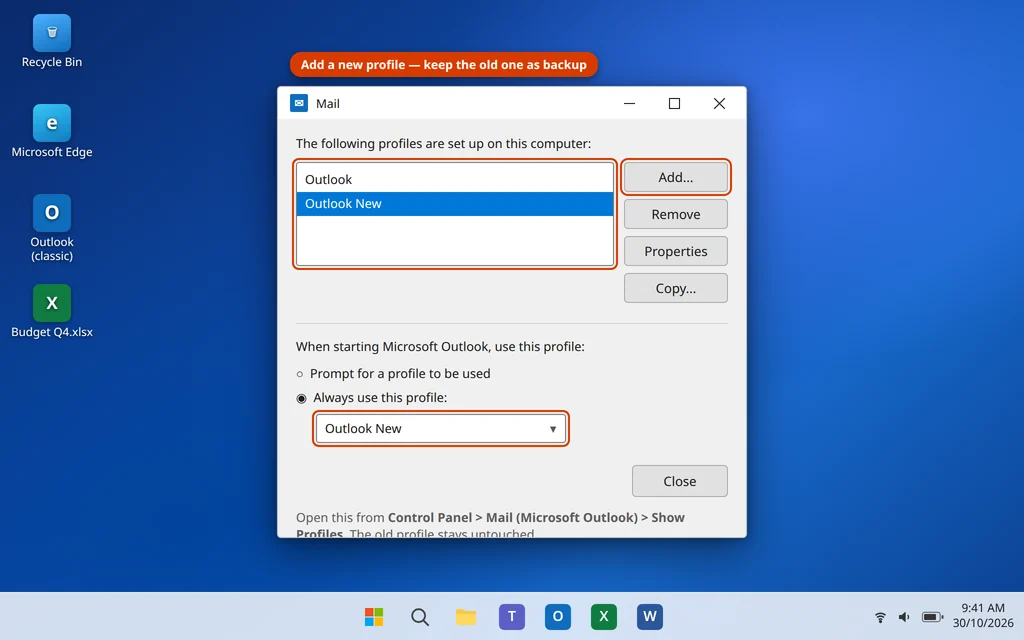
If Outlook opens and loads normally with the new profile, keep using it. Once you are sure everything works — and any local .pst files you need are attached — you can remove the old profile from the same Show Profiles window. If it freezes even with a brand-new profile, the problem is with the Office installation itself, which is Fix 7.
Fix 7: Repair Microsoft Office
A half-finished Office update can leave program files damaged, and a damaged Outlook can hang during profile loading no matter what profile or data file it uses. The built-in repair fixes program files only — your accounts, profiles and emails stay untouched.
- Close all Office apps, including Outlook.
- Right-click the Start button and select Installed apps.
- Find Microsoft 365 (or your Microsoft Office version), click the three dots next to it, and choose Modify.
- Choose Quick Repair and click Repair. When it finishes, open Outlook and test.
- If it still freezes, repeat the steps and choose Online Repair instead. It takes longer, needs an internet connection, and re-downloads Office program files, but it fixes deeper damage.
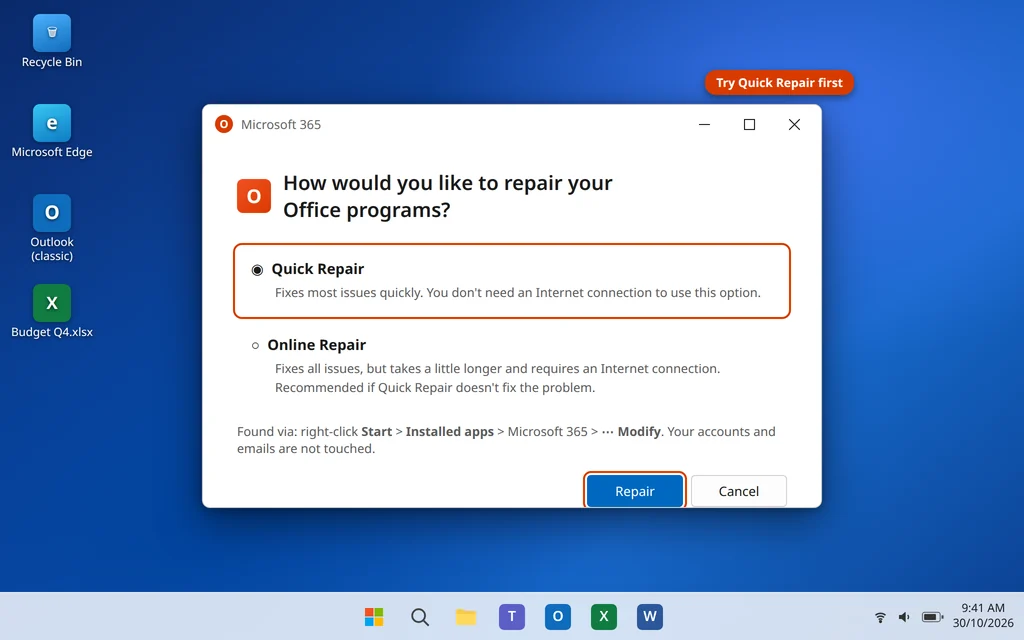
New Outlook app users: there is no Office repair for the new app. Instead, go to Settings > Apps > Installed apps > Outlook (New) > Advanced options, and click Repair first, then Reset if needed. Reset signs you out, but your mail stays safe on the server.
Fix 8: Run System File Checker and Check the Service Status
Two final checks cover the cases where the cause is outside Outlook itself.
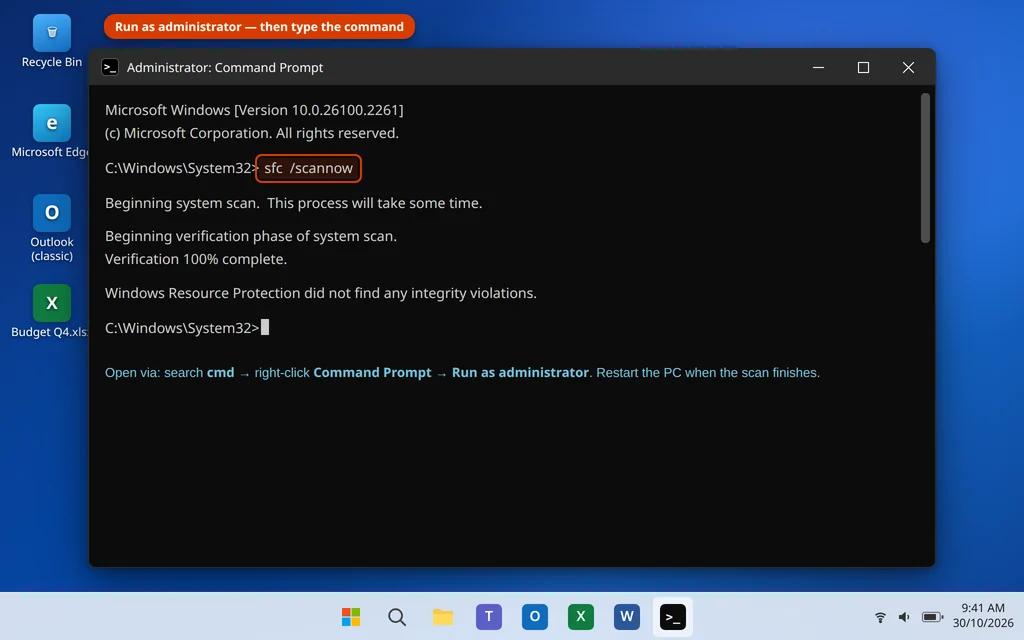
Check Windows system files: Corrupt Windows files can stall apps while they load.
- Type
cmdin Windows search, right-click Command Prompt, and choose Run as administrator. - Type
sfc /scannowand press Enter. - Let the scan reach 100%, restart your PC, and try Outlook again.
Check whether Microsoft is down: If Outlook on the web (outlook.com) also fails to load your mailbox, or the Microsoft 365 Service health page shows an incident, the freeze is on Microsoft’s side and no fix on your PC will change it — you simply wait for the service to recover. Our Tech News section reports major outages as they happen.
If Outlook still freezes on a fresh profile after an Online Repair, a clean reinstall of Office is the remaining option — our main Outlook not opening on Windows 11 guide covers it in full.
How to Stop the Loading Profile Freeze Coming Back
- Let Outlook close properly. Do not force-shut the PC while Outlook is open — a hard shutdown mid-write is a common way data files get damaged.
- Keep Office and Windows updated, and let updates finish rather than postponing restarts for weeks.
- Remove add-ins you do not use instead of leaving them all enabled; every add-in is one more thing loaded with your profile.
- Keep your mailbox tidy. Very large mailboxes make the .ost file huge, and huge data files are more fragile. Archive old mail regularly, especially on older accounts.
- Watch for the pattern. If the freeze only happens on one network (for example, only on office Wi-Fi or only with a VPN on), the connection — not Outlook — deserves the attention.
Frequently Asked Questions
Why does Outlook get stuck on Loading Profile?
Outlook loads your profile, add-ins and local data file at that stage, and it freezes when one of them never finishes: a stuck OUTLOOK.EXE process from a crashed session, a server connection that keeps retrying, a faulty add-in, or a damaged .ost data file or profile.
How long should I wait on the Loading Profile screen?
On a healthy setup, Outlook passes this screen in a few seconds, or under a minute on a very large mailbox after an update. If it has been sitting there for more than 5 minutes with no change, it is frozen — waiting longer will not help. End the task and start with Fix 1.
Will rebuilding the .ost file delete my emails?
No, not for Microsoft 365, Outlook.com or IMAP accounts. The .ost file is a local copy; your real mailbox is on the server, and Outlook downloads a fresh copy after you rename the old file. The exception is POP accounts with .pst files — that file can be the only copy, so never rename or delete it; repair it with SCANPST.EXE instead.
Outlook opens in Safe Mode but freezes normally. What does that mean?
An add-in is causing the freeze. While in Safe Mode, go to File > Options > Add-ins > COM Add-ins > Go, uncheck everything, restart Outlook normally, then turn add-ins back on one at a time to find the faulty one.
Does creating a new profile delete my old emails?
No. A profile is just the container that holds account settings. Your server-based mail is unaffected, and your old profile stays listed in Control Panel > Mail > Show Profiles until you choose to remove it. Only local .pst files need care — note where they are before switching profiles on a POP account.
What is the difference between the Loading Profile and Processing screens?
Both are startup stages: “Processing” is Outlook preparing itself, and “Loading Profile” is it loading your account, add-ins and data file. A freeze on Processing more often points to a connection or server wait; a freeze on Loading Profile more often points to add-ins, the data file or the profile — which is why this guide focuses on those.
I use the New Outlook app. Do these fixes apply?
Some do: ending the process in Task Manager, restarting, and checking the service status all apply. The Run commands (/safe, /resetnavpane), .ost rebuild and Control Panel profiles are Classic Outlook only. For the new app, use Settings > Apps > Installed apps > Outlook (New) > Advanced options > Repair, then Reset.
Still stuck on Loading Profile? Tell us your Outlook version and where exactly it stops on our Contact page — servicedesk@howtofixerroronline.com, available 24 hours — and see our other Outlook Errors guides, including Outlook not receiving emails and Outlook search not working.