
Outlook Error 0x8004010F: Outlook Data File Cannot Be Accessed — 8 Fixes
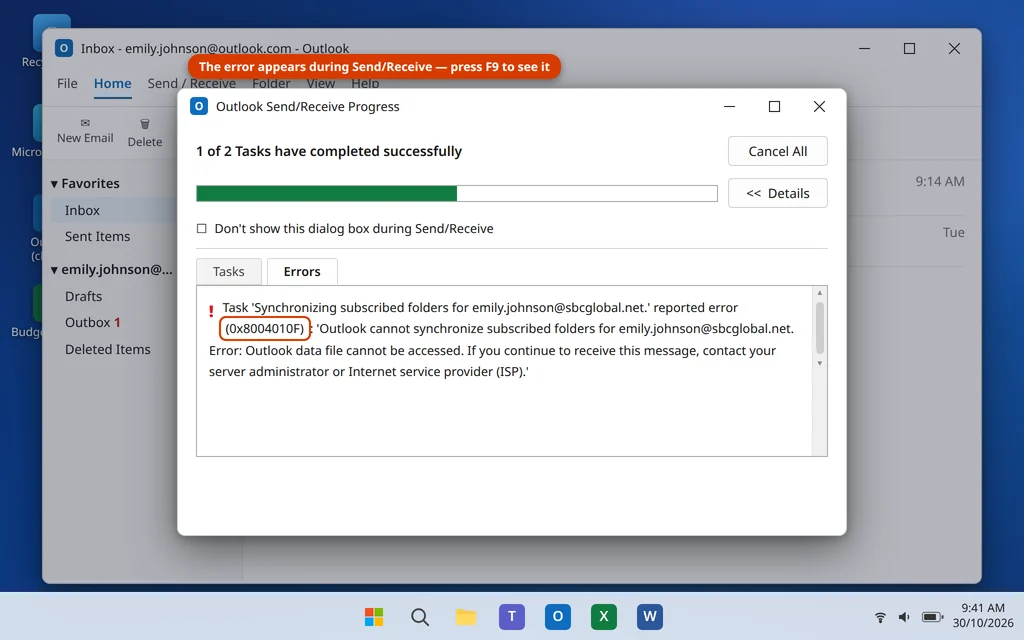
Outlook opens, your folders are all there, but the moment it tries to send or receive, a window pops up: Task reported error (0x8004010F): “Outlook data file cannot be accessed.” No new mail arrives, emails sit in your Outbox, and every Send/Receive ends the same way. If you are seeing Outlook error 0x8004010F, the app itself is usually fine — it has lost track of the file where your mailbox is stored on this PC.
That file is your Outlook data file — an .ost file for Microsoft 365, Outlook.com and IMAP accounts, or a .pst file for older POP accounts. When the file has been moved, damaged, locked or pointed to the wrong place, Send/Receive fails with exactly this error. The fixes below find the file, repair it, or rebuild it, in order from quickest to most thorough.
This guide is for Classic Outlook on Windows 11 and Windows 10, where this error appears. If Outlook will not open at all, that is a different problem — start with our Outlook not opening on Windows 11 guide instead. If it opens but freezes on the splash screen, see our guide to Outlook stuck on Loading Profile.
Quick Answer: Outlook error 0x8004010F means Outlook cannot reach its data file. First check the file’s location in File > Account Settings > Account Settings > Data Files and confirm the file is really there. If it is, repair it with the Inbox Repair Tool (SCANPST.EXE). If the file is an .ost, you can also rename it and let Outlook rebuild a fresh copy from the server. If the error survives, create a new Outlook profile from Control Panel > Mail — that fixes most stubborn cases.
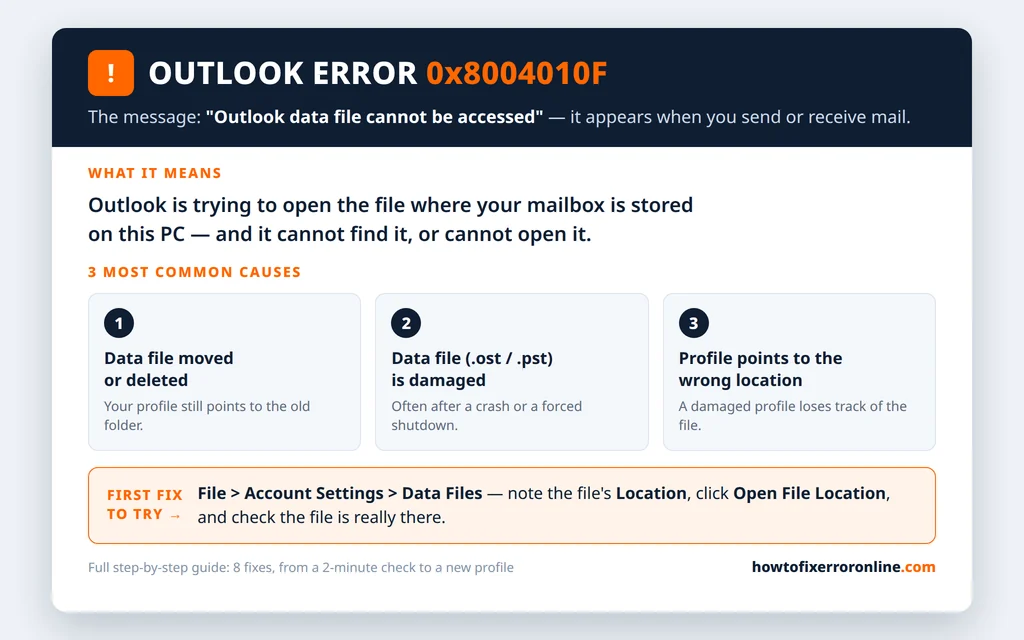
Table of Contents
Why Does Outlook Error 0x8004010F Happen?
Outlook records its data file’s location in your profile. Error 0x8004010F appears when, at the moment of sending or receiving, Outlook goes to that location and cannot open the file. The usual reasons:
- The data file was moved or deleted. Tidying folders or restoring files from a backup can leave the profile pointing at a folder where the file no longer exists.
- The data file is damaged. A crash, a forced shutdown while Outlook was open, or a failing drive can corrupt the .ost or .pst so Outlook cannot read it.
- The profile itself is damaged. The profile holds the pointer to the file; if the profile is corrupt, the pointer can be wrong even when the file is healthy.
- The file is locked or read-only. Another program holding the file open — or the file’s Read-only attribute being set after copying it from a DVD or another PC — blocks Outlook from writing to it.
- The data file sits in a synced folder. Microsoft advises against keeping .pst files in folders synced by OneDrive or similar tools, because syncing can lock or move the file while Outlook is using it.
One thing to notice before you start: this error appears during Send/Receive, so Outlook itself opens normally. That is good news — most fixes can be done from inside Outlook’s own settings, starting with the next one.
Fix 1: Restart Outlook and Your PC, Then Test Again
A single failed Send/Receive can happen if the data file was briefly locked — for example, while an antivirus scan or a backup was touching it. Clear that possibility first.
- Close Outlook completely.
- Restart your PC — a proper restart, so any program holding the file lets go of it.
- Open Outlook and press F9 (or click Send / Receive > Send/Receive All Folders) to force a full Send/Receive.
- Watch the Send/Receive Progress window. If it completes with no error, you are done.
If the 0x8004010F error comes straight back, it is not a temporary lock — move on to Fix 2 and check where Outlook thinks the file lives.
Fix 2: Check the Data File Location in Account Settings
This is the most important check for this error, and it takes two minutes. You are answering one question: does the file Outlook is looking for actually exist at the location recorded in your profile?
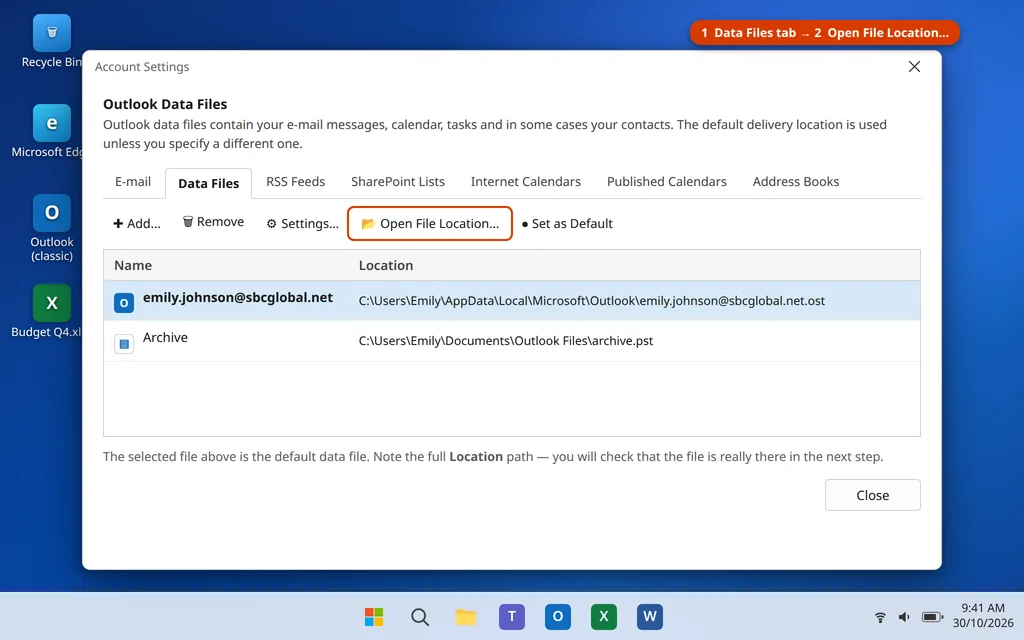
- In Outlook, click File > Account Settings > Account Settings.
- Open the Data Files tab. You will see your data file listed with its Location — for most people a long path ending in a file named after your email address, such as
…\Microsoft\Outlook\emily.johnson@outlook.com.ost. - Select your data file and click Open File Location…
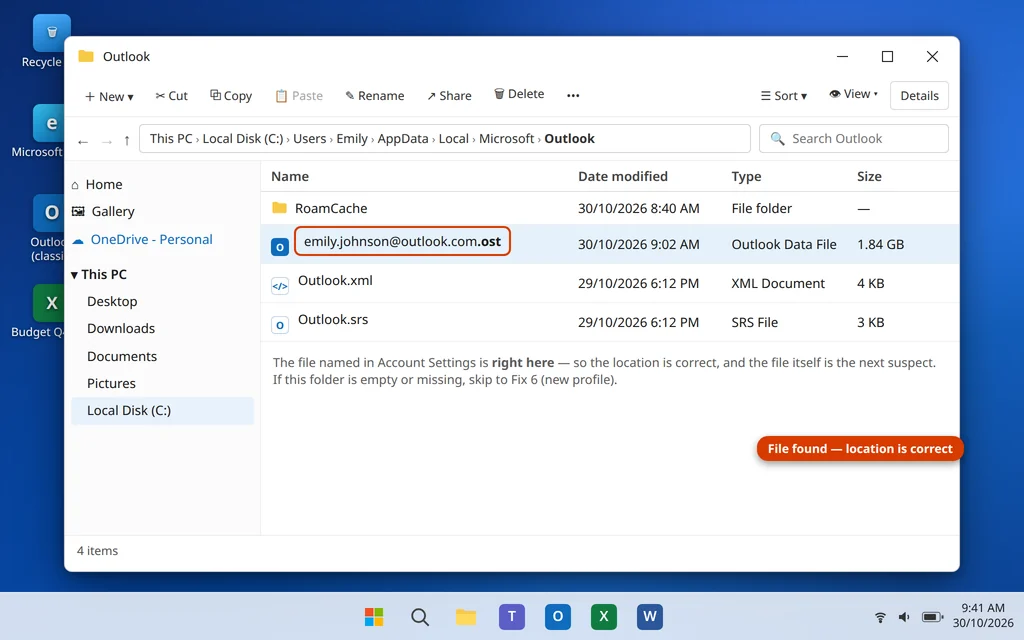
- File Explorer opens at that folder. Look for the file itself — the .ost or .pst with the same name.
Now read the result:
- The file is there. The location is correct, so the file itself is probably damaged — go to Fix 3 and repair it.
- The folder opens but the file is missing, or the folder itself does not exist. The profile is pointing at the wrong place. If you recently moved the file, the cleanest cure is a new profile (Fix 6). For an .ost file you can also simply let Outlook rebuild it — Fix 4.
Fix 3: Repair the Data File With SCANPST (Inbox Repair Tool)
Microsoft’s own repair tool for Outlook data files is the Inbox Repair Tool, a program called SCANPST.EXE. It checks the file’s internal structure and repairs what it can, on both .pst and .ost files — and it makes a backup copy before repairing, so it is safe to try.
- Close Outlook completely — SCANPST cannot repair a file that Outlook has open.
- Find SCANPST.EXE. It lives in your Office installation folder. Typical locations are
C:\Program Files\Microsoft Office\root\Office16\or, on some PCs,C:\Program Files (x86)\Microsoft Office\root\Office16\. A quicker way: typeSCANPSTinto the Windows search box and open it if it appears. - Double-click SCANPST.EXE to open the Inbox Repair Tool.
- Click Browse and select your data file (the location you found in Fix 2), then click Start.
- If the scan reports “Errors were found in this file”, click Repair. Make sure Make backup of scanned file before repairing is checked first.
- When the repair finishes, open Outlook and press F9 to test Send/Receive.
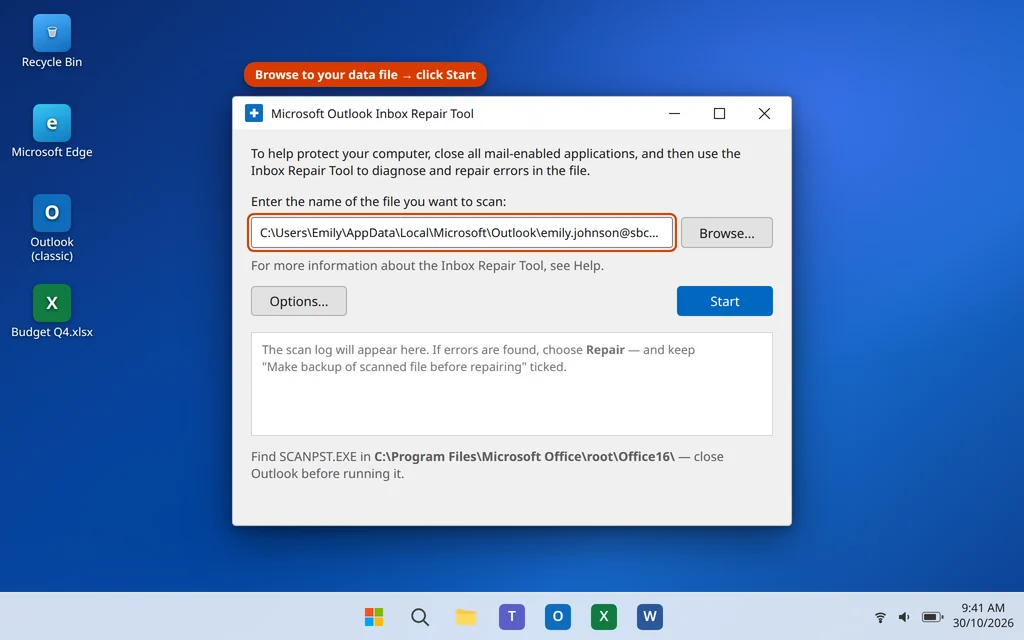
If SCANPST finds no errors — or the 0x8004010F error remains after a repair — rebuilding the file (Fix 4) is usually faster than more repair rounds.
Fix 4: Rebuild the .ost File (Microsoft 365, Outlook.com and IMAP Accounts)
If your account is Microsoft 365, Outlook.com, Exchange or IMAP, the .ost file is only a local copy — your real mailbox is on the server. So the simplest cure is possible: rename the damaged copy, and Outlook downloads a fresh one.
- Close Outlook completely.
- Press Windows key + R, type
%localappdata%\Microsoft\Outlookand press Enter. This opens the folder where the .ost file normally lives. - Find your account’s file ending in .ost, right-click it, choose Rename, and add .bak to the end of its name (for example,
emily.johnson@outlook.com.ost.bak). Renaming keeps it as a backup — do not delete it yet. - Open Outlook. It creates a new .ost file and re-downloads your mailbox. On a large mailbox this takes a while — leave Outlook open until the status bar says all folders are up to date, then press F9 to confirm the error is gone.
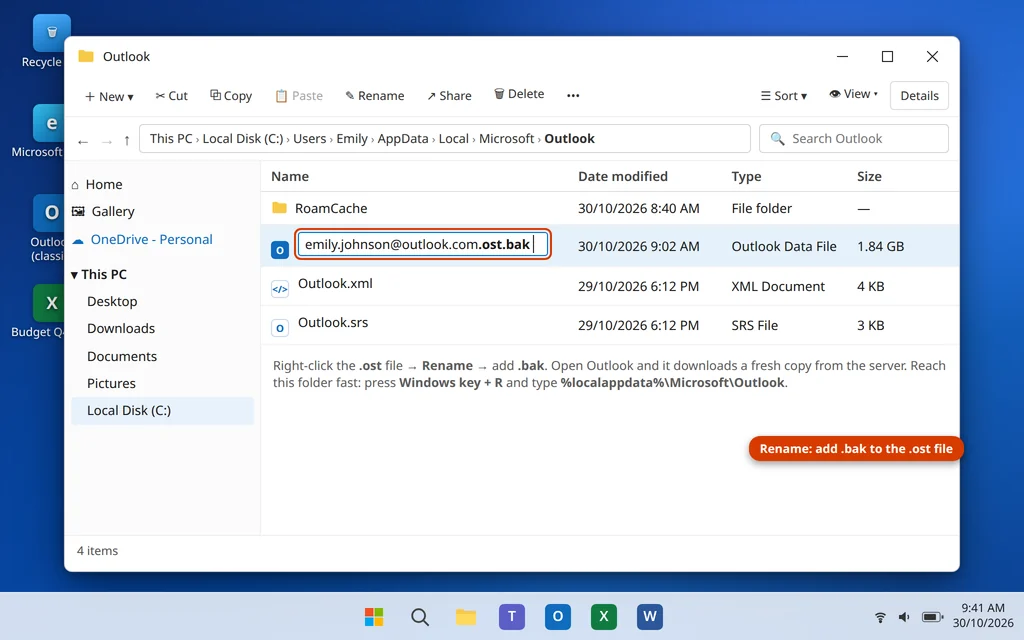
Important: do not do this with a .pst file from a POP account. A .pst can be the only copy of your mail that exists. For .pst accounts, stay with SCANPST (Fix 3) and the new profile (Fix 6).
Fix 5: Make Sure the Data File Is Not Read-Only or Blocked
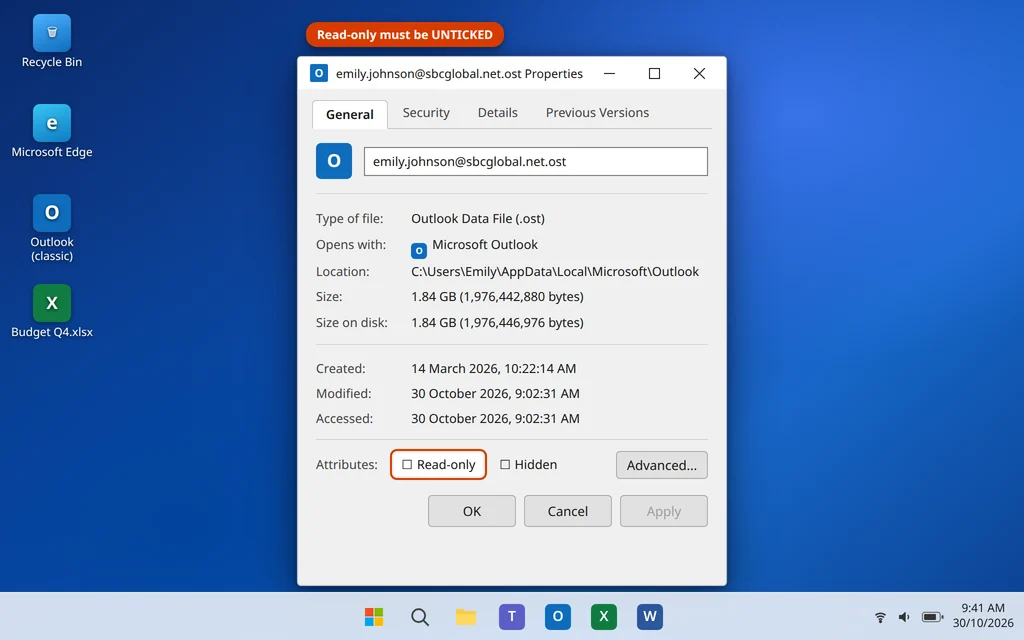
If your data file was copied from another PC, an external drive or a backup, it can arrive with its Read-only attribute set — and Outlook cannot write incoming mail into a read-only file, which produces this same error. This check takes a minute.
- Open the file’s folder (Fix 2 showed you how), right-click the .ost or .pst file, and click Properties.
- On the General tab, look at Attributes at the bottom. If Read-only is checked, uncheck it and click OK.
- Also close any backup or sync program that might be holding the file open, then restart Outlook and test.
- If your .pst lives inside a folder synced by OneDrive or a similar tool, consider moving it to a normal local folder such as
C:\Users\[YourName]\Documents\Outlook Filesafterwards — synced folders and live data files are a poor mix.
Fix 6: Create a New Outlook Profile
If the file is present and repaired but the error will not go away, the damaged piece is most likely the profile itself. A new profile gets a fresh, correct pointer to a healthy data file, and it resolves most stubborn 0x8004010F cases. Your old profile stays untouched, so you can switch back if needed.
- Close Outlook.
- Open Control Panel and click Mail (Microsoft Outlook). (Tip: type “Mail” in the Windows search box if you cannot see it.)
- Click Show Profiles, then click Add.
- Type a name for the new profile, for example “Outlook New”, and click OK.
- Follow the Add Account wizard: enter your email address and password and let Outlook set the account up automatically. A fresh data file is created for it.
- Back in the Mail window, under “When starting Microsoft Outlook, use this profile”, choose Always use this profile and select your new profile. Click Apply, then Close.
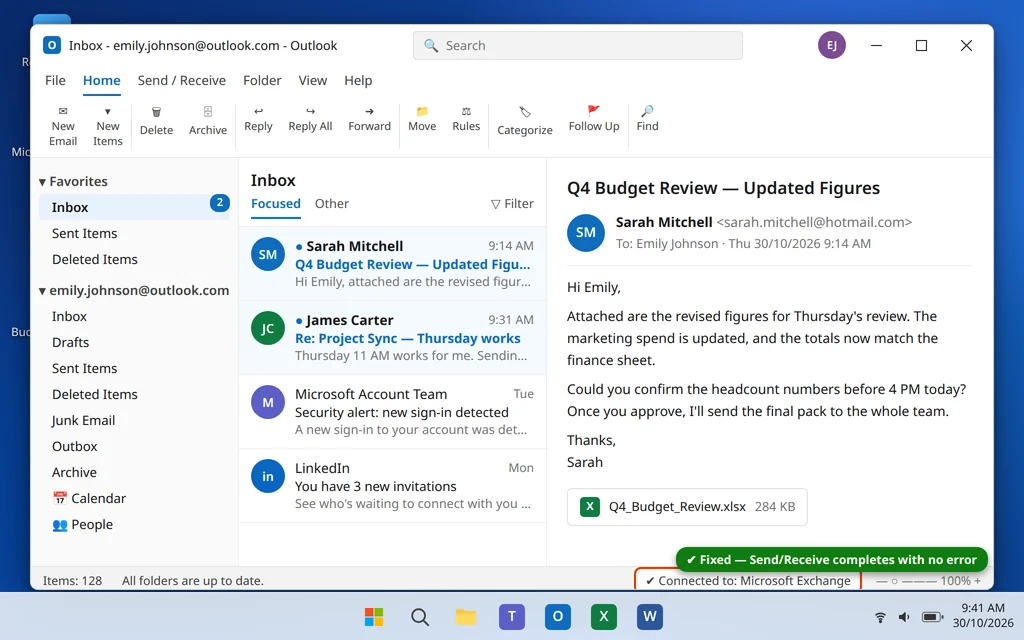
- Open Outlook and press F9. The Send/Receive should now complete without the error.
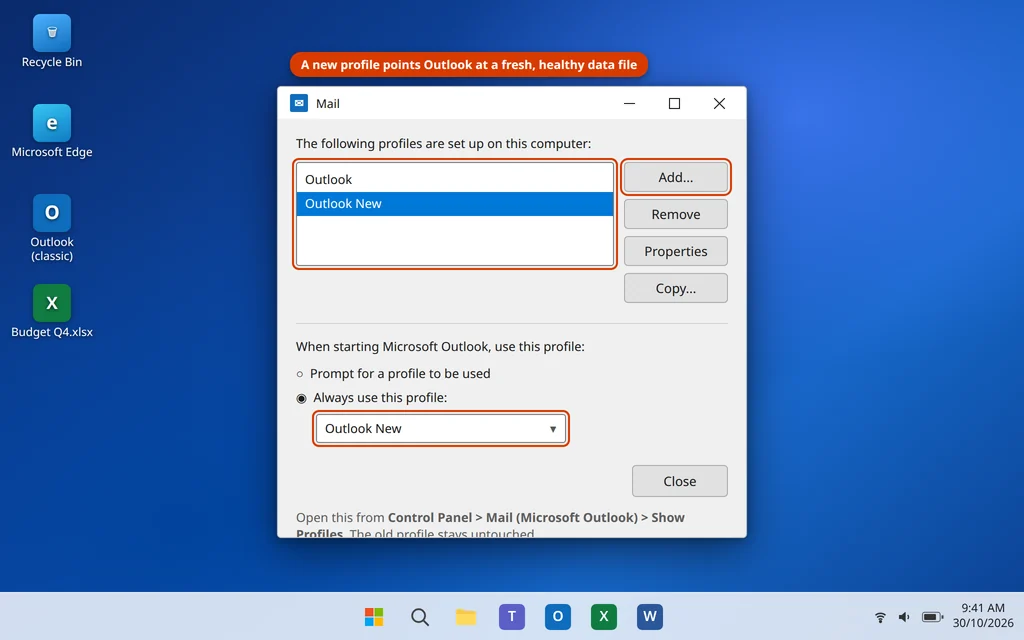
For a POP account with an existing .pst you want to keep using: after the new profile opens, you can attach your old file with File > Open & Export > Open Outlook Data File, so your old mail appears alongside the new setup.
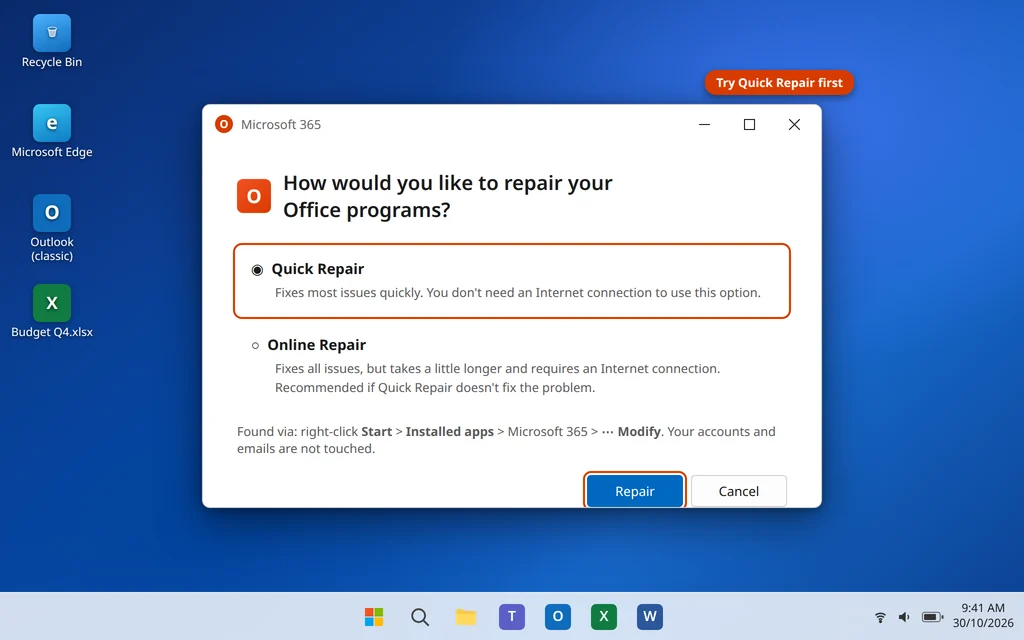
Fix 7: Repair Microsoft Office
If even a brand-new profile hits the same error, suspicion moves to the Outlook program itself. Office has a built-in repair that fixes program files only; your accounts, profiles and emails are not touched.
- Close all Office apps, including Outlook.
- Right-click the Start button and select Installed apps.
- Find Microsoft 365 (or your Microsoft Office version), click the three dots next to it, and choose Modify.
- Choose Quick Repair and click Repair. When it finishes, open Outlook and test Send/Receive.
- If the error persists, repeat the steps and choose Online Repair instead. It takes longer and needs an internet connection, but it re-downloads the Office program files and fixes deeper damage.
Fix 8: Using the New Outlook App? Repair or Reset It
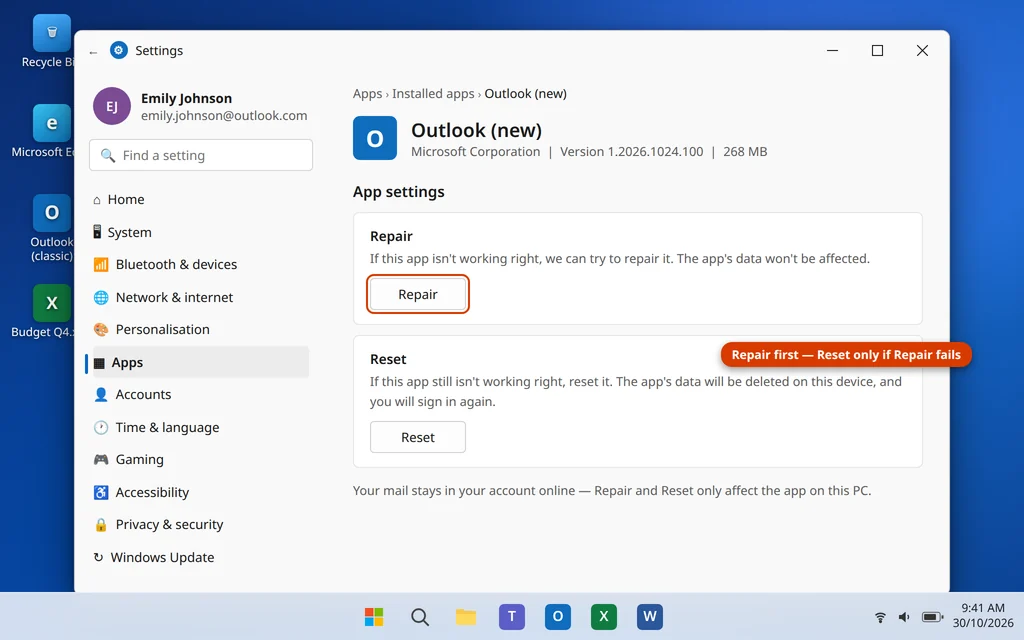
The new Outlook app does not use .ost/.pst files or Control Panel profiles, so Fixes 2–7 do not apply to it. If the app reports that it cannot access your data, the equivalent cure is to repair — or if needed, reset — the app itself. Your mail is stored in your account online, so neither option deletes it.
- Open Settings with Windows key + I, then go to Apps > Installed apps.
- Find Outlook (new), click the three dots next to it, and choose Advanced options.
- Click Repair first. When it finishes, open the app and test.
- Still failing? Go back to the same page and click Reset. Reset clears the app’s saved data on this PC and signs you out, so you will sign in again afterwards.
If mail works in the new profile or repaired app but incoming mail later stalls for a different reason — no error, just nothing new arriving — that is a separate problem covered in our guide to Outlook not receiving emails.
How to Stop Error 0x8004010F Coming Back
- Let Outlook close properly. Do not force a shutdown or kill the PC’s power while Outlook is open — a hard stop mid-write is a common way data files get damaged.
- Keep data files out of synced folders. Leave .pst files in a plain local folder, not inside OneDrive or another sync tool’s folder.
- Mind mailbox size. Very large .ost/.pst files are more fragile. Archive old mail regularly, especially on older accounts.
- Back up .pst files the safe way. Copy a .pst only while Outlook is closed, and if you restore one, check its Read-only attribute afterwards (Fix 5).
- Keep Office and Windows updated and let updates finish rather than postponing restarts for weeks.
Frequently Asked Questions
What does Outlook error 0x8004010F actually mean?
It means Outlook tried to open its data file — the .ost or .pst where your mailbox is stored on this PC — during Send/Receive, and could not. The file may be missing from the location your profile points to, damaged, read-only or locked by another program.
My Outlook opens fine. Why does the error only appear on Send/Receive?
Because sending and receiving must open the data file properly and write to it — and that is the step that fails. Outlook can open and display existing mail, but the moment it needs full access to the file, the error appears. This pattern is exactly what Fix 2 checks.
Will SCANPST or rebuilding the .ost file delete my emails?
No, when used as described. SCANPST repairs the file in place and saves a backup copy first. Rebuilding an .ost is safe for Microsoft 365, Outlook.com, Exchange and IMAP accounts because the real mailbox is on the server and Outlook downloads a fresh copy. The exception is a POP account’s .pst — that file may be the only copy, so never rename or delete it; repair it with SCANPST or attach it to a new profile.
Where do I find SCANPST.EXE on my PC?
It is installed with Office, usually in C:\Program Files\Microsoft Office\root\Office16\ (some PCs use the Program Files (x86) version of that path). Typing SCANPST into the Windows search box will often find it directly. If it is not there, your Office installation may need the Fix 7 repair first.
The error started after I moved Outlook to a new PC. What should I do?
That fits the classic cause: the profile or the copied data file points to the old PC’s folder layout, or the copied .pst kept its Read-only attribute. Check the Read-only box first (Fix 5), then create a new profile (Fix 6) and attach your old .pst with File > Open & Export > Open Outlook Data File.
Can OneDrive or my backup program cause error 0x8004010F?
It can contribute. If a sync or backup tool is holding the data file at the moment Outlook needs it, Outlook can be blocked from opening it — and Microsoft advises against keeping .pst files inside OneDrive-synced folders for this reason. Keep the data file in a local, non-synced folder.
I created a new profile and the error is gone. Can I delete the old profile?
Yes, once everything works and you have confirmed your mail, calendar and contacts are all present. Remove it from the same window: Control Panel > Mail (Microsoft Outlook) > Show Profiles, select the old profile and click Remove. Keep any old .pst file itself until you are sure you do not need anything in it.
Still seeing error 0x8004010F? Tell us which fix you reached, and whether your account uses an .ost or a .pst file, on our Contact page — servicedesk@howtofixerroronline.com, available 24 hours — and see our other Outlook Errors guides for more step-by-step help.