
Teams Camera or Microphone Not Working in a Meeting? 9 Fixes
Your meeting starts in two minutes, and Teams shows a black box where your face should be — or your camera works but nobody can hear you. Camera and microphone failures are the most stressful Teams problems because they always seem to happen live, in front of other people. If Teams camera not working is ruining your meetings, the fixes below will get you seen and heard again.
The good news: the cause is almost never a broken camera. Usually Teams is using the wrong device, Windows is blocking its access, or another app got to the camera first — each fixable in a minute or two. Work through the fixes in order; Fixes 1 and 2 solve it for most people, without leaving the meeting.
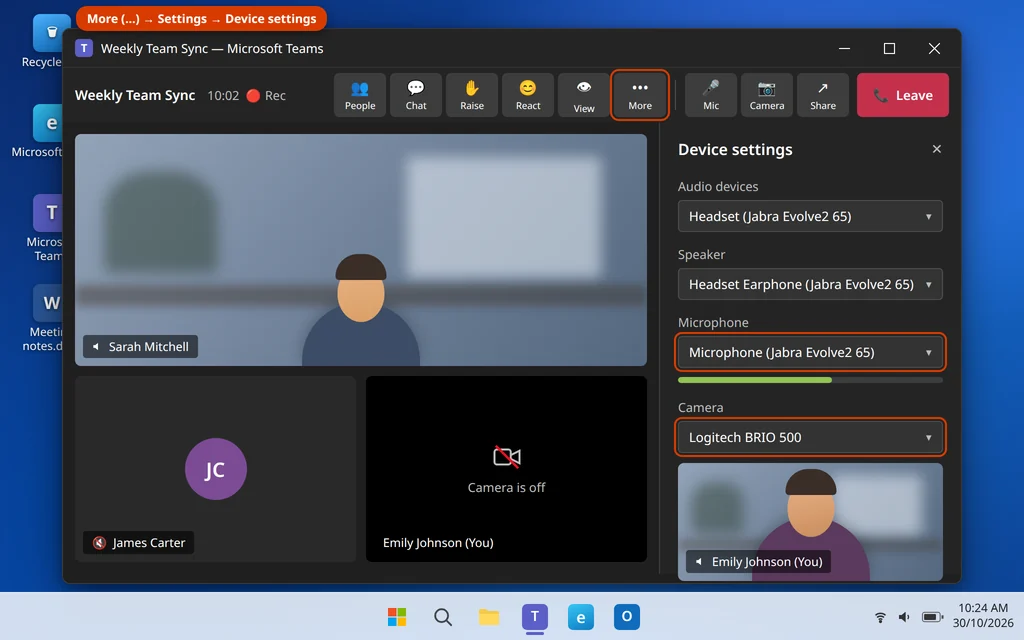
Quick Answer: In the meeting, click More (…) > Settings > Device settings and pick the correct camera and microphone. Then check Windows privacy: Settings > Privacy & security > Camera (and Microphone) — both “Camera access” and access for Microsoft Teams must be On. Close other apps using the camera (Zoom, browser tabs), check for a physical mute button or privacy shutter, and if it still fails, clear the Teams cache or run Repair/Reset from Settings > Apps.
Table of Contents
Teams Camera Not Working: Why It Happens
Teams does not talk to your camera and microphone directly — it asks Windows for them, and several things can break that chain:
- Teams selected the wrong device. Laptops often have more than one microphone (built-in, headset, webcam), and Teams may be listening to a silent one.
- Windows privacy permissions are off. Windows 11 can block apps — including Teams — from the camera and microphone at the system level.
- Another app is using the camera. One app at a time can own most webcams. Zoom, a browser tab or the Camera app left open will block Teams.
- A physical control is off. Many laptops have a camera privacy shutter, a function-key camera switch, or a headset with its own mute button.
- Outdated or damaged drivers, especially after a Windows update.
- A corrupt Teams cache or app data, which can stop devices being detected at all.
- Browser permissions, if you join from Teams on the web instead of the app.
A quick test before you start: open the Windows Camera app from Start. If your camera works there, the hardware is fine and the problem is Teams or its permissions — exactly what the fixes below cover. If the Camera app also shows black, jump to Fix 4 and Fix 6.
Fix 1: Check the Device Settings Inside the Meeting
Teams keeps its own device selection, separate from Windows. If it points at the wrong camera or a disconnected headset microphone, you get a black preview or silence even though everything else works.
Microsoft’s own guide to fixing camera problems in Teams covers the same device-setting checks in more detail.
- In the meeting, click More (…) on the meeting toolbar.
- Choose Settings > Device settings.
- In the side panel, open the Camera dropdown and select your camera — your preview should appear immediately.
- Open the Microphone dropdown and select the mic you actually speak into. Talk and watch the level indicator move.
- Check Speaker too, so you can hear others.
You can set the same options before joining: on the pre-join screen, check your preview and click the small settings/gear control to choose devices. If your camera or microphone does not appear in the dropdown at all, Windows is not handing it to Teams — go to Fix 2.
Fix 2: Allow Camera and Microphone Access in Windows Privacy Settings
Windows 11 has master switches that can block Teams from both devices. An update or a privacy cleanup can switch them off without telling you.
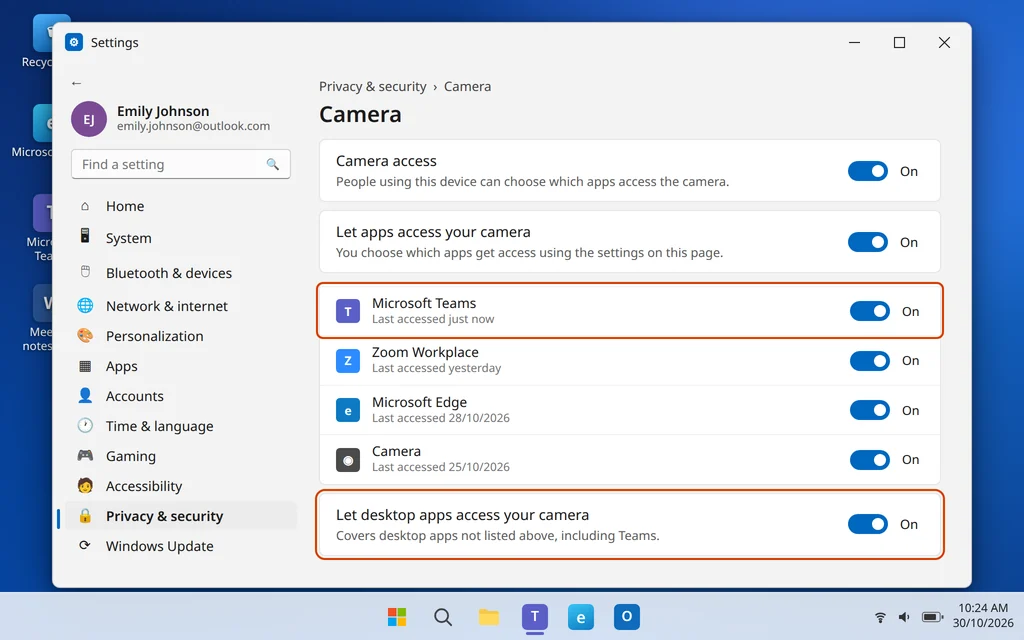
- Open Settings (Windows key + I) and go to Privacy & security.
- Under App permissions, click Camera.
- Turn Camera access On, turn Let apps access your camera On, and make sure Microsoft Teams is On in the list.
- Also turn on Let desktop apps access your camera at the bottom — classic Teams and some builds of the new Teams are counted as desktop apps here.
- Go back and click Microphone, and repeat: Microphone access On, Let apps access your microphone On, Microsoft Teams On, and Let desktop apps access your microphone On.
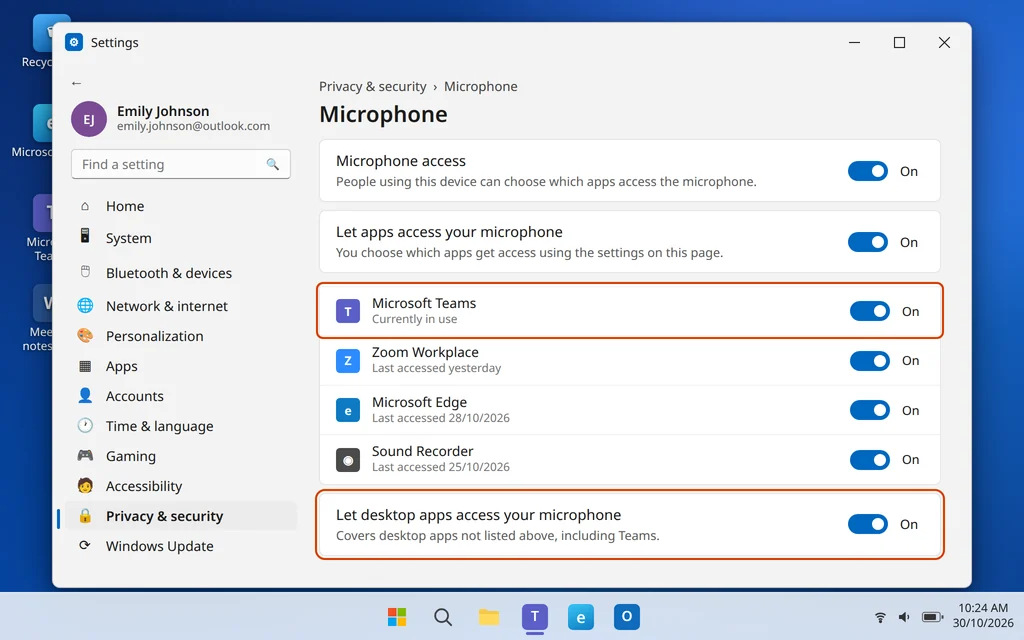
Restart Teams after changing these, then rejoin the meeting. If Teams is missing from the list entirely, it has never been granted — or never asked for — access; toggling the master switches off and on once usually makes it appear.
Fix 3: Close Other Apps That Are Using the Camera
Most webcams can only serve one app at a time. If Zoom, Google Meet in a browser tab, OBS or the Windows Camera app grabbed the camera first, Teams gets a black screen or a “camera is being used” message.
- Close Zoom, Skype and any similar apps completely — check the system tray (the ^ icon near the clock) and quit them there too.
- Close browser tabs that might be using the camera, such as Meet or a web Teams session.
- If you are not sure what is holding the camera, open Task Manager (Ctrl + Shift + Esc), select the suspect app and click End task.
- Rejoin the Teams meeting.
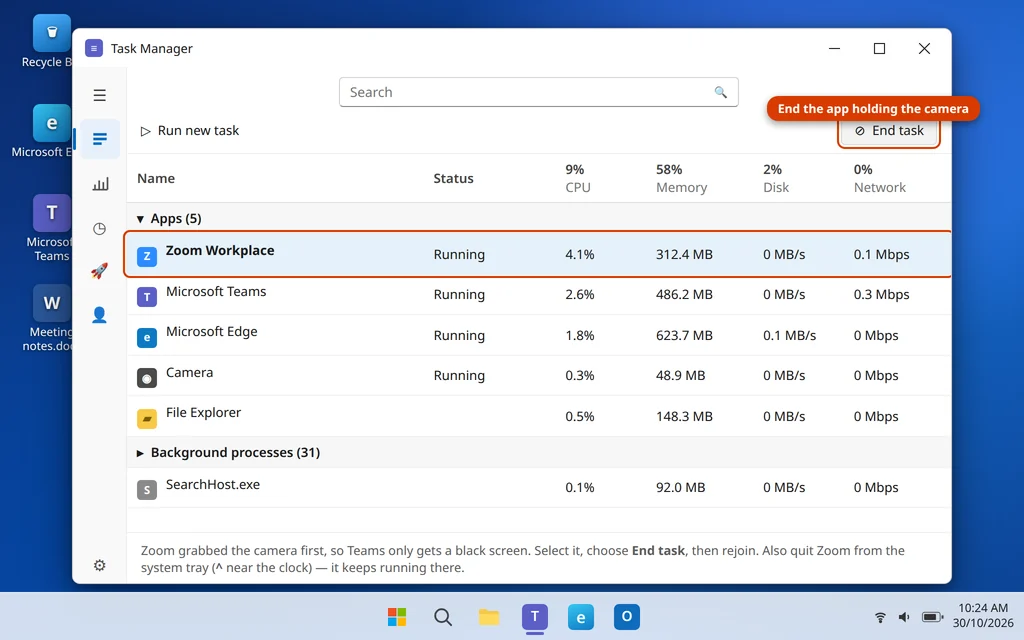
The microphone is shared more freely than the camera, so this fix matters most for video — but a crashed app can hold a microphone too, so it is worth doing for mic problems as well.
Fix 4: Check Physical Mutes, Shutters and the Default Sound Device
Before digging into software, check the hardware controls that software cannot override:
- Privacy shutter: many Lenovo, HP and Dell laptops have a small sliding shutter over the webcam lens, or a red dot that shows when it is closed. Slide it open.
- Function key: look for a camera or microphone icon on your F-keys (often F4, F8 or F10) — press it (with Fn if needed) to re-enable the device.
- Headset controls: many headsets and earbuds have an inline or on-ear mute button, and some wireless headsets mute when the boom arm is raised.
- USB devices: unplug and reconnect a USB webcam or headset, ideally in a different port.
Then confirm Windows itself is using the right devices:
- Open Settings > System > Sound.
- Under Output, select the speakers or headset you want to hear through.
- Under Input, select your microphone and speak — the input volume bar should move.
- If your device is not listed at all, Windows is not detecting it: try another port or cable, then see Fix 6 for drivers.
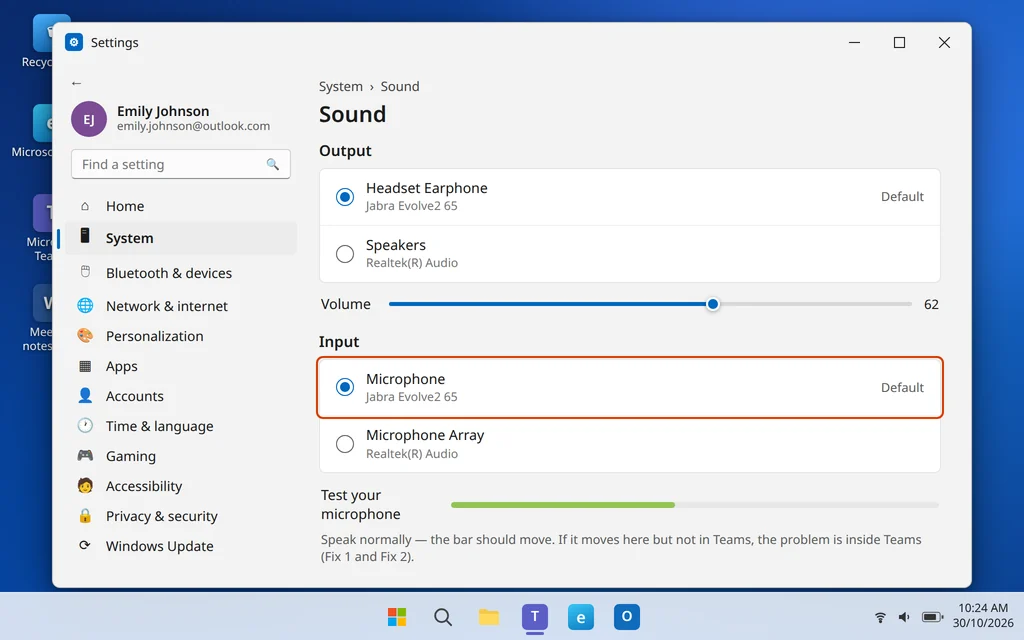
If the input bar moves here but not in Teams, the problem is inside Teams — return to Fix 1 and Fix 2.
Fix 5: Fix Browser Permissions If You Use Teams on the Web
If you join meetings at teams.microsoft.com in a browser, the browser has its own camera and microphone permissions on top of Windows — and browsers set them to “Block” surprisingly often.
- Join or open teams.microsoft.com in Edge or Chrome.
- Click the lock/site settings icon at the left of the address bar.
- Find Camera and Microphone and set both to Allow.
- Refresh the page and rejoin the meeting; choose the right devices on the pre-join screen.
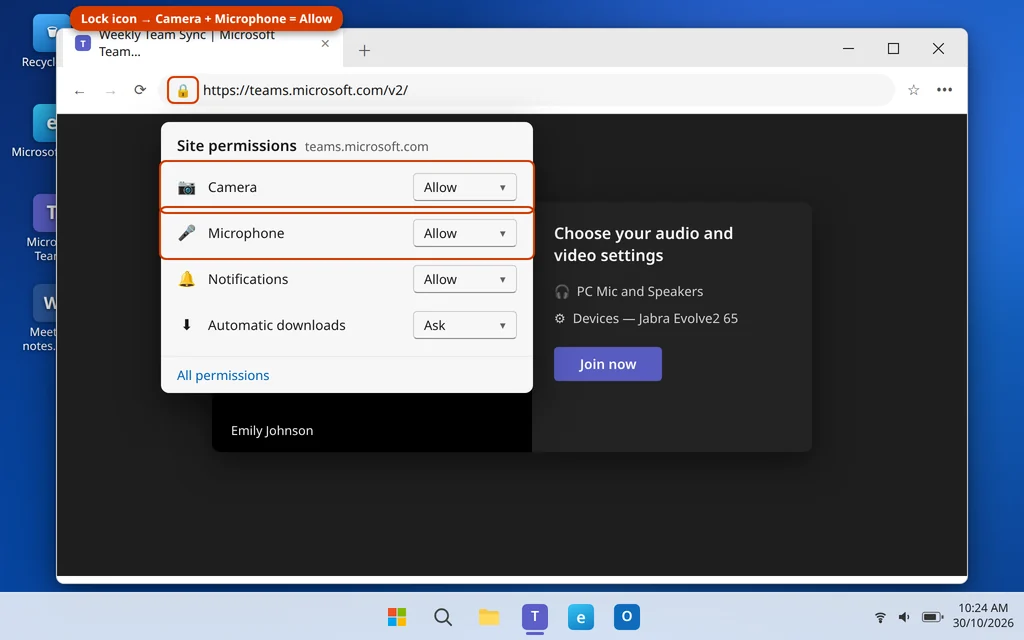
Also check the Windows privacy settings from Fix 2 — browsers are “desktop apps” there, so that toggle must be On as well. If the browser still will not cooperate and a meeting is starting, use the desktop app for this meeting and come back to the permissions afterwards.
Fix 6: Update or Reinstall the Camera and Microphone Drivers
A driver damaged by an update can make a camera vanish from every app at once. This is the fix to try when your device does not appear in Teams, in Sound settings, or in the Camera app.
- Right-click the Start button and open Device Manager.
- Expand Cameras (or Imaging devices), right-click your camera and choose Update driver > Search automatically for drivers.
- Repeat under Audio inputs and outputs for your microphone, and under Sound, video and game controllers for your headset if you use one.
- Restart your PC and test again.
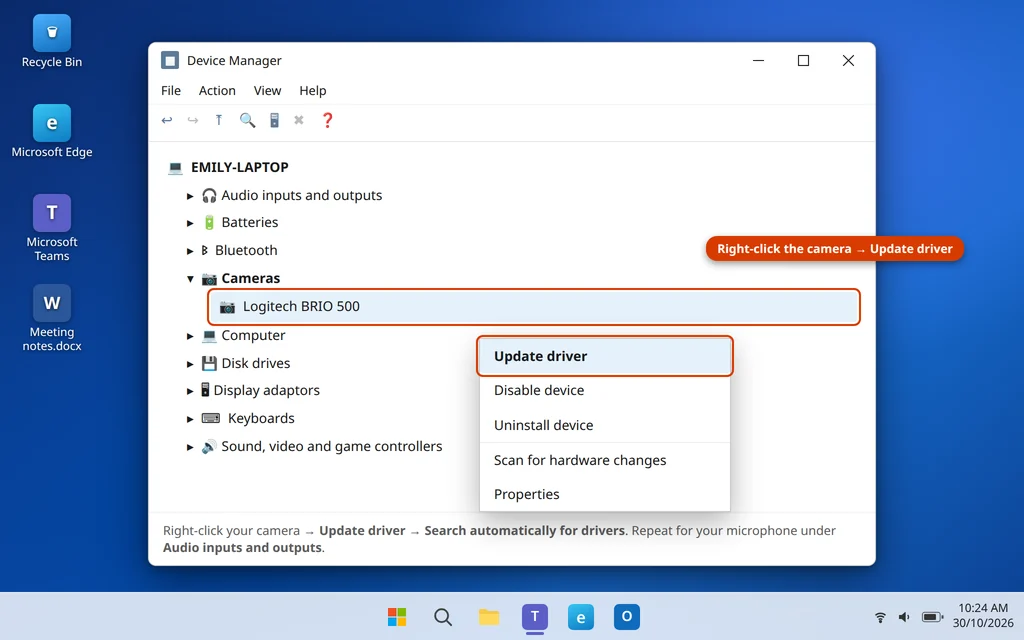
If updating does not help, right-click the device and choose Uninstall device, then restart the PC — Windows reinstalls a clean driver automatically. For USB webcams and headsets from Logitech, Jabra and similar brands, the manufacturer’s own driver or companion app from their support site is often newer than the Windows one.
Fix 7: Clear the Teams Cache
Just like Teams failing to open at all, device problems can come from a corrupt cache — Teams stores device and settings data locally, and damaged files can leave it unable to detect hardware that Windows sees perfectly well. Our full guide to fixing Teams not opening on Windows 11 uses the same cache fix for startup problems.
- Quit Teams completely: right-click the Teams icon in the system tray and choose Quit, or end it in Task Manager.
- Press Windows key + R, type
%localappdata%\Packages\MSTeams_8wekyb3d8bbwe\LocalCacheand press Enter. - Open the Microsoft folder, then MSTeams, select everything (Ctrl + A) and delete it.
- Open Teams, sign in if asked, and check your devices in Settings > Devices.
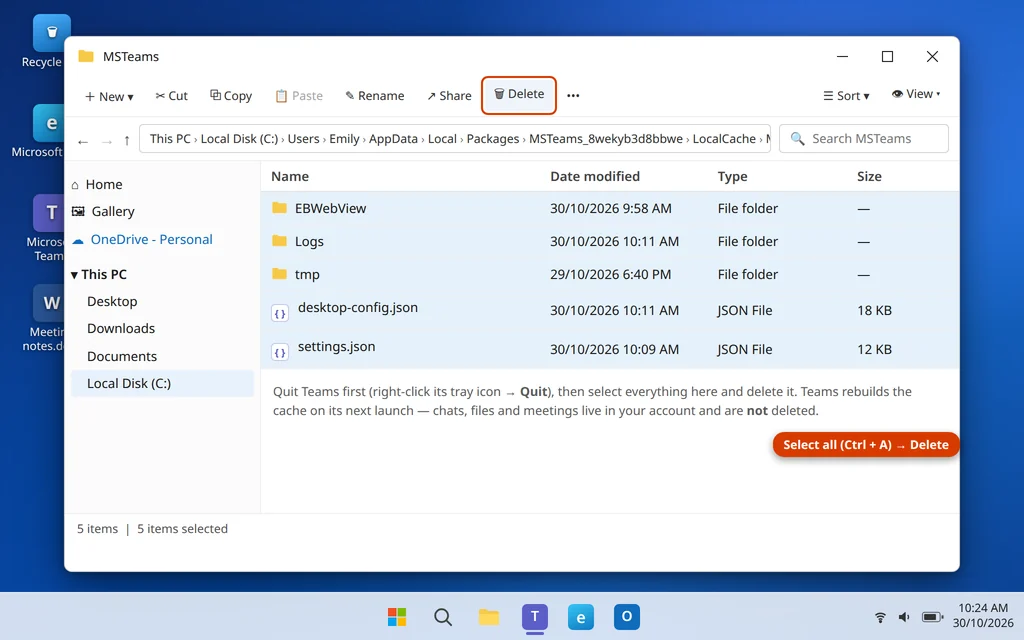
Clearing the cache does not delete chats, files or meetings — those are stored in your account. The first launch afterwards is a little slower while Teams rebuilds the cache.
Fix 8: Test Your Setup Before the Next Meeting
Once the camera and microphone respond again, confirm everything end-to-end in private, not in front of your team:
- In the Teams app, click your profile picture or the … menu next to it and open Settings.
- Go to Devices.
- In the new Teams, check the live camera preview and speak to see the microphone level respond. In classic Teams, use Make a test call — it records a short message and plays it back, testing mic and speakers together.
- If the test passes, your next real meeting will work.
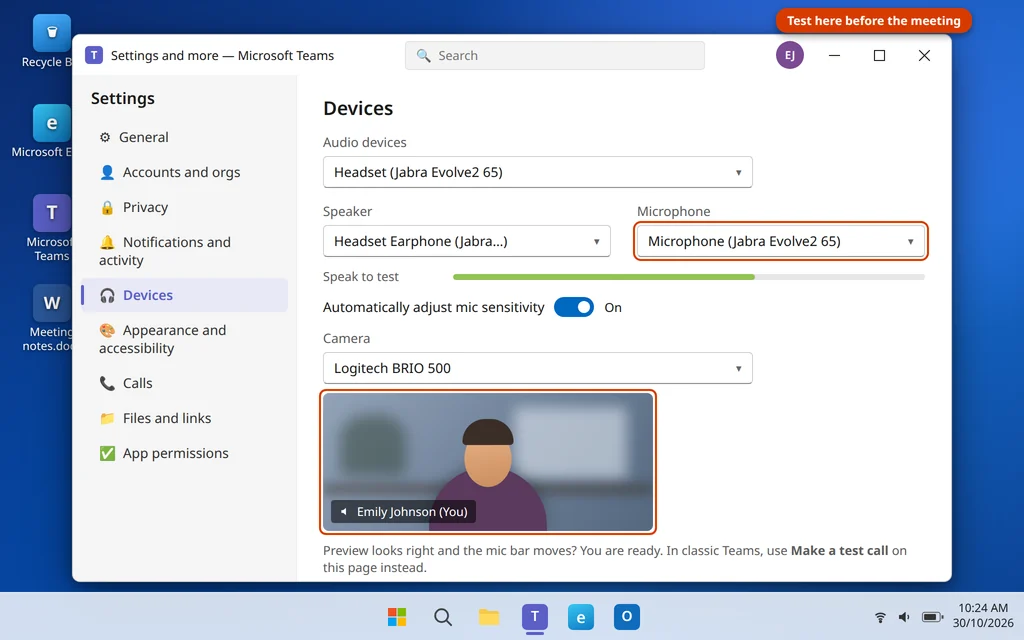
Make a habit of this 20-second check after connecting a new headset or docking station — Teams sometimes keeps pointing at the device you used last time.
Fix 9: Repair or Reset the New Teams App
If Teams still cannot see devices that work everywhere else, the app installation itself may be damaged. Windows has built-in tools for this.
- Open Settings > Apps > Installed apps.
- Find Microsoft Teams, click the three dots and choose Advanced options.
- Click Repair first, then test your camera and microphone.
- If it still fails, return and click Reset, then sign in again and re-check your device settings (Fix 1).
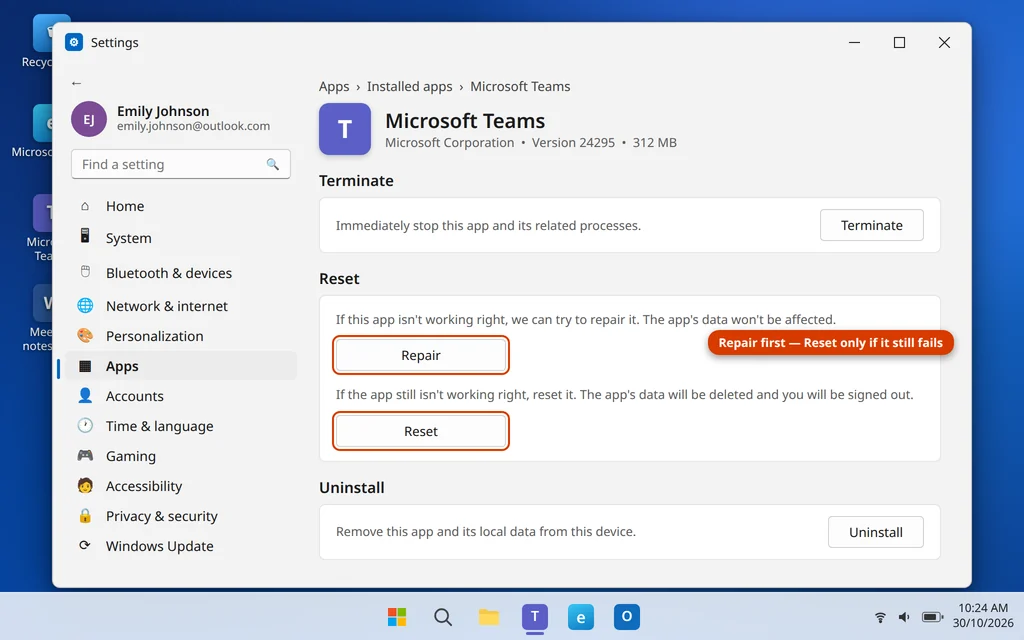
Repair keeps your data and sign-in; Reset removes the app’s local data and signs you out, which also clears stubborn permission and cache problems. If even Reset does not help, uninstall Teams from the same screen, restart the PC, and reinstall it from the Microsoft Store. And if Teams will not open at all on this PC rather than just losing the camera, start with our guide to Outlook not opening on Windows 11 — the end-task, repair and profile steps there apply to stubborn Microsoft apps generally.
How to Stop Camera and Microphone Problems From Coming Back
- Do the 20-second pre-meeting check (Fix 8) whenever you change headset, dock or room.
- Quit camera apps fully when you finish with them, so they do not hold the webcam.
- Keep Windows and Teams updated — device handling is frequently patched.
- Be careful with privacy “cleaner” tools — they often switch off the permissions from Fix 2.
- Check the privacy shutter first whenever the picture is black.
Frequently Asked Questions
Why is my Teams camera black while others work fine?
Usually another app is holding the camera (Fix 3), the privacy shutter is closed (Fix 4), or Windows camera permission for Teams is off (Fix 2). The Windows Camera app test tells you which side the problem is on: if the Camera app is black too, it is hardware, shutter or drivers.
Why can nobody hear me even though my microphone is selected?
Check that the selected microphone is the one you are actually speaking into — a laptop may default to a headset mic sitting on your desk. Speak and watch the level in Teams Device settings (Fix 1) and in Settings > System > Sound (Fix 4). Also check the physical mute button on the headset itself.
Teams says “Your camera is being used by another application”. What now?
Close Zoom, Skype, OBS, the Camera app and browser tabs completely, including from the system tray, then rejoin. If the message persists, end the apps in Task Manager (Fix 3) or restart the PC to release the camera.
How do I give Teams permission to use my camera on Windows 11?
Settings > Privacy & security > Camera: turn on Camera access, Let apps access your camera, Microsoft Teams in the list, and Let desktop apps access your camera. Do the same page for Microphone. Restart Teams afterwards (Fix 2).
My camera works in Zoom but not in Teams. Why?
Then the hardware and drivers are fine — the block is specific to Teams: its privacy permission, its own device selection, its cache, or the app itself. Work through Fixes 1, 2, 7 and 9 in that order.
Why did my camera stop working after a Windows update?
Updates occasionally replace camera drivers or reset privacy permissions. Re-check Fix 2 first, then update or reinstall the camera driver from Device Manager (Fix 6), and install any further pending updates — Microsoft often ships a correction within days.
How do I test my camera and microphone before a meeting?
Open Teams Settings > Devices, confirm the camera preview shows you and the microphone level moves when you speak (Fix 8). In classic Teams, “Make a test call” on the same page records and plays back a test message.
Still stuck? Tell us what Teams shows — a black preview, a missing device, or an error message — on our Contact page or at servicedesk@howtofixerroronline.com, available 24 hours. If Teams will not even start, see our Teams not opening guide first.
Pingback: Can't Join Teams Meeting: 8 Fixes That Work (2026)
Pingback: Microsoft Teams Not Sending Messages? 7 Fixes That Work (2026)