
Microsoft Teams Spell Check Not Working
You type a message full of small mistakes, and Microsoft Teams waves it through without a single red underline. Or the opposite happens: you type a perfectly good message and Teams underlines every word, as if you are writing in a language it has never seen. Both are the same fault family — Teams is not checking your spelling the way you expect — and both are usually fixable in a few minutes once you know where Teams actually gets its proofing from.
Quick Answer: Type a deliberate error in a chat —
recieveorteh— and see whether it is underlined. If nothing is ever underlined, work the Windows layer first: in Settings > Time & language > Language & region, make sure the language you write in is added, open its Options, and install Basic typing; in Settings > Time & language > Typing, turn on Highlight misspelled words. If every word is underlined instead, your active keyboard language does not match what you are typing — switch it with Windows key + Space. After any language change, fully quit and restart Teams — it only picks up language changes at startup.
Table of Contents
Fix 1 — Test spell check properly before you fix it
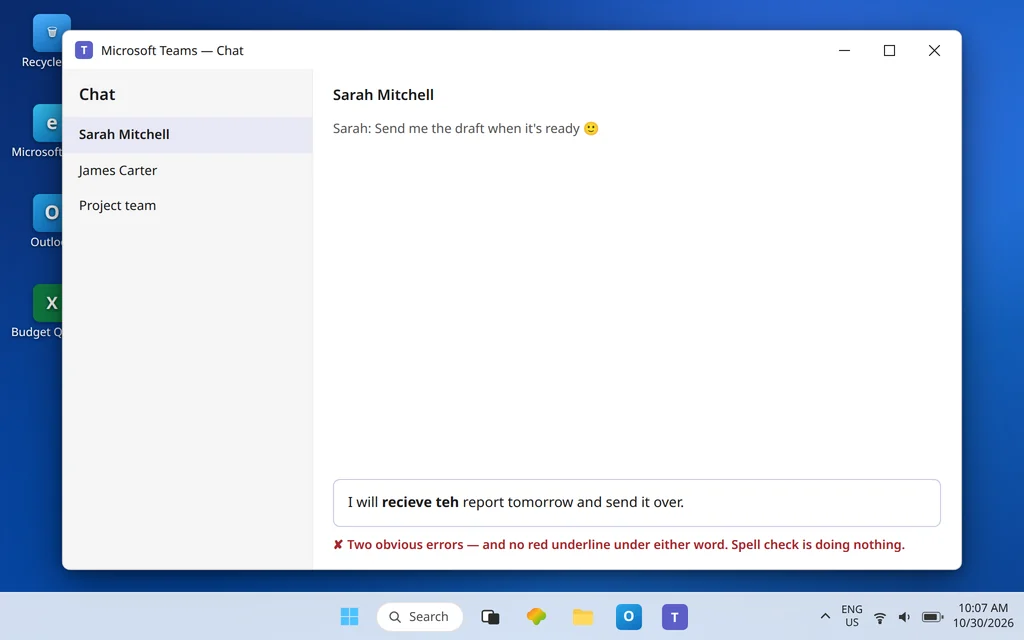
Spell check only works in the message compose areas — chat messages, channel posts, and replies — so test there, not in the search box or a channel name. Open a chat with yourself or a test chat and type a sentence with two unmistakable errors, for example: “I will recieve teh report tomorrow.”
- Neither word is underlined: checking is off, missing, or pointed at a language layer that is not working at all. Continue with Fix 2.
- Every word is underlined, including correct ones: Teams is checking against the wrong language. Skip to Fix 4.
- The errors are underlined: spell check works in chat. If your complaint is about a different field (a tab, a form inside an app, a file name), that field may simply not be proofed by Teams, and no setting will change it.
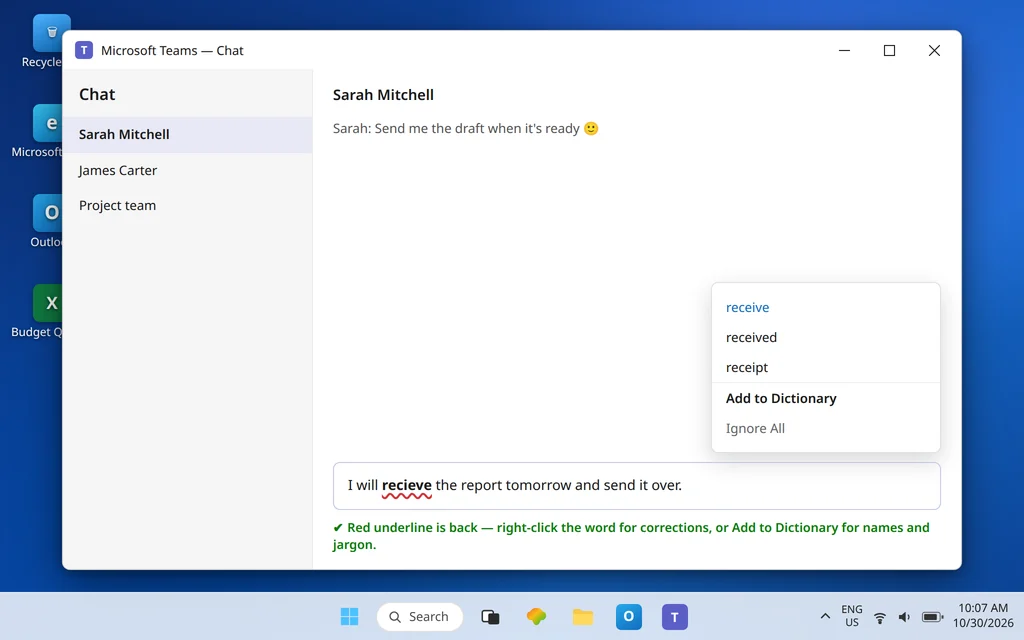
Right-clicking (or selecting) an underlined word should offer corrections and, for names and jargon, Add to Dictionary. Keep this test sentence handy — you will reuse it after every fix, which is far faster than typing real messages and hoping.
Fix 2 — Add your language in Windows and install Basic typing
This is the fix that resolves most “no underlines at all” cases, because a language can look present in Windows while its proofing components are not actually installed:
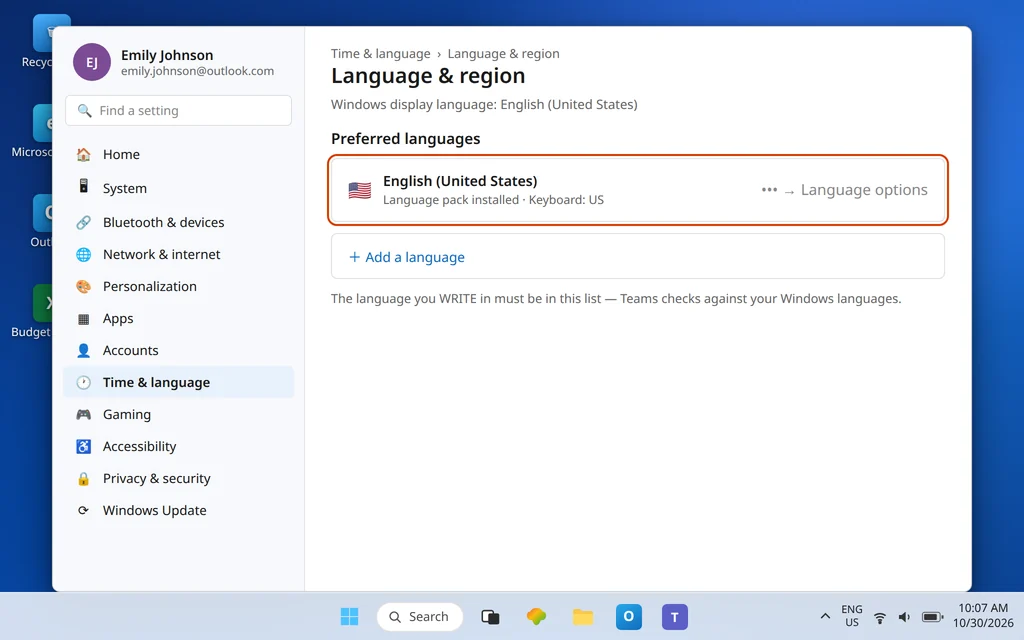
- Open Settings > Time & language > Language & region.
- Find the language you actually write in — for this guide, English (United States). If it is not in the list, select Add a language, add it, and let it install.
- Select the … next to the language and choose Language options.
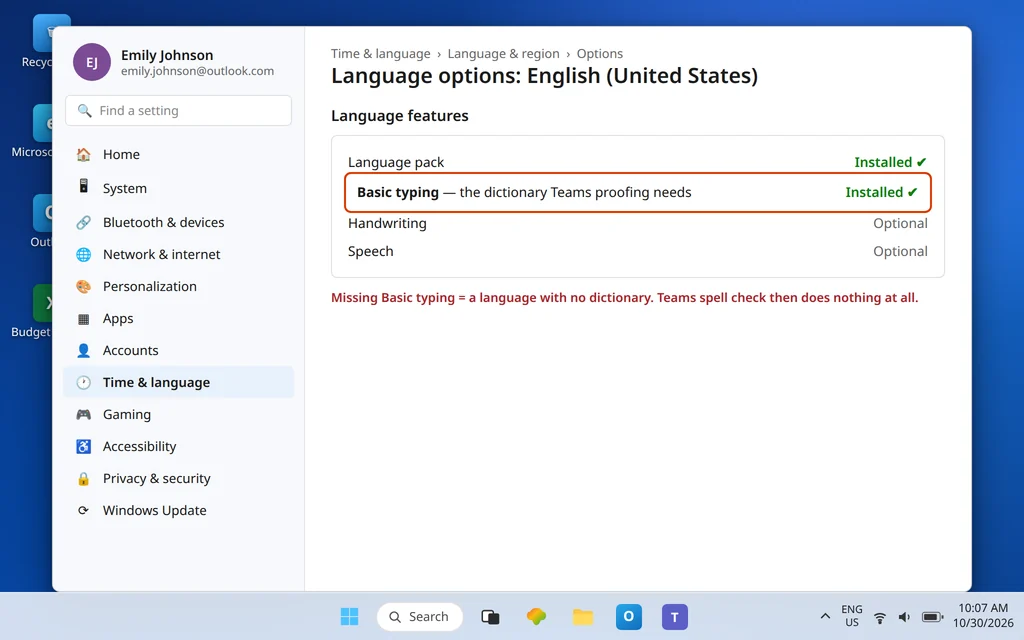
- Under the language’s features, make sure Basic typing is installed — if it shows as available to download, download it. (The language pack and keyboard components live on this same options page.)
- Move the language up in your preferred languages list if you write in it most of the time.
Do not skip step 4. A language listed on the region page without its typing components gives Teams a name with no dictionary behind it — the symptom is exactly “spell check does nothing.”
Fix 3 — Turn on Highlight misspelled words in Windows Typing settings
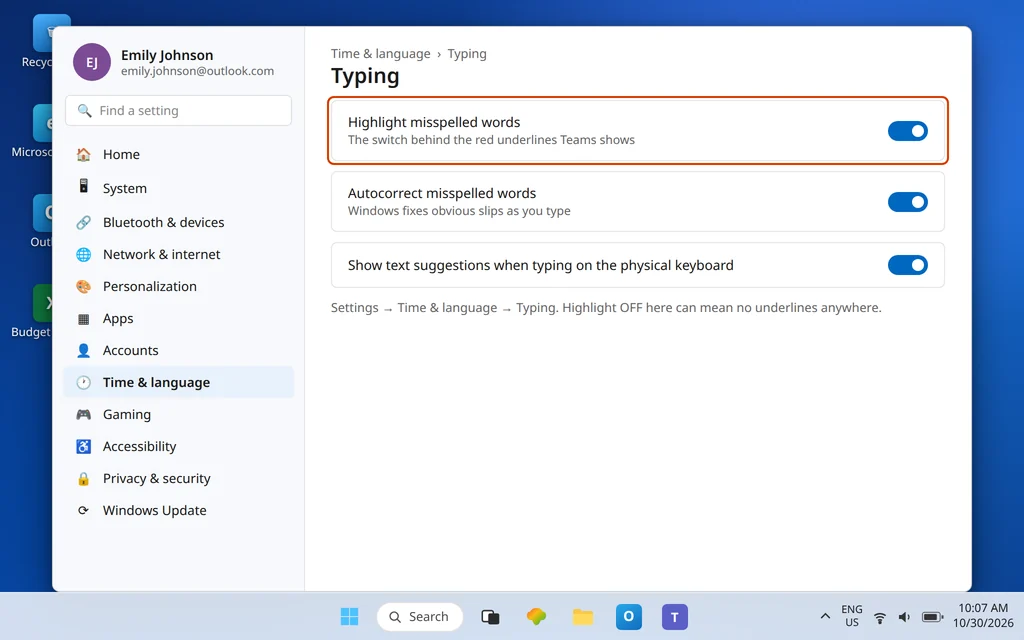
Windows has its own typing switches, and Teams sits on top of them. If highlighting is off at the Windows level, underlined errors may never appear no matter what Teams wants to do:
- Open Settings > Time & language > Typing.
- Turn on Highlight misspelled words.
- Turn on Autocorrect misspelled words as well if you want Windows to fix obvious slips as you type (optional, but the pair of settings is what most people expect “spell check” to mean).
- Go back to Teams and run the Fix 1 test again.
Fix 4 — Fix the “every word is underlined” case: match the keyboard language
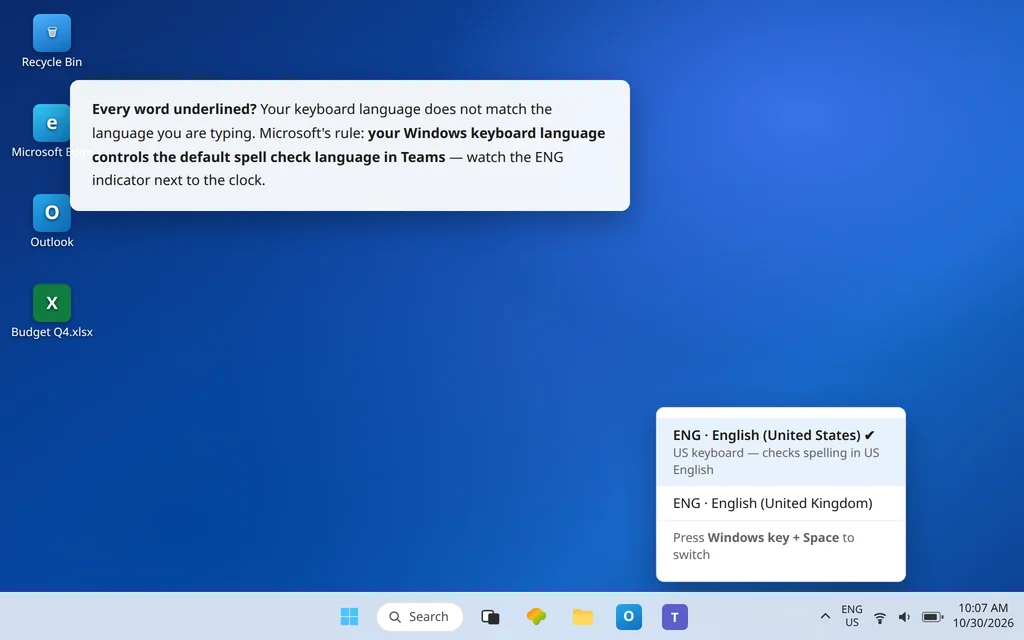
When Teams flags correct words relentlessly, it is nearly always checking your text against a different language than the one you are writing. Microsoft’s guidance gives you two levers, and both come from the keyboard:
- Switch the input language to match what you are typing. Press Windows key + Space to switch between installed keyboard languages, and check the language indicator near the clock (for example, ENG US). Your Windows keyboard language controls the default spell check language in Teams, so the indicator and your message language must agree.
- Let language-aware checking catch up. When you write several messages in a chat or channel in a different language, Teams activates spell checking for that language automatically — it may show a prompt asking you to confirm which language you are currently using. Confirm it, and keep writing; checking follows the language you are actively using.
One honest limitation to know before it frustrates you: Teams checks one spell check language at a time, based on the active Windows language. If you mix two languages inside a single message, the words from the non-active language will be flagged even when they are spelled correctly — that is the current design, not a fault on your PC. Write the bulk of a message in one language, or switch the keyboard before the section in the other language.
Fix 5 — Check the Teams-side settings your build actually offers
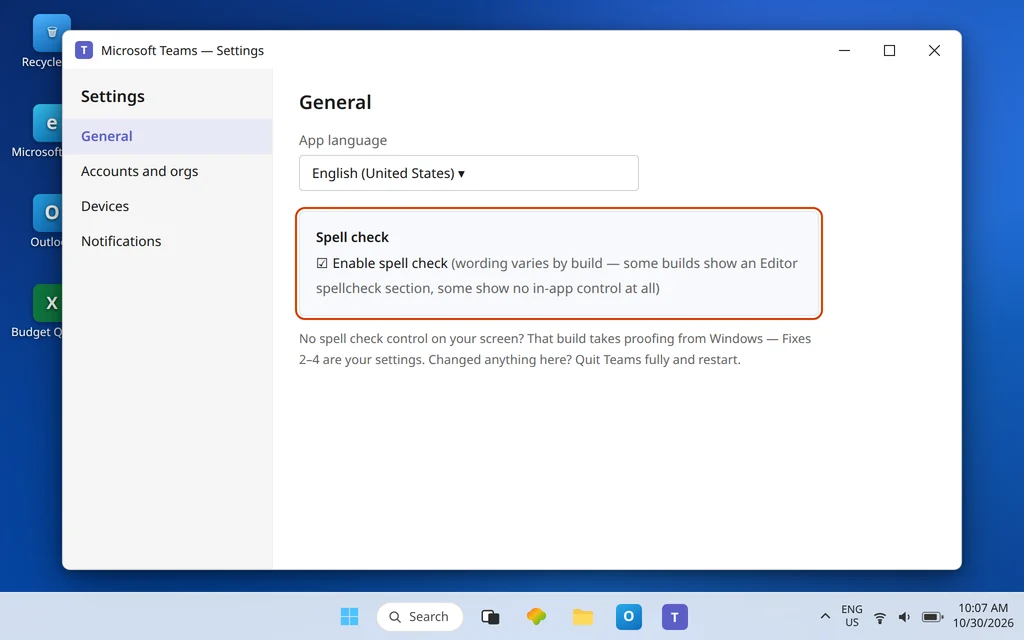
Teams builds differ here, and this is where many guides invent a tidy toggle that may not be on your screen. What Microsoft’s support answers consistently describe for work or school Teams is: open Settings > General, and look for the language the app itself is using, plus a spell check / Editor spellcheck control near the bottom of the General page (answers across builds describe an Enable spellcheck checkbox). Treat it like this:
- Open Teams Settings > General and confirm the app language matches the language you write in. Spell check follows the language the Teams app is using.
- If your build shows a spell check checkbox or Editor spellcheck section, make sure it is enabled. If it was already on, Microsoft’s own reset advice is to turn it off, restart Teams, turn it back on.
- If your build shows no spell check control at all, do not hunt for it in other menus — your build takes proofing from the Windows layer, and Fixes 2–4 are the real settings. That absence is normal, not damage.
A naming warning for personal accounts: Teams for personal use has its own documented path — Settings > General > Editor Spellcheck > Manage, where you can add up to five spell check languages. That menu belongs to the personal app; if you are signed into a work or school account and cannot find it, you are not missing anything.
Fix 6 — Fully restart Teams after ANY language change
Teams reads its language environment when it starts. Changing a Windows language, installing Basic typing, or switching the app language and then testing in a Teams window that has been open all day proves nothing — the running app is still using the old environment. After each language fix:
- Right-click the Teams icon in the taskbar notification area and choose Quit. (Closing the window is not enough; Teams keeps running in the background.)
- Reopen Teams, sign in if prompted, and run the Fix 1 test sentence again.
If a language change still does not take after a proper quit and restart, Microsoft support answers for this exact complaint found a cache/app reset to be the step that forced it — the reset steps are the same ones used for other client faults: Settings > Apps > Installed apps > Microsoft Teams > More options (…) > Advanced options > Reset. Your chats and files live in Microsoft 365 and return on sign-in; local personalization is what gets cleared.
Fix 7 — Teams on the web: it is your browser’s spell check
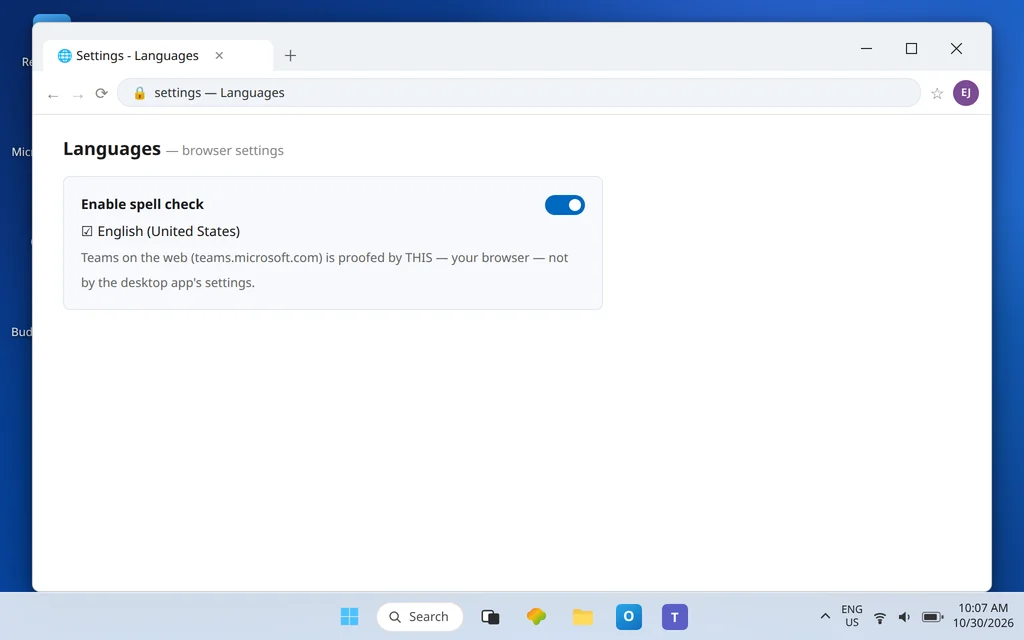
If spell check works in the desktop app but not at teams.microsoft.com (or the reverse), stop comparing the two directly — the web version is proofed by your browser, not by Teams’ own settings:
- In Microsoft Edge: Settings > Languages, and turn on Enable spell check, with the language you write in enabled underneath it.
- In Google Chrome: Settings > Languages > Spell check, turned on for your language.
Test the web version deliberately, because it is also the best diagnostic you have: if underlines appear on the web but never on the desktop, your desktop/Windows language layer (Fixes 2–6) is the fault; if they appear nowhere, check the Windows layer and the browser layer before blaming Teams itself. And when an app on your PC generally falls behind and stops picking up fixes, remember that a stuck update can freeze odd behavior in place — if your Teams will not update itself, see Microsoft Teams Not Updating Automatically.
Confirm it worked
Type the Fix 1 test sentence again — recieve and teh should both be underlined. Right-click recieve and confirm real suggestions appear (starting with receive). Then type a correctly spelled paragraph in your normal language and confirm nothing in it is flagged, switch the keyboard with Windows key + Space if you write in a second language, and confirm checking follows you. Finally, add one piece of your own jargon — a product name or a colleague’s surname such as Sarah Mitchell — via Add to Dictionary, and confirm it stops being flagged; that proves the dictionary side is working too, not just the checker.
How to stop it happening again
- Install typing components when you add a language, not later. A language without Basic typing is a spell checker with no dictionary — the failure just waits for the first message.
- Restart Teams after language or keyboard changes, every time. Most “the fix didn’t work” reports are really “the app never restarted.”
- Keep one habit for second languages: switch the keyboard before you start writing in that language, so the whole message is checked correctly from the first word. And if other client features start failing alongside proofing — the same stale client can break several things at once; a cache problem behind Microsoft Teams Search Not Working is handled the same way.
Frequently asked questions
Why is spell check not working in Microsoft Teams?
Most often because the language layer underneath Teams is incomplete: the language you write in is not added in Windows, its Basic typing component is not installed, Windows Highlight misspelled words is off, or Teams has not been restarted since the language setup changed. Teams proofing follows your Windows language and keyboard, so the fix is usually in Settings > Time & language, not in Teams itself.
Why does Teams underline every word I type?
Because it is checking your message against a different language than the one you are writing. Your active Windows keyboard language controls the default spell check language in Teams — press Windows key + Space to switch it to the language of your message, or write several messages in that language so Teams’ language-aware checking switches and asks you to confirm.
How do I change the spell check language in Teams?
Change the language you are checking against at the Windows level: add the language in Settings > Time & language > Language & region (with its typing components installed), then switch to it with Windows key + Space while you write. Also check the app language under Teams Settings > General, and fully restart Teams afterward so it picks the change up.
Is there a spell check toggle in the new Teams?
It depends on the build, which is why guides disagree. Microsoft support answers describe a spell check control under Settings > General on many builds, while other current builds expose no in-app spell check switch and take proofing entirely from Windows. If your General page has the control, enable it (or toggle it off, restart, and on again). If it does not, your settings are the Windows language, keyboard, and Typing pages in Fixes 2–4 — nothing is missing from your app.
Why does spell check work in Teams on the web but not in the desktop app?
Because they are proofed by different things. The web version uses your browser’s spell check (Edge or Chrome Languages settings); the desktop app follows your Windows language, keyboard, and typing settings, loaded when Teams starts. Web-works/desktop-doesn’t is the clearest signal that the fault is in the desktop language layer — work Fixes 2–6 and restart Teams fully.
Can Teams check two languages in one message?
Not simultaneously, for work or school accounts: Teams checks one spell check language at a time, following the active Windows language. Correct words written in the other language will be underlined. Switch the keyboard language before writing in the second language, or accept the underlines in mixed-language messages — Microsoft presents this as current behavior, not a bug with a settings fix.
Spell check still silent? Contact us at servicedesk@howtofixerroronline.com or through our Contact page and tell us whether any word is ever underlined, which language is shown near your clock, and whether the language’s Basic typing is installed in Windows Settings. We will never ask for your password.