
Microsoft Teams Meeting Add-in Missing in Outlook — Can’t Schedule Meetings
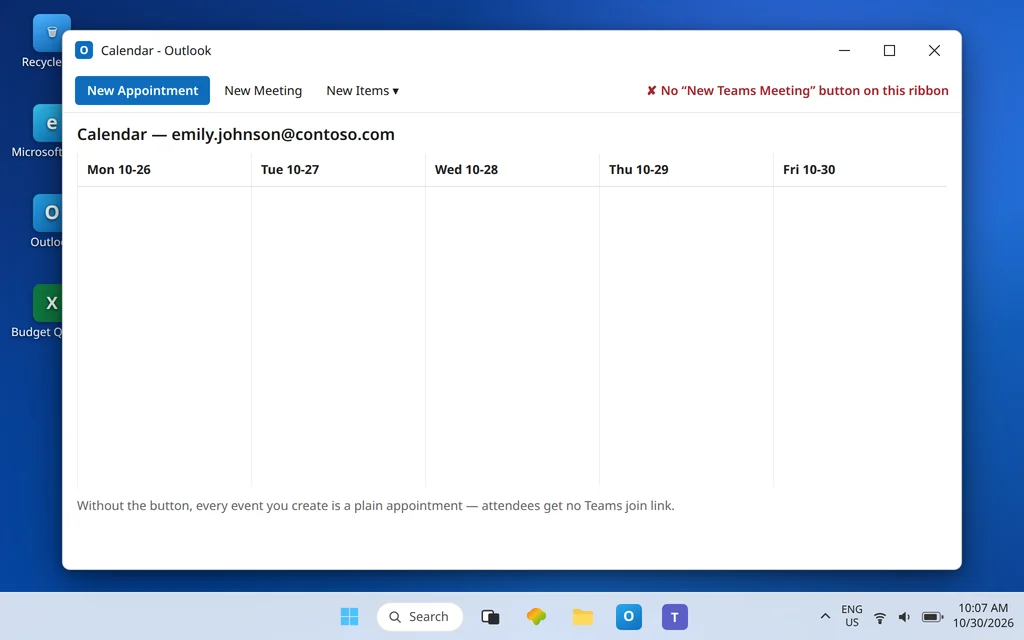
You open Outlook’s calendar to schedule a meeting, and the one button you need is simply not there. No New Teams Meeting button, no Teams meeting toggle — just a plain appointment with no way to attach a Teams link. You can still create the event, but nobody can join it as a Teams meeting, so you end up scheduling inside Teams itself and working around your own calendar.
First, a split that decides everything else in this guide: classic Outlook and the new Outlook get the Teams button in completely different ways. Classic Outlook uses a COM add-in called Microsoft Teams Meeting Add-in for Microsoft Office, which can be disabled, broken, or uninstalled. The new Outlook does not use that
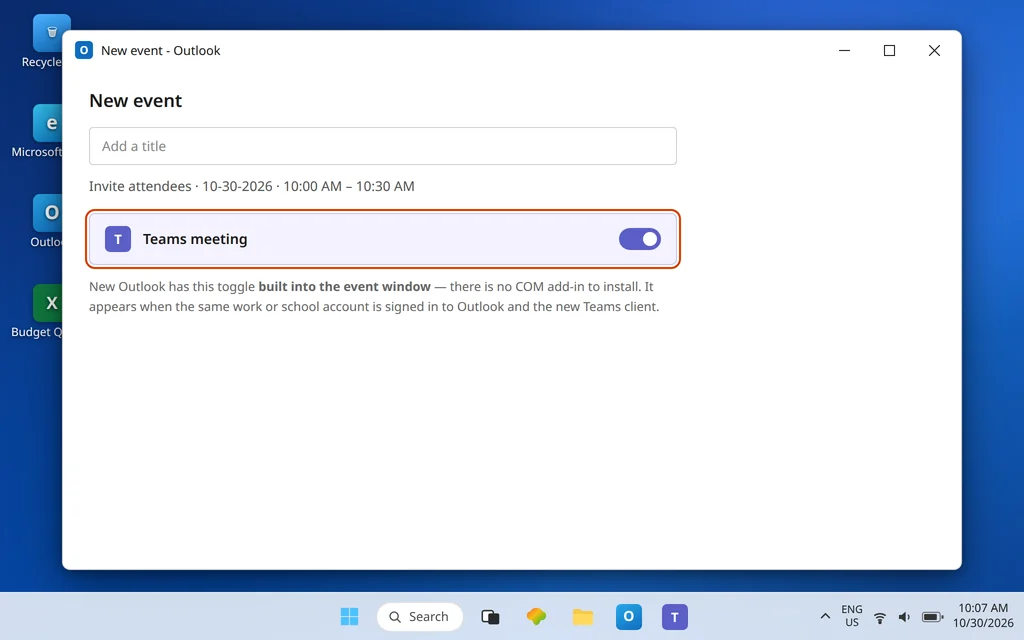
add-in at all — the Teams meeting capability is integrated into new Outlook itself, as a Teams meeting toggle in the event window. Find your track below and stay on it. If your problem is different — a meeting link that exists but opens nothing, see Microsoft Teams Meeting Link Not Working — this guide is only about the missing scheduling button.
Quick Answer: New Outlook: there is no add-in to fix — you need to be signed in to both Outlook and Teams with the same work or school account, using the new Teams client. If the Teams meeting toggle is still missing, close Outlook, Quit Teams completely, start Teams and sign in, then start Outlook. Classic Outlook: go to File > Options > Add-ins, and if the Teams Meeting add-in sits in the Disabled Application Add-ins list, open Manage > COM Add-ins > Go, check Microsoft Teams Meeting Add-in for Microsoft Office, click OK, and restart Outlook. Still missing? Sign out of Teams and back in, then restart Outlook — and if the button vanished when you switched to new Teams, reinstalling Teams is what registers the add-in again.
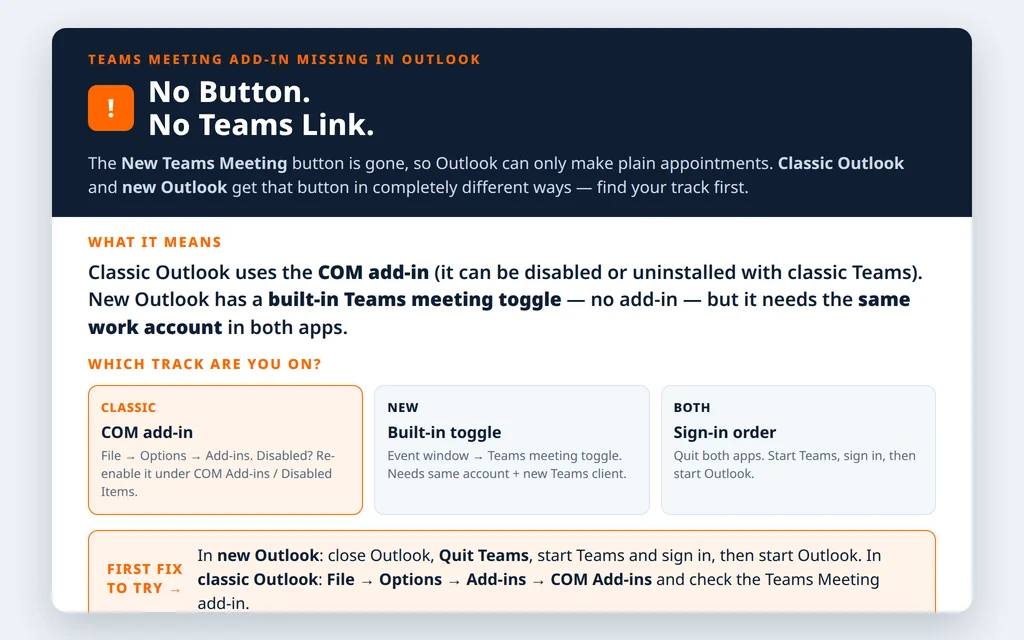
Table of Contents
Fix 1 — New Outlook: the toggle is built in, so check the two requirements
In the new Outlook for Windows, Microsoft states the requirement set plainly: to see the Teams meeting toggle in the event window, you must be signed in to both Outlook and Teams with the same work or school account, and you must be using the new Teams client. A personal account signed into one app and a work account in the other is enough to make the toggle disappear, and no setting inside Outlook overrides it.
Check both, in this order:
- In new Outlook, look at the account shown for the calendar you are scheduling on. It must be your work or school Microsoft 365 account — the calendar has to belong to that account.
- In Teams, click your profile picture and confirm the signed-in account is exactly the same one.
- Confirm you are running the new Teams client, not an old leftover install.
If both requirements are met and the toggle is still missing, continue to Fix 2 — do not go looking for COM Add-ins, because new Outlook does not load them.
Fix 2 — New Outlook: force the integration to restart, Teams first
Microsoft’s own fix for a missing toggle in new Outlook is a specific restart sequence that makes Teams re-register its integration with Outlook:
- Close Outlook completely.
- Right-click the Teams icon in the taskbar notification area and select Quit Teams. (Minimizing is not enough — Teams must actually exit.)
- Start Teams and sign in with your work or school account.
- Start Outlook and open a new calendar event.
The Teams meeting toggle should now appear in the event window. Turn it on and confirm the invite fills in the join link and meeting details when you send it. If it does not, your account or policy is the likely blocker — jump to Fix 8 and give IT the exact wording provided there. And if scheduling works in new Outlook but your Teams and Outlook calendars then disagree about the meeting, that is a sync problem, not a button problem — see Microsoft Teams Calendar Not Syncing with Outlook.
Fix 3 — Classic Outlook: enable the add-in in COM Add-ins
Now the classic Outlook track. Microsoft’s troubleshooting guidance starts with the add-in’s status inside Outlook itself:
- In Outlook, select File > Options.
- In the Outlook Options dialog, select the Add-ins tab.
- Look for Microsoft Teams Meeting Add-in for Microsoft Office in the Active Application Add-ins list. If it is there and active, the button should exist — restart Outlook once and check the Calendar ribbon again before going deeper.
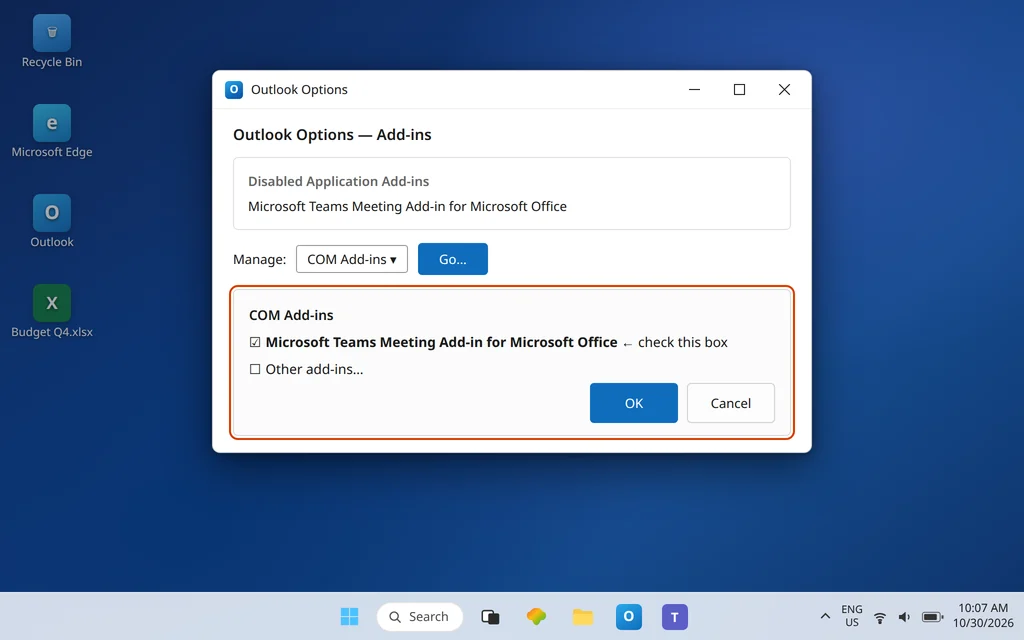
- If it is not active, and you see it in the Disabled Application Add-ins list, set the Manage dropdown at the bottom to COM Add-ins and select Go.
- Check the box next to Microsoft Teams Meeting Add-in for Microsoft Office.
- Select OK on every open dialog box, then restart Outlook.
Fix 4 — Classic Outlook: check the Disabled Items list separately
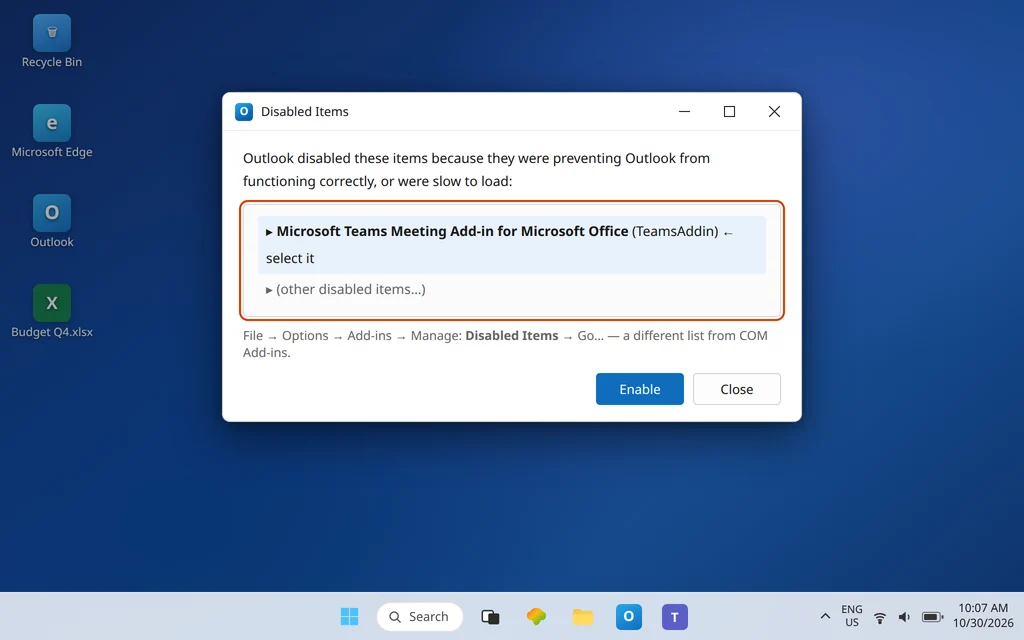
Outlook keeps a second list that catches add-ins it has switched off after a crash or a slow start, and an add-in parked there will not revive just because its COM checkbox looks right. While you are still in File > Options > Add-ins:
- Change the Manage dropdown to Disabled Items and select Go.
- If Microsoft Teams Meeting Add-in for Microsoft Office (or a TeamsAddin entry) appears in the list, select it and click Enable.
- Click OK, restart Outlook, and check the Calendar ribbon.
If the add-in keeps landing back in Disabled Items after every restart, Outlook is disabling it because it believes the add-in is faulty or slow to load. That pattern points at a damaged registration — go to Fix 7 rather than re-enabling it daily.
Fix 5 — Both tracks: sign out of Teams, sign back in, restart in the right order
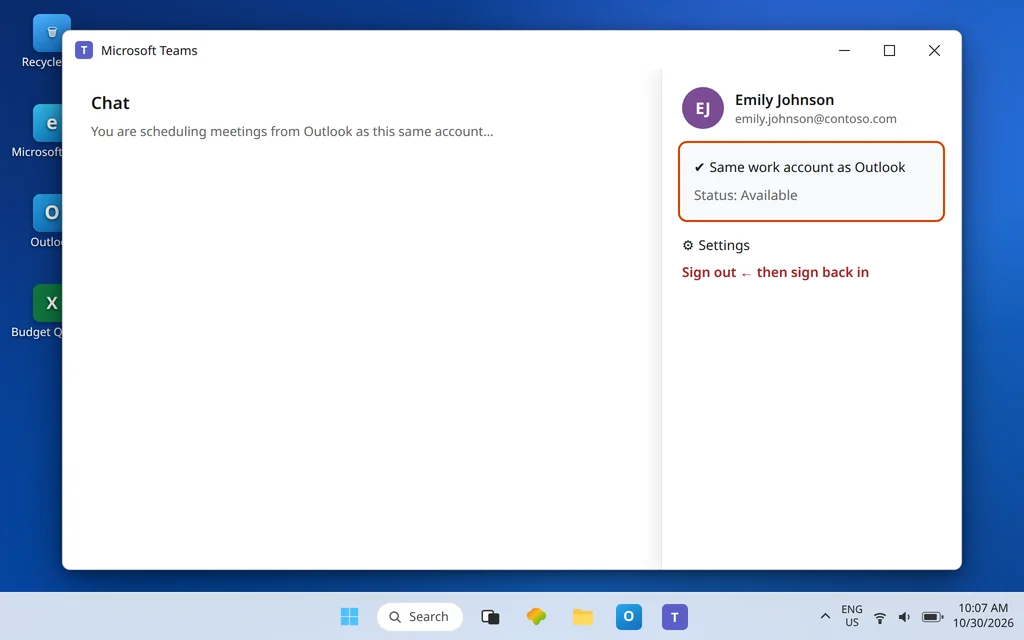
The add-in and the new Outlook integration both depend on Teams being happily signed in before Outlook goes looking for them. Microsoft’s reregistration sequence builds this in, and it fixes a surprising number of “it was there yesterday” cases on its own:
- In Teams, click your profile picture and Sign out.
- Close Outlook completely.
- Start Teams and sign in again with your work or school account. If sign-in itself fails or loops, stop here and fix that first with Microsoft Teams Sign-In Problems — a Teams app that cannot sign in cannot offer Outlook a meeting button.
- Restart Outlook — and make sure Outlook is not running in Administrator mode. Microsoft specifically calls this out: the add-in does not load correctly when Outlook runs elevated, and Teams and Outlook need to run in the same user context.
Fix 6 — Classic Outlook: confirm the basic requirements are actually met
Before reinstalling anything, verify the three prerequisites Microsoft lists for the add-in, because each one produces exactly this symptom:
- Teams desktop client installed. The meeting add-in cannot be installed if you only use the Teams web client. If Teams lives only in your browser, install the desktop app first.
- Outlook 2016 or later. Older Outlook versions are not supported by the add-in.
- Outlook fully updated. Apply all available updates for the Outlook desktop client (File > Office Account > Update Options > Update Now), then restart it.
Fix 7 — Still missing in classic Outlook: reinstall Teams so the add-in registers again
The classic case with a known cause: the button disappeared when you switched from classic Teams to new Teams. Microsoft documents why — uninstalling classic Teams also uninstalls the meeting add-in and removes registry keys the add-in shares across versions, so Outlook starts and finds nothing to load. The repair is to let new Teams install a fresh add-in:
- Quit Teams and close Outlook.
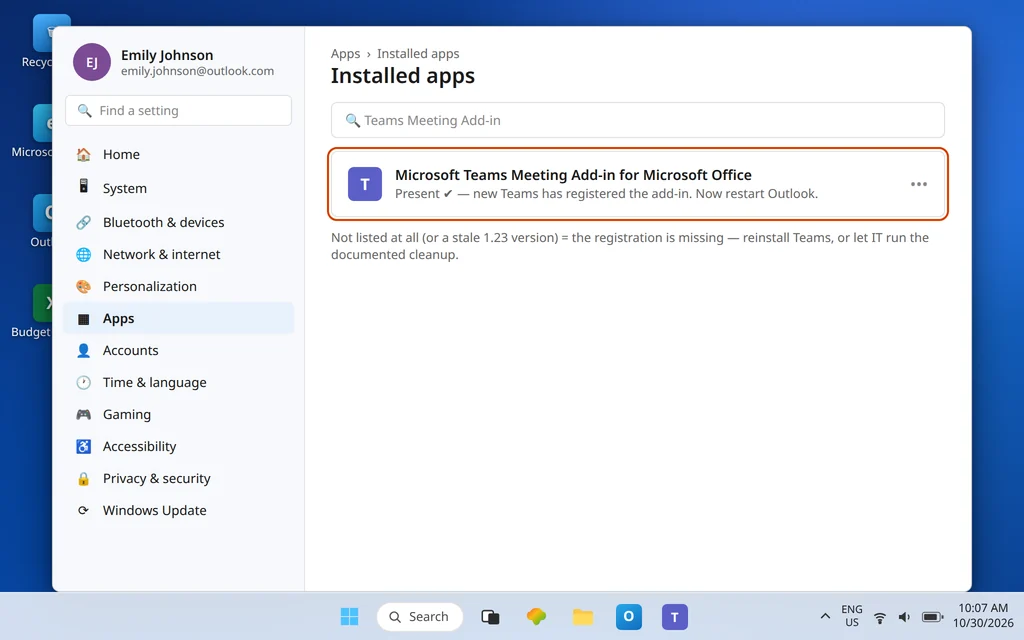
- Check what is currently installed: Start > Settings > Apps > Installed apps, and search for Teams Meeting Add-in. Note whether Microsoft Teams Meeting Add-in for Microsoft Office is listed at all, and its version.
- If it is missing entirely, the cleanest user-level repair is to uninstall Microsoft Teams and reinstall it from Microsoft’s official Teams download page, signing back in afterward. Starting the freshly installed new Teams is what registers the current add-in.
- If an old add-in version is listed (Microsoft flags versions starting with 1.23 as the stale classic-era build), the documented cleanup uses Microsoft’s uninstall scripts for the old add-in, run in PowerShell — best done by, or with, your IT team.
- Start the new Teams app and wait until the Teams Meeting add-in appears in Settings > Apps > Installed apps.
- Restart Outlook and check the Calendar ribbon.
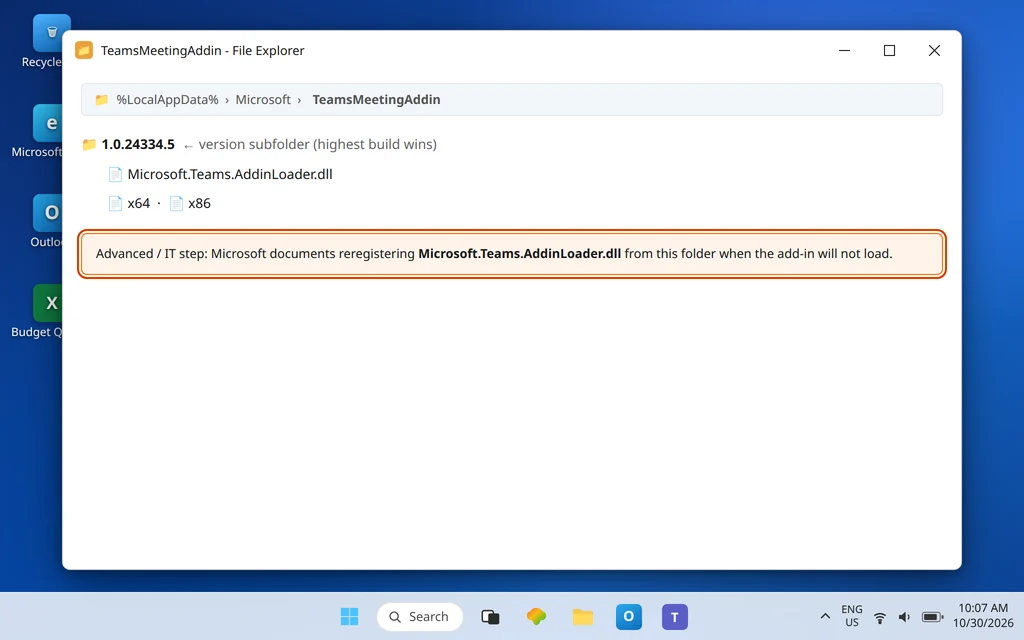
Advanced note, mainly for IT: Microsoft also documents manually reregistering Microsoft.Teams.AddinLoader.dll from the version folder under %LocalAppData%\Microsoft\TeamsMeetingAddin, and checking that LoadBehavior under HKEY_CURRENT_USER\SOFTWARE\Microsoft\Office\Outlook\Addins\TeamsAddin.FastConnect is 3. Back up the registry first, and let IT own registry work on a work PC.
Fix 8 — Missing for everyone, or the button creates empty invites: it is an admin problem
Two patterns are not yours to fix locally, and recognizing them saves you an afternoon:
- Nobody (or a whole team) has the button. Meeting scheduling and the Outlook add-in are controlled by Teams policies assigned to your account. Microsoft provides admins a “Teams Add-in Missing in Outlook” diagnostic (Run Tests) in the Microsoft 365 admin center, and the Microsoft Support and Recovery Assistant, to find tenant or policy configuration problems.
- Meetings schedule, but the join details are missing from the invite body (no link, ID, or dial-in numbers), especially for meetings a delegate books for someone else. Microsoft documents one specific cause: the meeting organizer’s mailbox is hidden from the Global Address List (GAL), so the add-in cannot fetch the details to fill in. That is an Exchange admin fix, not an Outlook setting.
Send IT one message with everything they need: “The Teams Meeting button is missing in Outlook [classic/new — say which]. The add-in [does not appear / appears disabled] under File > Options > Add-ins, I am signed into Teams and Outlook with the same work account, and Teams is the new client. Please check the meeting policy assigned to me and run the Teams Add-in Missing in Outlook diagnostic.”
Confirm it worked
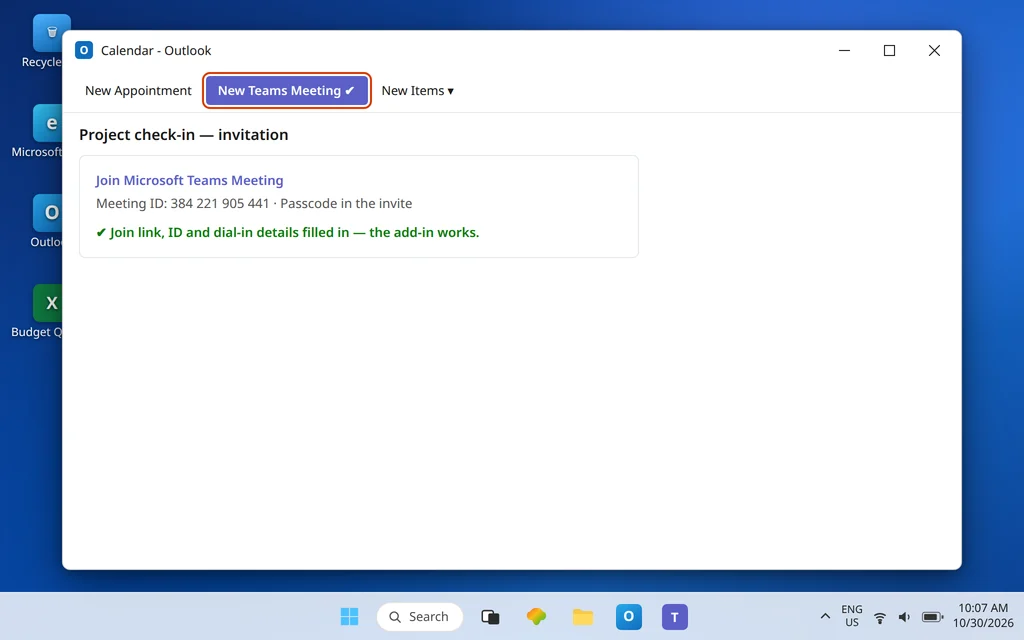
Create a brand-new calendar event — always test on a new event, never an old one. In classic Outlook the New Teams Meeting button is back on the Calendar ribbon (or the Teams Meeting button inside the event); in new Outlook the Teams meeting toggle appears in the event window. Turn it on, send the invite to yourself or a colleague, and open the received invite: it should contain the Join link, meeting ID, and dial-in details filled in. Schedule one more meeting after a full PC restart to confirm the button survives a reboot — an add-in that vanishes again on restart is the Fix 7 registration problem, not a fixed one.
How to stop it happening again
- Expect the button to wobble after a Teams switch or a big update. The classic-to-new Teams move is the documented add-in killer; after any Teams reinstall or upgrade, check the Outlook ribbon once before you need it in a hurry.
- Keep the sign-in order habit. When things feel off, quit both apps, start Teams first, sign in, then start Outlook. That order is what the integration expects.
- Never run Outlook as Administrator day to day. An elevated Outlook and a normal Teams cannot see each other properly, and the button pays for it.
Frequently asked questions
Why is the Teams meeting button missing in Outlook?
It depends on your Outlook. In classic Outlook, the COM add-in (Microsoft Teams Meeting Add-in for Microsoft Office) is disabled, sitting in Disabled Items, damaged, or was uninstalled along with classic Teams. In the new Outlook, there is no add-in — the built-in Teams meeting toggle disappears when you are not signed into both apps with the same work or school account, or when you are not using the new Teams client.
How do I enable the Microsoft Teams Meeting Add-in for Microsoft Office?
In classic Outlook: File > Options > Add-ins, set Manage to COM Add-ins, click Go, check Microsoft Teams Meeting Add-in for Microsoft Office, click OK on all dialogs, and restart Outlook. If it is listed under Disabled Items instead, use Manage > Disabled Items > Go and enable it there as well.
Does the new Outlook need the Teams add-in installed?
No. Microsoft has integrated the Teams meeting capability into new Outlook — the event window has a built-in Teams meeting toggle and there is no separate add-in to install. What new Outlook does need is the same work or school account signed into both new Outlook and the new Teams client.
Why did the add-in disappear when I switched to new Teams?
Because uninstalling classic Teams uninstalls the meeting add-in too, and removes registry keys shared by all add-in versions — so Outlook then has nothing to load. Starting (or reinstalling) the new Teams client installs the current add-in; check Settings > Apps > Installed apps for “Microsoft Teams Meeting Add-in for Microsoft Office” to confirm it is back, then restart Outlook.
Do Teams and Outlook have to use the same account?
Yes — for the new Outlook toggle it is an explicit Microsoft requirement, and for classic Outlook the add-in signs in through Teams, so a Teams app signed into a different account (or a personal account, which the add-in does not support) leaves Outlook with nothing to connect to. Sign out of Teams, sign in with the same work or school account as Outlook, and restart Outlook afterward.
The button is back, but my meetings do not sync between Teams and Outlook. Is that this problem?
No — once the button schedules meetings again, this add-in problem is solved. Meetings that then fail to appear in the other app’s calendar are a calendar sync issue with a different fix list; see Microsoft Teams Calendar Not Syncing with Outlook.
Still no button? Contact us at servicedesk@howtofixerroronline.com or through our Contact page and tell us whether you use classic or new Outlook, what you see under File > Options > Add-ins (classic) or in the event window (new), and which account is signed into Teams. We will never ask for your password.