
Microsoft Teams Live Captions Not Working in Meetings
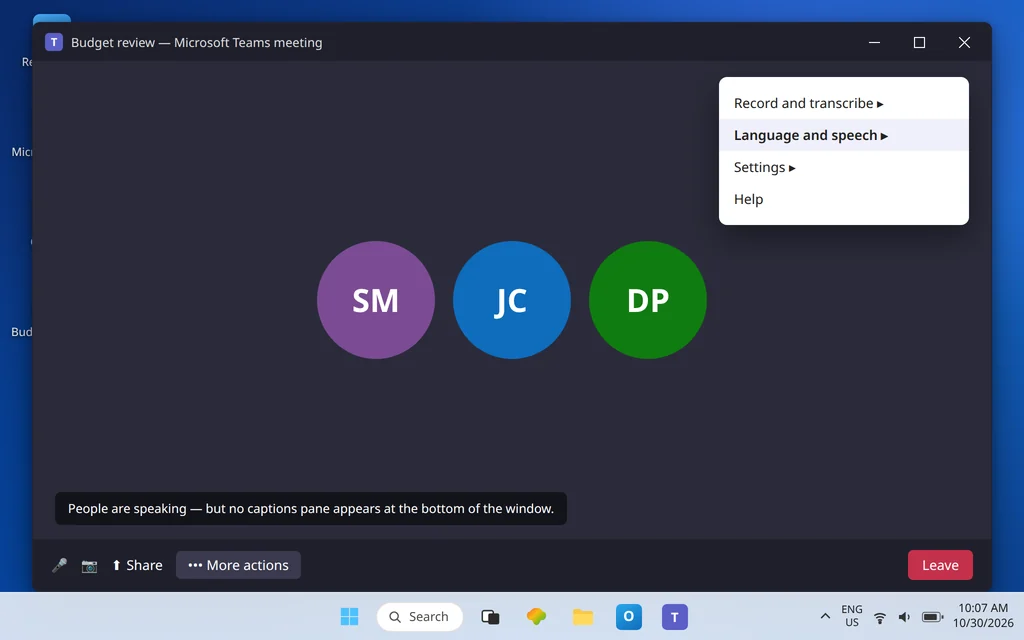
You join the meeting, go to turn on live captions — and either the option is not where the help page said it would be, it is greyed out, or the captions pane opens and then sits there, empty, while people are clearly talking. For anyone who relies on captions to follow a meeting — a noisy room, a hearing difficulty, an unfamiliar accent — a captions feature that silently does nothing is worse than one that admits it is off.
Quick Answer: In the meeting, select More actions (…) > Language and speech > Turn on live captions (on current builds the same control appears as More actions > Captions). Then open the caption settings and set the Meeting spoken language to the language people are actually speaking — a mismatch is the main reason the pane stays empty or garbled. If the option is missing entirely, your admin meeting policy is the likely cause: live captions are controlled per user by the LiveCaptionsEnabledType policy, whose default lets users turn captions on, but which an admin can set to Off. Captions show nothing despite all that? Check the audio layer — captions can only caption sound that actually arrives.
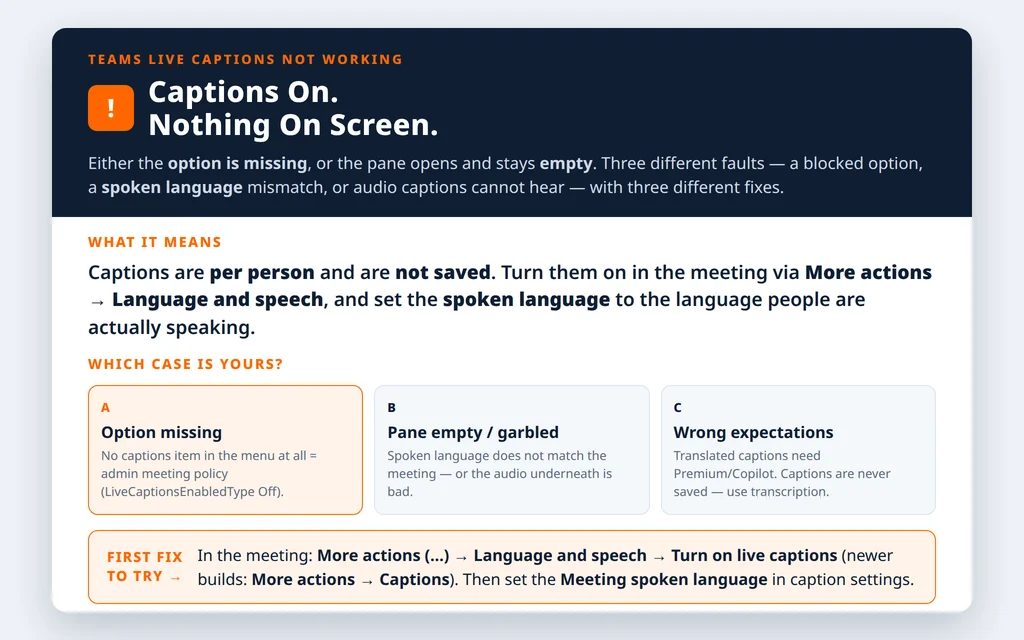
Table of Contents
Fix 1 — Turn captions on with the menu path your build actually shows
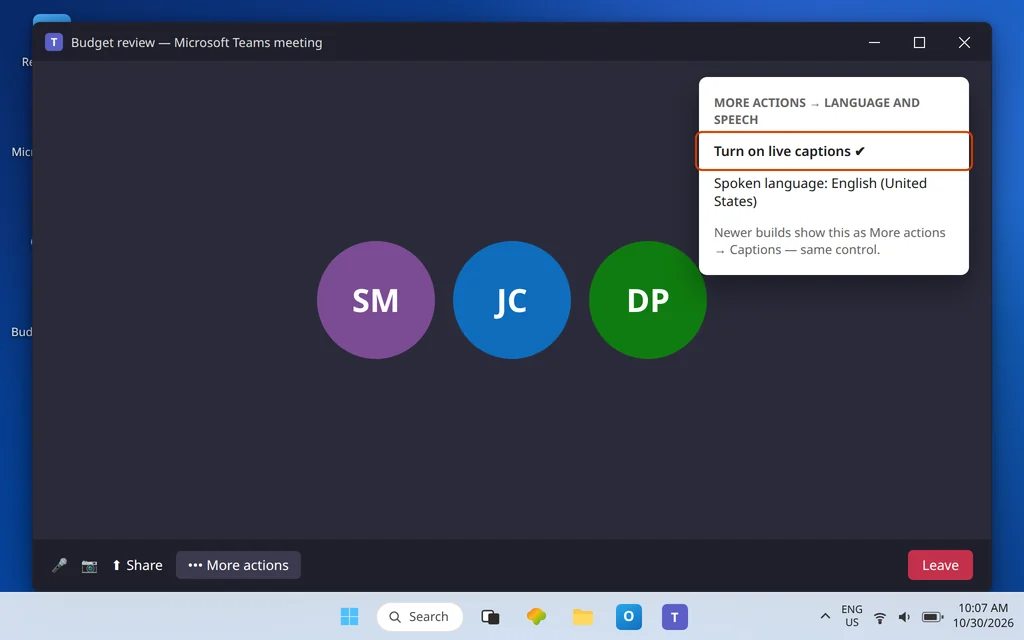
Captions are switched on inside the meeting, from the meeting controls — there is no general Teams setting that pre-enables them for the desktop work app, and nothing to configure before you join. Microsoft’s current Support wording and the long-standing menu differ slightly between builds, so look for either of these:
- Join the meeting and select More actions (…) in the meeting controls.
- Select Language and speech > Turn on live captions — on builds with the newer menu, select Captions directly instead. Both do the same thing: the captions pane opens at the bottom of the meeting window, visible only to you.
- To turn them off again, return to the same menu and select Turn off live captions (or Hide live captions).
If the menu item is present and the pane opens, you are in Case B — go to Fix 2. If there is no captions item in the menu at all, note that fact carefully; it is the signature of Fix 4, and reinstalling the app will not change it.
Fix 2 — Match the spoken language to the language actually being spoken
This is the most under-diagnosed captions fault. Teams captions speech in the meeting’s spoken language — if that is set to a language different from the one people are speaking, Teams has to guess, and the visible result is an empty pane, long silences, or confidently wrong text. Microsoft’s guidance is explicit: set the meeting’s spoken language to the language people are speaking, for accurate captions.
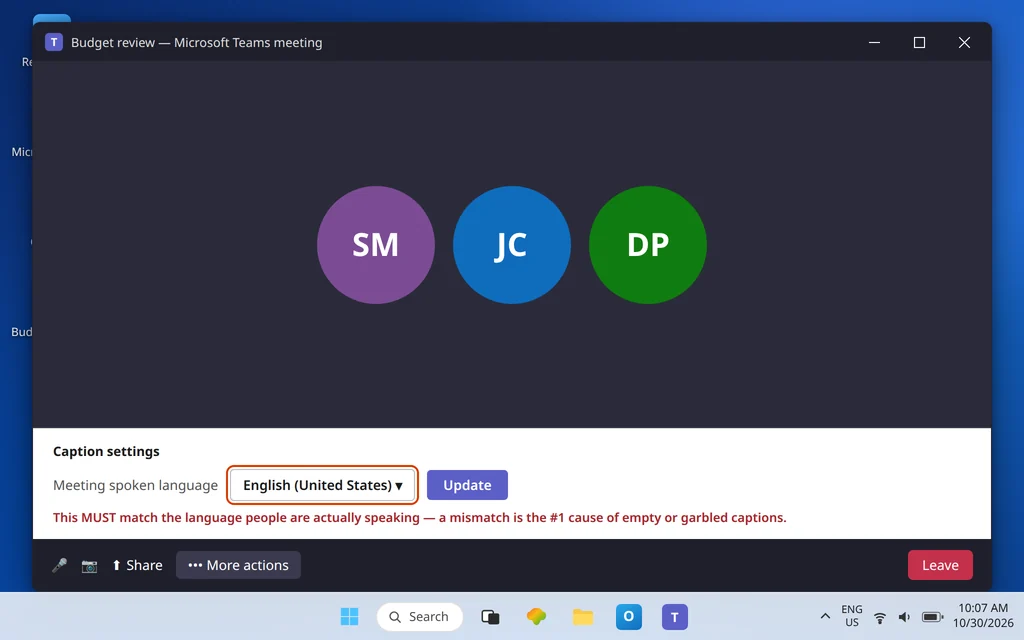
- With captions on, hover over the captions pane and select Open caption settings (the gear/settings icon on the pane).
- Find Meeting spoken language and select the language everyone is actually speaking — for example, English (United States).
- Select Update to apply it.
Two details worth knowing: Teams can detect a mismatch and prompt the organizer or co-organizer (or whoever started transcription) to update the spoken language — if that prompt appears, accept it. And changing the spoken language is a meeting-level setting, not a personal one, which is why Microsoft restricts who can change it while transcription is running. If your meetings genuinely switch languages mid-call, expect to update this setting when the language changes; captions will not follow the switch on their own in a standard meeting.
Fix 3 — Pane open, still nothing: fix the audio the captions are listening to
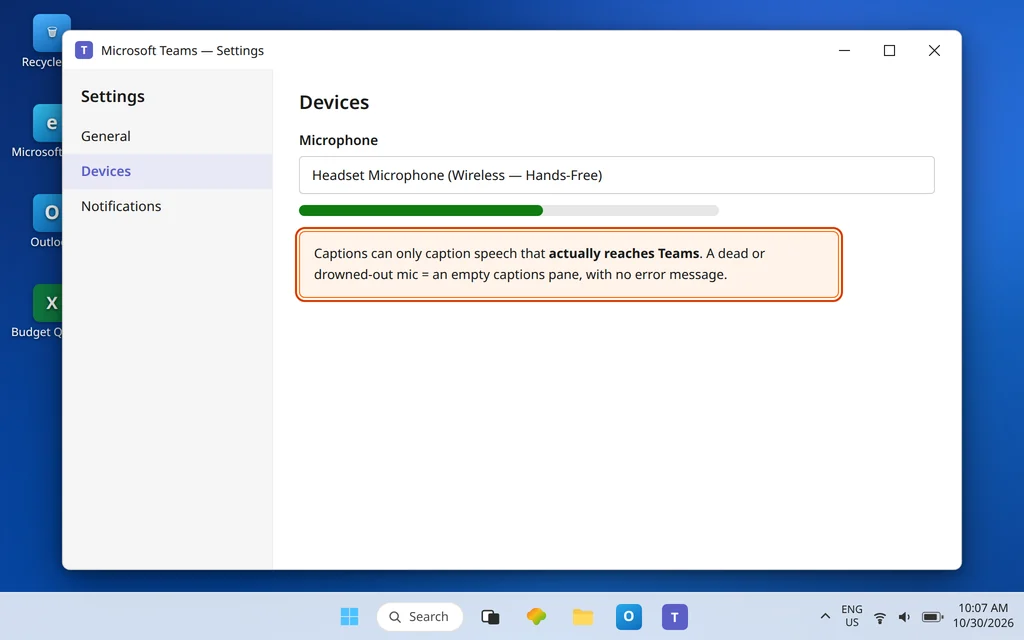
Captions are a speech-to-text layer on top of the meeting audio. If the audio arriving at Teams is silent, muffled, or drowned out, the captions pane has nothing to work with — and it fails quietly instead of telling you the microphone is the problem. Microsoft’s own accuracy guidance for captions is an audio checklist: speak clearly, slowly, and directly into the mic; avoid background noise; avoid multiple people speaking at once; use the best Teams-certified equipment available.
Work it in this order:
- Confirm anyone’s voice is arriving at all. If you cannot hear the meeting either, captions are a symptom, not the disease — fix the sound first with Microsoft Teams Audio Not Working.
- Check the speaker whose words are missing. Captions caption what Teams receives. If one participant’s microphone is sending nothing, their speech will never appear as text — that person’s fix is in Microsoft Teams Microphone Not Working.
- Reduce the noise floor. Move closer to the microphone, mute when not speaking, and avoid two people talking over each other — overlapping speech is where caption accuracy falls apart fastest.
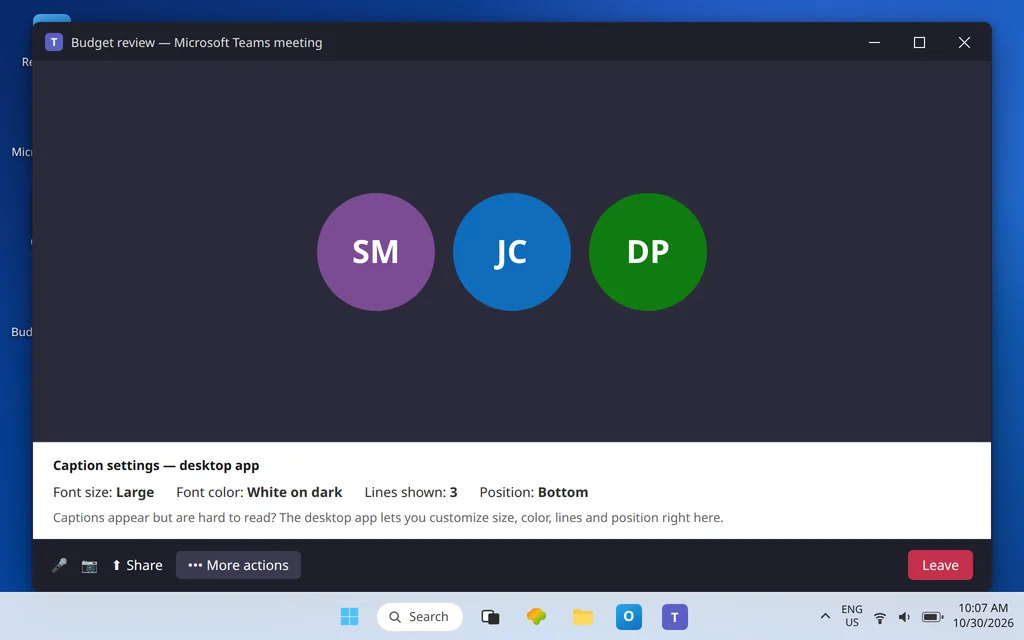
- While you are in the caption settings from Fix 2, also use the customization the desktop app offers — font size and color, number of lines shown, and pane position — if your real complaint is that captions appear but are too small or scroll away too fast to read.
Fix 4 — Option missing entirely: it is the admin live captions policy
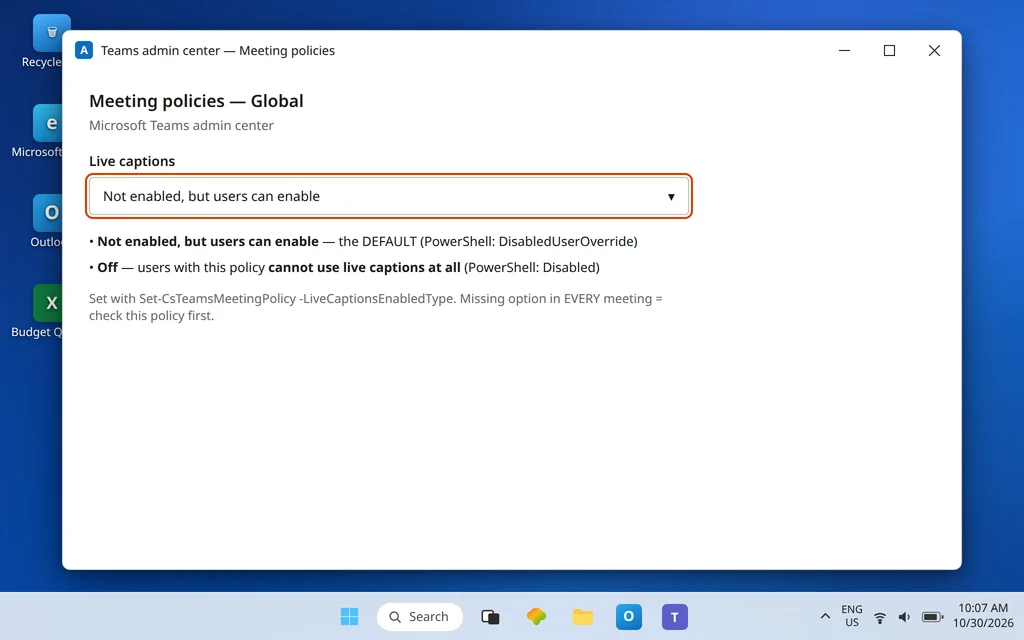
If the captions item does not exist in your meeting controls — in every meeting, not just one — stop troubleshooting your PC. Microsoft controls live captions through a per-user Teams meeting policy, and the values explain every version of this symptom:
- “Not enabled, but users can enable” (PowerShell value
DisabledUserOverride) — this is the default. Captions start off, but any user with this policy can turn them on in a meeting. - “Off” (PowerShell value
Disabled) — users with this policy cannot use live captions at all. The option is unavailable to them, whatever client they use.
Admins set this in the Teams admin center meeting policies, or with Set-CsTeamsMeetingPolicy -LiveCaptionsEnabledType. So the test that proves it: captions missing for you in every meeting, on desktop and on the web (Fix 6), while a colleague in a different department has them — that is a policy assignment difference, not an app fault. What to send IT: “Live captions are not available to me in any Teams meeting — the option does not appear under More actions. Please check the Live captions setting (LiveCaptionsEnabledType) in the meeting policy assigned to my account; the default ‘Not enabled, but users can enable’ is what I need.”
Fix 5 — Set expectations honestly: translated captions, saving, and licenses
Three disappointments that are actually the product working as documented:
- Captions in a different language than the one spoken are live translated captions, and those are a Teams Premium or Microsoft 365 Copilot feature. If the meeting organizer holds that license, all participants can use translated captions; otherwise, only individually licensed participants see the translate option. Plain live captions in the spoken language itself are not a Premium feature — do not let anyone sell you a license to fix a missing on/off option; that is Fix 4’s policy, not licensing.
- Captions are not saved. Microsoft states it plainly: Teams doesn’t save captions, and caption data is permanently deleted after the meeting ends. If you need a written record afterward, someone must turn on transcription during the meeting (which produces a downloadable transcript) — switching captions on alone leaves nothing behind.
- Captions are processed in your organization’s region. Microsoft’s caption FAQ notes the data is processed in the geographical region where your organization is based, with no human access to the audio. If captions are unavailable across an entire organization in a way policy does not explain, that is an IT/Microsoft support question — this guide will not invent a regional availability list Microsoft has not published for your tenant.
Fix 6 — Isolate with the web app, and restart cleanly
Before escalating, run the standard isolation test, because it cleanly separates “your app” from “your account”:
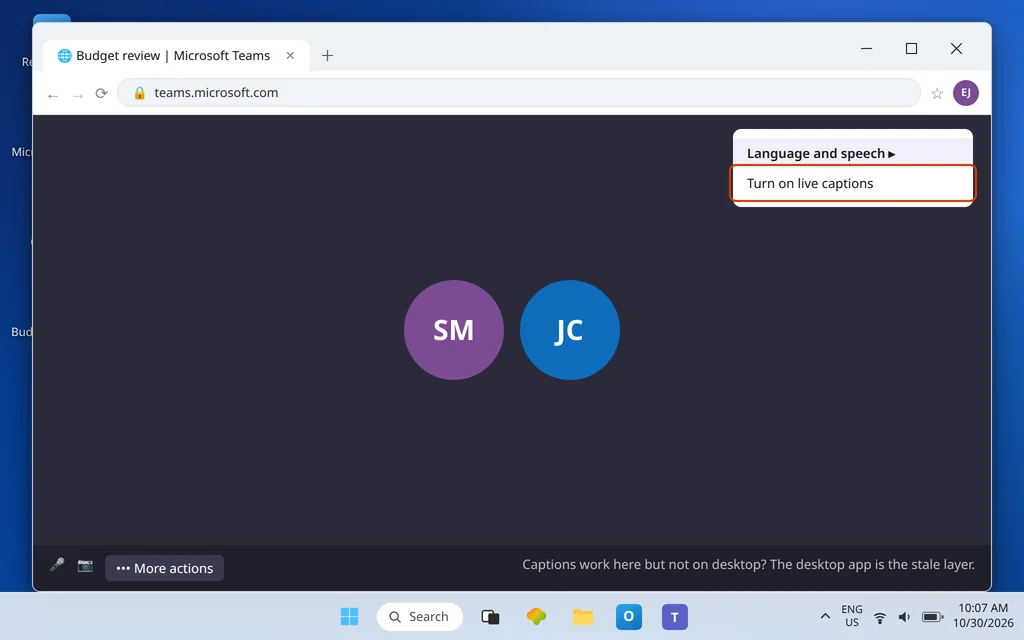
- Join a test meeting at teams.microsoft.com in your browser and try More actions > Language and speech > Turn on live captions there.
- Captions work on the web but not on the desktop: your account and policy are fine; the desktop app is the stale layer. Fully quit Teams (taskbar icon > Quit), reopen it, and test again; if it persists, update Teams and, as a last local step, reset the app (Settings > Apps > Installed apps > Microsoft Teams > More options (…) > Advanced options > Reset).
- Captions are missing in both: that points back to the meeting itself or to your assigned policy — Fix 4 is your route, with the web result as evidence for IT (“missing on desktop and web alike”).
Confirm it worked
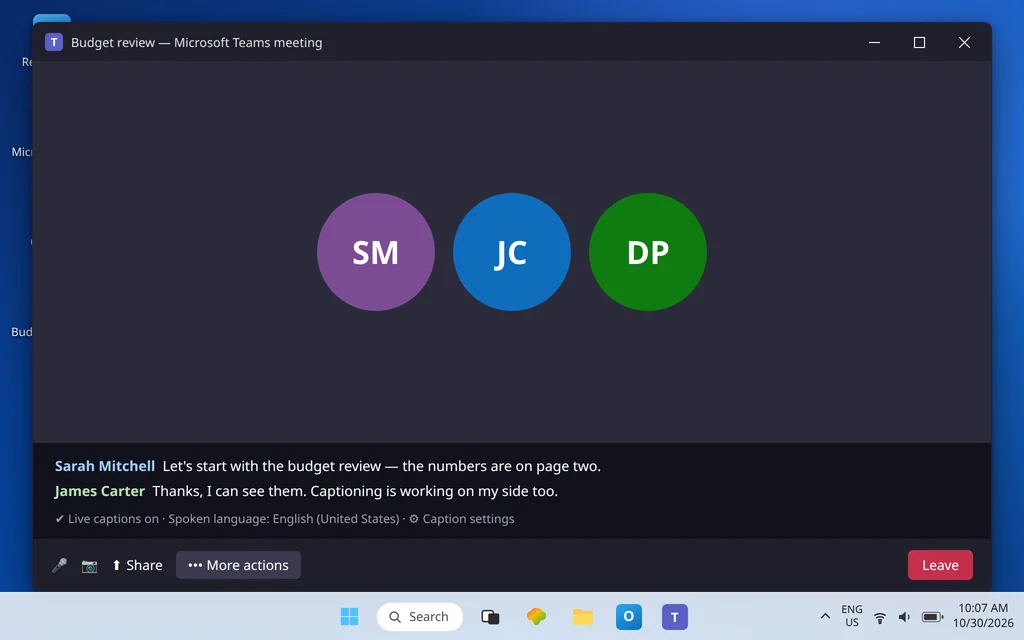
Start or join a short test meeting with a colleague. Turn captions on from the meeting controls, confirm the pane appears, and have your colleague speak two or three clear sentences — their name should appear as speaker attribution alongside readable text in the language you set in Fix 2. Then speak yourself and confirm your own words are captioned too. Finally, leave and rejoin a different meeting and turn captions on again: captions are per-meeting and per-person, so needing to switch them on each time is normal behavior, not a relapse.
How to stop it happening again
- Set the spoken language at the start of recurring meetings. Organizers: the two minutes spent confirming the spoken language when a series begins saves every attendee a broken-captions meeting later.
- Brief your regular speakers. Captions reward clear, close, one-at-a-time speech. The same habits that make captions accurate make the meeting easier for everyone.
- Know your policy before you need captions. If your role regularly needs captions, confirm with IT once that your meeting policy allows them — finding out mid-meeting that your policy says Off helps nobody.
Frequently asked questions
How do I turn on live captions in a Teams meeting?
From inside the meeting: select More actions (…) > Language and speech > Turn on live captions. On builds with the newer menu, the same control is More actions > Captions. Captions appear in a pane at the bottom of the meeting window and are visible only to you — each participant turns on their own.
Why is the live captions option missing in my meeting?
Most likely your admin meeting policy. Live captions are controlled per user by the policy setting LiveCaptionsEnabledType: the default (“Not enabled, but users can enable”) lets you switch captions on, while “Off” removes the ability entirely. If the option is missing in every meeting and on the web as well as the desktop, ask IT to check the meeting policy assigned to your account.
Why do my captions show nothing, or the wrong words?
Check the spoken language first: open the caption settings and set Meeting spoken language to the language actually being spoken — a mismatch produces empty or garbled captions. After that, treat it as an audio problem: captions can only transcribe speech that reaches Teams clearly, so microphone problems, background noise, and people talking over each other all show up as bad captions.
Do I need Teams Premium for live captions?
Not for standard live captions in the language being spoken — those are governed by your meeting policy, not by Premium. Teams Premium (or Microsoft 365 Copilot) is needed for live translated captions — captions translated into a different language. If the organizer has that license, everyone in the meeting can use translated captions; otherwise only licensed participants can.
Are live captions saved after the meeting?
No. Microsoft does not save caption data — it is permanently deleted when the meeting ends. If you need a written record, turn on transcription during the meeting instead (or as well); the transcript is what you can download afterward. Captions and transcription are separate features that happen to use the same speech engine.
Why are my captions in the wrong language?
The meeting’s spoken language setting does not match the language being spoken. Open the captions pane’s settings and change Meeting spoken language to the correct language, then select Update. Teams can detect a mismatch and prompt the organizer to fix it — accept that prompt when it appears. Seeing captions translated into your preferred language is a different feature (live translated captions) and needs the Premium/Copilot licensing described in Fix 5.
Captions still refusing to cooperate? Contact us at servicedesk@howtofixerroronline.com or through our Contact page and tell us whether the option is missing or the pane opens empty, what the spoken language is set to, and whether captions work for you on the web. We will never ask for your password.