
Microsoft Teams Search Not Working — Can’t Find Chats or Files
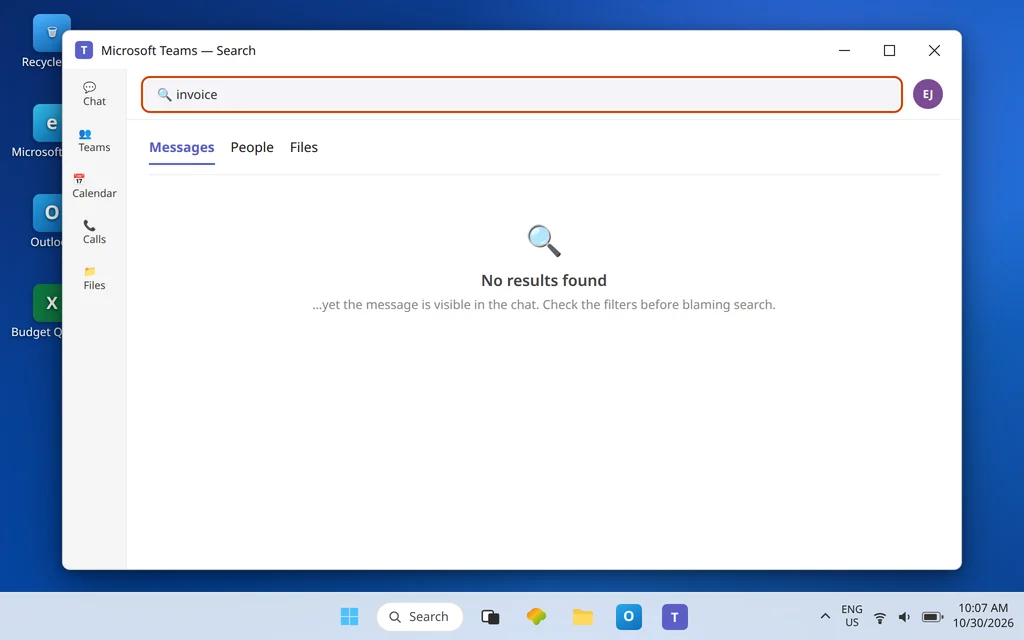
You can see the message. It is in the chat, a few scrolls up — a number a colleague sent last week, the file name you half-remember, the person you message every day. You type it into the search box at the top of Microsoft Teams and get: No results found.
This guide is strictly about search inside Teams: finding chats, messages, people, and files that live in Teams. It does not cover Outlook search or Windows search — those are different systems with different fixes. Inside Teams, “search is broken” usually turns out to be one of four quieter things: a filter you forgot is switched on, the wrong search scope, a search typed in a way Teams cannot match, or — least often — a genuinely stuck desktop app. The fixes go in that order, because the first three take seconds and the fourth one should be earned by the tests before it.
Quick Answer: Press Enter after typing to open the full results page, then check the filter row: select All results first, and clear any From / Type / Date filters that are still active — a leftover filter is the number one cause of “no results.” Next, match the scope to the job: Ctrl + F searches inside the one chat or channel you are looking at, the top search box searches all of Teams, and /goto jumps straight to a chat or channel by name. If a word-for-word search still finds nothing on desktop, try the same search at teams.microsoft.com — that tells you whether search itself or only your app is at fault.
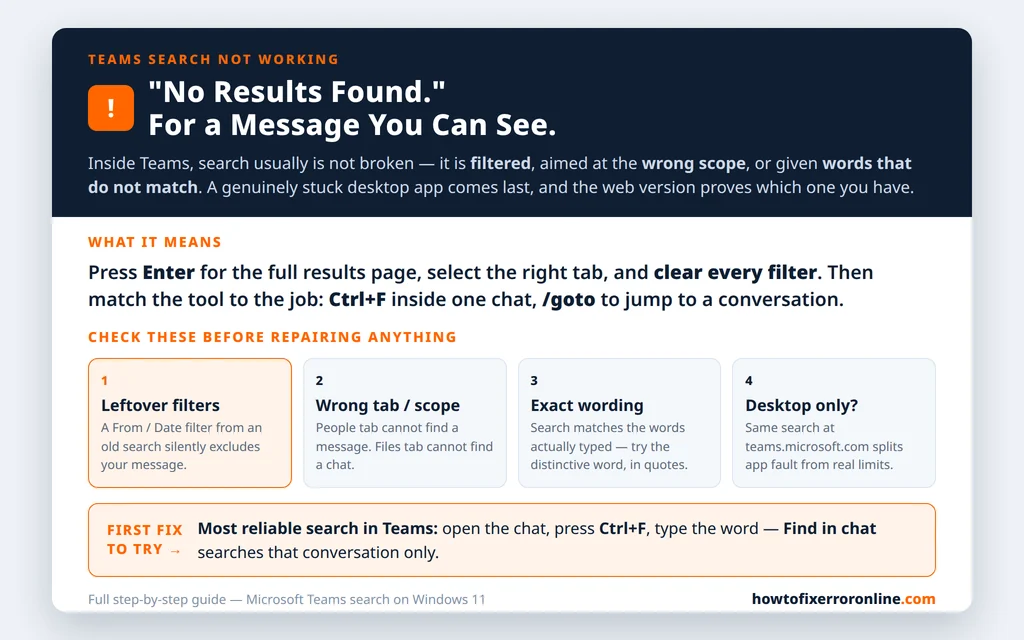
Table of Contents
Fix 1 — Open the full results page and clear the filters
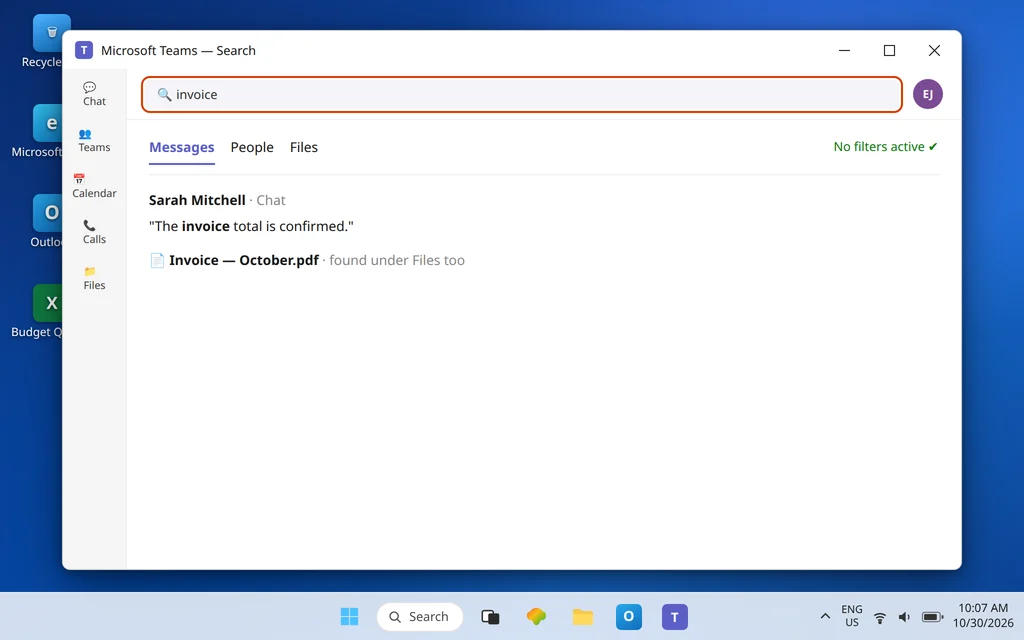
Quick suggestions under the search box are only a preview. The real search happens on the results page:
- Type your word in the search box at the top of Teams and press Enter.
- On the results page, look at which tab is selected — Messages, People, or Files. If you are on People, a message search will quite correctly find nothing. Start on the combined view, or pick the tab that matches what you are hunting.
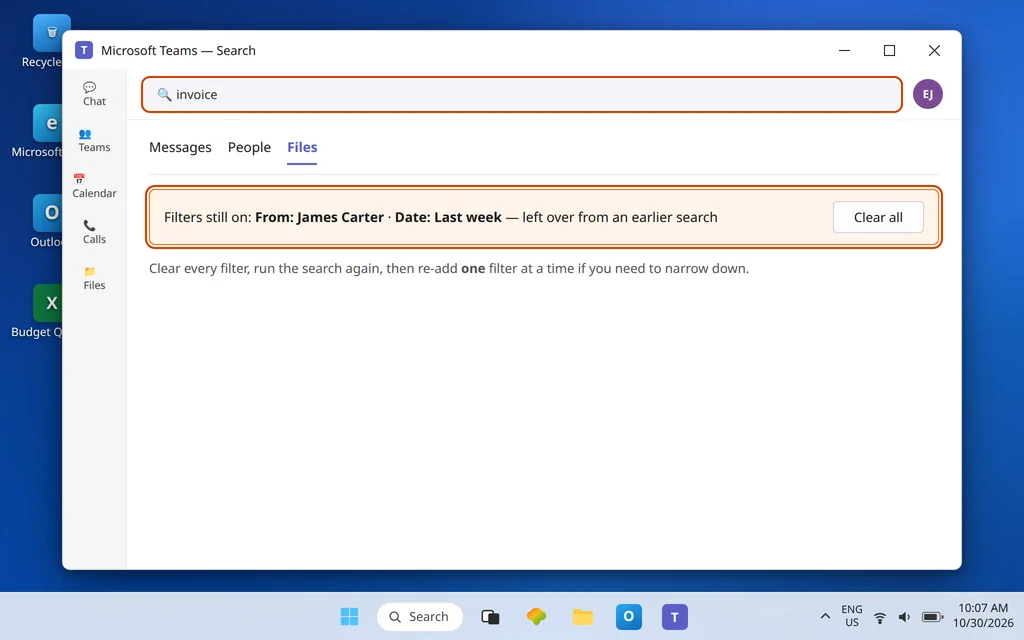
- Look for active filters — From, Type, Date, team or channel limits — and clear them all. Filters persist between searches more often than people realize, and a date filter from last Tuesday silently excludes the message from last month.
- Run the search again with no filters. If the message appears, your search was never broken — it was filtered. Re-add one filter at a time if you need to narrow down.
Microsoft’s own search guidance is built around exactly these tabs and filters, which is why this fix comes first: most “broken search” reports die right here.
Fix 2 — Search in the right place: Ctrl+F, /goto, and the Shared tab
Teams gives you three different search tools, and using the wrong one looks exactly like search being broken:
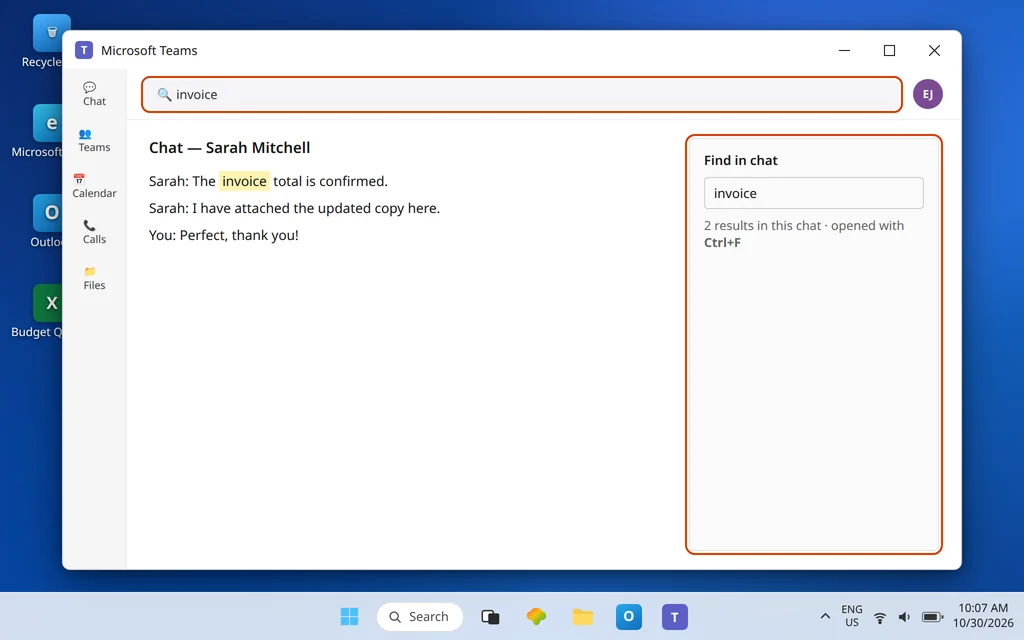
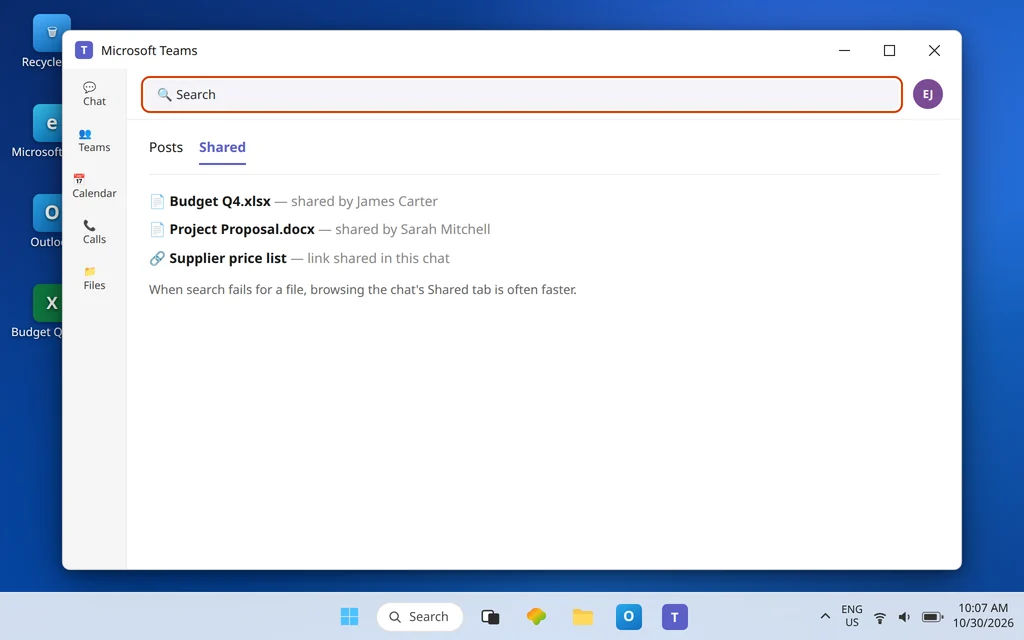
- Search inside one chat or channel — Ctrl + F. Open the chat or channel, press Ctrl + F (cmd + F on a Mac), type your word, and press Enter or Go. Results appear in Find in chat on the right. If you know the conversation a message lives in, this is the most reliable search Teams has — use it before concluding anything is broken.
- Jump to a chat or channel — /goto. Click the search box, type /, select /goto, and type the name of the chat, channel, or person. This goes straight there instead of “searching” — ideal when search will not find a conversation, as opposed to a word inside one.
- Find a file by browsing — the Shared tab. Open the chat or channel and open its Shared tab, which lists the files, links, and media shared there. When search fails for a file, browsing Shared is often faster than fighting the search box — and if the file is not in Shared either, it was never shared in that conversation.
Fix 3 — Fix the wording: exact words, quotes, and simple operators
Teams search matches words as they were actually written. Before blaming the index, tighten the query:
- Use a distinctive word, not a phrase from memory. Search for the unusual word — an order number, a surname, “invoice” — rather than a whole sentence you think someone wrote. Memory edits sentences; search does not.
- Check spelling against the message, not against the dictionary. If your colleague typed “reciept,” searching “receipt” may miss it. Try the two or three most likely spellings as separate searches.
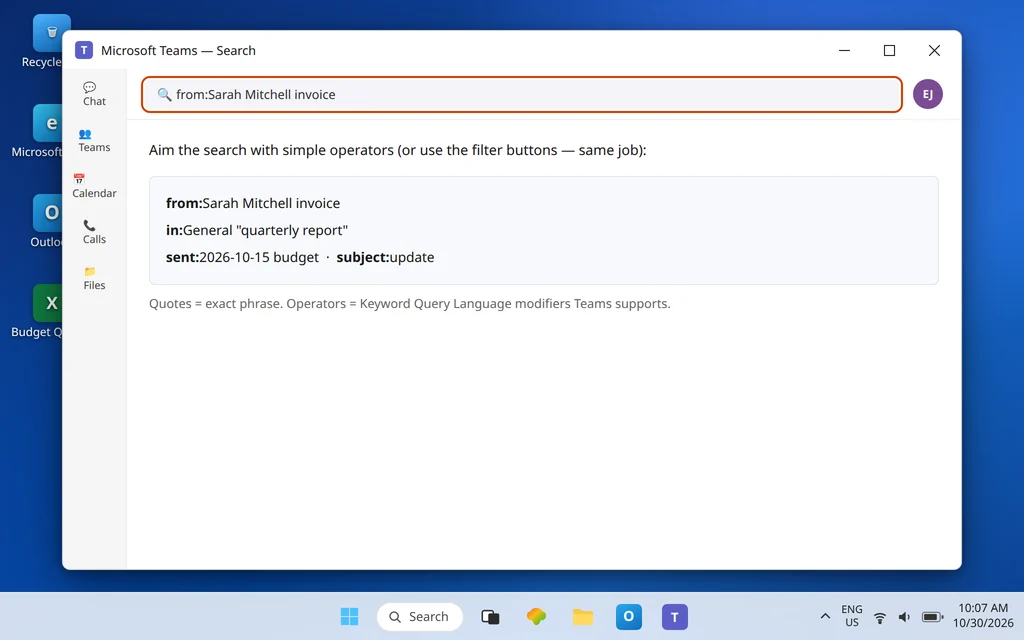
- Use quotes for an exact phrase:
"quarterly report"finds that phrase in that order. - Use Teams’ supported search modifiers (Keyword Query Language) to aim the search:
from:Sarah Mitchelllimits to one sender,in:limits to a named channel or group chat,subject:matches a channel post’s subject, andsent:limits by date. Example:from:Sarah Mitchell invoicefinds her messages containing “invoice” — and if you prefer clicking to typing, the filter buttons on the results page do the same job.
If an exact phrase in quotes, copied from a message you can see on screen, returns nothing on the full results page with no filters on, that is real evidence — move on to the platform tests.
Fix 4 — Test search on Teams on the web
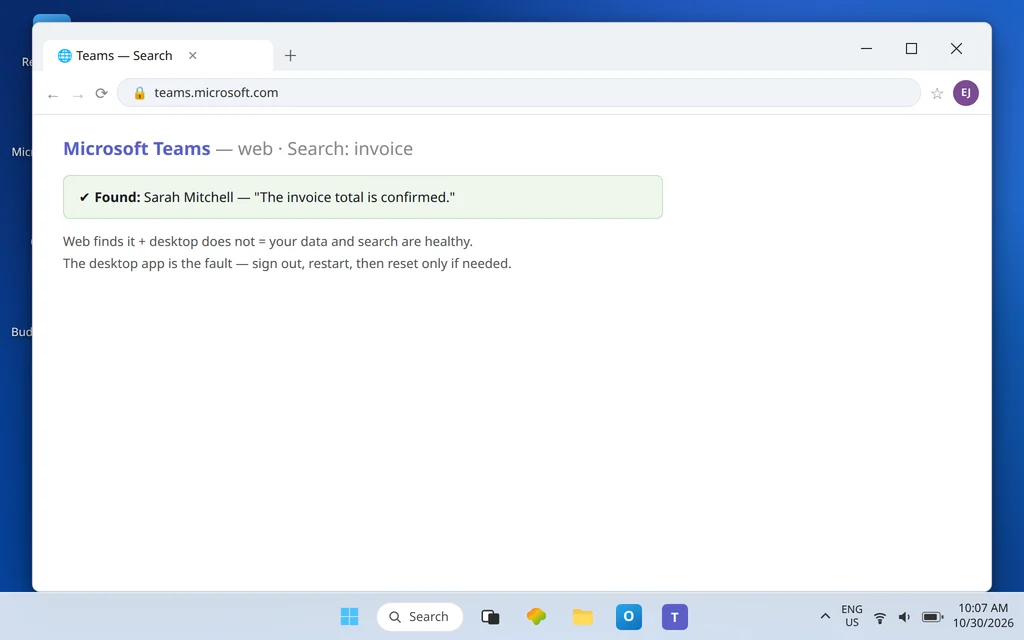
Open teams.microsoft.com, sign in, and run the identical search — same word, no filters:
- Web search finds it, desktop search does not: search itself and your data are healthy. The fault is your desktop app — go to Fixes 6 and 7.
- Web search also finds nothing: the problem is not your PC. Re-check Fixes 1–3 carefully, then consider the limits in Fix 5 before touching any app settings. Do not reinstall a desktop app for a problem the web version shares.
This test matters more for search than for most Teams problems, because of an honest warning from Microsoft covered in Fix 7: the popular “clear the cache” advice is not Microsoft’s recommendation for missing messages — so earn that step with this test first.
Fix 5 — Accept the real limits: access, deleted content, and the wrong account
Some “not found” results are search working exactly as designed:
- You can only find what you can open. Search will not surface messages from private channels you are not a member of, chats you are not in, or files you have no permission for — even if you know they exist. If a file falls in this category, the owner has to share it; no search setting overrides access.
- Deleted is deleted. A message or file that was deleted, or a conversation you left and lost access to, will not come back in results.
- Check the account in the corner. If you have a work account and a personal account, search only covers the one you are signed in with. Emily Johnson searching her personal account will never find her @contoso.com work chats — confirm the profile shown at the top of Teams is the account that actually holds the conversation before troubleshooting further.
Fix 6 — Sign out, restart, and update Teams
For a desktop-only search fault, refresh the session before reaching for heavier tools:
- Click your profile picture and choose Sign out. Quit Teams fully from the notification area icon, reopen it, and sign back in. A fresh session forces Teams to re-sync your chats, which is what search runs against on the desktop.
- Avoid switching networks mid-test, and give Teams a few minutes after signing in before judging search — a just-signed-in app is still pulling your history down.
- Make sure Teams is current: if your version offers it, use the profile menu’s update check, or update/repair the app through your normal IT channel. Search behavior is one of the areas Microsoft changes between versions, and an old build can lag behind the service.
Fix 7 — Reset the app — last, and only if the web test pointed here
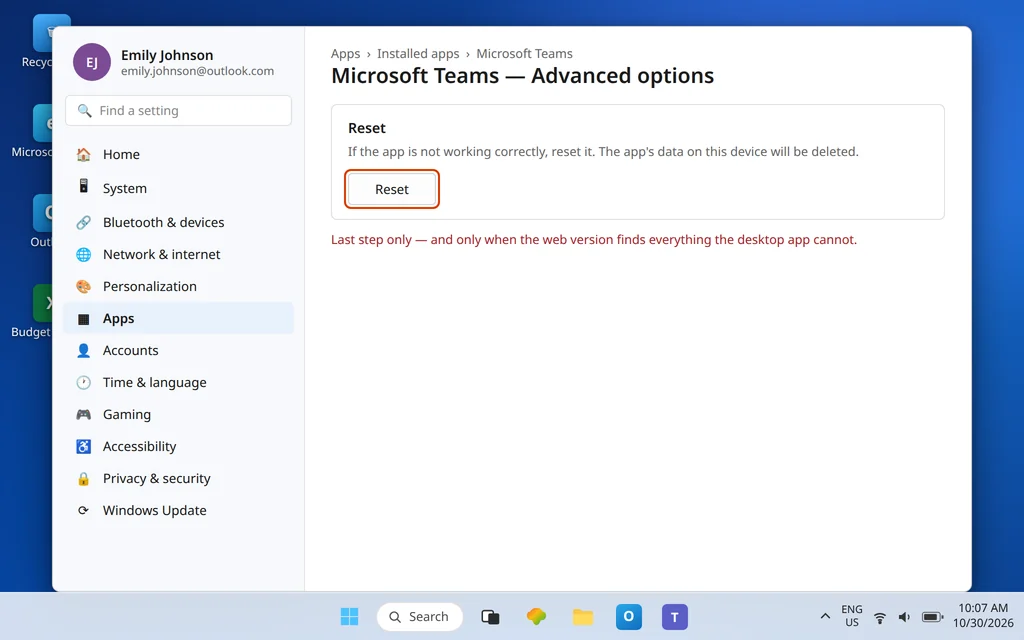
If, and only if, the web version finds everything and the desktop app still finds nothing after sign-out, a reset rebuilds the desktop app’s local state:
- Open Settings > Apps > Installed apps, find Microsoft Teams, select … > Advanced options.
- Select Reset, then reopen Teams and sign in.
Be straight about what this can and cannot do. Microsoft’s own cache guidance warns that clearing the Teams cache is not recommended for missing messages or chat history that will not load, because it does not fix those problems and it removes the diagnostic logs support would need. That is why the manual cache-folder route is deliberately not presented here as a search cure: if your chats themselves are missing, the reset above is the cleaner supported step, and a work account with still-missing results after it belongs with your IT admin or Microsoft support — with the logs intact. If instead the file is found but will not open, that is a different problem: Microsoft Teams Files Not Opening.
Fix 8 — If search hangs instead of answering, check the connection
One pattern does not belong to search at all: the search box spins forever, results never load, and chats are stale too. Search runs against data Teams pulls from the service, so a Teams that cannot connect cannot search. If other parts of Teams are also stuck loading, fix the connection first with Microsoft Teams Stuck on Connecting, then retest search before changing anything else in this guide.
Confirm it worked
Run three searches you know the answer to: a distinctive word from a recent message (top search box, no filters), the same word with Ctrl + F inside its chat, and a file name on the Files tab. All three should return the item you expected. Then try the search that originally failed — if it works now, note which fix did it; if it still fails and fails identically on the web, you have solid evidence the content is deleted, out of your access, or an admin-side issue, and it is time to involve the file’s owner or your IT admin rather than your own settings.
How to stop it happening again
- Clear filters as a reflex. Finished a filtered search? Clear it before closing the results page, so Future You does not inherit it.
- Learn Ctrl + F and /goto. Half of all “search is broken” moments are just “wrong search tool.” In-conversation search and /goto are faster than global search for most real lookups.
- Name files like search terms. Files named with the words people will actually type — client, topic, date — are files search can find. “Document1” is unfindable by design.
Frequently asked questions
Why does Teams search say no results for something I can see?
Usually a leftover filter on the results page, the wrong tab (People vs Messages vs Files), or a search phrase that does not match the exact words in the message. Clear all filters, select the right tab, press Ctrl + F inside the conversation where you saw it, and compare — that sequence separates a settings quirk from a genuine fault in about a minute.
How do I search inside one chat or channel in Teams?
Open the chat or channel and press Ctrl + F (cmd + F on a Mac). Type your term, press Enter or Go, and the matches appear in the Find in chat panel. This searches only the conversation you are in, which makes it the best tool when you already know where the message lives.
How do I filter Teams search to messages, people or files only?
Type your term in the top search box and press Enter to open the full results page, then choose the Messages, People, or Files tab. On that page you can also filter further — for files, by team, file type, and person; for messages, by sender, date, and similar options. Clear those filters before your next search.
What search operators does Teams support?
Teams supports Keyword Query Language modifiers for message search, including from: (sender), in: (channel or group chat), subject: (a channel post’s subject), and sent: (date), plus quotes for an exact phrase — for example from:Sarah Mitchell "quarterly report". If typing operators is not your style, the filter controls on the results page apply the same narrowing with clicks.
Why can I find it on the web version but not the desktop app?
Because the service and your data are fine — the desktop app’s local state is stale or stuck. Sign out, fully quit, and sign back in (Fix 6) so the app re-syncs, let it settle for a few minutes, and retest. Keep the app reset in Fix 7 as the last step, only for a fault the web test has proven is desktop-only.
Can Teams search find deleted messages or files I have no access to?
No — and that is by design, not a malfunction. Search only returns content in chats, channels, and files your signed-in account can still open. Deleted content is gone from results, and content in private channels or files you have no permission for stays invisible to your search until the owner grants you access.
Search still finding nothing? Contact us at servicedesk@howtofixerroronline.com or through our Contact page and tell us the exact word you searched, whether Ctrl+F finds it in the chat, and whether the web version finds it. We will never ask for your password.