
Microsoft Teams Microphone Not Working — Nobody Can Hear You
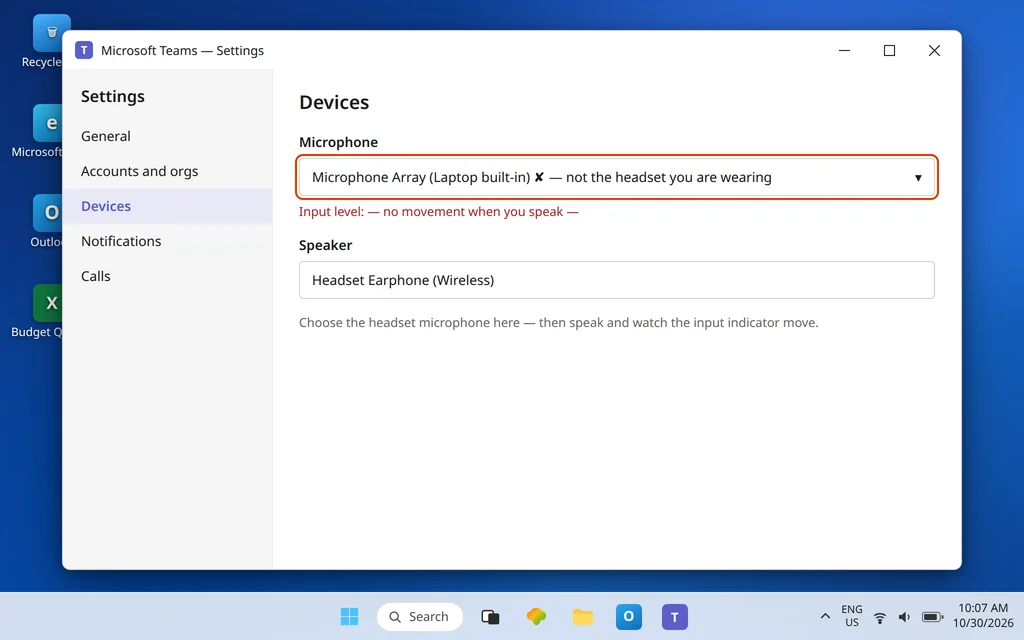
You are talking. The meeting can see you talking. And someone finally types in the chat: “We can’t hear you.” Your microphone — in a headset you may have used yesterday — is sending nothing into Microsoft Teams. In short, Microsoft Teams microphone not working usually means Teams is listening to the wrong device.
This guide is deliberately narrow: it is the microphone-only deep dive. You can hear everyone else; they cannot hear you. (If your camera is also failing, or you want the combined overview first, start with Teams Camera and Microphone Not Working — this article picks up where that one stops and goes deeper on the mic alone.)
The cause is almost always one of five things: Teams is listening to the wrong microphone, Windows is sending it nothing, Windows privacy settings are blocking Teams, another app holds the mic in exclusive mode, or a Bluetooth headset has connected in the wrong profile. Work through the fixes in order — each one either restores your voice or rules out a whole layer.
Quick Answer: Open Teams Settings > Devices and make sure the Microphone dropdown names the headset or mic you are actually speaking into — then click Make a test call and listen to the playback. If the test call is silent too, check Windows: Settings > System > Sound must list that same mic as the input device with its volume up, and Settings > Privacy & security > Microphone must allow desktop apps. Still silent? Uncheck “Allow applications to take exclusive control” for the mic, and if it is a Bluetooth headset, check it has not connected in the wrong profile.
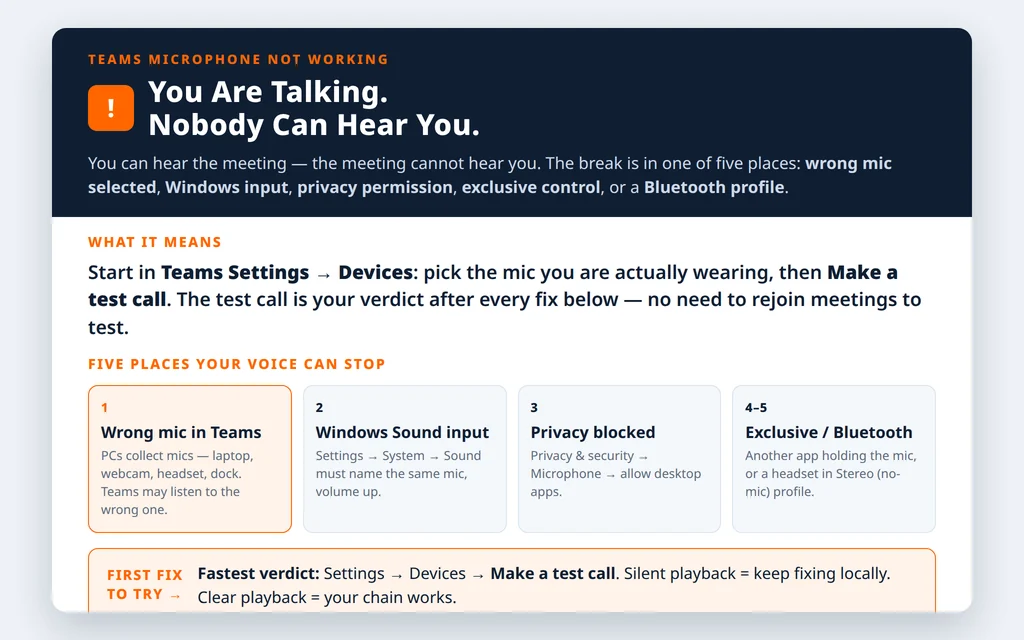
Table of Contents
Fix 1 — Microsoft Teams microphone not working: pick the right microphone in Teams Settings > Devices
Teams does not always follow the Windows default, and PCs accumulate microphones: the laptop’s built-in mic, a webcam mic, a headset mic, a dock or monitor mic. Teams may be faithfully listening to a mic in another room — or in a bag.
- In Teams, click the … next to your profile picture, then Settings > Devices.
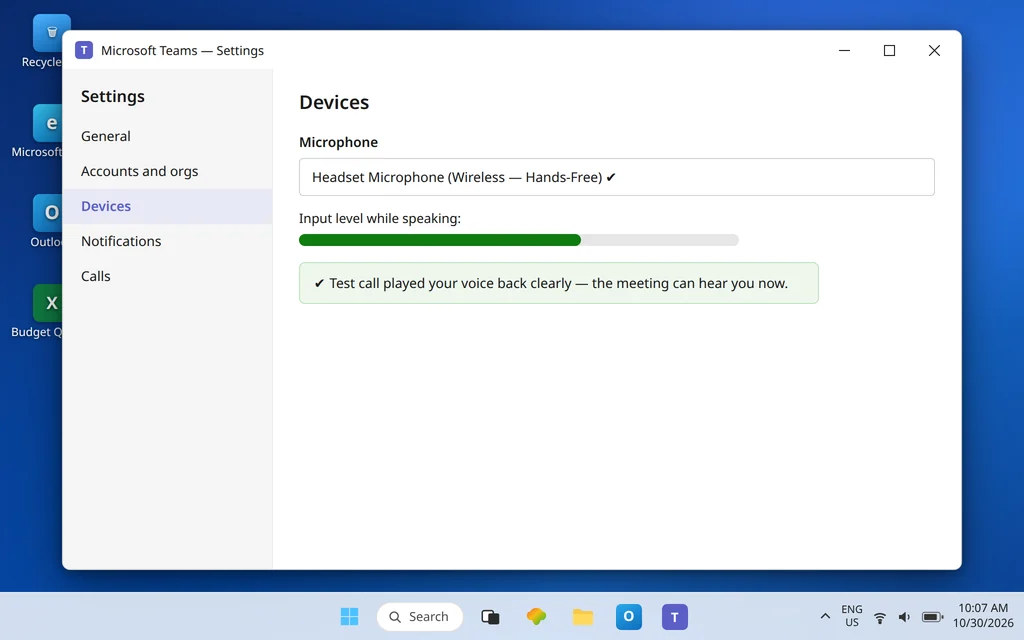
- Under Microphone, open the dropdown and select the device you are actually wearing or speaking into — for our sample setup, Emily Johnson’s headset, not “Default” and not the laptop mic.
- Speak normally and watch the input indicator beside the dropdown: it should move as you talk. A moving indicator with no one hearing you points later in this guide; a still indicator means Teams is receiving nothing from that device — change devices or continue to Fix 3.
While you are here, check the obvious once: in the meeting itself, the Mic button in the meeting controls must not be muted (a line through the mic icon means you are), and if your headset has a physical mute — a
boom in the raised position or an inline button — confirm it is not engaged. Microsoft’s own supportguidance puts these two checks first for a reason. See also Microsoft’s official guide: https://support.microsoft.com/en-us/teams/meetings/my-microphone-isn-t-working-in-microsoft-teams Microsoft’s official guide.
Fix 2 — Make a test call (your 30-second verdict)
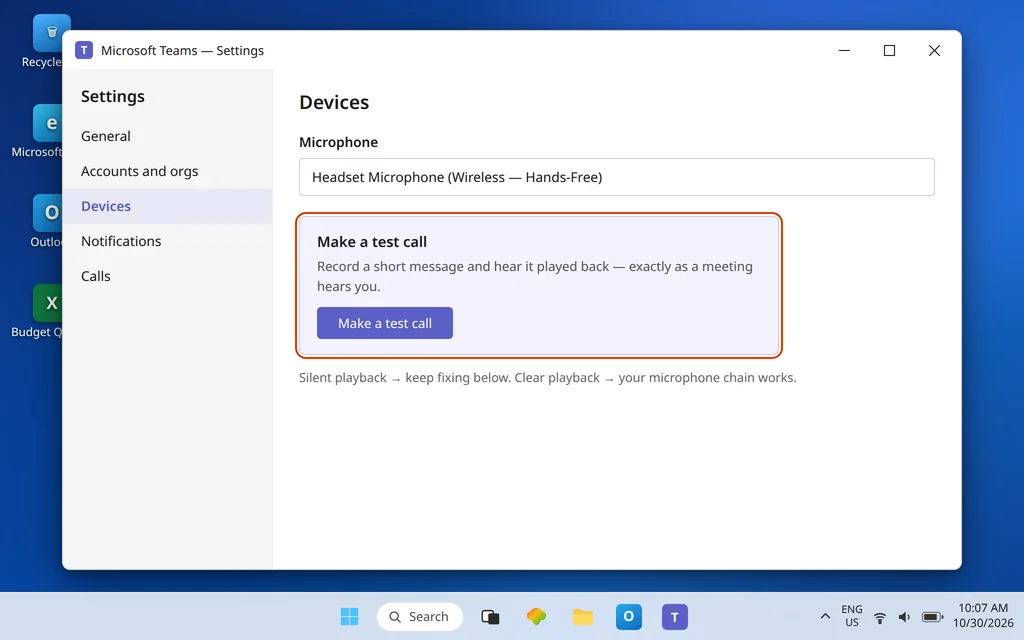
Still in Settings > Devices, click Make a test call. Teams records you speaking and plays the recording back, exactly as a meeting would hear it.
- You hear your recording clearly: your microphone chain works end to end. If a live meeting still cannot hear you, the problem is in that meeting (you are muted there, or it is a meeting-specific glitch — leave and rejoin).
- The recording is silent or missing: the fault is real and local. Continue down this guide — do not waste time rejoining meetings between fixes; use the test call after each fix instead. It is faster and it isolates you from everyone else’s setup.
- The recording is distorted or robotic: note it — that pattern points at the Bluetooth profile problem in Fix 7 or a sample-rate/exclusive-mode clash in Fix 6.
Fix 3 — Set the same microphone in Windows Sound settings
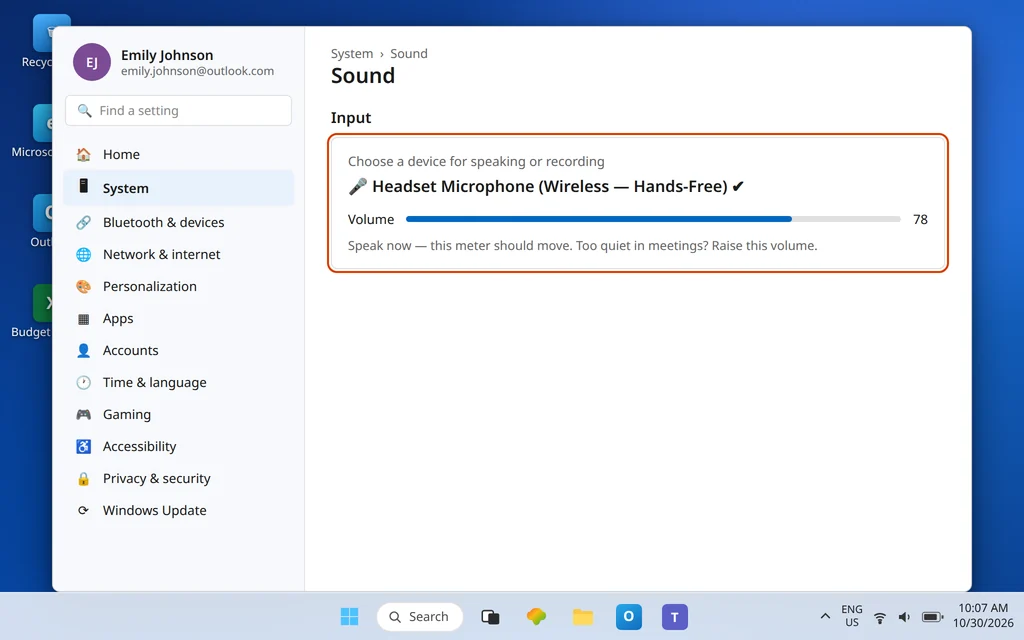
Teams can only use what Windows gives it. Set the input at the Windows layer too:
- Open Settings > System > Sound.
- Under Input, in Choose a device for speaking or recording, select the same microphone you chose in Teams.
- Speak and watch the input volume meter react. Set the Volume slider generously (many headsets sit far too low by default — if people describe you as “very quiet,” this slider is often the whole story).
- If your mic does not appear in the list at all, Windows is not seeing the device: reseat the USB plug or 3.5 mm jack, try another port, and check Fix 8.
If the meter in Windows moves but the meter in Teams (Fix 1) does not, the gap between the two is permission — which is Fix 4.
Fix 4 — Allow microphone access in Windows privacy settings
Windows can block Teams from the microphone at the operating-system level while everything else looks correct. This is the classic “works in other apps” or “worked until an update” cause:
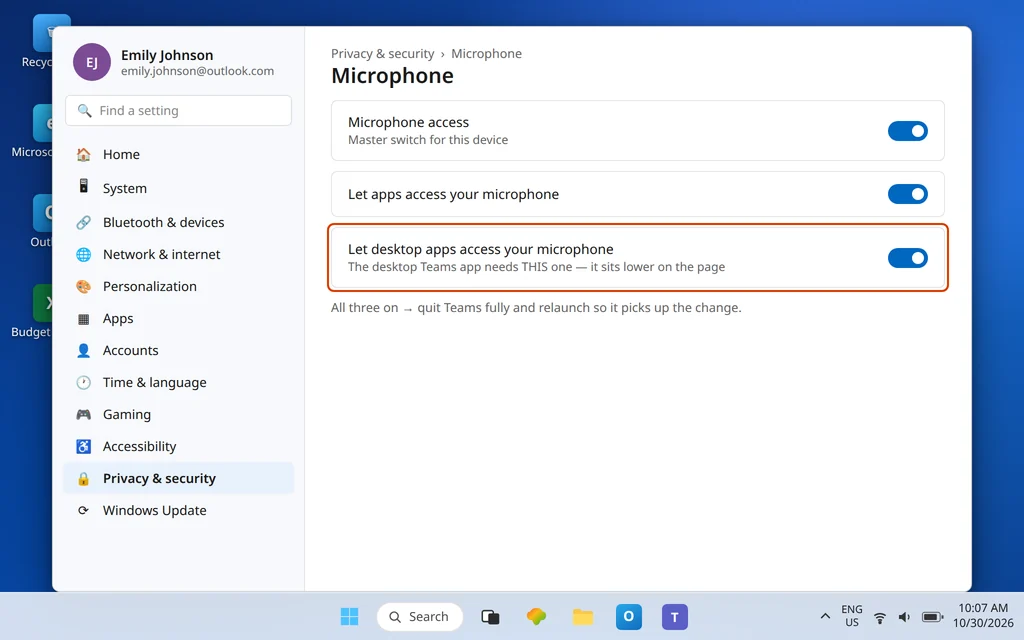
- Open Settings > Privacy & security > Microphone.
- Turn on Microphone access.
- Turn on Let apps access your microphone.
- Turn on Let desktop apps access your microphone — the desktop Teams app depends on this last one, and it sits further down the page where it is easily missed.
Reopen Teams and repeat the test call. Privacy changes do not always apply to an app session that is already running, so a full Teams restart (tray icon > right-click > Quit, then relaunch) is worthwhile here. If chats are failing at the same time as your microphone, that is a separate symptom — see Microsoft Teams Not Sending Messages — but fix the microphone first; the test call gives you a clean verdict either way.
Fix 5 — Check per-app volume and device preferences
Windows can route a specific app to a specific device and remember it — including a wrong choice made months ago for a different headset. In Settings > System > Sound, scroll to Advanced and open Volume mixer (on Windows 10: App volume and device preferences). Find Microsoft Teams and confirm its Input is set to your microphone (or to Default, with the system default set correctly in Fix 3), and that its volume is not sitting at zero. Resetting this page to defaults is a safe option if the entries are a tangle of old devices.
Fix 6 — Turn off “Allow applications to take exclusive control”
Some apps (recording software, other meeting tools, games with voice chat) can seize a microphone exclusively, leaving Teams with a device that exists but delivers silence. Remove that possibility:
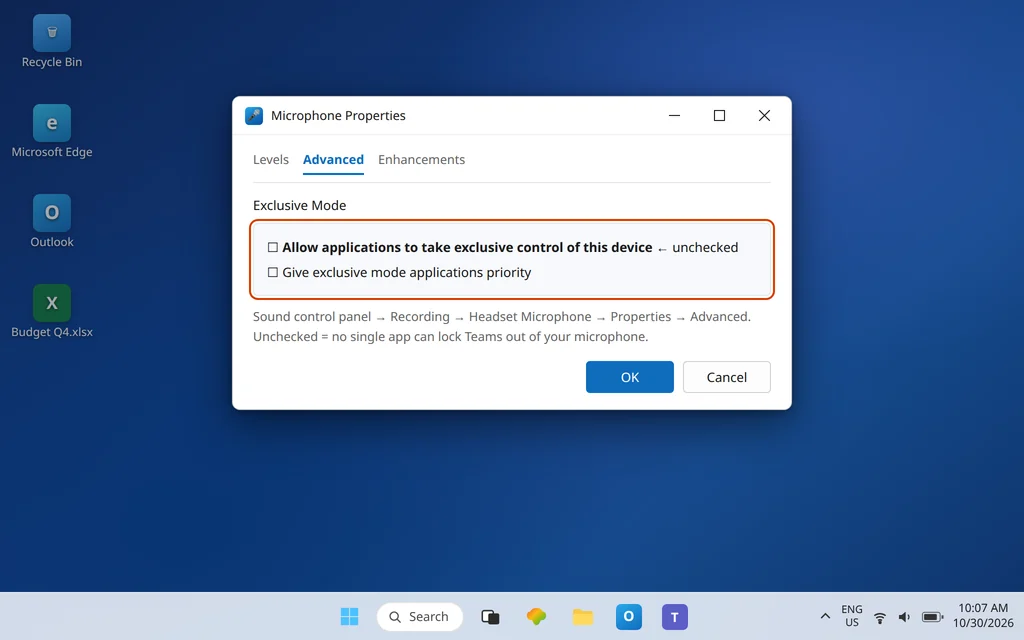
- Open Settings > System > Sound, scroll to Advanced, and click More sound settings. (This opens the classic Sound panel.)
- Go to the Recording tab, select your microphone, and click Properties.
- Open the Advanced tab.
- Uncheck “Allow applications to take exclusive control of this device” (and the priority option beneath it, if shown).
- Click OK, then repeat the test call.
While the Recording tab is open, also confirm the mic is Enabled (right-click it if it shows as disabled) and set as the Default Device if you use it everywhere — Microsoft’s support steps use this same panel to re-enable a mic Windows has switched off.
Fix 7 — Bluetooth headset? Check the Hands-Free vs Stereo trap
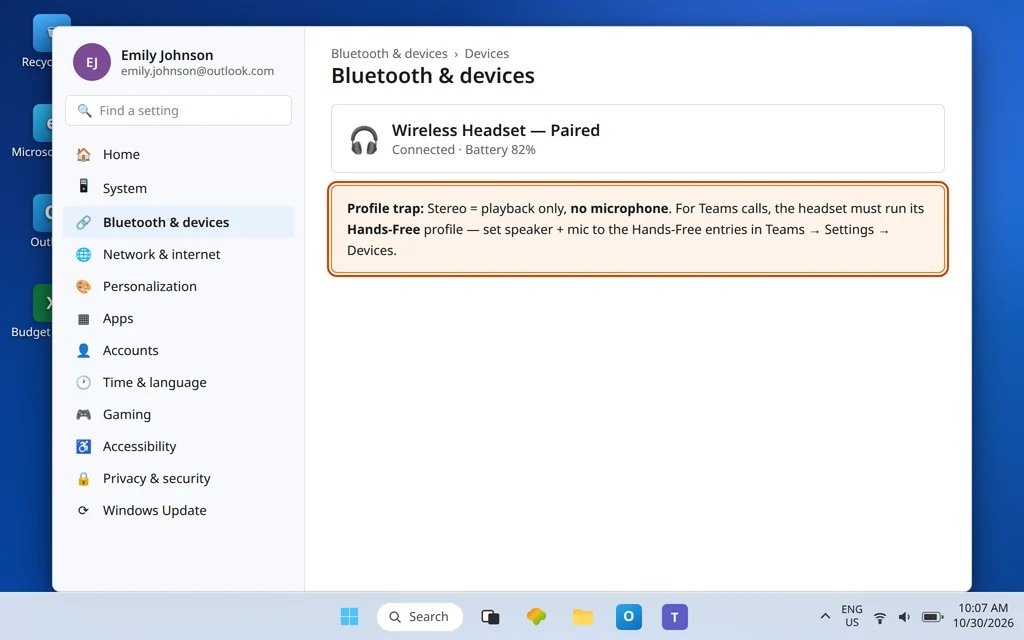
Bluetooth headsets offer your PC two personalities: a Stereo profile (great sound, no microphone) and a Hands-Free / HFP profile (microphone works, audio quality drops). Teams meetings need the second one. Two failure patterns follow:
- You hear the meeting beautifully and your mic is dead: Teams’ speaker is on the Stereo profile while the mic never engaged. In Teams Settings > Devices, set both the speaker and microphone to the headset’s Hands-Free entry, then test call.
- Your voice sounds muffled or robotic to everyone: the Hands-Free profile is doing its low-bandwidth best, or the headset is fighting between profiles. Keep speaker and mic on matching entries (both Hands-Free, or use the laptop mic with headset speakers), and move closer to the PC or its Bluetooth adapter.
If a Bluetooth headset is new to this PC, remove it in Settings > Bluetooth & devices and pair it again — a half-completed pairing often registers the audio profile but not the microphone.
Fix 8 — USB headsets: drivers and Device Manager
For a USB headset or mic that Windows does not list (Fix 3) or that drops in and out:
- Try a different USB port directly on the PC — not through a hub or dock — and test again.
- Open Device Manager and look under Audio inputs and outputs and Sound, video and game controllers for the device. A warning icon means a driver problem.
- Right-click the device and choose Update driver. If it worked until recently, Uninstall device, unplug, restart the PC, and plug it back in so Windows reinstalls it cleanly.
- Test the same headset in another app (Windows Voice Recorder is ideal) and, if you can, on another PC. A mic that is silent everywhere is hardware, and no Teams setting will revive it.
Fix 9 — Using Teams on the web? It is a browser permission
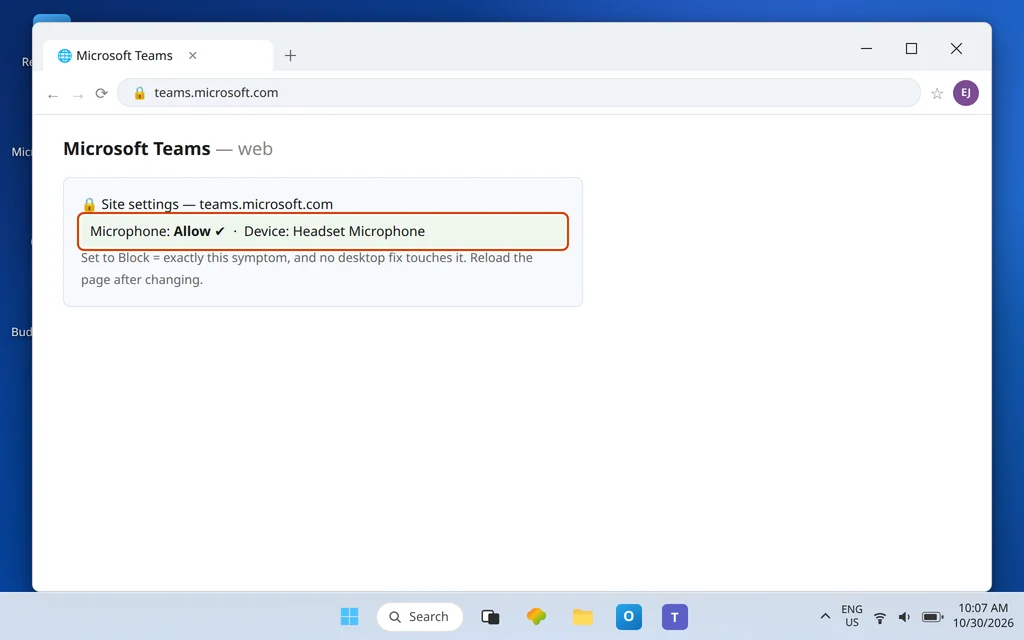
If the failure happens in teams.microsoft.com rather than the desktop app, the gatekeeper is the browser. While on the Teams web page, click the lock/tune icon at the left of the address bar, open Site settings (Chrome/Edge wording varies slightly), and set Microphone to Allow — then confirm the correct device in the same panel if your browser lists several, reload the page, and rejoin. A microphone set to Block for the Teams site produces exactly this symptom and no desktop-app fix touches it. The desktop privacy settings in Fix 4 still matter underneath, because the browser itself is a desktop app.
Fix 10 — Check noise suppression if people hear you badly
If the complaint changes from “we can’t hear you” to “you sound like you’re underwater” or words get clipped, open Teams Settings > Devices and look at Noise suppression. Auto suits most people; on some headsets, a high setting eats the beginnings of words. Try Low or Off briefly in a test call and compare. This is a quality fix, not a silence fix — if the test call records nothing at all, stay with Fixes 3–8.
Confirm it worked
Make a test call and hear your own voice played back clearly. Then join a real meeting and ask the simplest diagnostic question there is: “Can you hear me now?” Have a colleague confirm, check the meeting’s participant panel shows your mic live when you speak, and make one more test call after a PC restart to confirm the fix survived — device and permission fixes that vanish at reboot usually mean a driver (Fix 8) or policy is reapplying the old state.
How to stop it happening again
- Name your default once, in both places. The same mic selected in Teams Devices and Windows Sound ends most “wrong mic” recurrences when you dock, undock, or plug in a webcam.
- Test call before big meetings. Thirty seconds in Settings > Devices beats discovering silence in front of an audience.
- Beware the new-device shuffle. Every new headset, dock, or monitor reshuffles the device list; after connecting new gear, re-check Fix 1 before your next call.
Frequently asked questions
Why can nobody hear me in Microsoft Teams?
Because one layer of the chain — Teams’ selected device, Windows’ input device, Windows privacy permission, exclusive control by another app, or a Bluetooth profile — is not passing your voice. The test call in Teams Settings > Devices tells you whether the break is before Teams (Windows/device) or inside it: work Fixes 1–4 first; they cover the large majority of cases.
How do I test my microphone in Teams?
Open Settings > Devices and click Make a test call. Teams records a short message from you and plays it back. Hearing it clearly proves your mic, its Windows settings, and Teams’ selection are all working; silence tells you to keep troubleshooting locally instead of rejoining meetings to test.
How do I give Teams permission to use my microphone in Windows?
Open Settings > Privacy & security > Microphone and turn on Microphone access, Let apps access your microphone, and — the one most often missed — Let desktop apps access your microphone. Restart Teams afterward so it picks up the change. For Teams on the web, the browser needs its own site permission set to Allow (Fix 9).
Why does my Bluetooth headset microphone not work in Teams?
Bluetooth headsets connect in two profiles: Stereo (playback only) and Hands-Free (microphone enabled, lower audio quality). If Teams is using the Stereo entry, you will hear everyone and transmit nothing. In Teams Settings > Devices, set the microphone — and for consistency, the speaker too — to the headset’s Hands-Free device, then make a test call.
What does “Allow applications to take exclusive control” do to my mic?
It lets a single app lock the microphone for itself. If another program has taken exclusive control, Teams sees the device but receives silence. Unchecking it in the classic Sound panel (Recording > your mic > Properties > Advanced) is a safe, reversible step that removes a whole class of “mic works everywhere except Teams” (and the reverse) conflicts.
My mic works in other apps but not in Teams. What is different?
Focus on the Teams-only layers: the device selected in Settings > Devices (Fix 1), a stale per-app routing entry in the Volume mixer (Fix 5), and exclusive control (Fix 6). Windows and the hardware are already proven good by the other apps — do not reinstall drivers before checking the three Teams-side settings.
Is this the same problem as my camera not working?
They share some causes (privacy permissions, wrong device selected), which is why the combined guide Teams Camera and Microphone Not Working exists. This article is the microphone-only deep dive: if sound alone is failing, stay here; if your picture is black or missing too, use the combined guide and return for the mic-specific Fixes 6 and 7.
Voice still not getting through? Contact us at servicedesk@howtofixerroronline.com or through our Contact page and tell us what the test call played back, which microphone is selected in Teams Devices, and whether the Windows Sound input meter moves when you speak. We will never ask for your password.