
Outlook Not Responding? 7 Fixes for When Outlook Freezes or Hangs
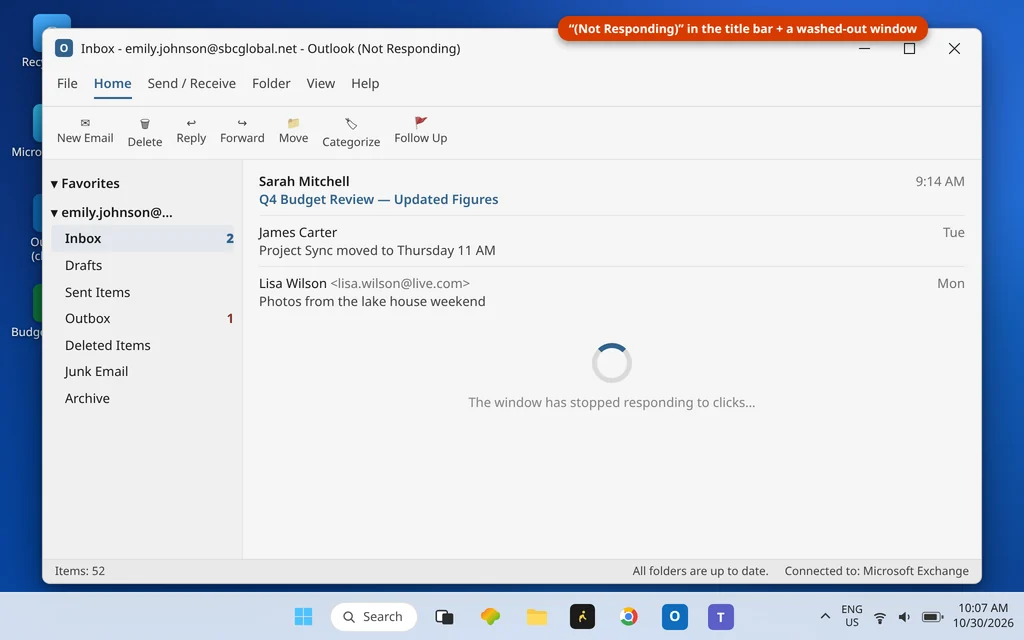
This is the freeze with a signature: Outlook opens — you can see your Inbox — and then the window washes out, the title bar gains the words (Not Responding), and every click lands nowhere. Maybe it happens right after launch, maybe when you open a message, attach a file, or hit Send. Either way, something is blocking a running Outlook: a dialog box waiting behind the window, an add-in that has stalled, a data file grown too large, or a process Outlook is legitimately grinding through.
That makes it a different problem from Outlook refusing to open at all. If Outlook never appears, use Outlook not opening on Windows 11 instead. If it opens and then hangs, you are in the right place — and the first fix costs nothing but a keypress.
Quick Answer: When Outlook shows “Not Responding”, first wait and check the status bar — it may be busy, not broken (Fix 1). Then press Alt + Tab to hunt for a dialog box hiding behind the main window (Fix 2) — the most-missed fix on this page. Next, restart Outlook in Safe Mode (outlook.exe /safe): if it runs there, an add-in is the cause (Fixes 3–4). After that: repair the data file (Fix 5), test your antivirus and repair Office (Fix 6), and finish with a fresh profile (Fix 7) if the freezes persist.
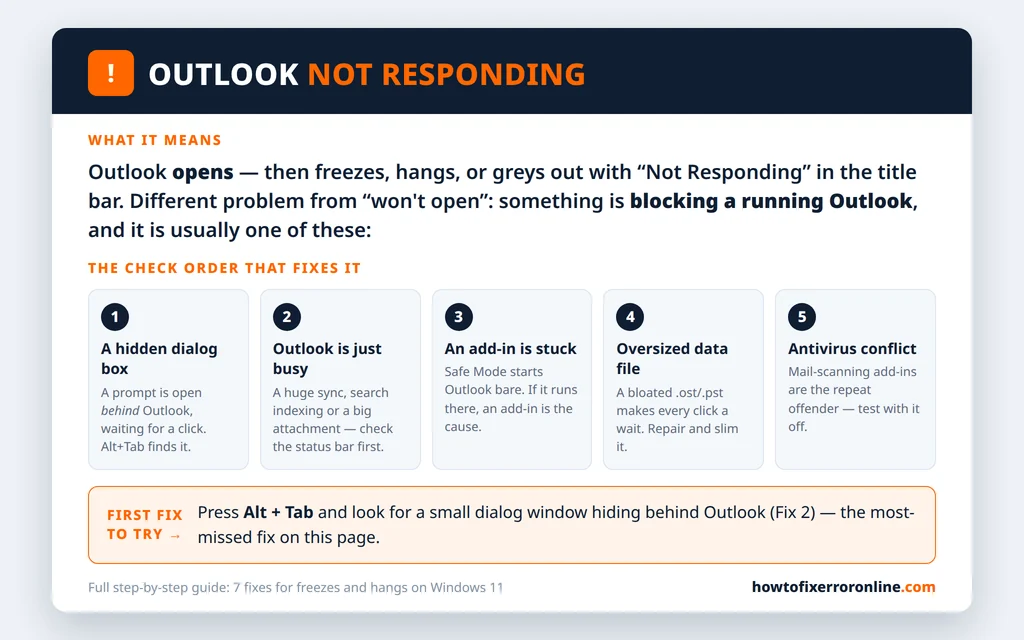
Table of Contents
Why Outlook Stops Responding
Windows adds “(Not Responding)” to a title bar when a program stops answering its messages for a few seconds. In Outlook, the recurring blockers are:
- A hidden dialog box. A prompt — a file-size warning, a credential request, a print or save dialog — opened behind the main window. Outlook cannot continue until it is answered, and you cannot see it.
- Outlook is genuinely busy. A very large send/receive, search indexing, or a huge attachment can legitimately occupy it for minutes. The status bar at the bottom tells the truth here.
- An add-in has stalled. Add-ins load inside Outlook’s process, so one hung add-in freezes the whole window.
- An oversized or damaged data file. A bloated .ost/.pst makes every operation a long wait, and a damaged one can hang Outlook at the same spot every time.
- Antivirus interference. Mail-scanning add-ins and real-time scanners that lock data files mid-write are a documented freeze source.
- Redirected AppData. On some work PCs, the AppData folder is redirected to a network location; a slow or dropped network makes Outlook hang constantly. (If that is your setup, your IT team owns this one — mention the freezes happen away from the office network.)
Fix 1: Give It a Minute — Check the Status Bar First
Before killing anything, look at the status bar along the bottom of the Outlook window. If it shows a live process — “Sending message 1 of 3”, “Syncing Inbox”, “Indexing” with a changing count — Outlook is working, not hung. A first sync of a large mailbox, or search indexing after an upgrade, can take a long while; our Outlook search not working guide covers the indexing side. Wait until the status bar settles before concluding it is frozen.
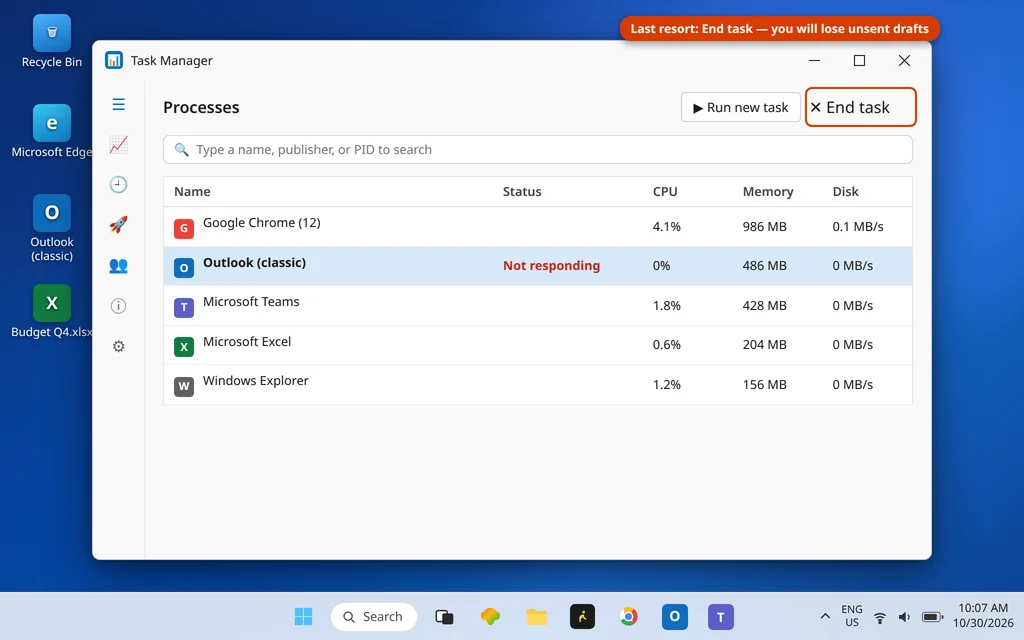
If the window is truly dead — status bar static, title bar saying Not Responding, clicks doing nothing for several minutes — force-closing is acceptable: Ctrl + Shift + Esc > find Outlook (classic) marked Not responding > End task. You may lose an unsent draft; your received mail is safe.
One related case: if Outlook consistently dies on the blue “Loading Profile” screen before the Inbox appears, that is a different, earlier failure — use Outlook stuck on loading profile.
Fix 2: Find the Hidden Dialog Box (Alt + Tab)
The most-missed fix in this entire guide: a dialog box is open behind Outlook, waiting for a click, and Outlook is “frozen” simply because it cannot proceed until you answer it.
- Hold Alt and press Tab to see every open window as thumbnails.
- Look for a small window you do not recognize — an error prompt, a password box, a file dialog — separate from the main Outlook window.
- Release on it, read it, and answer it (OK, Cancel, or sign in).
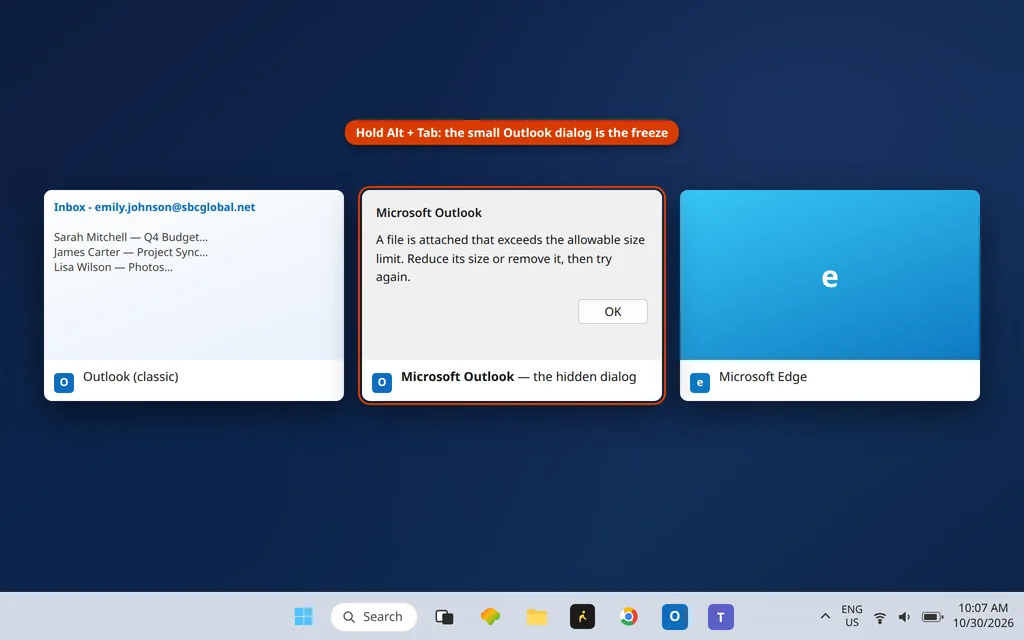
Outlook should spring back to life instantly. This one catches people for hours because the frozen window looks identical to a genuinely crashed program.
Fix 3: Start Outlook in Safe Mode
Safe Mode loads Outlook with no add-ins and no customizations — the cleanest diagnostic in the toolbox:
- Close Outlook (End task first if it is frozen).
- Press Windows key + R, type
outlook.exe /safeand press Enter. - Choose your profile if asked, and use Outlook for a few minutes: open messages, send a test, do whatever normally triggers the freeze.
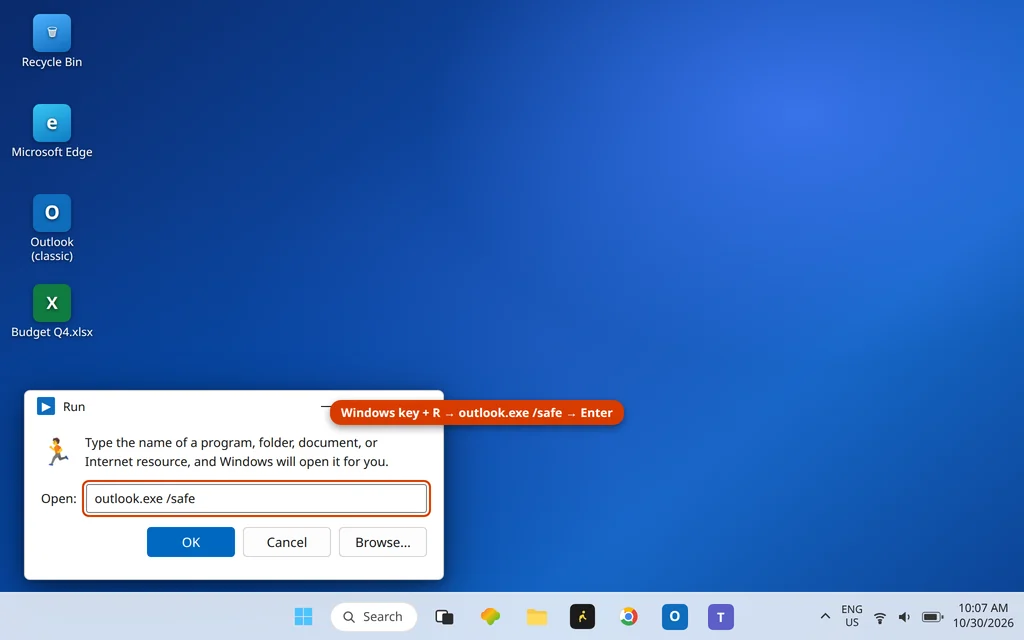
If Outlook runs fine in Safe Mode, an add-in or customization is the cause — go to Fix 4. If it still freezes in Safe Mode, the problem is the data file, the profile, or Outlook itself — skip to Fixes 5–7.
Fix 4: Disable Add-Ins
Add-ins are the number-one Safe Mode finding, and antivirus add-ins are the number-one add-in:
- In normal Outlook (or Safe Mode, via the same menus), go to File > Options > Add-ins.
- At the bottom, set Manage: COM Add-ins and click Go.
- Untick all add-ins, click OK, and restart Outlook normally.
- If the freezes are gone, re-enable add-ins one at a time (restarting between each) until the freeze returns — that last one is your culprit. Leave it disabled and check its maker for an update.
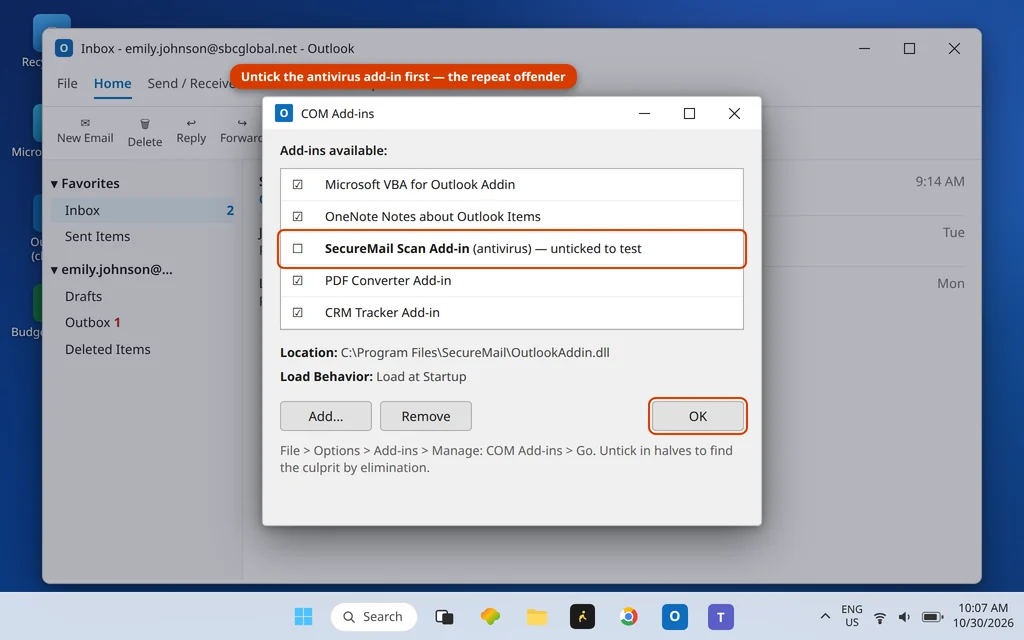
CRM tools, PDF converters and meeting plugins are frequent offenders alongside antivirus add-ins. An add-in you no longer use can simply stay off — removing it entirely is in the same dialog.
Fix 5: Repair and Slim the Data File
If Safe Mode did not help, suspect the data file itself — especially if Outlook freezes at the same moment each time (opening one folder, one message, or sending):
- Note your file’s location: File > Account Settings > Account Settings > Data Files shows the path (typically under
%localappdata%\Microsoft\Outlook). - Close Outlook. Open the Inbox Repair Tool —
SCANPST.EXE, installed with Office (commonly inC:\Program Files\Microsoft Office\root\Office16). - Browse to your .ost or .pst, click Start, and if errors are found, click Repair (keep “Make backup of scanned file before repairing” ticked).
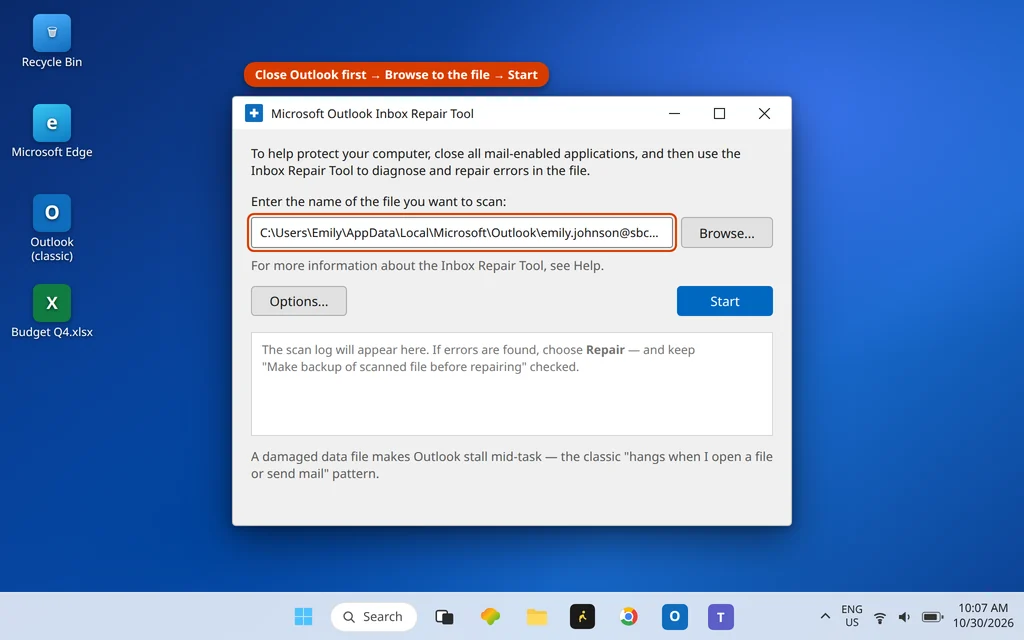
While you are here, fight the bloat that causes repeats: empty Deleted Items, archive old mail, and if a cached .ost has ballooned, reduce the “Mail to keep offline” slider under the account’s settings so less history is cached locally. Our Outlook error 0x8004010F guide covers the related data-file error in depth.
Fix 6: Test the Antivirus — and Repair Office
Antivirus software freezes Outlook two ways: through its Outlook add-in (Fix 4 covers disabling it) and by scanning or locking Outlook’s data files in real time. Temporarily disable the antivirus’s email scanning and use Outlook for a session: if the freezes stop, update the antivirus or leave just its mail-scanning component off — your provider scans mail server-side as well.
Then give Office itself a repair: Settings > Apps > Installed apps > Microsoft 365 (or Office) > ⋯ > Modify — run Quick Repair first (fast, offline), and Online Repair if the freezes persist (it re-downloads Office components, so allow it time).
Fix 7: Create a New Outlook Profile
Profiles accumulate damage — a corrupt profile can freeze Outlook in ways no file repair reaches. Build a fresh one alongside the old (nothing is deleted):
- Close Outlook. Open Control Panel > Mail (Microsoft Outlook) > Show Profiles > Add, and name the new profile.
- Add your email account(s) with their normal settings.
- Set Always use this profile to the new one, open Outlook, and let it sync.
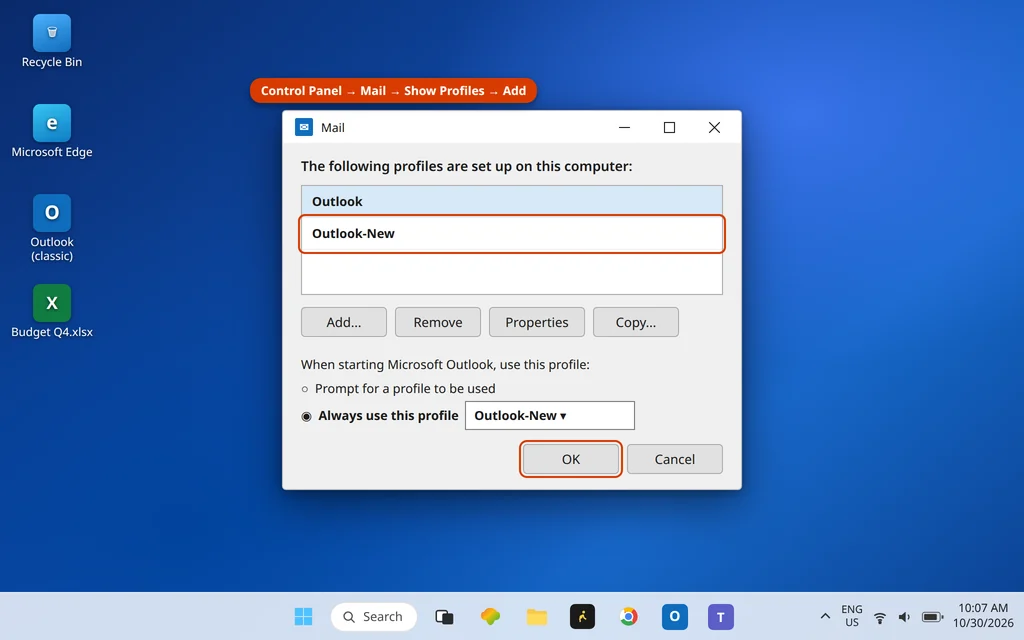
If the new profile runs cleanly for a few days, the old profile was the fault and can be removed from the same dialog.
Using the New Outlook? Different Symptom, Different Guide
The new Outlook does not show “(Not Responding)” in a title bar — it greys out, spins, or closes outright, and its repairs (Repair/Reset, the Olk folder, Store reinstall) are app-level rather than Safe Mode and profiles. If that is your app, use New Outlook crashes on Windows 11 instead — it is the same family of problem with the correct toolbox.
How to Stop the Freezes Coming Back
- Keep add-ins minimal. Every add-in is code running inside Outlook; uninstall the ones you no longer use rather than leaving them disabled.
- Keep data files lean. Archive yearly, empty Deleted Items regularly, and do not let a single .pst grow for a decade — file size is a freeze multiplier.
- Update Office and Windows together. Mismatched patch levels between Outlook and its shared components are a recurring freeze trigger.
- Note the trigger. “Freezes when I open that one folder/message” points at data; “freezes randomly” points at add-ins or antivirus. The pattern is the diagnosis.
Frequently Asked Questions
What does “Not Responding” in Outlook’s title bar mean?
Windows adds it when Outlook stops answering the system for several seconds. It does not automatically mean Outlook has crashed — it may be busy (Fix 1), blocked by a hidden dialog (Fix 2), or stalled by an add-in or data file (Fixes 4–5). The fixes work through those causes in order.
Why does Outlook freeze when I open a file or send mail?
Those moments load attachments, add-ins and the data file all at once, so they expose weak points first: an add-in scanning the attachment, a damaged data file, or an antivirus locking the file mid-operation. Safe Mode (Fix 3) separates them — if Safe Mode sends fine, disable add-ins (Fix 4); if it still freezes, repair the data file (Fix 5).
Will ending Outlook in Task Manager lose my emails?
Received mail is safe — it lives in your data file and on the server. What you can lose is the email you were composing if its draft had not autosaved. That is why End task is the last resort inside Fix 1, after checking the status bar and giving a genuinely busy Outlook time to finish.
What is the difference between Outlook not responding and Outlook not opening?
Timing. “Not opening” means Outlook never appears (or dies on the loading screen) — its causes are startup-side, covered by Outlook not opening on Windows 11. “Not responding” means Outlook did open and then froze during use — the causes are blockers acting on a running program, which is this guide.
Can a very large mailbox make Outlook hang?
Yes. An oversized or fragmented data file makes syncs, searches and folder opens crawl, and Windows reads those long pauses as “Not Responding”. Archiving old mail, emptying Deleted Items, shrinking the offline cache slider, and running the Inbox Repair Tool (Fix 5) are the cures — a new profile (Fix 7) if the file’s profile is damaged too.
Still freezing? Tell us the trigger — at launch, opening a message, attaching a file, sending — and whether Safe Mode freezes too; those two details identify the cause almost every time. Reach us via our Contact page: servicedesk@howtofixerroronline.com, available 24 hours. Outlook never opening at all is the sibling problem: Outlook not opening on Windows 11.