
“Your Account Settings Are Out of Date”: What It Really Means and the Fix
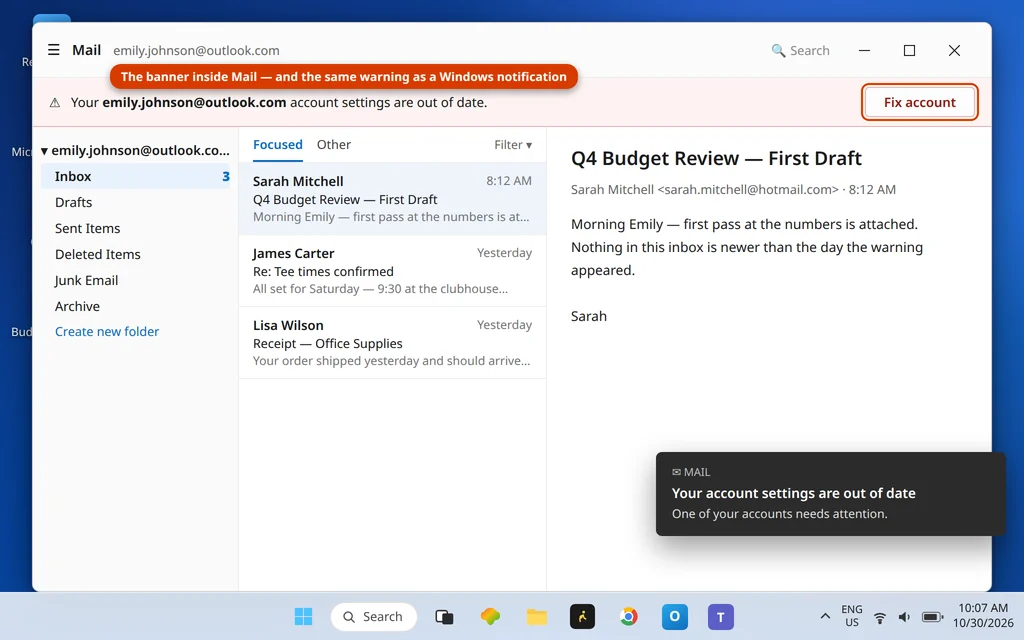
The notification keeps coming back: “Your account settings are out of date” — with a Fix account button that you have probably already clicked, more than once. It usually belongs to the built-in Windows Mail (or Calendar) app, and in 2026 it mostly means one thing that the message itself never says:
The app showing it has been retired. Microsoft ended support for the Windows Mail and Calendar apps on December 31, 2024. The apps can no longer send or receive email, and no password re-entry will change that — the “out of date” wording is just how the retired app reports that it can no longer connect your account. The real fix is not a setting inside Mail. It is the short move to the new Outlook for Windows, which is free, and where your mail, calendar and contacts reappear the moment you sign in with the same account. In short, account settings are out of date outlook is usually the retired Mail app telling you it can no longer connect — and the move below is the fix.
Quick Answer: If the message comes from Windows Mail or Calendar, the app is retired (support ended December 31, 2024) — install the new Outlook for Windows from the Microsoft Store (free) or use Outlook.com, and sign in with the same account; your mail, calendar and contacts follow the account. If you see the message elsewhere or want to try the in-app route first: click Fix account and re-enter the password, check that date & time sync is on, and sign in to Windows with a Microsoft account rather than a local account. Those causes are covered below — but on the old Mail app itself, they no longer restore sending and receiving.
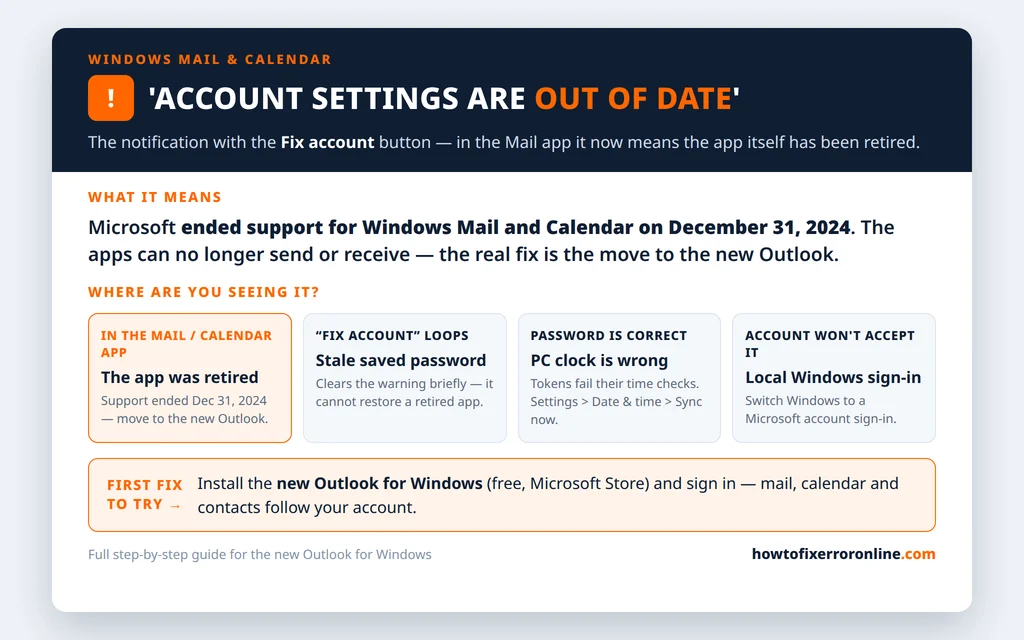
Table of Contents
What This Message Really Means in 2026
This notification used to be mundane: your saved password was stale, so the Mail app asked you to Fix account and re-enter it. That fix genuinely worked — while the app was supported.
Since the retirement, the same wording fires for a different reason. The old Mail and Calendar apps were switched off at Microsoft’s side: they can no longer send or receive, whatever you do locally. The account’s saved connection keeps failing its checks, and the app keeps translating that failure into “your account settings are out of date.” Clicking Fix account may clear the notification for a while — which is why so many people loop through it — but it cannot restore a service that has been shut down.
Two quick ways to confirm you are in this situation:
- The message names or comes from the Mail or Calendar app (check Settings > Apps — if your mail app is the old “Mail and Calendar,” that is the retired one).
- Mail has stopped arriving/sending in that app even though the same account works fine in a browser or on your phone.
If that is you, skip straight to the real fix. Your account and your emails are fine — they were never stored “in” the app; they live with your provider and follow the sign-in. (If instead Outlook itself keeps asking for a password over and over, that is a separate, still-supported problem — see Outlook keeps asking for a password.)
The Real Fix for account settings are out of date outlook: Move to the New Outlook for Windows
This is Microsoft’s own recommended path, and it takes a few minutes:
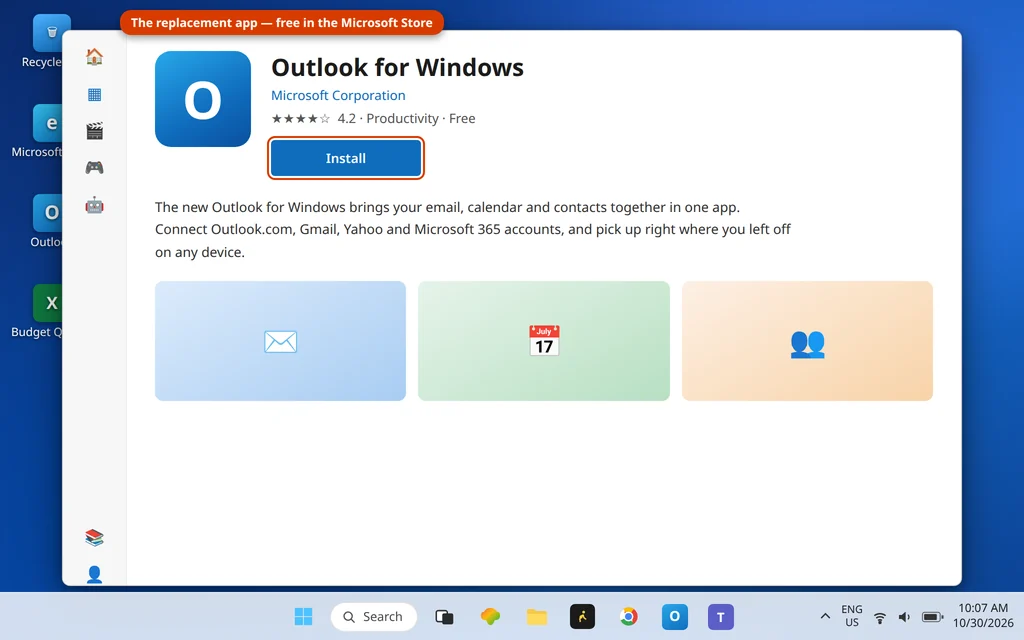
- Open the Microsoft Store and search for Outlook for Windows. Install it (it is free).
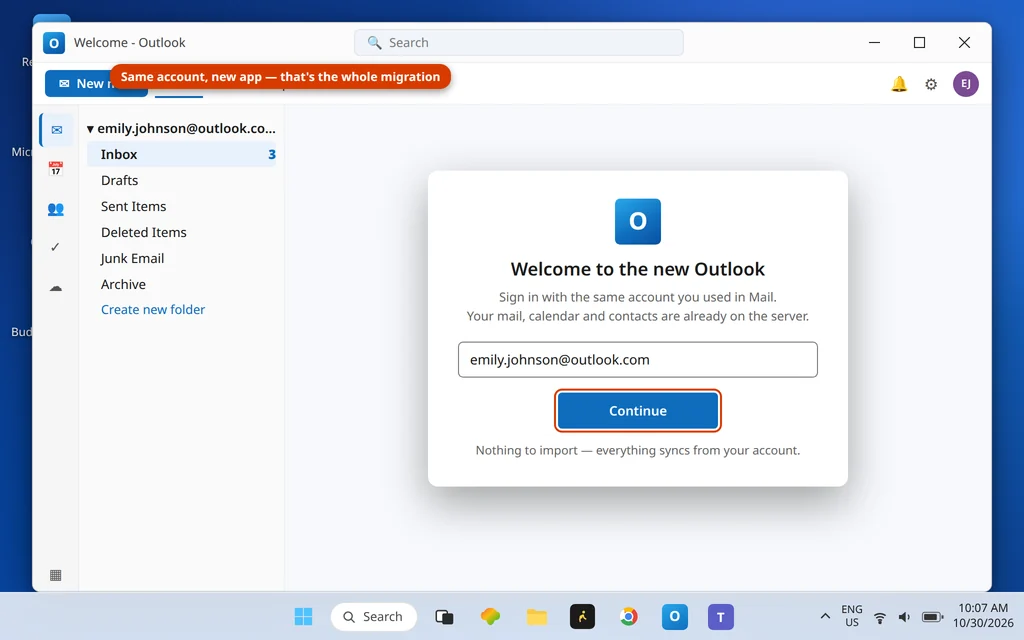
- Open the new Outlook. If it offers to import or detects your existing account, accept; otherwise click Add account and sign in with the same email address and password you used in Mail.
- Wait for the first sync. Your inbox, folders, calendar and contacts come from the server with the account — nothing needs to be exported from the old app.
- Pin the new Outlook to your taskbar or Start so it replaces Mail in your routine. You can leave the old Mail app installed or uninstall it; it will not start working again either way.
One honest caveat: if you used a POP account in the old Mail app and have mail that exists only in that app on this PC (never stored on a server), treat it carefully — do not uninstall anything until that mail is accounted for. For the usual Microsoft, Outlook.com, Gmail, Yahoo and IMAP accounts, everything is on the server and the move is lossless.
If the new Outlook itself greets you with an error page once installed, that has its own fix stack — see new Outlook “Something went wrong”.
If You Still See It: Click Fix Account
On setups where the message is not the retired app — an account prompt in a still-supported app, or the old app on a PC that has not caught up — the notification’s own remedy is the first try:
- Click Fix account in the notification (or open the Mail app’s Settings > Manage accounts, select the account, and choose the fix/repair option).
- Re-enter the account password carefully and save.
- If your provider uses two-step verification, expect its prompt during this sign-in; complete it rather than cancelling.
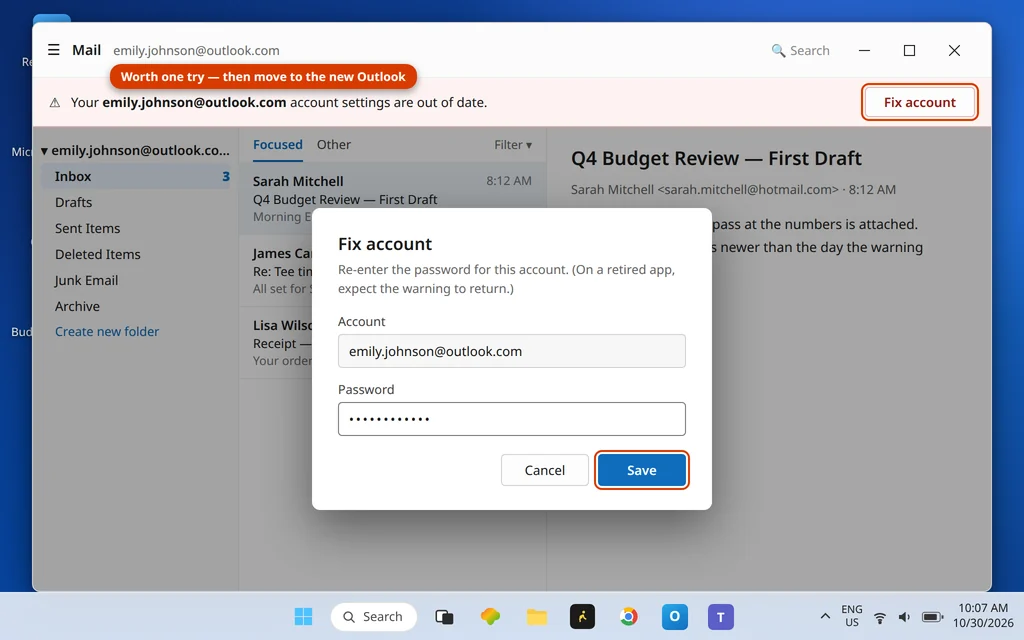
On the retired Mail app this may silence the notification temporarily, but sending and receiving will not return — the move above is still the fix.
Check Date, Time and Time Sync
A wrong system clock produces this exact message on supported apps too, because sign-in tokens are validated against the time. It is a two-minute check:
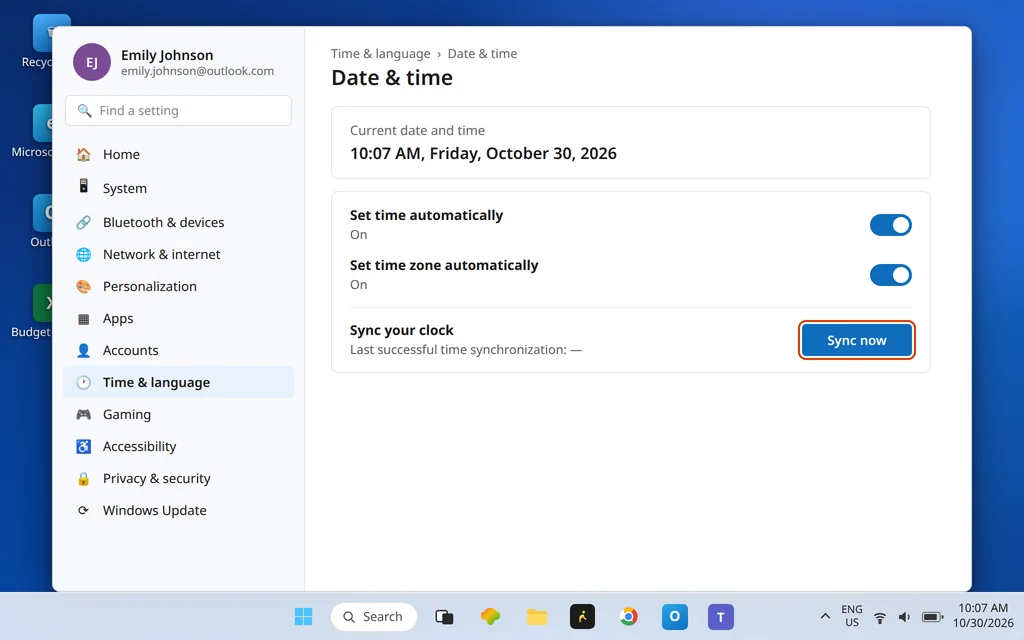
- Open Settings > Time & language > Date & time.
- Turn on Set time automatically and Set time zone automatically.
- Click Sync now under Additional settings.
- Restart the mail app and see whether the message clears.
Microsoft Account vs Local Account Sign-In
If you sign in to Windows with a local account, the built-in mail apps historically stumbled over account checks and threw this same notification. Signing in to Windows with a Microsoft account aligns the app sign-ins:
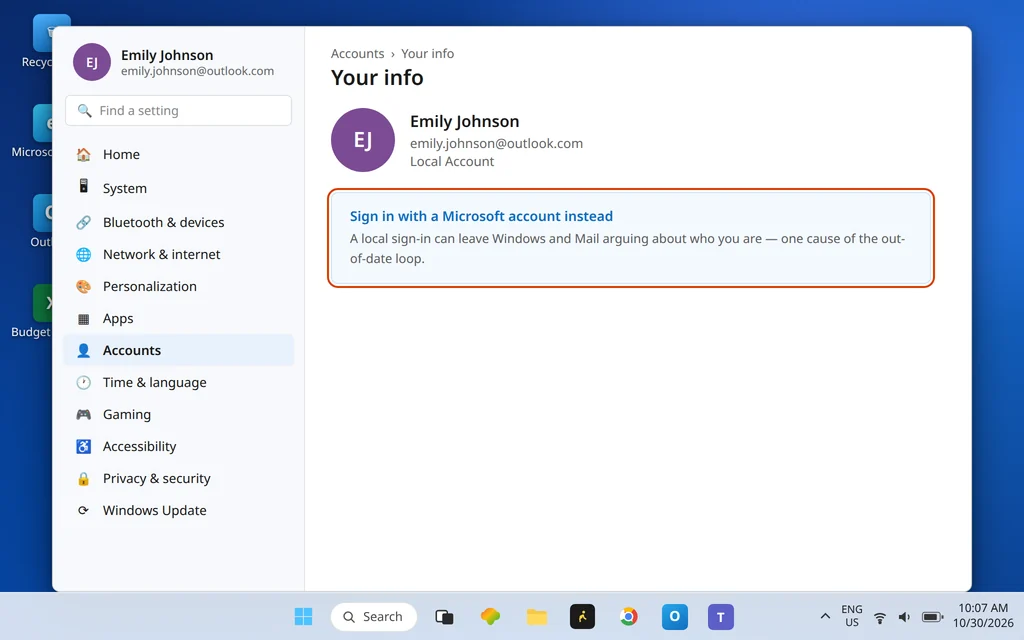
- Open Settings > Accounts > Your info.
- If it shows a local account, choose Sign in with a Microsoft account instead and complete the switch.
- Reopen your mail app and check the account there.
Advanced: The Protect Folder Route (Back Up First)
One deeper cause, for completeness: Windows stores protected sign-in data under your profile’s Protect folder, and corruption there can make every account check fail with messages like this one. Forcing a rebuild makes Windows create the data fresh — at the cost of having to sign in to things again.
Back up first, and only do this if the steps above have not helped:
- Close your mail apps.
- Press Windows key + R, type %APPDATA%\Microsoft\Protect and press Enter.
- Copy the whole folder somewhere safe (this is your backup — do not skip it).
- Delete the contents of the Protect folder (the folder itself can stay).
- Restart the PC, open your mail app, and sign in to your accounts again.
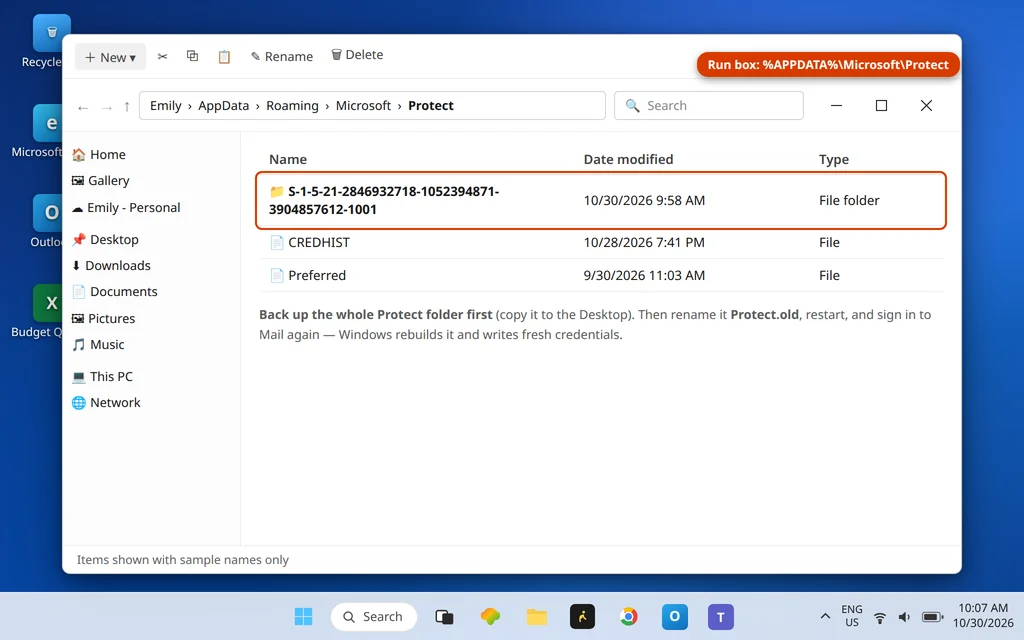
If anything behaves worse afterwards, restore the copied folder. On the retired Mail app, note that even this cannot restore service — it is listed for PCs where the message appears in a supported context.
Remove and Re-Add the Account
In the new Outlook, the equivalent clean start is removing the account and adding it again, which rebuilds its sign-in completely: Settings > Accounts > Your accounts > Manage > Remove, then Add account. For provider sign-in quirks during the re-add, the Gmail and Yahoo guides in this series cover the browser sign-in details.
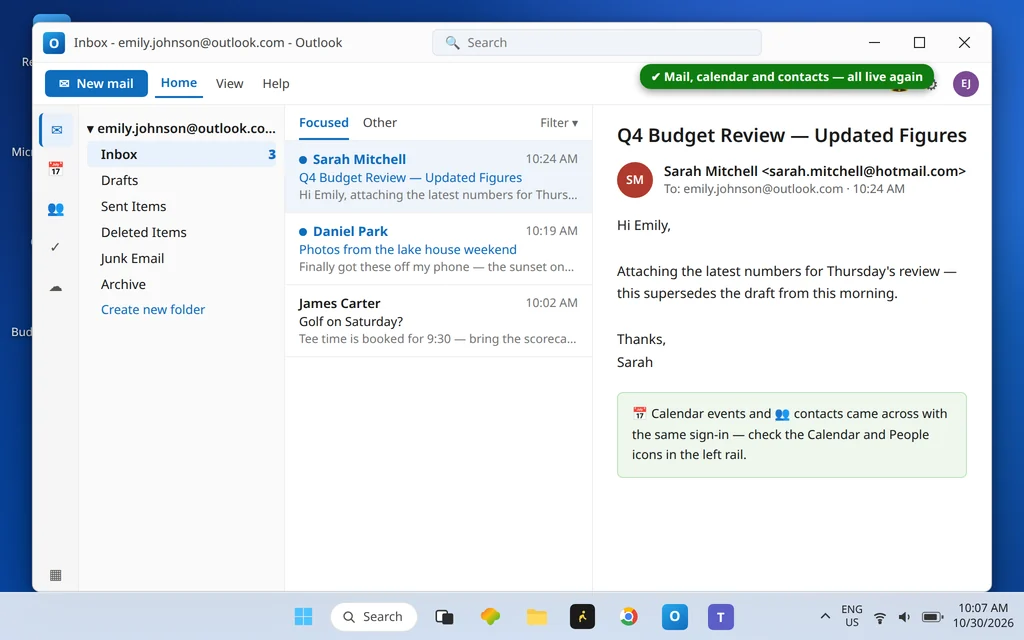
After the move, the new Outlook holds your mail, calendar and contacts in one app:
How to Stop This Message Coming Back
- Use a supported app. On the retired Mail/Calendar apps, the message always eventually returns, because the underlying service is off. The new Outlook or Outlook.com ends it for good.
- Keep time sync on — automatic date, time and time zone prevent the token failures that trigger this wording elsewhere.
- When a provider password changes, update it in the app the same day via Fix account / re sign-in, rather than dismissing prompts.
Frequently Asked Questions
Why does my PC keep saying “Your account settings are out of date”?
Because an account check is failing and the app reports that failure with this wording. In the Windows Mail/Calendar apps, since December 31, 2024 the check fails because the apps themselves were retired and disconnected — the message is effectively the app saying it can no longer work. In supported apps, the same wording usually means a stale password, a wrong system clock, or a local-account sign-in mismatch, covered in the sections above.
Has Microsoft really ended the Mail and Calendar apps?
Yes. Microsoft Support states that support for the Windows Mail and Calendar apps ended on December 31, 2024, and that the apps can no longer send or receive email. Microsoft’s recommended replacement is the new Outlook for Windows (free from the Microsoft Store) or Outlook.com on the web. This is why in-app fixes for the message no longer stick.
Will my emails and calendar move to the new Outlook automatically?
They follow your account, not the app. Sign in to the new Outlook with the same address you used in Mail, and your inbox, folders, calendar and contacts sync down from the server — for Microsoft/Outlook.com, Gmail, Yahoo and IMAP accounts there is nothing to export. The one exception is mail that exists only locally in the old app (possible with old POP setups); check for that before uninstalling anything.
I clicked Fix account and the message came back. Why?
Because Fix account only refreshes the saved password — and on the retired Mail app the problem is not your password. The app cannot connect its accounts at all any more, so the failure (and the notification) returns. The durable fix is moving to the new Outlook as described above. If the message appears in a supported app and keeps returning after Fix account, check the date/time sync and the Microsoft-vs-local account sections — a looping password prompt in Classic Outlook proper is covered by our password loop guide.
Still seeing the message? Tell us which app is showing it — Mail, Calendar, or Outlook — via our Contact page: servicedesk@howtofixerroronline.com, available 24 hours. If you have already moved and the new Outlook shows its own error page instead, start with our new Outlook “Something went wrong” guide.