
iCloud Email Not Working in Outlook — Not Syncing Fixes
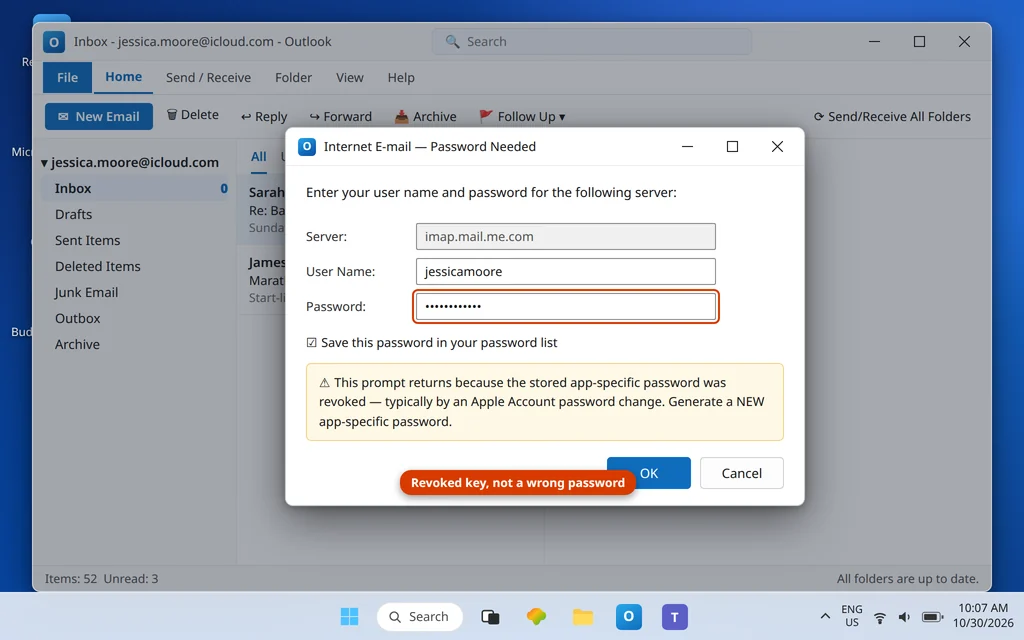
iCloud Mail breaks in Outlook in ways that feel random — it worked at setup, then stopped; the password is right, yet Outlook insists it is wrong; mail syncs on the iPhone but never on the PC. Almost all of it traces back to three Apple-specific rules that differ from every other provider in this series: iCloud Mail is IMAP-only (there is no POP, whatever old guides invent), Outlook must sign in with an app-specific password rather than your Apple Account password, and that app-specific password is automatically revoked for every app the moment your Apple Account password changes — which is the hidden trigger behind most “it suddenly stopped” reports.
This guide covers @icloud.com and @me.com addresses in Outlook on Windows: the app-specific password, the exact server table (including its one genuine oddity — the incoming and outgoing user names are not the same), the three legitimate ways to connect, and Apple’s own documented trick for stuck outgoing mail. For generic mail-flow problems, see Outlook Not Receiving Emails but Can Send.
This guide fixes iCloud email not working in Outlook, starting with the password and the server settings.
Quick Answer: Generate an app-specific password at account.apple.com → Sign-In and Security → App-Specific Passwords (two-factor authentication must be on). In Outlook’s manual IMAP settings use incoming
imap.mail.me.comport 993 (SSL) with the user name as just the part before @ (for examplejessicamoore), and outgoingsmtp.mail.me.comport 587 with the user name as your full address — pasting the app-specific password into both password fields. If iCloud “suddenly stopped,” you probably changed your Apple password recently: every app-specific password was revoked with it, so generate a new one.
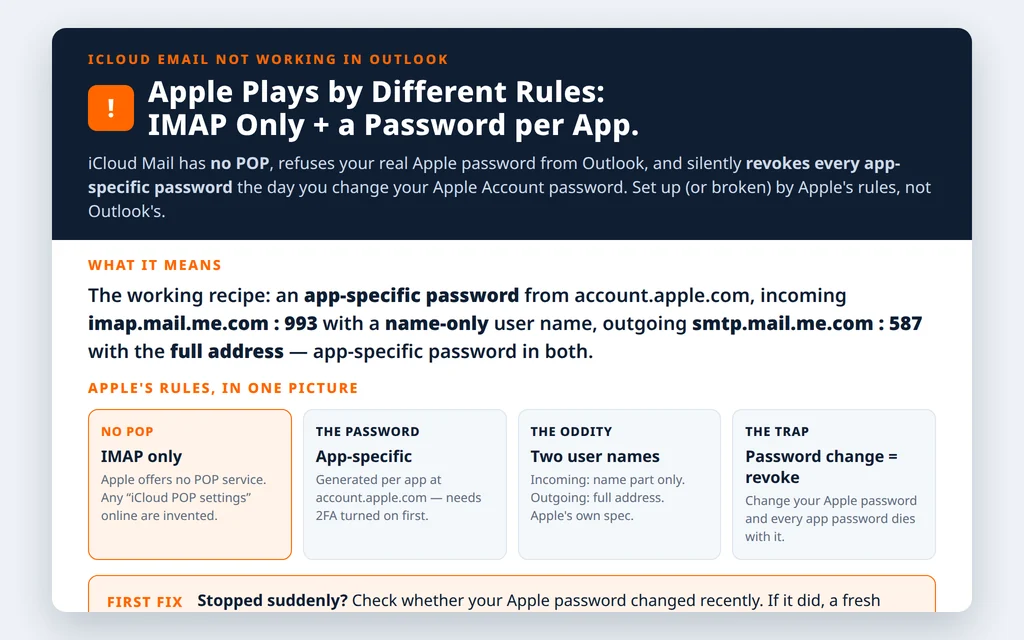
Table of Contents
Fix 1 — Generate an app-specific password for iCloud email not working in Outlook (2FA required)
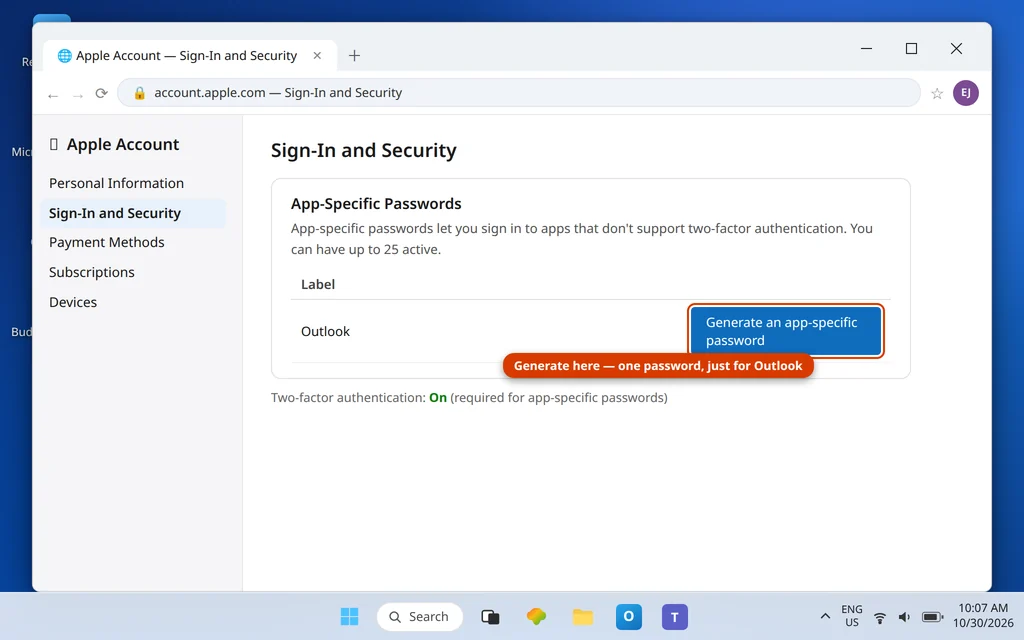
Apple issues one password per app, so Outlook never touches your real Apple Account password:
Apple’s own guide to app-specific passwords covers generating, using, and revoking them.
- Sign in at account.apple.com.
- Open Sign-In and Security → App-Specific Passwords → Generate an app-specific password.
- Label it Outlook and copy the generated password.
- Paste it into Outlook’s password fields (Fix 2). You can hold up to 25 app-specific passwords at once.
Prerequisite: two-factor authentication must be enabled on the Apple Account — without 2FA the App-Specific Passwords option does not exist. If the option is missing for you, turn on 2FA first (on your iPhone: Settings → your name → Sign-In & Security).
Fix 2 — Enter the server table (mind the user-name asymmetry)
Set the account up manually (Add Account → Advanced options → Let me set up my account manually → IMAP) and use Apple’s published values exactly:
| Setting | Value |
| Incoming server | imap.mail.me.com |
| Port / encryption | 993 · SSL (if SSL errors, try TLS) |
| Incoming user name | Usually just the name part — e.g. jessicamoore (not the full address) |
| Outgoing server (SMTP) | smtp.mail.me.com |
| Port / encryption | 587 · SSL required (try STARTTLS if needed), authentication required |
| Outgoing user name | Your FULL email address |
| Password (both) | App-specific password |
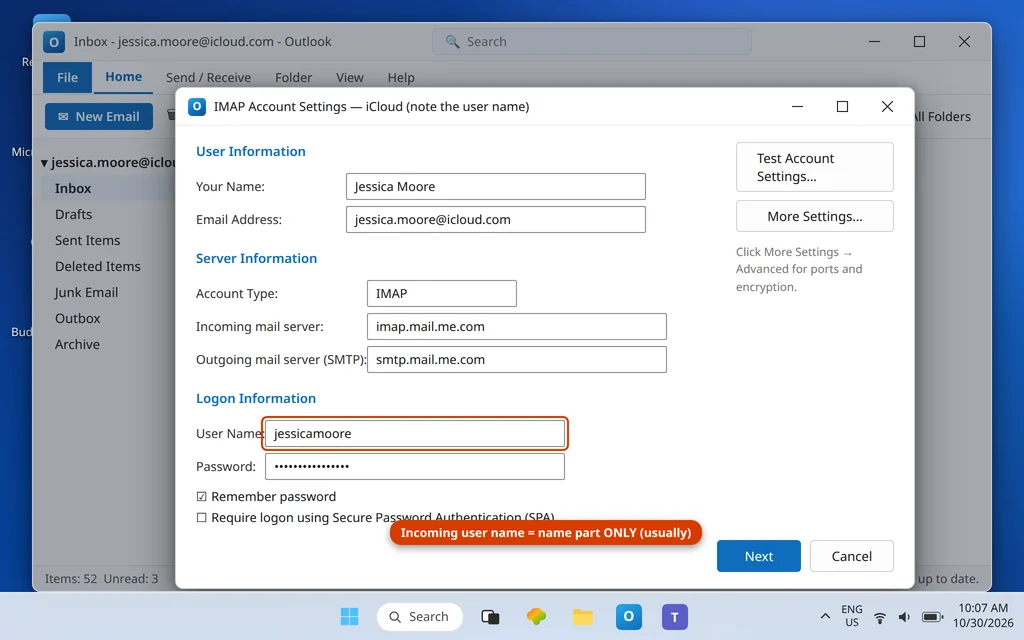
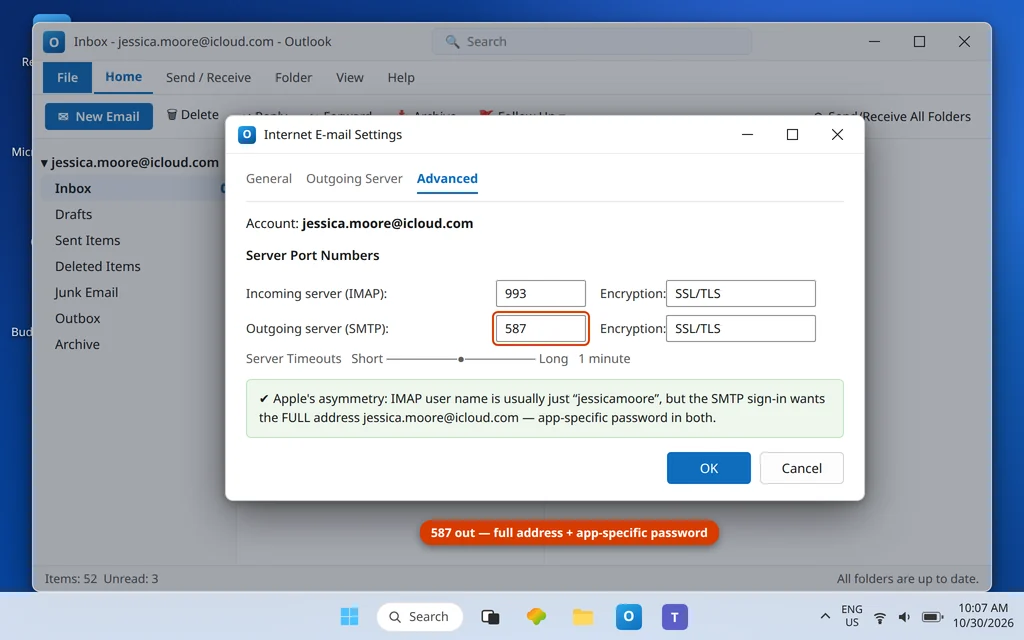
Yes, the asymmetry is real and it is Apple’s own documentation: the incoming user name is normally the part of your address before the @, while the outgoing server wants the complete address. If the name-only form is refused on incoming, try the full address there too — Apple says “usually,” and a minority of accounts need the full form both ways. And a hard rule: iCloud has no POP. Any guide listing iCloud POP servers is inventing them; if your account type in Outlook says POP, remove it and re-add as IMAP.
Fix 3 — Pick the right connection route (there are three)
- Authorize in Outlook 2021 or later. Newer Outlook versions can connect an iCloud account by having you authorize it with your Apple Account during setup — the smoothest route when offered.
- iCloud for Windows + the Outlook Add-in. Apple’s led route when you also want iCloud Mail, Contacts and Calendars inside Outlook: install iCloud for Windows from the Microsoft Store, sign in, and enable Mail — the add-in wires Outlook up itself.
- Manual IMAP (Fix 2). The direct-server route for mail only. iCloud for Windows is not required for this — the app-specific password and the server table are enough.
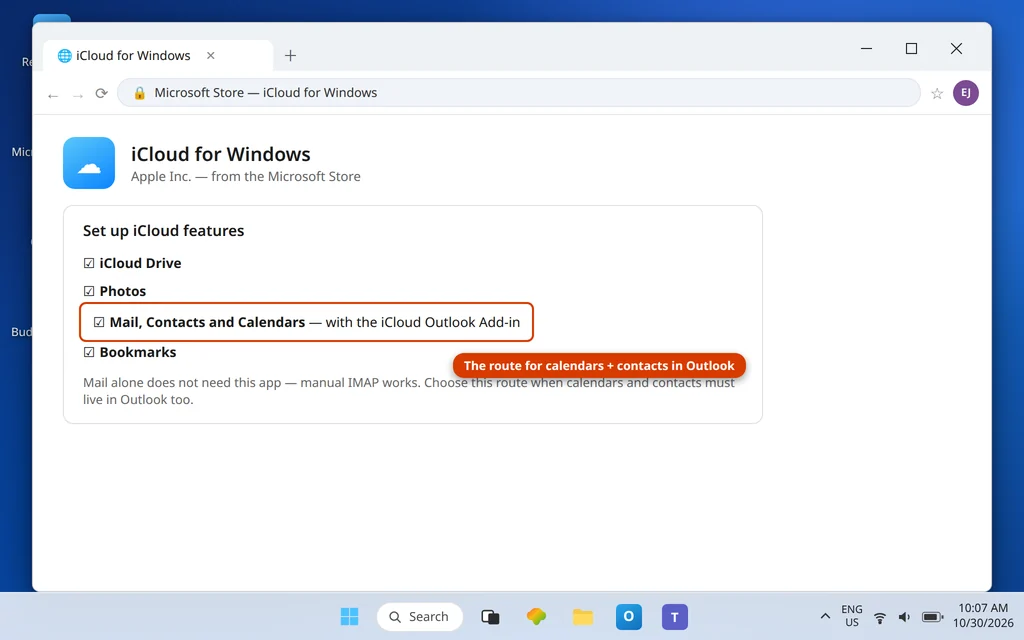
If calendars or contacts are your real problem while mail works, route 2 is the fix — manual IMAP (route 3) carries mail only, and no server setting will make it sync an iCloud calendar.
Fix 4 — “It suddenly stopped”: your Apple password changed
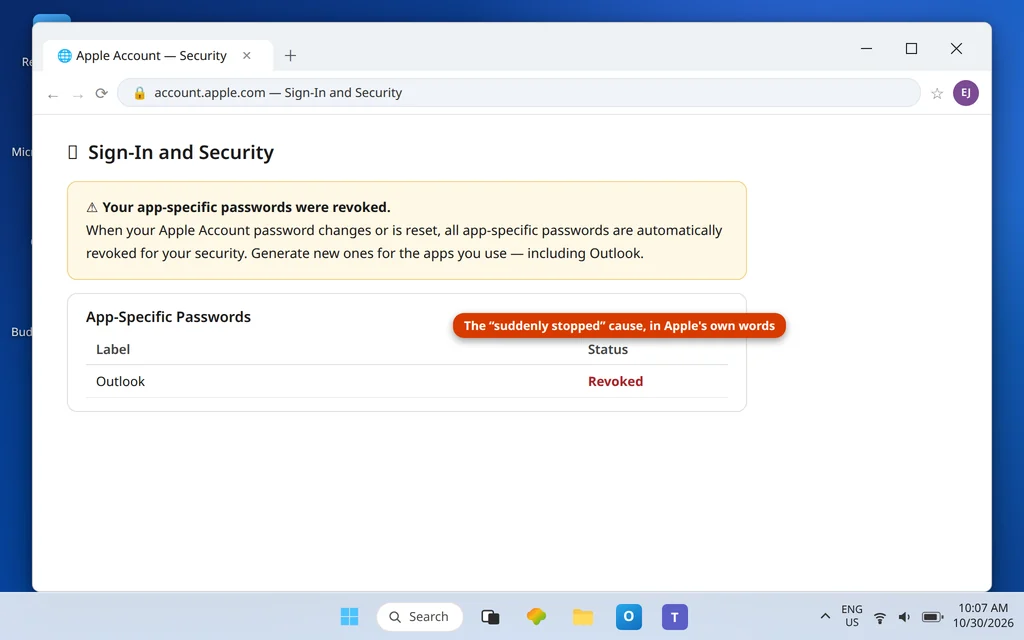
This is the iCloud classic. Apple revokes all app-specific passwords whenever the Apple Account password is changed or reset — every app, every device, silently. If iCloud in Outlook died around the time you updated your Apple password (or Apple made you reset it), do not troubleshoot Outlook at all: go back to Fix 1, generate a new app-specific password, and paste it into Outlook. Two minutes, fixed. The same revocation is why a new phone setup can mysteriously kill the desktop one a day later — the password change happened during the phone setup, not in Outlook.
iCloud email not sending in Outlook — Apple’s own documented trick
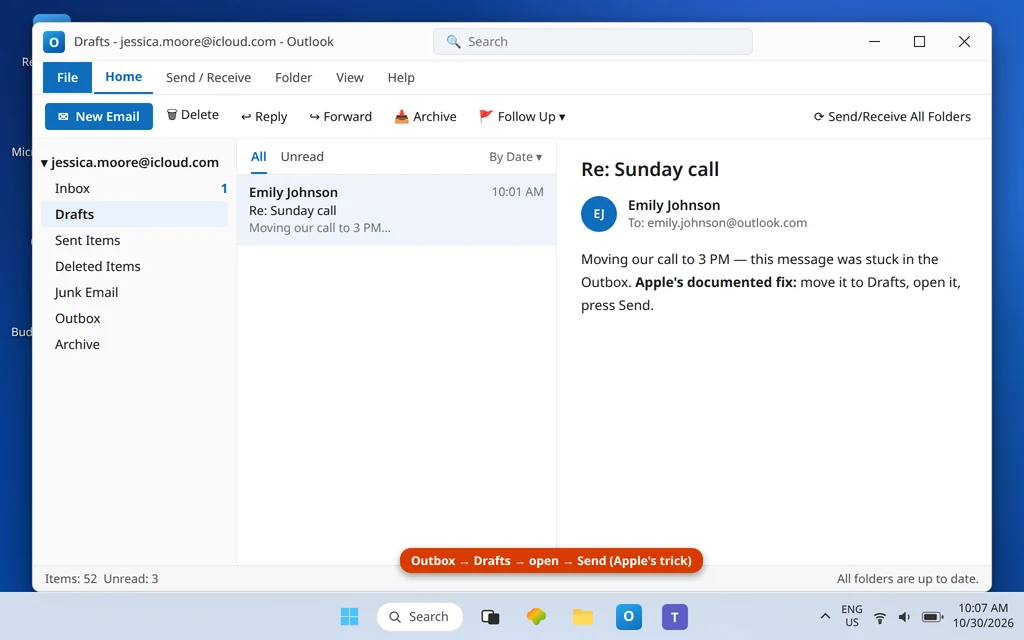
For mail that will not send from the iCloud account, Apple Support documents a surprisingly specific workaround: in Outlook, open the stuck message in the Outbox, move it to Drafts, open it there, and click Send again. Combined with the Fix 2 outgoing checks — smtp.mail.me.com port 587, authentication required, full-address user name, app-specific password — that clears the documented send failures. If sends still fail after both, the app-specific password in the outgoing sign-in is the usual straggler: re-paste it (More Settings → Outgoing Server → Log on using, or re-enter via Change) rather than assuming the incoming fix covered it.
Fix 5 — When Outlook shows the account as “Disconnected”
If the status bar reads Disconnected and no prompt appears, Outlook has stopped trying rather than failing loudly. Three quick revives, in order: check Work Offline is off (Send/Receive tab — it survives restarts and produces exactly this silent state); click into the iCloud account’s Inbox and press Send/Receive All Folders to force an attempt and surface the real error or prompt; and if the prompt then appears, treat it as Fix 4 — the stored app-specific password is no longer valid, and a fresh one from account.apple.com is the fix, not another round of re-typing the old one. A “Disconnected” that survives all three on every account (not just iCloud) is an Outlook/Windows network problem, not an Apple one — the general checks in Outlook Disconnected cover that case.
Confirm it worked
Send/Receive completes without a prompt, new mail lands, and a test send appears in Sent Items. Restart Outlook once — a healthy iCloud account reconnects silently with no prompt at all.
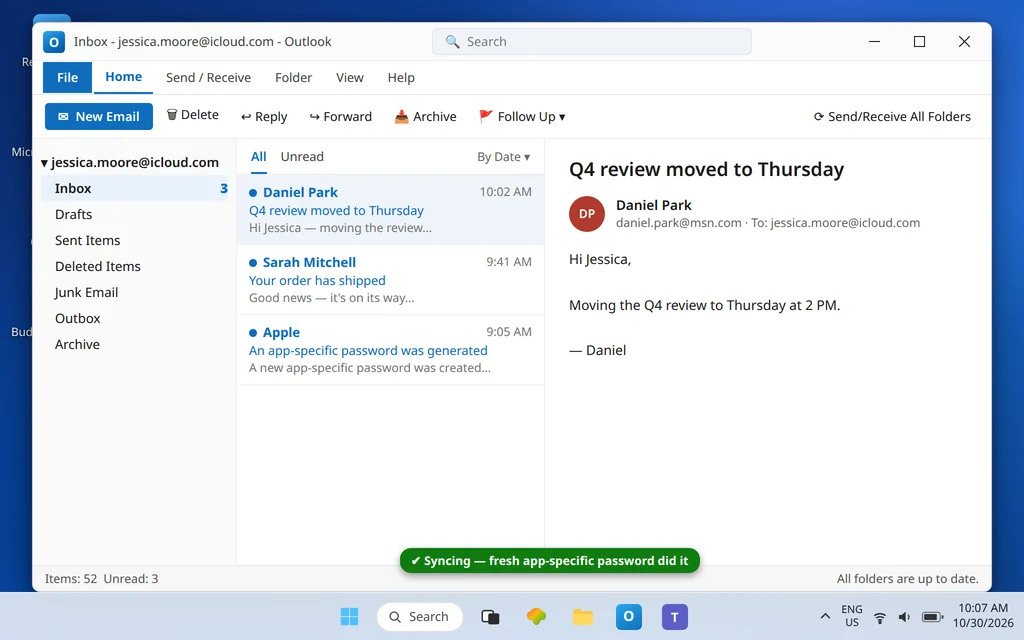
How to stop it happening again
- After ANY Apple password change, regenerate the Outlook app-specific password the same day — the revocation is automatic, and this ordering turns a “mystery outage” into a non-event.
- Label app-specific passwords by app (“Outlook — desktop”, “Outlook — laptop”) so you know which of the 25 slots each device owns.
- Keep mail on IMAP. POP for iCloud does not exist; choosing it strands the setup.
- Use iCloud for Windows if you need calendars/contacts in Outlook — do not wait for IMAP to grow features it does not have.
Frequently asked questions
Why does iCloud email keep stopping in Outlook for no reason?
There is usually a reason with an Apple logo on it: your Apple Account password was changed or reset, and Apple automatically revoked every app-specific password when it happened. Outlook’s stored password instantly becomes invalid. Generate a fresh app-specific password at account.apple.com and paste it into Outlook — no other setting needs to change.
What are the correct iCloud Mail server settings for Outlook?
Incoming (IMAP only): imap.mail.me.com, port 993, SSL; user name is usually just the part of your address before the @. Outgoing: smtp.mail.me.com, port 587, SSL with authentication required; user name is your full address. The password for both is an app-specific password, never your Apple Account password. There are no iCloud POP settings — Apple does not offer POP.
Where do I generate an iCloud app-specific password?
At account.apple.com → Sign-In and Security → App-Specific Passwords → Generate. Two-factor authentication must be enabled on the account first, or the option will not appear. You can keep up to 25 active at once, and each can be revoked individually from the same page.
Why is the incoming user name different from the outgoing one?
Because Apple documents them that way: for IMAP sign-in, the user name is “usually” the name portion of your iCloud address (for example jessicamoore), while the SMTP server expects the complete address. If the name-only incoming form is ever refused, try the full address there too — Apple’s own wording allows for exceptions.
Do I need iCloud for Windows to get iCloud email in Outlook?
No — not for email. The manual IMAP setup (app-specific password + Apple’s server table) works on its own. iCloud for Windows is the right route if you also want iCloud calendars and contacts inside Outlook, because its add-in is what connects those; pure IMAP only ever carries mail.
My iCloud mail receives but will not send from Outlook. What is Apple’s fix?
First the outgoing checklist: smtp.mail.me.com port 587, authentication on, user name = full address, password = app-specific password. Then Apple’s documented trick for a stuck message: move it from the Outbox to Drafts, open it, and press Send again. Between the two, the documented send failures clear.
Syncing again — or stopped mid-fix? Contact us at servicedesk@howtofixerroronline.com or through our Contact page and tell us the exact prompt or error Outlook shows and whether your Apple password changed recently. Never send us your Apple password or an app-specific password — we will never ask for either.