
BigPond Email Not Sending in Outlook: 550 5.7.1 & the Telstra Server Fix
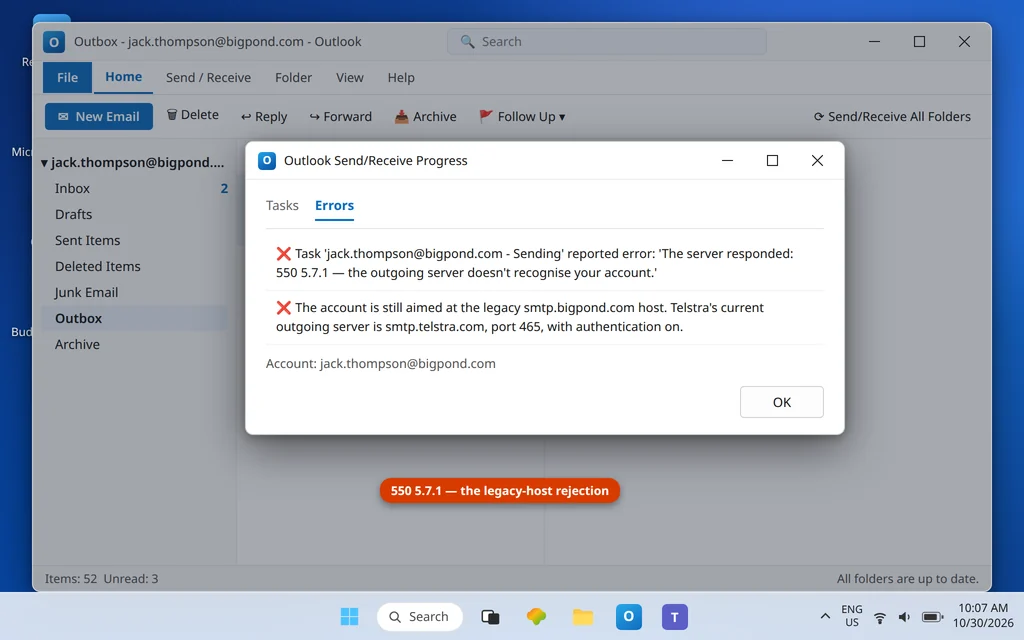
Most BigPond sending failures in Outlook have a pleasingly old-fashioned cause: the account is still aimed at the legacy BigPond servers. Addresses ending @bigpond.com, @bigpond.net.au and @telstra.com are all Telstra Mail accounts now, and the current hosts are the telstra.com ones. Setups still carrying mail.bigpond.com or smtp.bigpond.com — left over from years-ago configurations and endlessly copied by outdated guides — fail on send, typically with the rejection 550 5.7.1: the outgoing server does not recognize your account. Replace the hosts, keep authentication on, and the same account sends immediately. If bigpond email not sending in outlook is what brought you here, the host swap below is the fix.
This guide covers the send side for all three Telstra address domains, plus the setup wizard’s strangest habit (it thinks your BigPond account is a Gmail account). If BigPond mail also fails to receive, the same host replacement fixes the incoming side — the table in Fix 2 covers both. For send problems across providers generally, see Outlook Not Sending Emails but Can Receive.
Quick Answer: Change the outgoing server to
smtp.telstra.com— port 465 with SSL/TLS (recommended), or 587 with STARTTLS — with SMTP authentication required using the same credentials as your incoming server, and your full @bigpond.com address as the user name. While you are in the settings, replace the incoming host too:imap.telstra.comport 993. Delete every trace ofmail.bigpond.comandsmtp.bigpond.com— those legacy hosts are the fault behind most BigPond 550 5.7.1 send rejections.
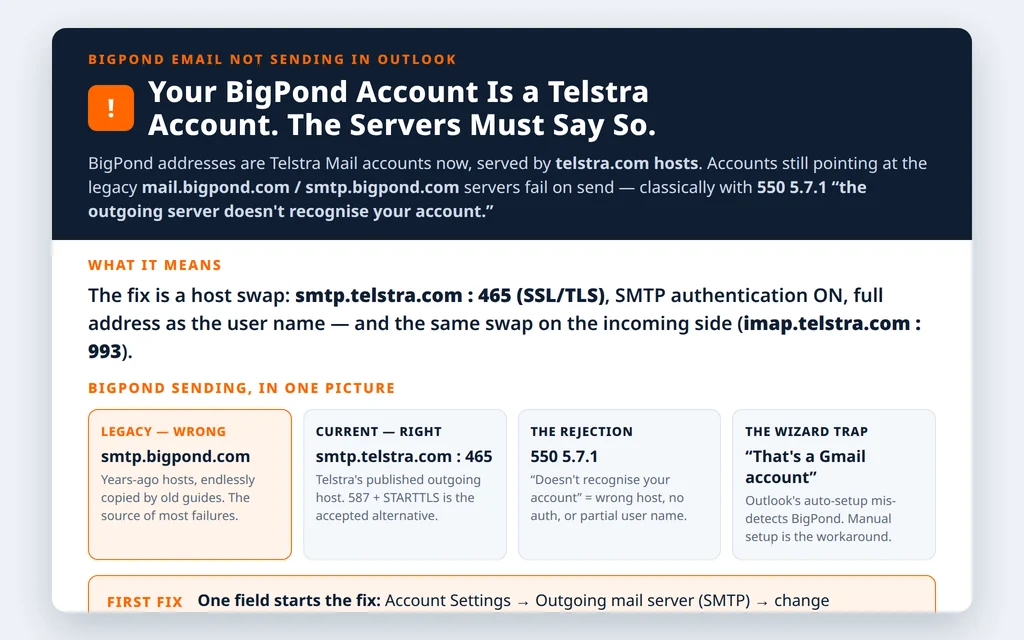
Table of Contents
Fix 1 — Read the rejection: 550 5.7.1
When a BigPond send fails with 550 5.7.1 and wording like “the outgoing server doesn’t recognise your account” (Australian spelling in Telstra’s own messages notwithstanding), the server is telling you the account presented does not match an account it serves. Nine times out of ten that is because Outlook knocked on a legacy BigPond host or sent without proper authentication. It is a configuration verdict, not an account suspension — Fix 2 resolves it.
Fix 2 — BigPond email not sending in Outlook: replace the legacy hosts with the Telstra table
In File → Account Settings → Change, overwrite the server fields wholesale:
| Setting | Value |
|---|---|
| Incoming server (IMAP) | imap.telstra.com : 993, SSL/TLS |
| Incoming server (POP) | pop.telstra.com : 995, SSL/TLS |
| Outgoing server (SMTP) | smtp.telstra.com : 465 SSL/TLS (recommended) — or 587 STARTTLS |
| SMTP authentication | Required — same credentials as incoming |
| User name | Full address (@bigpond.com / @bigpond.net.au / @telstra.com) |
| Password | Your Telstra Mail password (see Fix 4 if Outlook mentions a separate secure password) |
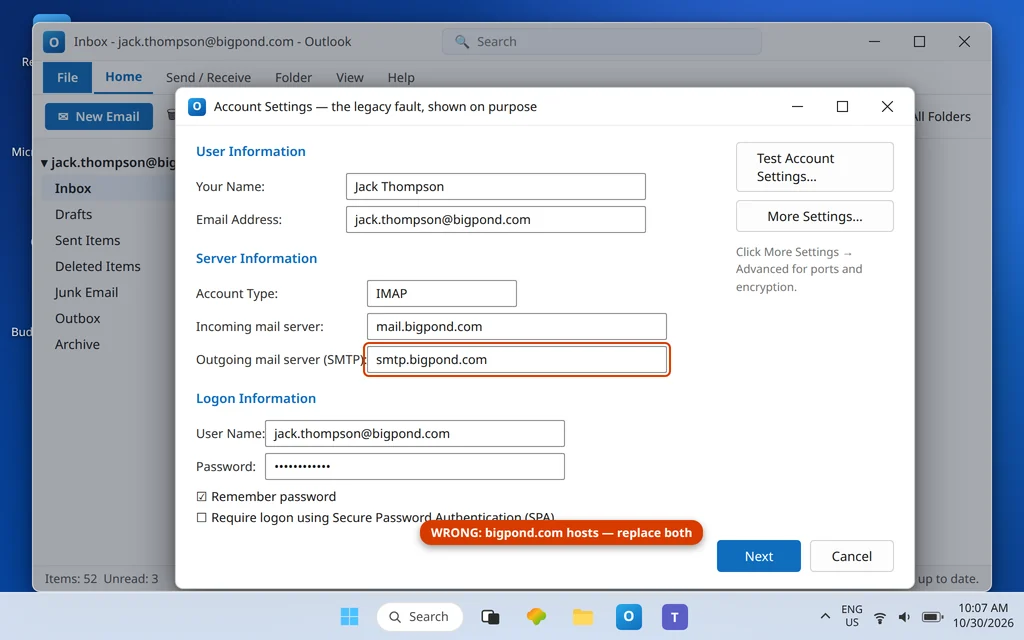
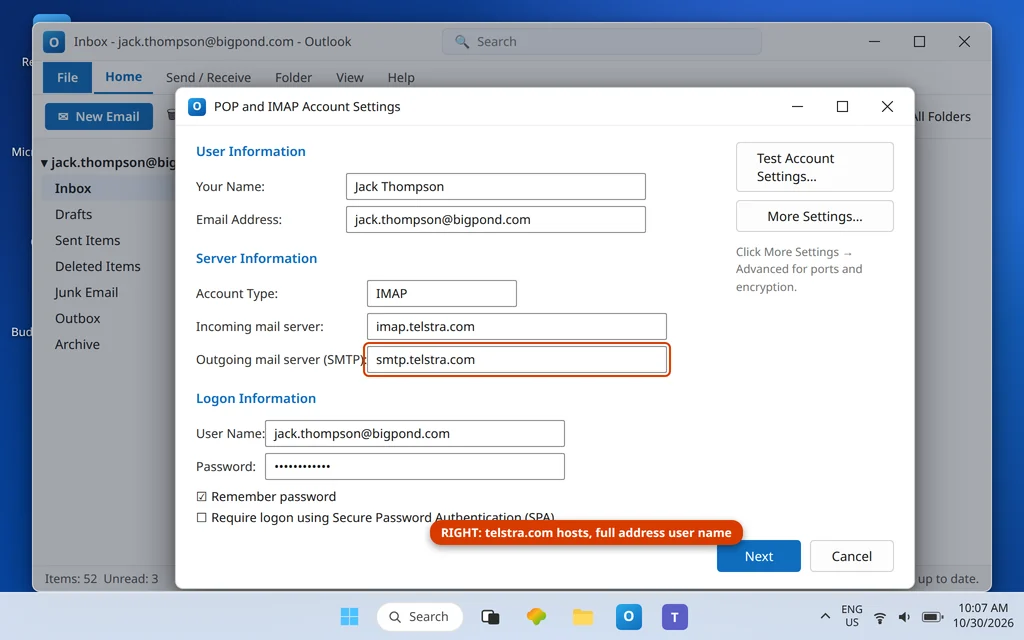
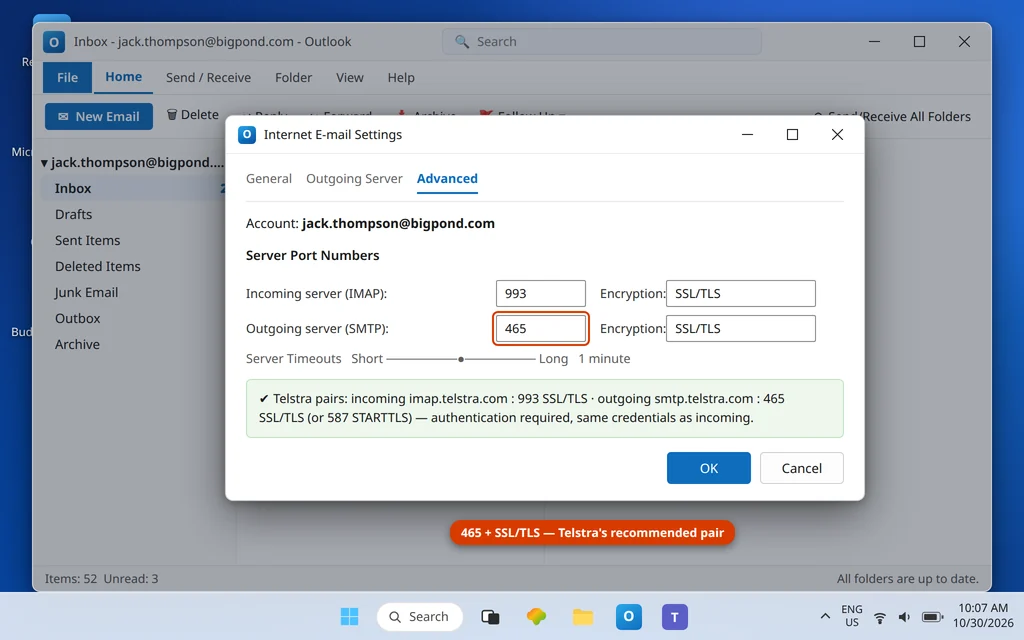
Then More Settings → Outgoing Server: tick My outgoing server (SMTP) requires authentication → Use same settings as my incoming mail server. The 550 5.7.1 returns if authentication is off, even with the right host — Telstra’s outgoing server insists on knowing who is sending.
Fix 3 — Beat the wizard: it thinks BigPond is Gmail
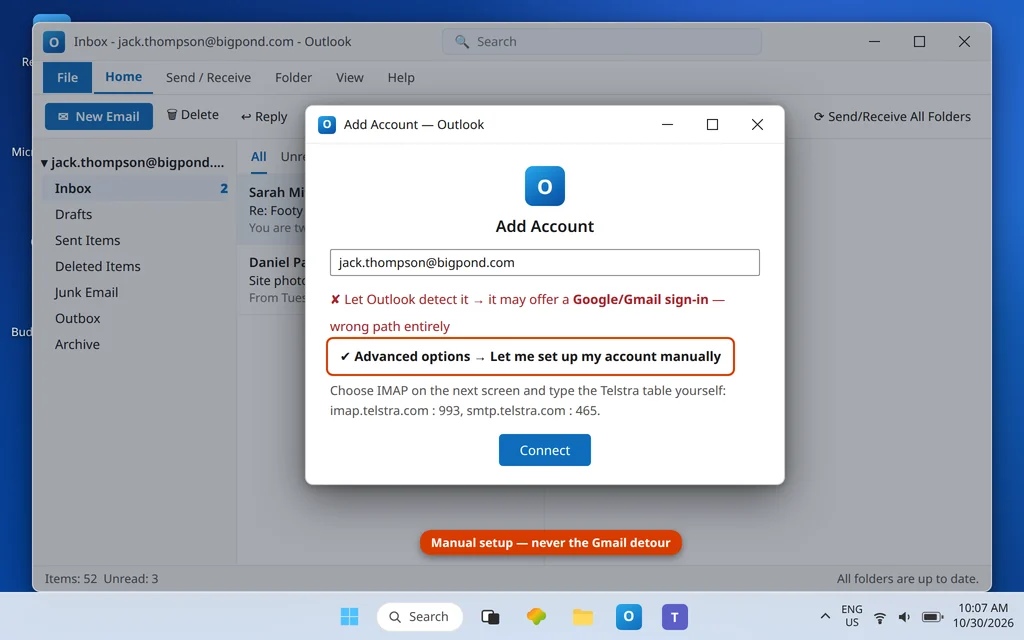
If you are adding the account (or re-adding after removing a broken one), know that Outlook’s automatic setup can mis-detect a BigPond address as a Gmail account and try to walk you through a Google sign-in. That path can never work. Back out and choose Advanced options → Let me set up my account manually → IMAP, then type the Fix 2 table yourself. Manual entry is the whole workaround; there is no setting that makes the wizard guess Telstra correctly.
Fix 4 — Do the webmail-first test (and the password prompt question)
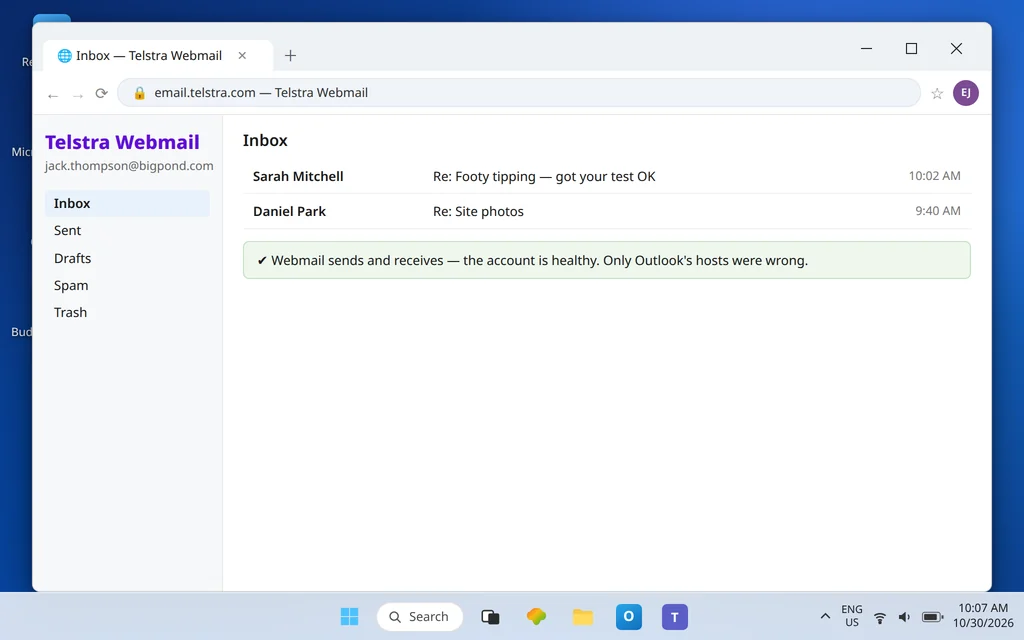
Before and after the settings change, sign in at email.telstra.com (Telstra Webmail) with your address and password. If webmail cannot sign you in, fix the account credentials there first — Outlook cannot send for an account Telstra itself will not open. If webmail sends fine, the account is healthy and any remaining Outlook failure is settings.
One conditional note: if Outlook’s setup (or a re-authentication) prompts you for a separate secure/app password, follow Telstra’s current Outlook setup guidance for your account at that moment — some Telstra account flows do introduce a generated mail password step, and the prompt on your screen outranks any general guide, including this one. What never changes: the telstra.com hosts, port 465, authentication on. Telstra’s official setup guide covers the current steps.
Fix 5 — Still stuck? Swap the port pair, then check what’s scanning your mail
Two second-line moves remain before suspecting the account. Swap the port pair: if 465 + SSL/TLS is being refused on your current network (some corporate and hotspot networks mangle it), switch the outgoing port to 587 with STARTTLS — Telstra publishes both pairs, and networks that break one usually pass the other. Change the port and its encryption together; a mismatched pair (587 with SSL forced, for instance) fails in ways that look exactly like a server outage. Check the security suite: antivirus “email scanning” features sit between Outlook and the SMTP server and are a recurring cause of sends dying after a suite update. If the timing matches an antivirus change, test one send with the suite’s outgoing-mail scan paused; if it flies, leave that scan off (your attachment scanning still happens elsewhere) rather than weakening the account’s encryption to appease it. Neither move requires touching the telstra.com hosts — by this point in the guide those are known-good, and re-editing them is how fixed accounts get re-broken.
Fix 6 — Clear the Outbox, send fresh, confirm
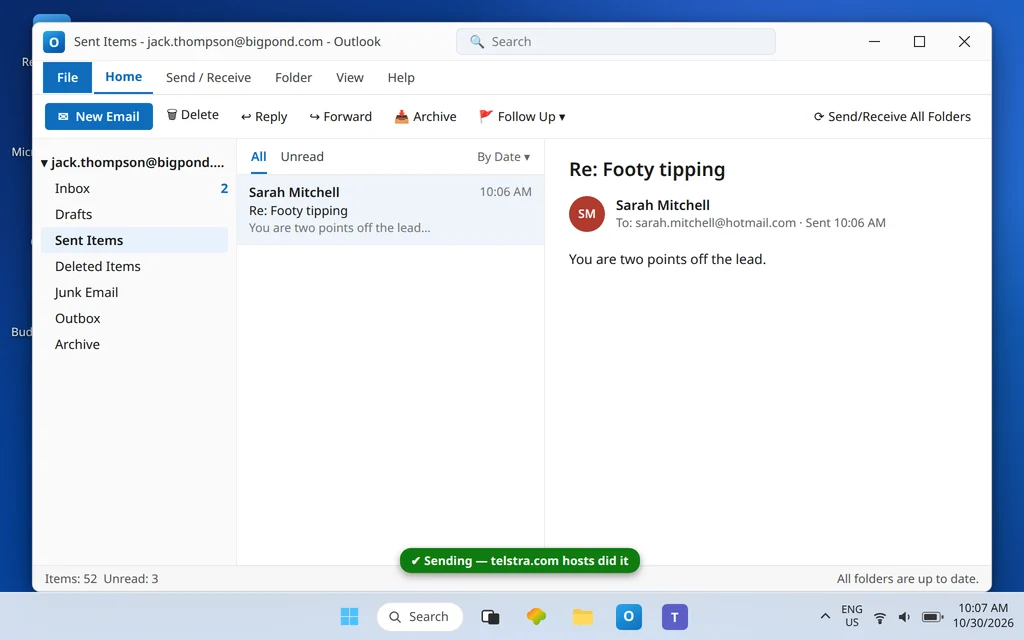
Drag stuck messages from the Outbox to Drafts, open each, press Send. Confirm the test message reaches Sent Items and arrives at an outside address (a Gmail or Outlook.com mailbox makes a clean test). Reply from there to close the loop.
Fix 7 — Inherited setup? Rebuild the account cleanly
Many BigPond accounts in Outlook were configured years ago by a shop, a family member, or a wizard of the era — and carry layered edits nobody remembers making. If your account has that history and the table swap in Fix 2 does not hold (settings appear to revert, or errors change shape between restarts), stop editing and rebuild: remove the account (File → Account Settings → Remove) and re-add it manually (Fix 3’s path) with the Telstra table entered once, cleanly. Two cautions. First, if the old account is POP, its downloaded mail may live only in the local data file — export or back up that file before removing anything; IMAP accounts keep mail on Telstra’s servers and simply download it again. Second, after the rebuild, send the test message before re-adding any other accounts or rules, so if anything still fails you know it belongs to this account alone. A clean manual rebuild is also the permanent cure for the wizard’s Gmail mis-detection, since the wizard never gets a second chance to guess.
How to stop it happening again
- Purge the bigpond.com hosts everywhere. Laptops, spare PCs, old phones — any device still holding
smtp.bigpond.comfails the same way. - Never accept auto-detection for a Telstra address. Manual setup with the Telstra table is the reliable path, every rebuild.
- Keep the healthy pairs together: 465 + SSL/TLS first choice, 587 + STARTTLS second — always with authentication on.
- Webmail-first is the habit: email.telstra.com separates “account problem” from “Outlook problem” in one minute.
Frequently asked questions
What does BigPond error 550 5.7.1 mean?
It is Telstra’s outgoing server rejecting the send because it does not recognize the account as presented — in practice, Outlook is using the legacy smtp.bigpond.com host, or sending without authentication, or with a partial user name. Switch to smtp.telstra.com (port 465, SSL/TLS), turn SMTP authentication on with your incoming credentials, use your full address as the user name, and the rejection clears.
What are the correct BigPond email settings for Outlook in 2026?
The Telstra table: incoming IMAP imap.telstra.com port 993 SSL/TLS (POP: pop.telstra.com 995), outgoing smtp.telstra.com port 465 SSL/TLS (or 587 STARTTLS), authentication required using the same credentials as incoming, user name = your full @bigpond.com, @bigpond.net.au or @telstra.com address. The old mail.bigpond.com / smtp.bigpond.com hosts are legacy — remove them wherever they appear.
Why does Outlook say my BigPond account is a Gmail account?
It is a known mis-detection in the automatic setup wizard for Telstra addresses. The Google sign-in it offers can never succeed for a BigPond mailbox. Cancel out of the wizard’s path and set the account up manually: Advanced options → Let me set up my account manually → IMAP, then enter the Telstra table from this guide.
Does BigPond/Telstra use an app password for Outlook?
Follow the prompt in front of you: some Telstra account flows reference a generated mail password during Outlook setup, and if your account presents that step, complete it as Telstra directs. The settings that never vary are the hosts (smtp.telstra.com), port 465 with SSL/TLS, authentication on, and your full address as the user name. If no such prompt appears in your setup, your normal Telstra Mail password is the credential.
Receiving works but sending fails — is that the same fault?
Yes, almost always the same legacy-host problem, felt on the outgoing side first: the incoming host was updated at some point (or IMAP kept working via a surviving route) while smtp.bigpond.com stayed in the outgoing field. Correcting the outgoing host to smtp.telstra.com with authentication on fixes the split.
My BigPond mail will not send from webmail either. What now?
Then the problem is the account, not Outlook — sign-in or a Telstra-side sending restriction. Resolve it at email.telstra.com or with Telstra support; once webmail sends, Outlook with the correct table follows immediately. Other Outlook error codes are collected in our Error Codes hub.
Sending again — or still meeting 550 5.7.1? Contact us at servicedesk@howtofixerroronline.com or through our Contact page and tell us your address domain and the exact rejection text. Never send us your password — we will never ask for it.