
Outlook Not Sending Emails but Can Receive? 6 Fixes
Few mail problems are as confusing as this one: new emails land in your Inbox all day, but everything you send sits in the Outbox — or bounces back with an error. Outlook not sending emails but receiving fine feels contradictory until you realize sending and receiving are two separate connections. Receiving uses the incoming server (IMAP or POP). Sending uses a different server, on a different port, with its own login: SMTP.
So the pattern is actually good news. Your account, password and internet connection are already proven — receiving works. The fault is confined to the outgoing side: almost always the SMTP port or encryption, the one checkbox that authenticates the outgoing server, or a single message jammed in the Outbox. The fixes below go through them in the order that solves the most cases first.
Quick Answer: When Outlook receives but won’t send, open File > Account Settings > Account Settings, select your account, and choose Change > More Settings > Advanced: set the outgoing (SMTP) port to 587 with STARTTLS (or 465 with SSL/TLS). Then on the Outgoing Server tab, tick “My outgoing server (SMTP) requires authentication” — leaving it unticked is what produces error 530. If sending still fails, check for a stuck Outbox message (Fix 5) and your antivirus or firewall (Fix 4).
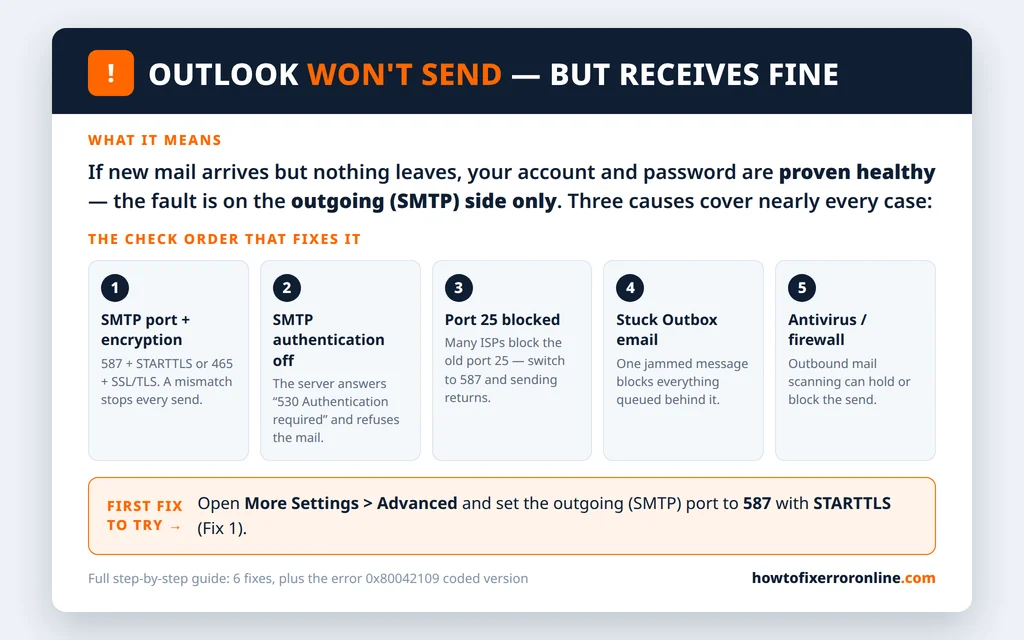
Table of Contents
Why Sending Fails While Receiving Works
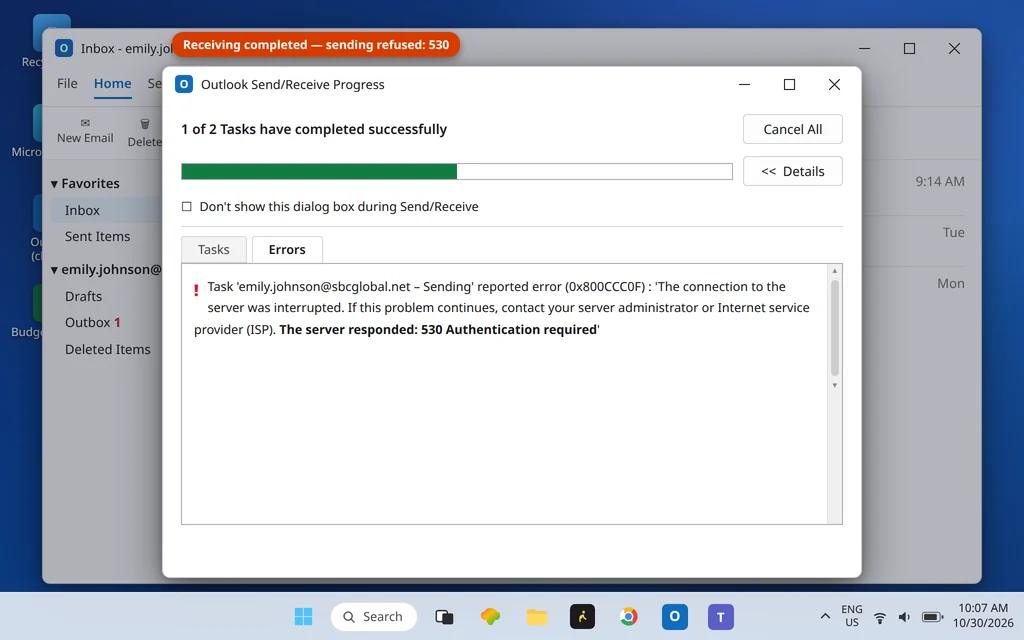
When a send fails, Outlook usually shows the reason in the Send/Receive window — press F9 (or Send/Receive > Send/Receive All Folders) and open the Errors tab. The wording matters:
- “The server responded: 530 Authentication required” — the server refused your mail because the outgoing-server login (Fix 2) is off.
- Error 0x80042109 (“Outlook cannot connect to your outgoing (SMTP) email server”) — the coded version of this exact problem; its dedicated guide is Outlook error 0x80042109.
- A long stall with no error, then a timeout — the classic signature of the ISP port-25 block (Fix 3).
- No error at all, mail just sits in the Outbox — skip to Fix 5.
The mirror-image problem — sending works but nothing arrives — is a different diagnosis with different fixes; if that is you, go to Outlook not receiving emails but can send. And if Outlook is not connecting at all, our Outlook Disconnected guide covers the connection-level causes first.
Fix 1: Check the SMTP Server, Port and Encryption
This is the cause in the majority of cases — the outgoing settings drifted, were migrated wrongly, or still point at the old port 25:
- Go to File > Account Settings > Account Settings, select your email account, and click Change.
- Confirm the Outgoing mail server (SMTP) name matches your provider’s published setting exactly (for AT&T/Yahoo-family accounts, for example,
smtp.mail.att.net; for iCloud,smtp.mail.me.com). - Click More Settings > Advanced.
- Set Outgoing server (SMTP) to 587 and “Use the following type of encrypted connection” to STARTTLS. The equally valid alternative is port 465 with SSL/TLS — use whichever pair your provider publishes.
- Click OK > Next > Close, then press F9 and send a test message to yourself.
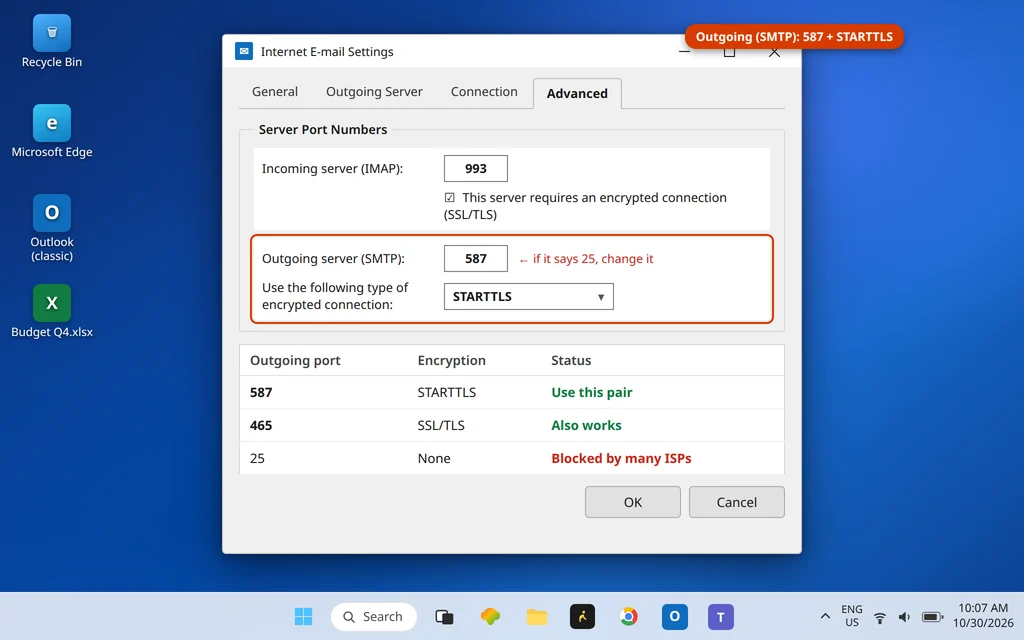
Port and encryption are a matched pair: 587 expects STARTTLS, 465 expects SSL/TLS. Mixing them (587 with SSL/TLS, say) fails silently and is the single most common misconfiguration on this page.
Fix 2: Turn On “My Outgoing Server Requires Authentication” (Error 530)
If your send error says 530, this checkbox is the whole problem. Incoming mail asks for your password when it collects; many servers additionally demand a login before they will relay outgoing mail — and Outlook only sends that login if you tell it to:
- File > Account Settings > Account Settings > select the account > Change > More Settings.
- Open the Outgoing Server tab.
- Tick My outgoing server (SMTP) requires authentication.
- Leave Use same settings as my incoming mail server selected — the standard, correct choice for nearly every provider.
- OK > Next > Close, then test with F9.
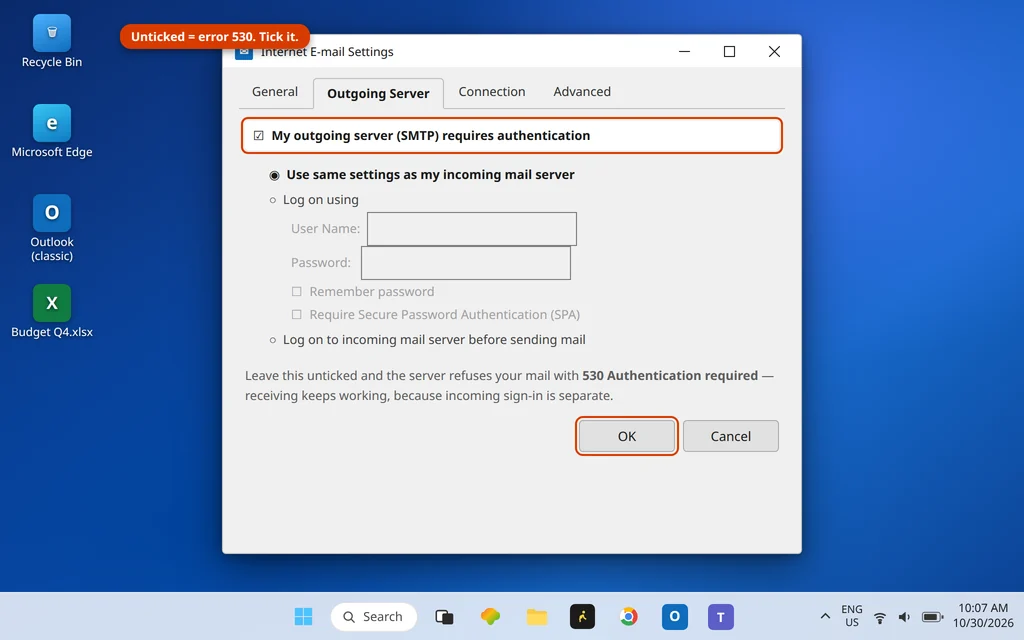
Until that box is ticked, the server answers every send attempt with “530 Authentication required” and discards the mail — no matter how correct the password is elsewhere.
Fix 3: The ISP Port-25 Block
If your outgoing port is still 25, your internet provider may be the blocker. Most residential ISPs block outbound port 25 to fight spam bots, and the symptom is distinctive: sends stall and time out with no helpful error, often only on your home connection — the same laptop sends fine from a coffee-shop network. The fix is Fix 1’s setting: move to 587 + STARTTLS and the block no longer applies, because 587 is the sanctioned submission port. If you are on a very old account profile that resists editing, remove and re-add the account so it is created with modern defaults.
Fix 4: Antivirus and Firewall Blocking the Send
Security software scans outgoing mail and can hold or kill the send connection — typically right after the antivirus itself updates. Test it cleanly:
- Temporarily disable your antivirus’s email scanning feature (not the whole antivirus, if it lets you separate them).
- In Windows Security > Firewall & network protection > Allow an app through firewall, confirm Outlook is allowed on your network type.
- Send a test message.
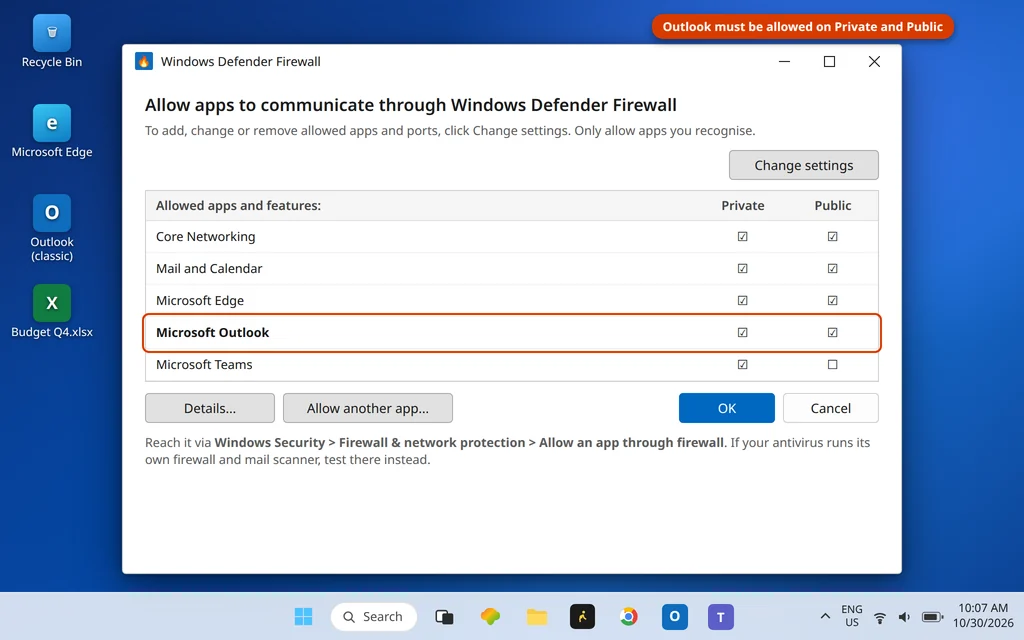
If the test sends, the scanner was the cause: re-enable scanning, and if the problem returns, update the antivirus or leave just its outbound mail scan off — your provider also scans mail server-side.
Fix 5: Clear a Stuck Message From the Outbox
One jammed message — usually with a huge attachment — blocks everything queued behind it, while receiving carries on untouched. If your Outbox shows a count:
- Open the Outbox folder. If a message sits there, try F9 once; if it stays, continue.
- Put Outlook offline so it stops retrying: Send/Receive tab > Work Offline.
- Delete the stuck message, or drag it to Drafts to slim its attachment down.
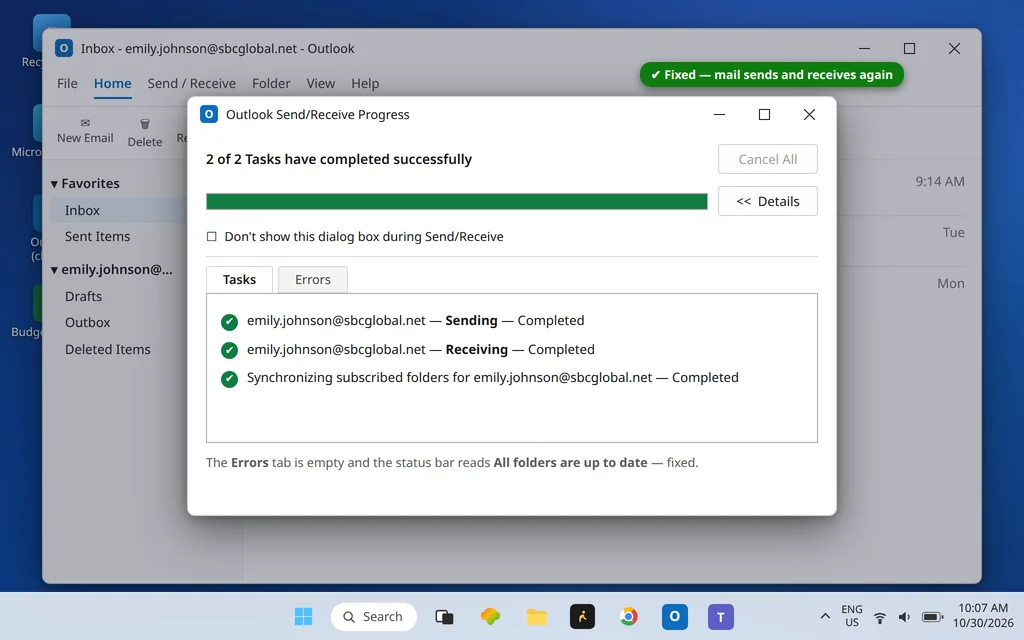
- Turn Work Offline off again and press F9.
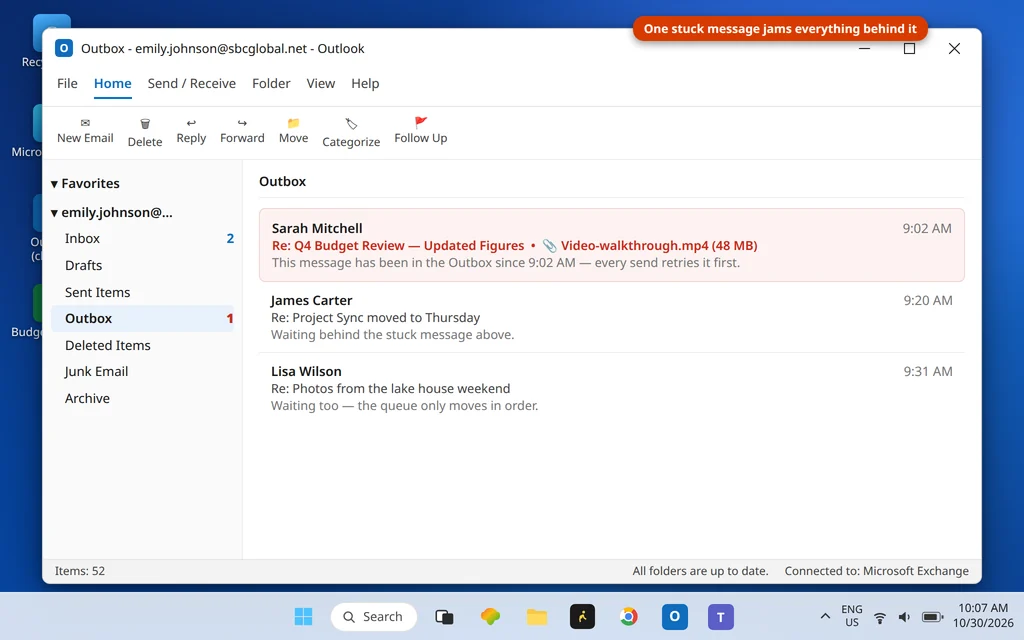
The full stuck-Outbox workflow — including messages that refuse to delete — is our email stuck in the Outlook Outbox guide.
Fix 6: Repair the Profile — or Rebuild It
If the settings are provably right and sending still fails, the account’s stored configuration in your Outlook profile is likely corrupt. In Classic Outlook, add the account to a fresh profile without deleting the old one:
- Close Outlook. Open Control Panel > Mail (Microsoft Outlook) > Show Profiles > Add, and name the new profile.
- Add your email account with its published settings, then set Always use this profile to the new one (or choose Prompt for a profile while you test).
- Open Outlook and send a test.
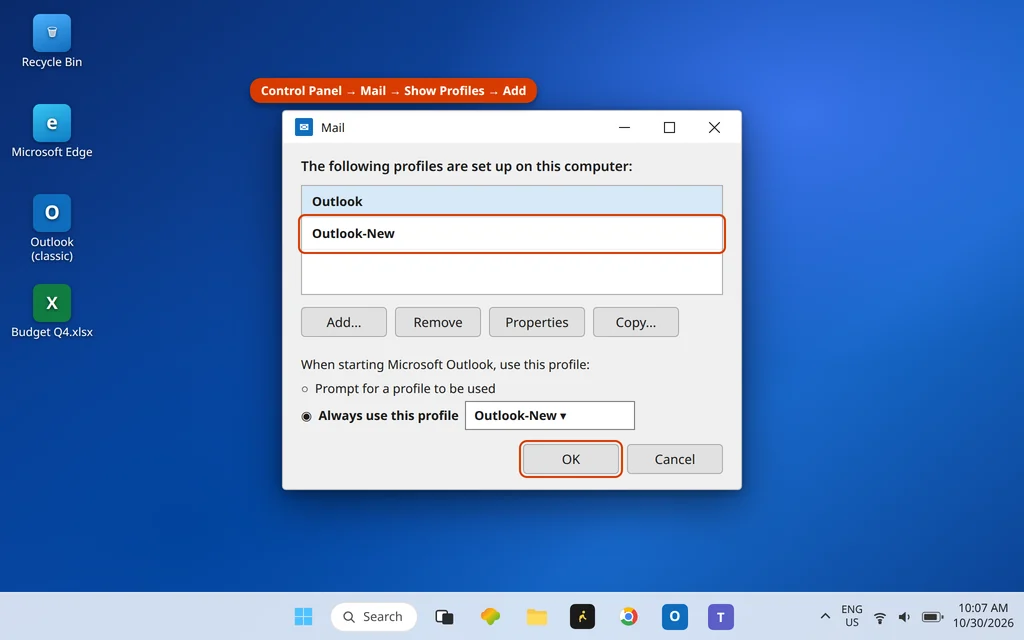
In the new Outlook there are no profiles: remove the account instead (Settings > Accounts > Your accounts > select it > Remove) and add it again — the fresh sign-in rebuilds the same state.
Using the New Outlook? The Sending Checks There
The new Outlook hides server settings behind Settings > Accounts > Your accounts > Manage, but two sending traps are specific to the app:
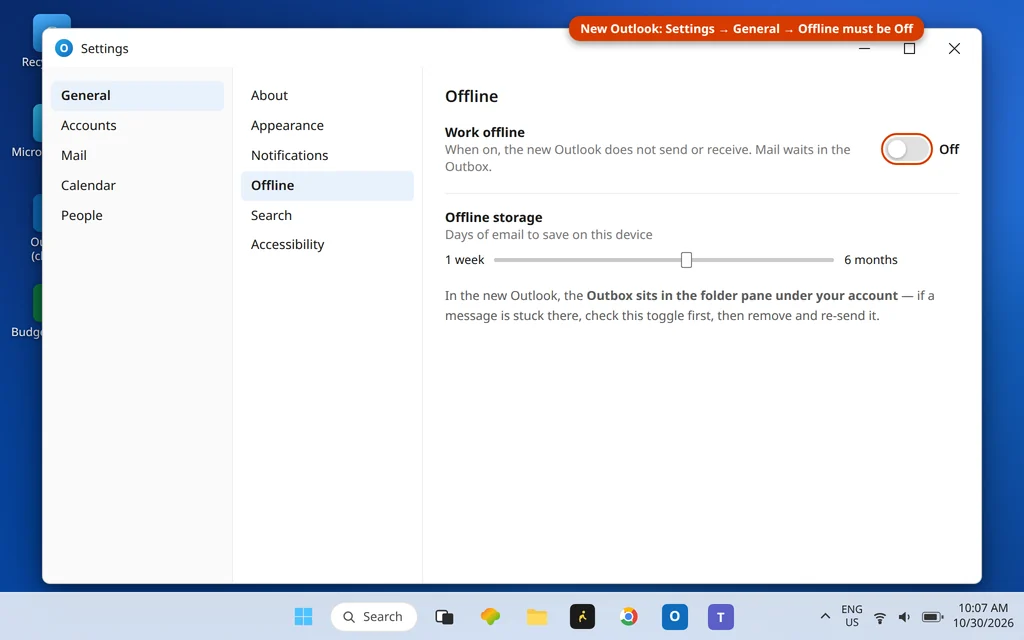
- The hidden Outbox. Sent mail that is queued or stuck sits in the Outbox folder under your account in the folder pane — check there first when “nothing sends”.
- Offline mode. In Settings > General > Offline, email can download for offline use; if Outlook was left working offline, sends queue silently. Also glance at Settings > Accounts > Storage — a completely full mailbox can refuse to send.
Seeing Error 0x80042109 Instead?
When this same failure arrives with the code 0x80042109, use the dedicated guide — Outlook error 0x80042109: cannot connect to the outgoing (SMTP) server — which adds the registry-level and repair steps for the coded version. If the code is 0x80042108 instead, sending works and the incoming connection is the broken one: Outlook error 0x80042108. For every code in one place, see the Error Codes hub.
Provider-Specific Fixes
The six fixes above solve most sending failures. If your account belongs to one of these providers, though, there is usually one provider-specific trap behind the failure — find your provider below before you try anything more drastic.
Yahoo Mail: Sending Needs an App Password or the OAuth Sign-In
For a manually set up Yahoo account, Outlook sends through smtp.mail.yahoo.com — use port 465 with SSL as the default (587 is the fallback). On the Outgoing Server tab, SMTP authentication must be on, set to use the same settings as your incoming server. The password Outlook sends is the trap: a manual setup refuses your normal Yahoo password and needs a Yahoo app password instead (Yahoo Account Security > External connections > Create app password). In the new Outlook app, skip the app password and re-add the account through Yahoo’s own sign-in window (OAuth) instead. If Yahoo’s server answers with a 554 rejection, the message itself was refused — check the content and your daily sending before resending. Full setup steps are in our guide to adding Yahoo and AOL mail to Outlook; receiving problems are covered by our Yahoo email not syncing in Outlook guide.
AOL Mail: Same Fix Path as Yahoo, Different Server Names
AOL runs on Yahoo’s platform, so the fix order is identical — only the outgoing server name changes. Set the SMTP server to smtp.aol.com, port 465 with SSL (587 with STARTTLS is AOL’s alternative), and turn on “My outgoing server requires authentication.” A manually added AOL account also refuses your normal password: generate an AOL app password (AOL Account Security > Generate app password), name it for Outlook, and paste it into Outlook’s password field for both directions. Typing your usual AOL web password into a manual setup form will keep failing no matter how carefully you type it — that refusal is by design, not a sign your password is wron. Setup walkthrough: add Yahoo and AOL mail to Outlook.
Rogers: The App Password Is Gone — Re-Add With the Yahoo Sign-In
Rogers mail (@rogers.com) is Rogers Yahoo! Mail, and Rogers has withdrawn app password generation — every older guide telling you to generate one is now out of date. If your Rogers account stopped sending after a password prompt started looping, remove the account from Outlook and add it again in a current Outlook version, choosing Yahoo sign-in when offered, so the account connects with the modern login. If an older client forces manual servers, the Yahoo-platform values apply: outgoing smtp.mail.yahoo.com on 465 with SSL, username your full @rogers.com address. The Yahoo section above covers the shared platform settings in more detail.
Cox: Your Old Cox Server Is Dead — Sending Goes Through Yahoo Now
Cox finished moving @cox.net mail to Yahoo Mail in early 2025, and the old outgoing server smtp.cox.net no longer works at all. If Outlook still points there, sending fails no matter what else you fix. Change the outgoing server to smtp.mail.yahoo.com, port 465 or 587, with SMTP authentication on, and use a Yahoo app password — generated while signed in to Yahoo Mail with your full @cox.net address — in both password fields, not your old Cox password. Complete the Yahoo handoff at mail.yahoo.com first if you have not already. The full post-move fix, including receiving, is our Cox email not working in Outlook guide.
iCloud Mail: The Outgoing Side Has Its Own Rules
iCloud sending fails differently from every other provider here. Use smtp.mail.me.com, port 587, with SSL (if SSL errors, try TLS), and SMTP authentication required. Two traps catch people out: the outgoing username is your full iCloud address — even though the incoming side usually wants only the name part before the @ — and the password must be an app-specific password, the same one you generated for incoming mail at account.apple.com (two-factor authentication has to be on first). Remember that changing your Apple Account password revokes every app-specific password automatically, which is why iCloud sending often breaks right after a password change. If one message is stuck, Apple’ own fix is to move it from the Outbox to Drafts, open it there, and select Send again. The complete iCloud fix path is in iCloud email not working in Outlook.
Shaw: The Outgoing Server Is mail.shaw.ca, Not smtp.shaw.ca
Shaw’s official outgoing server is mail.shaw.ca, port 587 with TLS — the smtp.shaw.ca address repeated across the internet does not appear in Shaw’s own documentation, and accounts configured with it cannot send. The second trap is the username: Shaw wants your address without the @shaw.ca part. There is no Shaw app password, so ignore any prompt suggesting you generate one; your password is managed through MyRogers (Shaw). Match the outgoing table, restart Outlook, and test with a plain message to yourself. Shaw’s receiving side has its own traps, covered in Shaw email not receiving in Outlook.
Cogeco: Your Province Decides the Outgoing Server
Cogeco runs two server sets, and using the wrong province’s outgoing server is a classic “receives fine, cannot send” cause. Ontario: smtp.cogeco.ca. Quebec: smtp.cgocable.ca. Both use port 587 with STARTTLS, SMTP authentication required, and your full Cogeco address as the username. If your error is 554 “Your IP is not authorized to send mail through our server,” that is the legacy unauthenticated setup talking — moving to port 587 with authentication on is the fix. One more Cogeco-only: Cogeco can temporarily suspend sending after bulk or spam-like sending, and only waiting it out (or contacting Cogeco) lifts that.
EarthLink: Sending Only Works Through smtpauth.earthlink.net
EarthLink’s outgoing server is the single most-mistyped setting in this article. It must be smtpauth.earthlink.net, port 587 with STARTTLS and authentication on — not smtp.earthlink.net, which appears in old answers but is not EarthLink’s consumer sending server. Use your full @earthlink.net address as the username and your normal email password: EarthLink has no app password, whatever a forum answer may claim. EarthLink’s own FAQ frames this exact problem — “I can receive email, but not send it” — as an outgoing-server configuration failure, and this one change is the fix in almost every case.
Juno: Turn On Outgoing Authentication, and Respect the 550 Block
Juno’s outgoing server is smtp.juno.com, port 465 with SSL, and SMTP authentication is required — check “My outgoing server (SMTP)” requires authentication” and “Use same settings as my incoming server.” Your username is your full member address (memberid@juno.com). If Juno answers with 550 Access denied, that is Juno’s anti-spam block rather than a settings error: do not keep retrying, because repeated attempts extend the block. Juno’s official remedy is to forward the complete failure message, with its full headers, to Juno support so the block can be reviewed and lifted.
TELUS: Your Old TELUS Servers Are Dead — Sending Goes Through Google Now
If your TELUS account receives but will not send, check the outgoing server first — because the pre-migration TELUS servers are dead. smtp.telus.net (and imap.telus.net / pop.telus.net on the incoming side) stopped working when TELUS email moved to a Google-powered platform, and no password will ever make them connect again. The fix is a rebuild, not a tweak: delete the old TELUS profile in Outlook, sign in to your TELUS mailbox on the web and enable IMAP under Settings > Forwarding and POP/IMAP, then add the account in Outlook as a Google account and complete the Google sign-in with your full @telus.net address. If a client insists on manual servers, use Google’s: smtp.gmail.com on 465 with SSL (or 587 with STARTTLS).
Sky: It Is the App Password, on smtp.tools.sky.com
Sky email is Sky Yahoo Mail, so Yahoo’s app-password rule applies in full: your normal Sky password does not work in Outlook, and sending fails until Outlook holds a 16-digit app password generated in your Sky account. The outgoing server is smtp.tools.sky.com, port 587 with TLS — not smtp.sky.com, which old pages still list. Generate the app password, paste it into Outlook in place of your password (you only enter it once, at setup), confirm outgoing authentication is on, and send a test message. If receiving is broken too, it is the same app password causing both directions.
Xtra / Spark: Ignore the App-Password Prompt — Spark Does Not Have One
Xtra’s sending problem in the new Outlook app comes with a misleading instruction, so take this first: Spark has no app passwords. Two-step verification exists only inside Xtra webmail and does not apply to email clients, yet the new Outlook app may still tell you that “you may need an app password.” There is nothing to generate — do not chase it, and do not switch to Yahoo servers or a Yahoo app password either; Xtra no longer runs on Yahoo’s platform.
The correct outgoing setting is send.xtra.co.nz, port 587 with StartTLS, username your full @xtra.co.nz address and your normal Xtra password. (Older guides show port 465; Spark’s current help page specifies 587 with StartTLS.) The real clash is authentication style: Xtra supports basic IMAP/SMTP login, while the new Outlook app syncs through Microsoft’s cloud and expects a modern sign-in, which is why the same account often sends perfectly in Classic Outlook but fails in the new app. If you hit that pattern, use Classic Outlook as the working fallback, remove and re-add the account in the new app once, and then give it time — Spark and Microsoft have had acknowledged faults on this pairing before, and re-adding during a fault only resets your sync.
How to Stop It Coming Back
- Write your working settings down — server names, 587/STARTTLS (or 465/SSL), and the authentication tick — somewhere outside Outlook. Account migrations and new PCs are when they get lost.
- Keep attachments modest. Compress or share large files by link; oversized attachments are the top cause of stuck Outboxes.
- After changing your password anywhere, update it in Outlook the same day — and if prompts start looping, see our password guides rather than re-typing blindly.
- One antivirus, kept current. Overlapping security suites scanning the same send stream cause repeat blocks.
Sending from Outlook.com in the browser instead of the app? On the website there are no SMTP settings to fix — sending fails there for account-side reasons such as a sending block, the daily sending limits or a full mailbox, all covered in our Outlook.com can’t send emails guide.
Frequently Asked Questions
Why is Outlook not sending emails but can receive them?
Because sending and receiving are separate connections. Receiving (IMAP/POP) is working, which proves your account and internet are fine. Sending (SMTP) fails for its own short list of reasons: wrong port or encryption (Fix 1), the SMTP authentication checkbox being off (Fix 2), an ISP port-25 block (Fix 3), security software (Fix 4), or a stuck Outbox message (Fix 5).
What does “530 Authentication required” mean?
The outgoing server refused to relay your mail because it did not receive a login. In Outlook, open More Settings > Outgoing Server and tick My outgoing server (SMTP) requires authentication, leaving “Use same settings as my incoming mail server” selected. That one checkbox is the fix in nearly every 530 case.
What are the correct SMTP settings for Outlook?
For almost every modern provider: port 587 with STARTTLS, or port 465 with SSL/TLS — matched pairs, not mixes. Port 25 is the legacy option and is blocked by many ISPs. Always confirm the outgoing server name against your provider’s published settings, since that is provider-specific.
Outlook stopped sending emails — I can receive but not send. Where do I start?
Start with the Send/Receive Errors tab (press F9) and read the actual wording: “530” sends you to Fix 2, code 0x80042109 to its dedicated guide, a silent timeout to Fixes 1 and 3, and no error at all to the Outbox in Fix 5. Ten seconds of reading the error saves an hour of guessing.
Why do my emails sit in the Outbox and never leave?
Usually one message is jammed — an oversized attachment is the classic cause — and everything else queues behind it. Work offline (Send/Receive > Work Offline), delete or shrink that message, go back online, and press F9. Our email stuck in the Outlook Outbox guide covers the stubborn cases, including messages that will not delete.
Still stuck on the Outbox? Send us the exact wording from the Send/Receive Errors tab — the code or the “server responded” line tells us which fix applies — via our Contact page: servicedesk@howtofixerroronline.com, available 24 hours. For coded send and receive errors, the Error Codes hub lists every guide in one place.
Pingback: Outlook.com Can't Send Emails? Sending Blocks, Limits & Fixes (2026)
Pingback: AT&T Email Not Sending in Outlook? Fix the SMTP Side (Secure Mail Key)
Pingback: Verizon Email Not Sending in Outlook? Check smtp.verizon.net (Not AOL)
Pingback: Comcast Email Not Sending in Outlook: SMTP Port + Toggle Fixes (2026)
Pingback: Yahoo Email Not Syncing in Outlook (Classic): App Password + IMAP Fix (2026)
Pingback: Cox Email Not Working in Outlook After the Yahoo Move? Full Fix + Setup
Pingback: Spectrum Email Not Sending in Outlook? The Domain-Split SMTP Fix
Pingback: BT Email Not Sending in Outlook? 530 Fix + the BT Mail Basic Trap
Pingback: BigPond Email Not Sending in Outlook? Replace the Legacy BigPond Servers
Pingback: Virgin Media Email Not Sending in Outlook? VM401 Means App Password
Pingback: Shaw Email Not Receiving in Outlook? Two Traps + mail.shaw.ca Settings
Pingback: Sympatico Email Not Sending in Outlook? The smtphm Server Fix (Bell, 2026)
Pingback: Outlook Not Receiving Emails but Can Send? 7 Fixes (2026)
Pingback: Outlook Disconnected? 8 Fixes to Reconnect to the Server (2026)