
Microsoft Teams Showing Away When You’re Active — Presence Fixes
You are at your desk, working, answering things — and a colleague messages: “Saw you were away, so I didn’t call.” Your Teams status has been showing the yellow Away clock while you were right there the whole time.
This guide is about one specific presence fault: your status shows Away while you are active. Two neighbors live elsewhere in this series — an out-of-office status that will not update is Article 139, and a manual status that keeps resetting itself is Article 140; both get one-line signposts where relevant below, not full coverage here.
Start with the honest truth: in many cases Away-while-working is Teams working as designed, not a bug. Microsoft sets your status to Away after about 5 minutes of inactivity, when your computer locks or sleeps, or when Teams is minimized — and activity means activity Teams can see, not simply “I was busy in Excel.” You cannot change that timeout; Microsoft says so plainly. What you can do is work out which trigger is firing in your case, remove the accidental ones (a PC that sleeps after five minutes, a second device dragging your status down, a stale manual status), and use Microsoft’s own status-message workaround for the rest.
Quick Answer: Teams shows Away after about 5 minutes without activity it can detect, when your PC locks or sleeps, or when Teams is minimized — and the timeout cannot be changed. Fix the accidental triggers first: lengthen your screen and sleep timeouts in Settings > System > Power & battery, keep Teams visible in a split screen instead of minimized, reset any stale manual status, and sign out of Teams on idle second devices. Then use Microsoft’s workaround — a status message like “I’m here — working in other apps, message me anytime” set to show when people message you — so nobody is put off by the yellow dot.
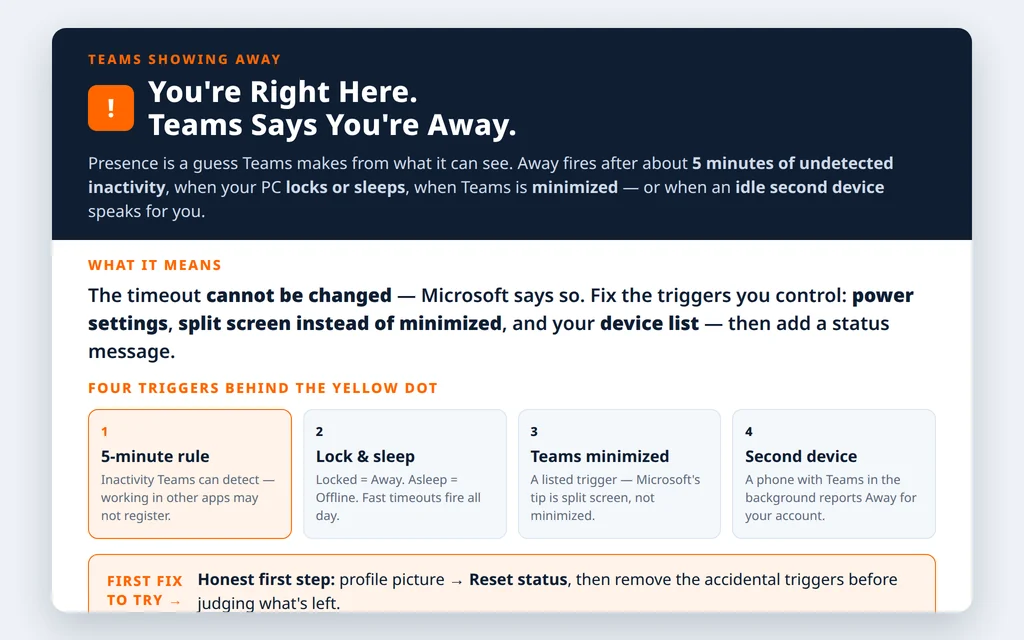
Table of Contents
How Teams actually decides you are Away (read this first — it explains every fix)
Microsoft Learn’s presence documentation describes status as a blend of three inputs:
- Your activity — whether you are Available or Away based on using your device and Teams.
- The Teams app state — In a call, Presenting, and similar states the app sets itself.
- Your Outlook calendar — In a meeting, and Out of Office when automatic replies or an out-of-office calendar block say so.
Layered on top: on a computer, presence becomes Away automatically if you are inactive for a few minutes or the computer is locked, and Offline when the computer enters sleep. On mobile, presence becomes Away whenever the Teams app is in the background. So “I’m active” and “Teams thinks I’m active” are different statements — every fix below closes that gap, legitimately. Unexpected calendar-driven statuses are the calendar input at work, not the inactivity rule — and a status that will not stay where you set it by hand is Article 140’s topic.
Fix 1 — Reset your status and clear any stale manual choice
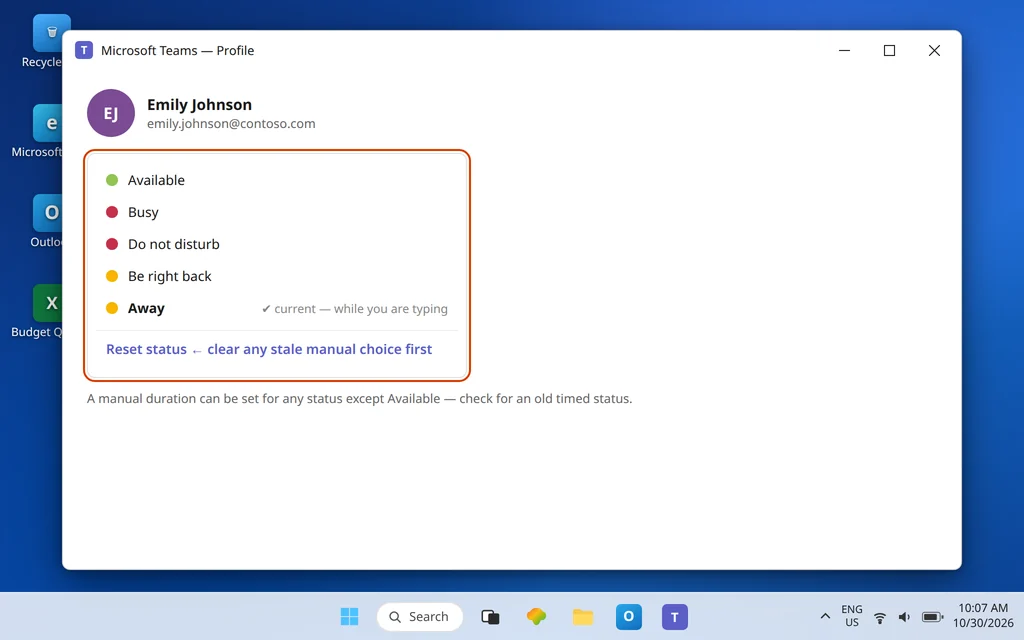
Before fighting the automatic rules, make sure the Away you see is not one you (or yesterday’s you) chose:
- Click your profile picture in Teams.
- Look at your current status. If a status was set manually at some point, choose Reset status so Teams calculates your presence from activity and calendar again.
- Work normally for a few minutes with Teams open and confirm the status follows you — Available while you click and type, changing only when one of the documented triggers fires.
A manual duration is a related trap: you can set a duration for a status — for any status except Available, which has no duration option — and when it expires, Teams resets your status based on your activity, calendar, and computer state. If your status flips at odd, regular moments, check whether an old timed status is involved before blaming the 5-minute rule.
Fix 2 — Stop your PC locking and sleeping so fast
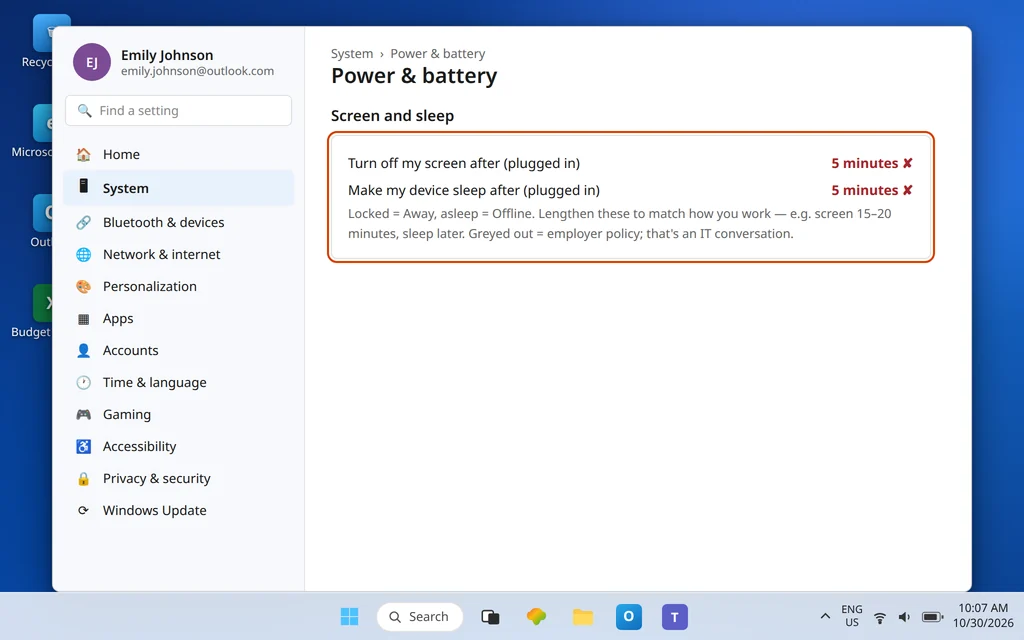
The most common accidental trigger: a work PC set to turn its screen off or sleep after a few minutes. You are reading a long document — no keyboard, no mouse — the screen sleeps, and Teams reports Away or Offline. Microsoft is explicit that lock and sleep drive presence, so the fix is at the Windows layer:
- Open Settings > System > Power & battery.
- Expand Screen and sleep.
- Lengthen the timeouts to match how you actually work — for example, screen off after 15–20 minutes and sleep later still, on plugged-in power at least. You are not disabling anything; you are stopping the PC from declaring you gone while you read.
- Honest limit: if your employer manages these settings by policy, the fields will be greyed out or will revert. That is a conversation with IT, not a setting to force.
Also know your manual habit: pressing Windows + L to lock when you step away is good security — it just sets Away immediately, by design, and unlocking restores you.
Fix 3 — Do not leave Teams minimized all day: use split screen
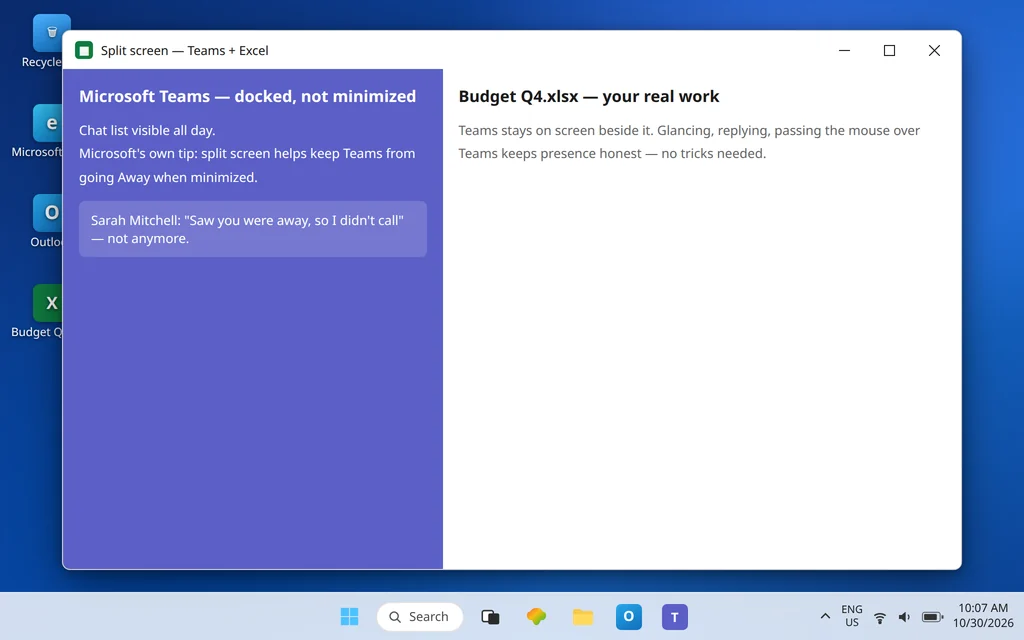
Microsoft’s own page on this exact complaint names a trigger people never suspect: Teams sets Away if you minimize Teams. If your habit is to open Teams at 9, minimize it, and work in other apps until 5, Teams can spend the day reporting you Away between your interactions with it. Microsoft’s suggested tip is simple and works: use split screen — drag Teams’ title bar to one side of the screen so it stays visible alongside your real work, instead of minimized behind it.
Combine that with a reality check: hours of typing in Word or crunching in Excel, without switching to Teams at all, can still drift you to Away under the inactivity rule. A natural rhythm — glancing at Teams, replying as you pass — keeps presence honest without tricks. Which brings up what this guide will not recommend: mouse-jiggler apps and movement scripts. They fake activity rather than fix a trigger, can breach workplace policy, and are unnecessary once Fixes 2, 3, and 6 are in place.
Fix 4 — Check your second devices: the phone in your pocket can set you Away
Presence is per account, blended across devices — and the blend can betray you. Microsoft documents that on mobile, your presence becomes Away whenever the Teams app is in the background. A phone in a drawer, an old tablet, or a second PC sitting locked and idle can color the status colleagues see while your main PC is busy.
- List where you are signed in: main PC, laptop, phone, tablet, Teams on the web left open somewhere.
- Sign out of Teams on devices you are not actively using — especially anything locked or asleep all day.
- Keep the set small: the devices you genuinely work from. Recheck your status after an hour of normal work.
One delay is worth knowing so you do not chase ghosts: presence is near real time for most people, but Microsoft notes delays of up to an hour maximum for mailboxes hosted on-premises. A status that lags a few minutes occasionally is not, by itself, a fault.
Fix 5 — Update Teams and restart it (stale presence is a known failure shape)
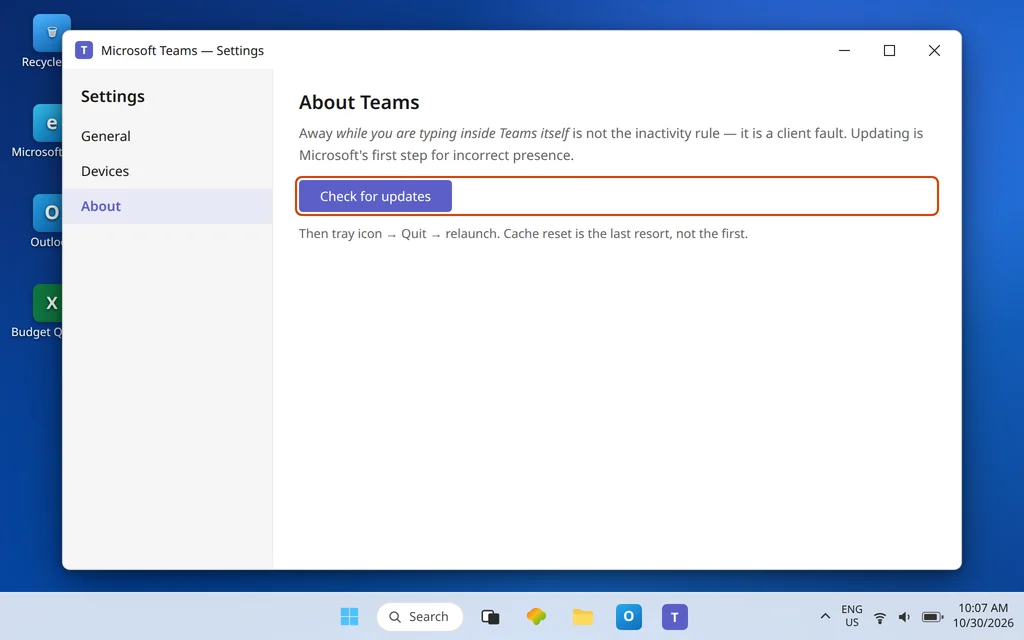
If your status is Away while you are actively clicking inside Teams itself — typing messages, in the app, right now — that is no longer the inactivity rule; that is a client fault, and it deserves client fixes:
- Check for updates in Teams (Settings > About, or the … menu) and let it restart. Microsoft’s Q&A guidance for incorrect presence starts with updating.
- Fully quit and relaunch: tray icon > right-click > Quit, then reopen. A Teams process that has run for weeks can hold a presence state it should have dropped.
- If the wrongness persists on this PC only, clear the cache as the last resort: Settings > Apps > Installed apps > Microsoft Teams > … > Advanced options > Reset — or quit Teams, open
%userprofile%\AppData\Local\Packages\MSTeams_8wekyb3d8bbwe\LocalCache\Microsoft\MSTeamsvia Windows + R, delete the contents, and restart Teams. Chats and settings tied to your account reload afterward; the first launch takes a little longer while the cache rebuilds.
If the app is broadly unstable as well as wrong about your status, Microsoft Teams Keeps Crashing or Freezing covers the wider repair path, and a Teams that cannot stay signed in will also wreck presence — see Microsoft Teams Keeps Asking to Sign In if prompts are part of your picture.
Fix 6 — Use Microsoft’s own workaround: a status message that speaks for you
For the cases that are genuinely by-design — long stretches in other apps, a PC that sleeps on a policy you cannot change — Microsoft publishes a workaround instead of a setting, and it is a good one:
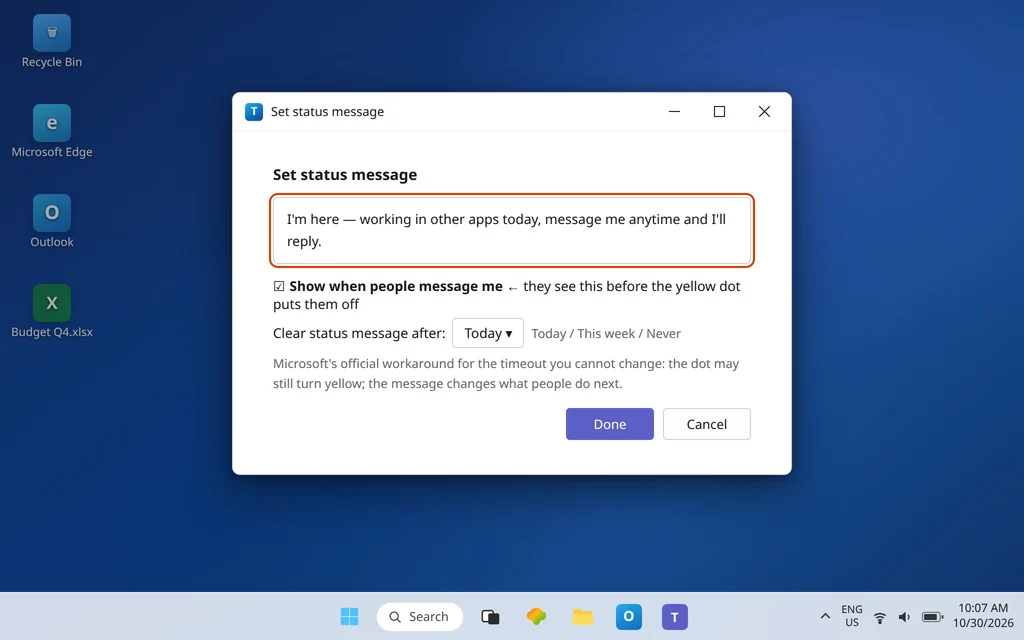
- Click your profile picture and choose Set status message.
- Write something that neutralizes the yellow dot, such as: “I’m here — working in other apps today, message me anytime and I’ll reply.”
- Turn on Show when people message me, so anyone about to write sees it before the Away badge puts them off.
- Under Clear status message after, choose Today, This week, or Never — pick a real duration so the message does not linger into a day it no longer describes.
- Click Done.
The dot may still turn yellow when the inactivity rule fires; the message is what your colleagues read next, and it changes the outcome — people message anyway. If your issue is specifically that an out-of-office message or status is the thing misbehaving, that is the separate Article 139 in this series, not this fix.
Fix 7 — Using Teams on the web? Turn on activity-aware presence
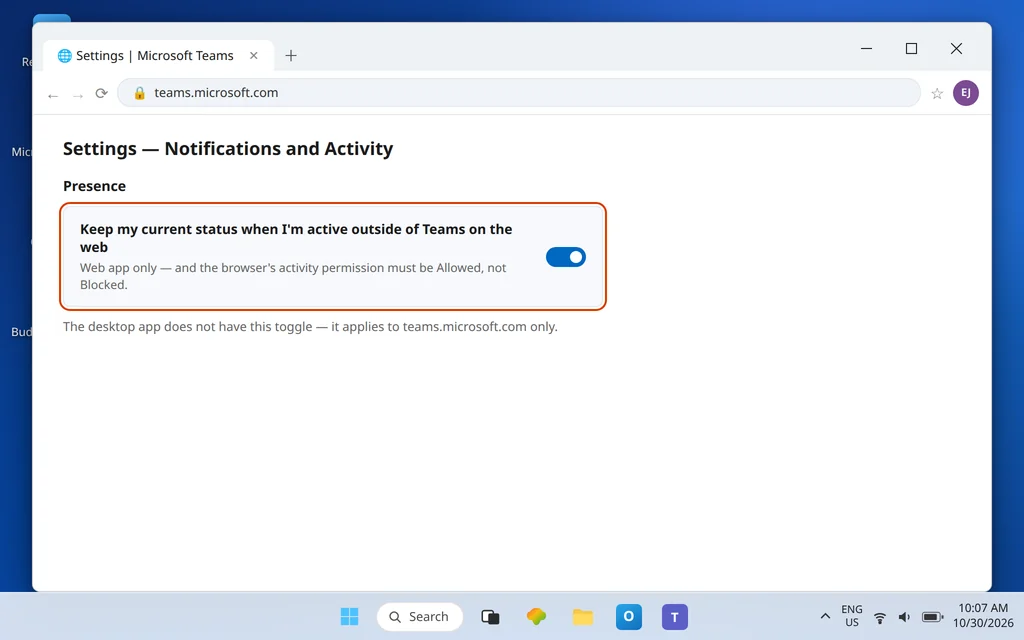
If you work in teams.microsoft.com rather than the desktop app, there is one web-specific setting worth knowing: in Teams on the web, open Settings > Notifications and Activity > Presence and look for Keep my current status when I’m active outside of Teams on the web. With it on — and the browser’s permission for activity detection allowed, not blocked — the web app can tell you are active in other tabs instead of assuming you vanished whenever Teams is not the focused tab. If you previously blocked that browser permission, you will need to allow it in the browser’s site settings for the setting to work. This applies only to the web app; the desktop app does not have this toggle.
Confirm it worked
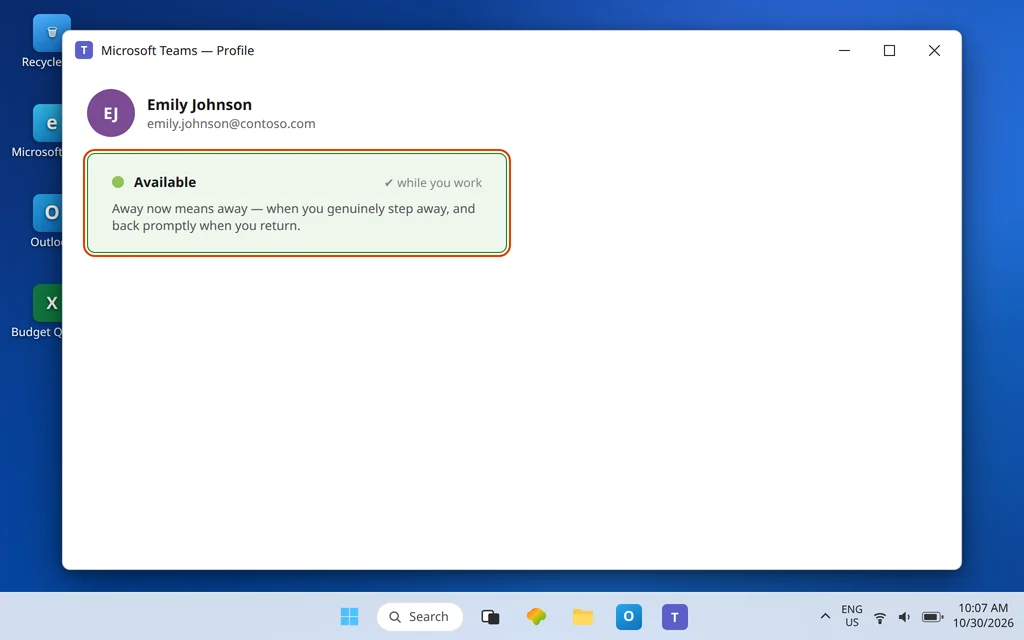
Ask a colleague to watch your status through a normal stretch of work: 20 minutes in your usual apps, a short lock-and-return, a meeting. The realistic goal is not “green forever”; it is a status that matches reality: Available while you work, Away when you genuinely step away, back promptly when you return. If it flips to Away while you are mid-typing inside Teams, you still have a client fault — return to Fix 5 with that evidence.
How to stop it happening again
- Match your power settings to your work. Reasonable screen and sleep timeouts stop the most accidental Away reports without touching security.
- Keep Teams visible, not minimized. A split-screen corner is enough, and it doubles as a glanceable chat view.
- Keep your device list honest. Sign out of Teams on hardware you no longer use, so an idle device cannot speak for your presence.
- Refresh your status message deliberately. If you rely on Fix 6, set its expiry when you write it — a stale “I’m here” on a day you are not is worse than the yellow dot.
Frequently asked questions
Why does Teams show me as Away when I’m working?
Because Teams measures detectable activity, not work. Microsoft sets Away after about 5 minutes of inactivity it can see, when your computer locks or sleeps, or when Teams is minimized — so a long stretch reading, thinking, or working in another app without touching Teams can flip you even though you never left your desk. Fixes 2 and 3 remove the common accidental triggers.
Can I change the 5-minute Away timeout?
No. Microsoft states plainly that you currently cannot change the inactivity timeout. Any guide promising a hidden setting, registry value, or duration option for Available is describing something that does not exist — durations can be set for other statuses, not for Available. The supported tools are the triggers you control (power settings, lock habits, split screen) and the status message in Fix 6.
Why does Teams go Away when I minimize it or work in another app?
Minimizing is one of Microsoft’s listed Away triggers, and activity in other apps is not the same as activity in Teams. Keeping Teams docked in a split screen instead of minimized is Microsoft’s own suggested tip. On the web app, the Presence setting in Fix 7 additionally lets Teams notice activity in other tabs.
Does my phone or a second device affect my status?
Yes. Presence blends across your signed-in devices, and on mobile your status becomes Away whenever the Teams app is in the background. A forgotten, idle, or locked second device can drag your shown status down while your main PC is active. Signing out of devices you are not using (Fix 4) keeps your presence truthful.
How do I tell people I’m here even when it says Away?
Use a status message — Microsoft’s official workaround. Set a message like “I’m here — working in other apps, message me anytime,” turn on Show when people message me, and choose when it clears (Today, This week, or Never). Colleagues deciding whether to contact you will read the message alongside the badge, which is what actually changes their behavior.
My status is Away even while I am typing in Teams itself. Is that normal?
No — that specific case is a genuine fault, not the inactivity rule. Update Teams, fully quit and relaunch it, and if it persists, reset or clear the cache using Fix 5. If colleagues on the same system all share the problem, report it to your IT team as a presence fault with your evidence: it happens during active use, in the app, after an update and restart.
Colleagues still seeing you as Away while you work? Contact us at servicedesk@howtofixerroronline.com or through our Contact page and tell us which trigger fits your case — minimized Teams, fast sleep settings, or a second device — and whether the status is wrong even while you type inside Teams. We will never ask for your password.