
Microsoft Teams Keeps Asking Me to Sign In? 8 Fixes for the Sign-In Loop
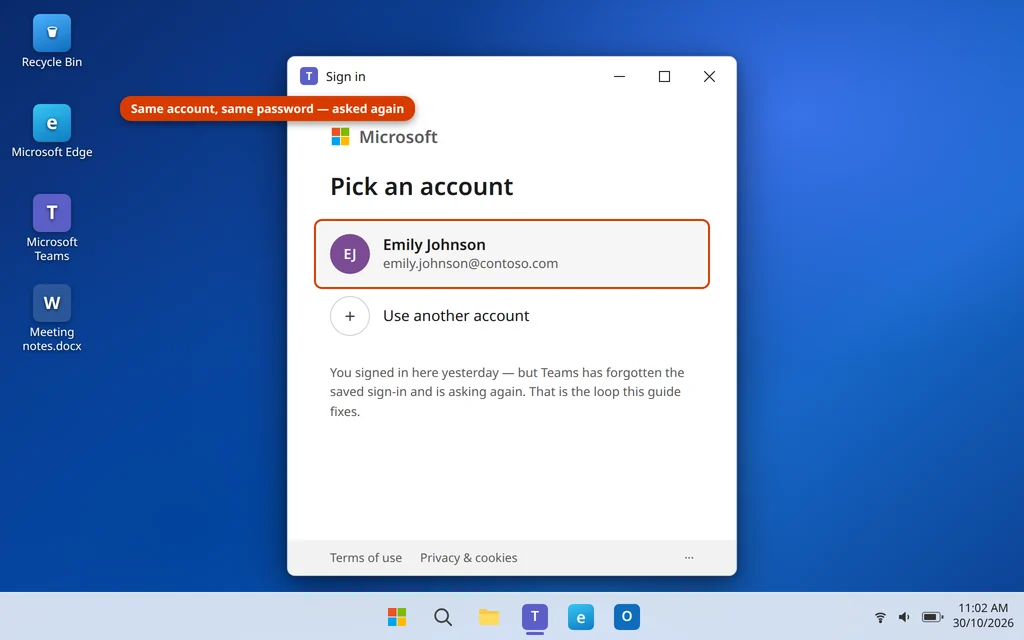
You open Teams, type your password, approve the sign-in on your phone — and it works. Then tomorrow morning, or sometimes ten minutes later, Microsoft Teams keeps asking to sign in all over again. Same password, same phone approval, same loop. If Microsoft Teams keeps asking to sign in on your PC, the problem is almost never your password. Something on the computer is failing to remember you.
When you sign in, Teams stores a token — a small saved pass — on your PC so it can let you straight in next time. The loop starts when that pass is damaged, blocked or thrown away: a corrupt cache, an old saved credential that no longer matches, a work account connected in two places at once, or a PC clock that disagrees with Microsoft’s servers.
The fixes below go from the one-minute checks to the deeper resets, in the order worth trying them. Most people escape the loop at Fix 2 or Fix 3.
Quick Answer: Fully sign out of Teams and quit the app, then sign back in. If the loop returns, clear the Teams cache folder, then remove the old Teams and Office entries in Credential Manager — a stale saved credential is the most common cause. Still looping? Disconnect the work or school account in Settings > Accounts, check your date and time are set to automatic, and as a last resort Repair or Reset the Teams app in Settings > Apps.
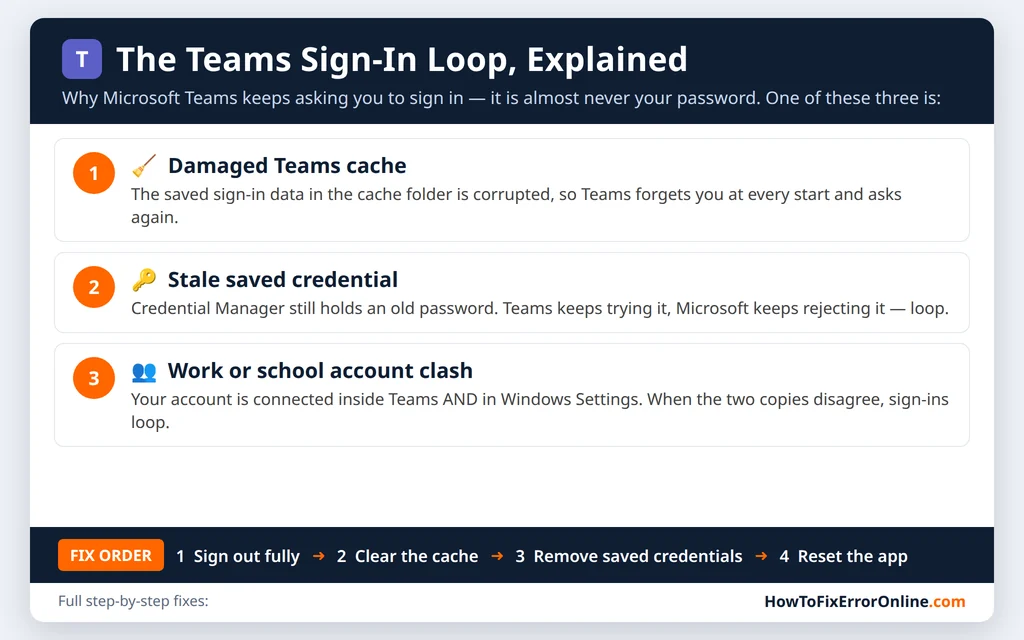
Table of Contents
Why Microsoft Teams Keeps Asking to Sign In
Teams does not ask for your password for fun. It asks when it cannot find a valid saved pass for your account. That usually comes down to one of these:
- A damaged Teams cache. Teams keeps sign-in data in a cache folder. If it gets corrupted, Teams forgets you at every start.
- A stale saved credential. Windows Credential Manager stores an old password or token for Teams or Office. Teams tries it, Microsoft rejects it, and you get asked again.
- The account is connected twice. Your work account can be signed in inside Teams and also connected under Settings > Accounts. When the two copies disagree, sign-ins loop.
- The PC clock is wrong. Sign-in passes are time-stamped. If your PC’s date or time is off, Microsoft treats the pass as expired.
- The approval step is failing. With multi-factor authentication (MFA), a phone whose clock is wrong can generate approvals Microsoft rejects — so you approve, and get asked again.
A quick test before you start: open Teams on the web at teams.microsoft.com in your browser and sign in. If the web version lets you in and keeps you in, your account and password are fine and the problem lives in the app or on this PC — which is what the fixes below solve. If Teams will not open at all on your PC, work through our Microsoft Teams not opening on Windows 11 guide first, then come back here.
Fix 1: Sign Out Completely, Quit Teams, Then Sign Back In
A normal close is not a sign-out — Teams keeps running in the background and keeps using the same broken session. A full sign-out forces a clean, fresh pass.
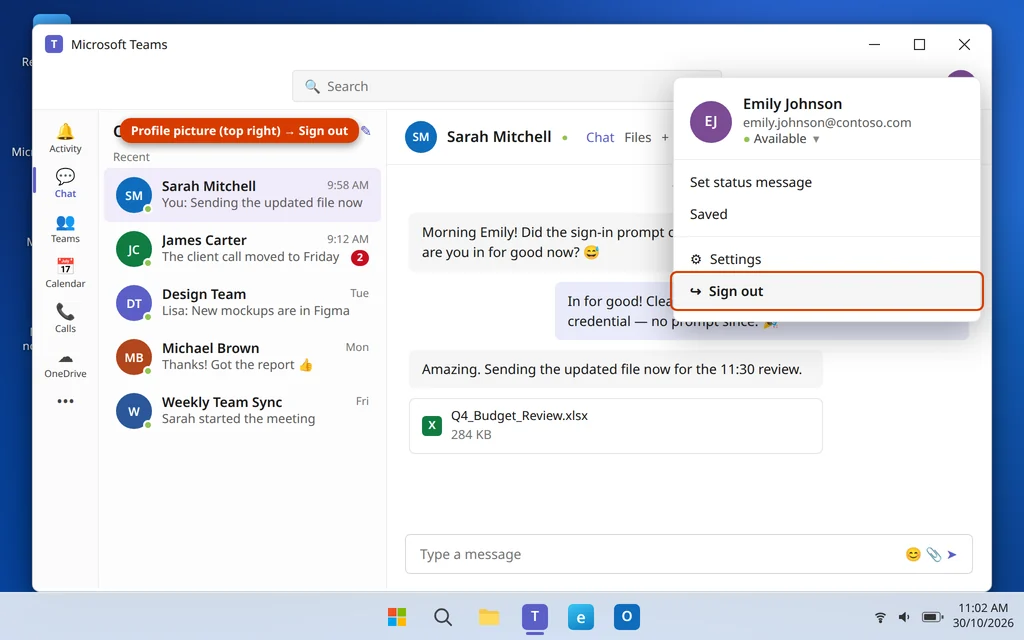
- In Teams, click your profile picture in the top-right corner.
- Click Sign out. Teams closes to the sign-in screen.
- Now quit the leftover process: right-click the Teams icon in the system tray (bottom-right, near the clock — click the ^ arrow if you do not see it) and choose Quit.
- Wait ten seconds, open Teams again, and sign in with your email and password, completing the phone approval if asked.
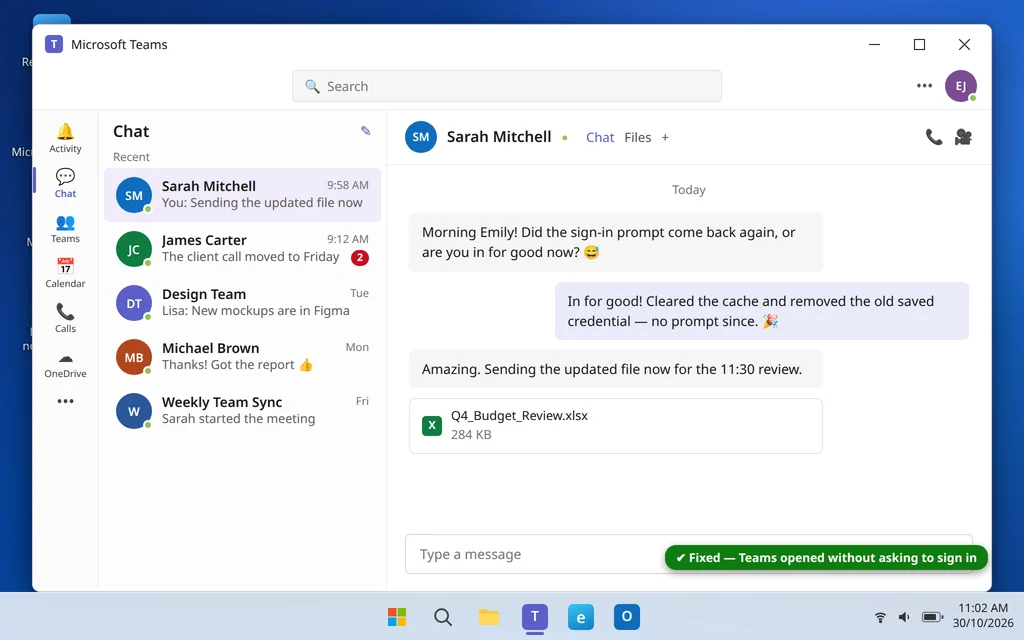
- Close Teams and open it once more. If it goes straight in without asking, the loop is fixed.
Fix 2: Clear the Teams Cache
This is the fix that ends the loop for most people. Deleting the cache removes the damaged sign-in data; Teams rebuilds the folder the next time it starts. Your chats, files and settings live in your account online, so nothing is lost.
- Quit Teams completely — right-click the tray icon and choose Quit, as in Fix 1. The cache cannot be cleared while Teams is running.
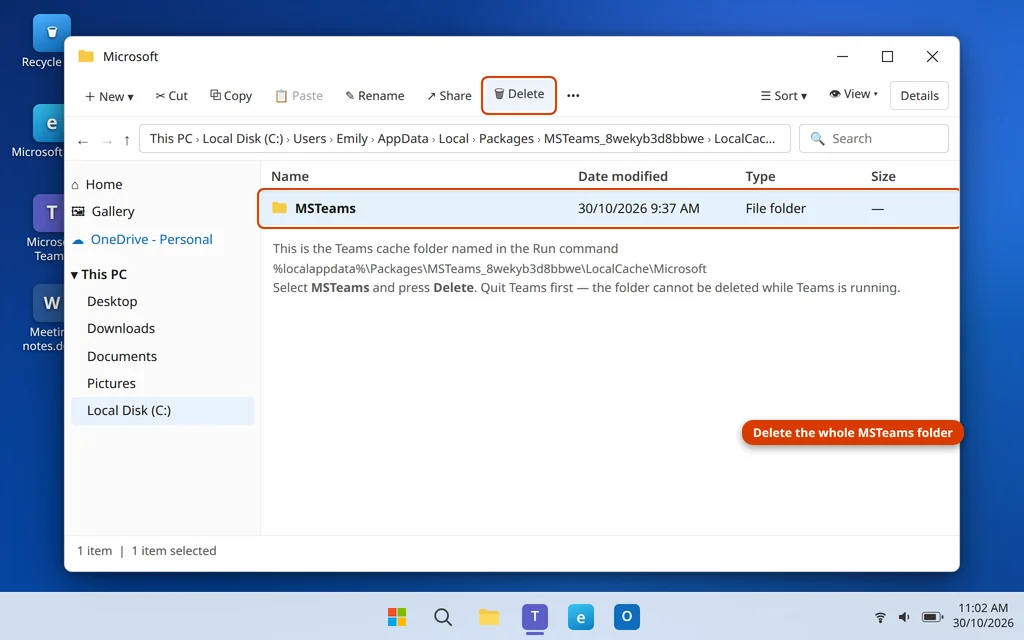
- Press Windows key + R, type
%localappdata%\Packages\MSTeams_8wekyb3d8bbwe\LocalCache\Microsoftand press Enter. - In the folder that opens, select the MSTeams folder and press Delete.
- Open Teams and sign in. The first start takes a little longer than usual while the cache rebuilds — that is normal.
- Restart Teams once more to confirm it now opens without asking.
On a work PC without admin rights you can still delete this folder — it belongs to your own user account, so no admin password is needed.
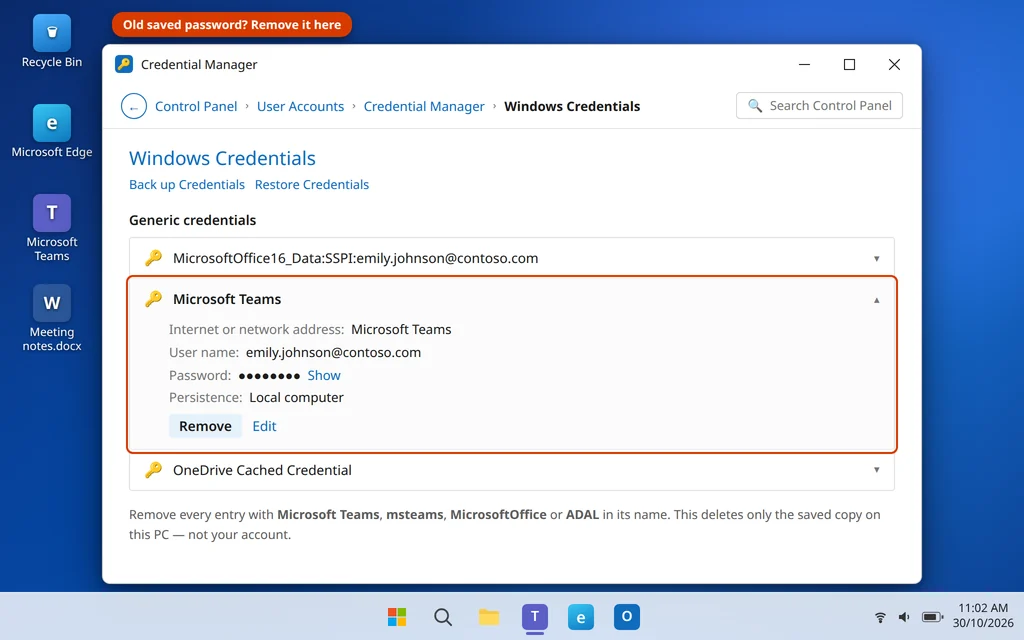
Fix 3: Remove Saved Teams Credentials in Credential Manager
Windows saves sign-in details for Teams and Office in Credential Manager. If the saved entry holds an old password — very common after a password change — Teams keeps trying it, failing, and asking you instead.
- Type Credential Manager in Windows search and open it.
- Click Windows Credentials.
- Under Generic Credentials, look for entries with Microsoft Teams, msteams, MicrosoftOffice or ADAL in the name.
- Click each one to expand it, then click Remove. Confirm with Yes if asked.
- Restart your PC, open Teams, and sign in once more. This time Windows saves a fresh, correct credential.
Removing these entries is safe: it deletes the saved copy on this PC, not your account. You will be asked to sign in to Teams (and possibly other Office apps) once afterwards, which is exactly what we want.
Fix 4: Disconnect and Reconnect the Work or School Account
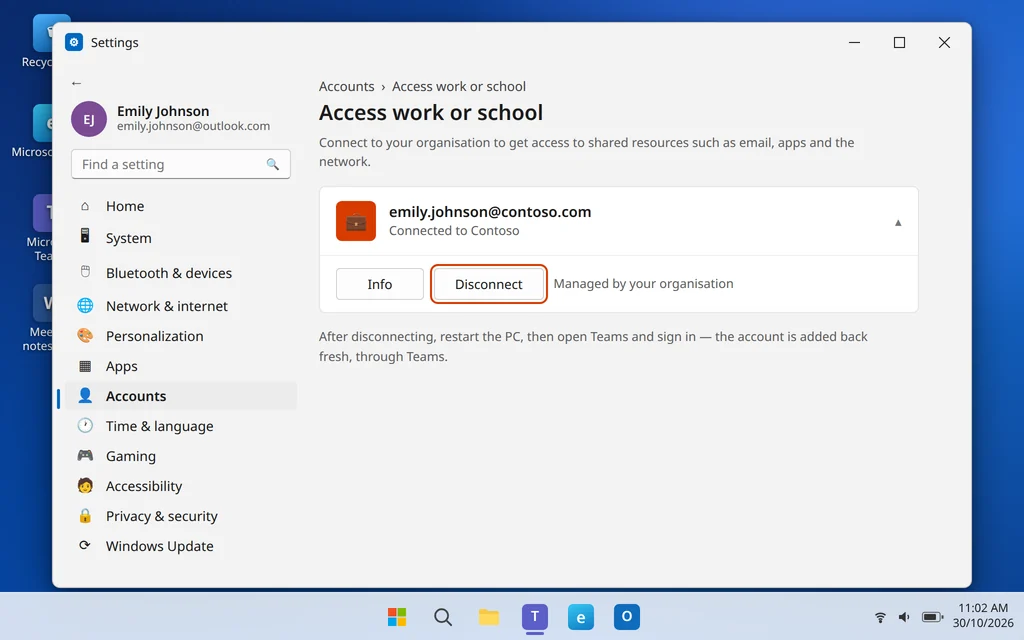
If your work or school account is connected in Windows Settings and signed in to Teams, the two can fight over the sign-in and cause a loop. Disconnecting the Settings copy and letting Teams connect it cleanly usually settles it.
- Open Settings > Accounts > Access work or school.
- Click your work or school account to expand it, then click Disconnect and confirm with Yes.
- Restart your PC.
- Open Teams and sign in. If Windows asks whether to add the account to the device, you can allow it — it is now being added fresh, through Teams.
- If your organization manages your PC, check with your IT team first — some workplaces require the account to stay connected, and they may prefer to do this step for you.
Fix 5: Set Date and Time to Automatic and Sync
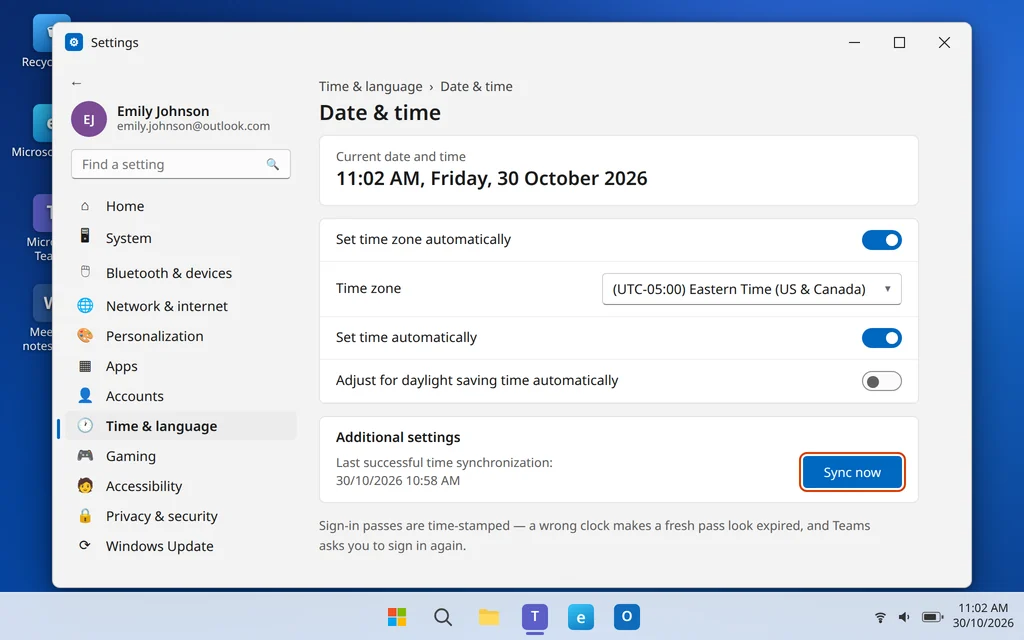
Sign-in passes carry an expiry time, and they are checked against your PC’s clock. A clock that is even a few minutes wrong — or set to the wrong time zone after traveling — makes fresh passes look expired, and Teams asks again.
- Open Settings > Time & language > Date & time.
- Turn on Set time zone automatically and Set time automatically.
- Under Additional settings, click Sync now and wait for the checkmark confirming the time was synchronized.
- Restart Teams and sign in once more.
Fix 6: Clear Browser Cookies if Teams Loops on the Web Too
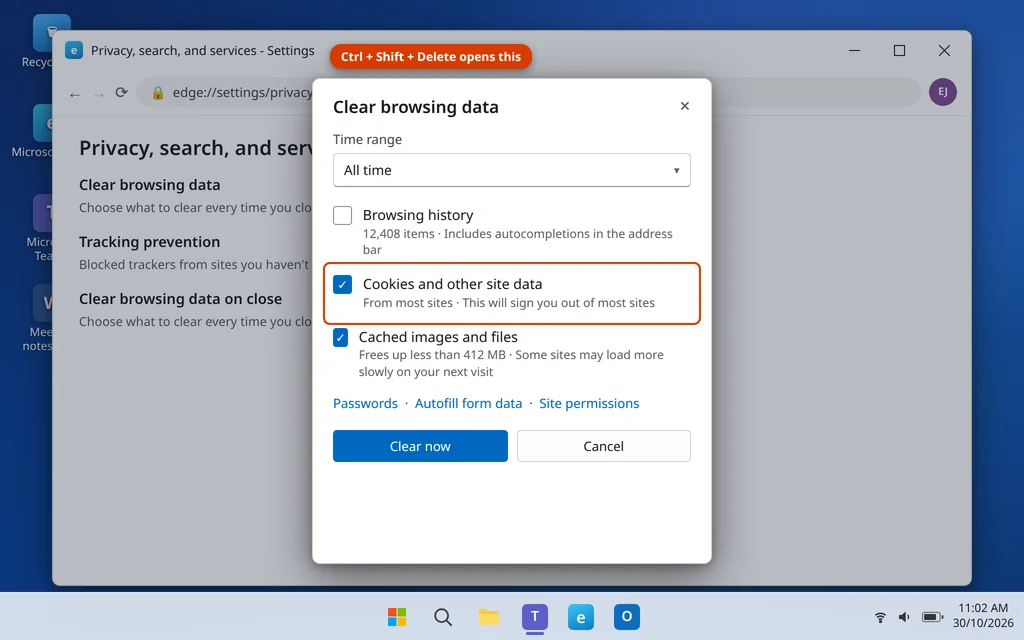
If the sign-in loop also happens at teams.microsoft.com in your browser, the browser’s saved cookies for Microsoft’s sign-in pages are the likely cause. Clearing them gives the web app a clean start.
- In Microsoft Edge, press Ctrl + Shift + Delete to open Clear browsing data. (In Chrome the same shortcut works.)
- Set Time range to All time.
- Check Cookies and other site data. You can uncheck browsing history; checking Cached images and files as well does no harm.
- Click Clear now.
- Go back to teams.microsoft.com and sign in. You will need to sign in to other websites again afterwards too — that is expected after clearing cookies.
A useful side-test: if Teams on the web keeps you signed in after this but the desktop app still loops, you have proved the fault is in the app — go straight to Fix 8.
Fix 7: Break the Loop at the Authenticator Approval Step
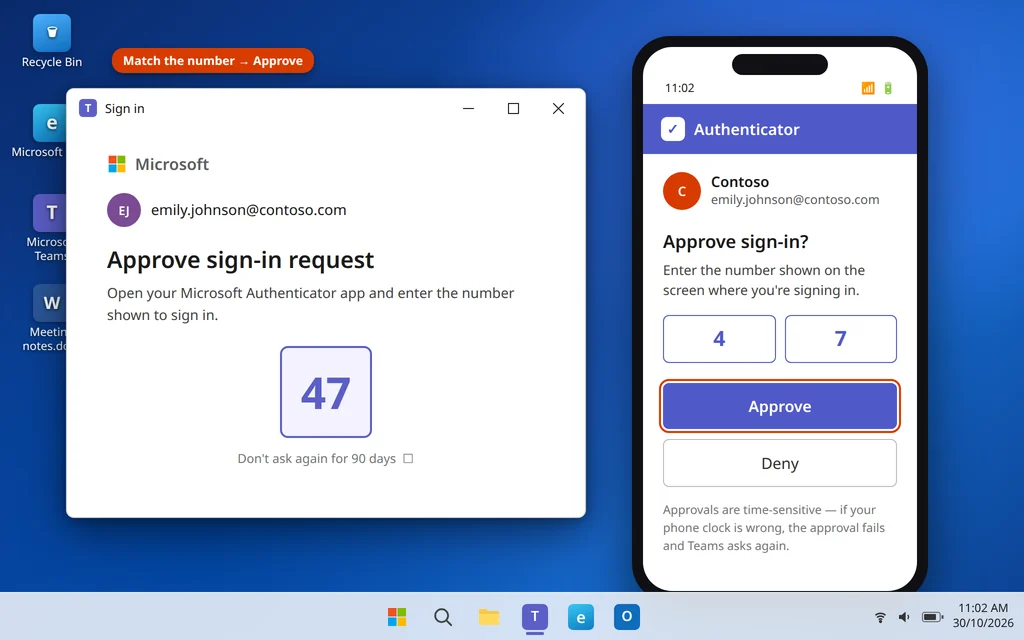
If Teams accepts your password but the loop happens at the phone approval — you approve, and it asks again — the problem is in the multi-factor step, not Teams itself.
- Check your phone’s clock. The Microsoft Authenticator app relies on your phone’s time being exact. On your phone, set the date and time to automatic (Android: Settings > General management or System > Date and time; iPhone: Settings > General > Date & Time > Set Automatically).
- Use the number match. When a number appears on your PC screen, type or select that same number in the Authenticator prompt before tapping Approve. Approving a prompt that does not match can fail the sign-in.
- Approve promptly. Approval requests expire quickly; a slow approval can look exactly like a loop.
- If it still fails, the account’s MFA registration itself may be stuck. On a personal account you can review your methods at account.microsoft.com under Security. On a work or school account, ask your IT team to reset your MFA registration or revoke your old sign-in sessions — only an admin can do that, and it clears loops that no PC fix can touch.
Fix 8: Repair or Reset the Teams App
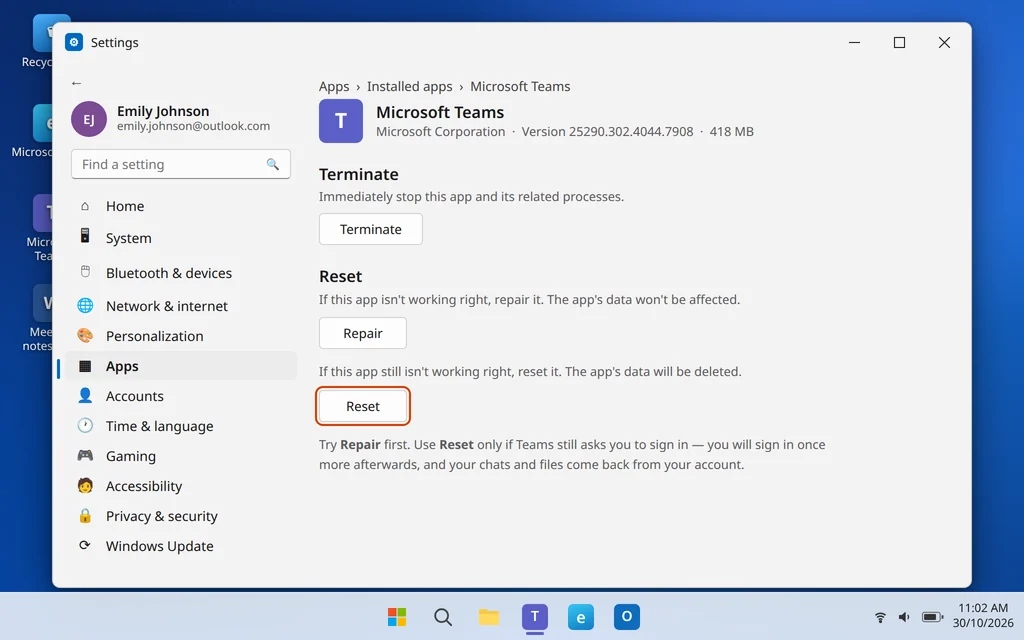
If nothing above worked, the app’s own data is damaged. Windows can repair it, and if that fails, reset it — the same route you would use for any misbehaving Windows app. Resetting signs you out and clears the app’s local data; your chats and files are stored in your account and come straight back.
- Open Settings > Apps > Installed apps.
- Find Microsoft Teams, click the three dots next to it, and choose Advanced options.
- Click Repair first. When it finishes, open Teams, sign in, and test by restarting the app.
- Still looping? Go back to the same page and click Reset, confirm, then sign in again.
- As a true last resort, uninstall Teams from the same three-dots menu, restart your PC, and reinstall it free from microsoft.com/teams or the Microsoft Store.
How to Stop the Sign-In Loop Coming Back
- Change your password the clean way. After a password change, sign out of Teams fully (Fix 1) and remove the old Credential Manager entries (Fix 3) before signing in with the new password — most loops start here.
- Keep automatic time on on both your PC and your phone, especially if you travel between time zones.
- Let Teams update. The app updates itself in the background; restarting your PC regularly lets those updates finish.
- Avoid signing in on shared PCs with “stay signed in” checked — leftover credentials on other machines can trigger extra approvals and resets.
- One account, one place. If your workplace connects your account through Settings for device management, leave that connection alone once it is set up cleanly.
Frequently Asked Questions
Why does Teams ask me to sign in every day but accept the same password?
Because the password was never the problem. Teams asks again when the saved sign-in pass on your PC is damaged or rejected — usually a corrupt cache (Fix 2) or a stale credential saved in Credential Manager (Fix 3). The password works each time because the account itself is fine.
Will clearing the Teams cache delete my chats or files?
No. Chats, meetings, files and settings are stored in your Microsoft 365 account online. The cache is only a local working copy, and Teams rebuilds it automatically on the next start.
Teams keeps asking to sign in only after I changed my password. Why?
The old password is still saved in Credential Manager, and Teams tries it first every time. Remove the Teams and Office entries as shown in Fix 3, restart, and sign in with the new password so a fresh credential is saved.
Is it safe to disconnect the work or school account in Settings?
For most people, yes — you can reconnect it by signing in to Teams or any Office app, and your files and email are not touched. The exception is a PC managed by your employer: if your IT team set the connection up, check with them before disconnecting, as device policies may depend on it.
The loop happens in the browser as well. What should I do?
Clear the browser’s cookies for all time (Fix 6), then sign in again at teams.microsoft.com. If the loop survives even a cookie clear and a different browser, the problem is account-side — for a work account, ask IT to revoke your old sign-in sessions and reset your MFA registration.
Why does the Authenticator approval fail even though I tap Approve?
Usually a time mismatch: Authenticator codes and approvals are time-sensitive, so set your phone’s date and time to automatic. Also complete the number match shown on screen, and approve quickly before the request expires. If it keeps failing, your MFA registration may need an admin reset (Fix 7).
I use the free personal version of Teams. Do these fixes apply?
Mostly, yes. The cache clear, Credential Manager cleanup, date and time check, and the Repair/Reset route all work the same way. Fixes 4 and 7 are written for work and school accounts, which is where sign-in loops are most common.
Still stuck in the sign-in loop? Tell us where it stops — at the password, the phone approval, or right after — on our Contact page — servicedesk@howtofixerroronline.com, available 24 hours. If Teams will not start in the first place, our guide to Microsoft Teams not opening on Windows 11 is the place to begin, and our Outlook Errors guides cover the same kind of sign-in trouble in Outlook — starting with Outlook not opening on Windows 11.
Pingback: Can't Join Teams Meeting: 8 Fixes That Work (2026)
Pingback: Microsoft Teams Not Sending Messages? 7 Fixes That Work (2026)