
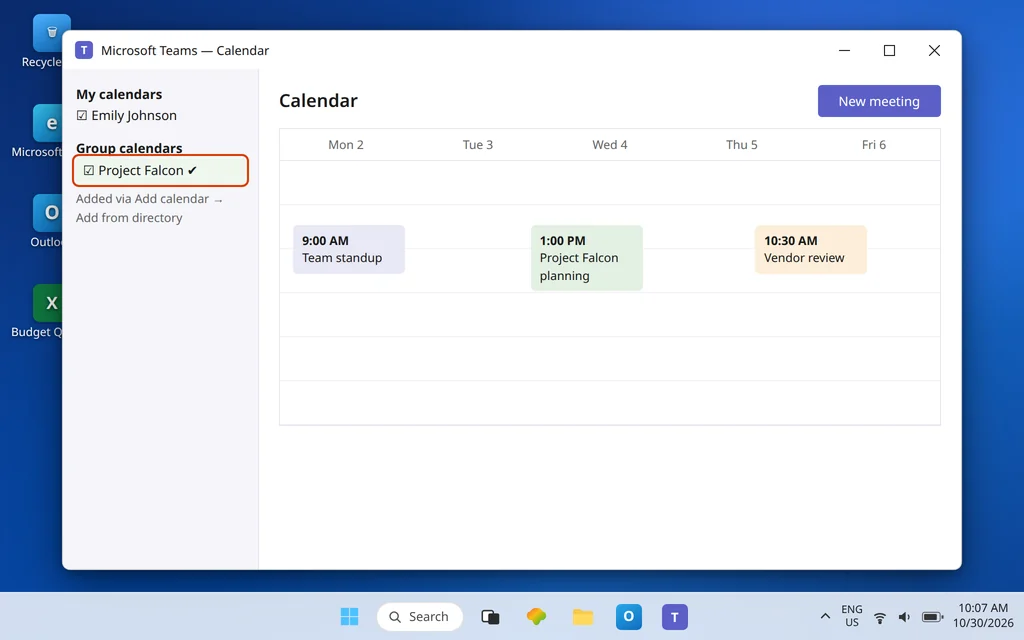
Microsoft Teams Shared Calendar Not Showing or Syncing
Someone says “the team calendar isn’t showing in Teams.” It sounds like a sync bug. Most of the time it is not a bug at all — it is a mismatch between the three different things people mean by “shared calendar” in Microsoft 365, each of which lives in a different place in Teams:
- Your own calendar — the Calendar app on the Teams left rail.
- A team’s group calendar — the shared calendar belonging to the team’s Microsoft 365 group.
- A channel calendar — a tab inside one channel showing only that channel’s meetings.
- Plus the awkward fourth: someone else’s personal calendar, or a shared mailbox calendar, which people expect to find inside Teams and mostly cannot — those are handled honestly in Fix 5.
This article owns the “someone else’s / shared calendar not visible in Teams” problem. One boundary: if the calendar that will not sync is your own Teams calendar versus your own Outlook calendar, that is a different topic covered by a later article in this series (Microsoft Teams Calendar Not Syncing with Outlook) — this guide is about shared calendars specifically.
Quick Answer: The Teams Calendar app shows your own Exchange calendar — it is not where shared calendars live. To share a calendar with a team in Teams, add a Channel calendar tab: go to the channel, select + (Add a tab), search Channel calendar, name it, and Save — every channel member then sees the same calendar, which is a filtered view of the team’s Microsoft 365 group calendar. To view the whole group calendar next to your own, use Calendar > Add calendar > Add from directory and add the team’s group. A shared mailbox or colleague’s personal calendar is viewed reliably in Outlook, not in the Teams Calendar app.
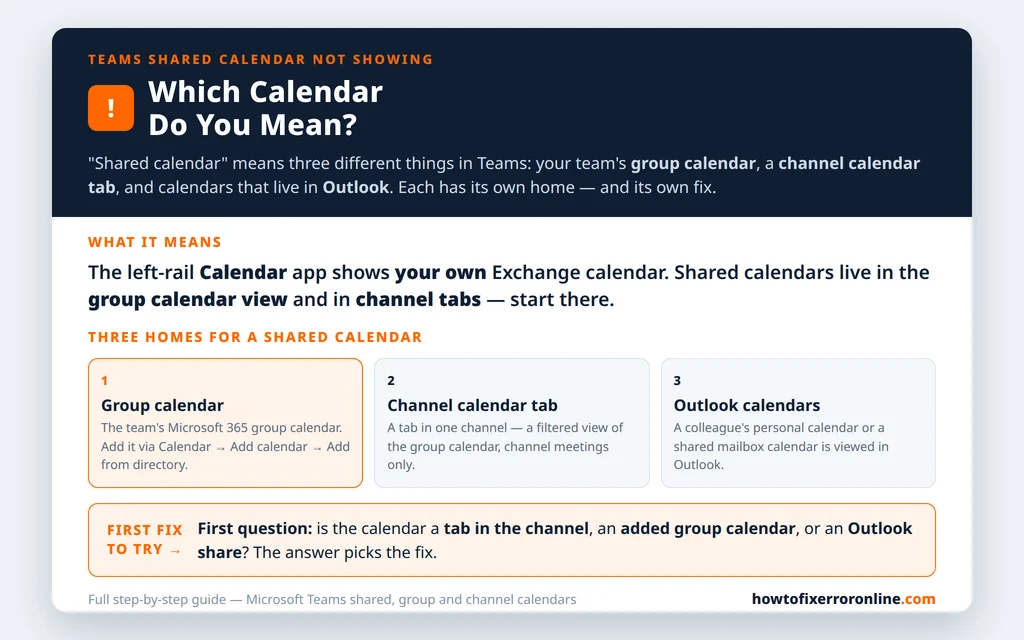
Table of Contents
How the Teams calendar actually works (read this first — it explains every fix)
The Calendar app in Teams is a window into your own Exchange Online mailbox. It is the same calendar Outlook shows you, from the same mailbox — a meeting created in Teams appears in Outlook and the reverse, because neither app owns the data; Exchange does. Two consequences follow:
- No Exchange Online mailbox, no calendar. An account without an Exchange Online license or provisioned mailbox has nothing for the Calendar app to display.
- The Calendar app is personal by design. It is built around your mailbox. Shared calendars do not “sync into” it the way people expect — Teams gives shared calendars their own places (the group calendar view and the channel calendar tab), which is what the fixes below set up.
Separately, every team is backed by a Microsoft 365 group, and that group has its own shared calendar in Exchange. That group calendar is the real “team calendar.” Teams exposes it two ways: in full, via Add calendar (Fix 2), and filtered per channel, via the channel calendar tab (Fix 3).
Fix 1 — Check you are looking in the right place
The single most common “shared calendar not showing” report is a person opening the Calendar app, seeing only their own meetings, and concluding the shared calendar is broken or not syncing. Before changing anything:
- Decide which shared calendar you mean: the whole team’s, or one channel’s.
- For one channel’s calendar, open that team and channel and look at the tabs along the top. The channel calendar is a tab, not part of the left-rail Calendar app. If no calendar tab exists, it has not been added yet — Fix 3 adds it.
- For the whole team’s calendar, open the Calendar app and check whether the group calendar has been added and switched on in your calendar list — Fix 2 covers adding it.
If the tab or the group calendar appears but shows no events, that is a different, smaller problem: channel calendars show only meetings scheduled for that channel (Fix 3 explains why an Outlook-created group event may not appear there), and a group calendar with no events yet is simply empty, not broken.
Fix 2 — Add the team’s group calendar to your Calendar app
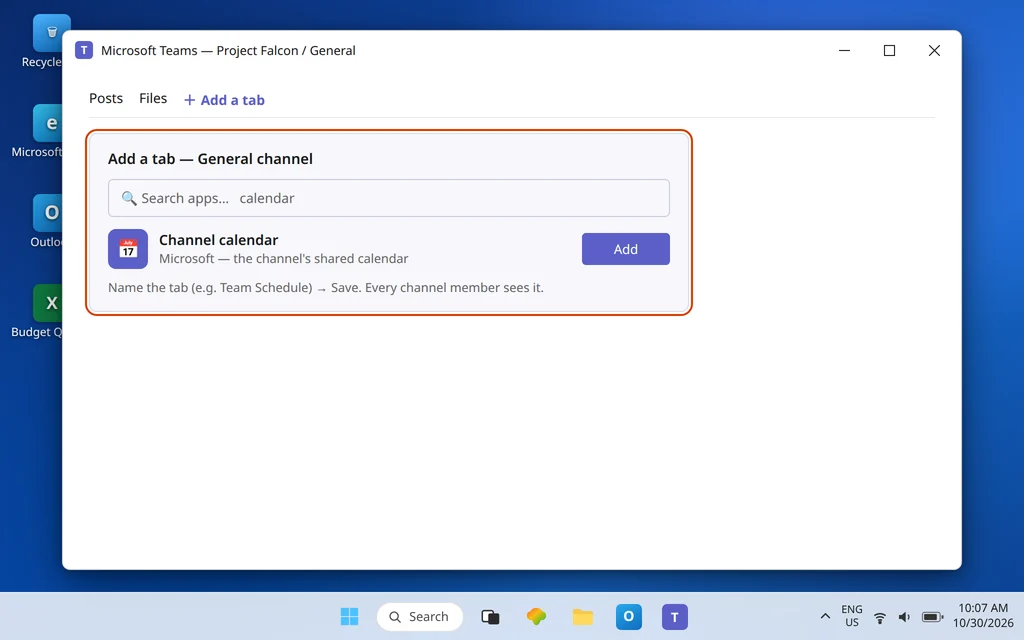
To see the whole team calendar alongside your own inside Teams:
- Open Calendar in Teams.
- Select Add calendar.
- Choose Add from directory.
- Type the team’s name and select its Microsoft 365 group.
- Save / Add, then make sure the new calendar is switched on in your calendar list so its events render next to yours, in their own color.
Every group member can do this for themselves; it is a personal view setting, so one person adding it does not add it for everyone else. Group members can add and edit events on the group calendar (subject to group permissions), which is exactly what makes it the shared planning tool. One admin-side wrinkle, flagged honestly: for teams created inside Teams, the underlying group mailbox is hidden from Exchange clients by default, which can stop the group calendar appearing where you expect in Outlook. If the group calendar is missing everywhere rather than just for you, that visibility setting is an admin conversation (it is changed with the Set-UnifiedGroup cmdlet), not something to fix from the Teams app.
Fix 3 — Add (or repair) the channel calendar tab
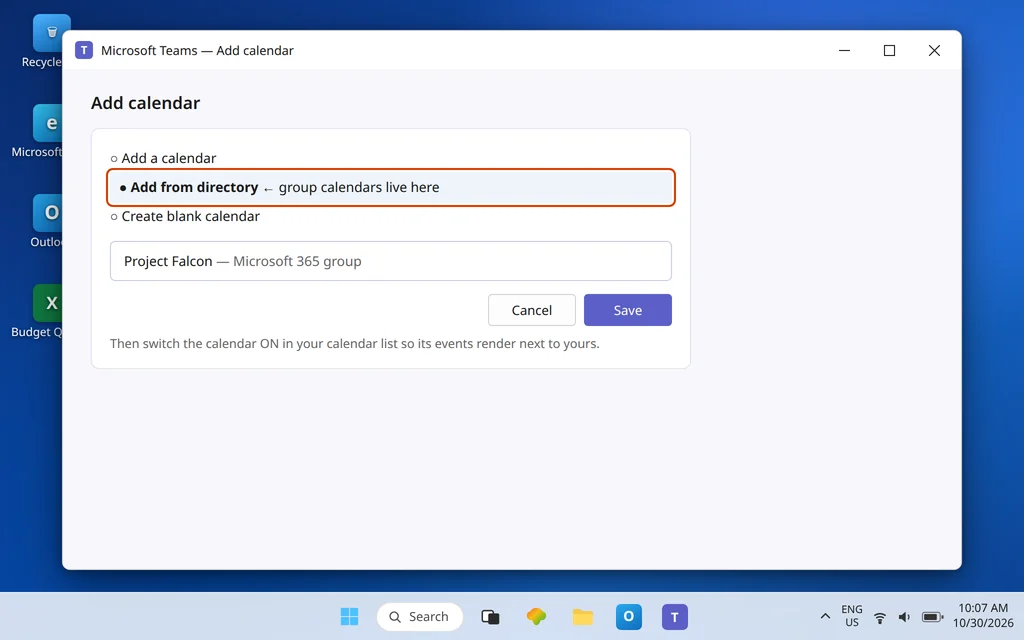
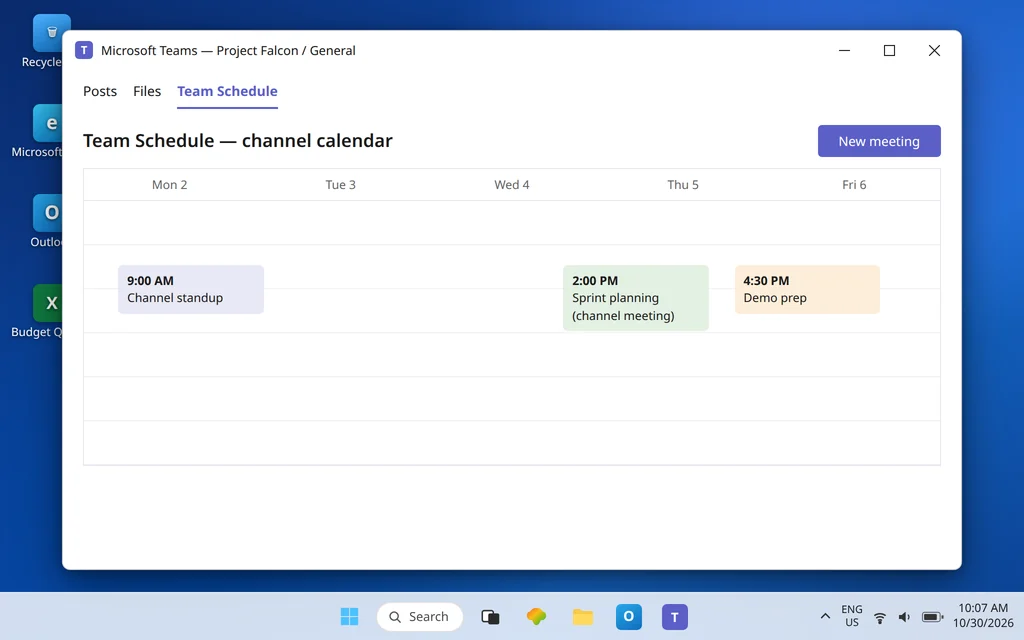
The channel calendar is the Teams-native shared calendar most teams actually want day to day:
- Open the team, then the channel the calendar belongs in.
- Select + (Add a tab) at the top of the channel.
- Search for Channel calendar and select Microsoft’s channel calendar app.
- Give the tab a clear name (for example, “Team Schedule”) and Save.
Now every member of that channel sees the same tab. Understand what it shows, because Microsoft defines it precisely: a channel calendar is a filtered view of the team’s Microsoft 365 group calendar, filtered to the meetings scheduled for that channel. Events created in the tab are channel meetings — they post to the channel, and they also land in the group calendar. The filtering explains the classic complaint “events are missing from the channel calendar”: a meeting created in Outlook directly on the group calendar, or scheduled for a different channel, is a real group event that this tab is designed not to show. Check the full group calendar (Fix 2) before declaring anything unsynced.
If the tab existed and vanished: a tab can be removed by a channel member with tab permissions. Re-add it with the steps above — the underlying group calendar and its events are untouched by removing the tab. Note also that channel calendars are a standard-channel feature; if the Channel calendar option does not appear when you try to add a tab in a private channel, that is expected behavior, and the working pattern is to keep the shared calendar in a standard channel (or use the group calendar in Fix 2) rather than hunting for a missing setting.
Fix 4 — A colleague’s personal calendar was shared with you
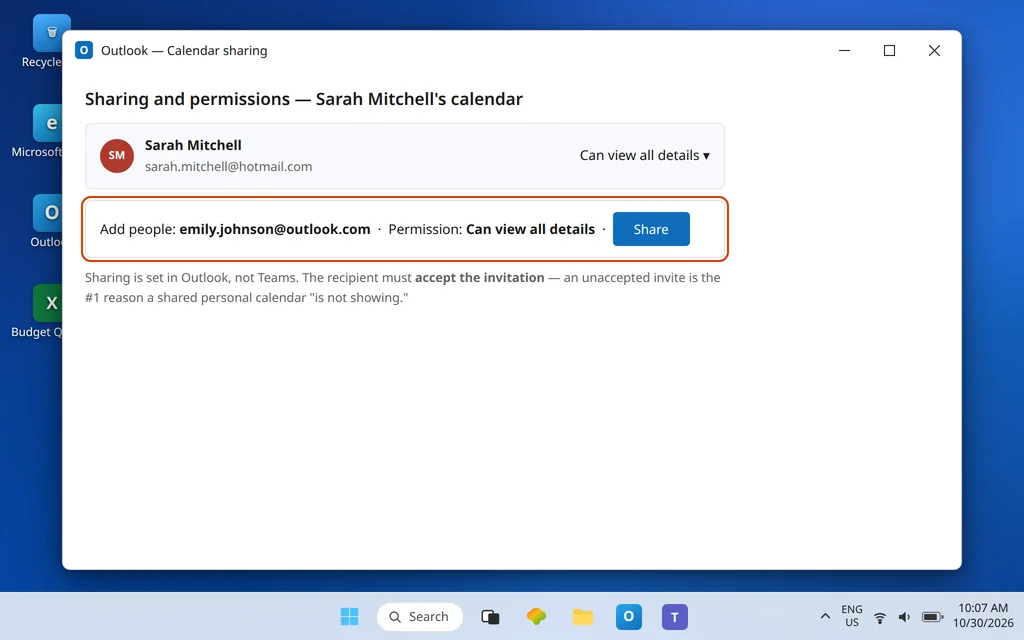
Different case: Sarah Mitchell shared her personal calendar with Emily Johnson, and Emily cannot see it in Teams. Calendar sharing permissions live in Outlook/Exchange, not in Teams, so the reliable path is:
- The owner shares from Outlook: Calendar > select the calendar > Sharing and permissions (wording varies by Outlook version), add the person, choose a level such as Can view all details, and send.
- The recipient accepts the sharing invitation email if one is sent. An unaccepted invitation is the number one reason a shared personal calendar “is not showing” anywhere.
- The recipient views the shared calendar in Outlook (desktop or on the web), where shared personal calendars are a first-class feature, and confirms it appears there with the right detail level.
Do not promise the colleague’s personal calendar as a citizen of the Teams Calendar app on the strength of the Outlook share — the Teams Calendar app is built around your own mailbox and the group calendars you add (Fix 2). If the real goal is “the team needs one calendar everyone watches,” stop sharing personal calendars person-to-person and set up the group/channel calendar instead (Fixes 2–3); it survives people changing roles, which a personal share does not.
Fix 5 — The shared mailbox calendar: the honest answer
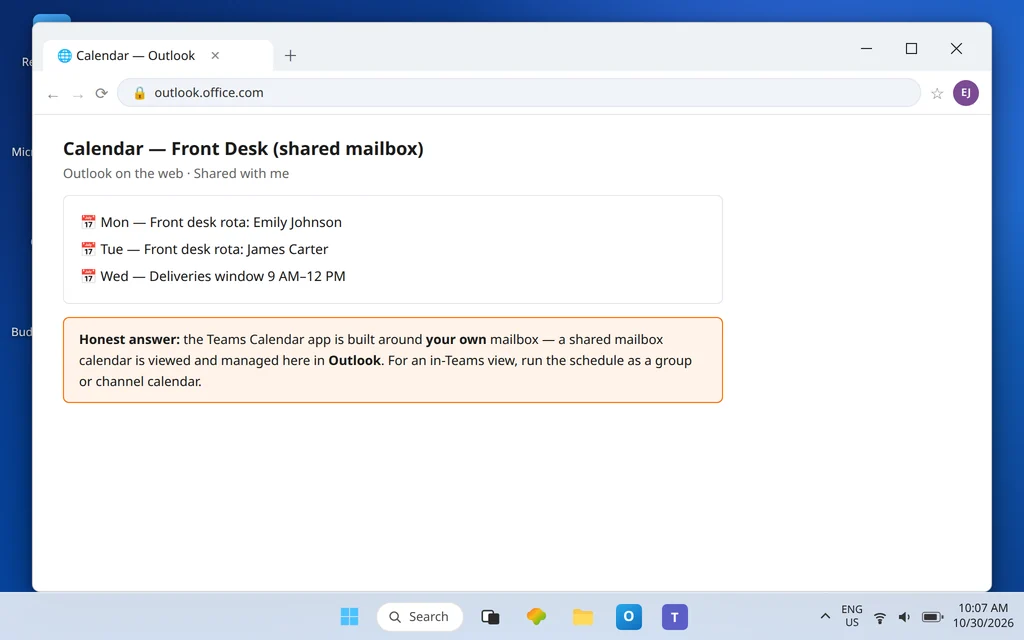
Departments often run a shared mailbox — a rota, a front desk, a team inbox — and expect its calendar to appear in the Teams Calendar app. Here is the plain truth, stated carefully: Microsoft does not document adding a shared mailbox calendar to the Teams Calendar app, and the app is built around your own mailbox (see the explainer above). In practice, a shared mailbox calendar is not a view the Teams Calendar app provides the way Outlook does.
So use the tools for what they are:
- View and work the shared mailbox calendar in Outlook — desktop Outlook or Outlook on the web, where a shared mailbox you have permission to opens with its calendar, and its events can be managed there by the people with access.
- If the team needs the schedule inside Teams, recreate the pattern with Teams-native tools: run the shared schedule as the team’s group calendar (Fix 2) or a channel calendar tab (Fix 3), where the whole team genuinely can see and add events in Teams itself.
That combination — Outlook for the mailbox of record, a group/channel calendar for the in-Teams view — is the supportable setup. Guides promising a hidden toggle that pins a shared mailbox calendar into the Teams Calendar app are describing something Microsoft does not document.
Fix 6 — Events are stale: the genuinely sync-flavored checks
If the right calendar is in the right place but events look old or incomplete, work these in order:
- Check the unfiltered source. Open the group calendar in Outlook on the web. If the event is missing there too, it was never a group/channel event — it was created somewhere else (a personal calendar, a different channel). Recreate it as a channel meeting or group event.
- Confirm you are a current member of the team and channel. Channel and group calendars follow membership; being removed (or never added — see Microsoft Teams Cannot Add Members) removes the view with it.
- Restart Teams fully (tray icon > right-click > Quit, then relaunch) and check again, so a stale client cache is not presenting an old picture as fact.
- Compare with Teams on the web (teams.microsoft.com). If the calendar is correct there but wrong in the desktop app, the desktop client is the fault: update it, and if needed reset it via Settings > Apps > Installed apps > Microsoft Teams > … > Advanced options > Reset.
Confirm it worked
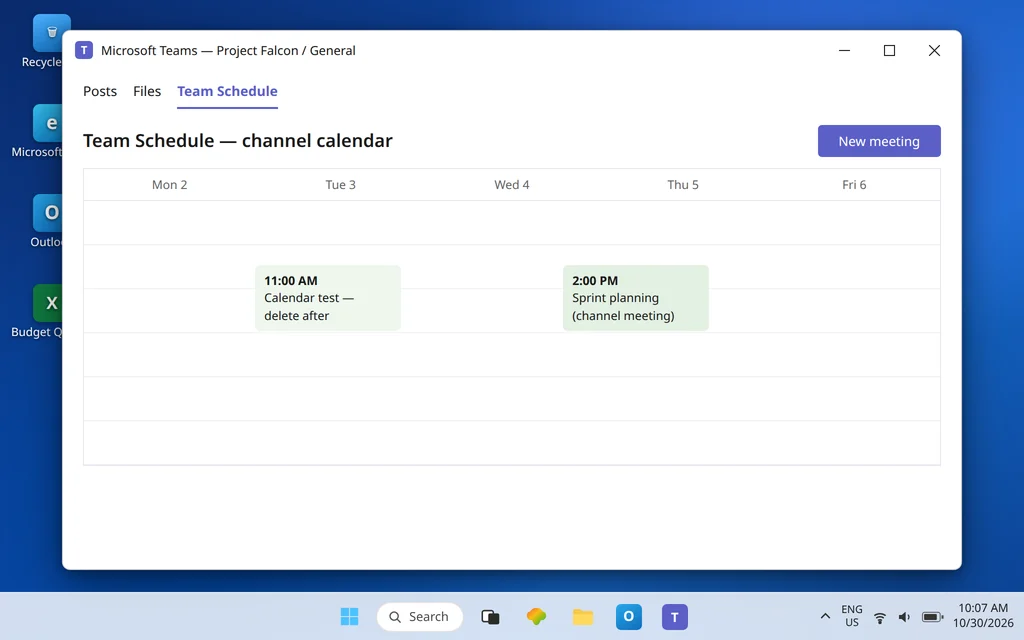
Create a test event where the team will actually work: in the channel calendar tab, add a short meeting titled “Calendar test” for later today. Confirm three things: it appears in the tab for you, a second team member sees it in the same tab without doing anything, and it also shows in the group calendar (Fix 2’s view in Teams, or the group calendar in Outlook). Then delete the test event. All three checks passing means the shared calendar is genuinely shared — not just visible on your screen.
How to stop it happening again
- Pick one home per shared schedule. A rota that lives half in a personal calendar and half in a channel tab will “not sync” forever. Decide: group calendar, channel tab, or Outlook shared mailbox — and put every event there.
- Create channel meetings inside the channel. Events intended for a channel calendar must be scheduled for that channel, or the filter correctly hides them.
- Onboard with the tab. When someone joins the team, point them at the channel calendar tab and the Add-calendar step once — most “not showing” tickets are first-week orientation, not faults.
Frequently asked questions
How do I see a shared calendar in Microsoft Teams?
It depends which shared calendar you mean. A team’s shared calendar is its Microsoft 365 group calendar: view it in full via Calendar > Add calendar > Add from directory, or per channel via a Channel calendar tab added with the + at the top of the channel. A colleague’s personal calendar or a shared mailbox calendar is viewed in Outlook, not in the Teams Calendar app.
Why is the shared calendar not showing in Teams?
Most often because you are looking in the personal Calendar app for something that lives elsewhere (a channel tab or an added group calendar), the channel calendar tab was never added or was removed, the sharing invitation for a personal calendar was never accepted, or you are not a member of the team/channel the calendar belongs to. Fixes 1–4 match each cause.
How do I add a channel calendar in Teams?
Open the channel, select + (Add a tab), search for Channel calendar, select it, name the tab, and Save. Every member of the channel then sees the same calendar. It shows the channel’s meetings — a filtered view of the team’s group calendar — and events created there are channel meetings.
Can I see a shared mailbox calendar in Teams?
Not as a view inside the Teams Calendar app — Microsoft does not document that, and the app is built around your own mailbox. View and manage the shared mailbox calendar in Outlook (desktop or web). If the team needs the schedule visible inside Teams, run it as the team’s group calendar or a channel calendar tab instead.
What is the difference between my Teams calendar and a channel calendar?
Your Teams calendar (the left-rail Calendar app) is your personal Exchange calendar — the same one Outlook shows. A channel calendar is a tab in one channel showing only that channel’s meetings, filtered from the team’s shared Microsoft 365 group calendar. Personal events never belong on it, and group events scheduled outside the channel correctly do not appear on it.
Shared calendar still hiding? Contact us at servicedesk@howtofixerroronline.com or through our Contact page and tell us which kind of shared calendar it is — team group calendar, channel tab, a colleague’s personal calendar, or a shared mailbox — and where you have been looking for it. We will never ask for your password.