
Microsoft Teams Guest Access Not Working — External Users Can’t Join
You have invited someone from outside your company — a client, a contractor, a partner — and it is not working. The invitation never arrives, or it arrives and leads nowhere, or the person can chat with you but cannot get into the team, or they sit in a meeting lobby that never clears. “Guest access” problems feel like one problem, but Teams actually has two different external features with two different switches, and most failed invites come from fixing the wrong one.
This guide owns only that guest/external layer: which feature you actually need, where its switch lives, how long changes really take, and how the invitation redemption flow can break. Two neighbors live elsewhere: if people inside and outside your organization cannot join meetings at all, that is the general join-failure guide, Can’t Join a Teams Meeting; and if the meeting link itself opens nothing or lands in the wrong app, that is Microsoft Teams Meeting Link Not Working. Read on when the person who cannot get in is specifically an outsider.
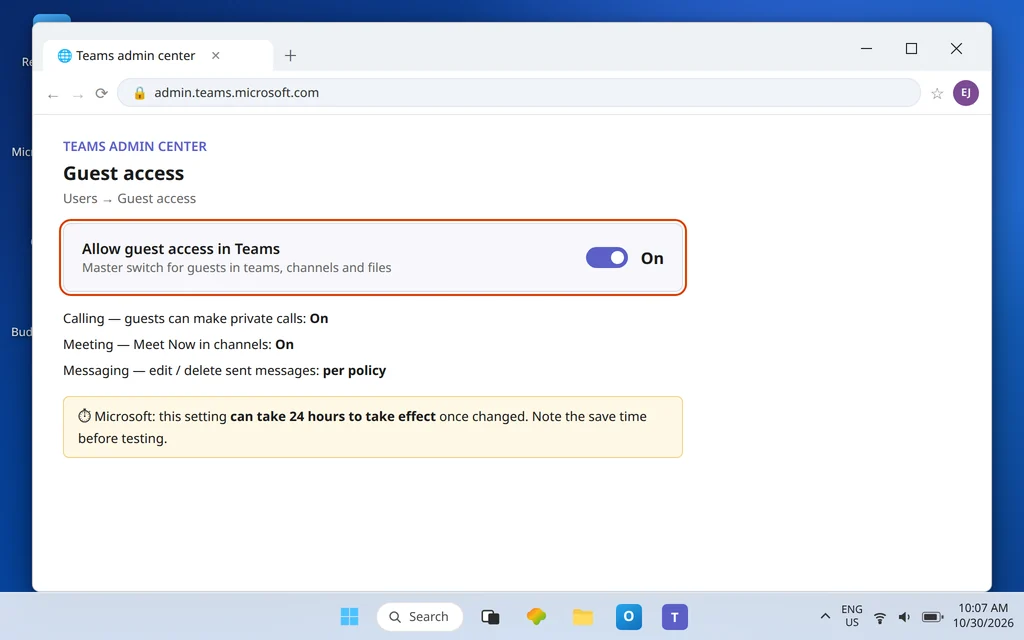
Quick Answer: First decide which feature you need: external access lets your people chat, call, and meet with people in other Microsoft 365 organizations (no team membership, no file access); guest access adds an outsider to a specific team as an Entra B2B guest. Guest access is controlled in the Teams admin center > Users > Guest access — Allow guest access in Teams must be On, and Microsoft says the change can take up to 24 hours to become active. The guest must then accept the email invitation and sign in with the exact invited address; even after acceptance, access to the team can take a few hours to appear.
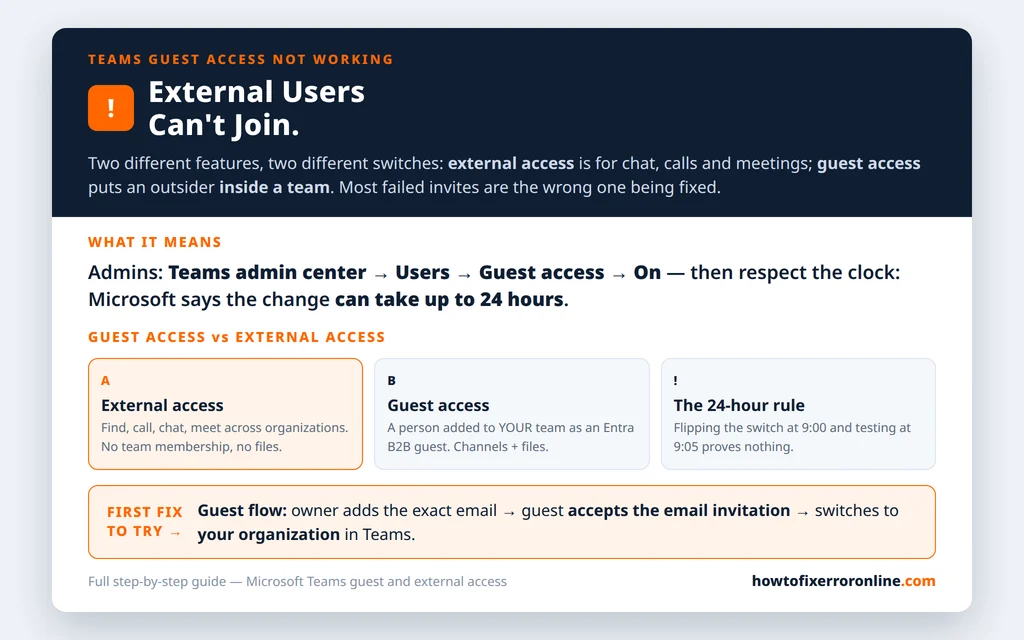
Table of Contents
First, the distinction that decides everything: guest access vs external access
Microsoft Learn draws the line clearly, and getting it wrong wastes hours:
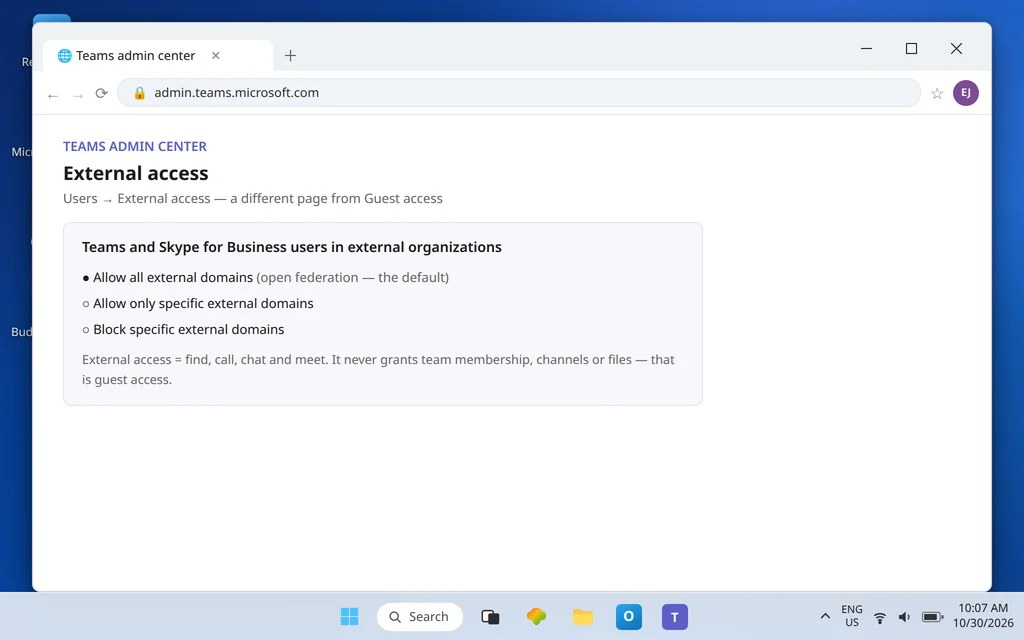
- External access (sometimes called federation): people in your organization can find, call, chat, and set up meetings with people in other Microsoft 365 organizations. Those people stay in their own organization. They are not members of any of your teams and get no access to your channels, files, or other team resources. It is managed in the Teams admin center under Users > External access, is on by default, and can be limited to specific allowed domains or set to block specific domains.
- Guest access: a specific person from outside is added to a specific team. Technically, they are created in your Microsoft Entra ID as a B2B guest account. Inside that team they can take part in channel conversations, join meetings, and collaborate on files with nearly the capabilities of a member, subject to limits (Fix 5). Guest access is a tenant-wide capability that an admin must switch on.
So: a client who just needs to meet and chat with you needs external access to be working. A contractor who needs to live inside your project team needs guest access. If you enabled one and expected the other, nothing is broken — the settings are simply aimed at different doors.
Fix 1 — Turn on guest access in the Teams admin center (admin step)
If guests cannot be added to teams at all, this is the master switch to check. It needs a Teams or global admin:
- Sign in to the Teams admin center.
- In the left navigation, go to Users > Guest access.
- Set Guest access / Allow guest access in Teams to On.
- Review the guest capability settings underneath (calling, meeting, and messaging options for guests) and adjust only what your organization intends, then Save.
Then the part everyone trips over: wait. Microsoft’s own documentation for these settings states the guest access switch can take 24 hours to take effect once changed, and the guest collaboration guidance repeats that it might take up to twenty-four hours for the settings to become active after you turn it on. Flipping the switch at 9:00 and testing at 9:05 proves nothing. Note the time you saved the change, and judge success or failure after the window has passed.
Fix 2 — Check the three settings outside Teams that guest access depends on
Guest access in Teams stands on three other platforms, and Microsoft is explicit that a block in any of them blocks guests in Teams:
- Microsoft Entra External ID — external collaboration settings. This is where the organization decides who may invite guests at all and whether specific domains are blocked under collaboration restrictions. If your guest’s domain is blocked here, the Teams switch cannot rescue the invite.
- Microsoft 365 Groups guest settings. In the Microsoft 365 admin center under Settings, the checkboxes that let group owners add people outside the organization to Microsoft 365 Groups as guests, and that let guest group members access group content, must both be checked — a team is a Microsoft 365 group underneath, so these settings apply directly.
- SharePoint external sharing. Teams files live in SharePoint. If external sharing is disabled there, a guest may succeed in joining the team yet fail on its files — a confusing half-working state that is actually two settings disagreeing.
An admin should verify all three before concluding that “guest access is on but broken.”
Fix 3 — Add the guest the documented way, then track the redemption
With the switches on and the waiting window passed, the invitation flow itself has to be followed exactly. Microsoft Support’s flow for team owners:
- In Teams, open the team, select … > Add member (or View people > Add member in newer layouts).
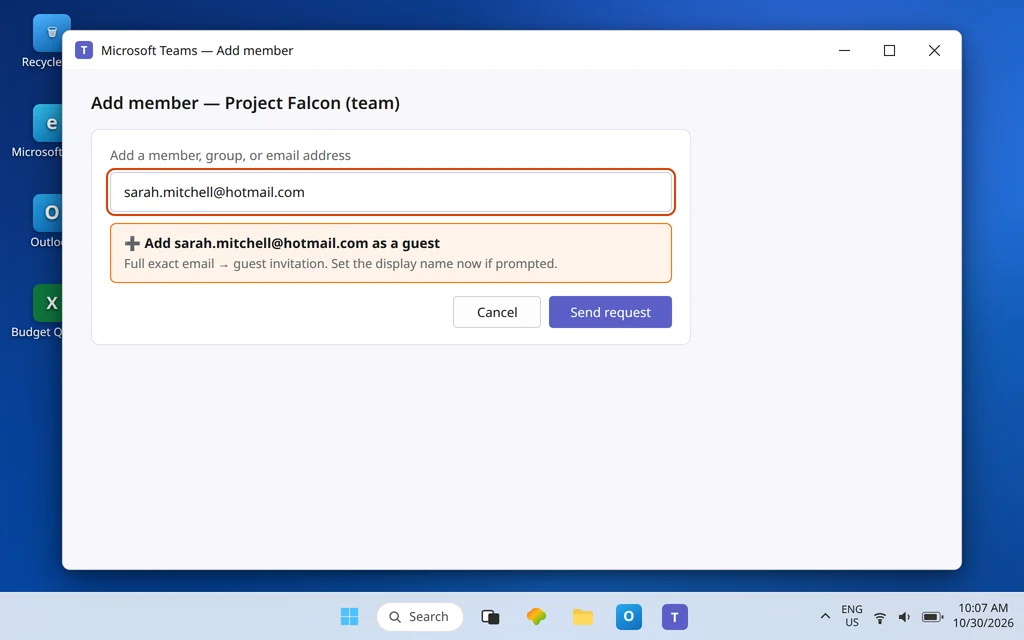
- Enter the guest’s full email address. Anyone with a business or consumer email account — Outlook, Gmail, and others — can be invited as a guest.
- Teams offers to add that address as a guest; set the display name correctly now if prompted, then Send request / Add.
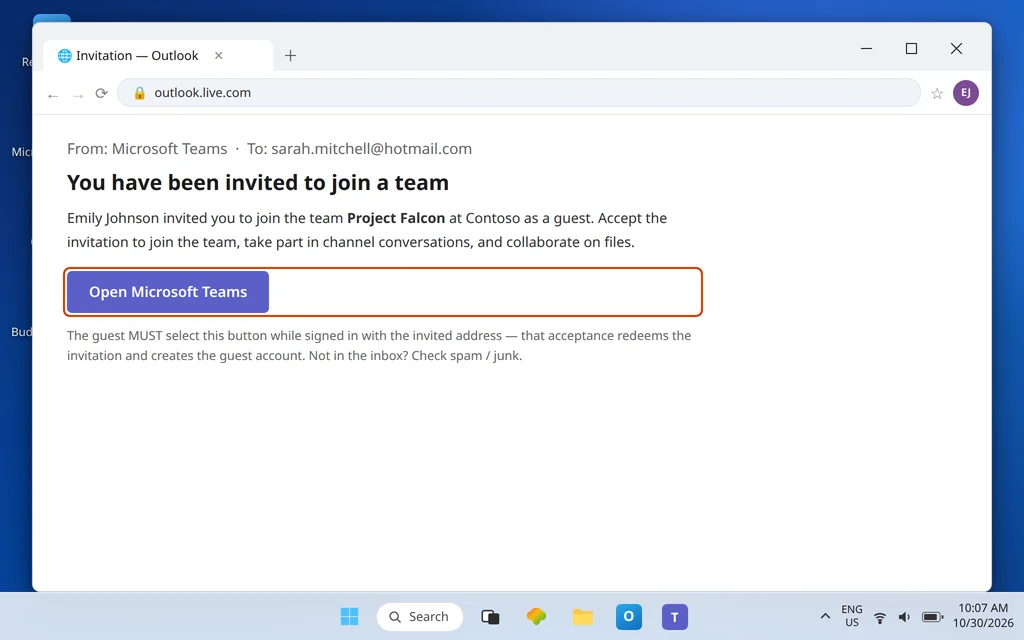
- The guest receives an email invitation and must accept it — selecting Open Microsoft Teams in the email — before they can access the team. Accepting creates/redeems their B2B guest account.
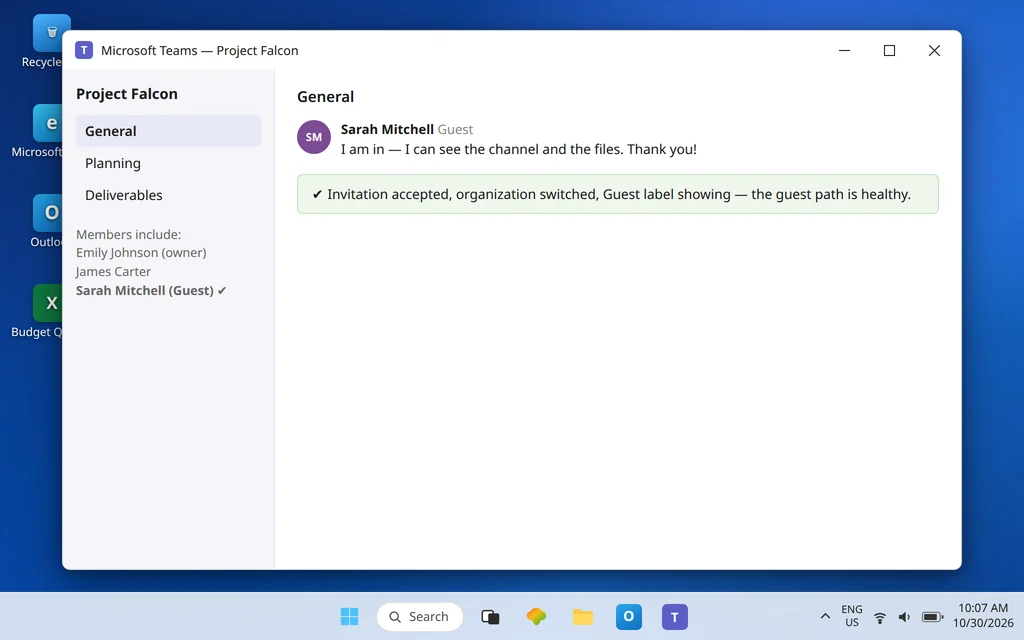
- After acceptance, the guest signs in and, if they belong to more than one organization, switches to your organization inside Teams (their account menu) to see your team. Guests appear with a Guest label next to their name.
Two timing facts from Microsoft Learn’s guest experience documentation keep people calm here: the guest must accept before any access exists, and after a guest is added to a team, it may take a few hours before they have access. A guest who accepted ten minutes ago and sees an empty Teams is often mid-provisioning, not blocked.
Where redemption usually breaks, in practice: the invitation sits in the guest’s spam or junk folder; the guest accepts while signed in with a different email address than the one invited (a personal account when the invite went to their work address, or the reverse); or the guest accepted but is looking at their own organization’s Teams view instead of switching to yours. Each has the same fix — find the original invitation email, open it while signed in as the invited address, accept, then switch organizations.
Fix 4 — Meetings with outsiders: lobby, anonymous join, and the right expectation
“External users can’t join” often means a meeting, and meetings have their own gates on top of Fix 1–3:
- Guests joining meetings require guest access to be enabled — guests are not anonymous; they sign in with their B2B guest account.
- People from trusted organizations joining via external access require external access to be enabled on both sides, as a mutual trust.
- Anonymous join — someone with no account clicking the link — is a separate meeting setting (Anonymous users can join a meeting) that an admin controls organization-wide. It is not guest access and switching guest access on does not enable it.
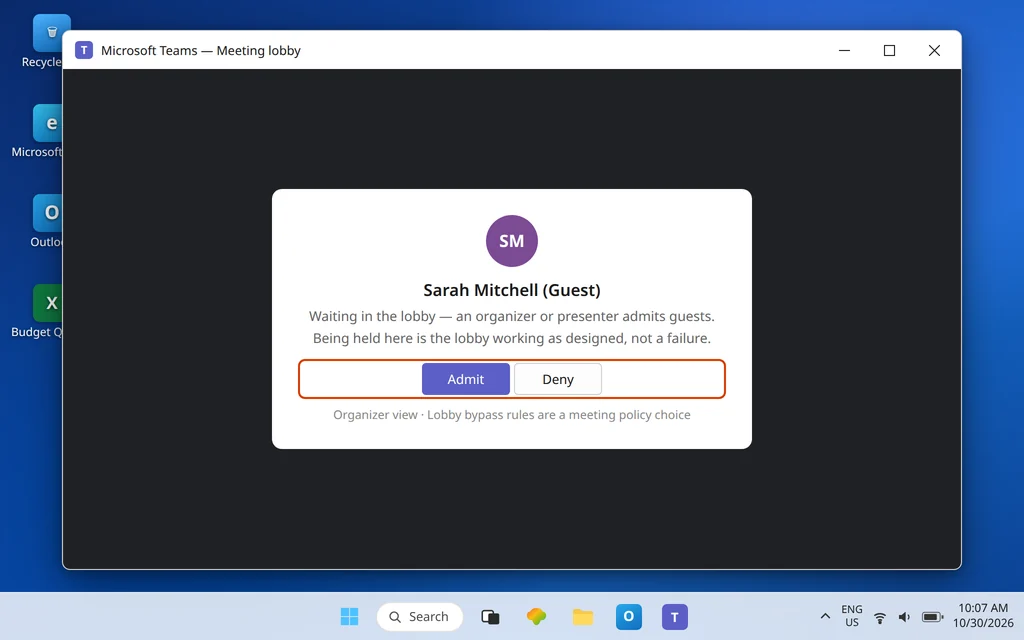
- The lobby is working as designed when outsiders wait to be admitted; who can bypass it is a meeting policy/options choice, and Microsoft notes meeting policy changes can also take up to 24 hours.
If the meeting link itself is dead — opens nothing, loops, or lands in the wrong app — that is not this guide’s layer; use Microsoft Teams Meeting Link Not Working. If nobody, internal or external, can join, use Can’t Join a Teams Meeting instead.
Fix 5 — Know the guest limits, so a limit is not mistaken for a fault
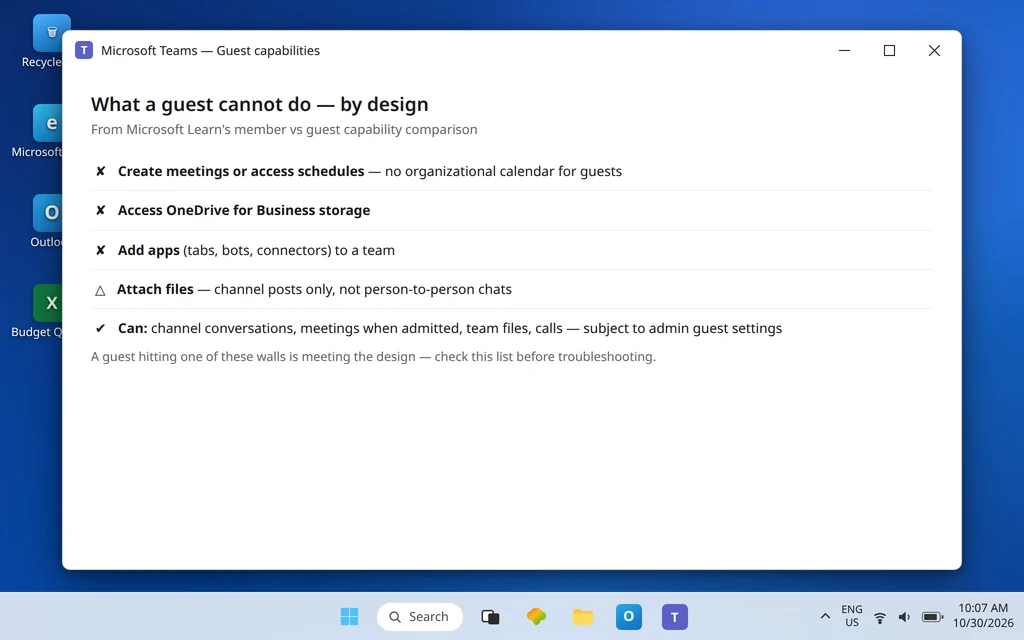
Even a perfectly working guest account cannot do everything a member can. Per Microsoft Learn’s guest capability comparison, guests cannot:
- Create meetings or access schedules (no Teams calendar of your organization).
- Access OneDrive for Business storage.
- Add apps (tabs, bots, or connectors) to a team.
- Attach files outside channel posts (for example, in a person-to-person chat).
- Search within files, browse for or create teams, or invite further external users in the ways members can.
Guest capabilities for calling, meetings, and messaging can also be narrowed by admin settings under the same Users > Guest access page from Fix 1. So when a guest reports “I can’t open the calendar” or “I can’t add that app,” check this list before troubleshooting — several common guest complaints are the design, not a defect. On numbers: Microsoft does not set a per-team guest limit in these controls; the total number of guests a tenant can hold is governed by its Microsoft Entra licensing and directory limits, which is an admin-side capacity question, not a Teams setting.
Fix 6 — The external user is added, but to the wrong team layer
A final, quiet failure: the guest was added successfully — to a team — but the person actually needs a channel, or the reverse. Membership is layered. A guest must be a member of the team before they can be given access to anything inside it, including a private channel within that team; inviting someone “to a channel” without team membership does not complete. If your guest can see the team but not the private channel they were promised, the channel membership step is the missing one — that add-members layer is covered step by step in Microsoft Teams Cannot Add Members. Conversely, if someone only ever needed to chat and meet, they never needed team membership at all — external access (the introduction above) was the right feature, and removing an unnecessary guest account is the tidy ending.
Confirm it worked
Run one clean end-to-end test with a real external address you control (a personal Outlook or Gmail mailbox works): confirm the admin switch has been on for a full day, add that address as a guest to a test team, accept the invitation from the email while signed in as that address, switch organizations inside Teams, and confirm the team and a channel conversation are visible and the Guest label shows. Then place a test meeting and confirm the guest can join and be admitted from the lobby. Passing all five steps means the guest path is healthy; the step where your real guest stalls is your diagnosis.
How to stop it happening again
- Name the feature in every request. “Enable guest access” and “allow external access” send an admin to different pages; saying which one you need, and why, prevents the wrong-switch fix.
- Respect the clock. Record when an admin changes guest settings and do not declare failure inside the up-to-24-hour window — retesting early creates phantom tickets.
- Invite the exact address the person will sign in with. Most redemption failures are identity mismatches, not system failures.
- Review guest accounts periodically. Guests keep access until removed; an admin review of guest membership in Entra ID keeps old projects from keeping live doors.
Frequently asked questions
What is the difference between guest access and external access in Teams?
External access lets your users find, call, chat, and set up meetings with people in other Microsoft 365 organizations — those people never join your teams and cannot see your channels or files. Guest access adds a specific outsider to a specific team as an Entra B2B guest, where they can collaborate in channels and on files with near-member capability, within documented limits.
How do I turn on guest access in Microsoft Teams?
An admin opens the Teams admin center > Users > Guest access and turns Allow guest access in Teams on, then saves. Guest access also depends on Entra external collaboration settings, Microsoft 365 Groups guest settings, and SharePoint external sharing all allowing guests — a block in any one of them blocks Teams guests too.
How long do guest access changes take to apply?
Microsoft documents that the guest access switch can take 24 hours to take effect, and its guest collaboration guidance says settings might take up to twenty-four hours to become active. Separately, after an individual guest is added to a team, it may take a few hours before that guest has access.
Why didn’t my guest receive the invitation, or can’t they use it?
Check the spam or junk folder first, then verify the invitation went to the exact email address the guest signs in with — accepting under a different address is the most common redemption failure. The guest must select Open Microsoft Teams in the invitation email to redeem it, and afterward switch to your organization inside Teams to see the team.
Can a guest join a Teams meeting without being added to a team?
Yes, in two different ways — neither of which is team guest access. A person from another Microsoft 365 organization can be met with via external access, and truly anonymous joining depends on the separate Anonymous users can join a meeting setting an admin controls. Guest access is specifically the feature that puts an outsider inside a team.
What can guests not do in Teams?
Per Microsoft’s capability comparison, guests cannot create meetings or access schedules, cannot use OneDrive for Business storage, cannot add apps to a team, and can attach files only in channel posts rather than in chats — among other limits. Admins can narrow guest calling, meeting, and messaging abilities further in the guest access settings.
Guests still locked out? Contact us at servicedesk@howtofixerroronline.com or through our Contact page and tell us whether the person needs team membership or just meetings and chat, when the admin last changed the guest access switch, and exactly where the invitation flow stops for them. We will never ask for your password.
Pingback: Can't Add Members in Teams? Team or Channel Fixes