
Microsoft Teams Background Effects Not Working — Can’t Blur
You join the meeting, reach for the blur button you have used a hundred times — and it is not there. Or Background filters is greyed out. Or you pick an effect, click Apply, and nothing changes. Background effects in Microsoft Teams fail in a handful of distinct ways, and each one has a different fix, so the first job is matching your symptom to the right layer.
Work through this guide in order: the camera-first rule that quietly disables the whole feature, the two places effects actually live (before the meeting and inside it), the hardware requirement most people never hear about, and the admin policy that can remove effects for your account no matter what you do on your PC. One boundary before we start: if your camera itself shows a black screen or is not detected at all, that is a camera fault, not an effects fault — fix that first with Microsoft Teams Camera Not Working, then come back here.
Quick Answer: Background effects need a live camera feed — turn your camera on first, or Background filters stays greyed out. Before a meeting, turn the camera on and select Background filters; during a meeting, use More (…) > Video effects. If the option is missing entirely, your PC may not meet Microsoft’s documented requirement (a processor with AVX2 support), you may be on Linux or an optimized virtual desktop where effects are not available, or your admin’s meeting policy — Participants can use video effects — is set to Off or Only background blur.
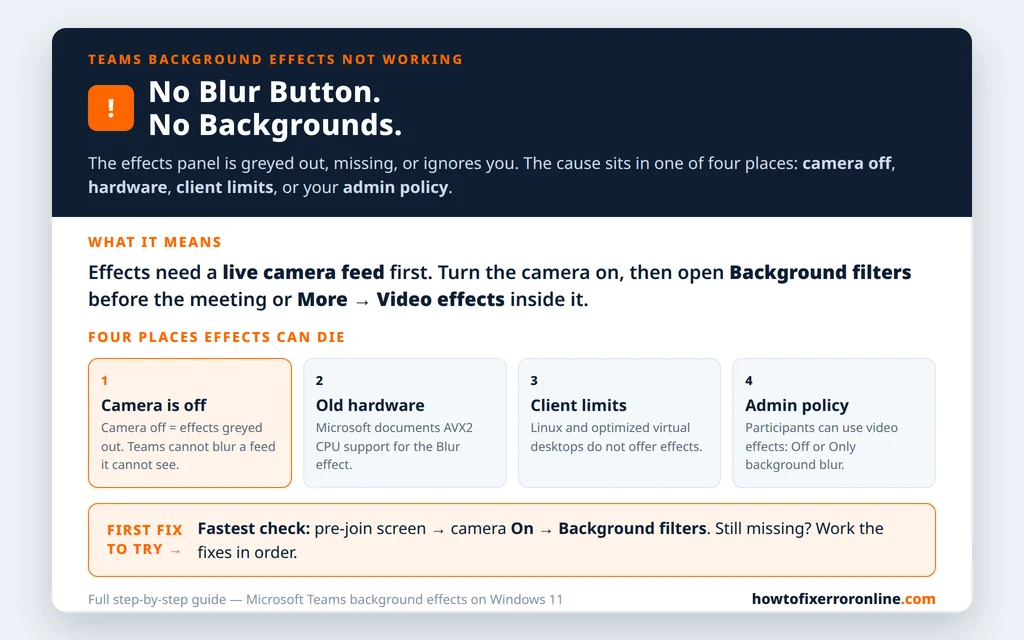
Table of Contents
Fix 1 — Turn your camera on first (the greyed-out trap)
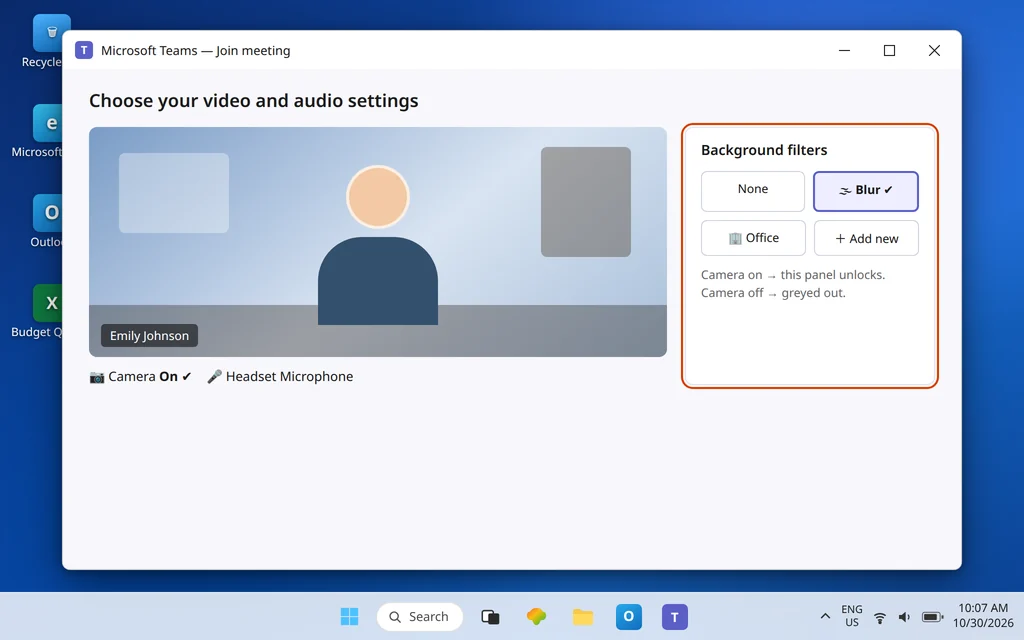
This is the most common cause and the easiest to miss: background effects need your camera on. Microsoft’s own guidance for the pre-join screen is blunt — if the Background effects button is greyed out, check that your camera is turned on. Teams cannot blur or replace a background it cannot see, so with the camera off, the whole effects panel is disabled rather than just empty.
- On the pre-join screen (“Choose your video and audio settings”), turn the Camera toggle on and confirm you can see yourself.
- Now select Background filters (on newer builds it appears under Effects and avatars > Video effects). The panel should be active.
- Choose Blur, preview it, and join.
If your camera will not turn on at all — black preview, “camera not detected,” another app holding it — stop here and work through Microsoft Teams Camera Not Working first. Effects troubleshooting on a dead camera goes nowhere.
Fix 2 — Use the right door: effects live in two places
Effects have moved around between Teams versions, and hunting in the wrong menu looks exactly like “the feature is gone.” There are two supported doors:
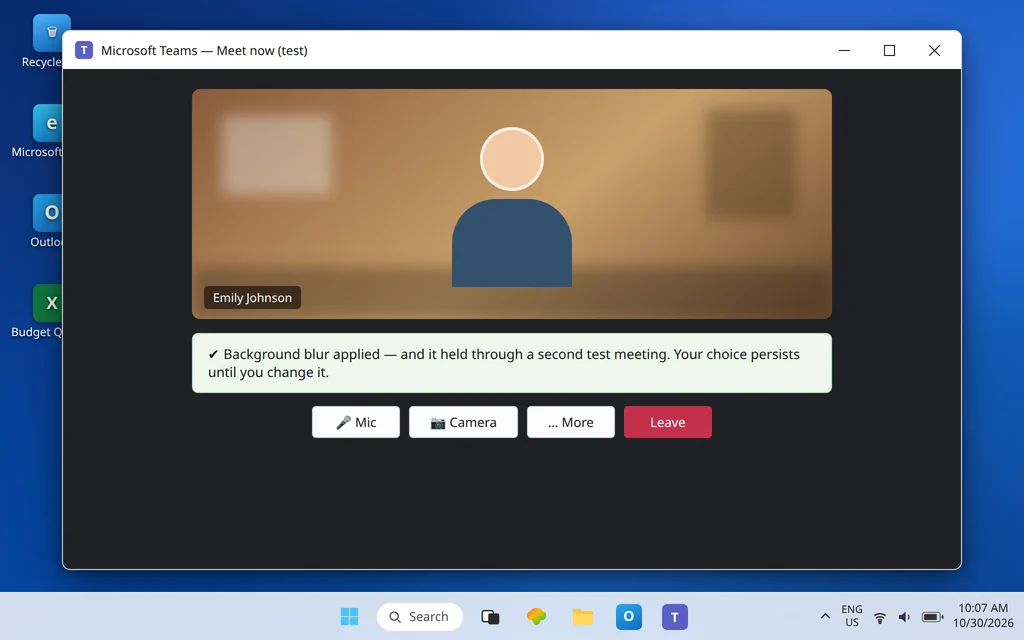
Before the meeting: on the pre-join screen, with the camera on, select Background filters. Pick Blur to blur, choose one of the provided images to replace your background, or select Add new and upload your own image (a .JPG, .PNG, or .BMP file). Select None to turn effects off. Your choice persists across meetings and calls until you change it again.
During the meeting: go to the meeting controls and select More (…) > Video effects. Choose Blur or an image, select Preview to see how it looks before anyone else does, then select Apply.
A private rehearsal helps: start a Meet now meeting with nobody else in it and test both doors. If effects work in Meet now but not in one particular scheduled meeting, the meeting itself — not your PC — is the variable, which points at Fix 6 (policy can also be evaluated per meeting organizer in some setups, so note which meeting failed).

Fix 3 — Use the desktop app (web, Linux, and virtual desktop limits)
Where you run Teams decides whether effects exist at all:
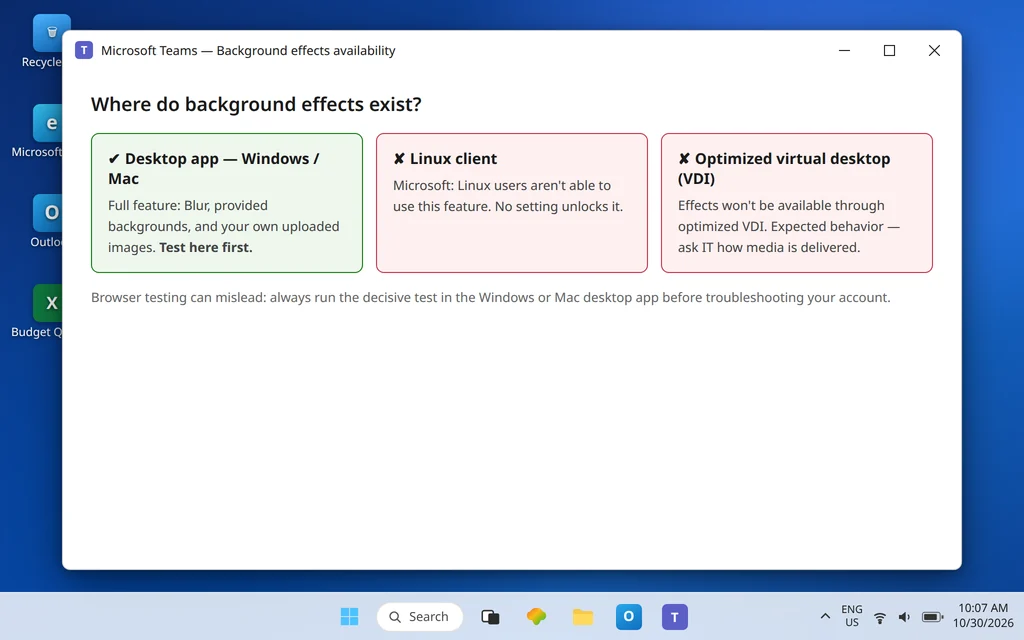
- Desktop app for Windows or Mac: the full feature. Microsoft’s background pages describe effects and custom background images as PC and Mac client features. If you have been trying in a browser, install or open the desktop app and test there first.
- Teams on the web: do not rely on it for troubleshooting — test in the desktop app so a browser limitation does not masquerade as a broken account.
- Linux: Microsoft states plainly that Linux users aren’t able to use this feature. There is no setting to unlock; use a Windows or Mac client for meetings where you need effects.
- Virtual desktop (optimized VDI): Microsoft states background effects won’t be available if you’re using Teams through optimized virtual desktop infrastructure. If your employer delivers Teams through Citrix or a similar virtual desktop, this is expected behavior, not a fault — ask IT how Teams media is delivered before reinstalling anything.
Fix 4 — Check the hardware requirement: AVX2
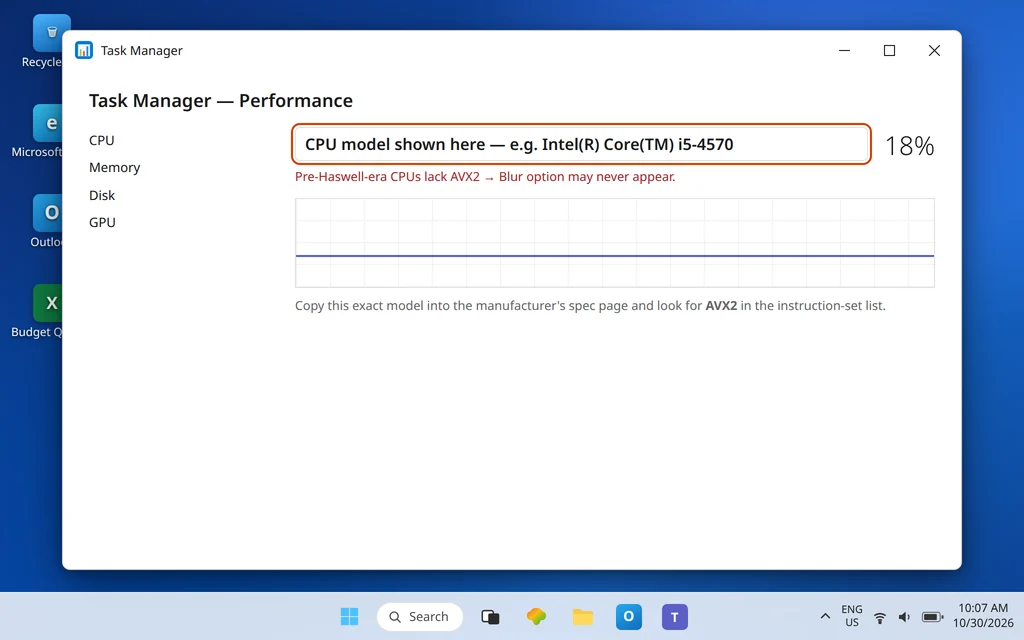
Background blur is real-time video processing: Teams has to separate you from the room behind you on every frame. Microsoft’s hardware requirements for the Teams app state that the optional Blur my background video effect requires a processor with Advanced Vector Extensions 2 (AVX2) support. AVX2 arrived with Intel’s Haswell generation (2013-era) and the AMD equivalents of that period, so most PCs from the mid-2010s onward qualify — but a genuinely old processor does not, and on such a machine the effects option may simply never appear.
How to check your situation honestly:
- Press Ctrl + Shift + Esc to open Task Manager, open the Performance tab, and note your exact CPU model.
- Search that exact model on the manufacturer’s specification page and look for AVX2 in its instruction-set list.
- If the CPU predates AVX2 support, no driver, reinstall, or setting adds the feature — your options are a newer PC, or a physical backdrop for privacy.
One honest caveat: Microsoft has adjusted how strictly this is enforced over the feature’s lifetime, so treat AVX2 as the documented requirement and the prime suspect on very old hardware — not as a verdict on a modern machine. If your CPU is recent and effects are still missing, keep going: Fixes 5 and 6 are far more likely.
Fix 5 — Update Teams, restart it, and reset it if needed
If effects worked on this same PC before and vanished, suspect the client before the hardware:
- Update Teams: open Settings > About (or the … menu) and let Teams check for updates, then let it restart.
- Fully quit and relaunch: right-click the Teams icon in the system tray, choose Quit, then reopen. A client that has been running for weeks can hold a stale state.
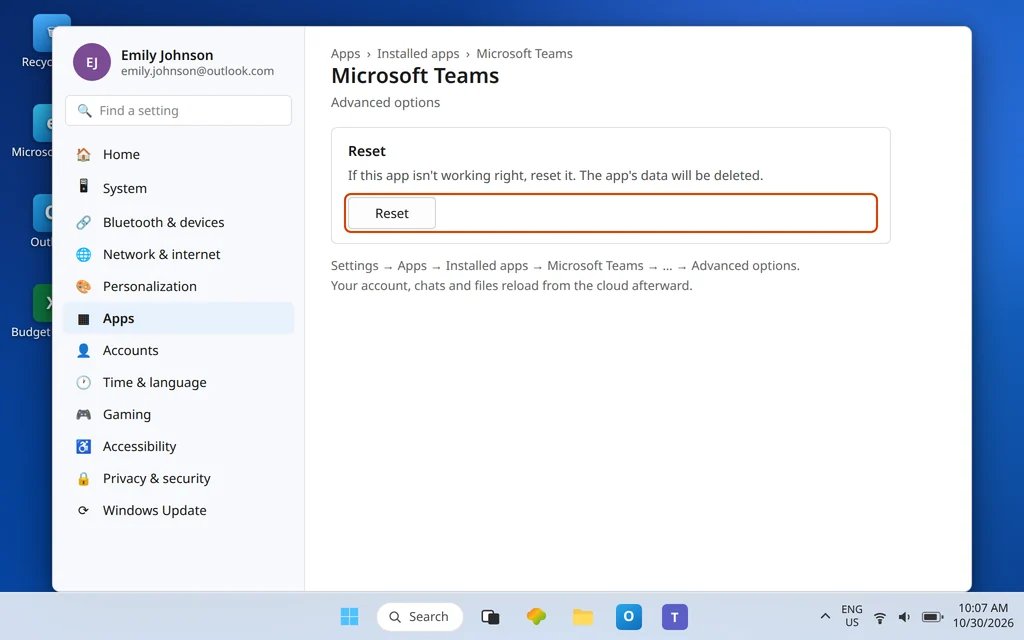
- Reset the app (last resort on Windows): open Settings > Apps > Installed apps > Microsoft Teams > … > Advanced options > Reset. Your account, chats, and files reload from the cloud afterward; the first launch takes a little longer.
- Update your graphics driver from your PC or graphics manufacturer’s support page. Effects are rendered through the graphics stack, and a broken driver update is a plausible trigger when the option disappeared right after a Windows update.
If Teams is broadly unstable at the same time — crashing, freezing, stuck — the wider repair path in Microsoft Teams Keeps Crashing or Freezing applies; effects are just one symptom of a sick client there.
Fix 6 — Ask your admin about the video effects policy
If effects are missing on every device where you sign in — desktop at home, laptop at work, all of them — the cause is almost certainly not your hardware. It is a policy attached to your account.
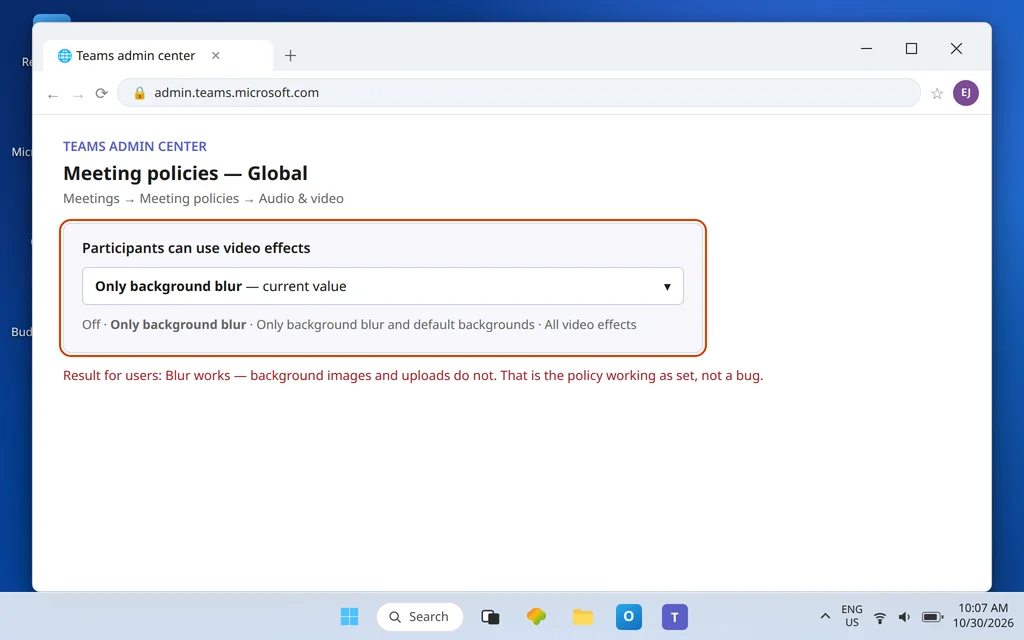
Microsoft Learn documents the control exactly: in the Teams admin center, under Meetings > Meeting policies, the Audio & video section has a setting called Participants can use video effects. It is a per-user policy with four values:
- Off — you can’t customize your video background at all. The effects panel offers nothing.
- Only background blur — blur works; provided and custom backgrounds do not.
- Only background blur and default backgrounds — blur plus Microsoft’s provided images; no uploads of your own.
- All video effects — blur, provided images, and your own uploaded images.
That middle pair explains a very common half-broken symptom: “I can blur, but I can’t use a background image” is not a bug — it is the Only background blur policy working exactly as set. There is nothing to fix on your PC. Send your admin the exact setting name above and describe which value your work needs; policy changes are theirs to make, and they apply to your account wherever you sign in.
Fix 7 — Effects apply, but look wrong or keep turning off
A smaller set of complaints sits between “missing” and “working”:
- Effect applies, then drops mid-meeting: usually the PC is struggling with real-time processing. Close heavy apps, and if you are on a laptop, plug in power — Windows power saving throttles exactly the processing effects depend on.
- Edges look rough (hair, glasses, headphones): this is the AI segmentation working at its limit, not a fault. Better, even lighting on your face and a plain gap between you and the wall improve it more than any setting.
- Your chosen background does not persist: your selection should carry across meetings until you change it. If it resets every time, run Fix 5’s update-and-reset sequence — a client that cannot keep an effects preference usually cannot keep its cache healthy either.
- Uploading your own image fails: use a .JPG, .PNG, or .BMP file, and remember the policy check in Fix 6 — under two of the four policy values, uploads are blocked by design.
Confirm it worked
Start a Meet now meeting alone. Turn the camera on, apply Blur from the pre-join screen, join, then change to a provided background image mid-meeting through More (…) > Video effects and use Preview before Apply. Both doors working, the effect holding for a few minutes, and your choice still in place when you join a second test meeting — that is a complete pass. If you can blur but cannot pick images, you have not failed this test: you have confirmed the Fix 6 policy, and the next step is the admin conversation.
How to stop it happening again
- Test in Meet now before important meetings. Thirty seconds alone beats discovering a missing Blur button in front of a client.
- Keep Teams updated. Effects menus move between versions; an old client makes every guide (including this one) look wrong.
- Know your policy value. If your organization restricts video effects, learning which of the four values you have ends all future troubleshooting in one question.
- Do not chase settings that do not exist. New Teams has no “disable GPU acceleration”-style checkbox for this; if a guide sends you looking for one, it is describing the old classic Teams.
Frequently asked questions
Why are background effects not showing in Microsoft Teams?
The main causes are: your camera is off (which greys out the effects panel), you are looking in the wrong menu for your Teams version, you are on Linux or an optimized virtual desktop where Microsoft does not offer the feature, your processor does not meet the documented AVX2 requirement, or your admin’s meeting policy has video effects turned off. Work Fixes 1–3 first — they identify which layer you are in within minutes.
Why is the Blur option missing but other people have it?
If colleagues on similar PCs have Blur and you do not, compare the two variables that differ per person: the policy value on your account (Participants can use video effects — Fix 6) and your exact CPU model (Fix 4). Same building, same network, different result almost always means one of those two.
How do I turn on background blur in Teams?
With your camera on, select Background filters on the pre-join screen and choose Blur — or, during a meeting, More (…) > Video effects > Blur, then Preview and Apply. The choice persists across meetings until you change it or select None.
I can blur, but I can’t use a background image. Why?
That is the signature of the Only background blur meeting policy value. Your admin has allowed blur and nothing else. There is no local fix; ask the admin to move your policy to Only background blur and default backgrounds or All video effects if your work requires images.
Do background effects work in Teams on the web or Linux?
Microsoft documents background effects and custom images as PC and Mac desktop client features, and states that Linux users aren’t able to use the feature. Treat the desktop app on Windows or Mac as the supported home for effects, and test there before troubleshooting anything else.
My camera works, but effects are still greyed out. What now?
Confirm the camera is on in the pre-join screen itself (not just working in another app), update and fully restart Teams (Fix 5), then check the two account-level causes: try the desktop app instead of the web (Fix 3) and ask your admin which video effects policy value your account has (Fix 6).
Effects still missing? Contact us at servicedesk@howtofixerroronline.com or through our Contact page and tell us whether the option is greyed out or missing entirely, whether you are on the desktop app, web, Linux, or a virtual desktop, and your CPU model if you checked it. We will never ask for your password.