
Microsoft Teams Cannot Add Members to a Team or Channel
You know exactly who needs to be in the team. You have their name, their email, everything — and Teams will not let you add them. Maybe Add member is missing. Maybe it is there but only offers to send a request. Maybe the person appears to be added and then never shows up, or the team works fine but a specific channel refuses them.
Quick Answer: In a private team, only owners can add members — if you are a member, Teams lets you request the addition instead, and an owner must approve it. Check your role first in Manage team > Members. For a standard channel there is nothing to add: every team member already has it, so add the person to the team. For a private channel, the person must be a team member first, and then a private channel owner adds them from the channel’s own Add members. For an external person, type their full email address and add them as a guest — which only works if guest access is on.
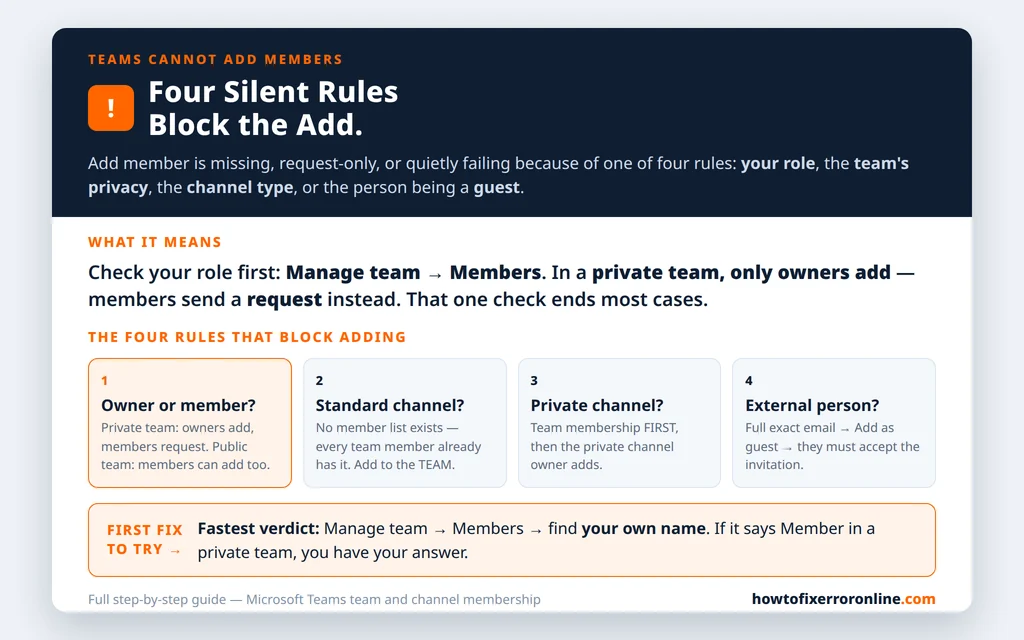
Table of Contents
Fix 1 — Check whether you are an owner (the rule behind most cases)
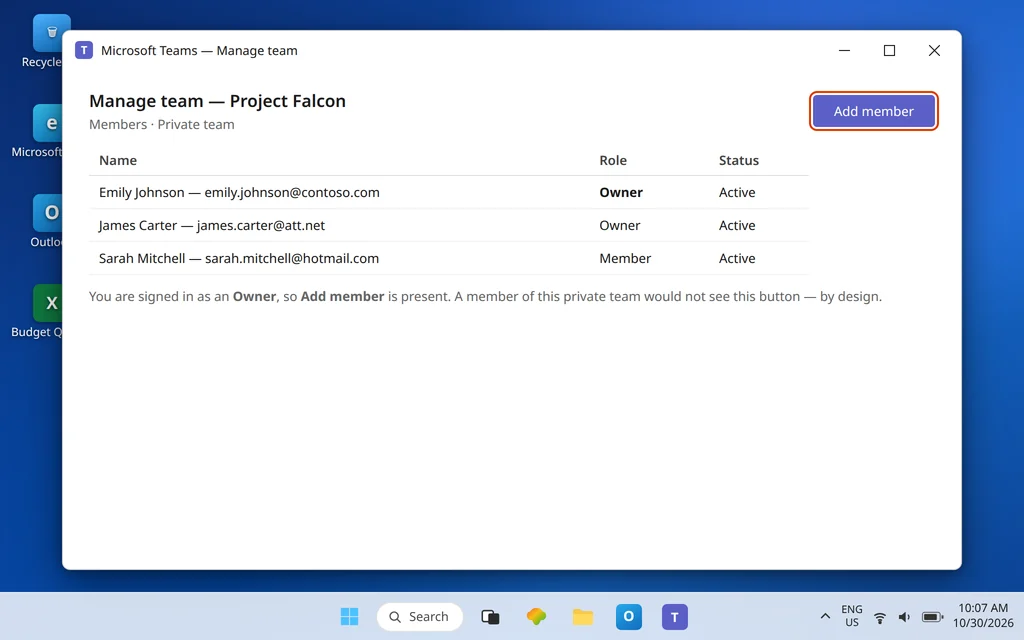
Microsoft Learn’s permissions table for Teams states it without ambiguity: add members to a private team — owner: yes, member: no. Members are not blocked by a bug; the button they need belongs to a role they do not hold. What members can do is request that someone be added, which is why your screen may show a request flow where a colleague’s screen shows a direct add.
- Next to the team name, select … > Manage team.
- Open the Members tab and find yourself. Your role is listed as Owner or Member (the lists are grouped by Owners, then Members and guests).
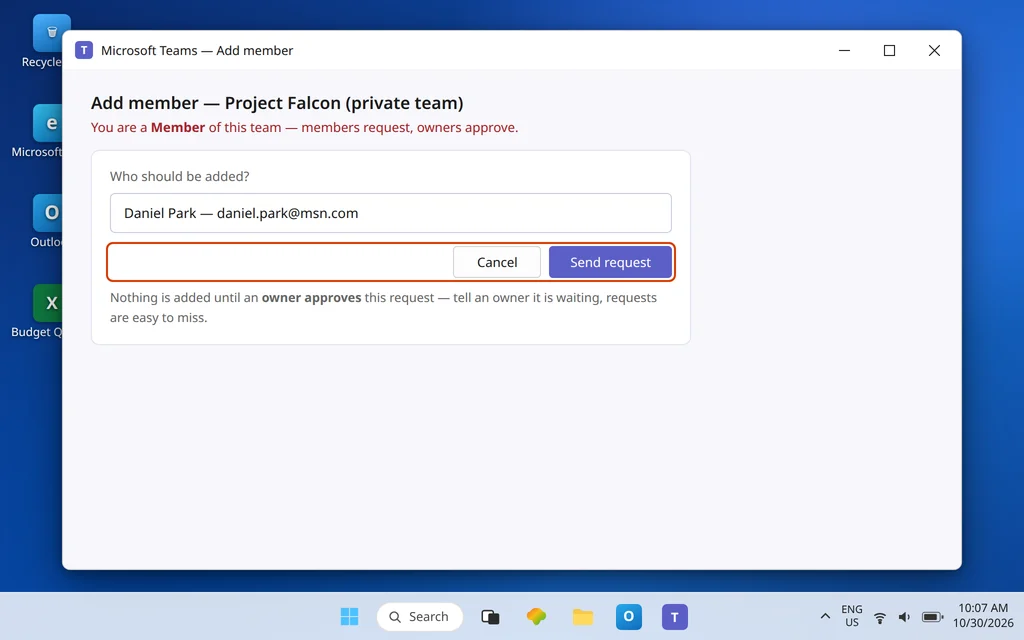
- If you are a Member: use the request flow — … > Add member, enter the person, and Send request if that is what Teams offers. Then tell an owner directly that a request is waiting; requests are easy to miss, and nothing moves until an owner approves.
- If you should be an Owner: ask a current owner to promote you in that same Members tab, or ask an admin to do it in the Teams admin center (Teams > Manage teams > Members). The person who created the team is an owner by default, so “whoever set this team up” is your first port of call.
Keep at least two owners on every team. A team whose only owner leaves the organization locks everyone else out of membership changes, and unpicking that needs admin help.
Fix 2 — Know your team type: private vs public changes the rules
The same permissions table draws the second line: add members to a public team — owner: yes, member: yes. And public teams go further: anyone in your organization can find a public team and join it themselves, without being added at all.
So split your problem by privacy (check it in Manage team > Settings, or ask an owner):
- Private team, you are a member: expected behavior is request-only (Fix 1). Nothing is broken.
- Public team: if the person is inside your organization, the simplest fix may be no fix — send them the team’s name and let them Join it from Join or create a team. If you are a member trying to add someone and even the public team refuses, re-check your role and restart Teams; you are outside the documented behavior now.
- You need member-adds to work in a private team long-term: the answer is ownership (Fix 1), not a privacy change. Owners can change a team’s privacy in Manage team settings, but making a team public just to add one person trades away the privacy everyone else relied on — promote an owner instead.
Fix 3 — Standard channels have no member list (add to the team instead)
A very common dead end: hunting for “add member” on a standard channel. Standard channels do not have their own membership — every member of the team automatically has every standard channel, and there is deliberately no per-person add. If a colleague “can’t get into the channel,” one of these is true:
- They are not a member of the team → add them to the team (Fixes 1–2), and all standard channels come with it.
- They are a team member but cannot see the channel in their list → the channel may be hidden in their client; have them open the team, expand the channel list, and use Show on hidden channels.
- The channel is not standard at all → it is a private channel, which is Fix 4.
Fix 4 — Private channels: team membership first, channel owner adds
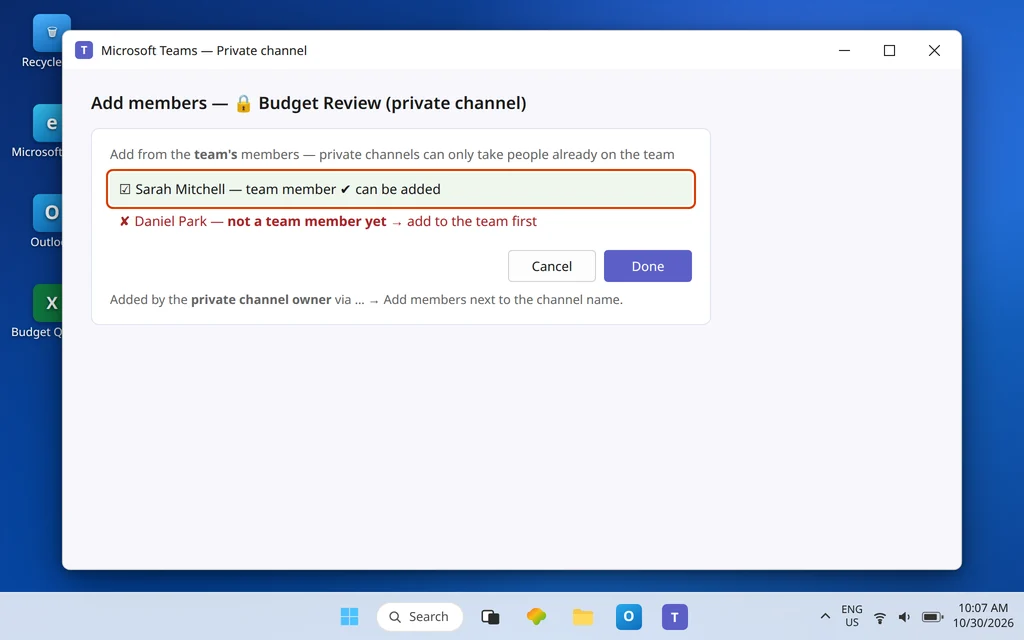
Private channels are the one place with a genuinely separate member list, and they enforce a strict order that Microsoft documents clearly: a person must first be a member of the team before they can be added to a private channel inside it — guests included. And the person who adds them is the private channel owner, which is a different hat from team owner.
- Confirm the person is a team member (Fix 1’s Members tab). If not, add them to the team first and wait for that to complete.
- As a private channel owner, go to the channel, select … > Add members next to the channel name.
- Add the person from the team roster, assign owner/member for the channel if prompted, and select Done.
Failure shapes that match this rule exactly: the person does not appear in the private channel’s add list (they are not a team member yet, or their team add is still pending); you cannot add because you own the team but not this channel (ask the channel owner); or someone was removed from the team and vanished from the channel too — Microsoft documents that leaving the team removes a person from its private channels, and rejoining the team does not restore channel membership, so they must be re-added to both. If instead the problem is that a private channel does not show up at all for someone who should have it, that visibility problem is its own topic: Microsoft Teams Private Channel Not Showing.
One size note, from Microsoft Q&A/Support references: a private channel can hold up to 250 members. Hitting that ceiling is rare, but if a large channel refuses a 251st person while everything else checks out, that limit is the likely reason.
Fix 5 — Adding an external person: exact email, add as guest, then patience
External people fail differently, because their add crosses the guest system:
- As a team owner, open … > Add member.
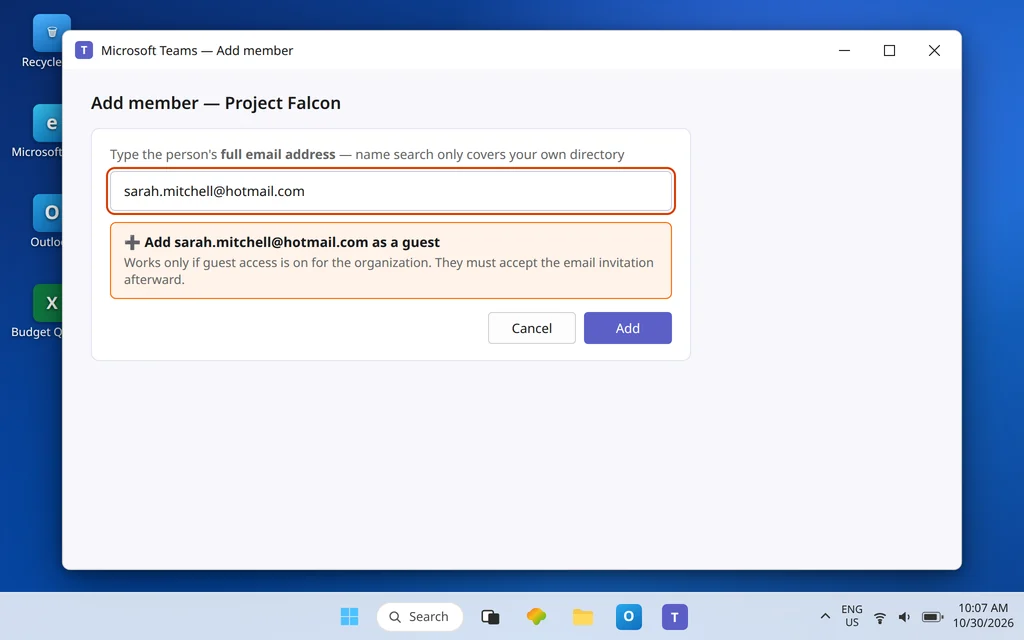
- Type the person’s full email address — the exact address they will sign in with — rather than relying on a name search, which only covers people already in your directory.
- Select the option to add that address as a guest, set their display name if prompted, and confirm the add.
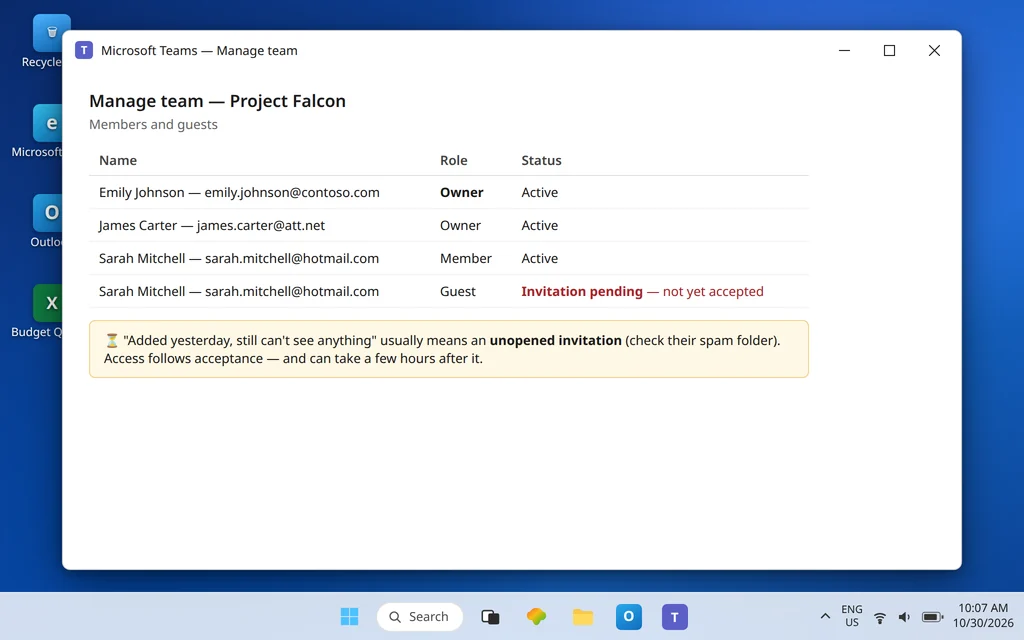
- Tell the person to expect an email invitation and accept it. Until they redeem it, they sit in a pending state and do not have access — “I added them yesterday and they still can’t see anything” usually means an unopened invitation (often in their spam folder), not a failed add. In Manage team > Members you can see the guest listed once the add registers; their access follows their acceptance, and Microsoft notes it can take a few hours after that.
If Teams will not offer the “add as guest” option for an external address at all, stop troubleshooting the team: that option is missing because guest access itself is off or blocked at the organization level. That layer — the admin switch, its dependencies, and the 24-hour rule — is Microsoft Teams Guest Access Not Working, and it has to be fixed there first.
Fix 6 — Internal person “not found” or added but invisible
When the person is a colleague and the add still misbehaves:
- Name search finds nobody: type the person’s exact email address / user principal name instead. Directory search can lag behind a new hire’s account, and two employees can share a name — the full address picks the right identity unambiguously. If the exact address also finds nothing, the account may be very new or the person may be in a different organization (in which case they are external — Fix 5).
- Added, confirmed, but they see nothing: have them fully quit and relaunch Teams (tray icon > right-click > Quit) and check Teams on the web. A newly added team that appears on the web but not the desktop app is a stale client; one that appears nowhere usually means the add went to a different team with a similar name — re-check which team you opened.
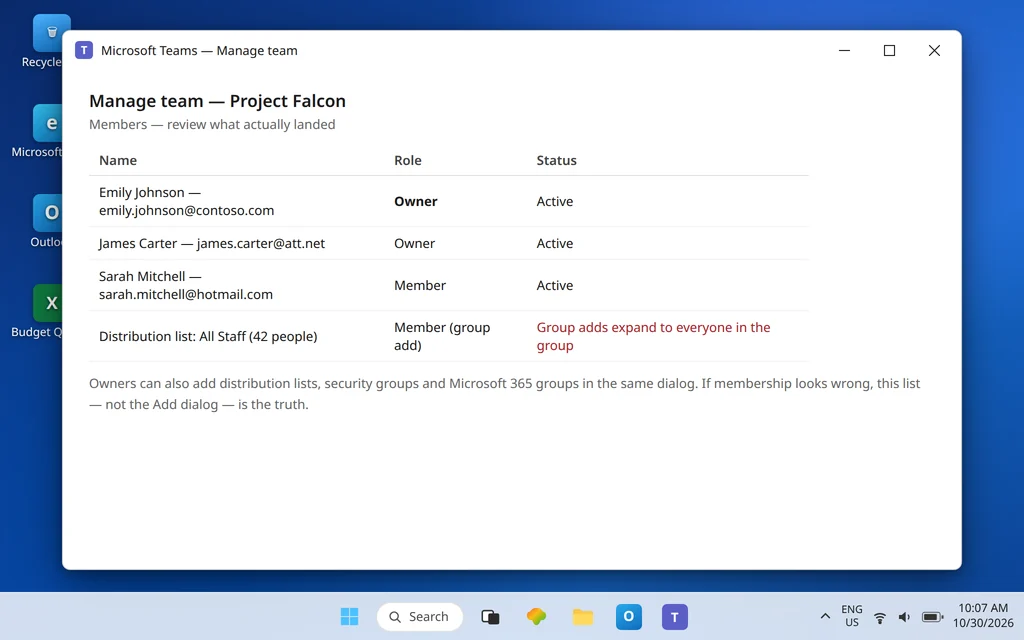
- You added a group instead of a person: owners can add distribution lists, security groups, and Microsoft 365 groups in the same dialog. If membership looks wrong afterward, open Manage team > Members and review what actually landed — group-based adds expand to whoever is in that group, which can surprise everyone.
Confirm it worked
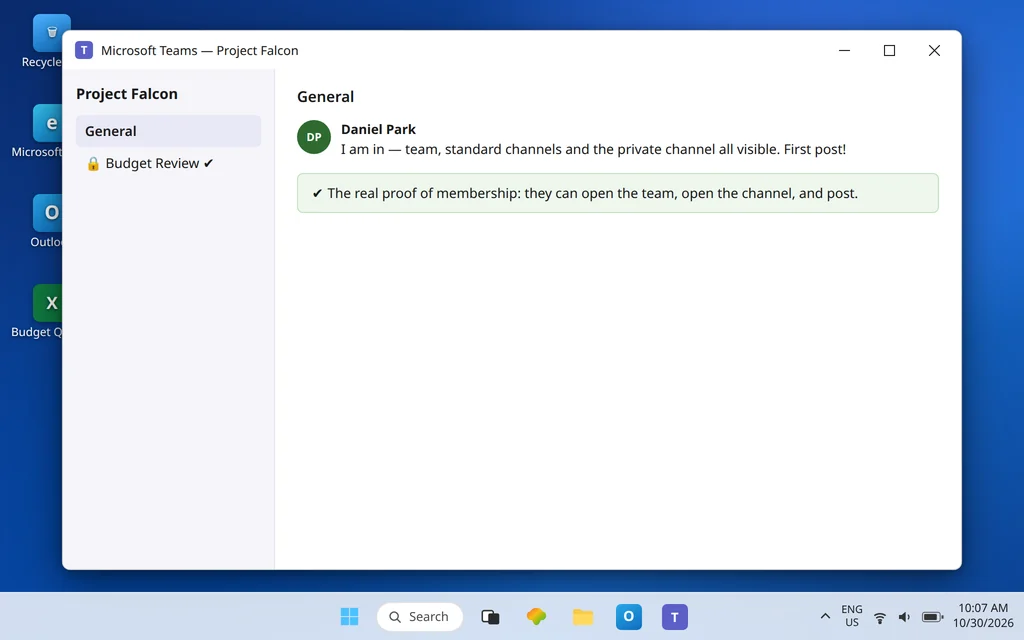
Ask the newly added person to do three things: open the team and see its channels, open the specific channel they needed (including the private one, if that was the goal), and post a short message. All three passing means membership is real — a name in the Members list alone does not prove the guest invitation was redeemed or the channel add completed. For an owner-promotion fix, confirm the new owner can themselves open Add member and see the direct-add flow rather than a request flow.
How to stop it happening again
- Keep two owners per team. Most “cannot add” tickets are one absent owner away from never happening.
- Onboard to the team first, channels second. Any private-channel plan starts with team membership — sequence invites that way and the channel step stops failing.
- Brief external guests when you invite them. One line — “watch for an email invitation and accept it with this exact address” — prevents the pending-invitation stall entirely.
Frequently asked questions
Why can’t I add a member to my Teams team?
The most common reason is role: in a private team, only owners can add members, and members can only send a request for an owner to approve. Check your role in Manage team > Members. If you are an owner and adding an external person fails, the guest layer is the likely block (Fix 5).
Who can add members to a private team in Teams?
Only team owners, per Microsoft’s permissions documentation. Members can request that a person be added. In a public team, members can also add people — and anyone in the organization can join a public team themselves.
How do I add someone to a private channel?
Two steps, in order: the person must already be a member of the team, and then a private channel owner adds them via … > Add members next to the channel name. Team ownership alone does not grant the channel add if you are not a channel owner, and nobody can be added to the channel before joining the team.
Why can I only send a request instead of adding someone?
Because you are a member, not an owner, of a private team. Teams gives members a request flow by design; an owner receives the request and approves or declines it. Ask an owner to approve it — or to promote you to owner if you manage the team regularly.
Why can’t I add an external person to my team?
You must be a team owner, type their full email address, and add them as a guest — and guest access must be enabled for your organization. If the guest option never appears, guest access is off at the admin level; if the option works but the person never gains access, their email invitation is usually still unaccepted.
Still can’t add someone? Contact us at servicedesk@howtofixerroronline.com or through our Contact page and tell us your role in the team, whether the team is private or public, whether the channel is standard or private, and whether the person is internal or external. We will never ask for your password.