
Microsoft Teams App Not Updating Automatically on Windows
Everyone else got the new meeting button last month. Your Microsoft Teams looks exactly as it did in the spring — and now Teams itself is starting to warn you that your version is out of date. The app is supposed to update itself quietly in the background. On your PC, it plainly has not.
This guide is only about the update stall. If Teams updates fine but crashes or freezes in use, go to Microsoft Teams Keeps Crashing or Freezing. If it opens to an endless loading screen, start with Microsoft Teams Stuck on the Loading Screen. Stay here when the version number is simply stuck in the past while colleagues move ahead.
First, an honest framing that saves wasted effort: the new Microsoft Teams is an MSIX-packaged app, and Microsoft — or your own IT department — controls much of its updating. There is no big “enable auto-update” switch for end users to find, and anyone promising a hidden registry trick to force updates is selling you risk. What you can do is check exactly where you stand, give the built-in updater the conditions it needs, and, when it still will not move, install the current version cleanly over the top using Microsoft’s own installer.
Quick Answer: Check where you stand in Settings and more (…) > Settings > About Teams — it shows your version and whether you have the latest. Then give the updater its working conditions: stay signed in, leave Teams running while the PC is idle instead of quitting it the moment you finish, and restart the PC so a downloaded update can apply. If a banner offering Update > Update and restart Teams appears, take it. Still stuck after a day of normal use? Download the current Teams installer from Microsoft and install over the top — or, on a work PC, ask your admin, because update policies and provisioned installs are theirs to change.
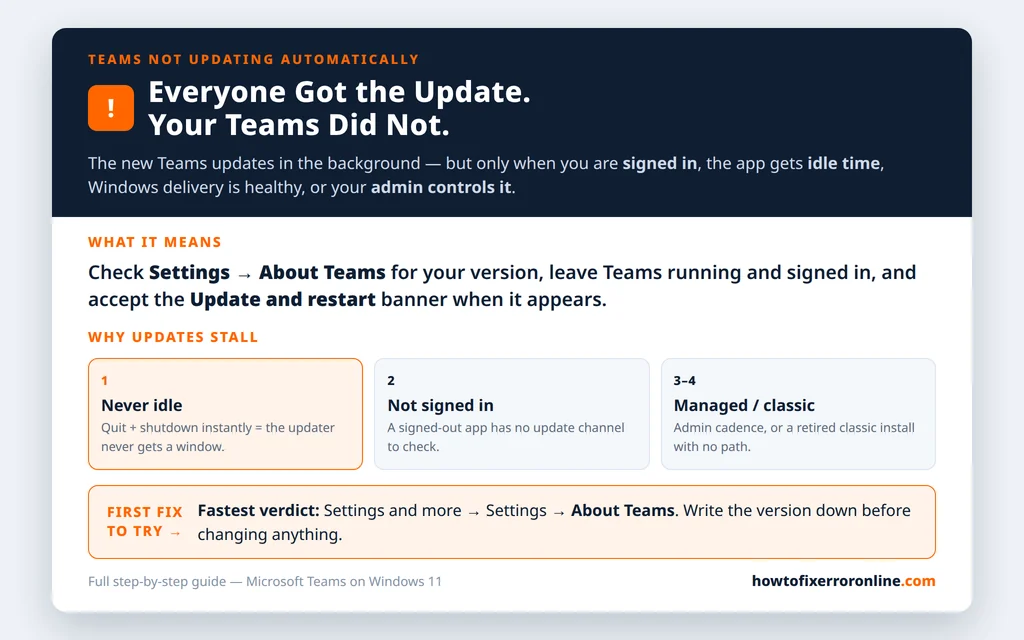
Table of Contents
Fix 1 — Check your version and update status in About Teams
Start with facts, not feelings. “Old-looking” is not a version number.
- In Teams, click Settings and more (…) next to your profile picture, then Settings.
- Select About Teams at the bottom of the left-hand list.
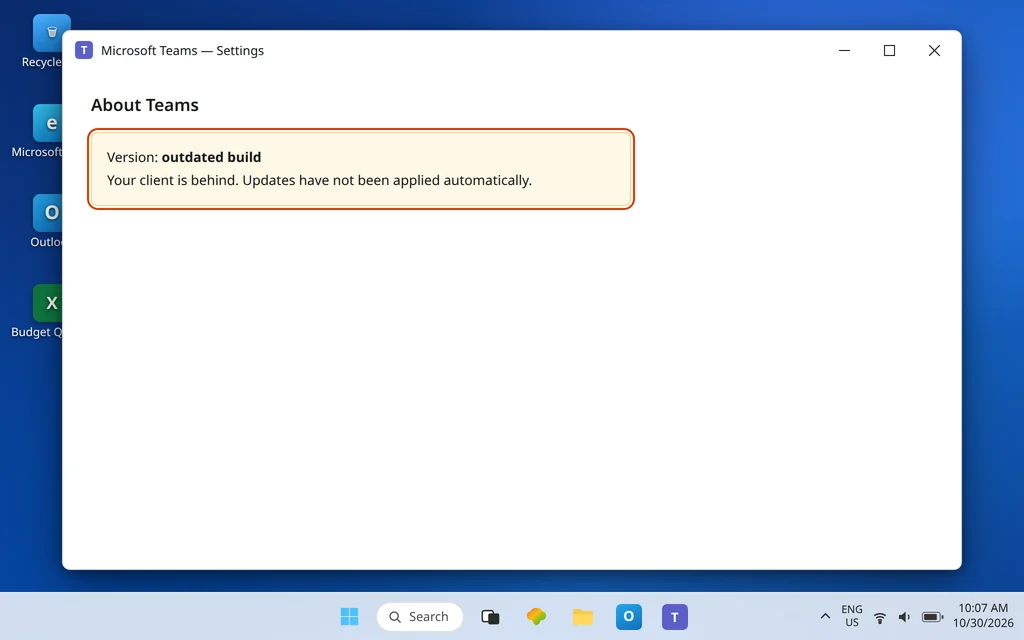
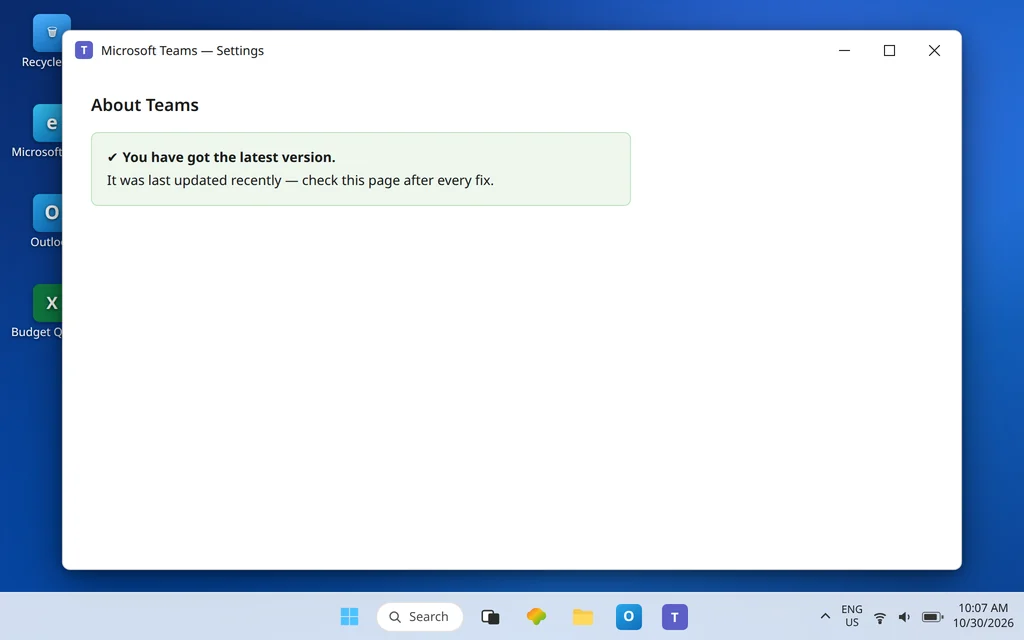
- Read the Version details and the update status line. A healthy, current app reports that you have the latest version and when it was last updated. An app with an update ready will offer it here or present the restart banner described in Fix 3.
Write the version down before changing anything. After every later fix, return to this same page: it is your only trustworthy before-and-after comparison, and it is the first thing IT will ask for if you escalate. While you are looking, note which app you actually have. If what opens on your PC is still classic Teams, no update setting will save it — see Fix 7, because classic reached the end of the road and must be replaced, not updated.
Fix 2 — Give the updater what it needs: signed in, running, and idle
Microsoft’s own troubleshooting for automatic updates failing makes two points that still explain most stalls today: Teams updates only when it is idle, and users need to be signed in for updates to download. The older guidance also warned that a client installed away from its default location would not auto-update — the packaging has changed since then, but the idle and signed-in lessons have not.
Translate that into habits for a day or two:
- Stay signed in to Teams with your work account. A signed-out app has no update channel to check.
- Leave Teams running when you step away — lunch, a meeting in another room, overnight if your workplace allows the PC to stay on. If your routine is “finish work, quit Teams, shut down instantly,” the updater never gets an idle window and every update queues forever.
- Restart the PC once, properly, rather than living on sleep and wake. A downloaded update that needs the app to restart cleanly gets its chance at a real boot.
This fix sounds too passive to be real, which is why people skip it — and why so many “broken” updaters quietly fix themselves after one normal week of use.
Fix 3 — Accept the update banner and restart Teams when it appears
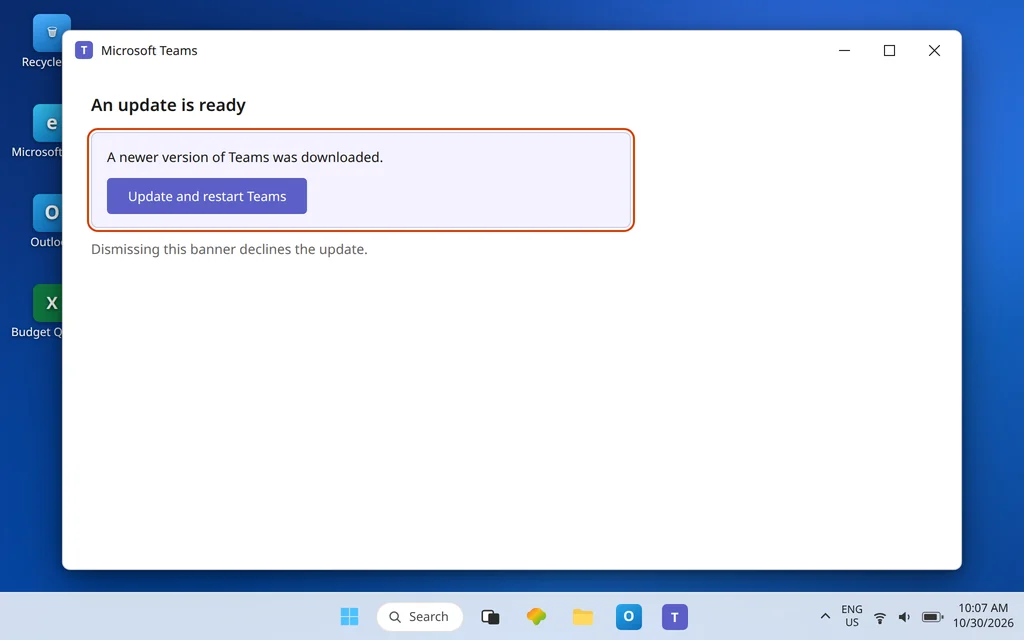
When the new Teams has downloaded an update in the background, it does not always apply it silently on the spot. Current Microsoft guidance describes the pattern: a banner appears at the top of the Teams window when an update is ready, and you select Update, then Update and restart Teams to apply it.
So treat that banner as the fix, not as nagging to dismiss. If you have been closing it for weeks, you have been declining the very update this article is about. Click through it at a moment when a one-minute restart costs nothing, then revisit Settings > About Teams (Fix 1) and confirm the version moved and the status now reports the latest version.
If the banner appears repeatedly for the same update — offered, applied, then offered again — note that loop carefully. A repeating update is a different symptom from no update at all, and it usually means the install itself is damaged, which is Fix 6 territory.
Fix 4 — Check Windows and Delivery Optimization are not blocking the download
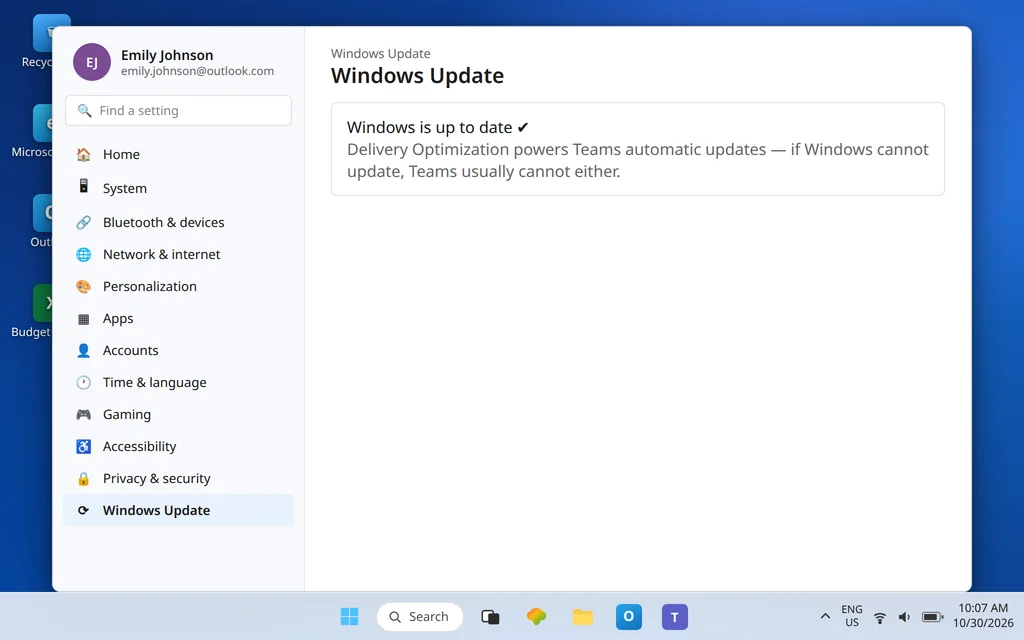
The new Teams does not fetch its updates through the old classic updater. Microsoft’s deployment documentation states plainly that Delivery Optimization powers Teams automatic updates, and that a Delivery Optimization download mode of Bypass is not supported. In plain terms: if Windows’ own update-delivery plumbing is disabled or heavily restricted on your PC, Teams updates can stall with it.
You cannot — and should not — rebuild a work PC’s Windows Update policy yourself. But you can check the basics:
- Open Settings > Windows Update and confirm Windows itself is updating normally. A PC months behind on Windows updates often has a policy or service problem that affects Teams too.
- Install pending Windows updates and restart. Teams rides on current Windows components, including the WebView2 runtime Microsoft lists as a prerequisite for the new app.
- If Windows Update reports that settings are managed by your organization, stop here and go to Fix 8 — that message tells you updates on this machine are administered, and Teams is very likely administered with them.
Fix 5 — Understand admin-managed and provisioned installs before fighting them
How Teams got onto your PC decides who owns its updates:
- You installed it yourself from Microsoft’s download page under your own account: the app updates itself per the pattern above, and the over-the-top install in Fix 6 is safe to try.
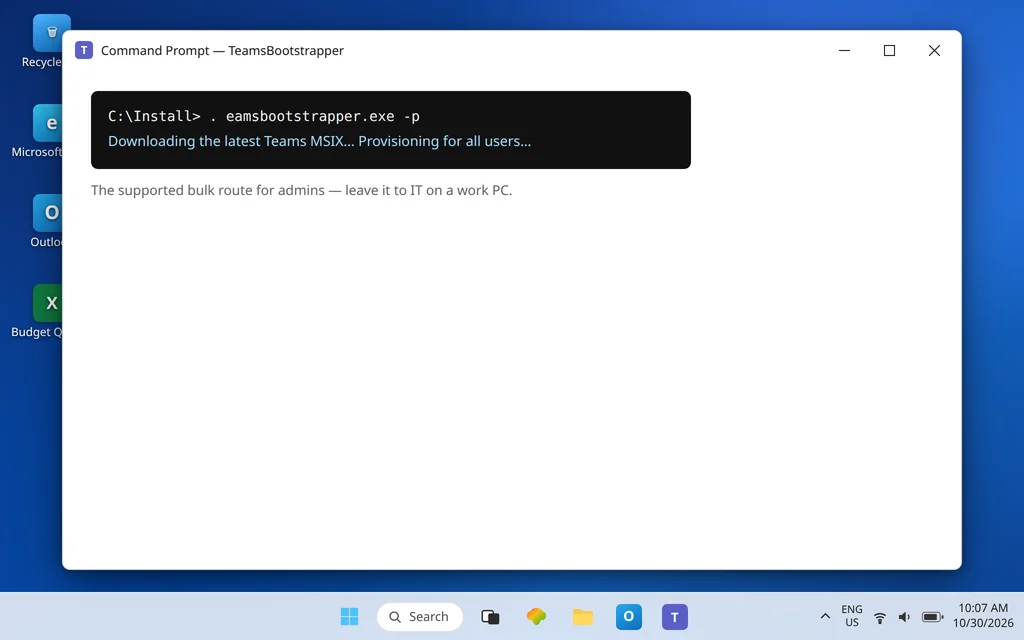
- IT provisioned it for all users — the standard workplace method, using Microsoft’s TeamsBootstrapper, which downloads the latest Teams MSIX package and provisions it for every user on the machine: updates are still designed to flow automatically, but your admin may stage, pause, or control them by policy. Your admin may also have set a managed update cadence you cannot see from inside the app.
- You are on a shared, virtual, or locked-down machine: update control is almost certainly central. Chasing local fixes wastes your time; report the version from Fix 1 to IT instead.
None of this is a fault in your PC. Microsoft designs enterprise Teams so an organization can keep thousands of clients consistent. The practical question is only which of the three situations you are in — and the About page plus a single question to your IT desk answers it.
Fix 6 — Install the current version over the top
If a self-installed Teams refuses to move after Fixes 2–4, stop waiting for the background process and install the current build directly:
- Download the Teams installer only from Microsoft’s official Teams download page. Do not use third-party download sites, which bundle outdated or modified installers.
- Run the installer and let it install over your existing app. Your chats, files, and account live in the service, not in the local install, so an over-the-top install does not erase your work.
- Open Teams, sign in if prompted, and return to Settings > About Teams to confirm the version is now current.
For administrators and advanced users doing this across machines, Microsoft provides TeamsBootstrapper (teamsbootstrapper.exe -p) to provision the latest MSIX for all users — that is the supported bulk route documented by Microsoft, not a trick. On a PC you do not administer, prefer the standard installer and leave the bootstrapper to IT.
Fix 7 — Still on classic Teams? It will never update — replace it
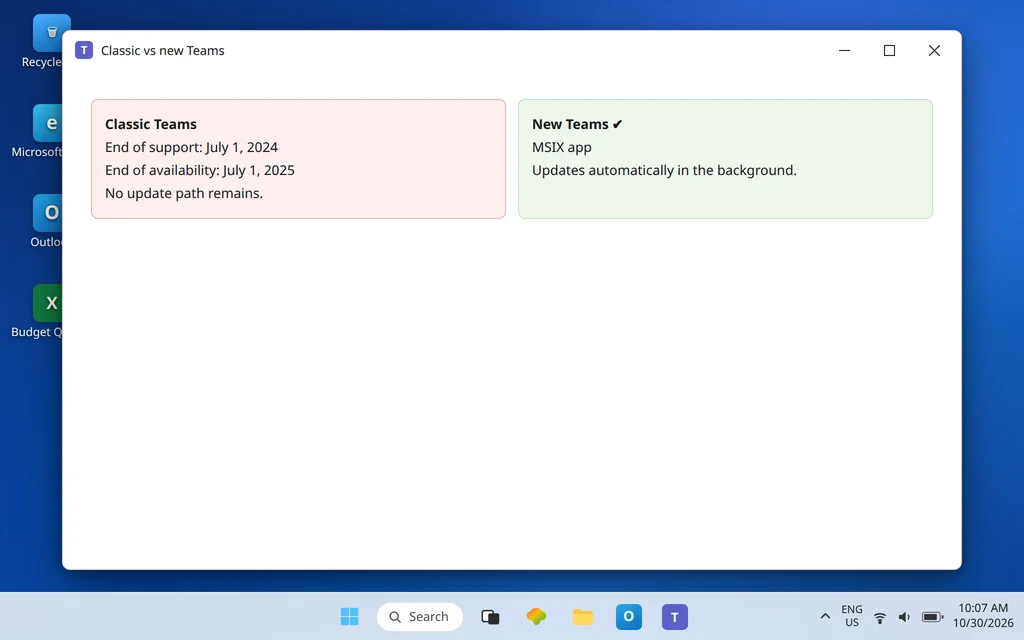
This is the trap behind some stubborn cases. Classic Teams reached end of support on July 1, 2024, and end of availability on July 1, 2025. A classic install left on a PC is not “behind on updates” — it is a retired app with no update path at all.
Clues include an older interface that never changes, update checks that achieve nothing, and Microsoft prompts urging you to move to the new Teams or the web app. The remedy is not another fix in this list: install the new Microsoft Teams from Microsoft’s download page (Fix 6), sign in, and then uninstall classic Teams through Settings > Apps > Installed apps once the new app is confirmed working. Until you finish that move, the Teams web app at teams.microsoft.com is always current and needs no install at all.
Fix 8 — Know when the out-of-date warnings mean “call IT now”
Microsoft has tightened what happens to neglected clients. Guidance on Teams versions describes an in-app alert when a desktop client falls one to three months behind, and a blocking page for clients more than three months old, offering three choices: update now, reach out to your IT admin, or continue to Teams on the web.
So if you see that blocking page, treat it as a deadline, not a suggestion:
- Choose Update now if it is offered and you administer your own PC.
- If the update option fails or is absent, that is the managed-install case from Fix 5 — send IT your exact version from About Teams and a screenshot of the blocking page.
- Use Teams on the web in the meantime so your work is not held hostage by one desktop install.
Do not respond to the blocking page by downloading Teams lookalikes from random sites. The only safe sources are Microsoft’s own download page and your organization’s software portal.
Confirm it worked
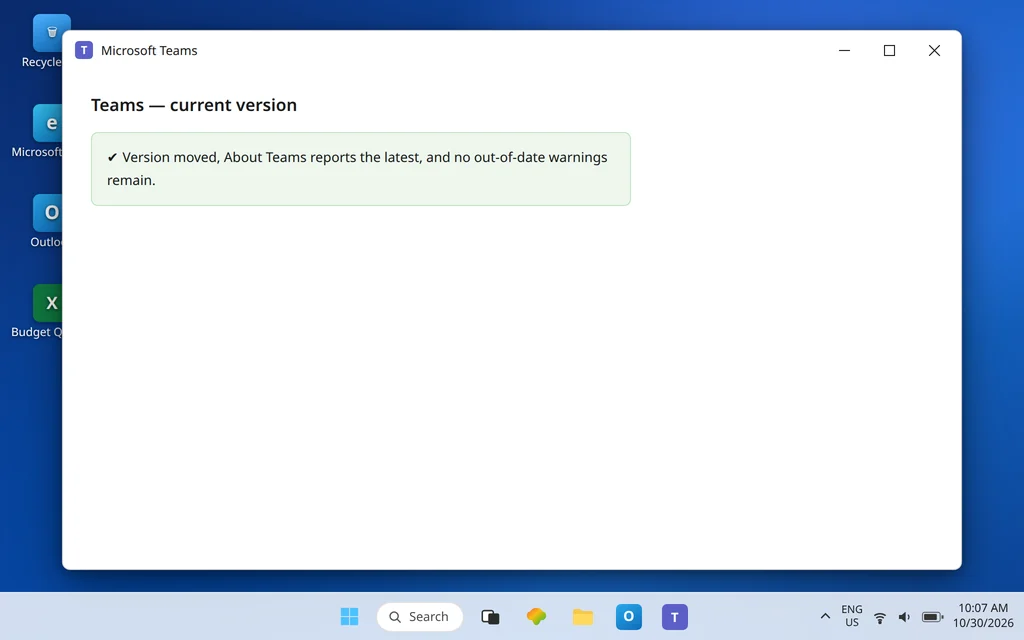
Open Settings > About Teams and confirm two things: the version has moved from the number you wrote down in Fix 1, and the status reports that you have the latest version with a recent “last updated” date. Then use Teams normally for a few days. A healthy updater stays boring afterward — versions advance quietly, and the out-of-date warnings do not return. If a fresh version warning reappears within weeks on a self-installed app, repeat Fix 6 once; a second recurrence is your cue to involve IT or Microsoft support with both version numbers in hand.
How to stop it happening again
- Let Teams idle. Leave the app running and signed in during breaks instead of quitting and powering off the instant you finish — idle time is update time.
- Restart weekly. A regular real restart lets downloaded updates apply and keeps Windows’ delivery components healthy.
- Install only from Microsoft. One clean install source means one clean update channel; side-loaded copies are where update paths go to die.
- Retire classic installs. If a spare or shared PC still carries classic Teams, replace it once rather than troubleshooting a retired app every quarter.
Frequently asked questions
How does the new Microsoft Teams update itself?
The new Teams is an MSIX-packaged app designed to update automatically in the background, with Delivery Optimization powering those automatic updates. In practice, the app downloads an update while you are signed in and the app can work in the background, then either applies it at a restart or offers a banner — Update > Update and restart Teams — when it is ready. There is no separate updater program for you to run.
How do I check my Teams version and update status?
Click Settings and more (…) > Settings > About Teams. The page shows your version and the update status, including a confirmation when you have the latest version and when it was last updated. Check this page before and after any fix — it is the only reliable proof an update actually landed.
Why does Teams only update when it is idle?
Because an update has to replace the running app’s files, and doing that mid-meeting would be disruptive. Microsoft’s troubleshooting guidance states that Teams updates only when it is idle and that users need to be signed in for updates to download. A PC where Teams is quit and powered off immediately after every use gives the updater no window at all.
What is TeamsBootstrapper, and should I run it?
TeamsBootstrapper is Microsoft’s lightweight installer for administrators: running teamsbootstrapper.exe -p downloads the latest Teams MSIX package and provisions Teams for all users on that computer. It is the supported bulk-deployment route. Individual users on their own PCs should normally use the standard Teams installer instead, and users on work PCs should leave the bootstrapper to IT.
Can my admin stop Teams from updating?
Your admin may control how and when a provisioned, organization-wide install updates, and Windows update settings on a managed PC can be set centrally — including the Delivery Optimization behavior Teams updates depend on. The article phrases this honestly: if About Teams and Windows Update both suggest the machine is managed, only your admin can change the cadence. Ask them with your exact version number ready.
Is there a switch to turn Teams automatic updates on?
There is no end-user auto-update toggle to hunt for in the new Teams — automatic updating is the design, not an option. If it is not happening, the cause is the conditions around it: the app never idle or signed in, a managed install, a damaged install needing an over-the-top repair, or a retired classic install that must be replaced.
Version still frozen after an over-the-top install? Contact us at servicedesk@howtofixerroronline.com or through our Contact page and tell us the version shown in About Teams, whether the PC is work-managed, and whether any update banner appears. We will never ask for your password.