
Citrix ICA File Downloads Instead of Opening in Chrome or Edge
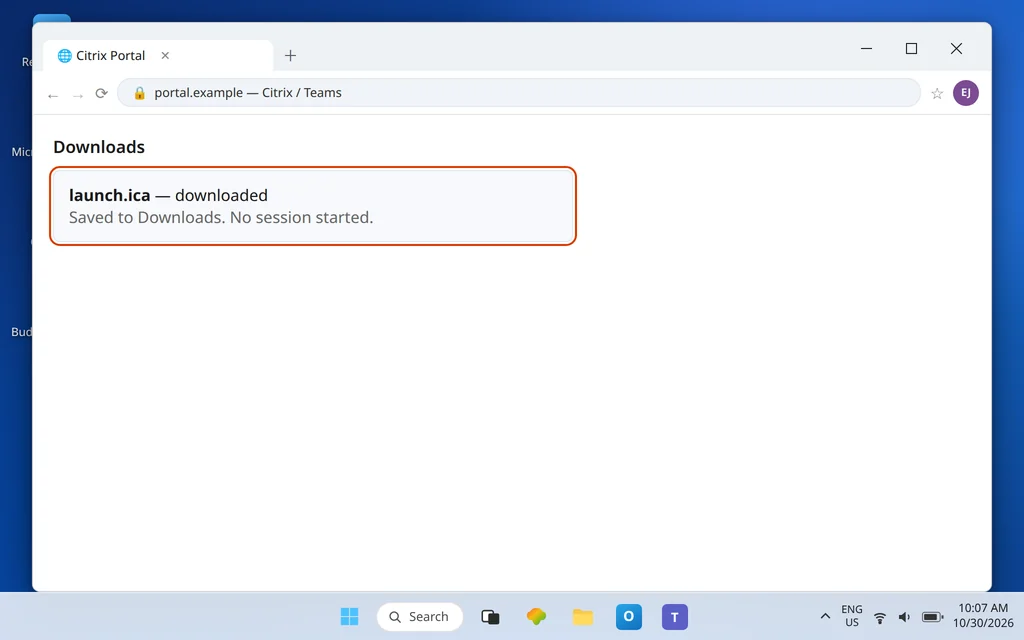
You sign in to your Citrix portal in Chrome or Edge, click your desktop — and instead of your session starting, a little file called launch.ica lands in your Downloads folder and just sits there. Click again, get launch (1).ica. Your Downloads folder is filling up with launch tickets to sessions that never launched.
Here is the good news buried in that annoyance: the portal worked, your account worked, and the launch file itself is probably fine. What is missing is one browser permission — you have never told Chrome or Edge to open this kind of file automatically, so the browser does the only thing it is allowed to do: save the file and wait for you. One setting fixes it permanently, per browser.
This guide is only about that browser handoff. If the file opens but in the wrong program, that is a different fix: see Citrix ICA File Opening with Media Player and Citrix ICA File Opening with Word. If nothing downloads or the Workspace app itself will not open, start with ICA File Not Opening in Citrix Workspace App. Stay here when the download succeeds and the auto-open does not.
One rule before the fixes, because it explains half of all failed tests: an .ica file is a one-time launch ticket that expires within minutes. Every test below must use a fresh file clicked from the portal in that moment. Double-clicking yesterday’s launch.ica proves nothing — it was already dead when you found it.
Quick Answer: Click your desktop in the portal so a fresh
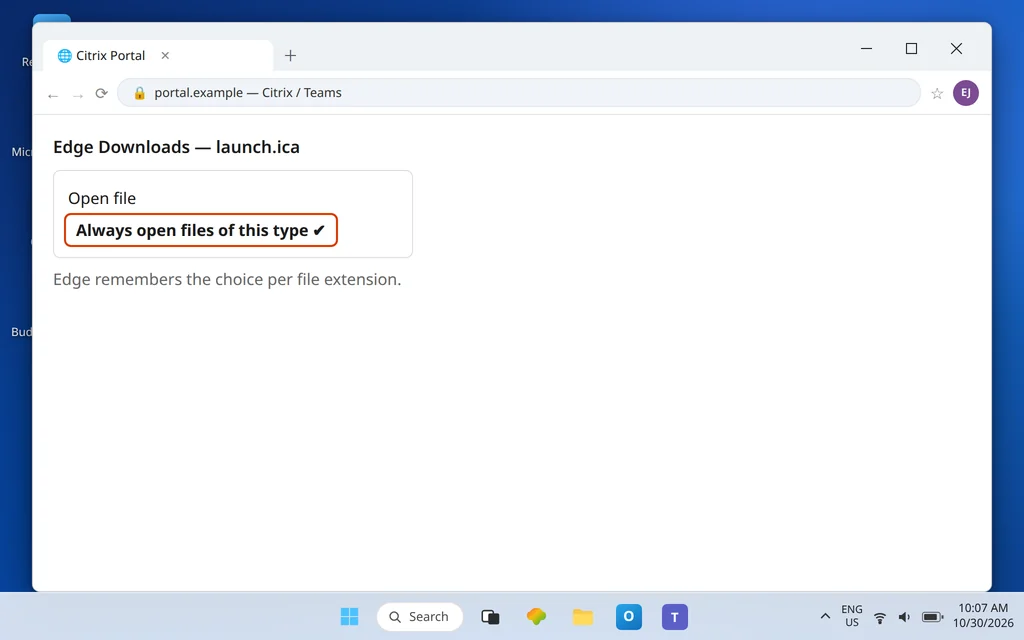
launch.icadownloads. In Chrome, open the menu on the downloaded file in the downloads panel and choose Always open files of this type. In Edge, open the Downloads panel, click the … next to the file, and choose the same Always open files of this type option. Then click the portal app again — a fresh file should now hand straight to Citrix Connection Manager and start your session. If the option is missing or the wrong app opens, check the Windows default for .ica in Fix 5.
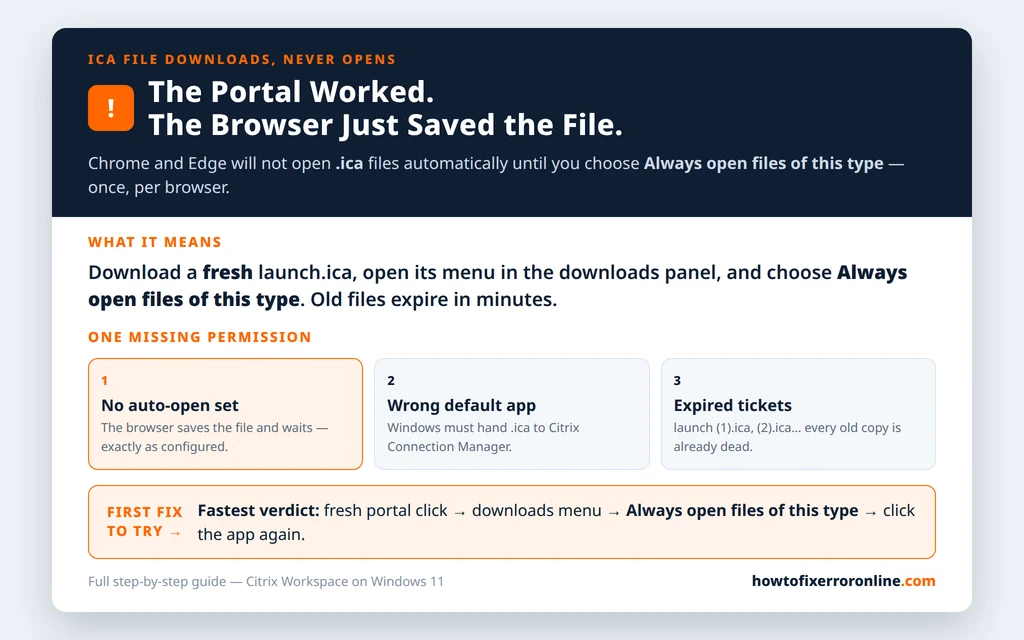
Table of Contents
Fix 1 — Chrome: set “Always open files of this type”
Chrome decides auto-open per file type, from the downloaded file itself. There is no big central switch to find first — the menu on the file is the setting.
- Sign in to your Citrix portal in Chrome and click your desktop or app once. Let
launch.icadownload. - Open Chrome’s Downloads panel — click the downloads icon in the toolbar, or press Ctrl + J.
- Find the fresh
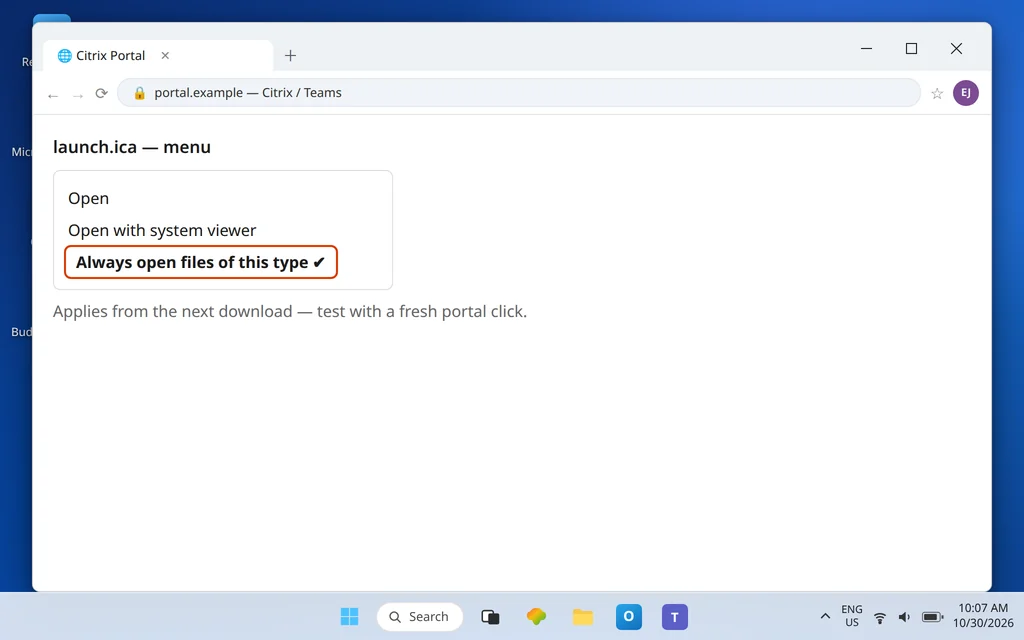
launch.icaentry, open its menu (the arrow or … on the download item, depending on your Chrome version), and choose Always open files of this type. - Go back to the portal and click the app again. A new file downloads — and this time Chrome should open it automatically in Citrix, starting your session.
Two details matter. First, the setting only applies from the next download onward, which is why step 4’s fresh click is the real test. Second, if a prompt appears asking to open Citrix Workspace Launcher, or to always allow your portal to open links of this type in the associated app, accept it and tick the always-allow box — Citrix documents that protocol prompt as part of the normal browser handoff, and dismissing it recreates this exact problem.
Fix 2 — Edge: set “Always open files of this type”
Edge works the same way, with its own downloads panel:
- Sign in to the portal in Edge and click your desktop or app once so
launch.icadownloads. - Click the Downloads icon in the Edge toolbar to open the downloads panel.
- Hover over the fresh
launch.icaentry, click its … menu, and choose Always open files of this type. - Return to the portal and click the app again. The fresh file should now open automatically and your Citrix session should start.
As in Chrome, accept any prompt to open the Citrix launcher and tick the option to always allow your portal site to open that kind of link. Edge remembers auto-open choices per file extension — setting it for .ica affects only .ica files, nothing else you download. If the Always open files of this type entry is missing or
grayed out on a work PC, skip to Fix 6: that is the signature of a browser managed by policy, where the setting is yours to request, not to change.
Fix 3 — Chrome: review or reset auto-open in Settings > Downloads
If you set auto-open long ago and it stopped working — or you want to start from a clean slate — review Chrome’s download settings:
- Open Settings > Downloads in Chrome (type
chrome://settings/downloadsin the address bar). - Confirm the download location is a normal folder and that Chrome is not set to ask where to save every file in a way that interrupts the flow — an “ask” prompt on each download can stall the open step.
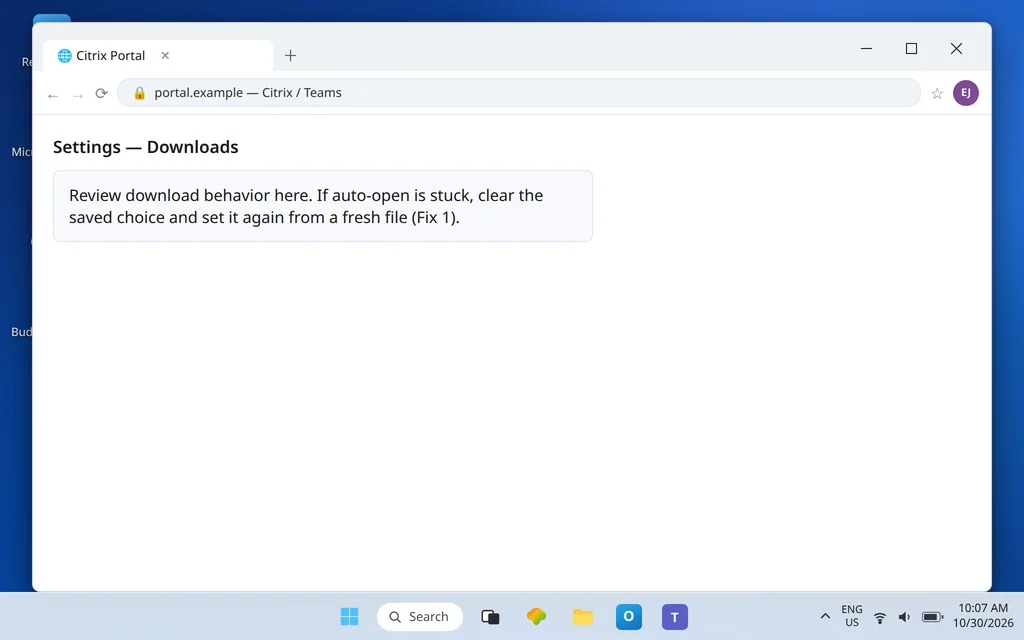
- If .ica auto-open seems stuck in a bad state, clear Chrome’s auto-open choices and rebuild them: current Chrome versions expose this through the downloads settings or by resetting the per-type choice — the exact label varies by version. The reliable rebuild is simple either way: clear the saved choice, then repeat Fix 1 on a fresh download and choose Always open files of this type again.
Wording differs between Chrome versions and operating systems, so do not hunt for a screenshot-perfect label. The destination — a fresh portal click opening automatically — is the test that matters.
Fix 4 — Edge: clear auto-open file types and set it again
Edge keeps its list where you can see it, which makes a clean reset easy when the setting exists but misbehaves:
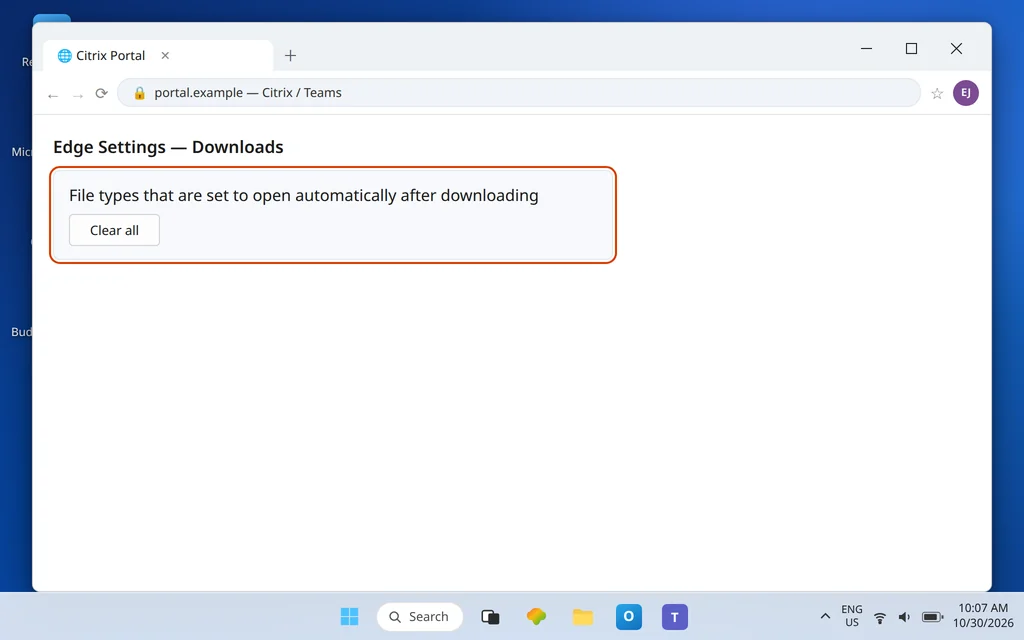
- Open Edge Settings > Downloads.
- Find File types that are set to open automatically after downloading. If .ica behavior is wrong, use Clear all to remove saved auto-open rules. (This clears every file type’s auto-open choice, not just .ica — you will re-teach Edge any others you rely on.)
- Close Settings, return to the portal, click your app for a fresh
launch.ica, and repeat Fix 2 to set Always open files of this type again.
If the Downloads settings page shows options locked or marked as managed by your organization, stop resetting and read Fix 6 — the policy, not the list, is in charge on that machine.
Fix 5 — Confirm Windows still hands .ica to Citrix Connection Manager
Auto-open only answers whether the browser opens the file. Windows answers what opens it — and if that second answer is wrong, auto-open just launches the wrong thing faster, or fails silently. Verify it:
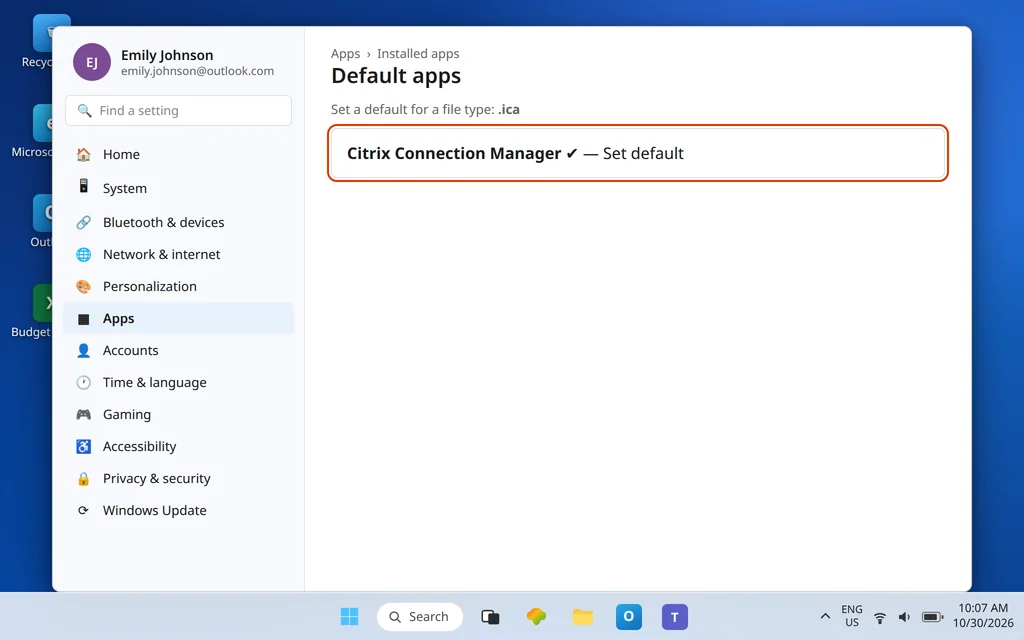
- Open Settings > Apps > Default apps.
- Search .ica under Set a default for a file type or link type.
- The default should be Citrix Connection Manager — the launcher inside the Citrix Workspace install (
wfcrun32.exe, inC:\Program Files (x86)\Citrix\ICA Client\). If it shows another app or no app, click it and select Citrix Connection Manager, then Set default. - Test with a fresh portal click, never an old Downloads file.
If Citrix Connection Manager is not offered anywhere in that list, Workspace is not properly installed — reinstall it before repeating browser steps, because no browser setting can hand a file to a program Windows does not have. The wrong-program variants of this fault, and their Open with repairs, are covered step by step in the Media Player and Word guides linked at the top of this article.
Fix 6 — Private windows, profiles, and managed browsers: know the limits
Three situations defeat the setting no matter how correctly you apply it:
- Incognito or InPrivate windows. Citrix notes that the always-allow protocol choice is asked again in a private window. Private sessions forget permissions by design, so test and work in a normal window.
- A different browser profile. Auto-open choices live in the profile you set them in. If you set it under one Chrome profile and work under another, you will need to set it once there too.
- A policy-managed browser. On work PCs, Chrome and Edge settings — including auto-open behavior — can be controlled by your organization. A missing or grayed-out Always open files of this type, or a setting that resets itself overnight, means IT controls it. Send them one precise request: allow .ica files from your portal to open automatically with Citrix Connection Manager. That sentence gives them the whole ticket.
A useful isolation test while you wait: try the other browser. If Edge auto-opens correctly while Chrome does not (or the reverse), the fault is that browser’s settings or policy — not your account, the portal, or Citrix itself.
Fix 7 — Clean out the old launch files and test once, properly
Finish with the test that proves the fix, done the way that avoids the classic false failure:
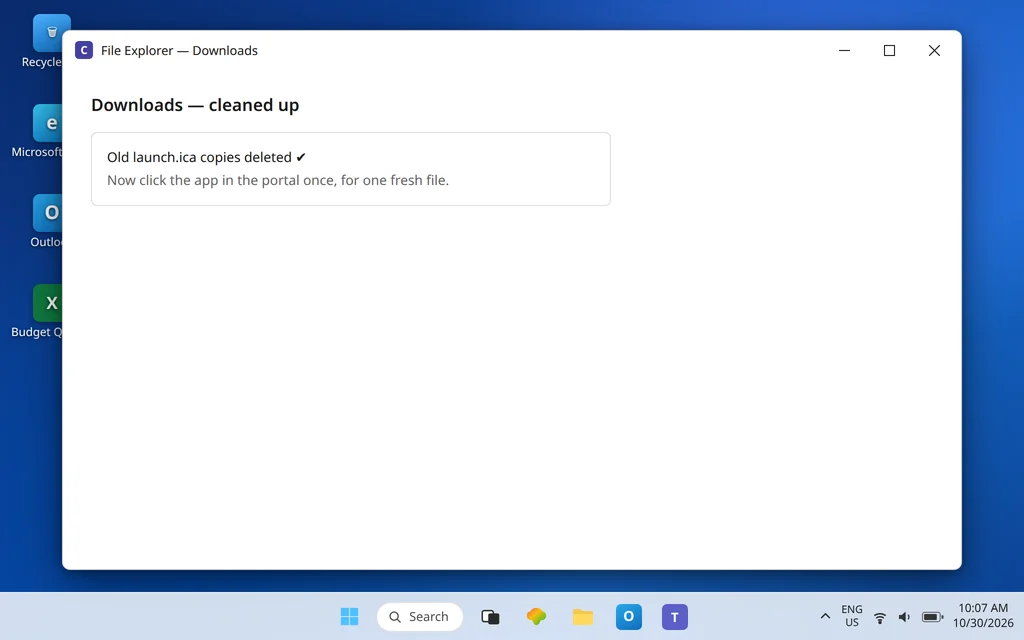
- Open your Downloads folder and delete the accumulated
launch.ica,launch (1).ica, and similar files. Every one is expired; keeping them only invites a double-click on a dead ticket. - In a normal (non-private) browser window, sign in to the portal and click your app once.
- Watch the full handoff: a fresh file downloads, opens automatically, Citrix Connection Manager picks it up, and the session window appears within seconds.
If step 3 stalls, note exactly where — no download at all (portal or account issue, see Art 101), download with no open (repeat the correct browser fix above), or open into the wrong app (Fix 5). Naming the stage correctly is what turns a second attempt into a solution instead of a loop.
Confirm it worked
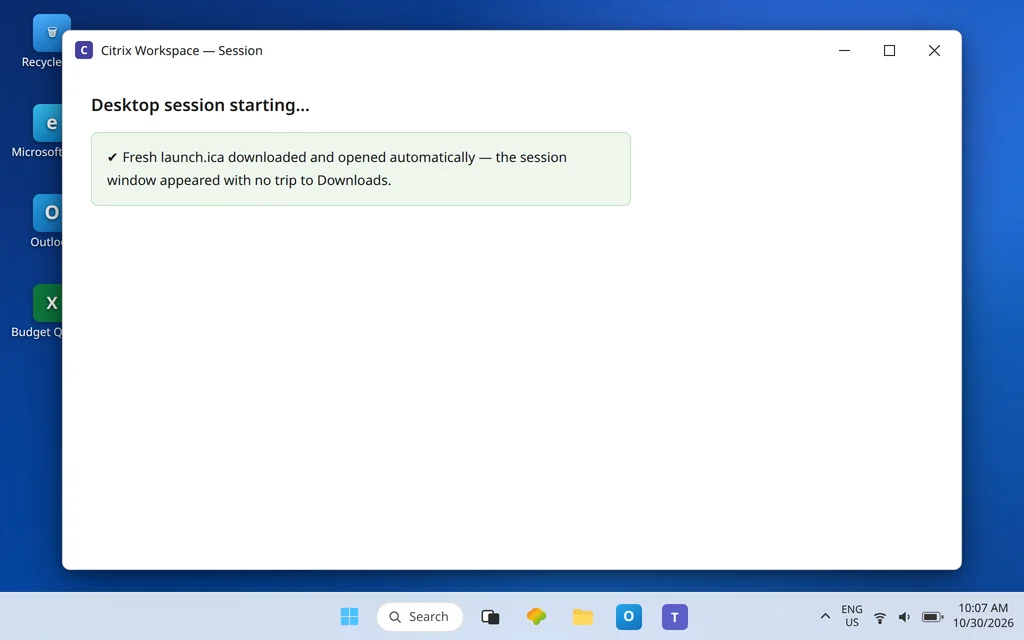
Repeat the portal click twice more, at different moments. Each time, a fresh launch.ica should download and open on its own, and your desktop or app should start without you touching the Downloads folder at all. The old behavior — a growing stack of unopened launch files — should stop growing. Finally, restart the browser and test once more: a correct auto-open setting survives a browser restart. One that does not was set in a private window or is being overwritten by policy (Fix 6).
How to stop it happening again
- Set the option in each browser you use. Chrome and Edge keep separate lists; fixing one does not fix the other.
- Stay out of private windows for Citrix work. Incognito and InPrivate forget the always-allow choice every time.
- Delete old launch files weekly. A clean Downloads folder makes the fresh file obvious and prevents expired-ticket confusion.
- After a browser reset or a new profile, expect to set it once more. Auto-open choices are profile settings, and a reset clears them by design.
Frequently asked questions
Why does launch.ica download instead of opening?
Because your browser has never been given permission to open that file type automatically. The portal’s job ends at delivering the launch file; opening it is a browser choice plus a Windows file association. Until you select Always open files of this type on a downloaded .ica file, Chrome and Edge will keep saving the file and waiting — working exactly as configured, just not as you need.
How do I set “Always open files of this type” in Chrome?
Click your app in the portal so a fresh launch.ica downloads, open Chrome’s Downloads panel, open the menu on that file, and choose Always open files of this type. Then click the portal app again — only the next, fresh download tests the setting, because .ica files expire within minutes and old ones will not launch even with the setting correct.
How do I set “Always open files of this type” in Edge?
Download a fresh launch.ica from the portal, open Edge’s Downloads panel, click the … menu on the file, and choose Always open files of this type. Edge remembers the choice per file extension. You can review or clear all such choices later in Settings > Downloads, under the file types set to open automatically after downloading.
How do I clear or reset auto-open settings?
In Edge, open Settings > Downloads and use Clear all next to the list of file types set to open automatically. In Chrome, review Settings > Downloads and clear the saved auto-open choices — the exact label varies by Chrome version — then set the choice again from a fresh downloaded file. Resetting is safe: it changes only whether files open after downloading, never the files themselves.
Why must I use a fresh ICA file every time?
An .ica file is a single-use launch ticket generated for that click, with the connection details for that moment, and it expires within minutes. Reusing an old file from Downloads fails even on a perfectly configured PC, which is why every fix in this guide is tested by clicking the app in the portal again rather than opening a saved file.
The “Always open” option is missing or keeps resetting. Why?
That pattern means the browser is managed by your organization’s policy, or you are working in a private window or a different profile from the one you set it in. Test in a normal window in your usual profile; if the option is still missing or will not stick on a work PC, ask IT to allow .ica auto-open for your portal — end users cannot override a managed browser policy.
Launch file still just sitting in Downloads after setting auto-open? Contact us at servicedesk@howtofixerroronline.com or through our Contact page and tell us which browser you use, whether the Always open option appears, and what Windows shows as the default app for .ica. We will never ask for your password.