
Citrix Workspace App Not Opening or Launching on Windows 11
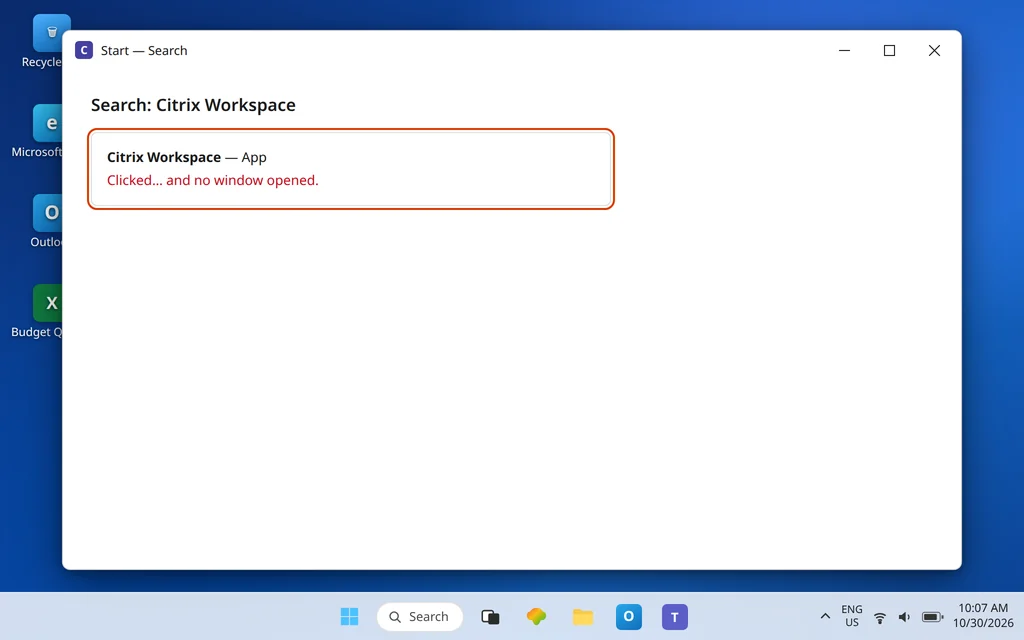
You click the Citrix Workspace icon — on the desktop, in the Start menu, it makes no difference — and nothing happens. No window. No sign-in. No error. Maybe the icon flashes, maybe a process appears for a second and vanishes, maybe the app worked yesterday and an update landed overnight. Without the app itself, you cannot even reach the portal where your desktops and apps live.
This guide is about the Workspace app itself failing to open. That is a different fault from clicking an app inside the portal and having the launch fail — that handoff problem, where a launch.ica file appears and nothing follows, is covered in ICA File Not Opening in Citrix Workspace App. And if Workspace opens fine but the file it downloads will not auto-open in your browser afterward, see the companion guide linked at the end. Stay here when double-clicking Citrix Workspace is itself the dead end.
The causes are a short, familiar list: the app is already running invisibly in the tray, a stuck background process is blocking a fresh start, the per-user settings were damaged — often by an upgrade that did not finish cleanly — or the installation itself is broken. Work through the fixes in order; each step is less destructive than a reinstall, so do not jump straight to the last one.
Quick Answer: First check the system tray — Workspace may already be running with no window; right-click its icon, choose Exit, then launch it again from Start. If it still will not open, end Citrix processes in Task Manager and restart the PC. Next, reset the app: tray icon > right-click > Advanced Preferences > Reset Citrix Workspace. If the app will not open far enough to reset, verify the install exists in
C:\Program Files (x86)\Citrix\ICA Client\— and if the folder or its programs are missing, a clean reinstall is the honest fix.
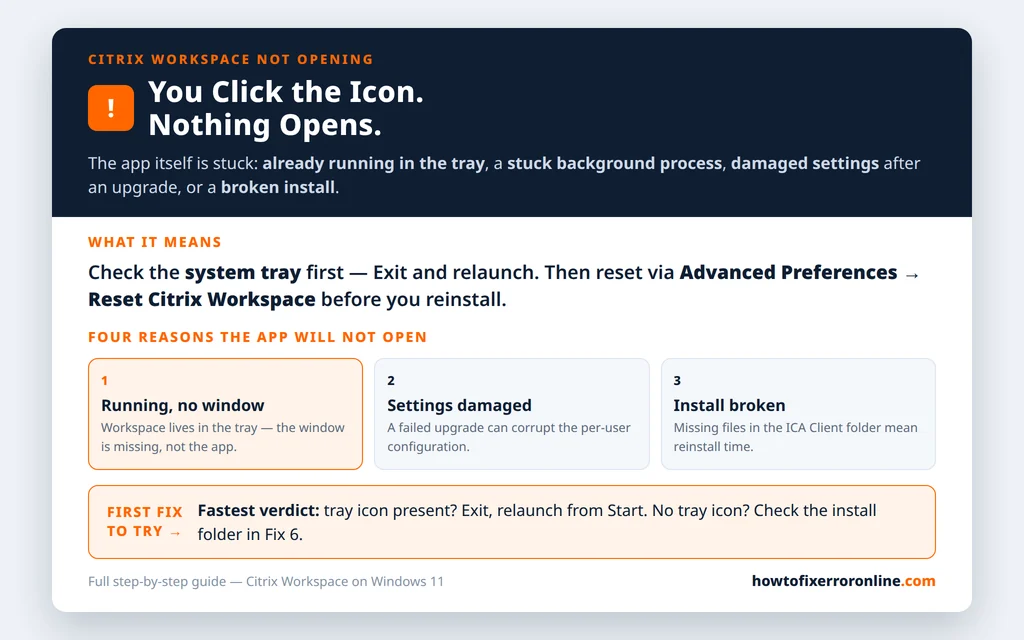
Table of Contents
Fix 1 — Check whether Workspace is already running in the tray
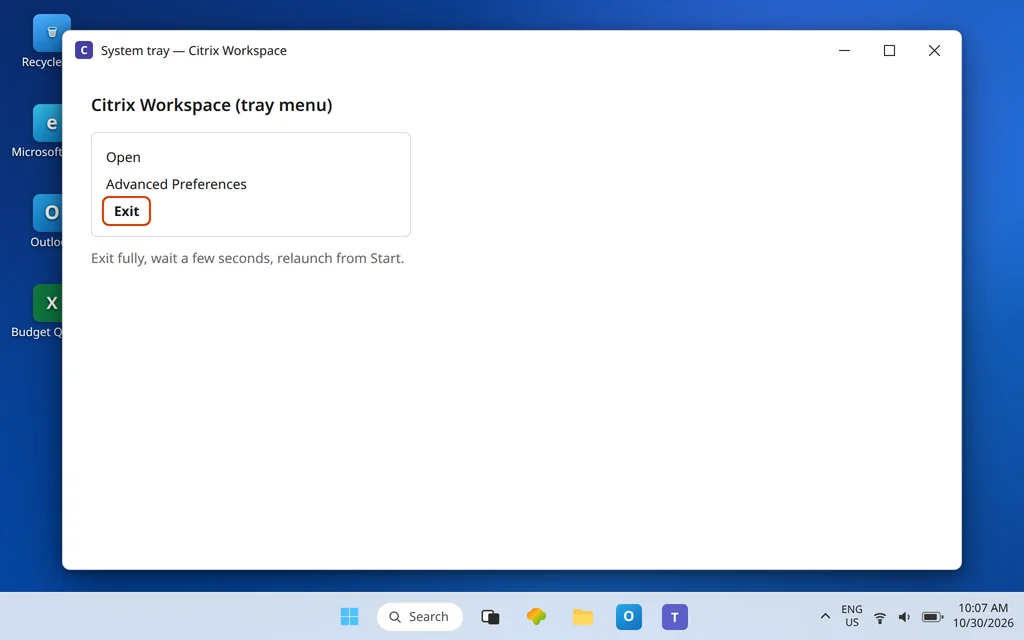
Citrix Workspace is designed to live quietly in the notification area, and its main window does not always come forward when you click a shortcut — especially if an earlier instance is already running in a confused state. Before concluding the app is broken, look for it:
- Click the ^ arrow near the clock to show hidden tray icons.
- Look for the Citrix Workspace icon. If it is there, the app is running — it is the window, not the program, that is missing.
- Right-click the icon and try Open. If nothing useful appears, right-click again and choose Exit, wait a few seconds, then launch Citrix Workspace fresh from the Start menu.
An app that opens normally after a clean Exit was never uninstalled or corrupted — it was stuck. Remember this fix, because it is also the first thing to try the next time the icon seems dead.
Fix 2 — End stuck Citrix processes and restart
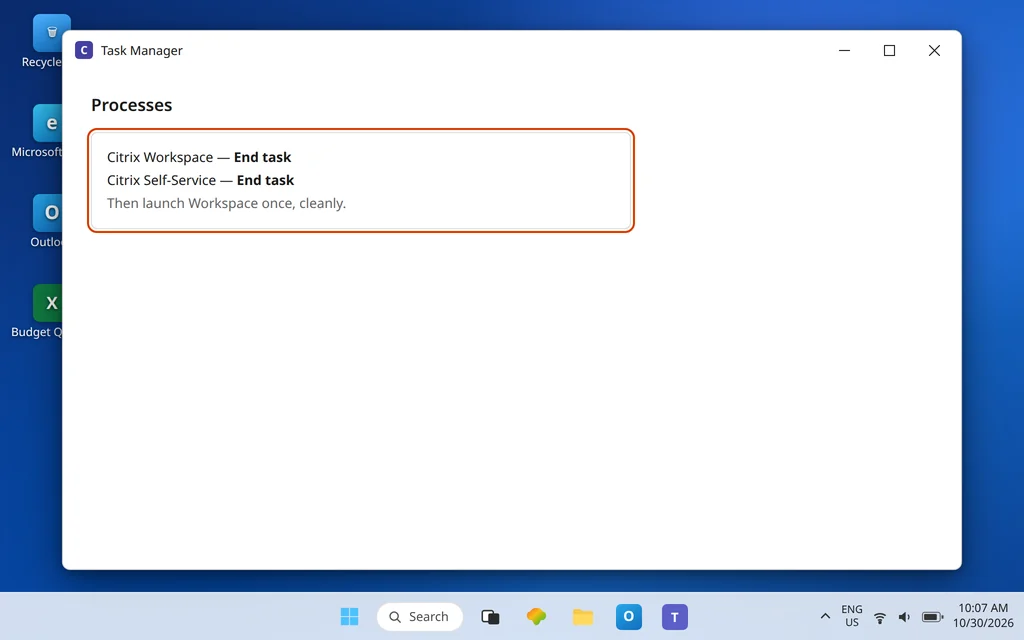
If there is no tray icon, or Exit is unavailable, a background process may be holding the app half-open. Clear the slate completely:
- Press Ctrl + Shift + Esc to open Task Manager.
- Look for Citrix entries among the processes — Workspace, Receiver, or Self-Service components. Select each Citrix process and choose End task.
- Close Task Manager and try launching Workspace from Start once.
- If it still does not open, restart the PC — a full restart, not sleep — and launch Workspace before opening anything else.
The restart matters more than it sounds: it clears locked files left by a failed upgrade and releases anything a stuck process was holding. If Workspace opens after the restart but fails again every time you close it, note that pattern — a settings problem (Fix 4) is more likely than a process problem.
Fix 3 — Launch it a different way: Start search, then the app folder
Rule out a broken shortcut before blaming the app. Shortcuts get orphaned by upgrades surprisingly often, pointing at a location the new version no longer uses.
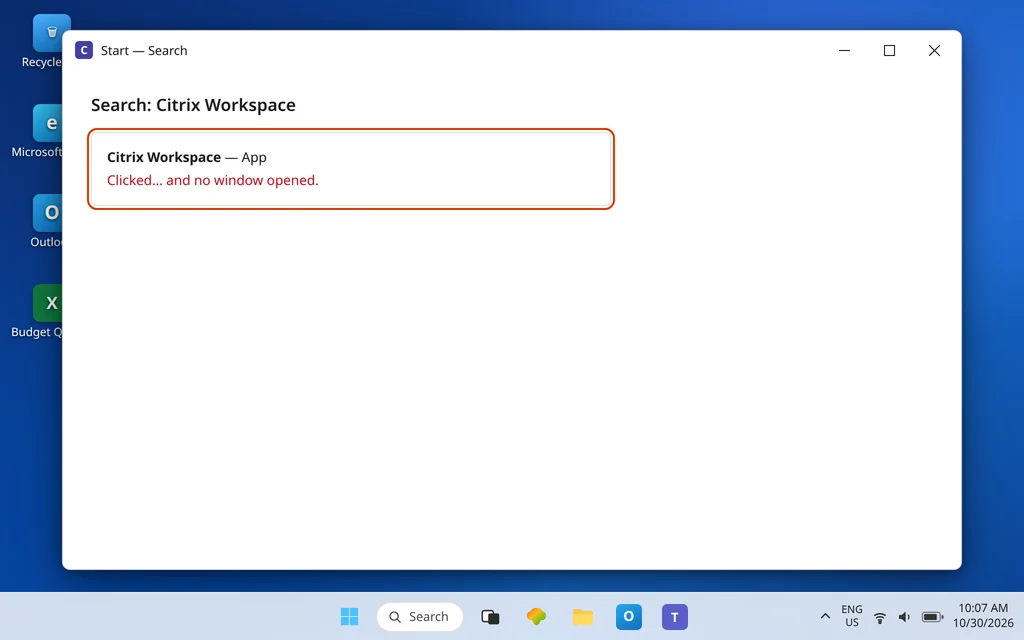
- Press the Windows key, type Citrix Workspace, and launch the result directly — this uses the registered app entry, not your desktop shortcut.
- If that works, delete the dead desktop shortcut and pin the working app again.
- On many installs, the Workspace interface is provided by the Self-Service component inside the install folder. As a diagnostic, open File Explorer to
C:\Program Files (x86)\Citrix\ICA Client\and look at what is actually present — the next fix uses this folder, and whether the app’s programs exist at all is decisive information.
If even Start search finds no Citrix Workspace entry, the app is not properly installed for your user — skip ahead to Fix 6 to verify, then Fix 7 to reinstall.
Fix 4 — Reset Citrix Workspace from Advanced Preferences
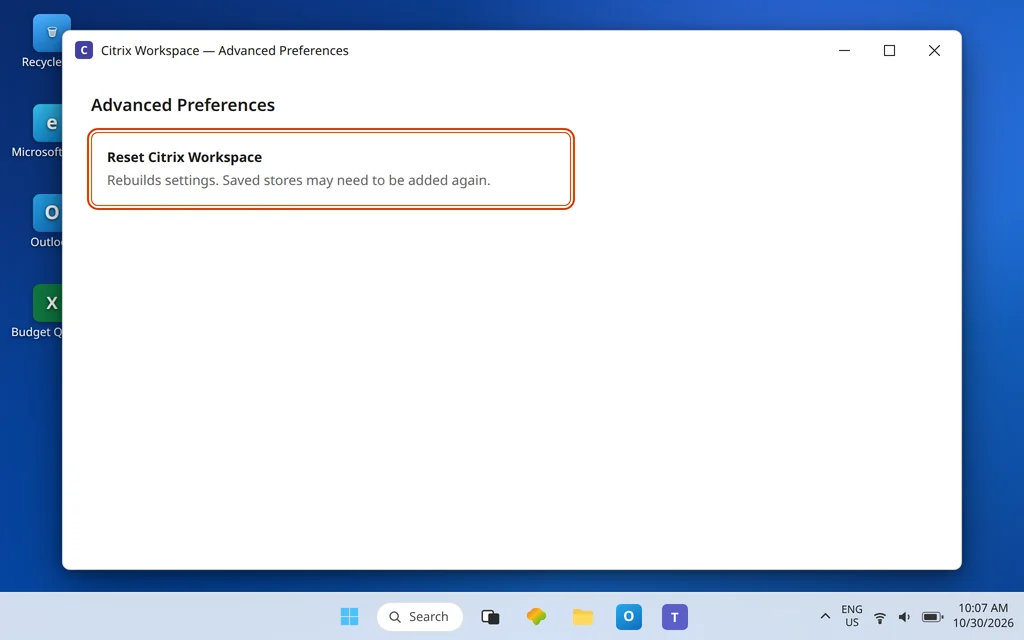
If the app opens far enough to show its tray icon but the window, sign-in, or store never loads properly, its saved settings are the prime suspect. A reset rebuilds them without uninstalling anything:
- Right-click the Citrix Workspace icon in the system tray (use the ^ arrow if it is hidden).
- Choose Advanced Preferences.
- Choose Reset Citrix Workspace and confirm.
On newer versions you may find the same idea under a Troubleshooting menu as Reset App Data — the label varies by version, but the effect is the same family: local accounts, cached stores, and per-user settings are cleared. Workspace closes and rebuilds its configuration. Reopen it and add your work account or portal address again if prompted. Be aware that a reset removes saved stores, so on a device your organization configures for you, check with IT first if you do not know your store address by heart.
Fix 5 — Check Windows shows the app as installed, and note its version
A two-minute inventory prevents reinstalling over the top of surprises:
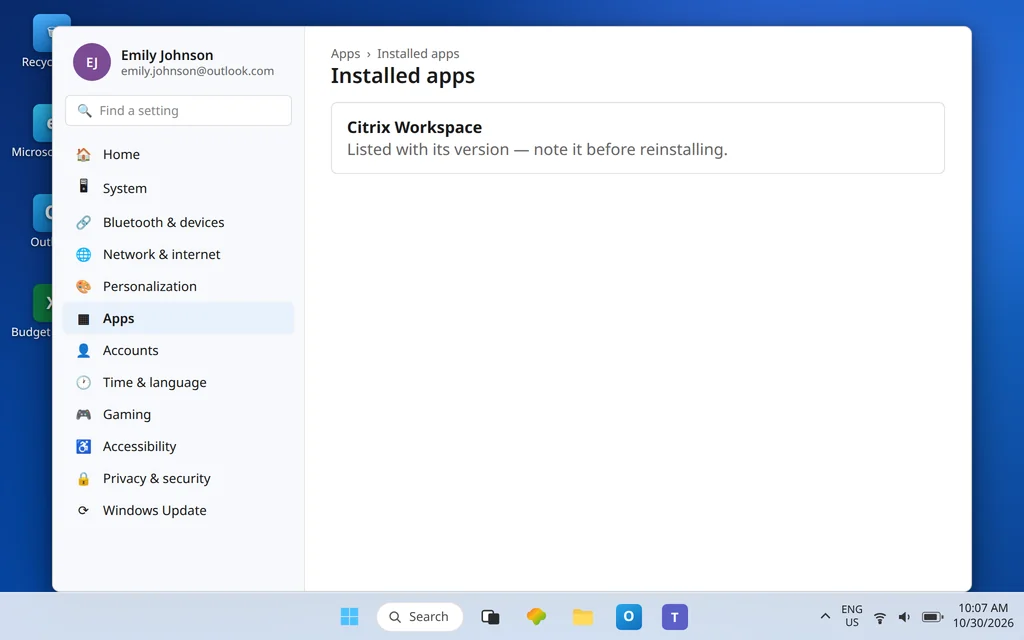
- Open Settings > Apps > Installed apps and search for Citrix Workspace.
- Note that it is listed, and note the version shown. If your organization publishes a required minimum version, this is the number they will compare against.
- If Workspace is missing from the list while its tray icon exists — or the reverse — the install and its registration disagree, which points firmly at Fix 7.
You can also read the version from Advanced Preferences > About when the app opens that far. Write the version down before you change anything; after a reinstall, it proves the new build actually landed.
Fix 6 — Verify the ICA Client folder contents
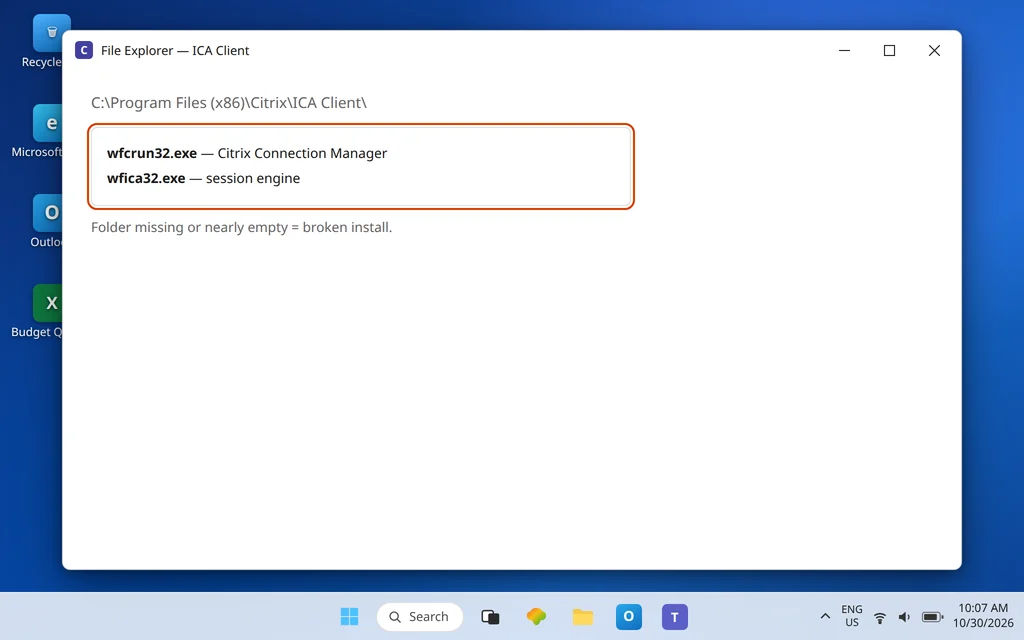
Open File Explorer and go to C:\Program Files (x86)\Citrix\ICA Client\. A healthy Workspace install contains the programs that do its launching work — including wfcrun32.exe, which Windows lists as Citrix Connection Manager, and wfica32.exe, the session engine. You are not going to run repairs from here; you are answering one question: is the install physically present and complete?
- Folder exists with a full set of files: the binaries are present, so a reset (Fix 4) or a settings problem is more likely than a missing install.
- Folder missing, nearly empty, or the named programs absent: the installation is broken or was removed. No setting fixes missing program files — go to Fix 7.
- Folder exists but a recent upgrade date coincides with the failure: an interrupted upgrade is a classic cause of the click-and-nothing symptom, and a clean reinstall is again the reliable route.
Fix 7 — Reinstall Citrix Workspace cleanly
When the install is broken, half-removed, or damaged by a failed upgrade, reinstalling is not defeat — it is the fix the earlier steps were designed to justify. Do it in an order that avoids carrying the damage across:
- Uninstall Citrix Workspace from Settings > Apps > Installed apps.
- Restart the PC. Do not skip this; it releases locked Citrix files so the new install starts clean.
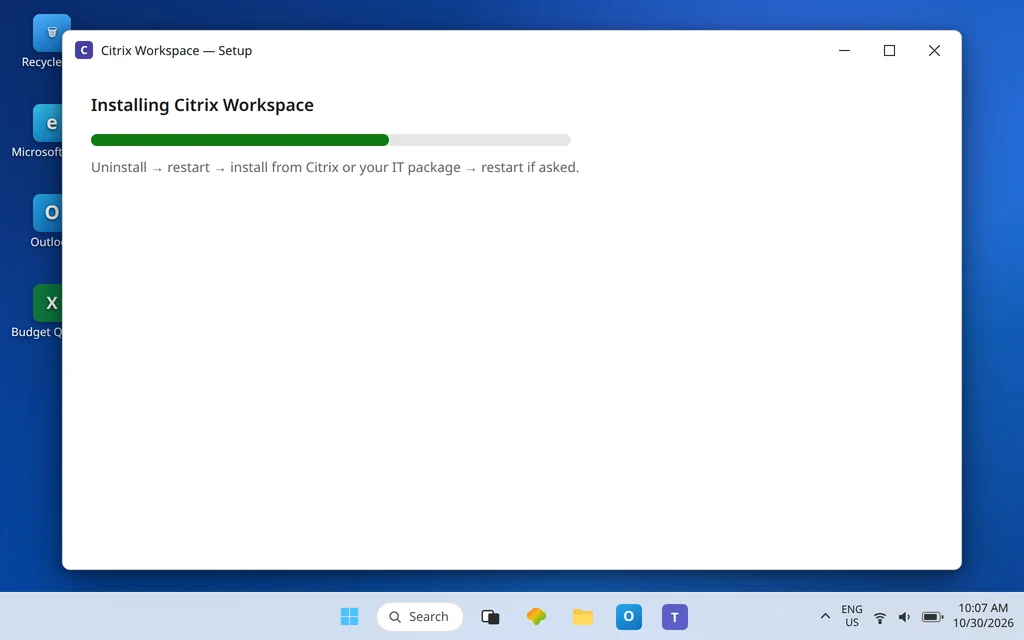
- Install Citrix Workspace app for Windows again — from Citrix’s official download page, or the installer your IT team provides if your organization manages the version. On a work-managed device, use IT’s package, because they may pin a specific version for your environment.
- Restart once more if the installer asks, then launch Workspace from Start, sign in, and re-add your store if needed.
Now test the original symptom first — the app opening — before testing portal launches. If the app opens and your apps then fail to launch from the portal, you have crossed into the different problem covered by ICA File Not Opening in Citrix Workspace App, and its fixes take over from there. If the browser downloads launch files instead of opening them, that handoff is covered in Citrix ICA File Downloads Instead of Opening.
Fix 8 — If it still will not open, gather evidence before contacting IT
A managed workplace adds layers you cannot see from the desktop: deployment policy, security software, or a required version pushed centrally. If Workspace will not open after a clean reinstall on a work PC, further local surgery has diminishing returns. Collect the facts that let IT act immediately:
- Your Windows version from Settings > System > About, and the Workspace version from Installed apps.
- Exactly what happens on click: nothing, a brief flash, or an error — with the exact error text if any appears. Never paraphrase an error you can copy.
- Whether the failure began after a Windows update, a Workspace upgrade, or a password or account change.
- Whether the tray icon appears, and whether the ICA Client folder from Fix 6 is present and complete.
Send that as one short report. “Citrix does not work” forces IT to start from zero; the four points above let them start from the answer.
Confirm it worked
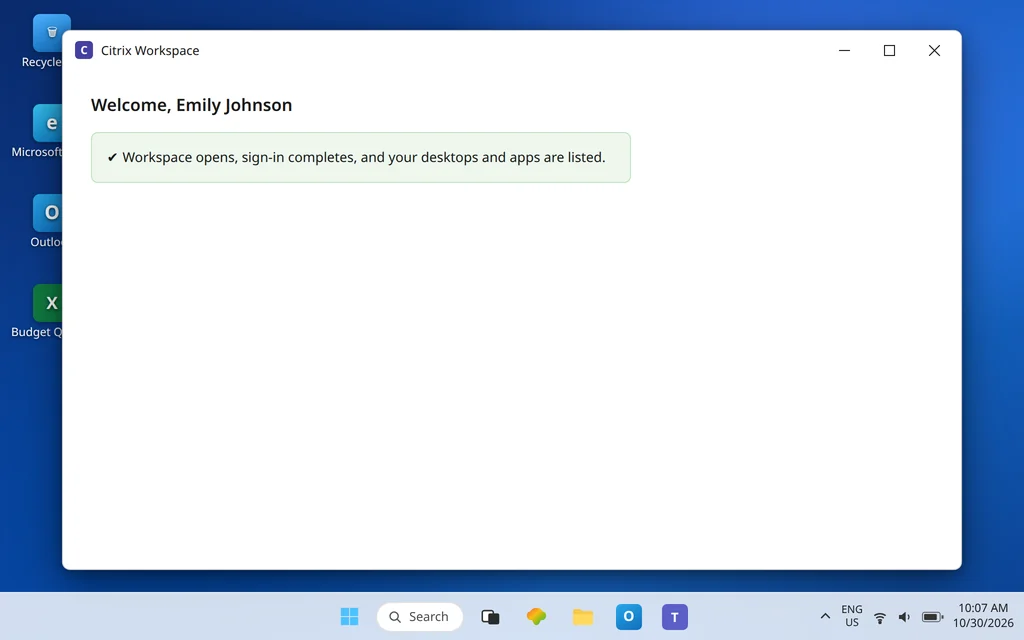
Click Citrix Workspace from the Start menu. The app should open to its sign-in or store view within a few seconds, its tray icon should be present, and reopening it after an Exit should behave the same way. Sign in, confirm your desktops and apps are listed, and — one final check — restart the PC and open Workspace once more. An app that only opens until the next reboot still has an install or startup problem worth reporting with that detail included.
How to stop it happening again
- Exit properly after trouble. If Workspace ever feels stuck, use the tray Exit and relaunch rather than force-closing windows repeatedly.
- Let upgrades finish. Do not shut the PC down mid-install when Workspace or Windows is updating — interrupted upgrades are the classic start of this fault.
- Keep the version current through your organization’s channel or Citrix’s official download, and note the version somewhere after each successful update.
- Remember the tray check. Most “Citrix is dead” panics are a running-but-windowless app; the thirty-second tray check in Fix 1 should always come first.
Frequently asked questions
Why does Citrix Workspace not open when I click it?
Most often because it is already running invisibly in the system tray, a background process is stuck and blocking a fresh start, its per-user settings were damaged (commonly by an interrupted upgrade), or the installation itself is incomplete. The fixes follow that order: tray check and Exit, end processes and restart, reset, then verify the install and reinstall if files are missing.
How do I reset Citrix Workspace app?
Right-click the Citrix Workspace icon in the system tray, choose Advanced Preferences, then Reset Citrix Workspace, and confirm. The app rebuilds its settings; you may need to sign in and re-add your store afterward. Newer versions may place the same action under Troubleshooting as Reset App Data. On a work-managed device, check with IT before resetting if you do not know your store address.
How do I check whether Citrix Workspace is really installed?
Open Settings > Apps > Installed apps and search for Citrix Workspace — note its version while you are there. You can also check File Explorer for C:\Program Files (x86)\Citrix\ICA Client\: a healthy install contains the launcher wfcrun32.exe (Citrix Connection Manager) and the engine wfica32.exe. A missing or nearly empty folder means the install is broken.
What is Self-Service in Citrix Workspace?
On many installs, the familiar Workspace window of apps and desktops is provided by its Self-Service component. That is why troubleshooting sometimes refers to the app’s interface not starting even though other Citrix pieces are present. You do not need to manage it separately — resetting or reinstalling Workspace handles it as part of the whole app.
Should I reset Workspace or reinstall it first?
Reset first — it is faster, keeps the installation in place, and clears exactly the damaged settings that cause most open-but-broken behavior. Reinstall when the app will not open far enough to reset, when the ICA Client folder is missing files, or when a reset changes nothing. Either way, restart the PC between removal and reinstalling so locked files are released.
Is this the same as my Citrix apps not launching from the portal?
No. This article covers the Workspace app itself refusing to open. If Workspace opens and you can sign in, but clicking a desktop or app inside the portal does nothing or only downloads a file, that launch-chain problem is covered in ICA File Not Opening in Citrix Workspace App.
Workspace still refusing to open after a clean reinstall? Contact us at servicedesk@howtofixerroronline.com or through our Contact page and tell us whether the tray icon appears, what Task Manager shows, and what you found in the ICA Client folder. We will never ask for your password.