
Email Stuck in Outlook Outbox? How to Fix and Resend It
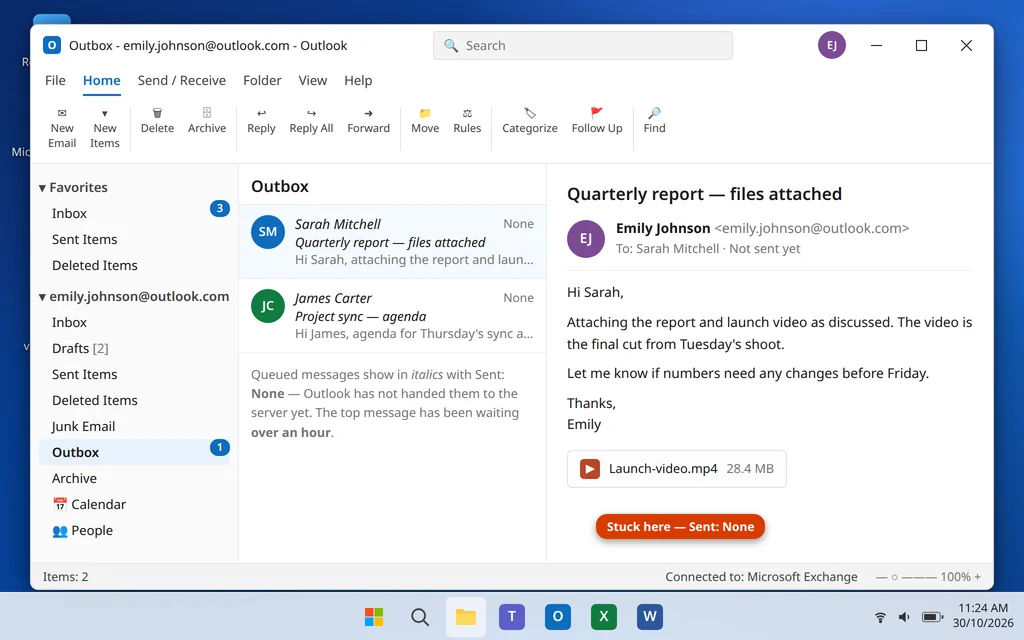
You clicked Send an hour ago — but the email is still sitting in your Outbox, and the person who needs it has received nothing. An email stuck in the Outbox is one of the most common Outlook problems, and until you clear it, that message (and sometimes everything behind it) goes nowhere. If you have an email stuck in outbox Outlook, the steps below will get it moving again.
The good news is that a stuck email is almost never lost. It is usually blocked by something simple: Outlook is offline, the attachment is too big for your mail server, or that one message has become damaged. Once you remove the blockage, the email sends normally — and this guide shows you how to fix and resend it without losing what you wrote.
Work through the steps in order. Most stuck emails are moving again after Steps 1 to 3.
Quick Answer: First make sure you are online and click Send/Receive All Folders (or press F9). If Outlook’s status bar says Working Offline, turn it off from the Send / Receive tab > Work Offline. Still stuck? The email is probably too large (over about 20 MB of attachments) or damaged: go offline, drag the stuck email from the Outbox to Drafts, open it, remove or shrink the attachment — or copy its content into a brand-new email — then send again.
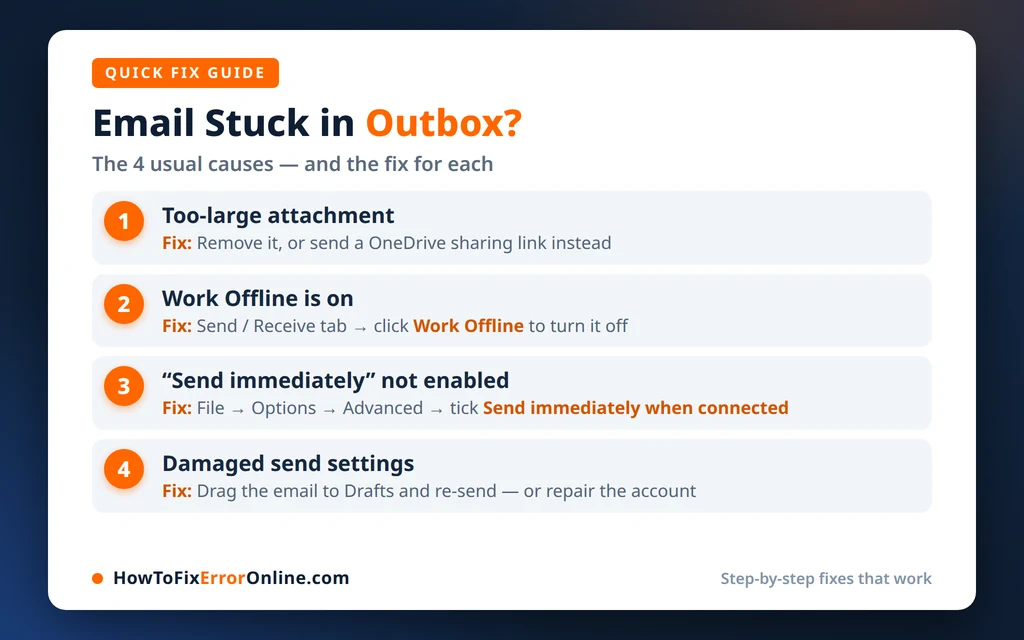
Table of Contents
Why Is Your Email Stuck in Outbox Outlook?
The Outbox is a waiting room: Outlook holds each email there for a few seconds while it hands the message to your mail server. An email stays stuck when that handover cannot finish. The usual reasons are:
- The attachment is too big. Most mail servers (including Outlook.com and Microsoft 365) reject messages over a size limit — commonly around 20–25 MB in total. Outlook keeps retrying and the email never leaves.
- Outlook is offline. If Work Offline is switched on, or your internet connection dropped, Outlook never even tries to send.
- The message itself is damaged. An email opened, edited or interrupted mid-send can corrupt, and Outlook then fails on it every time.
- A stuck send/receive cycle. One blocked message can hold up the whole queue, especially on slower connections.
- An add-in or antivirus is interfering with outgoing mail scanning.
- Account or data-file problems, such as a damaged .ost file, which are covered in the last step.
A quick test before you start: send yourself a tiny email with no attachment. If the small email sends and arrives, your account and connection are fine — the problem is that one stuck message, and Steps 4 to 6 will clear it. If even the small email sticks, start at Step 1.
Step 1: Check Your Connection and Run Send/Receive
Before changing anything, make sure Outlook can actually reach your mail server. Microsoft’s guide to messages that won’t send in Outlook covers the same connection and sync checks.
- Check your internet works — open any website in your browser.
- Look at the Outlook status bar at the bottom. It should say Connected (or “Connected to Microsoft Exchange”). If it says Disconnected, wait for it to reconnect or restart Outlook.
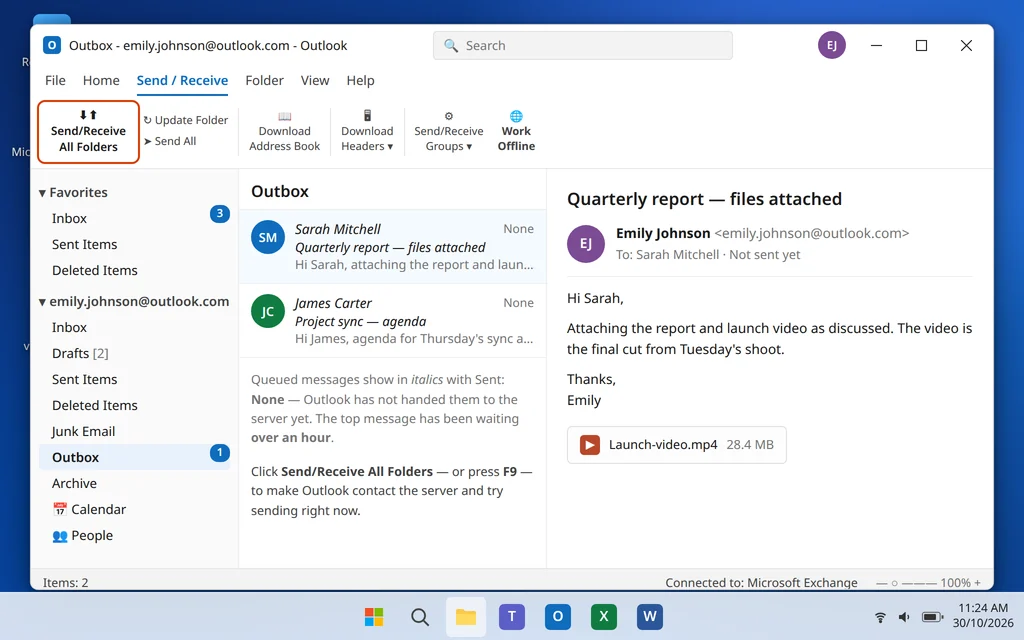
- Go to the Send / Receive tab and click Send/Receive All Folders — or simply press F9.
- Watch the Outbox: if the stuck email was only waiting on a paused cycle, it will send now.
If you are on a VPN, try disconnecting it for this test — some VPN and office networks block the ports Outlook uses to send mail.
Step 2: Make Sure Work Offline Is Off
Work Offline is the single most common reason emails pile up in the Outbox. It is one click, and easy to switch on by accident.
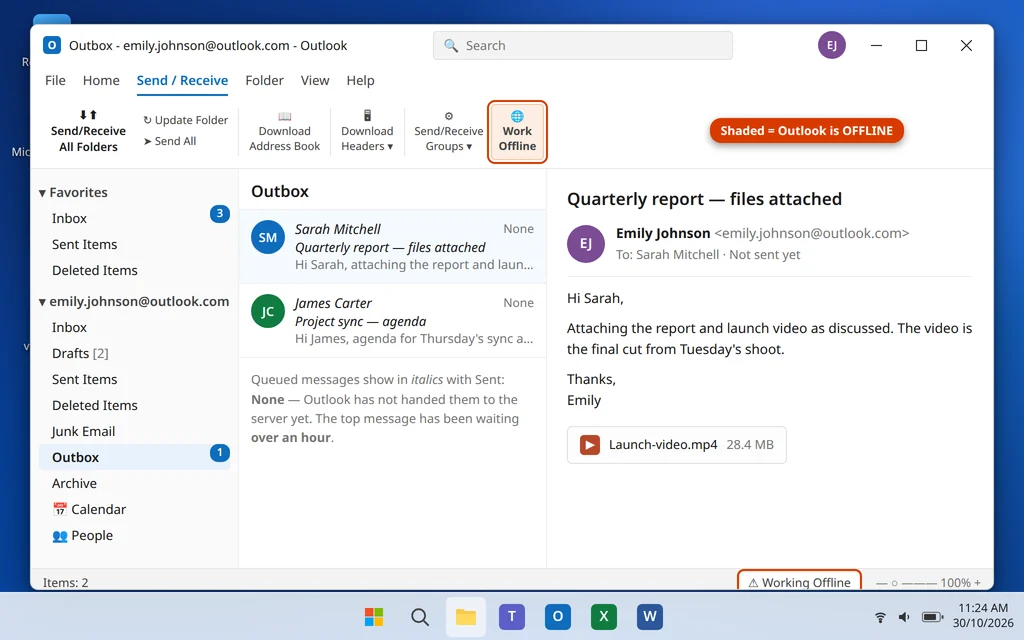
- Go to the Send / Receive tab on the ribbon.
- Look at the Work Offline button. If it is highlighted/shaded, Outlook is offline.
- Click Work Offline once to turn it off.
- Check the status bar at the bottom — the “Working Offline” message should disappear and Outlook should reconnect.
- Press F9 to send again.
In the New Outlook app there is no Work Offline button — instead, check the status shown at the bottom of the window and your Windows connection itself.
Step 3: The Offline Trick — Move the Stuck Email Out of the Outbox
If the email still will not move, Outlook may be holding it open in a failed send attempt, which also stops you deleting it (“Outlook has already begun transmitting this message”). The offline trick releases it:
- Turn Work Offline ON (Send / Receive tab > Work Offline). Yes — on, this time.
- Close Outlook completely and reopen it. This fully breaks the stuck transmission.
- Open the Outbox folder.
- Drag the stuck email into your Drafts folder. (You can also right-click it and choose Move > Drafts.)
- Turn Work Offline OFF again and press F9.
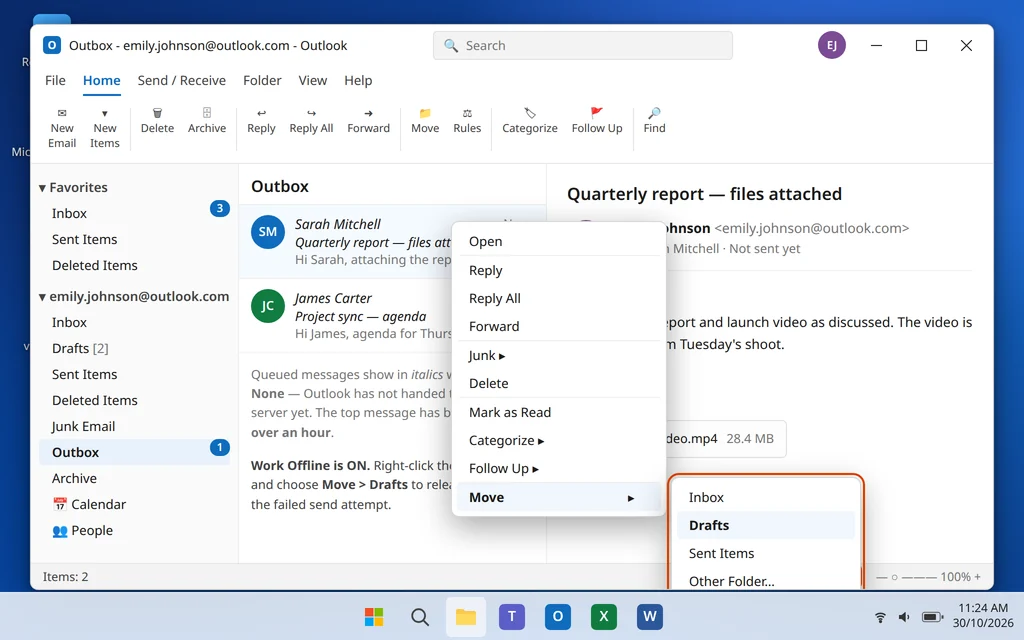
If the email now sends from its new state — or once you open it from Drafts and click Send — you are done. If it refuses to move even offline, close Outlook, restart your PC, and repeat: a restart clears whatever process is holding the message.
Step 4: Check the Attachment Size — the Most Common Real Cause
Now open the stuck email from Drafts and look at its attachments. Add up their sizes honestly:
- Outlook.com / Microsoft 365 mailboxes: the total message limit is commonly 20 MB in the desktop app by default (some accounts allow more).
- Gmail accounts in Outlook: Google rejects messages over 25 MB.
- Work and ISP mailboxes: often 10–20 MB, sometimes less.
A single phone video or a folder of photos can blow past this without looking “big”. If your email is over the limit, it will never send, no matter how many times you press F9 — Outlook just retries and fails quietly.
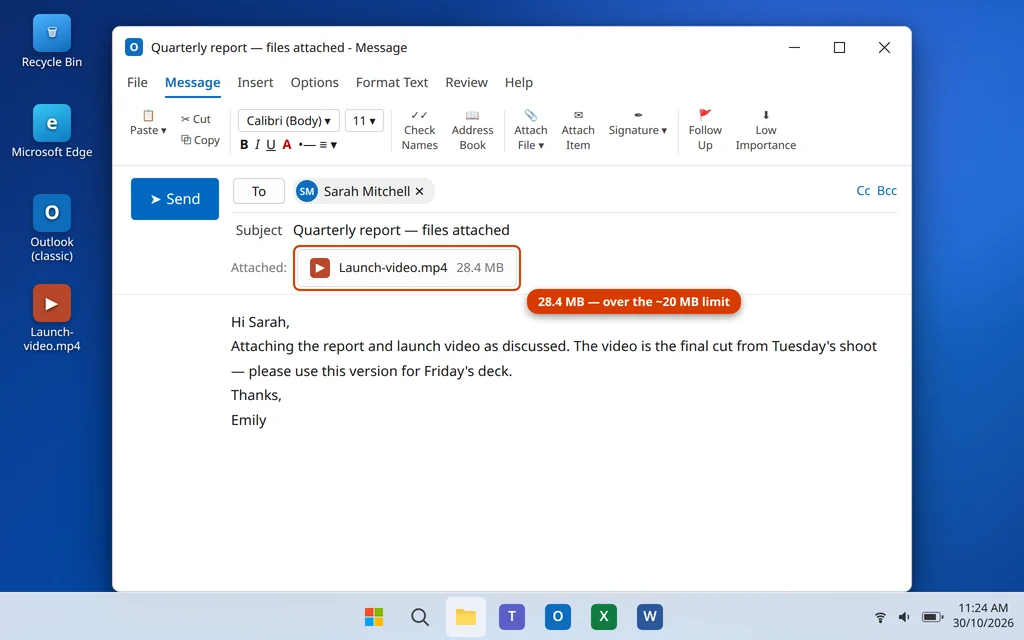
You have three good options:
- Remove the attachment and send the email without it, then share the file another way.
- Compress the files into a ZIP (select them in File Explorer, right-click > Compress to > ZIP file) — this helps documents, but photos and videos barely shrink.
- Send a OneDrive link instead — best option for big files, covered in Step 5.
Step 5: Send Large Files With a OneDrive Link Instead
A link has no practical size problem, and the email itself stays tiny, so it sends instantly.
- Upload the file to OneDrive (drag it into the OneDrive folder on your PC, or upload at onedrive.com).
- Right-click the file in OneDrive and choose Share, then Copy link.
- In your email, delete the heavy attachment, and paste the link into the message with a line like “You can download the file here:”.
- Click Send and confirm the email leaves the Outbox.
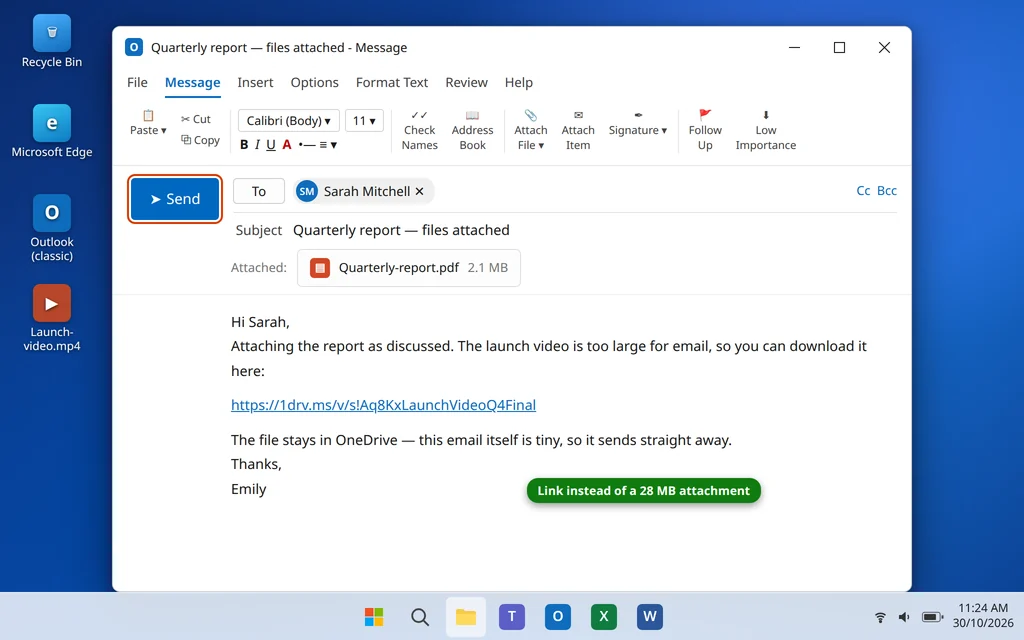
When you attach a file stored in OneDrive from inside the New Outlook or Outlook on the web, you may be offered “Share as a OneDrive link” automatically — take it whenever the file is large.
Step 6: Recreate the Email From Scratch
If the message itself is damaged, no amount of resending will fix it — but your words are not lost:
- Open the stuck email from Drafts (after Step 3).
- Select all the text (Ctrl + A), copy it (Ctrl + C), and note the recipients and subject.
- Close it and delete the stuck copy (from Drafts, or from the Outbox using the offline trick if it moved back).
- Click New Email, paste your text, re-add the recipients, subject and a fresh copy of any attachment (attach it again from the original file on your PC — do not forward the stuck message).
- Click Send and watch it leave the Outbox.
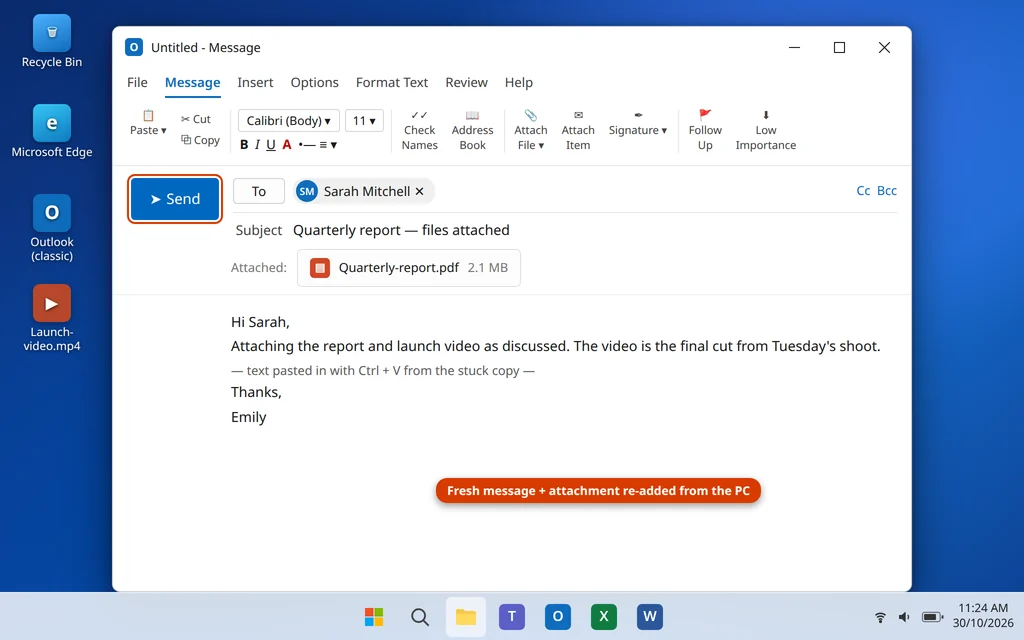
Always re-attach from the original file: a damaged attachment inside the stuck email can carry the problem into the new one.
Step 7: If Every Email Gets Stuck — Check the Data File and Profile
If the test in the introduction showed that even small new emails stick, the problem is bigger than one message. Two deeper fixes remain:
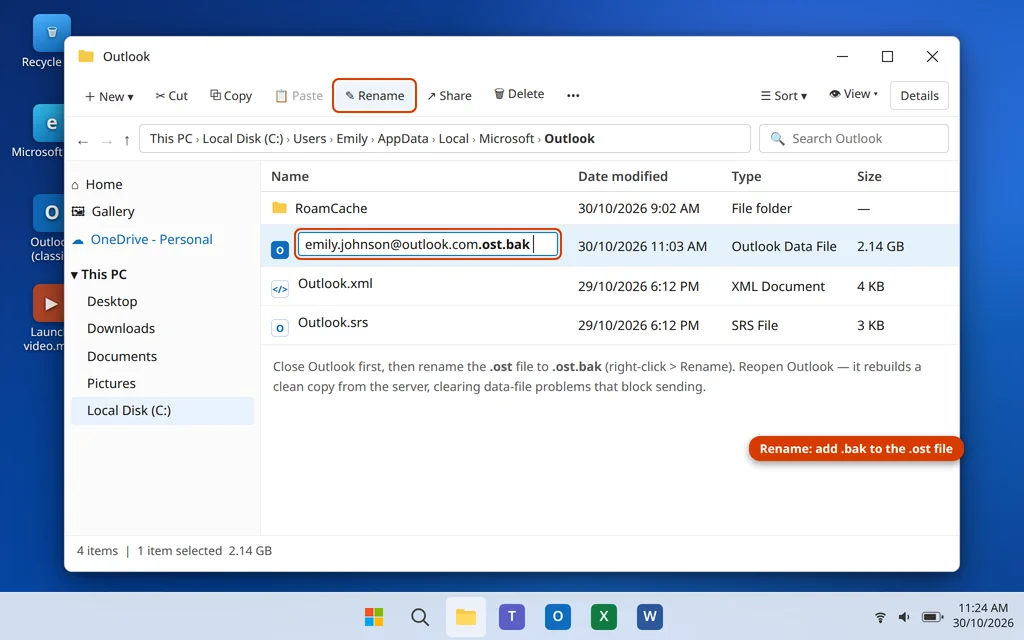
- Rebuild the .ost file (Classic Outlook, Microsoft 365/Outlook.com/IMAP accounts): close Outlook, open
%localappdata%\Microsoft\Outlookin File Explorer, rename your .ost file to .ost.bak, and reopen Outlook. It rebuilds a clean copy from the server. Sending problems caused by a damaged local file disappear with the rebuild.
- Create a new Outlook profile: if the account itself is set up incorrectly in this profile, a fresh one fixes it: Control Panel > Mail (Microsoft Outlook) > Show Profiles > Add, add your account, and set the new profile as the one Outlook always uses.
If Outlook will not even open to let you try these, that is a different problem — follow our guide to fixing Outlook not opening on Windows 11 first, then come back here. And if emails are arriving late or not at all, our guide to Outlook not receiving emails (on this site, in the Outlook Errors category) covers the receiving side.
What About the New Outlook App?
The New Outlook handles sending a little differently, and it confuses people:
- There is no Outbox folder on screen in the same way; a message that cannot send is held and shown in Drafts with a note that it will retry, or flagged with a send error when you open it.
- There is no Work Offline button — check your Windows connection and the status at the bottom of the app instead.
- The same size limits apply: a too-large attachment is still the most common cause of a “stuck” send.
- The recreate fix works identically: copy the content into a new email, delete the stuck draft, send.
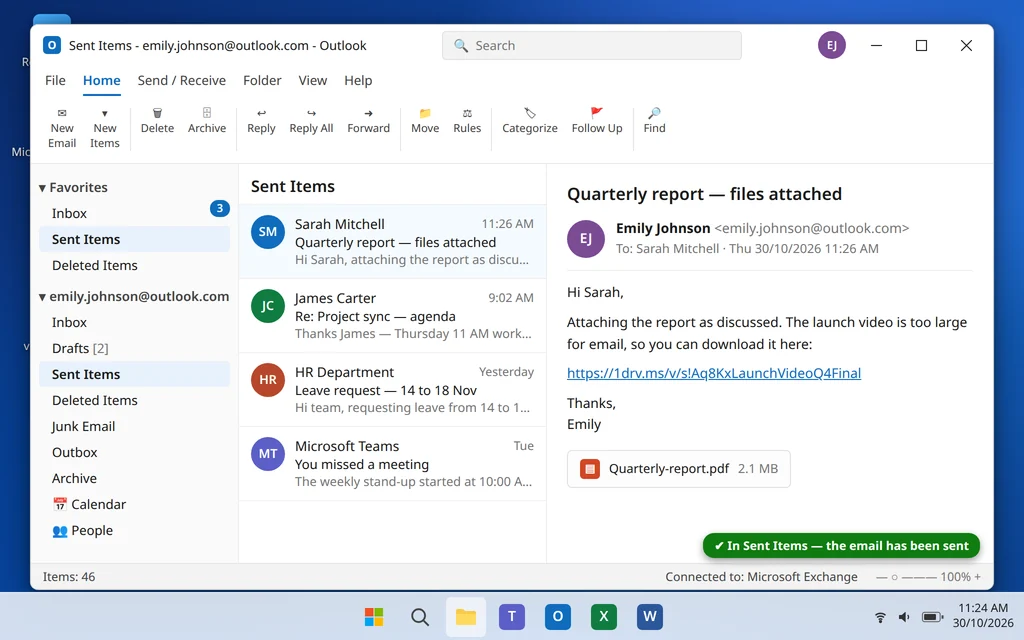
Whichever app you use, an email sitting in Sent Items is the proof the problem is solved — check there after each fix.
How to Stop Emails Getting Stuck in Future
- Share big files as OneDrive links instead of attachments, every time.
- Watch the status bar. If it says Working Offline or Disconnected, nothing will send until that changes.
- Avoid editing an email while it is sending — give the Outbox a few seconds on slow connections before closing Outlook.
- Keep your mailbox tidy. A nearly full mailbox can block sending as well as receiving.
- Restart Outlook occasionally rather than leaving it open for weeks, so stuck send cycles clear themselves.
Frequently Asked Questions
Why is my email stuck in the Outbox in Outlook?
The most common causes are an attachment that is larger than your mail server’s limit (often around 20 MB), Outlook being set to Work Offline, a lost connection, or that one message being damaged. A tiny test email tells you which: if the small email sends, it is the big/stuck message itself.
How do I delete an email stuck in the Outbox?
Turn Work Offline on (Send / Receive tab), close and reopen Outlook, then drag the message from the Outbox to Drafts or right-click > Delete. Going offline first releases the message from its failed send attempt, which is what normally blocks deletion (Step 3).
What does “Outlook has already begun transmitting this message” mean?
Outlook is in the middle of a send attempt for that email, so it locks the message against editing or deleting. Break the attempt by enabling Work Offline and restarting Outlook, then move or delete the message.
What is the maximum attachment size in Outlook?
It depends on your mail provider, not just Outlook. Outlook.com and Microsoft 365 commonly limit a message to about 20 MB total in the desktop app, Gmail to 25 MB, and many work mailboxes to 10–20 MB. For anything larger, send a OneDrive link instead (Step 5).
Will the stuck email eventually send on its own?
Only if the cause fixes itself — for example your connection comes back. A too-large or damaged message will never send on its own; Outlook retries it in the background, which also slows down the rest of your mail.
My email is stuck in the New Outlook. Is the fix different?
Partly. The New Outlook has no visible Outbox or Work Offline button; failed messages sit in Drafts. Check your connection, remove oversized attachments or recreate the message as a new email — the underlying causes and cures are the same (see the New Outlook section above).
The email left my Outbox. Did the person definitely receive it?
Leaving the Outbox means your mail server accepted it, and it should appear in Sent Items. Delivery after that depends on the other side — if the recipient’s mailbox is full or their server rejects it, you will usually get a bounce-back (non-delivery) message in your Inbox within a few hours.
Still stuck? Tell us what happens when you press Send/Receive — any error code or message helps — on our Contact page or at servicedesk@howtofixerroronline.com, available 24 hours. For the opposite problem — Outlook failing to start at all — see our Outlook not opening guide.