
Email Bouncing Back? 7 Reasons and How to Fix Each One
You send an important email, and a minute later it lands back in your inbox with a long, confusing error message — “Undeliverable”, “Delivery Status Notification (Failure)”, pages of technical text. Email bouncing back like this is frustrating because the message looks written for IT staff, not for you.
Here is the secret nobody tells you: that scary message already contains the exact reason your email failed, and usually how to fix it — written as a short error code like 550 5.1.1. Once you can read it, the fix is often a two-minute job. This guide teaches you to read the bounce first, then covers the 7 reasons emails bounce and the fix for each.
Quick Answer: Do not resend — open the bounce message and find the error code first, in a line like “550 5.1.1 User unknown” or in the “Technical details” block. Codes starting with 4 are temporary (wait; it usually delivers itself). Codes starting with 5 are permanent — something must change before the email goes through. Match your code to the 7 reasons below.
Table of Contents
First, Read the Bounce Message — It Tells You the Reason
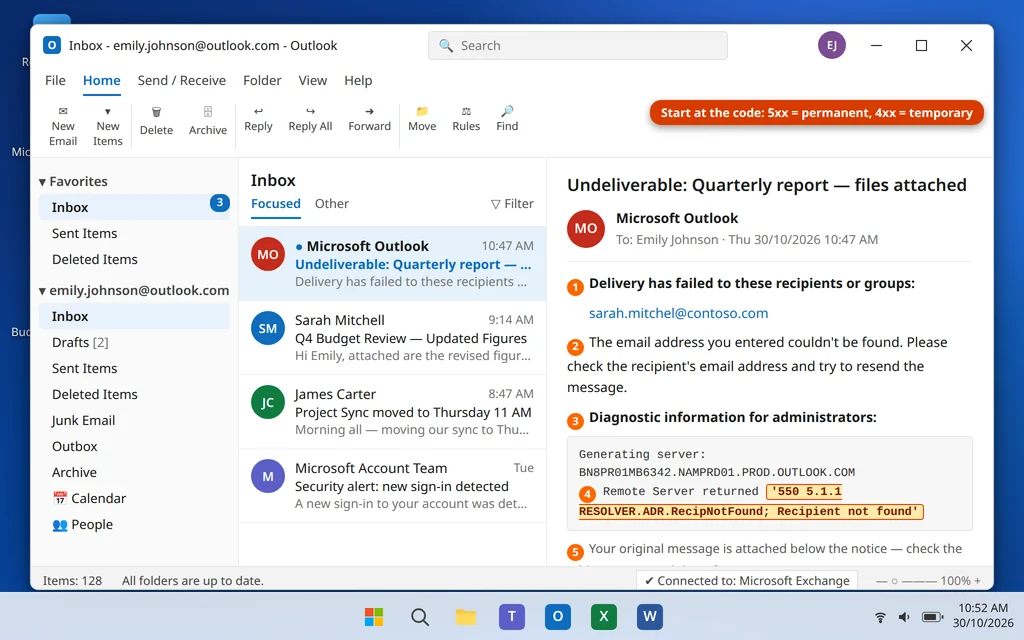
A bounce message (formally a Delivery Status Notification, or DSN) is a reply generated by the mail servers. Before trying any fix, open it and find these parts:
- The sender and subject. It comes from “Postmaster”, “Mail Delivery Subsystem” or “Microsoft Outlook” itself, with a subject like “Undeliverable: [your original subject]”.
- The plain-English line. Near the top there is usually one readable sentence — “The recipient’s mailbox is full”, “The email address you entered couldn’t be found” — which alone answers most cases.
- The error code. The three-digit code (like 550) plus a more detailed second code (like 5.1.1): the first is the general category, the second pinpoints the reason. Search for this code in the list below.
- The technical details block. Further down, after “Diagnostic information for administrators”, a line starting “Remote server returned” repeats the code. If you ever need IT support, copy this block — it is the part they will ask for.
- Your original message. At the bottom sits your email as sent — check the address you typed; you may spot the mistake there.
One rule covers almost everything: 4xx codes are soft bounces — temporary problems, which your mail system keeps retrying on its own. 5xx codes are hard bounces — permanent problems, and retrying without changing anything fails every time.
If the problem runs the other way — mail sent to you never arrives — see our guide to Outlook not receiving emails.
Reason 1: The Address Has a Typo
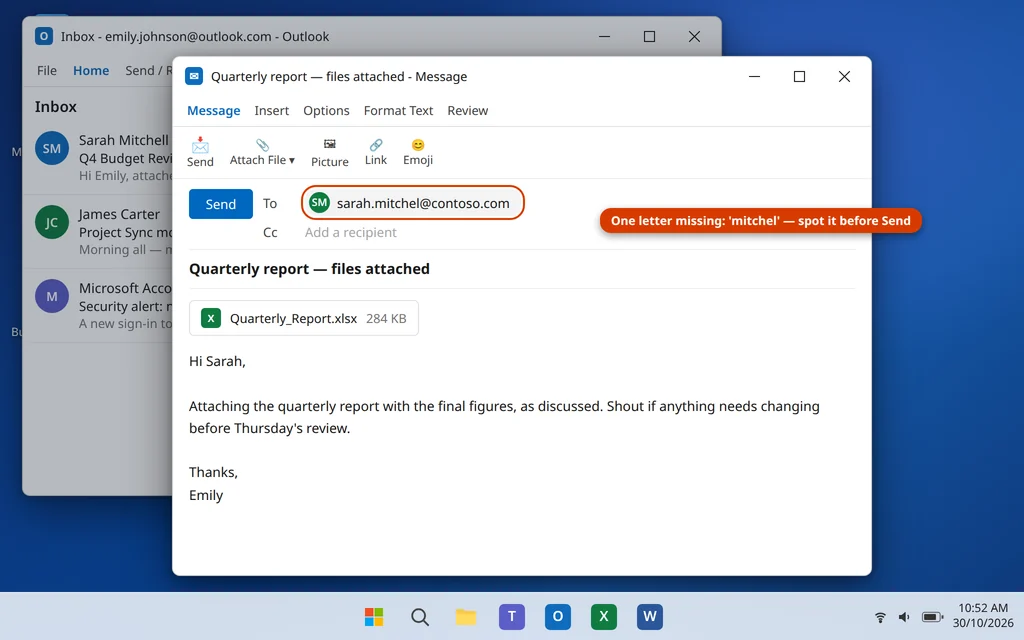
What the code looks like: Often 550 5.1.1, or a message about the domain not being found if the part after the @ is wrong.
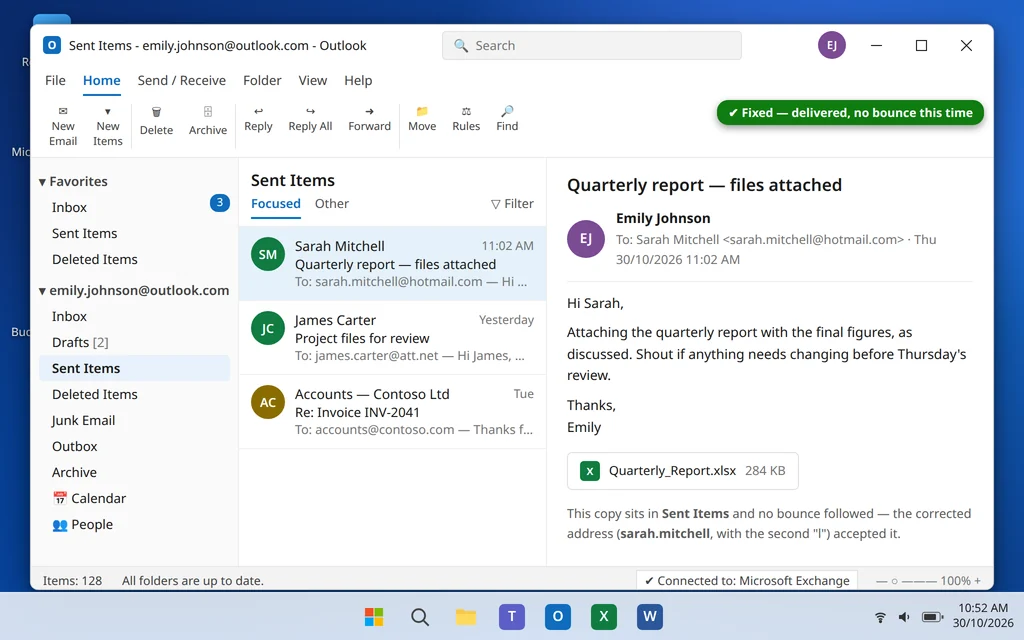
Why it happens: One wrong letter is enough: a missing letter in the name (sarah.mitchel instead of sarah.mitchell), .con instead of .com, or a character misread from a business card. Misspell the domain part, and the sending server cannot even find the recipient’s mail server.
How to fix it:
- In the bounce message, scroll to your original email at the bottom and read the To: address character by character.
- Better: find an old email that person sent you, and copy the address from its From line instead of typing it.
- Fix the typo in your Contacts too, if it is saved there — otherwise autocomplete keeps offering it.
- Create a new email to the corrected address rather than resending from the bounce (resending reuses the bad address).
Reason 2: The Mailbox Does Not Exist (550 5.1.1)
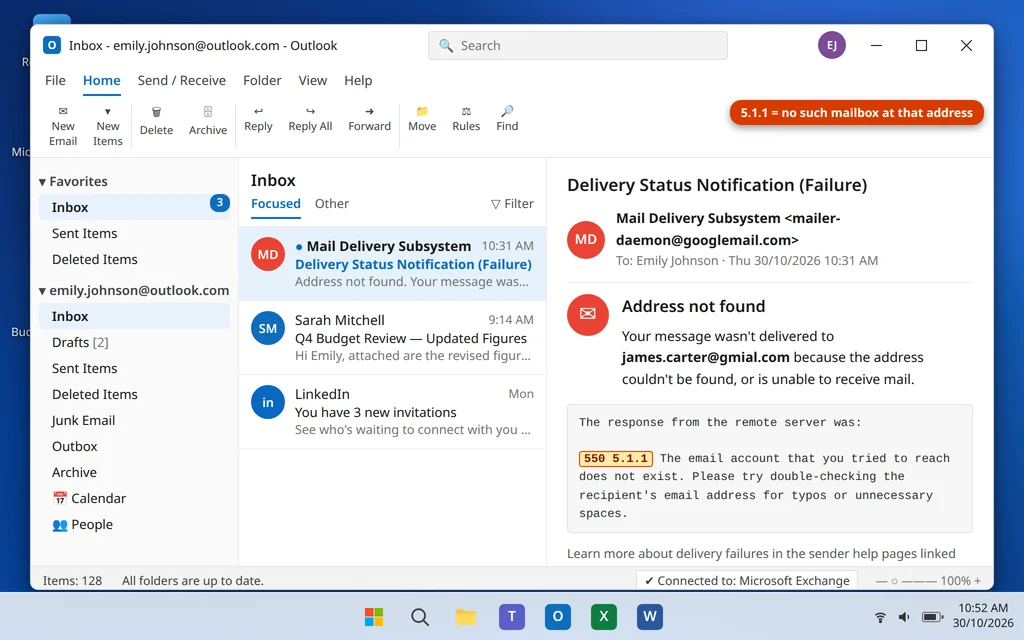
What the code looks like: 550 5.1.1 User unknown, or “The email address you entered couldn’t be found”.
Why it happens: The domain is fine, but no mailbox with that name exists on it. Unlike a typo, the address looks right — but the account was deleted, the person left the company, or it was never created. The 5.1.1 code means “bad destination mailbox address”.
How to fix it:
- You cannot fix this from your side — no setting makes a non-existent mailbox exist.
- Contact the person another way (phone, chat, a colleague) and ask for their current address, or their successor’s.
- If the address should work, tell the recipient’s IT team the code — 550 5.1.1 — so they can check whether the mailbox was disabled by mistake.
- Delete the dead address from your Contacts.
Reason 3: The Recipient’s Mailbox Is Full (550 5.2.2)
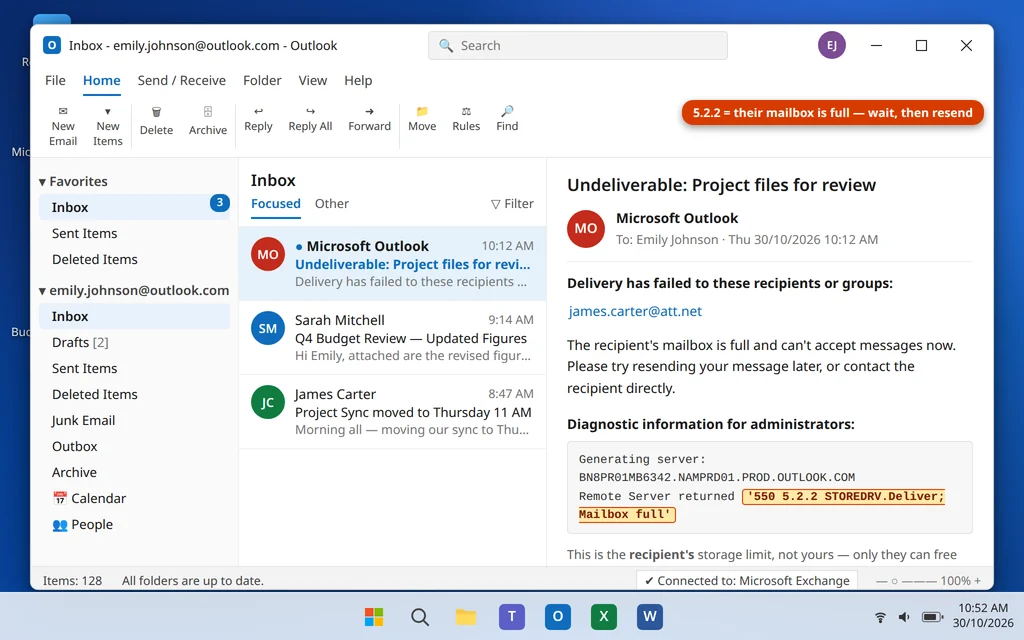
What the code looks like: 550 5.2.2 Mailbox full — Gmail words it as 552 5.2.2 The email account that you tried to reach is over quota.
Why it happens: Every mailbox has a storage limit; when the recipient’s is completely full, their server refuses new mail. This is their mailbox, not yours — your own storage is irrelevant here.
How to fix it:
- There is nothing to fix on your PC. Only the recipient can free up space.
- Reach them another way and tell them their mailbox is full — they may not know, as it fails silently at their end. Resend once they confirm space is cleared.
- If the email has attachments, use Reason 4’s link-sharing trick instead — a link adds almost nothing to their mailbox.
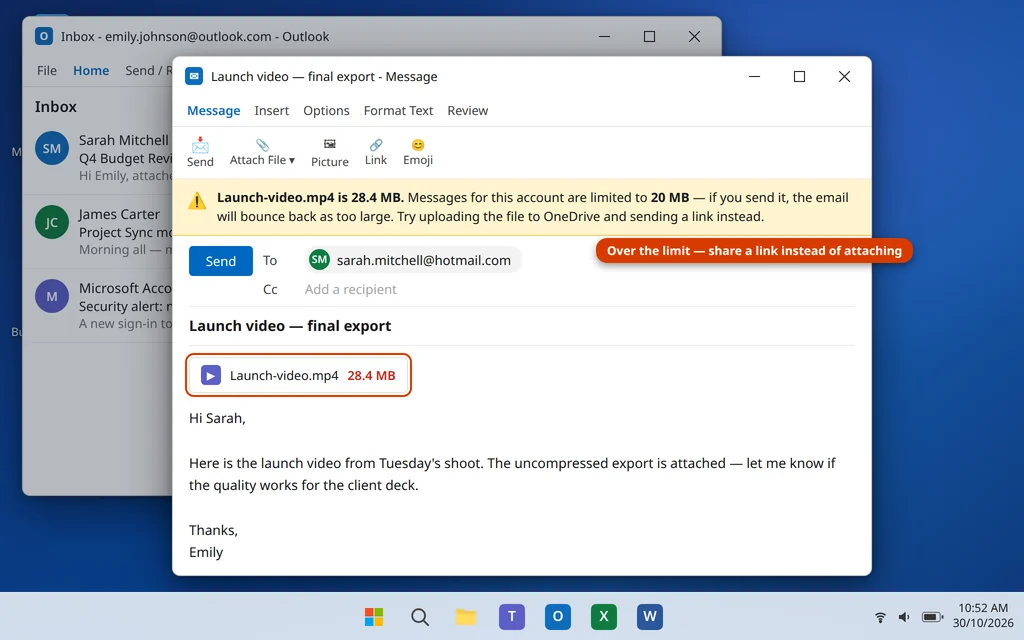
Reason 4: The Message Is Too Large (552)
What the code looks like: 552 5.2.3 Message size exceeds fixed maximum message size (Gmail’s wording), or similar “message too large” text.
Why it happens: Email was never designed for big files. Gmail accepts messages up to 25 MB, Outlook.com up to 20 MB, many company servers less. A hidden trap: a file inflates by roughly a third during sending (attachments are encoded for transport), so a 20 MB video can cross a 25 MB limit.
How to fix it:
- Compress before sending: resize photos, or put files in a ZIP folder (right-click > Send to > Compressed (zipped) folder).
- Share a link instead — the modern fix. Upload the file to OneDrive or Google Drive, click Share, and paste the link into your email. The email stays tiny; the recipient downloads at full size.
- Or split the files across several smaller emails.
Reason 5: Blocked by Spam Filters (550 5.7.1)
What the code looks like: 550 5.7.1 Message rejected or wording about the message being “blocked” or refused due to content or policy.
Why it happens: The recipient’s server examined your email and decided it looked like spam. Triggers include lots of links or images with little text, heavy sales language, certain attachment types (especially .exe files), sending to many people at once, or a poor reputation for your sending address/IP.
How to fix it:
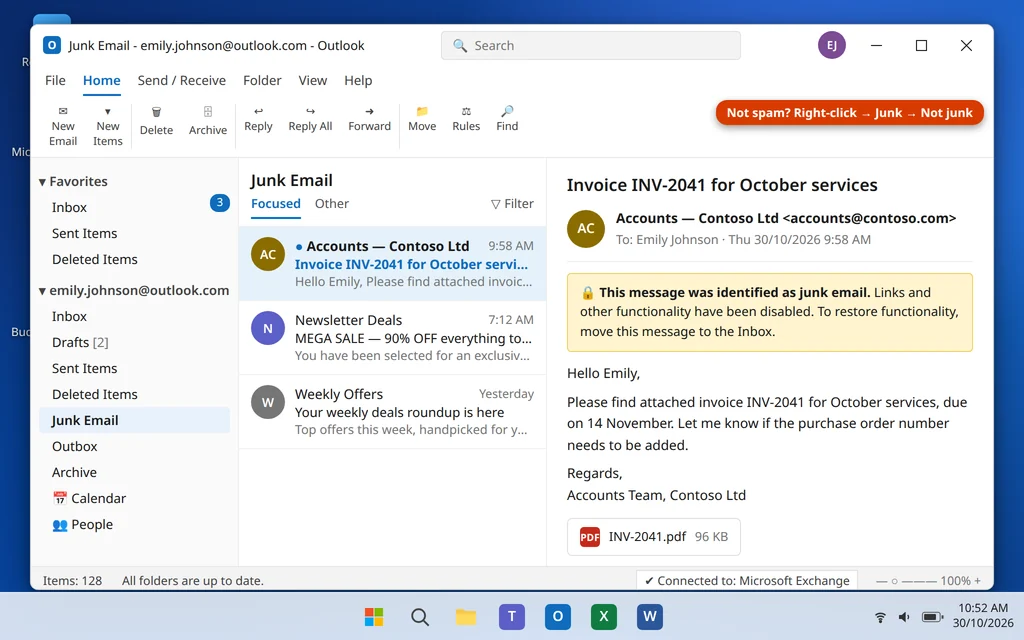
- Ask the recipient to check their Junk Email folder first — sometimes the mail was accepted but filed as junk, and there is no real block.
- Resend a simpler version: plain text, one or two links at most, no attachment (use a sharing link instead).
- Ask the recipient to add you to their Safe Senders list and mark your earlier mail “Not junk” — that trains their filter.
- If every email to one company bounces this way, their IT team may need to allowlist your domain — give them the 5.7.1 code.
Reason 6: The Recipient’s Server Is Down or Busy (Temporary 4xx)
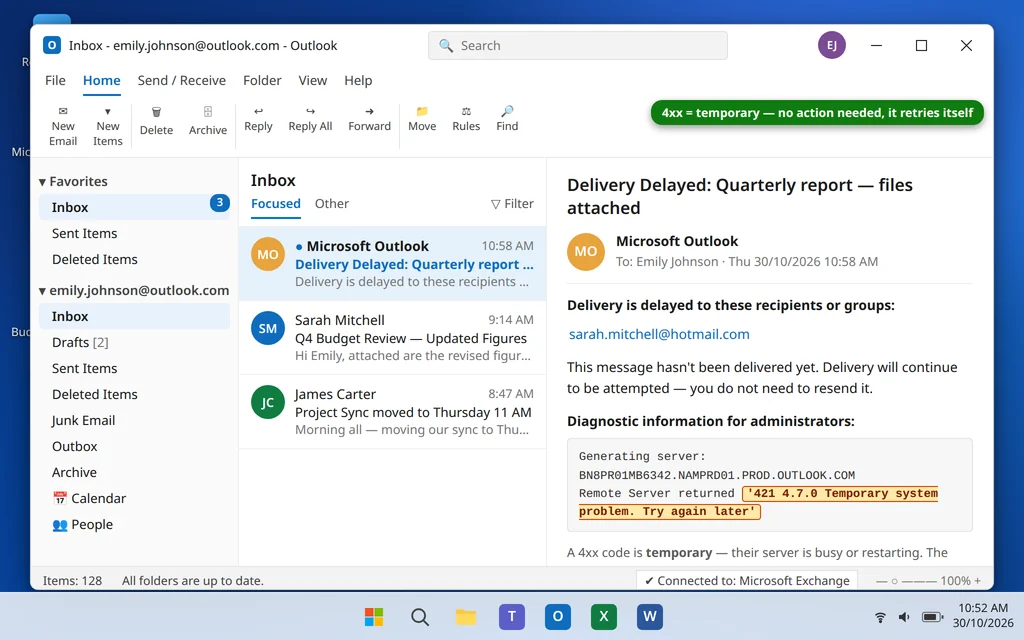
What the code looks like: Codes in the 400s — for example 421 4.7.0 Try again later, or 451 4.7.1 Greylisting in effect, please come back later.
Why it happens: Something temporary at the receiving end: their server is restarting, overloaded, or briefly offline. Some servers also use greylisting — rejecting a first attempt from an unknown sender, because real mail servers retry and most spam senders do not.
How to fix it:
- Do nothing — this bounce fixes itself. A 4xx bounce often arrives as a “Delivery is delayed” notice, not a final failure. Your server retries automatically (typically for 24–48 hours) and the email usually lands.
- Do not resend manually — you will create a duplicate when the original arrives too.
- Only act if a final failure arrives after the retry period. Then resend once.
Reason 7: Your Domain or Sending Setup Is Flagged (SPF, DKIM, DMARC)
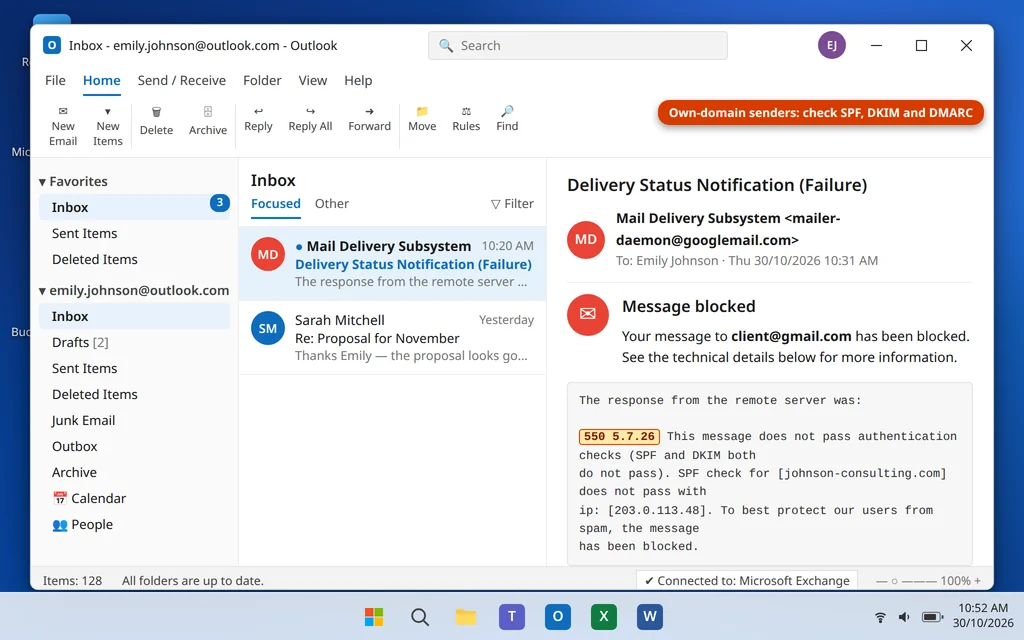
What the code looks like: Gmail’s version is 550 5.7.26 This message does not pass authentication checks (SPF and DKIM both...). You may also see 5.7.1 wording about your address or IP not being accepted.
Why it happens: This one mainly affects people who send from their own domain (like name@yourcompany.com). Receiving servers check three authentication records — SPF (which servers may send for you), DKIM (a signature proving the mail was not altered), and DMARC (what to do when the first two fail). If these are missing or wrong — common after changing providers or adding a newsletter tool — receivers reject your mail as unauthenticated. A flagged sending IP (inherited from a previous user who sent spam) causes the same bounce.
How to fix it:
- On Gmail, Outlook.com or a normal Microsoft 365/Google account, SPF and DKIM are handled for you — this reason is almost certainly not yours; check Reasons 1–6.
- If you send from your own domain: ask your host or IT person to check that SPF, DKIM and DMARC records exist and match your current provider — a one-time DNS fix at their end, not something Outlook can repair.
- Started bouncing after adding a sending tool (website forms, invoicing apps, bulk mailers)? It must be added to your SPF record or given a DKIM signature — tell your host which tool you added.
- If the message says your IP address is blocked, contact your email provider — requesting removal from the blocklist is their job.
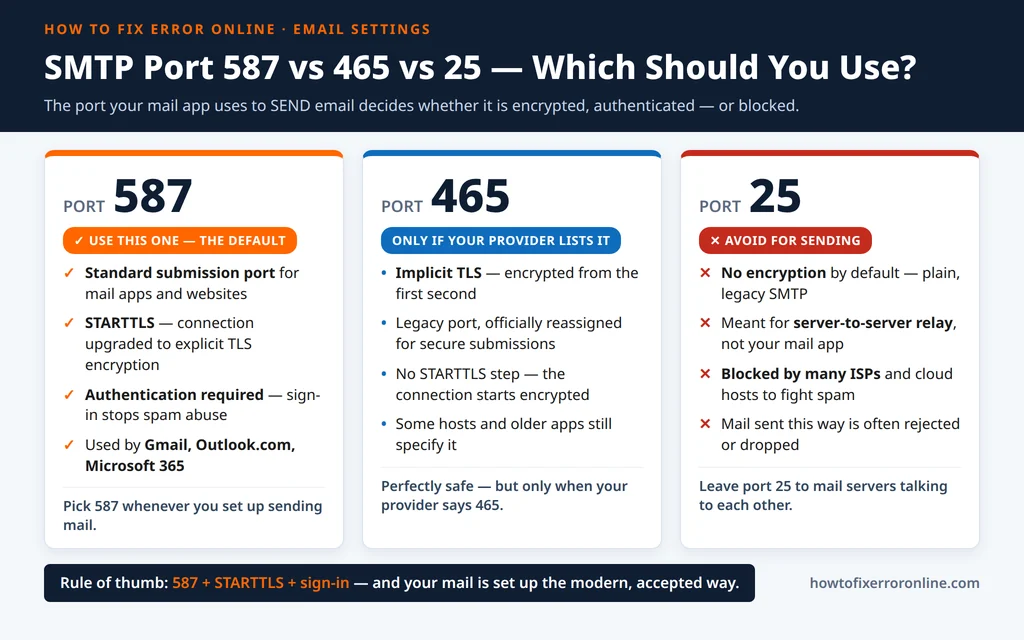
One more sending setting matters if you use your own mail app, website form or tool: the outgoing (SMTP) port. The wrong port can get mail rejected or quietly dropped:
How to Stop Your Emails Bouncing Back
- Verify before you send. Copy addresses from received mail or Contacts instead of typing them, and eyeball the To field before clicking Send — it prevents most 5.1.1 bounces.
- Keep your Contacts clean. Update entries when people change jobs or addresses; delete dead addresses a 5.1.1 bounce exposes.
- Share links, not files. This one habit removes the size bounce (Reason 4) and most attachment-based spam blocks (Reason 5).
- Write like a person, not a promotion. Clear subject lines, normal sentences, few links — spam filters stay calm.
- Own a domain? Set up SPF, DKIM and DMARC once with your host’s help, and re-check them when you change providers or add a sending tool.
- Treat the first bounce as data. One bounce tells you exactly what to fix; ten resends of the same message teach filters to distrust you.
Frequently Asked Questions
Why do my emails keep bouncing back?
Because the address, the message, or the receiving server fails a check during delivery. The bounce names the reason in its code: 5.1.1 = mailbox does not exist, 5.2.2 = mailbox full, 5.7.1 = blocked as spam-like, 4xx = temporary. Read the code first, then apply the matching fix.
What is the difference between a hard bounce and a soft bounce?
A hard bounce (5xx) is permanent — a non-existent mailbox, a policy rejection — and the email never arrives unchanged. A soft bounce (4xx, or mailbox-full) is temporary — the server could not take the message right now, and your system retries automatically. Hard bounce: fix something. Soft bounce: wait.
What does 550 5.1.1 mean?
It means “bad destination mailbox address”: the server has no mailbox with that name — usually a typo, or an account that was closed or deleted. Check the spelling against a message they sent you; if it is right, ask them another way for their current address.
The bounce says “mailbox full” — is that my mailbox?
No. A 550 5.2.2 bounce is about the recipient’s mailbox: their storage is full, so their server sent your message back. Only they can clear space — tell them via another channel, then resend.
Will a bounced email go through if I just keep resending it?
For a 4xx temporary bounce, do not resend — your server is already retrying, and manual resends create duplicates. For a 5xx permanent bounce, the identical email fails identically every time. Fix the cause named in the code (address, size, content), then send once.
Why was my normal email blocked as spam (550 5.7.1)?
Spam filters judge patterns, not intentions: link-heavy messages, big attachments, many recipients, pushy sales wording, or a sending address with a poor history. Have the recipient check Junk and add you to Safe Senders, then resend a plainer version — mostly text, minimal links, no attachment.
How large can an email attachment be?
About 20 MB total on Outlook.com and 25 MB on Gmail, many company servers lower — and the file grows by a third when encoded for sending, so the practical ceiling is smaller than the file on disk. For anything bigger, share a drive link instead.
Still bouncing? Send us the exact error code from your bounce message (remove names and addresses if you like) and we will tell you which reason it is — servicedesk@howtofixerroronline.com, available 24 hours. If Outlook will not open so you can read the bounce, start with our guide to fixing Outlook not opening on Windows 11, and browse more email fixes on How to Fix Error Online.