
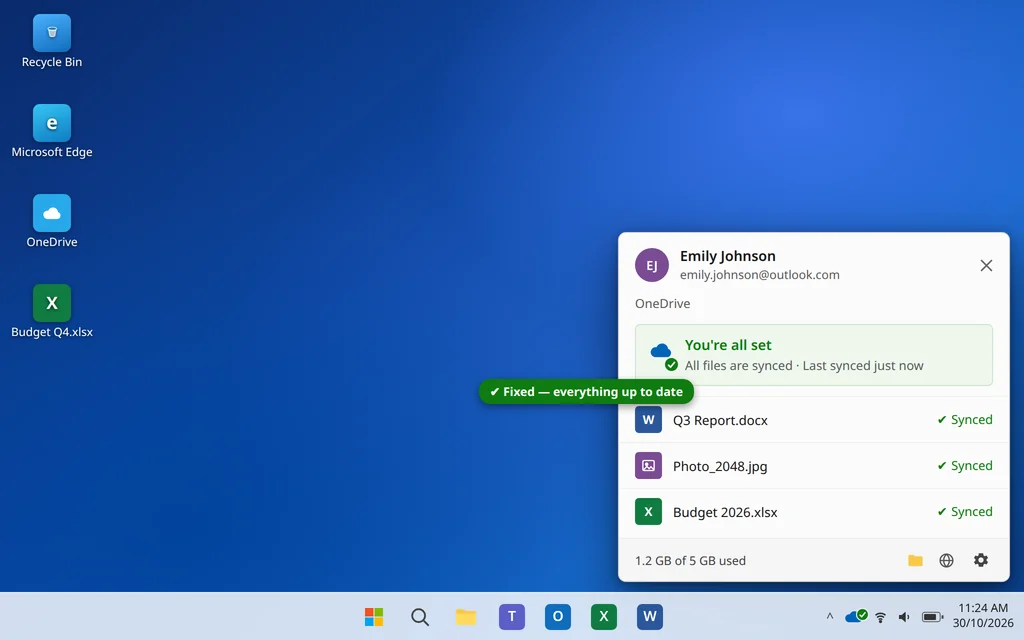
OneDrive Not Syncing on Windows 11? 9 Fixes
You save a file to OneDrive, switch to another device — and it is not there. Or the OneDrive cloud icon shows a red cross, a file sits on “Syncing” for hours, or photos from your phone never reach your PC. When OneDrive stops syncing, it usually looks alarming, but your files are almost never lost.
In most cases the cause is simple: sync got paused, the app stalled, storage ran out, or one file with a bad name is blocking everything behind it. Work through the fixes in order — the first few solve this for most people in minutes.
Quick Answer: Click the OneDrive cloud icon near the clock and check its status first. If sync is paused, resume it. Next, quit OneDrive completely and reopen it. Then check your OneDrive storage is not full, look for files with invalid characters like
< > : " / \ | ? *in the name, and if sync is still stuck, unlink and relink your account. As a stronger step, reset OneDrive with%localappdata%\Microsoft\OneDrive\onedrive.exe /reset.
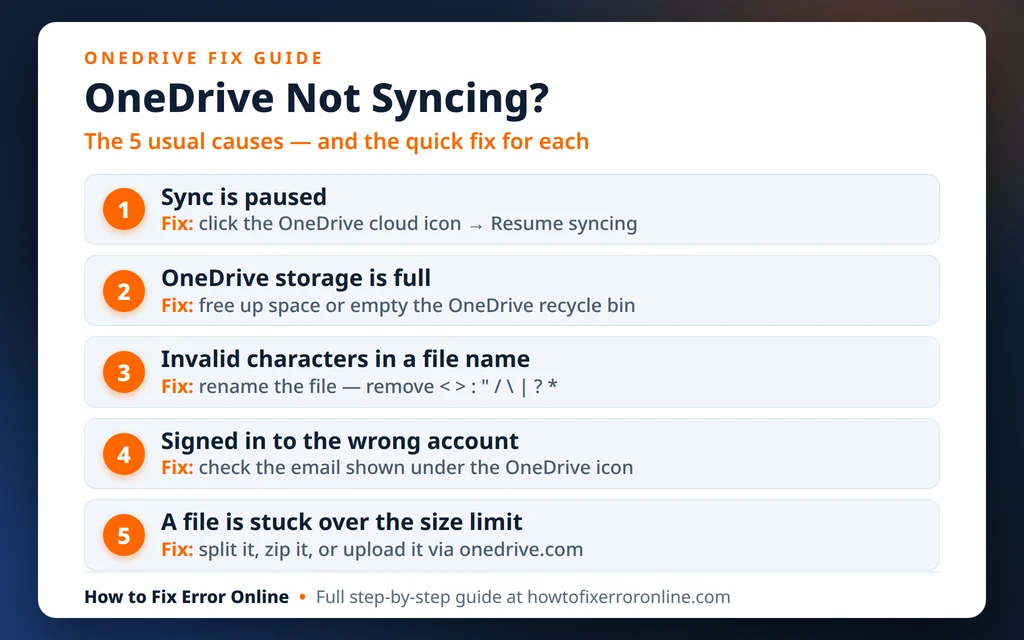
Table of Contents
Why Is OneDrive Not Syncing on Windows 11?
OneDrive usually stops syncing for one of these reasons:
- Sync is paused. OneDrive pauses automatically on metered connections, in battery saver mode, or when you (or a meeting app) paused it manually — and it does not always resume on its own.
- The OneDrive app has stalled. It runs in the background all the time, and a stuck process can silently stop processing changes.
- Your storage is full. When your OneDrive (or Microsoft 365) storage hits the limit, sync stops completely until space is freed.
- One problem file is blocking the queue. A file with an invalid character in its name, a name that is too long, or a file locked open by an app can hold up every file behind it.
- The account link is broken. After a password change or a Windows update, OneDrive can lose its connection to your account even though it still looks signed in.
- Network, proxy or VPN interference. Work VPNs and strict proxies sometimes block the connection OneDrive needs.
A quick test before you start: Open onedrive.com in your browser and sign in. Check whether the file appears there. If it is on the website but not on your PC, the problem is the OneDrive app on this PC — which is what the fixes below solve. If it is not on the website either, check whether your other device finished uploading it.
Fix 1: Check the OneDrive Icon and Resume Sync If It Is Paused
Always start here — it takes ten seconds and is the most common cause.
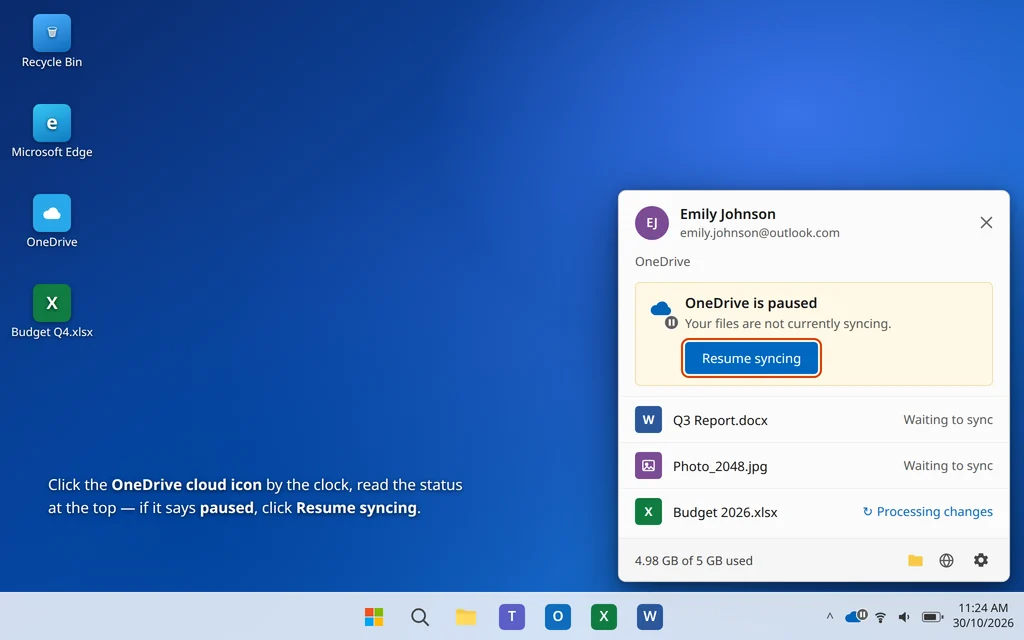
- Click the OneDrive cloud icon in the bottom-right corner of your screen, near the clock. If you do not see it, click the small up arrow (^) to show hidden icons first.
- Read the status at the top of the panel. It tells you exactly what OneDrive is doing.
- If it says “Sync is paused”, click the gear icon > Resume syncing (in some versions, click Paused > Resume).
- Note any file listed with an error — Fix 4 deals with problem files.
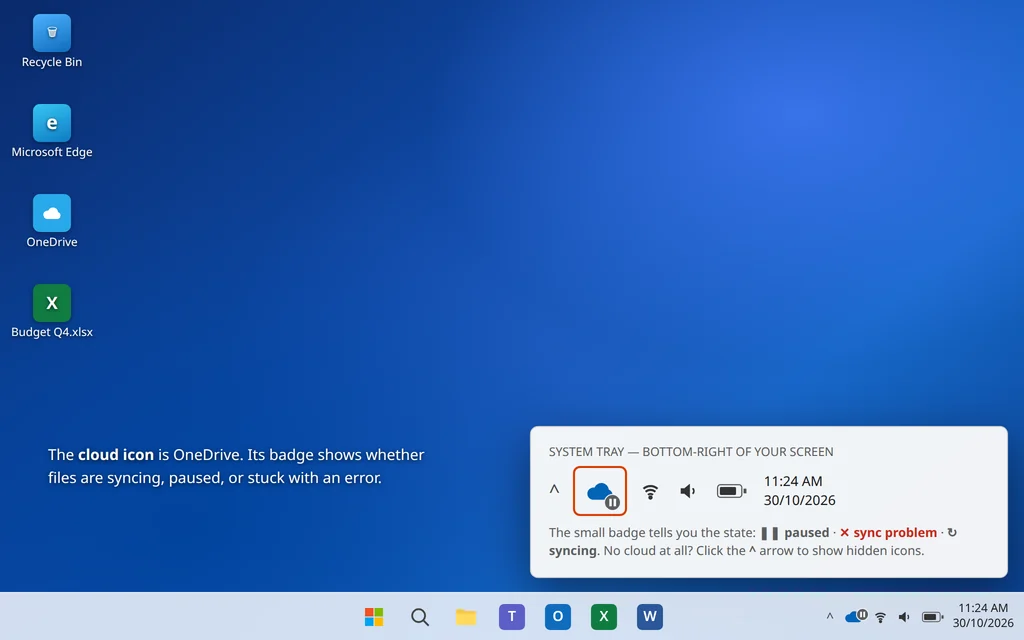
What the icon means:
- Blue cloud with arrows — syncing normally, just wait.
- Paused symbol — sync is paused; resume it as above.
- Red circle with a white cross — there is a sync problem; click the icon to see which file is causing it.
- Gray cloud with a line through it — OneDrive is not signed in; jump to Fix 5.
Fix 2: Restart OneDrive
If sync is not paused but files are not moving, a clean restart clears a stalled app.
- Right-click the OneDrive cloud icon near the clock.
- Click the gear icon and choose Quit OneDrive. Confirm if asked.
- Wait 10 seconds. The cloud icon should disappear from the tray.
- Press the Windows key, type
OneDrive, and open the app again. - Give it a minute or two, then check whether your files start syncing.
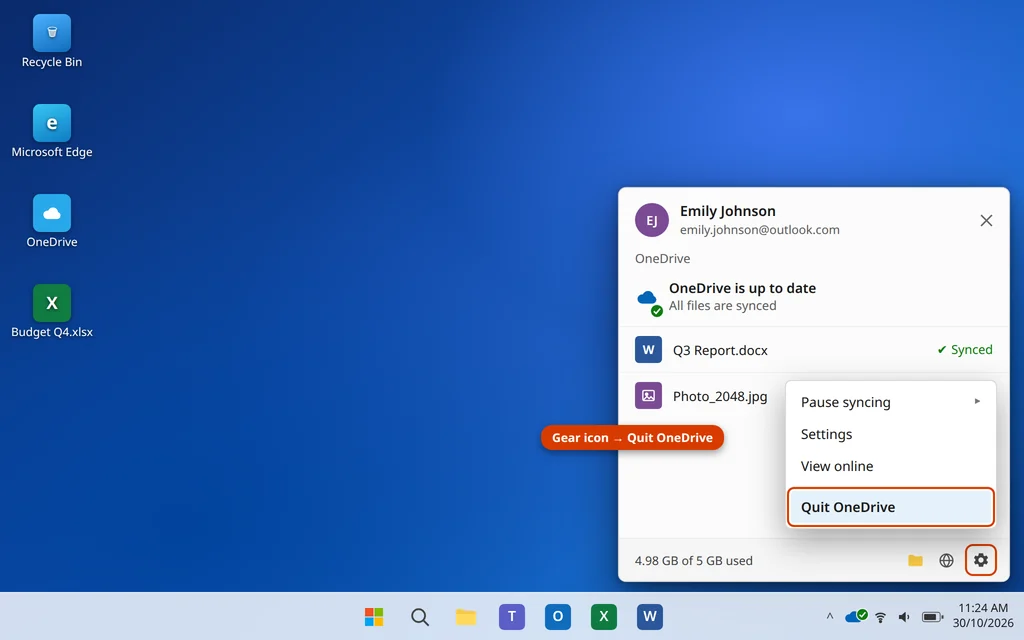
You can also end it via Task Manager: press Ctrl + Shift + Esc, select Microsoft OneDrive, click End task, then reopen OneDrive from the Start menu.
Fix 3: Check Your OneDrive Storage Quota
When storage is full, OneDrive stops syncing everything — and it does not always shout about it. Free Microsoft accounts include 5 GB, which fills up surprisingly fast with phone photos.
- Click the OneDrive cloud icon, then the gear icon > Settings.
- On the Account tab, look at the storage bar — it shows how much space you have used.
- If it is full or nearly full, delete large files you no longer need from onedrive.com, and empty the OneDrive Recycle bin there too (deleted files still count against your quota until the recycle bin is emptied).
- On a free Microsoft account, large email attachments also count towards the same Microsoft cloud storage, so a mailbox full of big attachments can eat into the space OneDrive needs too.
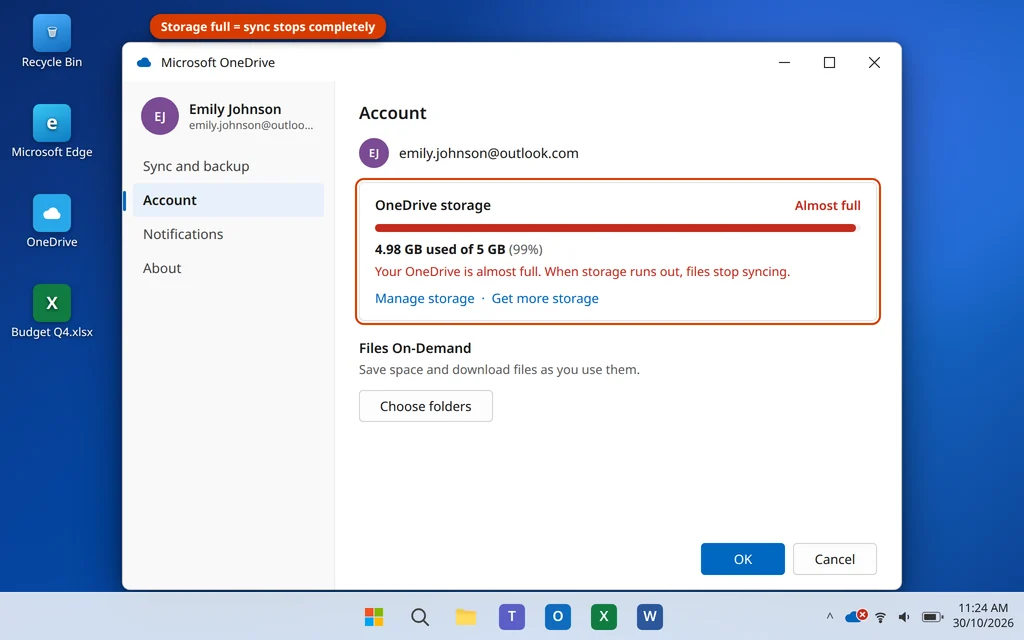
Once space is available, sync normally resumes by itself within a few minutes.
Fix 4: Fix Files With Invalid Names or Long Paths
One bad file can block the whole queue. OneDrive cannot sync files or folders whose names contain these characters: < > : " / \ | ? * — and file names cannot start with a space or end with a space or a full stop. The full path (all folders plus the file name) also cannot exceed about 400 characters.
- Click the OneDrive icon — problem files are listed at the top with an error such as “No access permissions” or “A file name contains invalid characters”.
- Open File Explorer, find the file, right-click it and choose Rename.
- Remove any invalid characters, shorten very long names, and avoid very deep folder structures — move the file closer to the top of your OneDrive folder if the path is extremely long.
- Also close any app that has the file open. A file locked by Word, Excel or another program cannot sync until it is closed.
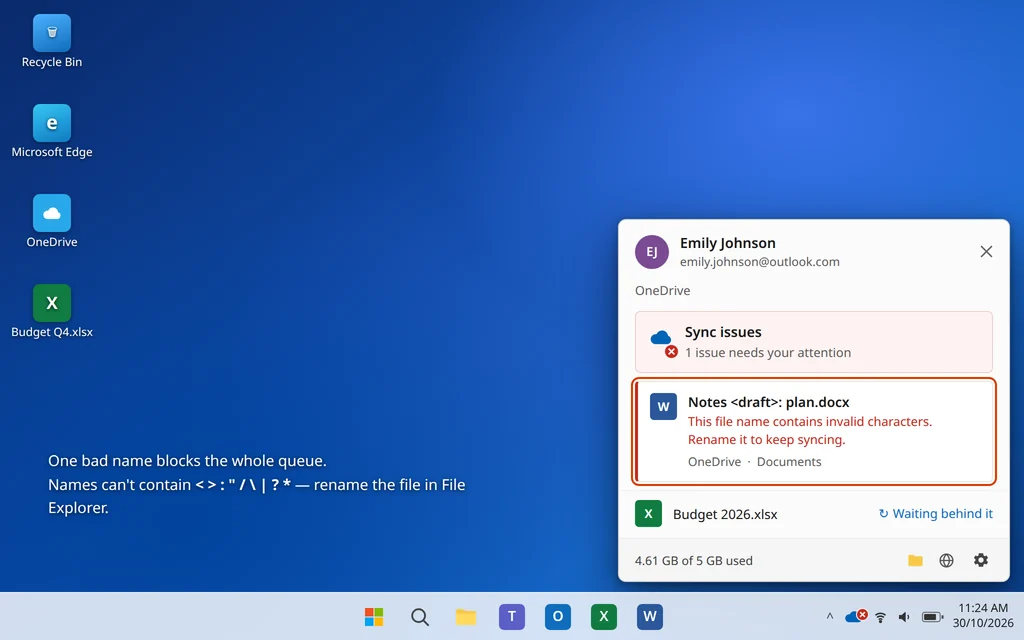
Repeat for every file in the error list, then check the icon again — the queue should start moving.
Fix 5: Unlink and Relink Your OneDrive Account
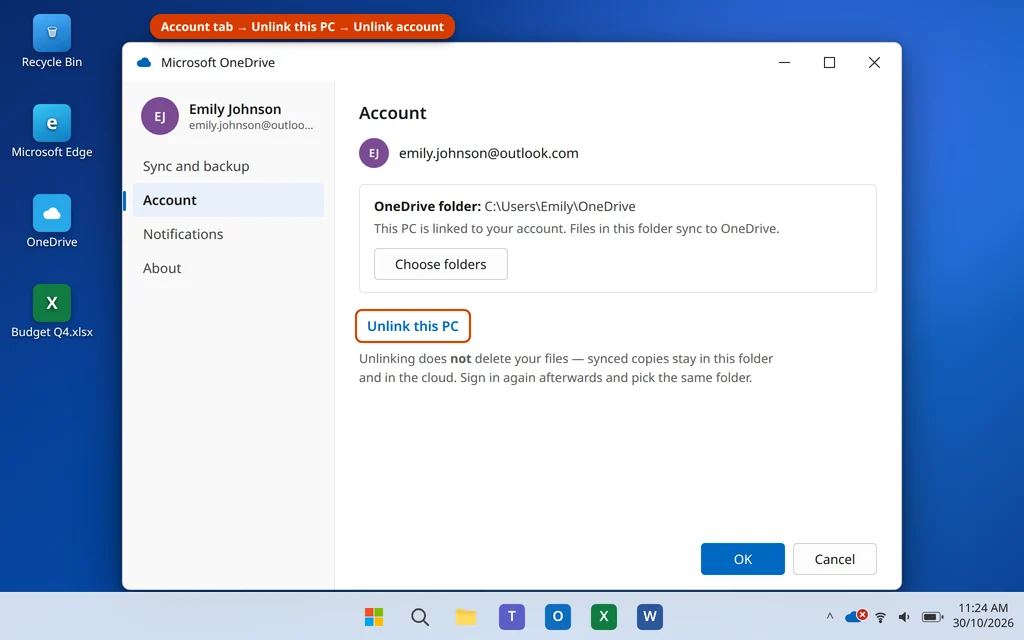
If OneDrive looks signed in but nothing syncs, the link between this PC and your account may be broken. Unlinking does not delete your files — anything already synced stays in your OneDrive folder and in the cloud.
- Click the OneDrive icon > gear icon > Settings.
- On the Account tab, click Unlink this PC and confirm with Unlink account.
- Once OneDrive closes, reopen it from the Start menu.
- Sign in with the same Microsoft account and choose your existing OneDrive folder when asked. Choosing the same folder means OneDrive only checks the files instead of downloading everything again.
- Let it finish its initial scan, then test with a small test file.
Fix 6: Reset OneDrive With the /reset Command
A reset is the strongest built-in repair: it resets the app’s settings and sync database, then reconnects. Your files are not deleted.
- Press Windows key + R to open the Run box.
- Type this exactly and press Enter:
%localappdata%\Microsoft\OneDrive\onedrive.exe /reset
- The OneDrive icon will disappear from the tray. Wait 1–2 minutes — this is normal.
- If the icon does not come back on its own, press the Windows key, type
OneDrive, and open it manually. - Sign in if asked and let OneDrive re-scan your folders.
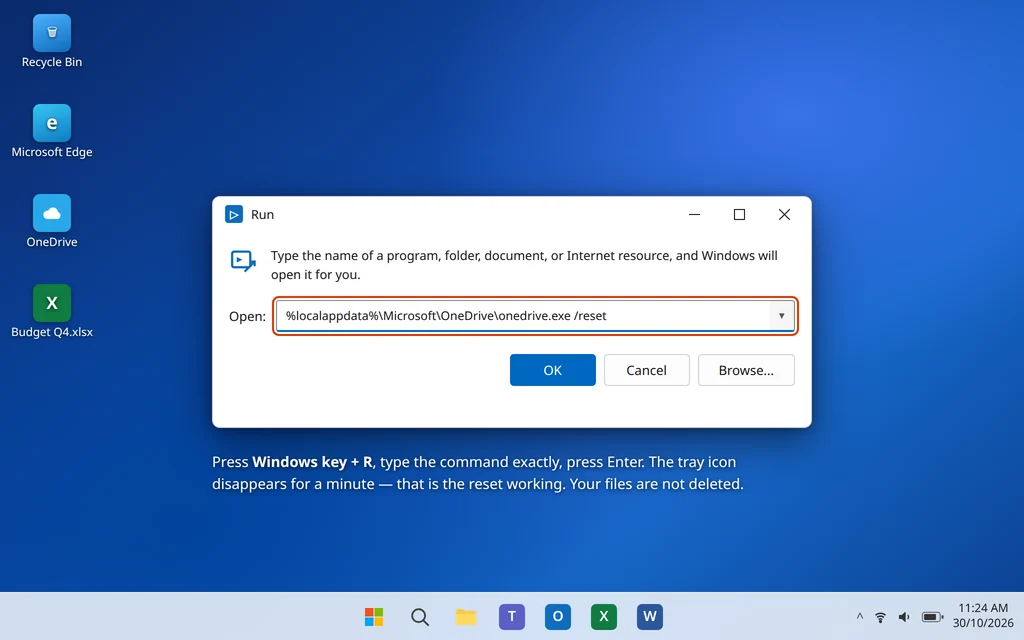
After a reset, OneDrive re-checks every file, which can take a while on large folders — but it only downloads files that actually differ.
Fix 7: Check Your Internet, Proxy and VPN
OneDrive needs a steady connection to Microsoft’s servers, and some setups quietly block it.
- Open a few websites to confirm your internet works, then try uploading one small file at onedrive.com. If the website upload works but the app does not sync, the app or its connection is at fault.
- If you use a VPN (especially a work VPN), disconnect it temporarily and watch whether sync starts. Many work VPNs block personal OneDrive traffic by policy — in that case sync will only work with the VPN off.
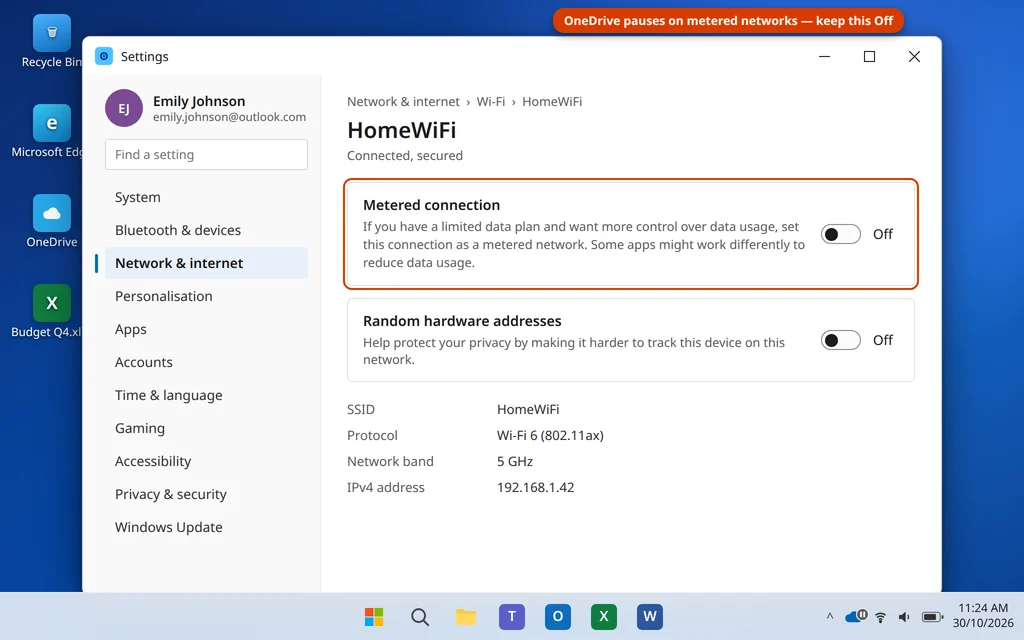
- Check you are not on a metered connection: go to Settings > Network & internet > Wi-Fi (or Ethernet), select your network, and turn Metered connection off. OneDrive pauses sync on metered networks.
- Turn off Battery saver in Settings > System > Power & battery while testing — it can also pause sync.
Fix 8: Update Windows
OneDrive is updated through Windows Update and the Microsoft Store, and a pending or broken update is a frequent hidden cause of sync trouble.
- Go to Settings > Windows Update and click Check for updates.
- Install everything offered, then restart your PC if asked.
- Also open the Microsoft Store, click Library, and choose Get updates so the OneDrive app itself is current.
- After restarting, open OneDrive and watch the icon for a minute or two.
Keeping Windows updated also protects the other Microsoft apps — similar update problems are behind many cases where Outlook is not opening on Windows 11 too.
Fix 9: Reinstall OneDrive
Only do this if nothing above worked. Reinstalling replaces the app files; your cloud files and your local OneDrive folder are not removed.
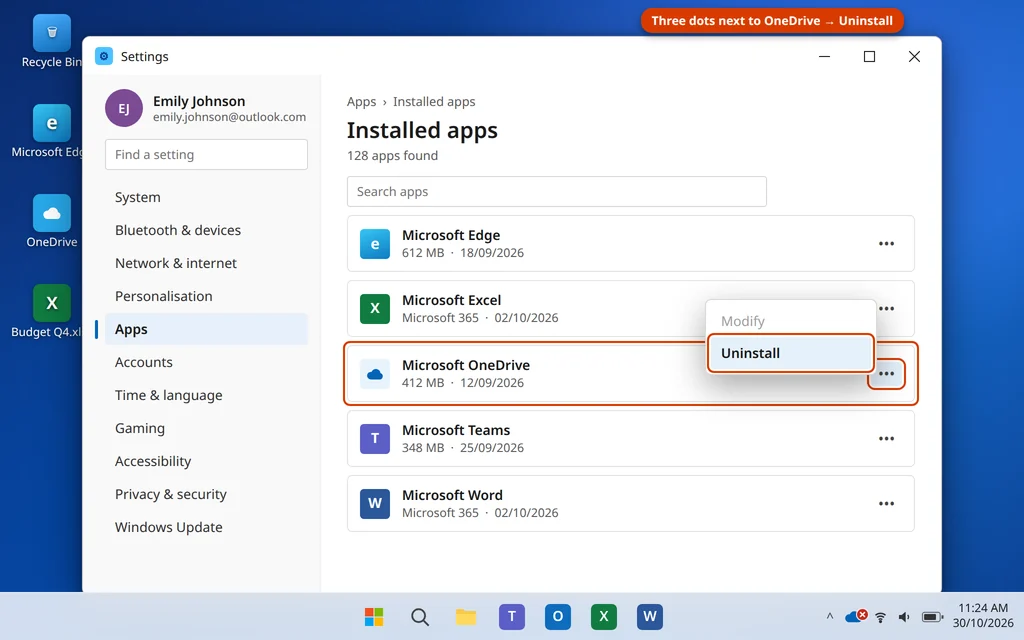
- Press Windows key + I to open Settings and go to Apps > Installed apps.
- Find Microsoft OneDrive, click the three dots next to it, and choose Uninstall.
- Restart your PC.
- Download OneDrive again from Microsoft’s OneDrive download page (or open the Microsoft Store and install it from there).
- Run the installer, sign in with your Microsoft account, and choose your existing OneDrive folder when asked.
- Wait for the first sync scan to finish before judging the result — on a large folder this can take some time.
How to Stop OneDrive Sync Problems From Coming Back
- Watch your storage. Leave at least 10–15% free — sync becomes unreliable right at the limit.
- Keep file names clean. Avoid special characters and very long names, and do not bury files in endless nested folders.
- Close files when you finish editing. A file held open by an app cannot sync.
- Restart your PC regularly instead of only using sleep, so OneDrive gets a fresh start too.
- Be careful with work VPNs. If yours blocks personal OneDrive, sync personal files with the VPN disconnected.
Frequently Asked Questions
Why does OneDrive say “Sync paused”?
OneDrive pauses sync on metered connections, when Battery saver is on, when your device is low on battery, or if you paused it from the icon menu. Click the cloud icon, then the gear icon, and choose Resume syncing. If it pauses again by itself, check the metered connection setting in Fix 7.
Will unlinking or resetting OneDrive delete my files?
No. Unlinking disconnects this PC from your account, and resetting rebuilds the app’s sync database. Your files stay in the cloud and the synced copies stay in your OneDrive folder on the PC. When you sign back in and choose the same folder, OneDrive compares the files instead of downloading everything again.
One file is stuck syncing and blocks everything. What do I do?
Click the OneDrive icon to see the problem file. Usually it has an invalid character in its name, a very long path, or it is open in another app. Rename it, shorten its path, or close the app using it (Fix 4). Once that file clears, the rest of the queue normally follows.
Why is OneDrive not syncing photos from my phone?
Phone photos upload through the OneDrive mobile app, not the PC app. Open OneDrive on your phone, check Camera upload is turned on in the app’s settings, and make sure the phone has storage space and permission to use mobile data if you are away from Wi-Fi. Then confirm the photos appear at onedrive.com before checking the PC.
How much OneDrive storage do I get?
A free Microsoft account includes 5 GB of OneDrive storage. Microsoft 365 Personal includes 1 TB and Microsoft 365 Family includes 1 TB per person. If you keep hitting the limit, emptying the OneDrive recycle bin and removing old phone backups and large videos usually frees the most space.
What is the difference between the OneDrive reset and a reinstall?
The reset (Fix 6) keeps the app installed and rebuilds its settings and sync database — it fixes most account and queue problems. A reinstall (Fix 9) replaces the app’s program files themselves, which is only needed when the installation is damaged, for example if OneDrive will not open at all.
OneDrive works on the website but not in the app. Why?
That means your account and files are fine and the fault is the app on this PC. Work through Fixes 2, 5 and 6 (restart, relink, reset). If other Microsoft apps misbehave as well, update Windows first (Fix 8).
Still stuck? Tell us what the OneDrive icon shows and any error message you see on our Contact page or at servicedesk@howtofixerroronline.com, available 24 hours. See our Microsoft Office and PC Issues categories for more guides like this one.