
Black Screen on Windows 11 After Login? 9 Fixes
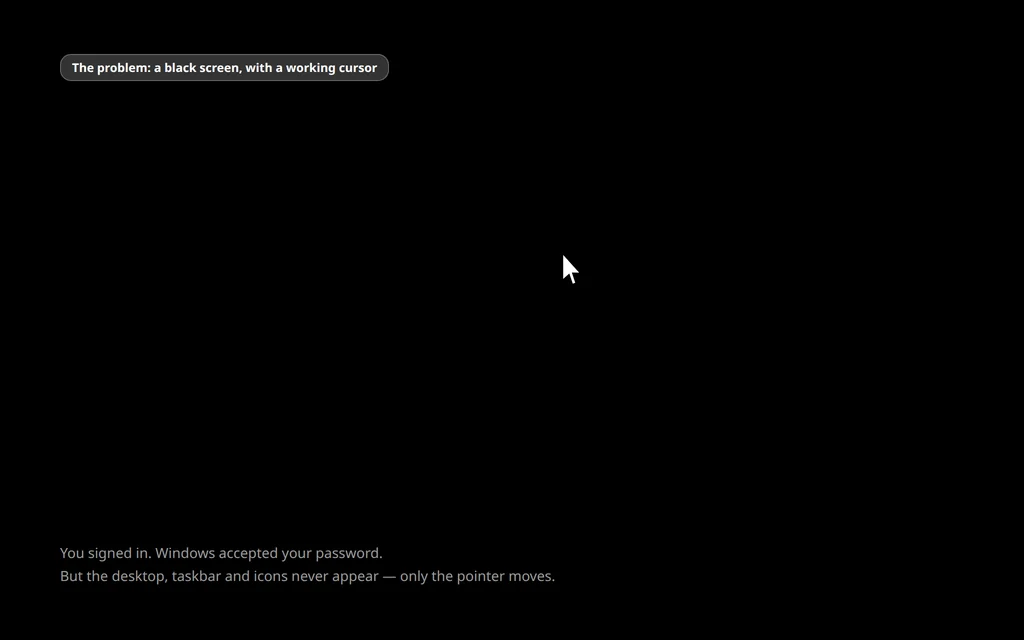
You type your password, Windows accepts it, the welcome spinner turns — and then nothing. Just a black screen. Maybe you can see your mouse pointer moving around, maybe you cannot, but the desktop, taskbar and icons never arrive. It feels like the PC has died at the very last step.
Take a breath: in most cases your files are fine and Windows itself is fine. A black screen Windows 11 after login problem usually means one small part of the startup chain stalled — most often Explorer (the program that draws your desktop), a display driver that misbehaved after an update, or a peripheral confusing the display output. Each of those has a fix, and the first one takes about 30 seconds.
Work through the fixes in order. The early ones need nothing but your keyboard, and most people are back on their desktop by Fix 1 or Fix 5.
Quick Answer: If you see a black screen with a cursor, press Ctrl + Shift + Esc to open Task Manager, click Run new task, type
explorer.exeand press Enter — this restarts the desktop for most people. If that does not work, unplug USB devices and extra monitors, turn off Fast Startup, then boot into Safe Mode and roll back the display driver.
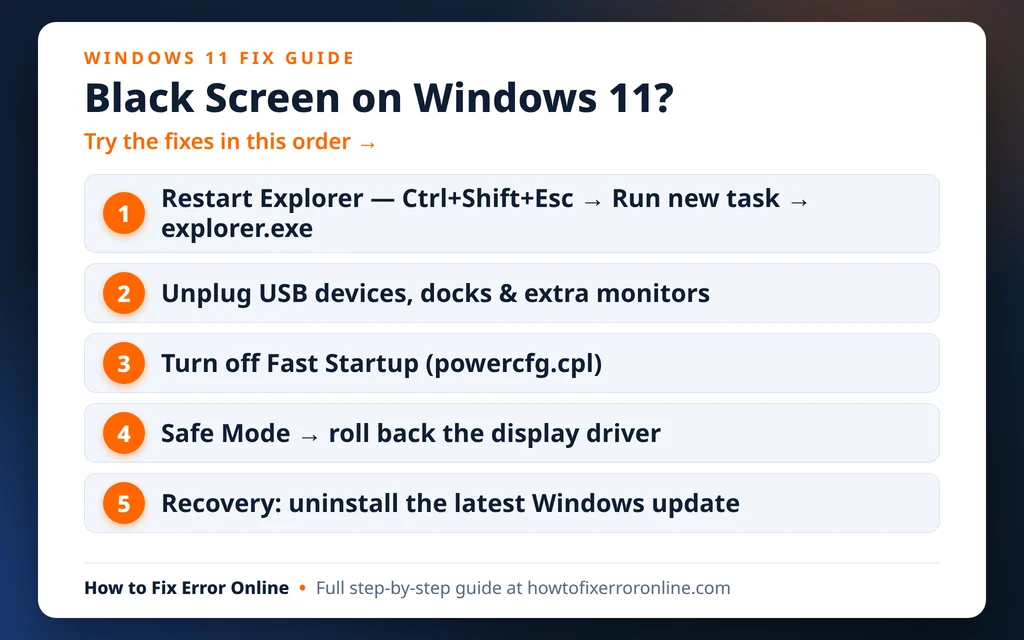
Table of Contents
What a Black Screen Windows 11 After Login Actually Means
Signing in has two stages. First Windows loads your account; then it starts Explorer, which draws the desktop, taskbar and Start menu. A black screen after login means stage one finished but stage two stalled — which is why your pointer often still moves: Windows is alive, only the desktop shell never appeared.
The usual culprits are:
- Explorer did not start (or crashed instantly). A glitch during sign-in, a stuck update, or a damaged user profile can stop explorer.exe from launching.
- A display driver problem. Windows updates often install a new graphics driver; if it fails to initialise after login, the screen stays black even though Windows is running underneath.
- Fast Startup corruption. Fast Startup saves part of the previous session to disk. If that saved state is damaged, every “fresh” boot reloads the same broken state.
- A USB device, dock or second monitor. Windows may be sending the picture to a display that is off or disconnected, or stalling on a faulty USB device during sign-in.
- A service that delays the desktop. On some PCs the App Readiness service has been widely reported to stall the first sign-in for a very long time, leaving a black screen that eventually clears — or never does.
- Damaged system files or a corrupt user profile, which the later fixes deal with.
One distinction before you start: if the screen is black before you can even sign in, the cause is more likely hardware, the monitor connection or the update itself — Fixes 3 and 8 below are the most relevant. This guide focuses on the black screen that appears after you enter your password.
Fix 1: Restart Explorer From Task Manager
This is the fix that works most often, and it is the first thing to try if you have the black screen Windows 11 with cursor variant — a pointer that moves but no desktop.
- Press Ctrl + Shift + Esc to open Task Manager. It appears even on a black screen, because it runs above the desktop.
- If Task Manager opens in its small compact view, click More details at the bottom.
- Click Run new task (in the top bar of the Windows 11 Task Manager).
- Type
explorer.exeand click OK.
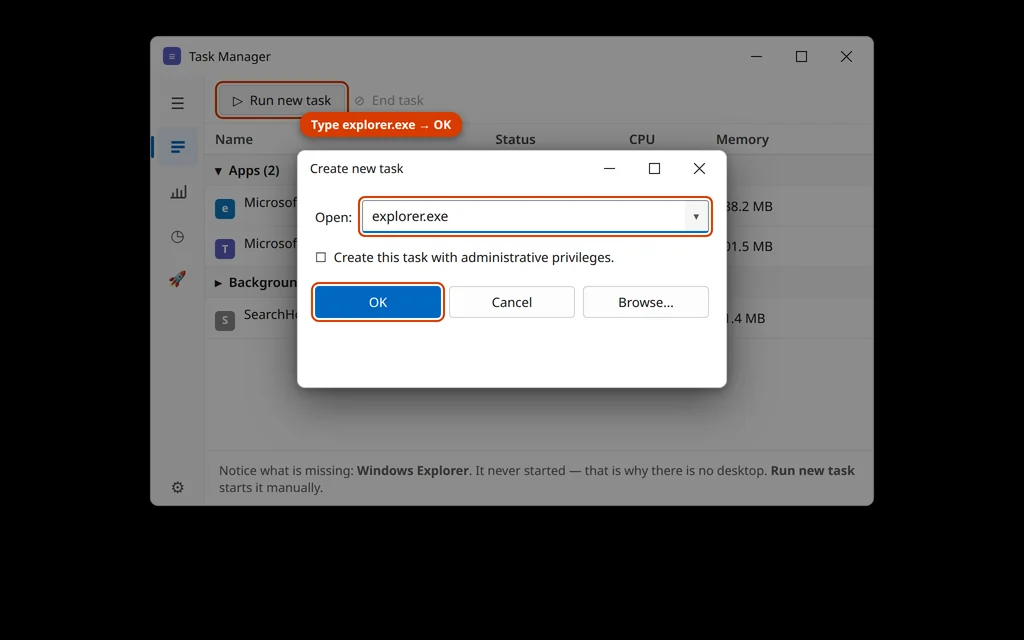
Within a few seconds the taskbar, icons and Start menu should appear. If they do, restart your PC normally once — and if the black screen comes back at the next login, move to Fixes 4 and 5, which tackle the cause rather than the symptom.
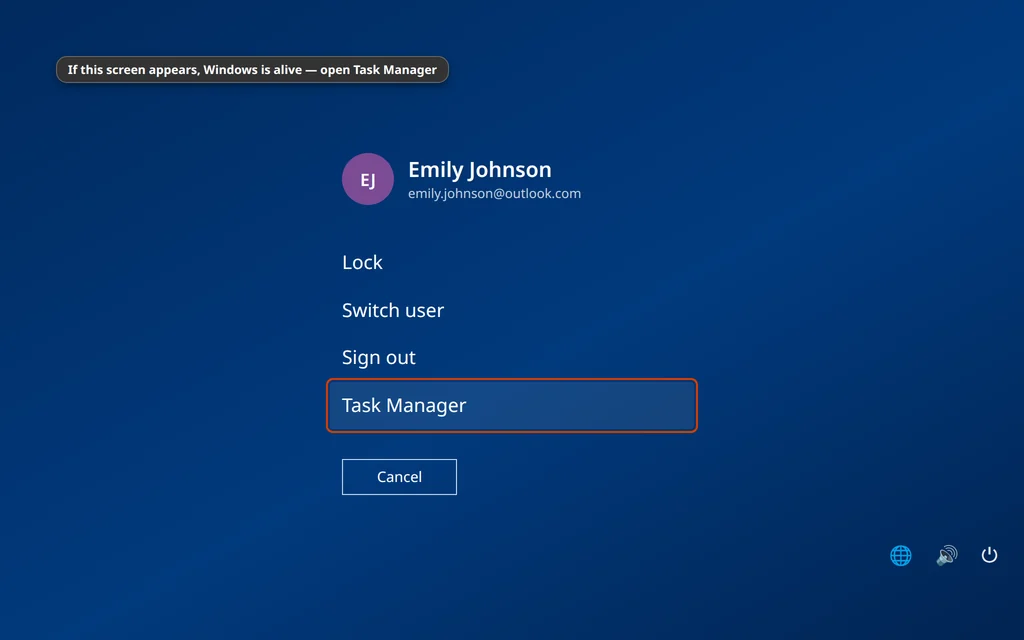
If Ctrl + Shift + Esc shows nothing at all, press Ctrl + Alt + Del. If a blue security screen with options (Lock, Switch user, Sign out, Task Manager) appears, Windows itself is responsive — choose Task Manager there and repeat the steps above. If even Ctrl + Alt + Del shows nothing, hold the power button for 10 seconds to force the PC off, wait 10 seconds, and start it again; then continue with Fix 3 onwards.
Fix 2: Disconnect USB Devices, Docks and Extra Monitors
A faulty USB drive, a docking station or a second screen can leave Windows showing the desktop on a display you cannot see — or stall sign-in while it talks to a misbehaving device. This takes two minutes and rules out a whole family of causes.
- Shut the PC down (hold the power button if you have to).
- Unplug everything except the keyboard, mouse and your main monitor: USB drives, external disks, printers, webcams, docks, hubs and memory card readers.
- If you normally use two monitors, leave only the main one connected.
- Start the PC and sign in.
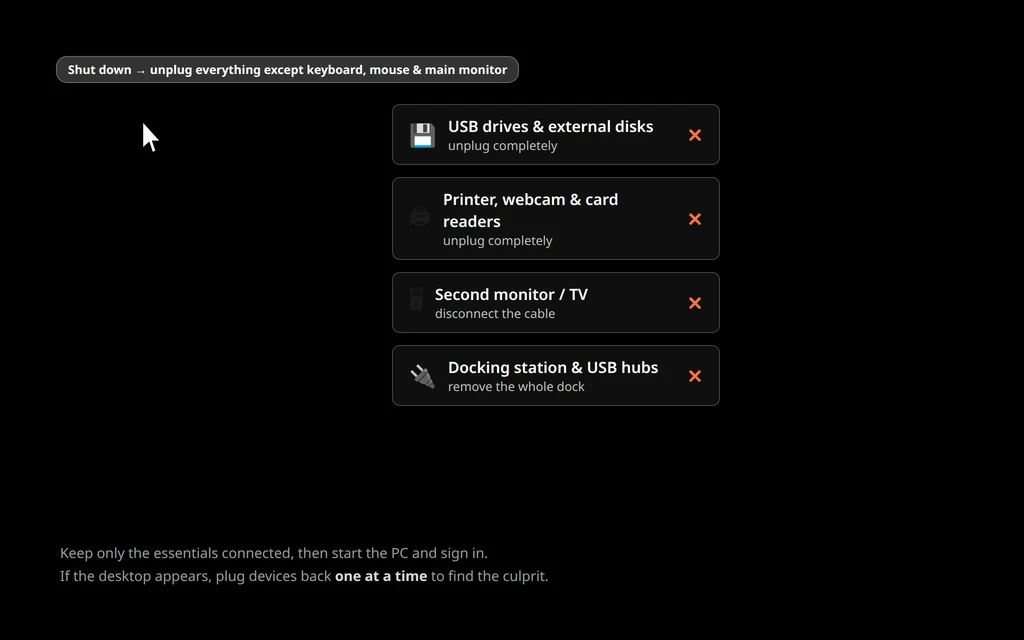
If the desktop appears, reconnect your devices one at a time, restarting between each, until the black screen returns — the last device you plugged in is the culprit. Update its driver or replace it. If nothing changed, reconnect everything and continue.
Fix 3: Turn Off Fast Startup
Fast Startup does not fully shut Windows down — it saves the system state to a file and reloads it at boot. If that saved state contains the black-screen glitch, every start faithfully reloads it. Turning Fast Startup off forces a genuinely fresh start.
If your desktop is currently working (for example after Fix 1), do this now:
- Press Windows key + R, type
powercfg.cpland press Enter. - Click Choose what the power buttons do on the left.
- Click Change settings that are currently unavailable at the top.
- Uncheck Turn on fast startup (recommended).
- Click Save changes, then shut down and start the PC again to test.
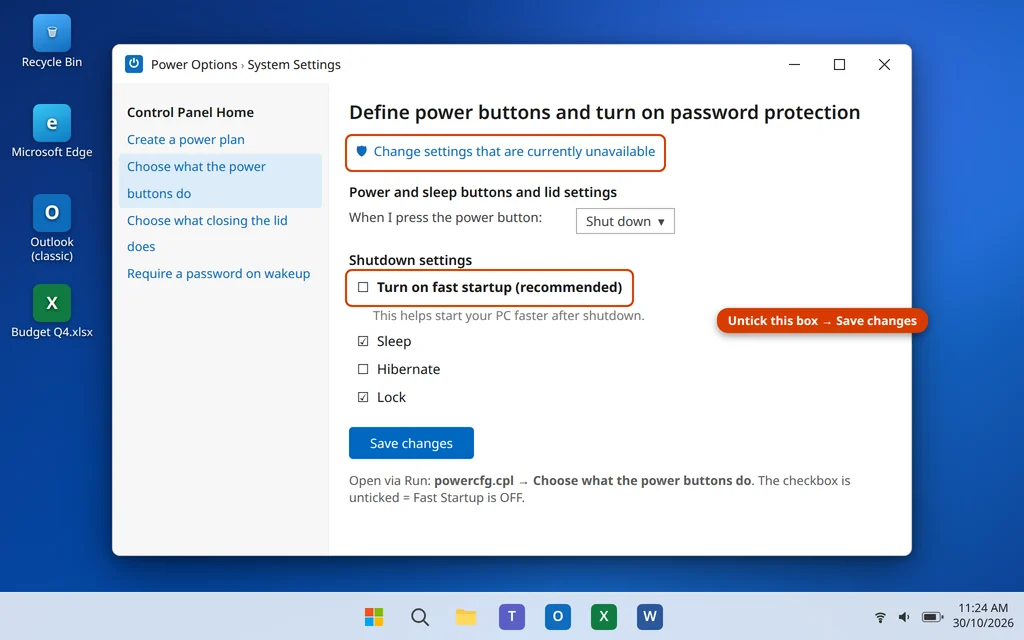
If you cannot reach the desktop at all, skip this for now — you can do it later from Safe Mode (Fix 5) using exactly the same steps.
Fix 4: Give It Time — Then Check It Is Not Just a Slow First Sign-In
It is worth one patient test before the deeper fixes: after a major Windows update, the first sign-in can sit on a black screen for several minutes while Windows finishes setting up. If your hard-drive light is flickering (or you can hear disk activity), give it up to 10–15 minutes — once.
If the screen is still black after that, it is genuinely stuck, and the remaining fixes use Safe Mode and the recovery environment, where the black screen does not follow you.
Fix 5: Boot Into Safe Mode and Roll Back the Display Driver
Safe Mode loads Windows with a basic Microsoft display driver and almost nothing else, so if the desktop appears there, your normal graphics driver is the prime suspect — rolling it back is the classic cure for a black screen that started after an update.
Getting into Safe Mode from a black screen:
- Hold the power button to turn the PC off.
- Turn it on, and as soon as the Windows logo or spinning dots appear, hold the power button again to force it off. Repeat this three times.
- On the third start, Windows opens the recovery environment showing Automatic Repair. Click Advanced options > Troubleshoot > Advanced options > Startup Settings > Restart.
- When the PC restarts, press 5 (or F5) for Safe Mode with Networking.
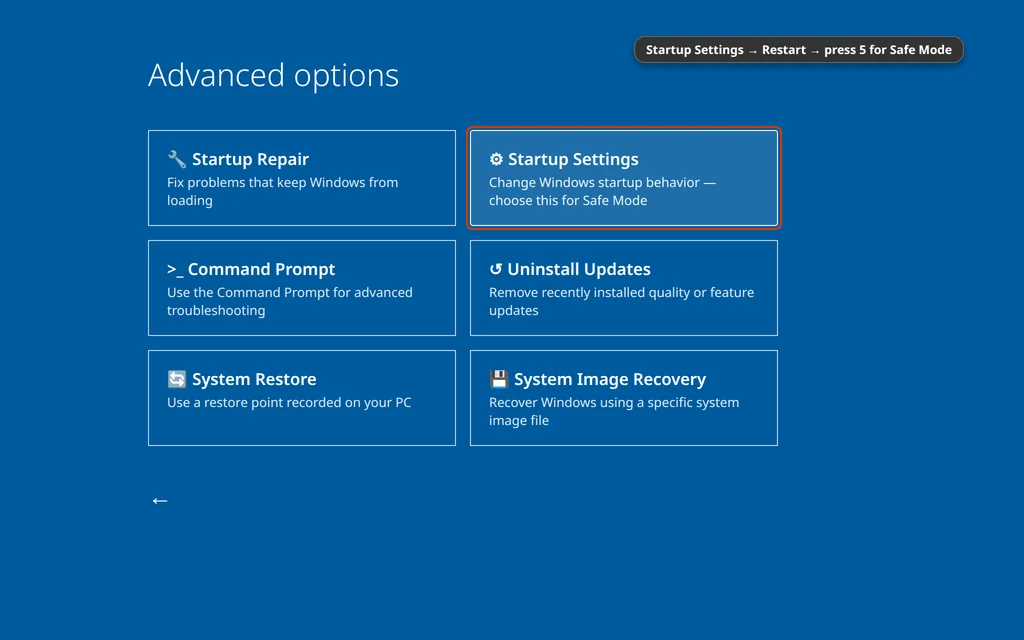
In Safe Mode the corners of the screen say “Safe Mode” and the desktop looks basic — that is normal.
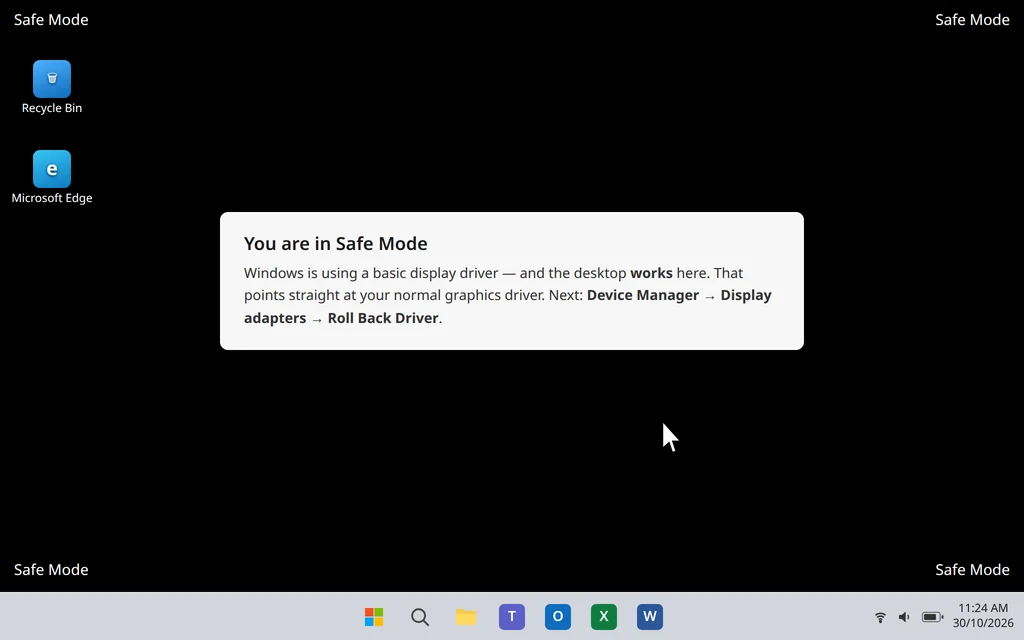
Now roll back the display driver:
- Right-click the Start button and choose Device Manager.
- Expand Display adapters, right-click your graphics card (Intel, NVIDIA or AMD), and choose Properties.
- On the Driver tab, click Roll Back Driver and confirm. If the button is grayed out, choose Uninstall device instead — check “Attempt to remove the driver for this device” if shown — then restart; Windows will reinstall a working driver itself.
- Restart the PC normally and sign in.
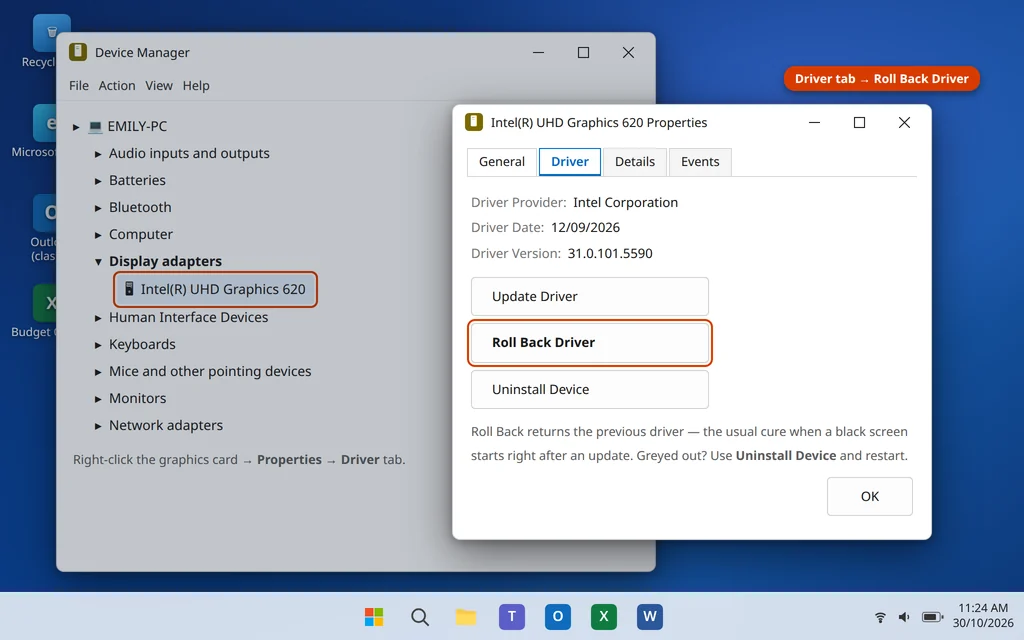
If the black screen is gone, pause Windows updates for a week or so (Settings > Windows Update > Pause) so the same faulty driver does not reinstall immediately, and let the manufacturer release a fixed version.
Fix 6: Disable the App Readiness Service (Known Community Fix)
On some Windows 11 PCs, the App Readiness service — which prepares apps the first time a user signs in — stalls during login and leaves a black screen for a very long time. Disabling it is a widely reported community fix for exactly this symptom. It is optional, reversible, and does not affect your files; the trade-off is that first-time app setup for new user accounts may need the service back on, so note that you changed it.
Do this in Safe Mode (Fix 5) or from the working desktop:
- Press Windows key + R, type
services.mscand press Enter. - Find App Readiness in the list and double-click it.
- Set Startup type to Disabled and click OK.
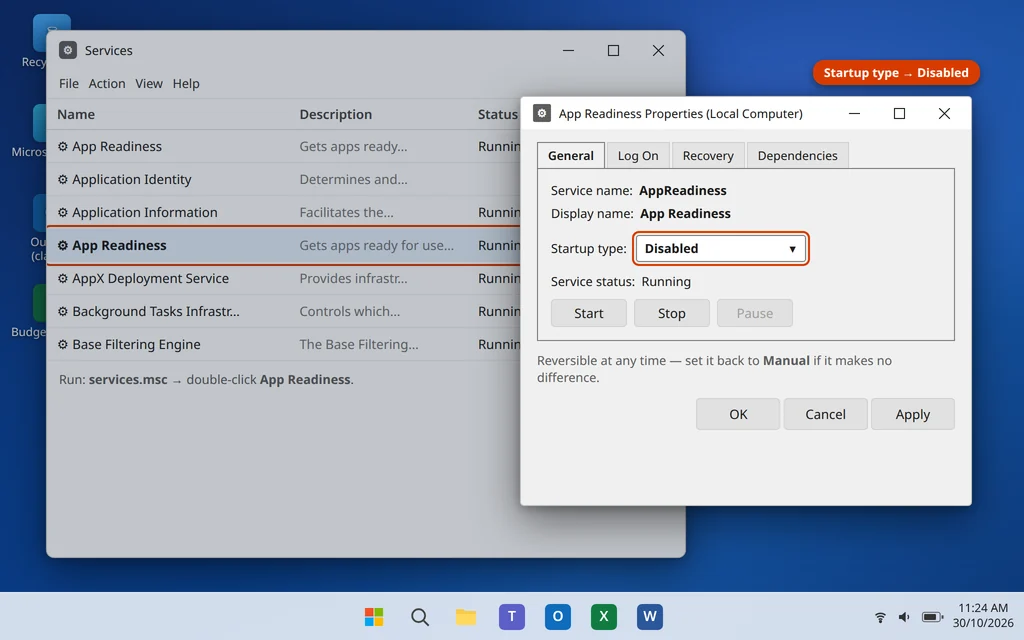
4. Restart normally and sign in. If the black screen is unchanged after a couple of restarts, set the service back to Manual (its default) and continue to Fix 7 — your cause lies elsewhere.
Fix 7: Repair System Files With SFC and DISM
Damaged Windows files can stop the sign-in sequence halfway. Both repair tools are built into Windows. Run them in Safe Mode (Fix 5) or from a normal desktop if Fix 1 got you in.
- Type
cmdin the Start search, right-click Command Prompt and choose Run as administrator. - Type
DISM /Online /Cleanup-Image /RestoreHealthand press Enter. Let it reach 100% (it can take 10–20 minutes). - Then type
sfc /scannowand press Enter, and let that finish too. - Restart the PC and test a normal sign-in.
If you cannot reach Safe Mode or a desktop, you can run Command Prompt from the recovery environment instead: force the recovery screen as in Fix 5, then Advanced options > Troubleshoot > Advanced options > Command Prompt, and run the same two commands.
Fix 8: Use Windows Recovery — Startup Repair and Uninstall the Latest Update
If the black screen began right after a Windows update, removing that update from the recovery environment is often faster than fighting it from inside Windows.
- Force the recovery environment (three interrupted starts, as in Fix 5) and click Advanced options.
- First try Troubleshoot > Advanced options > Startup Repair and let Windows attempt an automatic fix.
- If it reports it could not repair your PC, go back to Advanced options and choose Uninstall Updates > Uninstall latest quality update, and confirm.
- Restart and sign in normally.
If the desktop returns after uninstalling the update, pause updates for a week (Settings > Windows Update) — Microsoft usually re-releases a corrected version, and reinstalling later rarely brings the problem back.
Fix 9: Try a New User Profile
If everything above fails but Safe Mode works, your user profile itself may be corrupt: Windows signs you in, then cannot build your desktop. The test is simple — a fresh account.
- In Safe Mode, open Settings > Accounts > Other users and click Add account.
- Choose I don’t have this person’s sign-in information, then Add a user without a Microsoft account, and create a local account with any name.
- Restart the PC normally and sign in with the new account.
If the new account reaches its desktop straight away, your old profile is damaged. Stay signed in to the new account, copy your files across from C:\Users\<your old name> (Documents, Pictures, Desktop and so on), and sign in to your Microsoft account and apps in the new profile. If the new account also lands on a black screen, the problem is system-wide rather than your profile, and a repair install of Windows 11 (keeping files and apps) is the remaining step — back up anything you can reach from Safe Mode first.
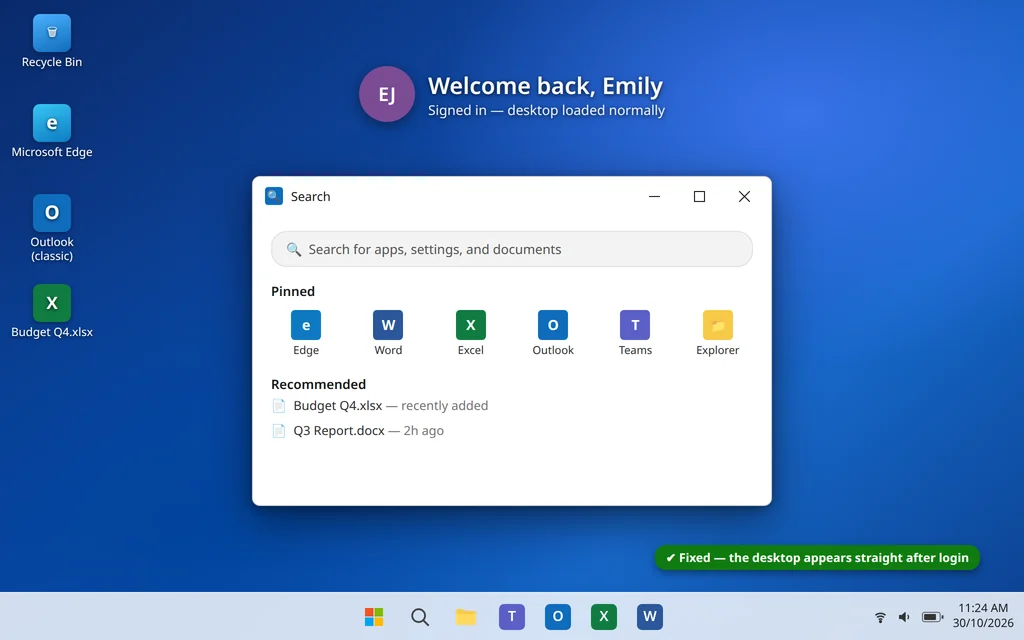
When it is fixed, the result looks like this — an ordinary desktop, straight after sign-in, with no black-screen detour:
How to Stop the Black Screen Coming Back
- Update your graphics driver from the manufacturer (Intel, NVIDIA or AMD) rather than relying only on Windows Update — manufacturer drivers are usually newer and better tested.
- Create a restore point before big feature updates, so a bad update can be rolled back in minutes.
- Keep Fast Startup off if it caused trouble once — the slightly slower boot is worth the reliability.
- Reconnect peripherals one at a time after cleaning up, so you find — rather than guess at — the device that stalls sign-in.
- Let updates finish. Many black-screen episodes begin with an update that was interrupted by a forced shutdown mid-install.
Frequently Asked Questions
What does black screen Windows 11 with cursor mean?
It means Windows loaded and your mouse works, but Explorer — the program that draws the desktop and taskbar — never started or crashed. It is the most fixable variant of this problem: press Ctrl + Shift + Esc, click Run new task, type explorer.exe and press Enter (Fix 1). If it keeps happening at every login, work through the Fast Startup and display driver fixes.
How long should I wait on a black screen after login?
After a major update, a first sign-in can legitimately take 10–15 minutes on a black screen while Windows finishes setting up. If there is no change after 15 minutes — or this happens at every login — it is stuck, and waiting longer does not help. Start with Fix 1.
Will these fixes delete my files?
No. Restarting Explorer, rolling back a driver, disabling a service and repairing system files do not touch your documents. Uninstalling a Windows update removes only the update. Even the new-profile fix (Fix 9) keeps your old profile’s files in place on the disk for you to copy across.
The black screen started right after a Windows update. What should I do first?
Try Fix 1 (restarting Explorer) for immediate access, then Fix 5 — roll back the display driver in Safe Mode — because update-delivered graphics drivers are the most common cause. If that fails, Fix 8 removes the update itself from the recovery environment.
What if Ctrl + Alt + Del does nothing at all?
Then Windows is not responding at a deeper level: hold the power button for 10 seconds to force a shutdown, unplug USB devices (Fix 2), and restart. If you still get a black screen, go straight to Safe Mode (Fix 5) and work from there.
My laptop shows the desktop on a TV or second monitor instead. Why?
Windows remembers display layouts and may be sending the picture to an external screen that is off or disconnected — from Windows’ point of view, your desktop is showing perfectly well, just somewhere you cannot see it. Disconnect the extra displays (Fix 2), and once you are in, press Windows key + P and choose PC screen only.
Is the App Readiness trick safe?
It is reversible and widely used for this exact symptom: you are only changing one service’s startup type, and you can set it back to Manual at any time in services.msc. The known trade-off is that brand-new user accounts may need the service enabled again for their first sign-in app setup, which is why Fix 6 tells you to note the change and revert it if it makes no difference.
Still staring at a black screen? Tell us exactly where it stops — before or after the password, cursor or no cursor — on our Contact page — servicedesk@howtofixerroronline.com, available 24 hours. If your PC is also generally sluggish once it does start, our PC slow on Windows 11 speed-up guide is worth a read, and if the desktop loads but the Start button does nothing, see our Windows 11 Start Menu not working fixes.