
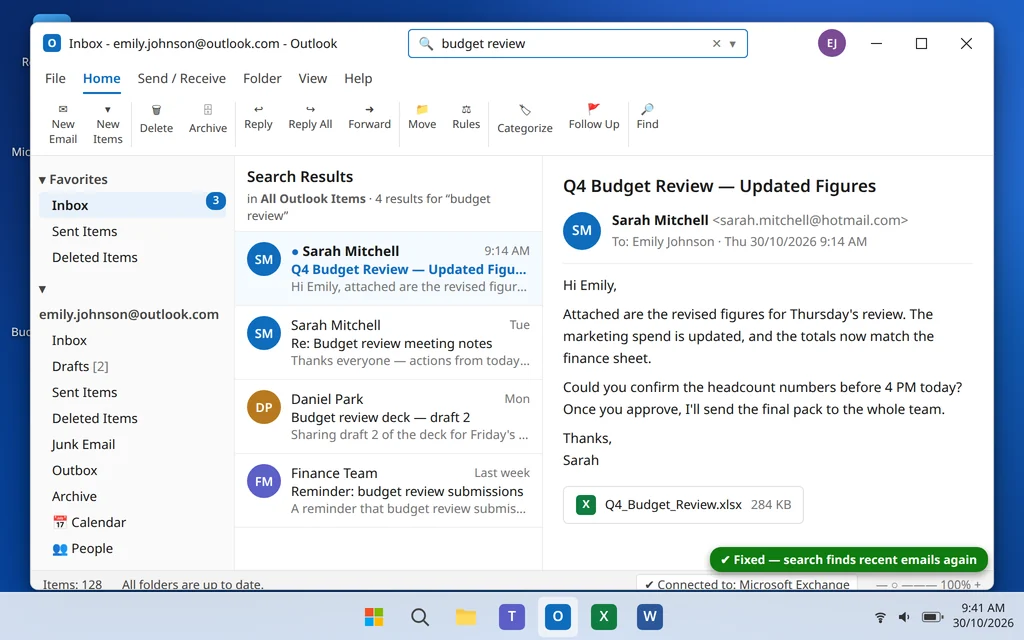
Outlook Search Not Working or Not Showing Recent Emails? 9 Fixes
You type a name you emailed yesterday into Outlook search — and get “No results found”. Or search returns old emails but nothing recent. Or it shows “We’re having trouble fetching results from the server”. Outlook search depends on the search scope, the Windows Search service, the search index, and how much mail Outlook keeps offline — if any one of them breaks, search breaks with it.
The good news: most cases are fixed by one of the first few steps here. Work through them in order, or use the symptom list below to jump to the likely cause.
Quick Answer: First, click in the search box and set the scope to All Outlook Items or Current Mailbox — a narrow scope hides results. Next, check Outlook’s indexing status (click the search box > Search Tools > Indexing Status) — if items are still being indexed, wait. If indexing is stuck at the same number, restart the Windows Search service in
services.msc, then rebuild the index in Indexing Options > Advanced > Rebuild. If search works but recent emails are missing, the cause is usually the Cached Exchange slider: set it to All in Account Settings.
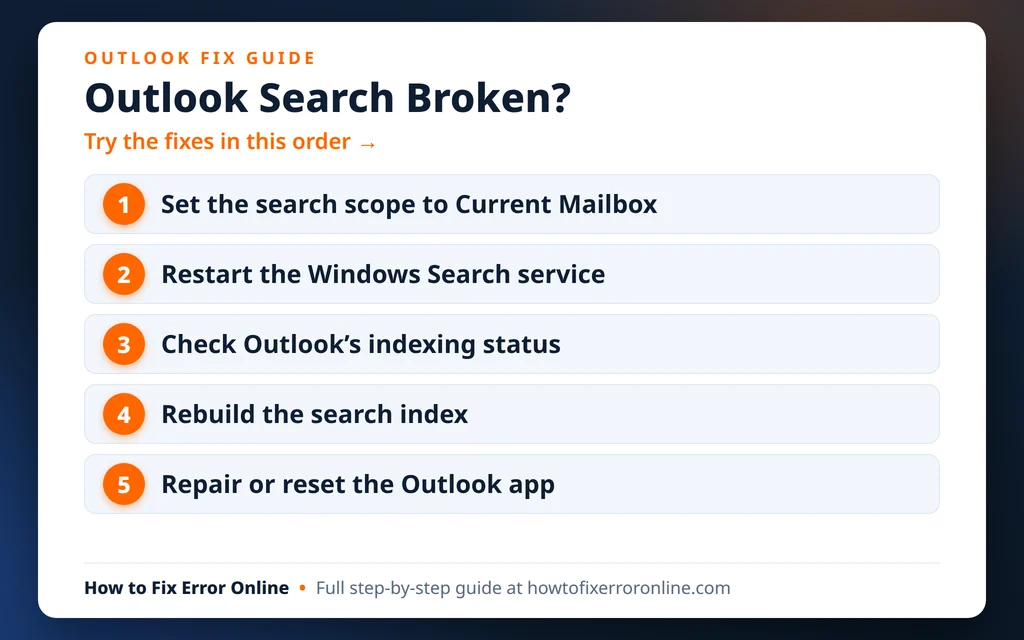
Table of Contents
Skip to your symptom:
- Search finds nothing at all — start with Fix 1 (scope) and Fix 2 (search service).
- Indexing never finishes, or results are incomplete — Fix 3 and Fix 4.
- Search works but recent emails are missing — Fix 5 (the cache slider) is almost always the answer.
- Outlook itself will not open — search fixes come second; fix startup first with our guide to Outlook not opening on Windows 11.
Why Is Outlook Search Not Working?
Outlook search usually fails for one of these reasons:
- Wrong search scope. Outlook may be searching only the current folder instead of your whole mailbox, so everything stored elsewhere is invisible.
- The Windows Search service is stopped or stuck. Classic Outlook does not index mail itself — it relies on the Windows Search service, the same service behind Start menu search. That is why Outlook search and Start menu search often break together; if your Start menu search is also dead, our Windows 11 Start Menu fixes cover the same service from the Windows side.
- The search index is corrupt or unfinished. Results only include mail that has been indexed. A stuck or damaged index means missing or empty results.
- Cached Exchange Mode is only downloading recent mail. Search can only find locally what Outlook has downloaded. If the slider is set to 1 month, older mail is not on this PC at all.
- A damaged data file (.ost or .pst) with broken indexing references.
- An add-in conflict, or a corrupt Outlook profile.
A quick test before you start: Search for the same email at outlook.com (or your provider’s webmail) in a browser. If it appears there, your mailbox is fine and the problem is Outlook’s search on this PC — exactly what this guide fixes.
Fix 1: Check the Search Scope — Current Mailbox vs All Folders
This is the most overlooked cause. If the scope is set to “Current Folder” and the email lives in another folder, Outlook correctly reports no results.
- Click in the Search box at the top of Outlook.
- On the Search tab that appears, look at the scope buttons on the left: All Outlook Items, Current Mailbox, Current Folder, Subfolders, All Subfolders.
- Choose All Outlook Items (searches everything, including other accounts) or Current Mailbox (this account only).
- Run your search again.
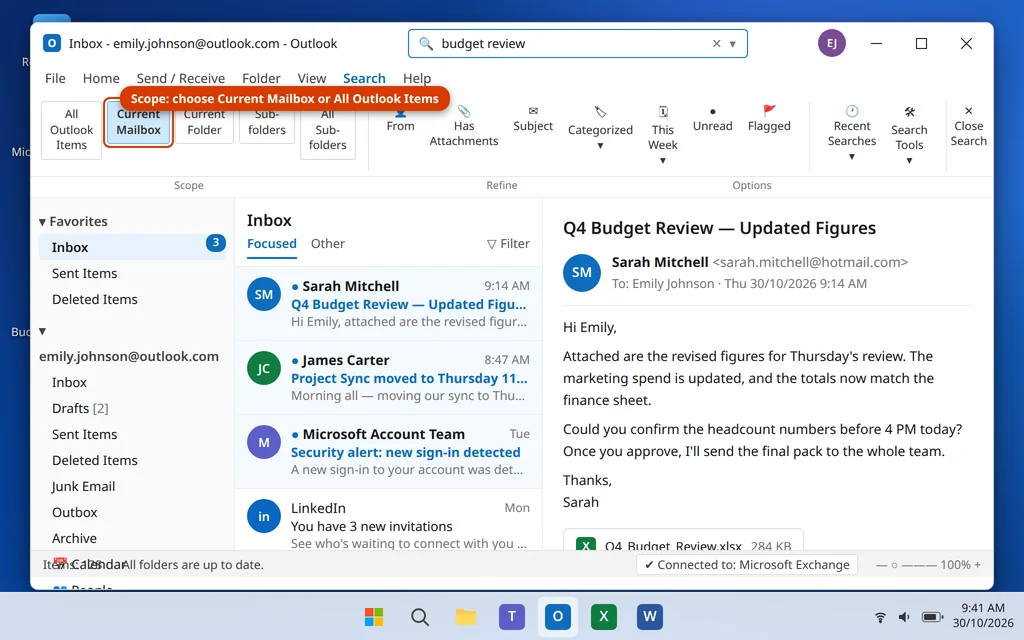
If you use several accounts, “Current Mailbox” only covers the selected one — use All Outlook Items when in doubt.
Fix 2: Restart the Windows Search Service
Classic Outlook indexing runs on the Windows Search service. If that service is stopped or frozen, Outlook search degrades or returns nothing.
- Press Windows key + R, type
services.msc, and press Enter. - Scroll down to Windows Search.
- If its status is not Running, right-click it and choose Start. If it is running but search is still broken, right-click and choose Restart.
- Double-click Windows Search and make sure Startup type is set to Automatic (Delayed Start), then click OK.
- Restart Outlook and try searching again.
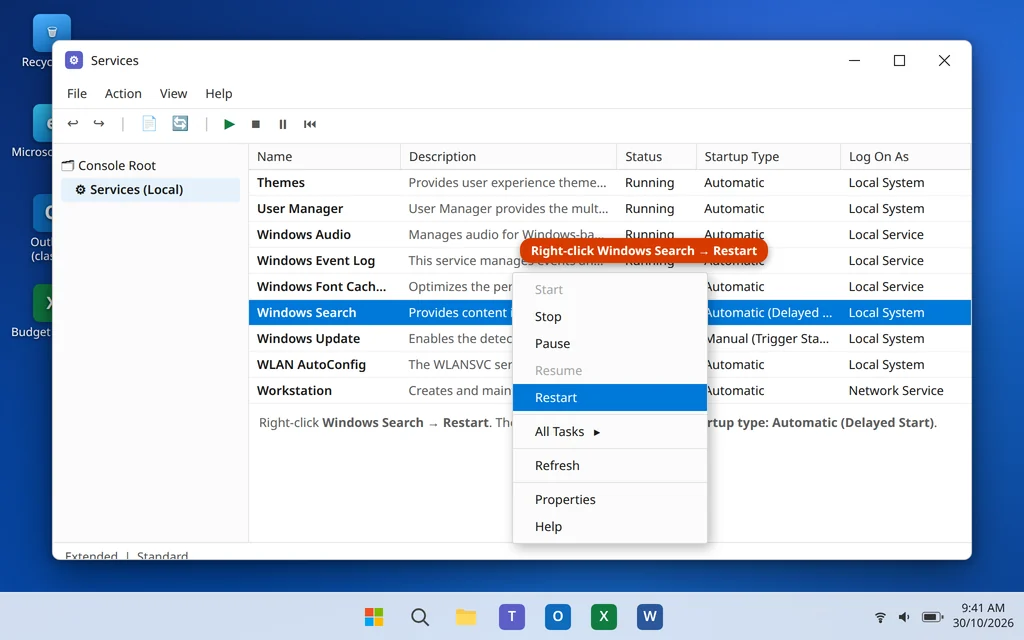
After a service restart, give indexing a little time (Fix 3 shows how to watch it) before judging whether search is fixed.
Fix 3: Check the Indexing Status Inside Outlook
Outlook can tell you exactly how many items are waiting to be indexed. If that number is falling, indexing is working — just wait. If it is frozen at the same number, the index needs help (Fix 4).
- Click in the Search box in Outlook.
- On the Search tab, click Search Tools > Indexing Status.
- Read the dialog: it shows how many items are left in the mailbox and across all open data files.
- Leave Outlook open and check again in 15–30 minutes. A shrinking number means indexing is progressing normally — large mailboxes can take hours the first time.
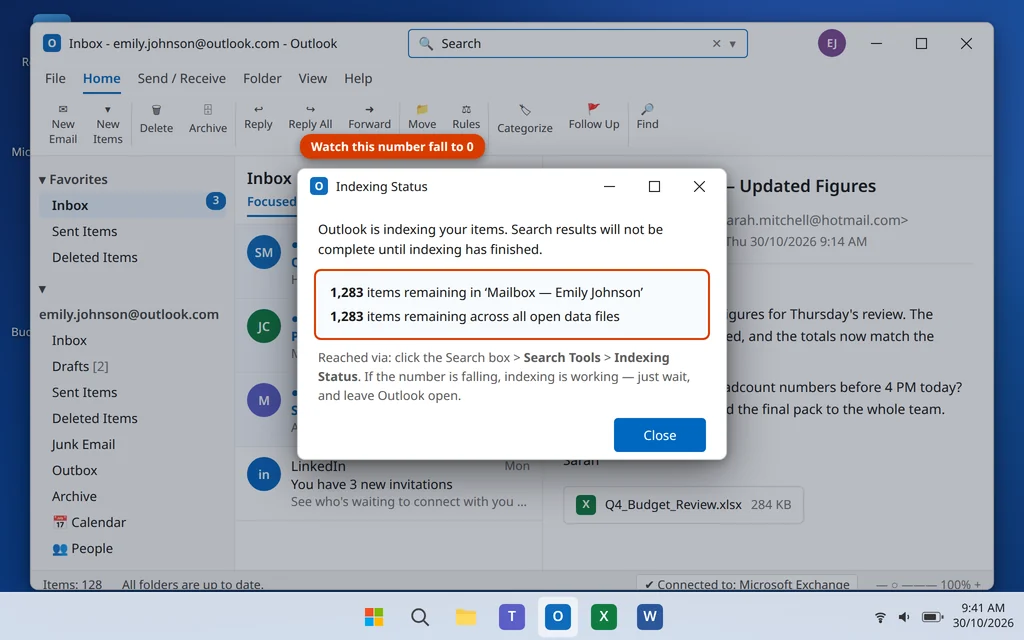
Do not close Outlook while indexing is catching up — closing it pauses the process.
Fix 4: Rebuild the Windows Search Index
If indexing is stuck or results stay incomplete, rebuilding the index forces Windows to re-catalog everything, including your Outlook mail — the most effective fix for stubborn search problems. Results will be incomplete while it runs, and a big mailbox can take several hours, so start it when you can leave the PC on.
- Close Outlook.
- Open Control Panel and click Indexing Options (or press Windows key + R, type
control, then search the Control Panel for “Indexing Options”). - Click Advanced.
- Under Troubleshooting, click Rebuild. Confirm with OK.
- Reopen Outlook and let indexing run. Check progress any time with Fix 3.
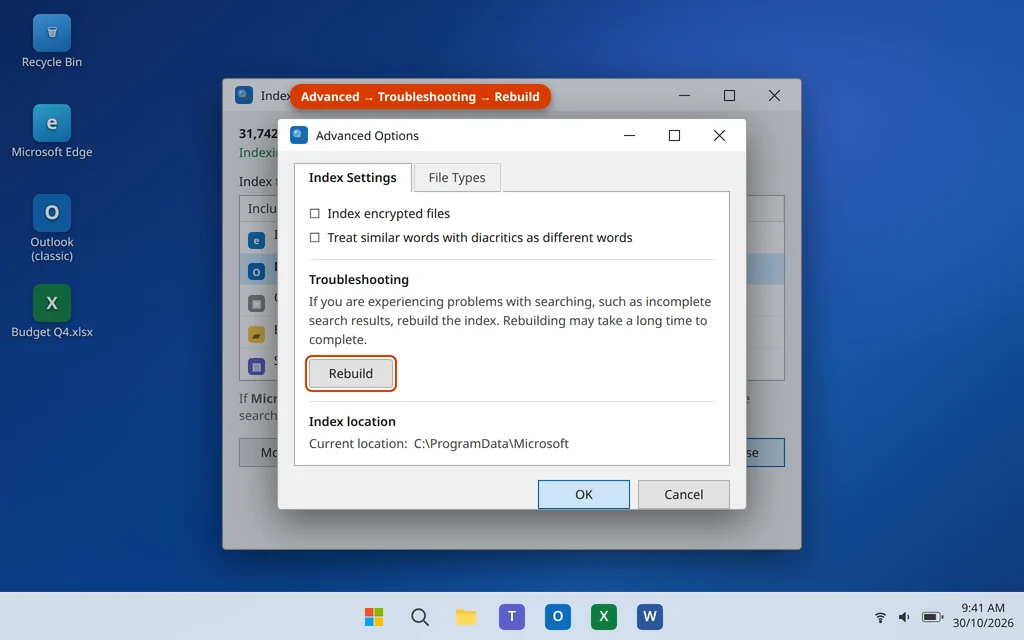
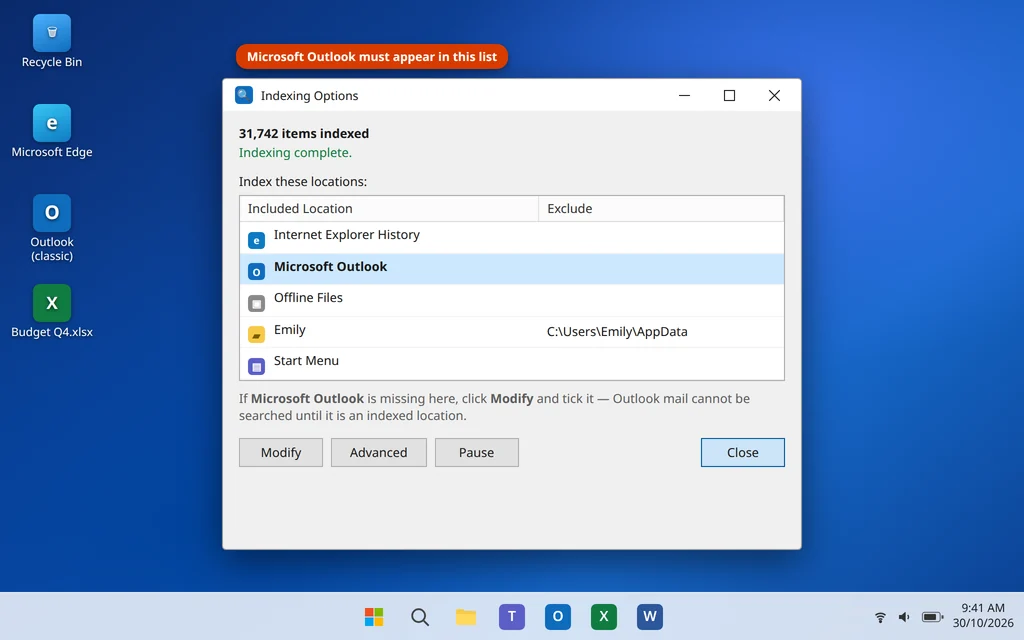
While you are in Indexing Options, confirm Microsoft Outlook appears in the list of indexed locations in the main window. If it is missing, click Modify and check it — Outlook mail cannot be searched if Outlook is not an indexed location at all.
Fix 5: Set the Cached Exchange Slider to All (Recent Emails Missing)
If search works but recent or older emails are missing, this is your fix. Cached Exchange Mode has a slider that controls how much mail is downloaded to this PC. Mail outside that window stays on the server only, and search behaves as if it does not exist.
- In Outlook, go to File > Account Settings > Account Settings.
- Select your email account and click Change.
- Under Offline Settings, drag the Download email for the past slider all the way to All.
- Click Next > Done, then close and reopen Outlook.
- Let Outlook download and index the newly synced mail — on a large mailbox this takes time — then search again.
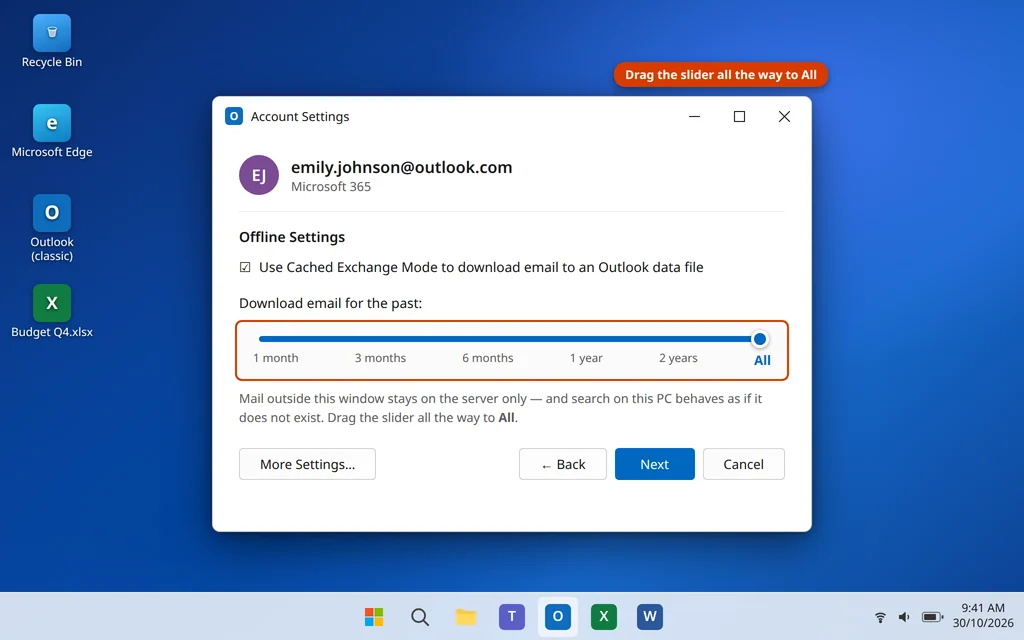
If you would rather not download everything, set the slider to at least 1 year — but understand that search on this PC will then only cover that window.
Fix 6: Repair a Damaged PST or OST Data File
A damaged data file can break indexing for everything inside it. The symptom is usually that one account or folder never finishes indexing.
For .ost files (Microsoft 365, Outlook.com, IMAP accounts): the .ost is only a copy of server mail, so it can be rebuilt safely. Close Outlook, go to C:\Users\[YourName]\AppData\Local\Microsoft\Outlook\, rename the .ost file to .ost.bak, and reopen Outlook. It downloads a fresh copy and indexes it as it goes. Our Outlook not opening guide walks through this same rebuild in more detail.
For .pst files (POP accounts): use the Inbox Repair Tool. Close Outlook, run SCANPST.EXE (usually in C:\Program Files\Microsoft Office\root\Office16\), browse to your .pst file, click Start, and if errors are found, click Repair. The tool makes a backup first.
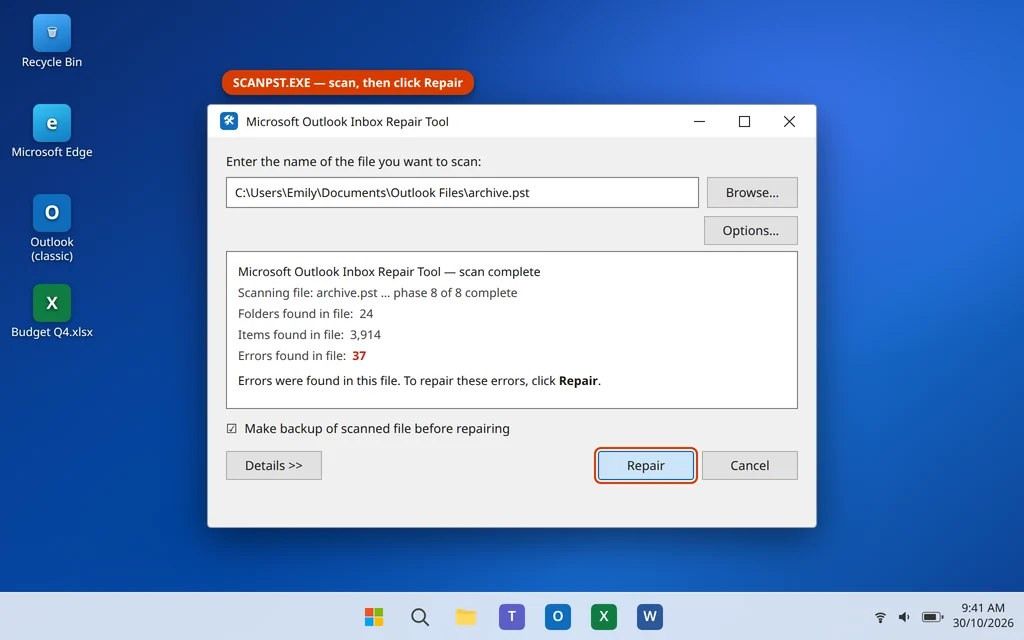
Back up any .pst that holds mail existing nowhere else before repairing it.
Fix 7: Rule Out Add-Ins (Quick Test)
Add-ins rarely break search directly, but a faulty one can hang Outlook’s search UI, so a quick test is worth two minutes.
- Press Windows key + R, type
outlook.exe /safe, and press Enter — this starts Outlook in Safe Mode with no add-ins. - Try your search in Safe Mode.
- If search works in Safe Mode, an add-in is interfering: go to File > Options > Add-ins, set Manage to COM Add-ins, click Go, uncheck all add-ins, restart Outlook normally, then re-enable them one at a time.
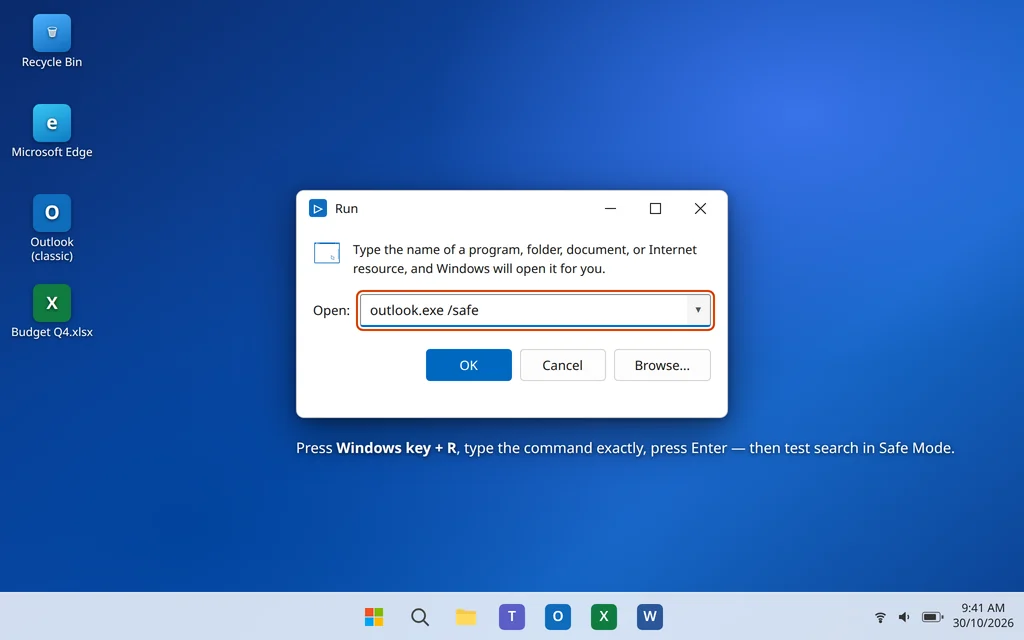
Safe Mode is also the key test when Outlook will not open at all — the same two-minute check rules add-ins in or out for both problems.
Fix 8: Create a New Outlook Profile
If the index, service and data file are all healthy but search still fails, the profile itself may be corrupt. A new profile gets a fresh index registration and fresh account settings, and it does not delete your old profile.
- Close Outlook.
- Open Control Panel and click Mail (Microsoft Outlook) — type “Mail” in the Windows search box if you cannot find it.
- Click Show Profiles, then Add, type a name such as “Outlook New”, and click OK.
- Add your email account in the wizard.
- Back in the Mail window, under “When starting Microsoft Outlook, use this profile”, choose the new profile and click Apply.
- Open Outlook, wait for indexing to finish (Fix 3), and test search.
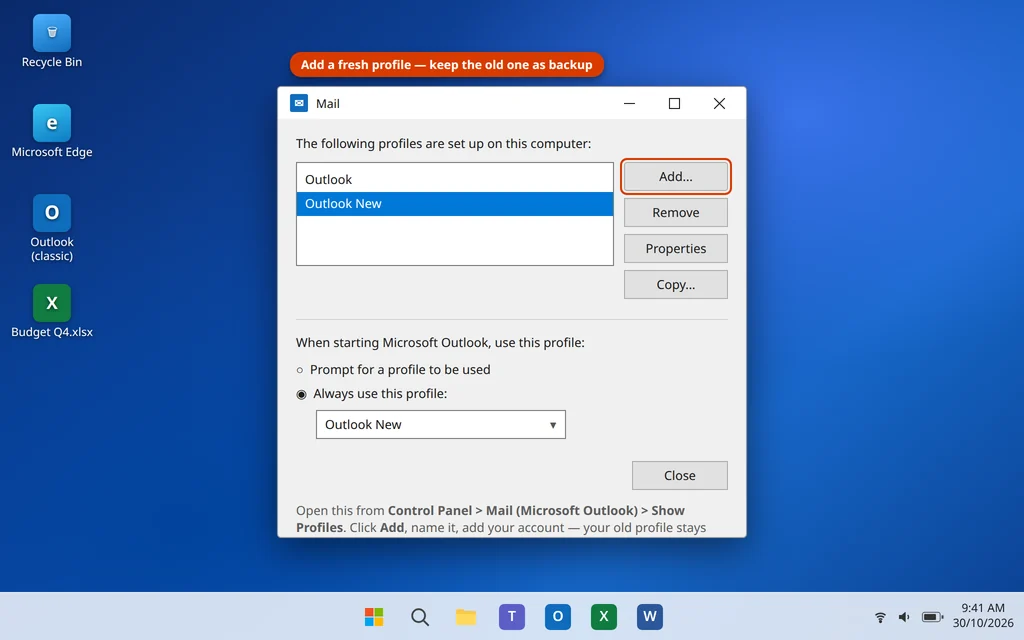
If search works under the new profile, keep using it and remove the old one later, once you are sure any local .pst files are accounted for.
Fix 9: New Outlook and the Web Search Test
The New Outlook app works differently: it does not use the Windows Search index on your PC. Its search runs against your mailbox on Microsoft’s servers, so rebuilding the local index does nothing for it. If search fails in the New Outlook:
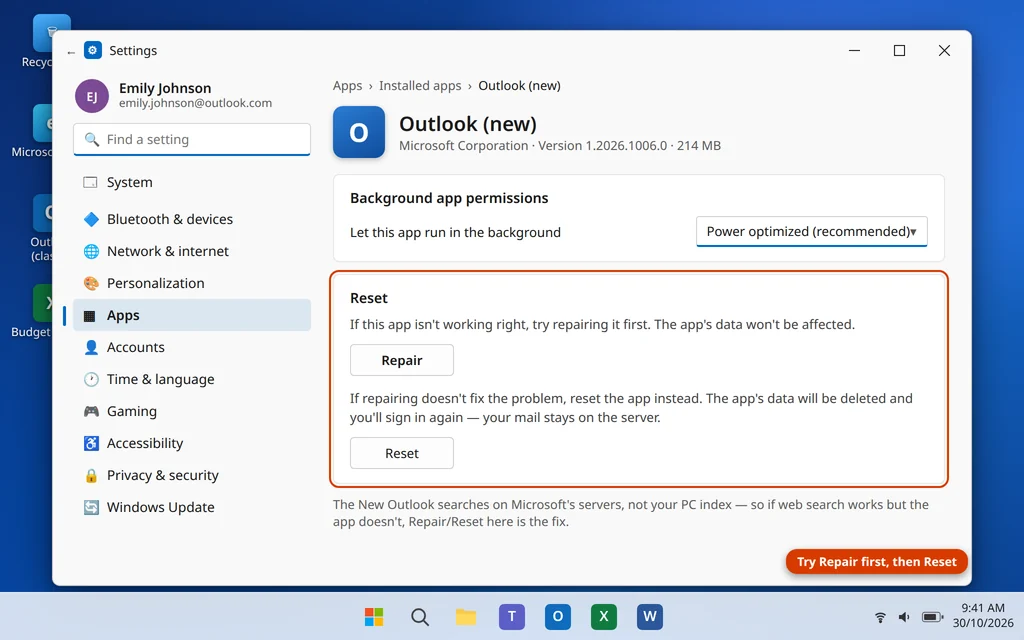
- Test the same search at outlook.com in your browser. If web search also fails, the problem is the mailbox or a Microsoft service issue — check the service health page and wait it out. If web search works but the app does not, repair the app: Settings > Apps > Installed apps > Outlook (New) > Advanced options > Repair, then Reset if needed, and sign in again.
- Also confirm you are online — server search results cannot arrive while Outlook shows Working Offline or Disconnected in the status bar.
How to Stop Outlook Search Problems From Coming Back
- Leave Outlook open after big changes. Rebuilds, slider changes and new profiles all trigger indexing — closing Outlook pauses it, so let it finish.
- Keep the Windows Search service on Automatic. Disabling it to “speed up” Windows quietly breaks Outlook and Start menu search alike.
- Keep your mailbox under control by archiving old mail, especially on POP accounts with large .pst files.
- Keep Windows and Office updated — search fixes ship through both, and a half-finished update is a common trigger.
- Do not hard-shut the PC during indexing — a forced shutdown mid-index is how corruption usually starts.
Frequently Asked Questions
Why does Outlook search say “No results found” for emails I know exist?
Most often the search scope is set to Current Folder while the email is elsewhere (Fix 1), the email has not been indexed yet (Fix 3), or — for older mail — it was never downloaded because of the Cached Exchange slider (Fix 5). Those three checks cover the large majority of cases.
Why are recent emails missing from Outlook search results?
Usually the reverse of what people expect: the recent mail has not finished downloading or indexing yet, or the Cached Exchange slider is limiting what is stored locally. Set the slider to All (Fix 5), leave Outlook open, and watch the indexing count fall to zero (Fix 3). If indexing is frozen, rebuild the index (Fix 4).
How long does rebuilding the Outlook search index take?
Anywhere from 30 minutes to several hours, depending on mailbox size and PC speed. During the rebuild, results are incomplete — that is normal. Keep Outlook open and the PC awake; closing Outlook or putting the PC to sleep pauses indexing and stretches the process out.
Does Outlook search use the Windows Search service?
Yes, in Classic Outlook. Indexing is done by the Windows Search service, which is why restarting that service (Fix 2) and rebuilding the index (Fix 4) fix Outlook search — and why Outlook search and Start menu search sometimes fail at the same time. The New Outlook app is the exception: its search runs on Microsoft’s servers instead (Fix 9).
Why does Outlook say “We’re having trouble fetching results from the server”?
Outlook shows this when it cannot get complete results locally and the server fallback also fails — typically because you are offline, the account is disconnected, or there is a Microsoft service problem. Check the status bar is not showing Working Offline or Disconnected, test outlook.com in a browser, and check Microsoft’s service health page before changing settings.
Search works in one account but not another. What is wrong?
That points to the failing account’s data file or its place in the index — not the search service, which is shared. Check that account’s slider setting (Fix 5), rebuild its .ost or repair its .pst (Fix 6), and confirm the account’s folders are included in the scope (Fix 1).
Will rebuilding the index or creating a new profile delete my emails?
No. Rebuilding the index only recreates the search catalog — your mail is untouched. A new profile is a new settings container; your old profile and its data files remain until you choose to remove them, and server-based accounts (Microsoft 365, Outlook.com, IMAP) simply re-sync.
Still stuck? Tell us exactly what Outlook search shows — no results, incomplete results, or an error message — on our Contact page or at servicedesk@howtofixerroronline.com, available 24 hours. If Outlook will not open at all, start with our guide to fixing Outlook not opening on Windows 11 and come back here once it launches.