
How to Move Your Email from Microsoft 365/Outlook to Google Workspace
If you need to migrate Outlook to Google Workspace — maybe your company is switching platforms, or you simply prefer Gmail — the move itself is not hard. What makes people nervous is losing twenty years of email somewhere between the two systems. That is avoidable: almost every failed migration fails for the same reason — someone changed the mail routing before the mail itself had actually moved.
This guide gives you two routes. Route A is for personal accounts: you copy your mail across yourself using Classic Outlook. Route B is for businesses moving a whole domain: Google’s Admin console does the copying for you. In both routes the order is the same — back up first, move the data, and only then touch your DNS records.
Quick Answer: Back up your whole mailbox to a .pst file first (File > Open & Export > Import/Export > Export to a file). For a personal move, add both accounts in Classic Outlook, copy folders from the old one into the new one, and export/import contacts (CSV) and calendar (.ics) separately. For a business move, verify your domain in Google Workspace, create the users, and run the data migration in the Admin console. Switch your MX records to Google last.
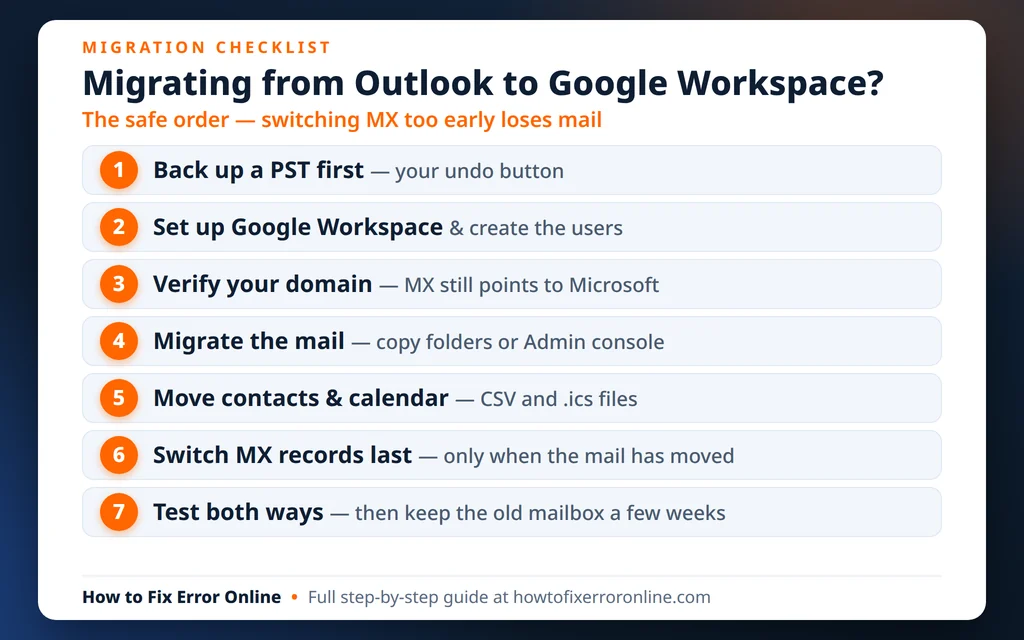
Table of Contents
Before You Migrate Outlook to Google Workspace: The Pre-Move Checklist
Ten minutes of preparation prevents nearly every disaster:
- Export a full PST backup (next section) and keep it somewhere safe. This is your undo button.
- Decide what is moving. Mail, contacts and calendar move with the steps below. Rules and filters do not transfer — you will recreate those in Gmail (see “What Doesn’t Move”).
- Make sure you can sign in to both accounts before you start, including two-step verification. A password prompt halfway through a five-hour copy is a classic way migrations stall.
- Check your mailbox size and allow time. A 20 GB mailbox can take several hours to copy. Let big copies run — on a wired connection if you can, and do not close Outlook halfway through.
- For businesses: list every mailbox that needs to move (including shared mailboxes), create the matching users in Google Workspace, and pick a quiet window — a weekend — for the DNS switch.
First, Back Up Everything to a PST File
Whatever route you take, do this first. A .pst export is a complete, offline copy of your mailbox that no migration mistake can touch.
- In Classic Outlook, click File > Open & Export > Import/Export.
- Choose Export to a file, then Outlook Data File (.pst), clicking Next after each.
- Select the top of your mailbox (your email address at the top of the folder list) so every folder is included, and make sure Include subfolders is checked. Click Next.
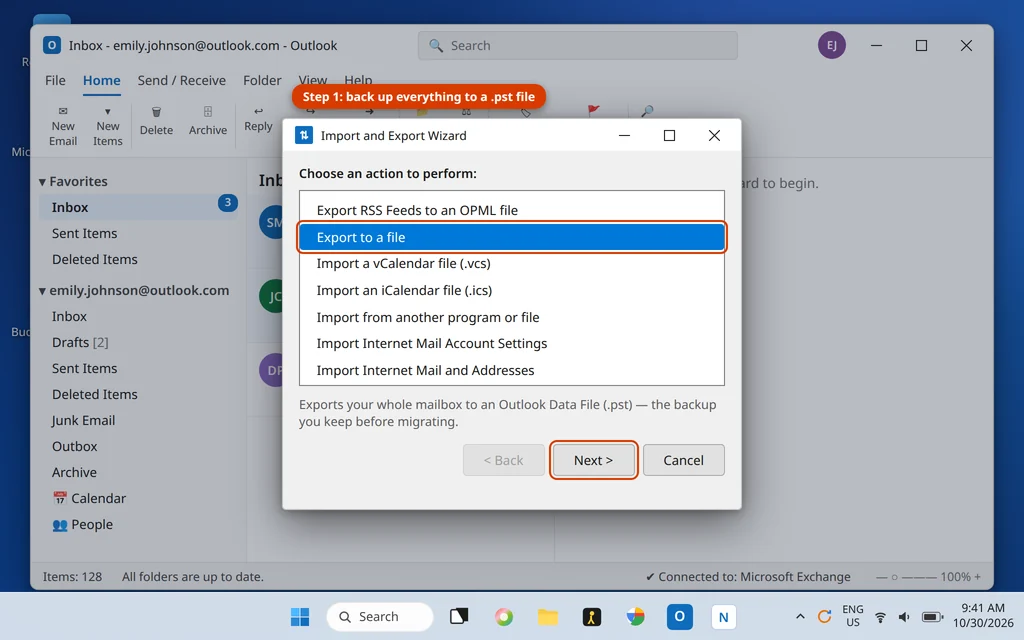
- Choose where to save the file — an external drive or a cloud folder is best — and click Finish. If Outlook asks about a password for the file, you can leave it blank.
- Wait for the export to finish completely before starting the move.
Keep this file for at least a month after the move.
Route A: Switch from Outlook to Google Workspace with Classic Outlook
This is the hands-on route for one person or a couple of mailboxes: put the old account and the new account side by side in Outlook, then copy folders across. Because you are copying rather than moving, your old mailbox stays intact the whole time.
Step 1: Add both accounts to Outlook
- If your old account is not already in Classic Outlook, add it with File > Add Account.
- Add your Google account the same way: File > Add Account, type your Gmail or Google Workspace address, and click Connect. Outlook opens a Google sign-in window in your browser — sign in and allow the connection.
- Wait for both accounts to finish syncing. You should now see two account sections in the folder pane on the left.
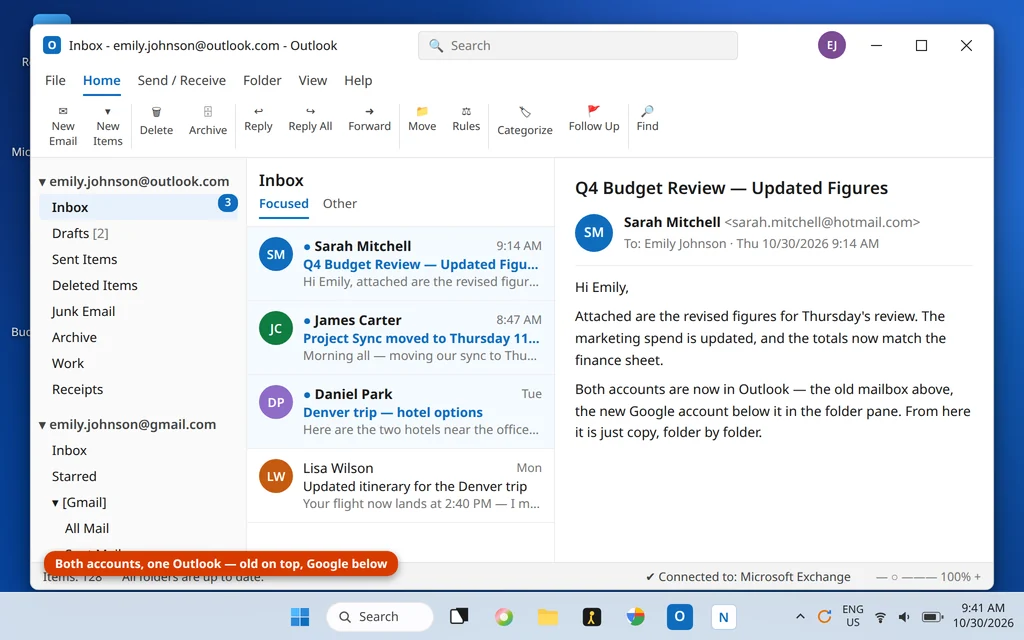
Current versions of Outlook keep a Google account’s mail, contacts and calendar in sync. On an older Outlook that syncs only mail, do not worry — the export/import steps for contacts and calendar below work for everyone.
Step 2: Transfer emails from Outlook to Gmail, folder by folder
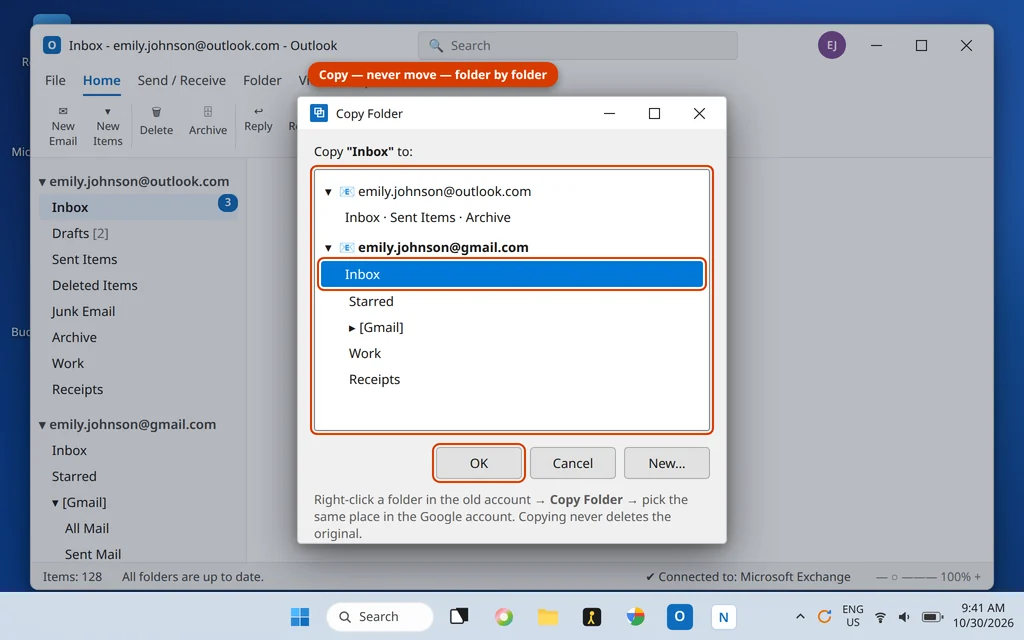
- In the folder pane, right-click a folder in your old account (start with Inbox) and choose Copy Folder.
- In the dialog that opens, select the matching location in your Google account and click OK. Copy the folder itself rather than selecting messages — subfolders come with it, so your structure stays identical.
- Repeat for Sent Items, Drafts, and each personal folder, letting each copy finish before starting the next.
A few tips that save real pain:
- Copy, never move. If a copy is interrupted, nothing is lost — just start that folder again.
- Very large folders: if a huge folder’s copy keeps stalling, select messages in batches instead (click the first, Shift-click to extend, right-click and drag to the new folder, then choose Copy).
- Watch the status bar at the bottom of Outlook — the copy is done when folders stop updating. Then compare folder counts in Gmail.
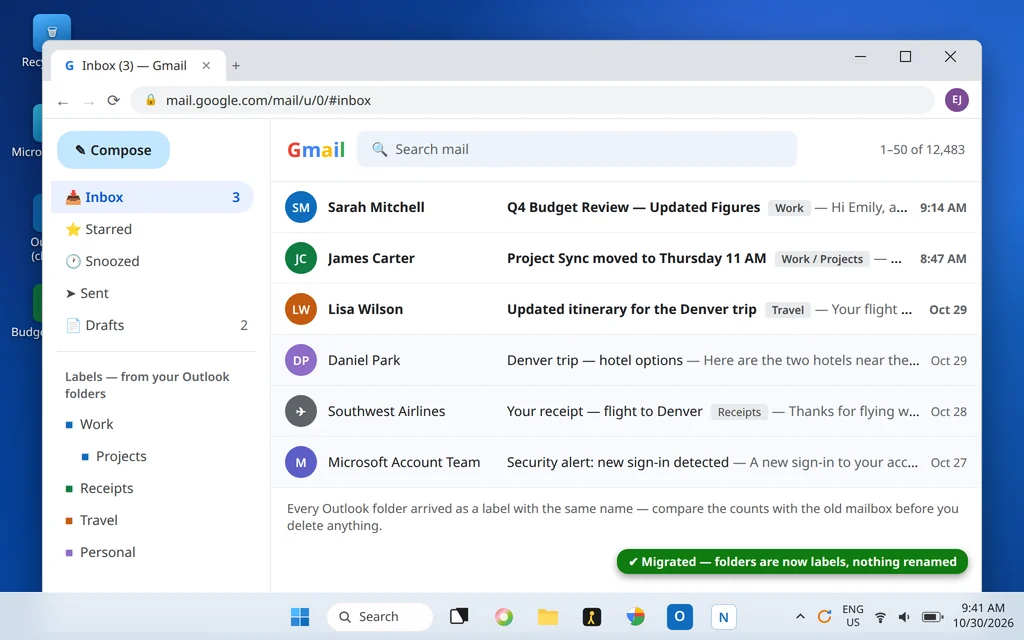
- Gmail calls folders labels. Your structure arrives as nested labels with the same names, so nothing needs renaming.
Move Your Contacts and Calendar Too
Contacts and calendar do not ride along with the folder copying, so move them separately — five minutes each.
Contacts: export a CSV from Outlook, import it to Google Contacts
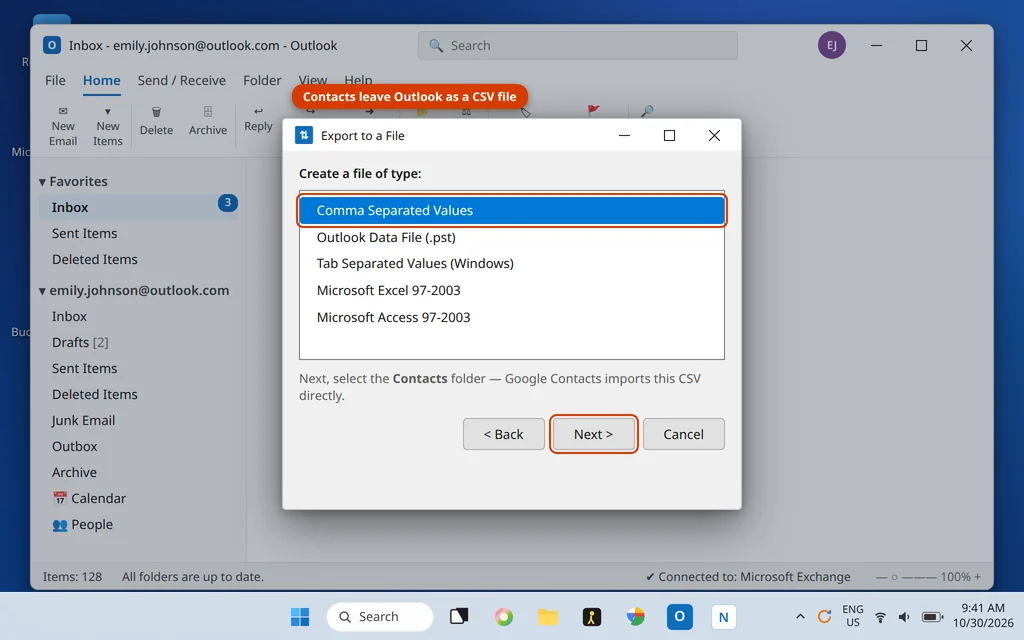
- In Outlook, click File > Open & Export > Import/Export, choose Export to a file, then Comma Separated Values.
- Select your Contacts folder, save the .csv file, and click Finish.
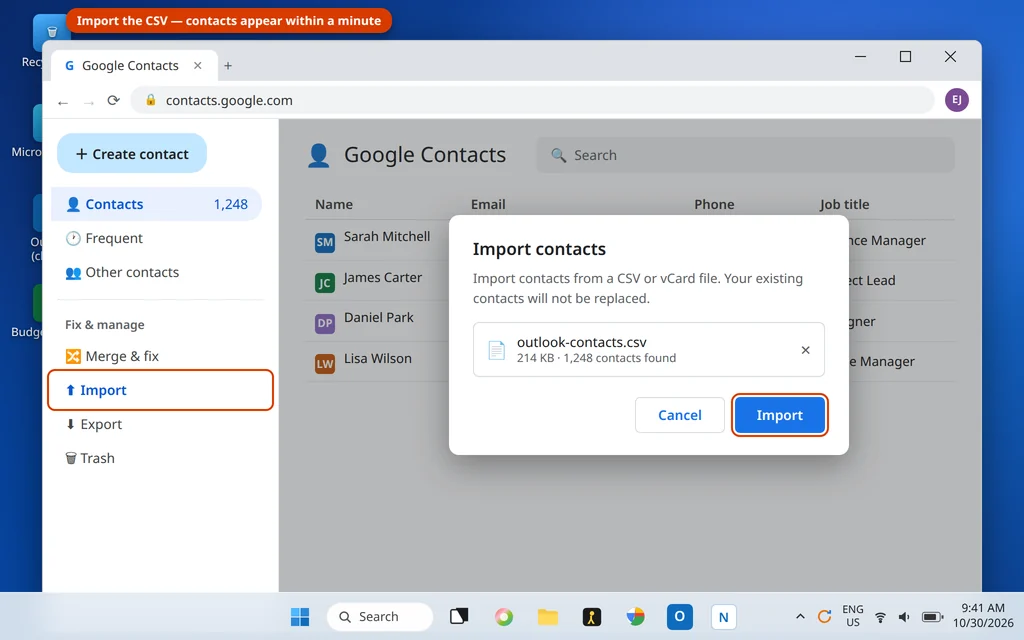
- Open Google Contacts (contacts.google.com) and click Import in the left-hand menu.
- Select your .csv file and click Import. Your contacts appear within a minute or two.
If a few contacts land with fields slightly shuffled (a second phone number in a notes field, for example), fix those individually — for most people the CSV import is clean. Google Contacts’ “Merge and fix” tool clears up duplicates if you have imported contacts before.
Calendar: export an .ics from Outlook, import it to Google Calendar
- In Outlook, switch to the Calendar view, then click File > Save Calendar.
- Set the date range to Whole calendar and the detail level to Full details, then save the .ics file.
- Open Google Calendar, click the gear icon > Settings, choose Import & export in the left panel.
- Under Import, select your .ics file, choose which calendar to add the events to, and click Import.
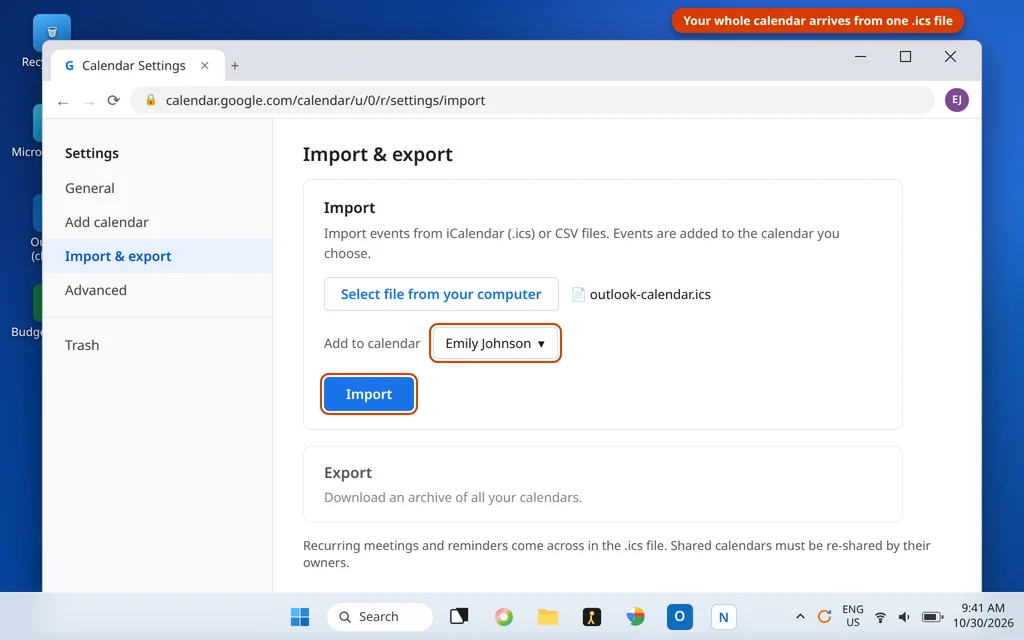
Recurring events and reminders come across with the file. Shared calendars do not — each owner needs to share theirs again with your new address.
Route B: Move Business Email from Outlook to Gmail with the Admin Console
Copying folders by hand does not scale past a few mailboxes. For a business domain, use Google’s built-in data migration instead — it copies mail server-to-server, for all your users at once.
- Sign in to the Google Admin console (admin.google.com) with your Workspace admin account.
- Go to Data > Data migration and start a new migration setup.
- Choose your old platform (Microsoft 365 / Exchange) as the source, and connect to it with an admin account from the old Microsoft 365 tenant — Google needs permission to read the mailboxes it is copying.
- Choose how much mail to bring over — everything, or just the last year, for example.
- Add the users to migrate and match each old mailbox to its new Google account — the addresses are usually identical.
- Start the migration and watch the progress screen. Google reports each mailbox as it completes, and flags any it could not finish.
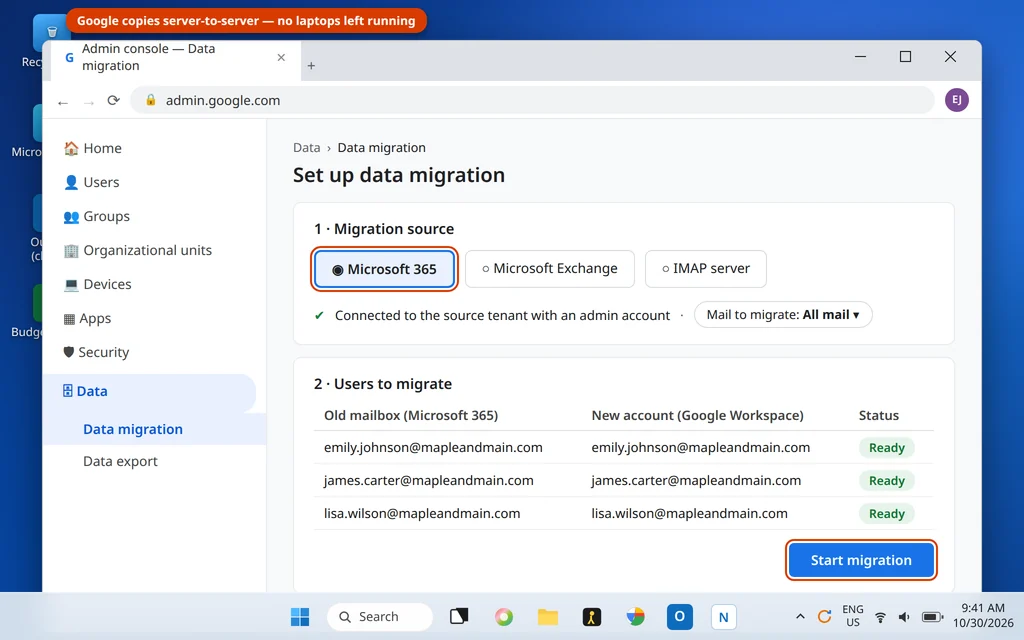
A few business realities worth knowing:
- Users must exist first. Create every person’s Google Workspace account before migrating their mail, and verify your domain in Google before any of it — the next section covers the order.
- Nothing changes for your staff yet. During the migration, everyone keeps using Outlook and Microsoft 365 as before. The switch only becomes real at the DNS cutover.
- You can run it again afterwards to pick up mail that arrived in the old mailboxes during the switch.
- Very large organizations (hundreds of mailboxes, or complex shared-mailbox setups) have a heavier option called Google Workspace Migrate, a separate platform an IT partner typically runs. Most small and mid-sized businesses never need it.
The DNS Cutover: Verify First, Switch MX Last
Email reaches you because your domain’s MX records tell the internet which servers to deliver to. The whole migration is a careful shuffle so those records point at Microsoft until the mail has moved, and at Google afterwards — never in between:
- Verify your domain in Google Workspace while MX still points to Microsoft. Google asks you to add a verification (TXT) record at your registrar — this proves ownership and changes nothing about where mail goes.
- Lower the TTL on your MX records to 300 seconds, at least a day before the switch, so the cutover propagates in minutes instead of a day.
- Create users and migrate the mail (Route B above) with everyone still receiving email on Microsoft 365.
- Now switch MX to the records Google provides (they begin with aspmx.l.google.com), at your registrar or DNS host. Friday evening is the classic choice.
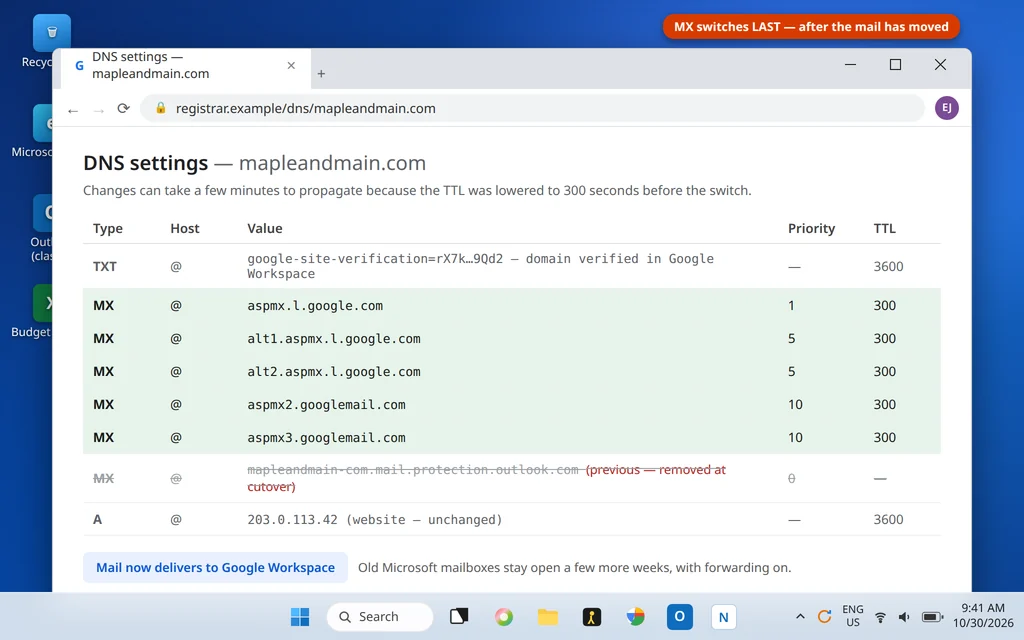
- Keep the old mailboxes alive for at least a few weeks. In the first day or two, a few senders’ servers still deliver to Microsoft out of habit — set the old mailboxes to forward to the new addresses, or check them each morning, so nothing is missed.
- Only cancel the Microsoft 365 subscription once every check in the next section passes.
For personal moves where your address itself changes (an outlook.com address to a gmail.com one), there are no MX records to switch — instead, set your old mailbox to forward to the new address and tell your contacts.
What Doesn’t Move
- Rules and filters. Outlook rules stay behind. In Gmail, recreate the important ones as filters (Settings > See all settings > Filters and Blocked Addresses).
- Signatures. Recreate them in Gmail settings.
- Categories and follow-up flags. Gmail has stars and labels instead. Your folder names survive (as labels); color categories do not.
- Local-only data. Anything that exists only in a .pst file on one PC — archived mail, for example — is not in the server mailbox, so no migration tool picks it up. That is another reason the backup step matters: the data stays safe, and you can import the archive later if needed.
- Outlook settings and shared permissions. View settings, mailbox permissions and shared calendars need setting up fresh on the Google side.
After the Move: Checks Before You Delete Anything
Run through these before you remove the old account from Outlook or cancel anything:
- Send and receive a test email both ways, including one from an outside address (a friend’s Gmail or Yahoo account) to confirm the internet can reach you at Google.
- Compare counts. Pick three folders at random and check the message count in Gmail matches Outlook. Then search Gmail for a distinctive old email — a booking confirmation or an invoice — and open it, attachment included.
- Check contacts and calendar on your phone as well as the computer — the phone needs the new account added before it shows anything.
- Keep the old account in Outlook for a few weeks: glance at it each morning during the transition, then remove it once it stays empty.
- If your email address changed, update it with your bank, payroll and other important accounts.
If you want to keep using the Outlook app with your new Google account afterwards, our guide to how to add Gmail to Outlook walks through it — your mail can live at Google while Outlook stays your front door.
Frequently Asked Questions
Can I move emails from Outlook to Gmail?
Yes — that is exactly what this guide does. For one or two mailboxes, add both accounts in Classic Outlook and copy the folders across. For a whole business domain, the Google Admin console’s data migration copies every mailbox for you. Either way, export a PST backup first.
How do I export all emails from Outlook to Gmail?
People mean two different jobs by this. Exporting a backup is the .pst export (File > Open & Export > Import/Export > Export to a file). Actually moving everything into Gmail means copying the folders in Outlook (Route A) or running the Admin console migration (Route B) — Gmail cannot open a .pst file directly, so the copy step is what puts the mail in your Google account.
Will my folders move to Gmail too?
Yes. When you copy a folder in Outlook, its subfolders come with it, and Gmail shows the structure as nested labels with the same names. The Admin console migration copies the structure the same way.
How long does the migration take?
It depends almost entirely on mailbox size and internet speed. A small personal mailbox can copy in under an hour; a 20 GB mailbox can take several hours, and a business migration often runs over a weekend. Your old mail keeps working the whole time, until the DNS switch.
Do my Outlook rules and filters move to Gmail?
No. Rules and filters are settings, not data, and no migration tool carries them across. Recreate the handful you actually used as filters in Gmail’s settings — most people find they only truly used three or four.
What happens to new email sent to me during the switch?
Until you change your MX records, new mail keeps arriving at Microsoft as normal — and the Admin console migration can be run again afterwards to pick up anything that landed during the changeover. After the switch, a slow-to-update sender may still deliver to the old server for a day or two, which is why keeping the old mailbox open (with forwarding) for a few weeks matters.
Can I still use Outlook after moving to Google Workspace?
Yes. Google Workspace works in Outlook — add your Google account to the app and carry on, or use Gmail in the browser, or both. Many people migrate the mailbox to Google and keep Outlook as the program they read it in.
Moving the other way instead? Our companion guide shows you how to migrate Gmail to Microsoft 365 step by step, and if your new Google account needs setting up in the Outlook app, see how to add Gmail to Outlook.
Questions about your move? Tell us which route you are taking and where you are stuck on our Contact page — servicedesk@howtofixerroronline.com, available 24 hours — and see our other Microsoft Office guides, including setting up business email in Outlook.