
Outlook Error 0x800CCC0E: Cannot Connect to the Server — 8 Fixes
You click Send/Receive, the progress window opens — and instead of your mail, you get Outlook error 0x800CCC0E. New messages stop arriving, anything you send sits in the Outbox, and the same error comes back every time. It looks serious, but usually nothing is wrong with your mailbox: Outlook simply cannot reach your mail server, and something along the connection path — a setting, a port, a security program, or one stuck email — is blocking it.
The fixes below work through that path in order, from the two-minute checks to the deeper repairs. Most people are fixed by Fix 2 or Fix 3.
This guide is for Classic Outlook on Windows 11 and Windows 10, including Outlook 365 and Outlook 2021/2019. If Outlook will not open at all, start with our Outlook not opening on Windows 11 guide instead.
Quick Answer: Outlook error 0x800CCC0E means Outlook cannot connect to your incoming or outgoing mail server. First confirm your internet works and restart Outlook. Then check your server settings against your provider’s (Fix 2) and make sure the outgoing port is 587 with STARTTLS (Fix 3) — those two fix most cases. Next, test your antivirus email scanning and clear any stuck Outbox email; if the error survives, re-add the account, repair the data file with SCANPST, or create a new profile.
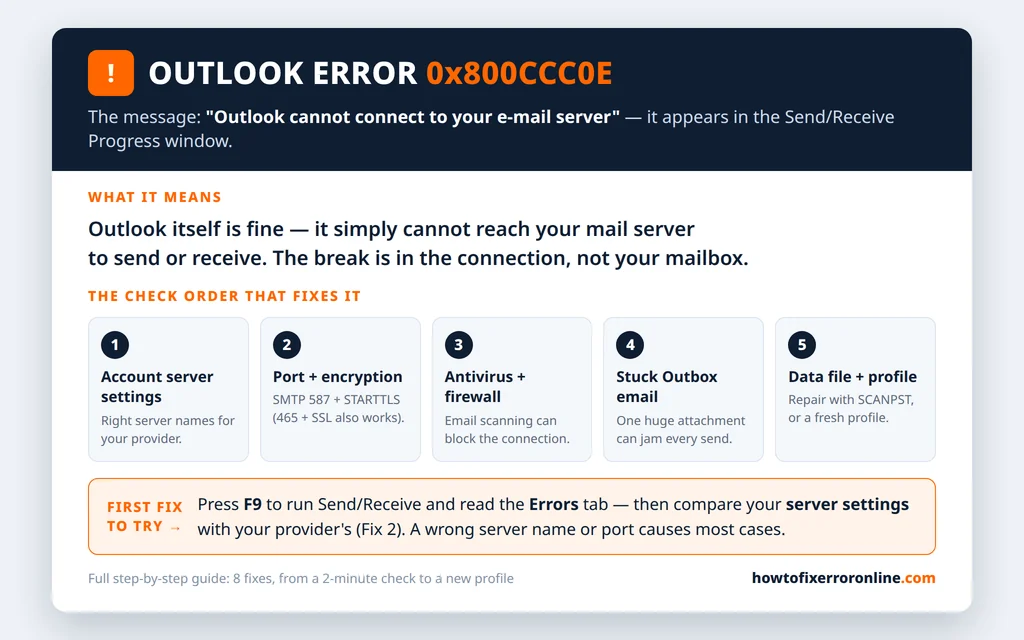
Table of Contents
What Does Outlook Error 0x800CCC0E Mean?
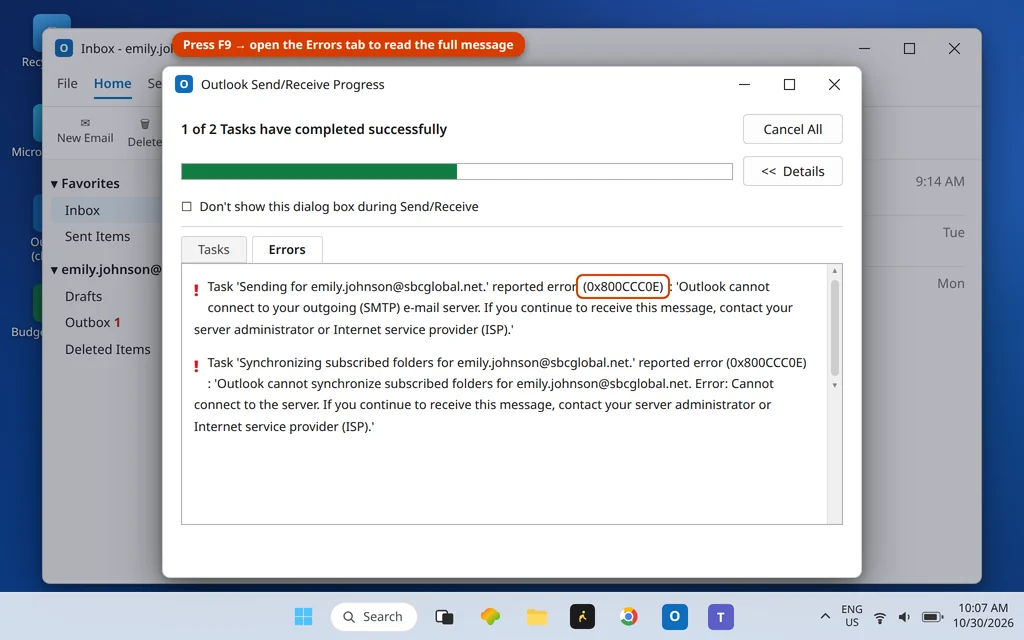
Error 0x800CCC0E is Outlook’s “cannot connect to the server” code. It appears in the Outlook Send/Receive Progress window, on the Errors tab, worded according to which task failed:
- Sending reported error (0x800CCC0E): “Outlook cannot connect to your outgoing (SMTP) e-mail server.”
- Receiving reported error (0x800CCC0E): “Outlook cannot connect to your incoming (IMAP) e-mail server.”
- On IMAP accounts you may also see: “Outlook cannot synchronize subscribed folders… Error: Cannot connect to the server.”
Every version ends with the same advice: “If you continue to receive this message, contact your server administrator or Internet service provider (ISP).” In plain terms, Outlook knocked on the mail server’s door and got no answer. The usual reasons: a wrong server name or port, an internet or firewall problem, your antivirus breaking the connection while it scans mail, one stuck email jamming the send queue, or — less often — a damaged data file or profile.
A quick test before you start: sign in to your provider’s webmail in a browser (outlook.com, Gmail or Yahoo Mail). If webmail works normally, your account and the server are healthy — the problem is on your PC. If webmail fails too, your provider may be down; wait and try again later.
Fix 1: Check Your Internet Connection and Restart Outlook
It sounds obvious, but 0x800CCC0E is a connection error, so start by proving the connection itself works.
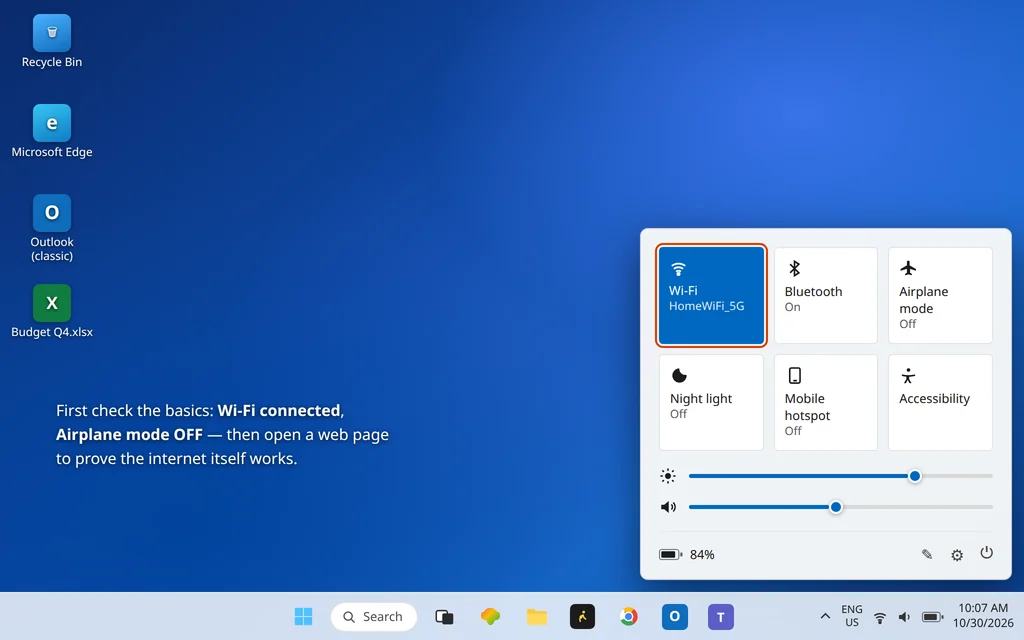
- Open any web page in your browser. If nothing loads, fix the internet first — restart your router and PC.
- Click the network icon in the taskbar corner to open Quick Settings. Make sure Wi-Fi is connected and Airplane mode is Off.
- Close Outlook completely and reopen it.
- Press F9 (or click Send / Receive > Send/Receive All Folders) and watch the Progress window.
If mail flows now, a temporary network glitch was the whole problem. If the error returns, your PC reaches the internet but not the mail server — continue to Fix 2.
Fix 2: Check Your Account’s Server Settings
This is the most common cause of error 0x800CCC0E on IMAP and POP accounts: a server name typed wrong, an old server still listed after your provider changed it, or settings copied from another provider. Compare yours with the official ones, character by character.
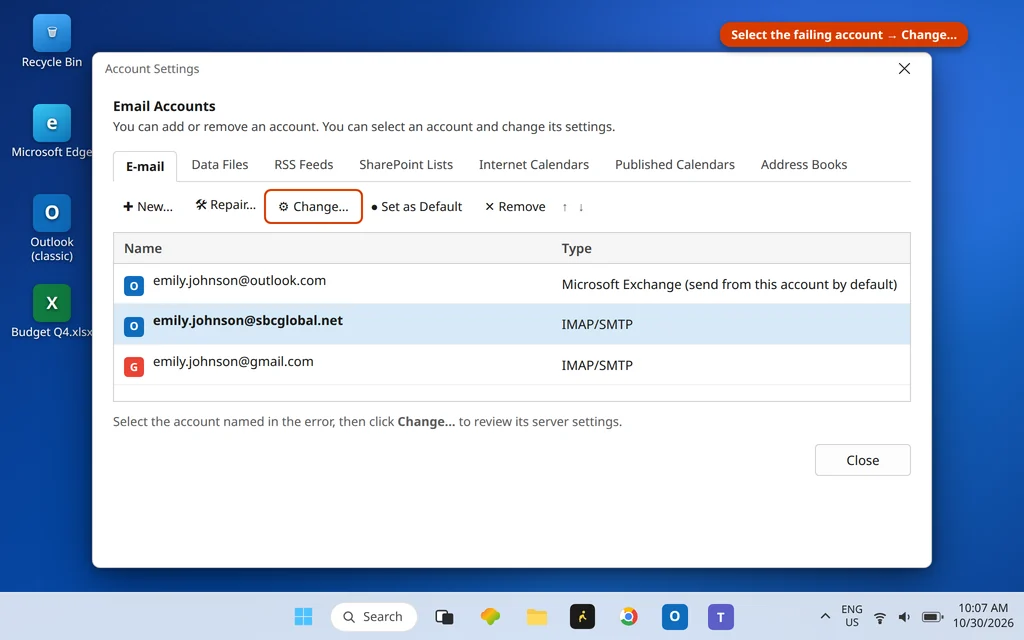
- In Outlook, click File > Account Settings > Account Settings.
- Select the account named in the error and click Change…
- Your user name must be your full email address — a common mistake is having only the part before the @ sign.
- Check the Incoming mail and Outgoing mail server names against the table below. (You may need to scroll in this window to see the server sections; ports and encryption are Fix 3.)
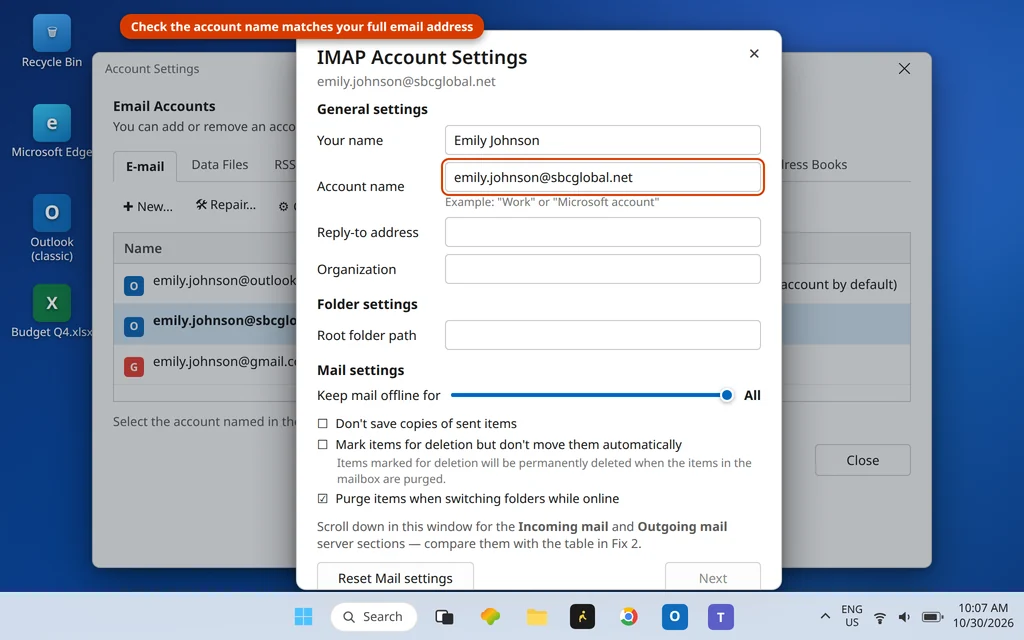
Correct server settings for common providers (IMAP):
| Provider | Incoming server (IMAP) | Port | Outgoing server (SMTP) | Port |
|---|---|---|---|---|
| Microsoft 365 / Outlook.com | outlook.office365.com | 993 | smtp-mail.outlook.com | 587 |
| Gmail | imap.gmail.com | 993 | smtp.gmail.com | 587 |
| Yahoo Mail | imap.mail.yahoo.com | 993 | smtp.mail.yahoo.com | 465 |
| AOL Mail | imap.aol.com | 993 | smtp.aol.com | 465 |
| iCloud Mail | imap.mail.me.com | 993 | smtp.mail.me.com | 587 |
| AT&T (att.net, sbcglobal.net, bellsouth.net) | imap.mail.att.net | 993 | smtp.mail.att.net | 465 |
Incoming IMAP always pairs port 993 with SSL/TLS. Outgoing, port 587 pairs with STARTTLS and 465 with SSL/TLS — either complete pair works, as Fix 3 explains.
Two provider notes: Microsoft 365 and Exchange accounts set themselves up automatically with Autodiscover, so if one of those shows 0x800CCC0E, skip to Fix 4 — the settings are rarely yours to edit. And Yahoo, AOL and AT&T accounts do not use your normal password in Outlook: Yahoo and AOL need an app password from your account’s security settings, and AT&T uses a secure mail key. If Outlook has the wrong one saved, the server refuses the connection — generate a fresh one and use it when you re-add the account in Fix 6.
If your settings already match the table, the port is the next suspect.
Fix 3: Check the SMTP Port and Encryption
Even with the right server names, the connection fails if the port and encryption do not match what the server expects. The classic problem: the outgoing port is still 25 — the old SMTP port most internet providers now block on home connections to fight spam — or the port says 587 but the encryption is set to None.
- Open Control Panel and click Mail (Microsoft Outlook), then E-mail Accounts.
- Select your account, click Change, then More Settings.
- Open the Advanced tab and check the Server Port Numbers:
- Incoming server (IMAP): 993, with “This server requires an encrypted connection (SSL/TLS)” checked.
- Outgoing server (SMTP): 587, with the encryption type set to STARTTLS.
- The alternative pair is 465 with SSL/TLS. Use one complete pair — never mix them.
- Click OK, then Next, and let Outlook test the account. Press F9 to confirm.
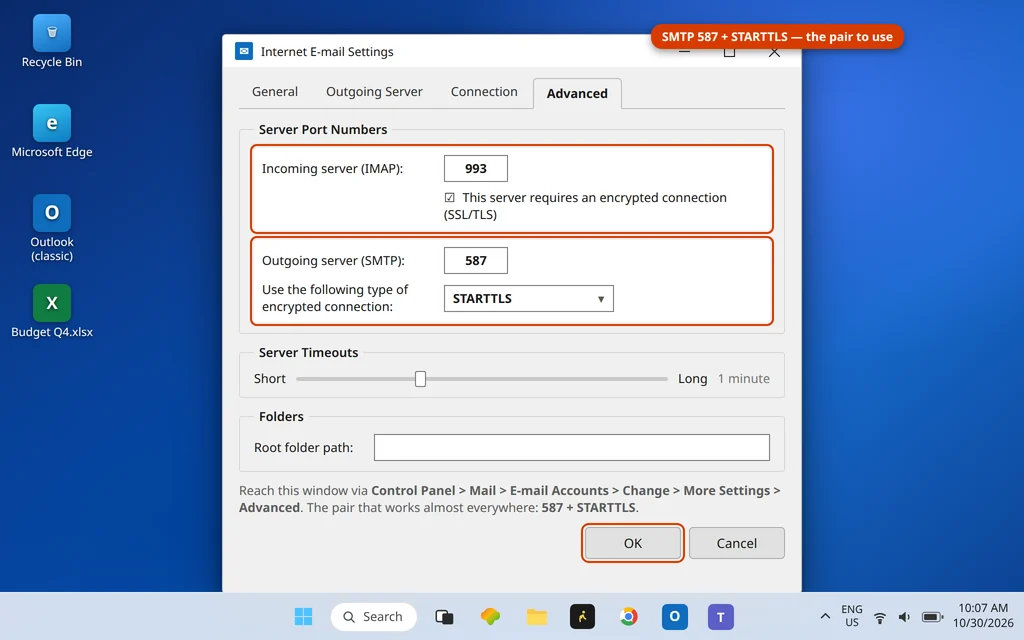
If your provider’s help page lists a different combination, use theirs — but for the providers in the Fix 2 table, the pairs above are correct. Our guide to why email bounces back explains the 587 vs 465 vs 25 difference in more detail.
Fix 4: Rule Out Your Antivirus and Firewall
Security software sits between Outlook and the server, and its email-scanning feature is a well-known cause of sudden 0x800CCC0E errors — often right after the antivirus updates itself. Test it safely:
- Open your antivirus and find its email scanning / email shield option (the name varies). Turn only that feature off — leave the main protection running.
- Press F9 in Outlook. If Send/Receive now works, you have found the culprit: turn email scanning back on and check the antivirus for an update.
- Still failing? In Windows Security > Firewall & network protection, click Allow an app through firewall and confirm Microsoft Outlook is in the allowed list.
- If you use a VPN, disconnect it and test again — some mail servers refuse connections that arrive through one.
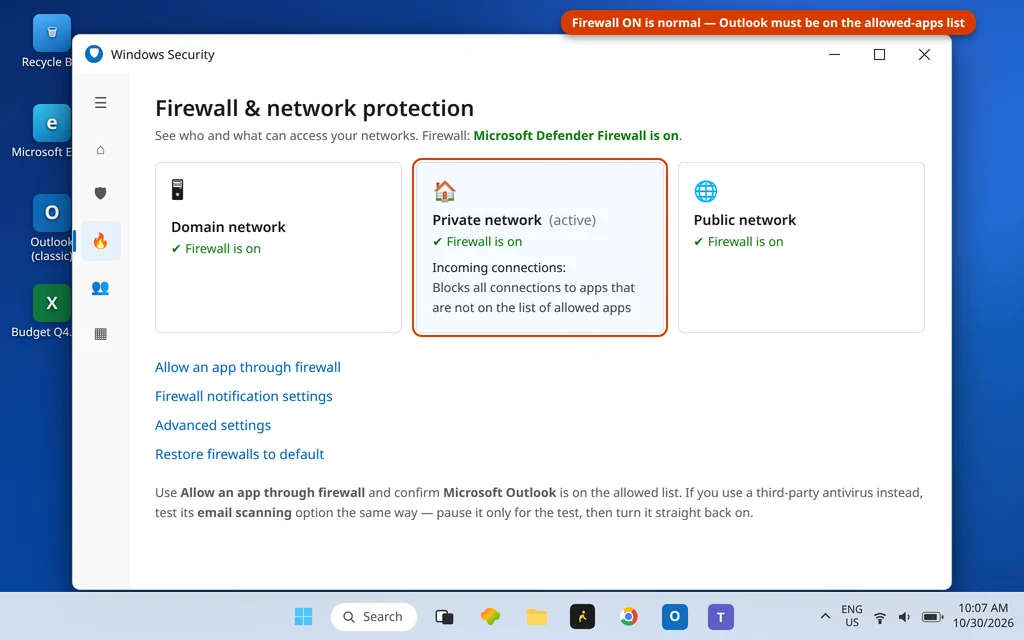
Important: this is a test, not a fix. Never leave your antivirus or firewall off — if disabling email scanning “fixes” Outlook, re-enable it and resolve the conflict with an antivirus update instead.
Fix 5: Clear Any Stuck Email in the Outbox
One email that cannot be sent — usually a message with a huge attachment your server rejects — blocks the whole queue behind it, and every Send/Receive ends in this error. If your Outbox shows a message that never leaves, remove it:
- In Outlook, click the Send / Receive tab and click Work Offline. (Outlook cannot delete a message it is actively trying to send.)
- Open the Outbox folder.
- Select the stuck message and press Delete — or drag it to Drafts if you want to keep the text and send a smaller version.
- Click Work Offline again to turn it off, then press F9.
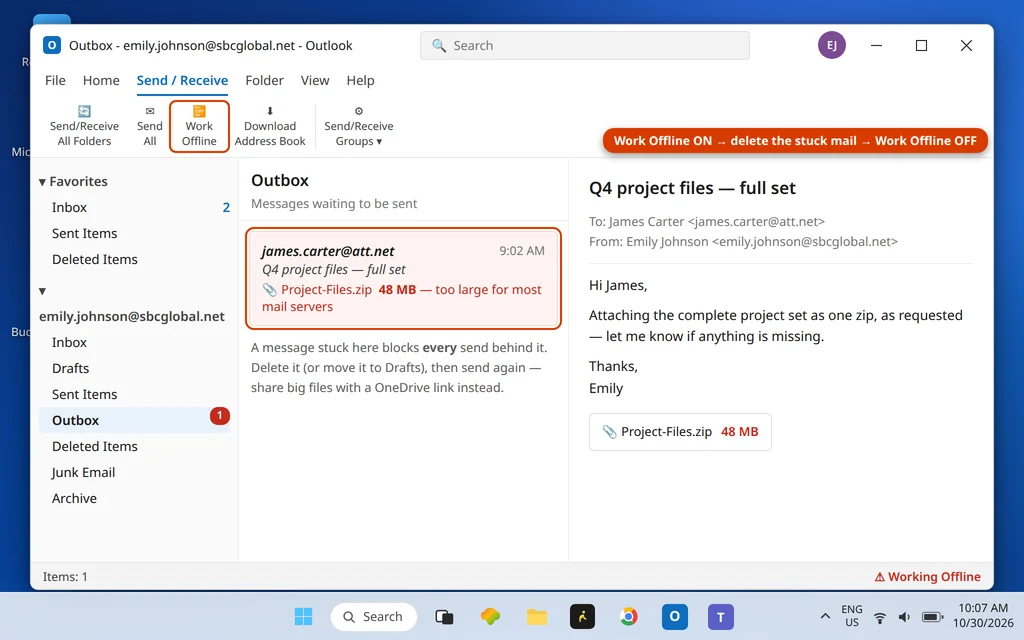
Most mail servers cap messages around 20–25 MB, so share big files with a OneDrive or Google Drive link instead. Our dedicated guide to email stuck in the Outlook Outbox goes deeper on this problem.
Fix 6: Remove and Re-Add the Account
If the settings look right but the error will not clear, the stored account configuration itself may be damaged. Removing and re-adding the account rebuilds it cleanly — and for IMAP, Microsoft 365, Outlook.com and Exchange accounts this does not delete your email, which lives on the server and downloads again.
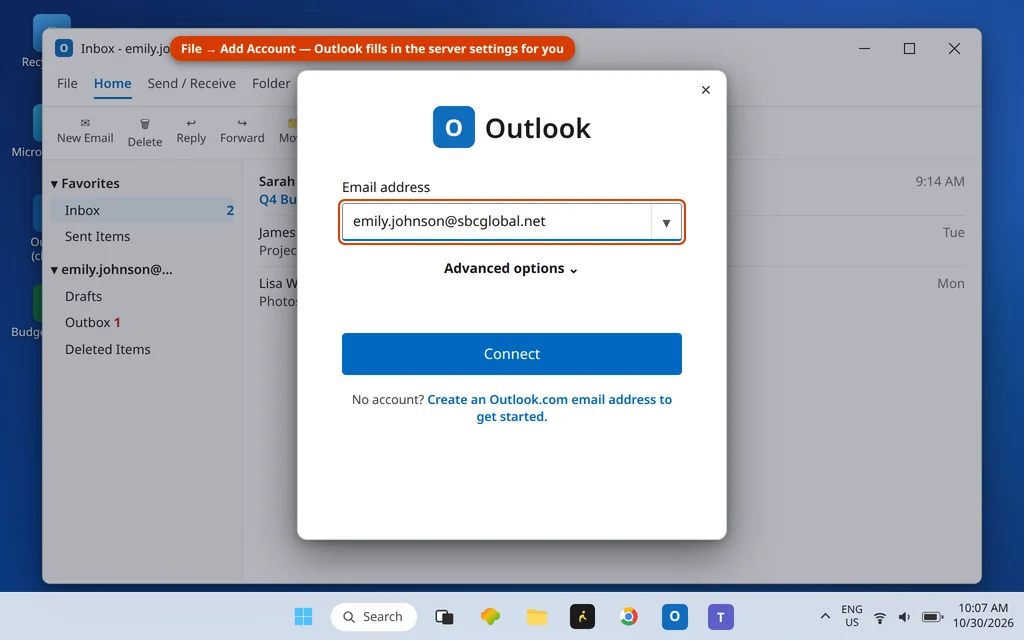
- Click File > Account Settings > Account Settings, select the problem account, and click Remove. Confirm when asked.
- Restart Outlook.
- Click File > Add Account, type your email address, and click Connect.
- Follow the prompts — Outlook finds the correct server settings automatically for most providers. For Yahoo, AOL or AT&T, enter the app password or secure mail key from Fix 2 when asked.
- Let the mailbox finish syncing, then press F9 to test.
POP account warning: on an old POP account, mail may exist only in the data file on this PC. Do not remove one until you have a copy of its .pst file — its location is under Account Settings > Data Files.
Fix 7: Repair the Data File With SCANPST
A damaged data file can make Outlook fail its connection tasks even when every setting is right. Microsoft’s built-in Inbox Repair Tool (SCANPST.EXE) checks and repairs both .pst and .ost files, and it backs the file up before repairing.
- Close Outlook completely — SCANPST cannot repair a file Outlook has open.
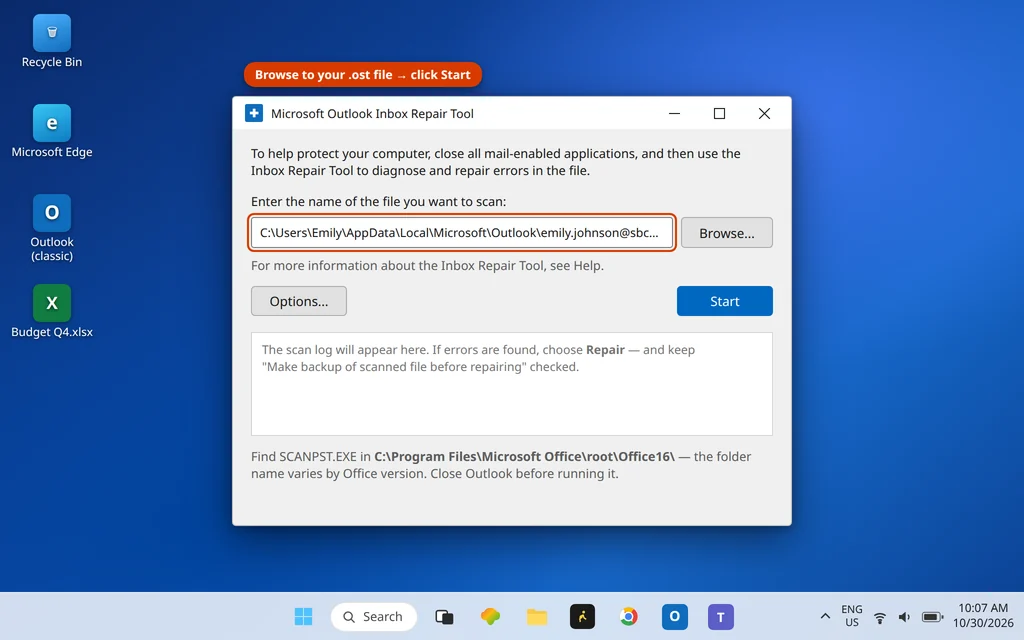
- Find SCANPST.EXE in your Office folder. The usual location is
C:\Program Files\Microsoft Office\root\Office16\SCANPST.EXE— the path varies by Office version (Office15 on older versions,Program Files (x86)on some PCs), so typing SCANPST into Windows search is often quicker. - Double-click SCANPST.EXE, click Browse, and select your data file — its exact location is under File > Account Settings > Account Settings > Data Files.
- Click Start. If the scan finds errors, click Repair, keeping Make backup of scanned file before repairing checked.
- Open Outlook and press F9 to test Send/Receive.
Fix 8: Create a New Outlook Profile
If the error survives a repaired data file, the Outlook profile itself — the container holding your account’s connection settings — is probably corrupt. A new profile rebuilds every setting from scratch, and creating one does not delete your old profile.
- Close Outlook.
- Open Control Panel and click Mail (Microsoft Outlook).
- Click Show Profiles, then Add. Type a name like “Outlook New” and click OK.
- Follow the wizard and add your email account.
- Back in the Mail window, under “When starting Microsoft Outlook, use this profile”, choose Always use this profile and select your new profile. Click Apply.
- Open Outlook and press F9.
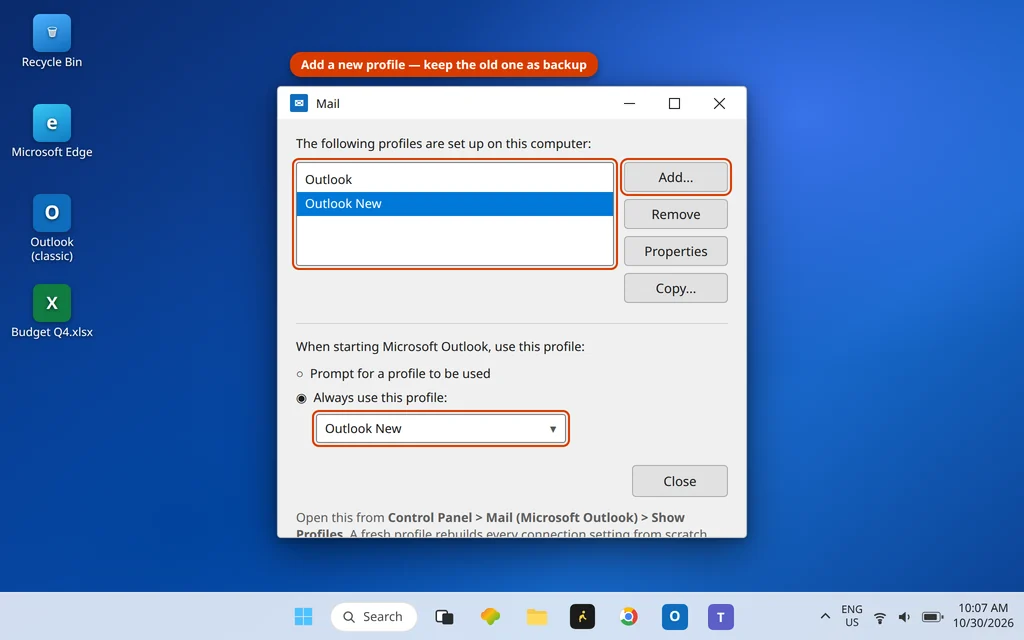
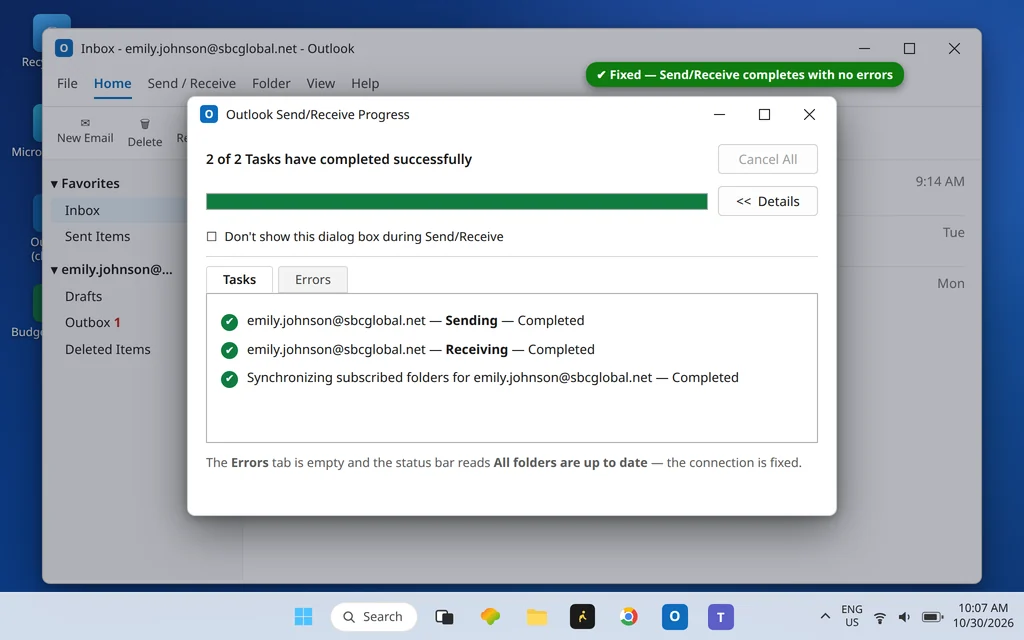
If Send/Receive works in the new profile, keep using it — your server-based mail is unaffected, and the old profile can be removed later from the same window. When everything works, the Progress window completes cleanly:
How to Stop Error 0x800CCC0E Coming Back
- Write down your working settings — server names, ports, encryption — somewhere safe for the next PC change.
- Watch the day you switch internet providers — a new ISP can block different ports; if the error appears then, go straight to Fix 3.
- Keep attachments under your server’s limit and share large files with a cloud link instead.
- Keep your antivirus and Office updated — outdated builds are behind many “it broke overnight” cases.
Frequently Asked Questions
What is error code 0x800CCC0E in Outlook?
It is Outlook’s “cannot connect to the server” error, shown during Send/Receive when Outlook cannot reach your incoming (IMAP/POP) or outgoing (SMTP) mail server — usually wrong server settings, a blocked or mismatched port, security software interference, or a stuck Outbox message.
How do I fix error 0x800CCC0E in Outlook?
Work in this order: check your internet and restart Outlook; verify your server names (Fix 2); set the outgoing port to 587 with STARTTLS (Fix 3); test your antivirus email scanning; clear the Outbox; then re-add the account, run SCANPST, or create a new profile. Most cases end at Fixes 2 and 3.
Why do I get error 0x800CCC0E with Gmail in Outlook?
Gmail accounts sign in through a Google window, and the error appears when that connection cannot be completed or the stored sign-in has expired. Remove and re-add the account (Fix 6) so Outlook opens a fresh Google sign-in, and check the server names — imap.gmail.com and smtp.gmail.com — while you are there.
Does 0x800CCC0E mean my password is wrong?
Usually not. A wrong password normally produces repeated prompts or a “password rejected” error; 0x800CCC0E means Outlook could not complete the connection at all. The exception: if Yahoo, AOL or AT&T expects an app password or secure mail key and Outlook has your ordinary password saved, the server refuses the sign-in — generate a fresh one (Fix 2).
It worked yesterday and broke today. What changed?
The classic triggers: an antivirus update changing how email scanning behaves, your internet provider changing port rules, your mail provider retiring an old server name, a Windows or Office update, or a new VPN. Start at Fix 1 and work down — the order follows those causes from most to least likely.
Will removing and re-adding my account delete my emails?
For IMAP, Microsoft 365, Outlook.com and Exchange accounts, no — your mail is stored on the server and downloads again into the fresh account. The exception is old POP accounts, where mail may exist only in the .pst file on your PC; back that file up first, as Fix 6 explains.
Can this error mean my mail provider’s server is down?
Yes. If your provider has an outage, every fix on your PC fails the same way. That is why the webmail test matters: if webmail will not load either, the problem is on the provider’s side and the only fix is to wait.
Still seeing error 0x800CCC0E? Tell us your provider and which fix you reached on our Contact page — servicedesk@howtofixerroronline.com, available 24 hours. If mail stopped arriving without this error, see Outlook not receiving emails — and for a message that will not leave, email stuck in the Outlook Outbox.