
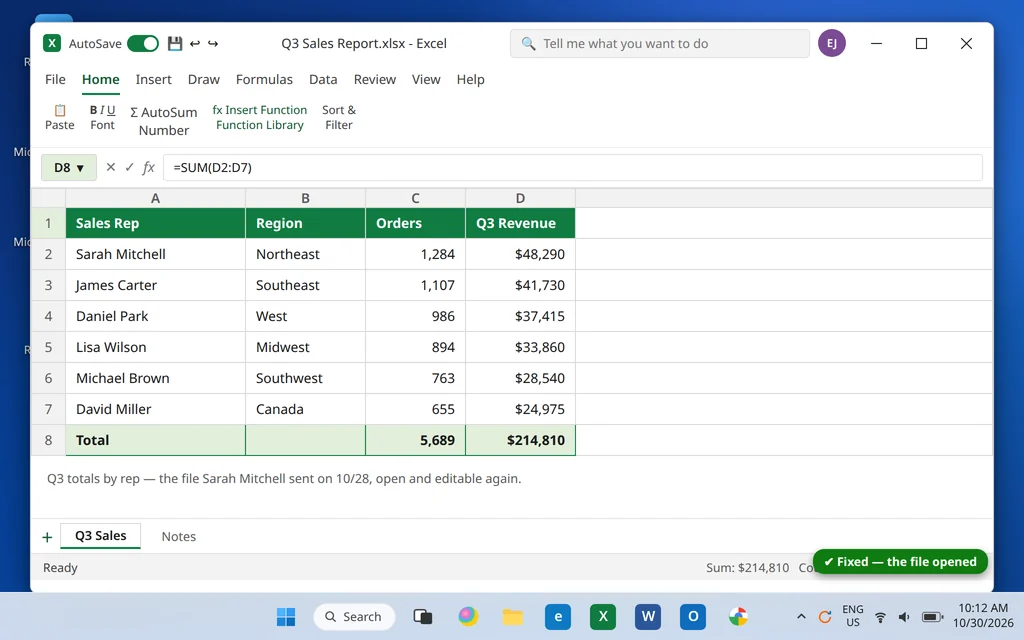
Excel File Won’t Open? 9 Fixes
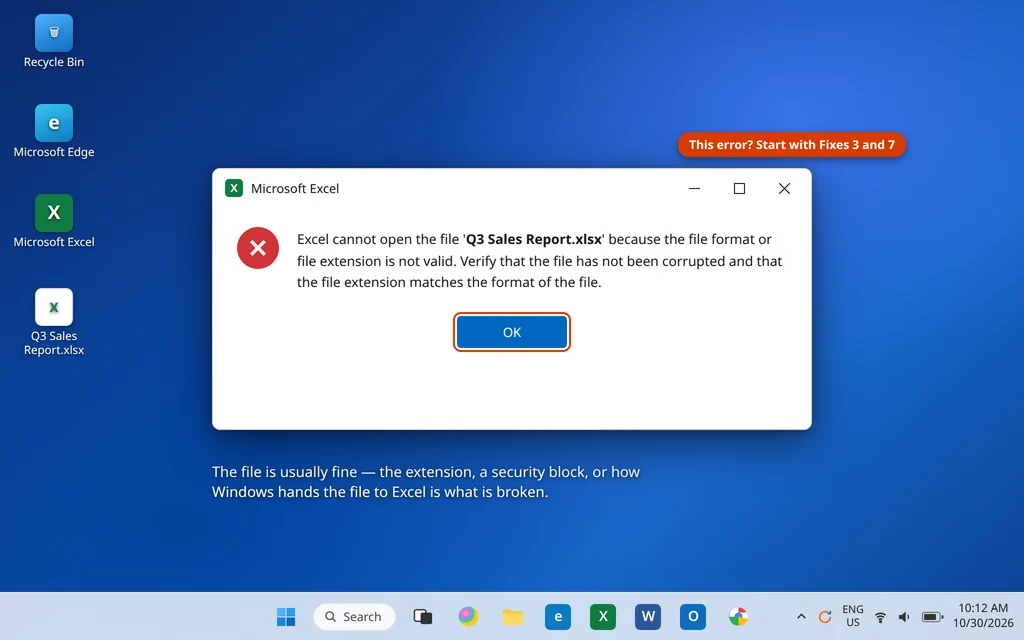
You double-click a spreadsheet you need right now — and Excel not opening files turns a ten-second job into a morning of troubleshooting. Maybe nothing happens at all. Maybe Excel opens to an empty gray window with no workbook in it. Or maybe you get the message nobody wants to read: “Excel cannot open the file because the file format or file extension is not valid.”
Before you assume the file is lost: in most cases the spreadsheet itself is fine. The problem is usually how Windows hands the file to Excel — a stuck Excel process, a security block on a downloaded file, one wrong setting, or a broken file association. The nine fixes below work through those causes in order of likelihood, and the first few take under a minute each. If Excel not opening files is the only symptom, start at Fix 1 and work down — you will usually find the cause within the first three fixes.
This guide is for desktop Microsoft Excel on Windows 11 (Microsoft 365 and Office 2021/2024). If it is Word that will not start at all, use our guide to Microsoft Word not opening on Windows 11 instead — the programs fail in similar ways, but the files and settings involved differ.
Quick Answer: First, end any stuck EXCEL.EXE process in Task Manager and try again. If the file came from an email or a download, right-click it, open Properties and check Unblock. If double-clicking is the problem, open Excel first and use File > Open. Then check the Ignore other applications that use DDE setting in Excel Options > Advanced, test in Safe Mode to rule out add-ins, and use Open and Repair if one specific file still refuses.
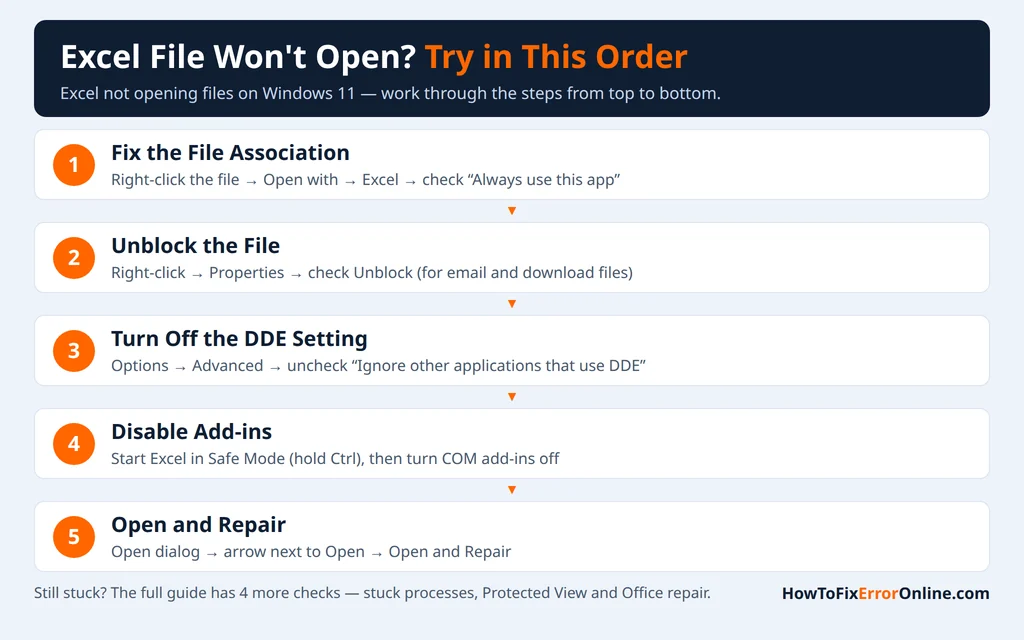
Table of Contents
What Happens When an Excel File Won’t Open?
“Excel won’t open my file” covers several different failures, and the exact symptom points at the cause:
- Double-clicking does nothing. No window, no error — or Excel flashes briefly and closes. Often a stuck background process or a broken file association.
- Excel opens, but the window is empty. The program loads with a blank gray area where the workbook should be — the classic symptom of the DDE setting in Fix 6, or of a workbook window hidden inside Excel.
- “Excel cannot open the file ‘…’ because the file format or file extension is not valid.” The file’s contents do not match what its name claims — a renamed file, a damaged download, or genuine corruption. Fixes 3 and 7 target this one.
- The file opens for a colleague but not for you. Same file, different result — the file is probably healthy and something on your machine (association, add-ins, Protected View, the blocked-file flag) is stopping it.
- Only downloaded files fail. Files you create open fine, but attachments and downloads will not — that pattern points at the Windows security block (Fix 3) or Protected View (Fix 4).
Fix 1: End the Stuck EXCEL.EXE Process
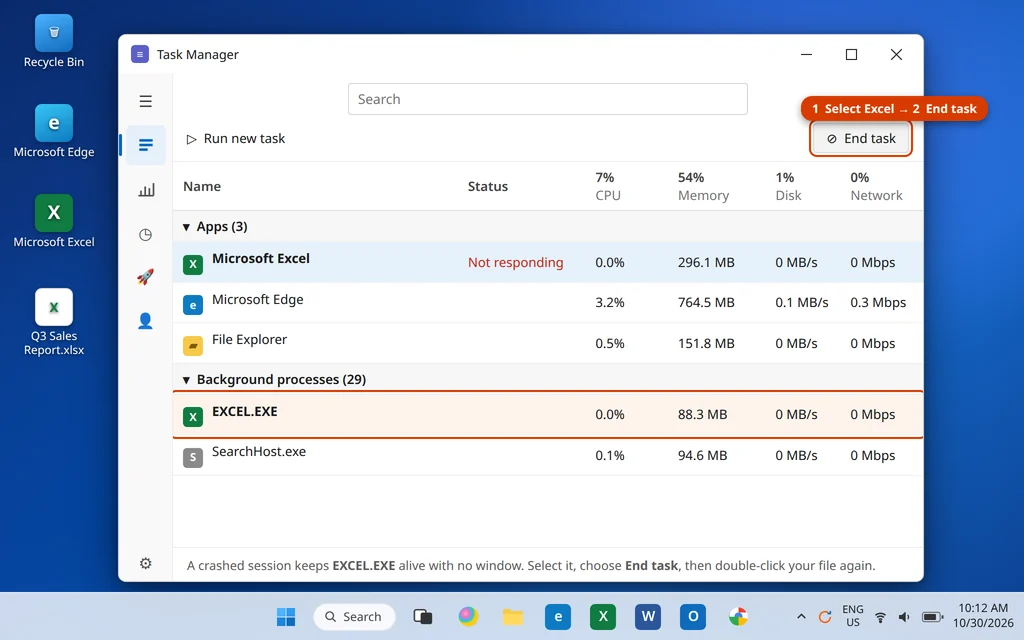
If an earlier Excel session froze or crashed quietly, its process can still be running with no visible window. The copy you launch then waits on the stuck one — or opens into it and shows you nothing.
- Press Ctrl + Shift + Esc to open Task Manager. If it opens small, click More details.
- In the Processes tab, look for Microsoft Excel under Apps. If it is not there, scroll to Background processes and look for EXCEL.EXE.
- Select it and click End task. Repeat if more than one copy is listed.
- Double-click your file again.
One related check if Excel does open but your workbook seems missing: click the View tab in Excel and click Unhide. A workbook window can occasionally be hidden inside a running Excel, which looks exactly like a file that refused to open.
Fix 2: Open Excel First, Then Open the File From Inside
This separates two different problems: Excel itself failing, and Windows failing to pass the file to Excel when you double-click.
- Open Excel from the Start menu and let it load fully.
- Click File > Open > Browse.
- Find your file, select it, and click Open.
If the file opens this way, Excel and the file are both healthy — your double-click path is broken, a file association or DDE problem that Fixes 6 and 9 solve properly. If it fails here too with the same error, the problem travels with the file itself — continue with Fix 3.
Fix 3: Check the File Extension — and Unblock the File
Two different checks live in this fix, and both take a minute.
Check the extension matches the real format. A file renamed from .xls to .xlsx (or the other way around) has not been converted — Excel reads the contents, sees they do not match the name, and refuses with the “file format or extension is not valid” error. To see what you are dealing with:
- Open the folder in File Explorer and click View > Show > File name extensions so extensions are visible.
- Look at the file’s ending. If someone renamed it, change it back to the extension it originally had, then try opening it again.
Unblock a downloaded file. Windows quietly flags files that arrive from email and the internet, and that flag can stop Excel opening them:
- Right-click the file and choose Properties.
- On the General tab, look at the bottom for a Security section that says: “This file came from another computer and might be blocked to help protect this computer.”
- Check the Unblock box, click Apply, then OK.
- Open the file again.
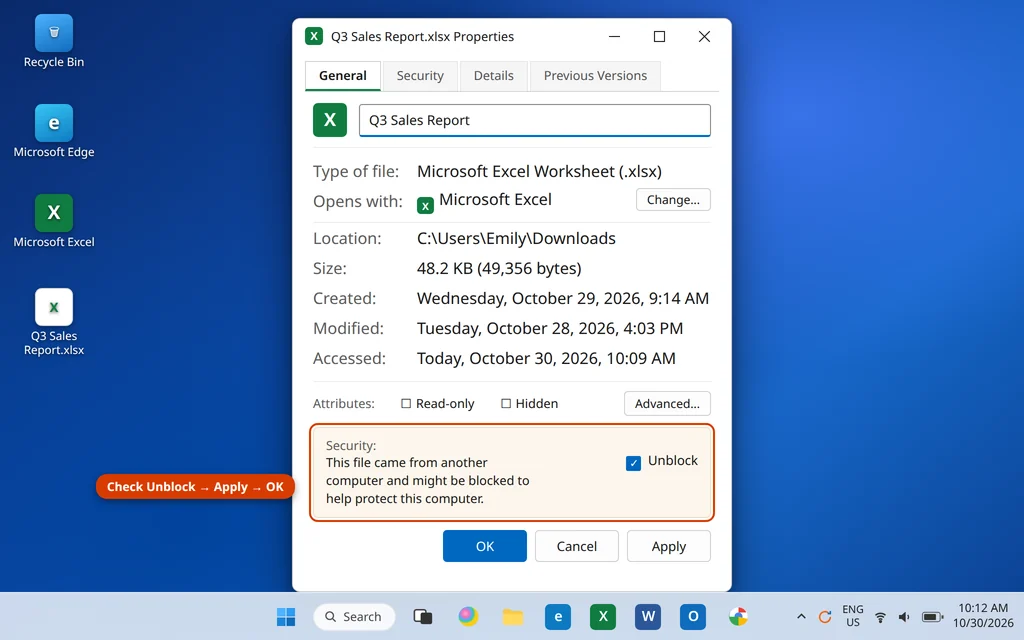
If there is no Unblock section, the file was never blocked — move on to Fix 4.
Fix 4: Check Protected View — the Safer Way
Excel opens files from the internet, email attachments and other “unsafe” locations in Protected View: a read-only mode with a yellow banner. Normally you just click Enable Editing — but if Protected View itself fails or hangs on a file, the file appears to not open at all.
The tempting fix is turning Protected View off completely. Do not do that first: it exists because spreadsheets from the internet genuinely can carry malicious macros. Test with a Trusted Location instead, which exempts only files you choose:
- Open Excel and click File > Options > Trust Center > Trust Center Settings.
- Click Trusted Locations, then Add new location, and add the folder your file is in (or move the file into a folder you add).
- Close the dialogs and open the file from that folder.
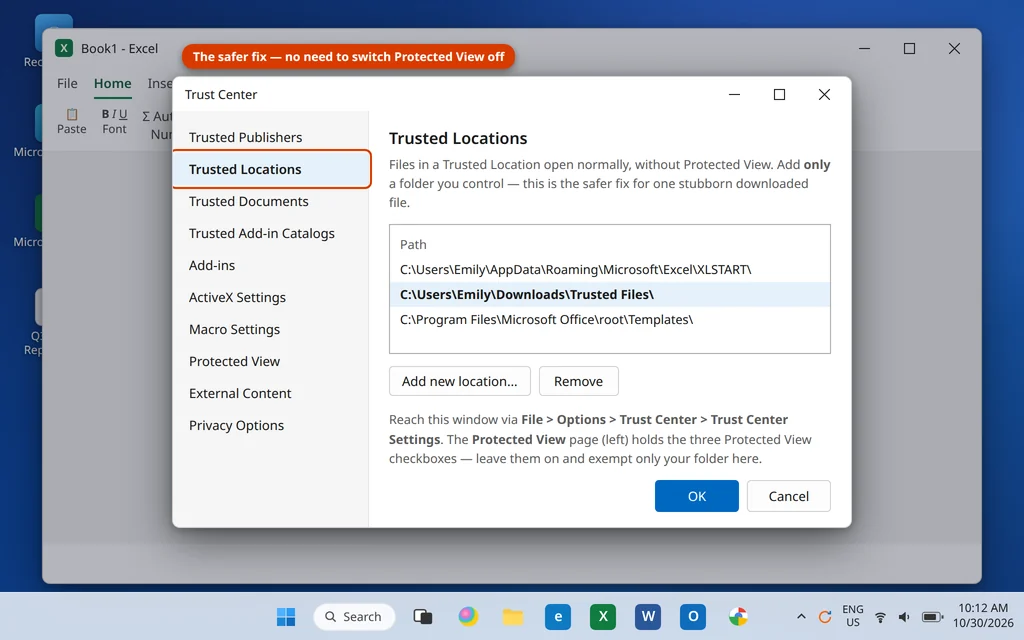
If the file opens from a Trusted Location, Protected View was the blocker — fixed without weakening Excel’s protection for everything else. The three Protected View checkboxes live on the Protected View page of the same window; turning off only Enable Protected View for files originating from the Internet is a reasonable test, but turn it back on afterwards and keep the Trusted Location as the lasting fix.
Fix 5: Start Excel in Safe Mode and Disable Add-Ins
Safe Mode starts Excel with no add-ins and no customizations. If your file opens in Safe Mode, something Excel normally loads is interfering — most often an add-in.
- Close Excel completely (Fix 1 makes sure of it).
- Hold the Ctrl key down and launch Excel, keeping Ctrl held until a dialog asks: “You’re holding down the CTRL key. Do you want to start Excel in Safe Mode?” Click Yes. (The other way in: press Windows key + R, type
excel /safe, and press Enter.) - In Safe Mode, open your file with File > Open.
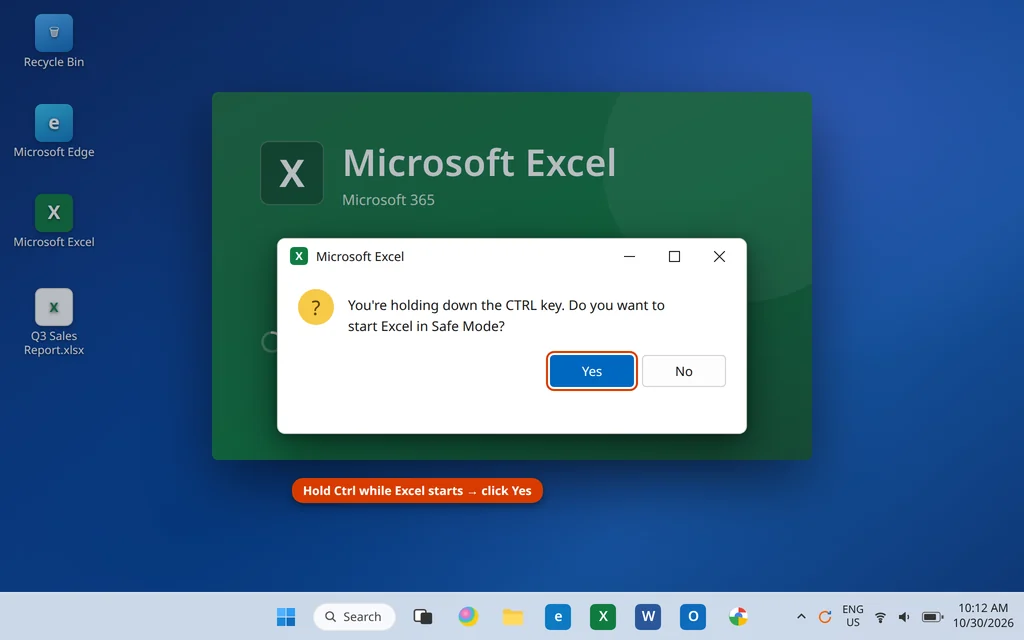
If the file opens in Safe Mode, disable the add-ins while you are there:
- Click File > Options > Add-ins.
- At the bottom, set Manage to COM Add-ins and click Go.
- Uncheck every add-in and click OK.
- Close Excel and open your file normally — by double-click this time.
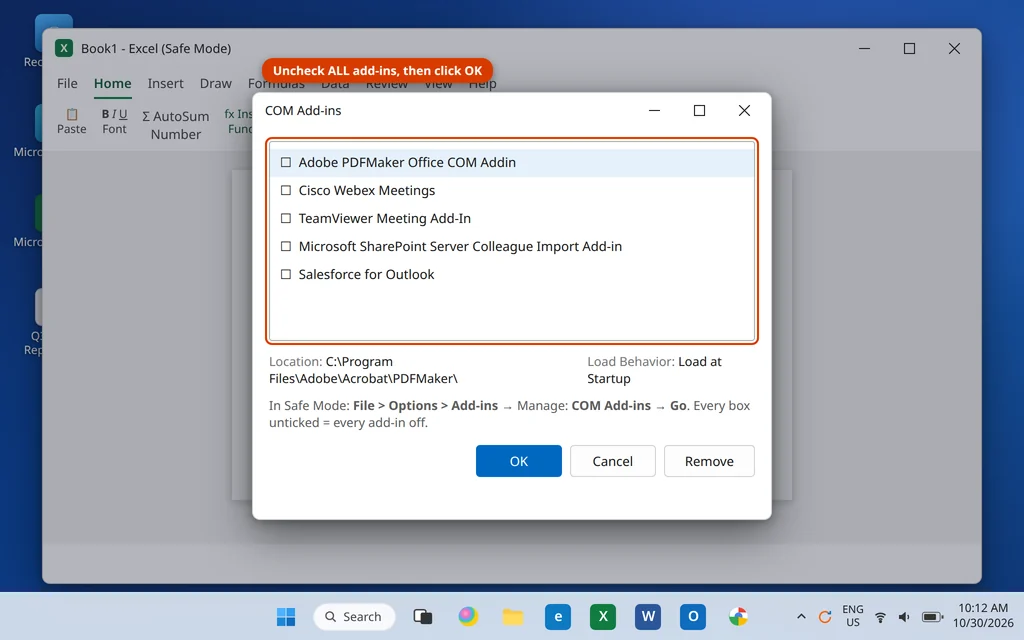
Then turn add-ins back on one at a time, reopening the file after each, until the failure returns — that add-in is the culprit. Leave it off or update it; PDF makers and old reporting tools are frequent offenders. If the file will not open even in Safe Mode, add-ins are innocent — go to Fix 6.
Fix 6: Turn Off the “Ignore DDE” Setting
This is the classic cause of one specific symptom: you double-click a file, Excel itself opens, but the workbook never appears — just an empty window. Excel is receiving the file and ignoring the instruction to open it.
- Open Excel (from the Start menu is fine) and click File > Options > Advanced.
- Scroll all the way down to the General section.
- Make sure Ignore other applications that use Dynamic Data Exchange (DDE) is unchecked. If it is checked, uncheck it.
- Click OK, close Excel, and double-click your file again.
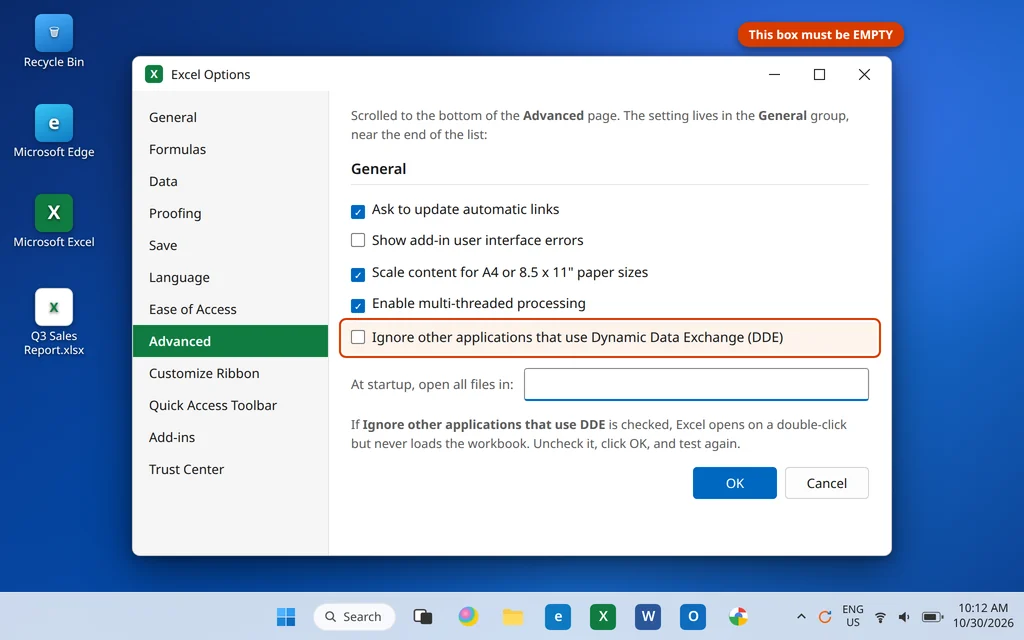
This one setting has been behind “Excel opens blank on double-click” for years — and it takes thirty seconds to check.
Fix 7: Open and Repair the File
If one specific file fails everywhere — including Safe Mode — while other spreadsheets open fine, the file itself is likely damaged. Excel has a built-in repair tool, hidden in the Open dialog:
- First, make a copy of the file (right-click > Copy, then Paste in the same folder) so the repair never risks your only version.
- In Excel, click File > Open > Browse and select the copy.
- Click the small arrow next to the Open button and choose Open and Repair.
- Click Repair. If Excel reports it could not repair the file, repeat and choose Extract Data instead — that recovers values and formulas even when the full workbook cannot be rebuilt.
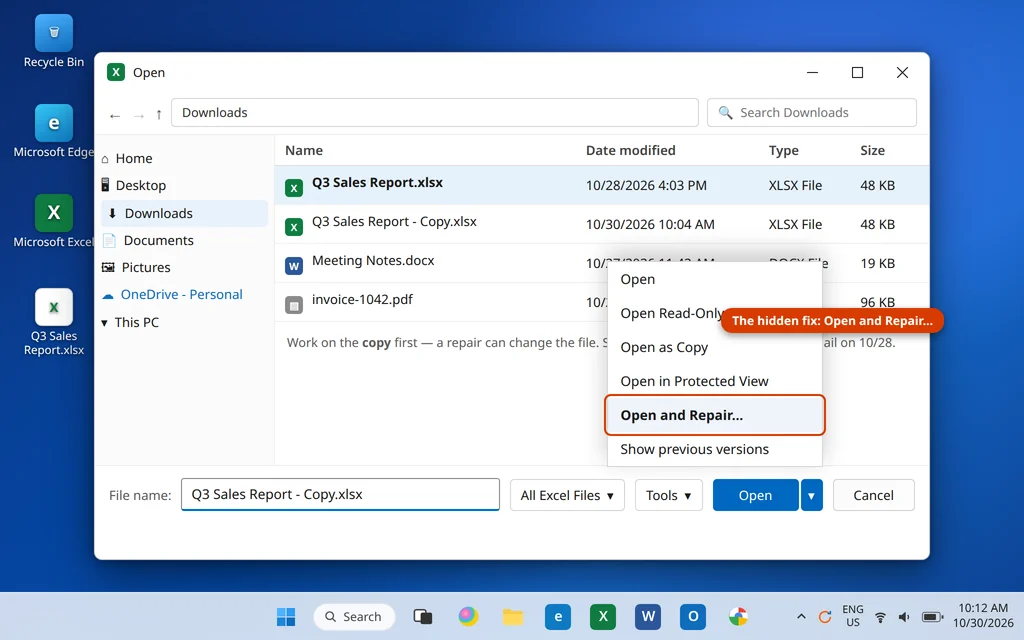
Two honest expectations: a successful repair can lose some formatting, charts or the very last changes made before the damage, and a badly corrupted file may only give up its data through Extract Data. And if the file lives in OneDrive or was emailed to you, re-download a fresh copy before repairing — a truncated download repairs less well than a clean copy opens. For Microsoft’s official steps, see their guide to repairing a corrupted workbook.
Fix 8: Repair Office
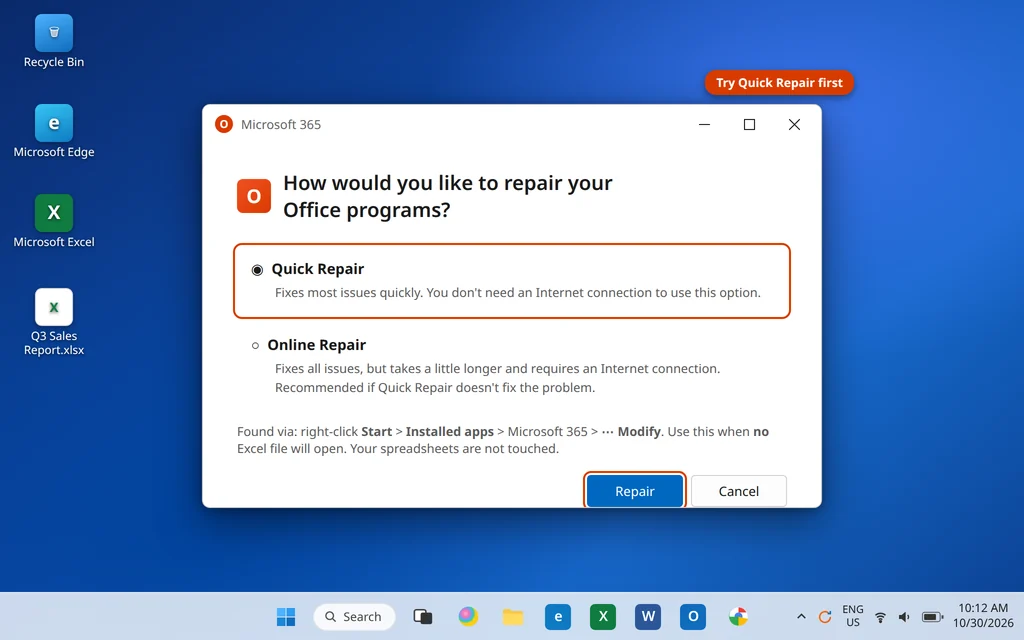
If no Excel file opens — every spreadsheet fails the same way — Excel’s own program files may be damaged. The built-in Office repair rebuilds them without touching your files or settings.
- Close all Office apps.
- Right-click the Start button and select Installed apps.
- Find Microsoft 365 (or your version of Microsoft Office), click the three dots next to it, and choose Modify.
- Choose Quick Repair and click Repair. It takes a few minutes and works offline.
- Test a file. If Excel still will not open files, repeat and choose Online Repair — it re-downloads the Office program files, so it takes longer and needs an internet connection, but fixes deeper damage.
Fix 9: Reset the File Association for Excel Files
If double-clicking opens the wrong app — or no app — Windows has lost track of which program owns .xlsx files. Resetting the association reconnects them:
- Right-click any
.xlsxfile and choose Open with > Choose another app. - Select Microsoft Excel, check Always use this app to open .xlsx files, and click OK.
For a full reset covering every Excel file type at once:
- Open Settings > Apps > Default apps.
- Search for Excel in the “Set defaults for applications” box and open it.
- Check the rows for .xlsx, .xls and .csv — each should say Microsoft Excel. Click any row that names a different app and choose Excel.
One note on .csv: it is a plain text format, not a true Excel file. After the reset your CSVs open in Excel again — but if you add formatting or formulas, save as .xlsx, because CSV cannot keep them.
How to Stop Excel Not Opening Files Again
- Download files completely before opening them. Opening an attachment from a half-loaded preview or an interrupted download is a common way to meet the “format is not valid” error.
- Keep the original extension. To change format, use Save As inside Excel — never rename the ending by hand.
- Close Excel properly. Killing it mid-save, or forcing the PC off with a workbook open, is how files and processes get damaged.
- Be selective with add-ins. Every COM add-in loads with Excel — remove the ones you no longer use.
- Keep a copy of important files. A OneDrive or emailed copy turns a corrupted-file emergency into a two-minute re-download.
Frequently Asked Questions
Why does Excel open but show a blank gray window instead of my file?
Usually the Ignore other applications that use DDE setting (Fix 6): Excel receives your double-click but ignores the file. The other common cause is a hidden workbook window — click View > Unhide in Excel to check. A stuck EXCEL.EXE process (Fix 1) can produce the same empty window.
What does “Excel cannot open the file because the file format or file extension is not valid” actually mean?
Excel compared the file’s contents with what its extension claims, and they do not match — or the file is damaged. Usual causes: a file renamed from .xls to .xlsx (or the reverse) without being converted, an unfinished download, or real corruption. Check the extension and Unblock in Fix 3, then Open and Repair in Fix 7.
Why won’t my Excel file open after I downloaded it or got it by email?
Windows blocks files that arrive from the internet, and Protected View adds a second layer. Right-click the file, open Properties, and check Unblock (Fix 3). If it still sticks, open it from a Trusted Location (Fix 4) rather than turning Protected View off for everything.
The file opens on another computer but not on mine. Why?
Then the file is almost certainly healthy, and the difference is on your PC: a broken file association (Fix 9), the DDE setting (Fix 6), an add-in (Fix 5) or Protected View (Fix 4). Work through the fixes in order — one matches your machine’s problem.
Will Open and Repair lose my data?
It can lose some formatting, charts, or the last changes made before the damage — which is why the fix starts by repairing a copy. If Repair fails, Extract Data recovers cell values and formulas without the formatting. Your original is never changed unless you repair it directly.
How do I open Excel in Safe Mode?
Hold the Ctrl key while launching Excel and click Yes when asked, or press Windows key + R, type excel /safe, and press Enter. Excel shows “(Safe Mode)” in its title bar. Safe Mode loads no add-ins, so it is the quickest test of whether an add-in is stopping your file from opening.
Still stuck with an Excel file that won’t open? Tell us the exact message you see — or whether Excel opens empty — on our Contact page — servicedesk@howtofixerroronline.com, available 24 hours. And if an Office program refuses to start at all on your PC, our Outlook not opening on Windows 11 guide covers the shared Office startup checks worth running next.
Pingback: Excel Not Responding or Keeps Crashing? 8 Fixes That Work (2026)