
How to Sign Up for Microsoft 365 Email at GoDaddy and Add It to Outlook
Buying business email is easy to click through and surprisingly easy to half-finish: the plan is paid for, but the mailbox never quite connects, and Outlook refuses to cooperate. A complete GoDaddy Microsoft 365 email setup has four moving parts — the plan, the email address, the domain’s DNS records, and Outlook itself — and this guide walks through all four in the right order, using a sample business (Johnson Consulting) so you can follow along step by step.
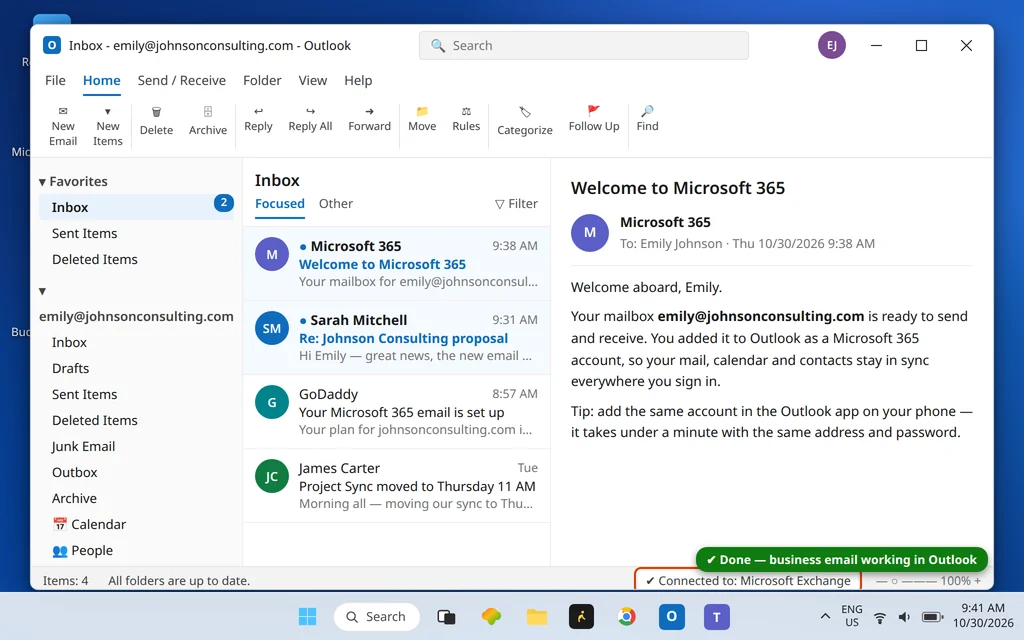
By the end, you will have a working address like emily@johnsonconsulting.com sending and receiving mail in Outlook, plus a clear picture of what to check when something in the chain is not finished yet.
Quick Answer: Go to godaddy.com, open the Email & Microsoft 365 plans, and buy an email plan for the number of users you need. In your GoDaddy dashboard, set up the plan: choose your domain and create your first email address and password. If your domain is at GoDaddy, the DNS records (MX, SPF, DKIM) are added automatically during setup; if it is elsewhere, add the records GoDaddy shows you at your domain host. Wait for the dashboard to show setup is complete, then in Outlook click File > Add Account, type the new address, and sign in — it connects as a Microsoft 365 (Exchange) account with no server settings to type.
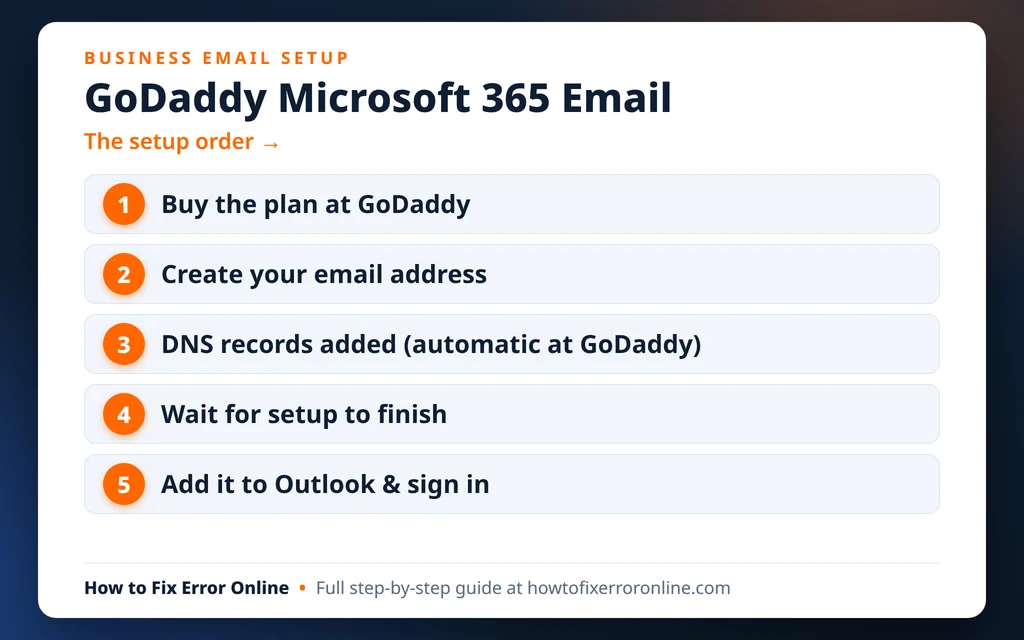
Table of Contents
What Is Microsoft 365 Email From GoDaddy?
It is the same Microsoft 365 email service Microsoft sells — Exchange mailboxes, Outlook on the web, the Office web apps — bought through GoDaddy instead of directly from Microsoft. Your mail lives on Microsoft’s servers and works exactly like any other Microsoft 365 mailbox.
The differences are commercial, not technical:
- GoDaddy is your seller. You pay GoDaddy, manage the plan and renewals in a GoDaddy account, and create or delete mailboxes in GoDaddy’s Email & Office dashboard instead of the Microsoft 365 admin center.
- GoDaddy support is your first stop for billing and account questions, while the mailbox itself behaves like standard Microsoft 365.
- Your sign-in is a Microsoft sign-in. Once a mailbox exists, it signs in with its own email address and password through Microsoft’s sign-in pages — separate from your GoDaddy account password. This distinction causes half of all setup confusion, and we come back to it in the troubleshooting section.
If you would rather buy from Microsoft itself, that route works too — our guide to setting up a business email in Outlook covers the Microsoft-side signup and the same Outlook steps.
Before You Start
Two things make this smooth:
- A domain name. Your email address ends in your domain (emily@johnsonconsulting.com), so you need to own one. If you do not, you can buy the domain in the same order as the email plan. If your domain is registered somewhere else, that is fine — you will just add a few DNS records there in Step 3.
- About 20 minutes, plus possible waiting time for DNS. The clicking takes minutes. DNS changes can take a little while to spread across the internet, so do not plan to send an urgent email in the same five minutes.
Step 1: Choose Your Plan and Buy It
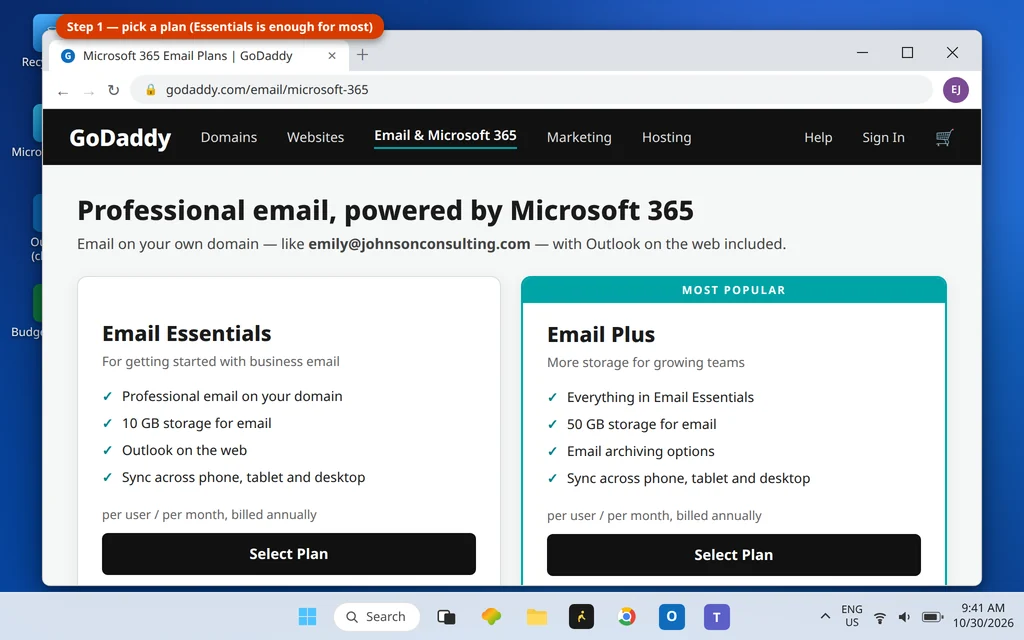
- Go to godaddy.com and open the Email & Microsoft 365 section (it sits under the site’s email/products menus).
- Compare the email plans. GoDaddy currently sells tiers such as Email Essentials and Email Plus, sometimes bundled “with security” extras. In plain terms: Essentials covers professional email on your own domain; Plus adds more mailbox storage and extras. For most small businesses, the entry plan is enough to start — you can upgrade later.
- Choose how many users (mailboxes) you need and the term length, then check out. Create your GoDaddy account during checkout if you do not have one — remember, this account password manages your purchases; it is not your email password.
- If you do not own your domain yet, add it to the same order when offered, so the domain and email land in the same account.
Prices change with promotions and term length, so check the total at checkout rather than trusting any price you saw in an ad or an older guide — including this one.
Step 2: Create Your First Email Address
Buying the plan does not create a mailbox by itself. You do that in the setup flow:
- Sign in at godaddy.com and open your products (your account’s My Products page), or open the Email & Office dashboard directly.
- Find your new email plan and click Set up.
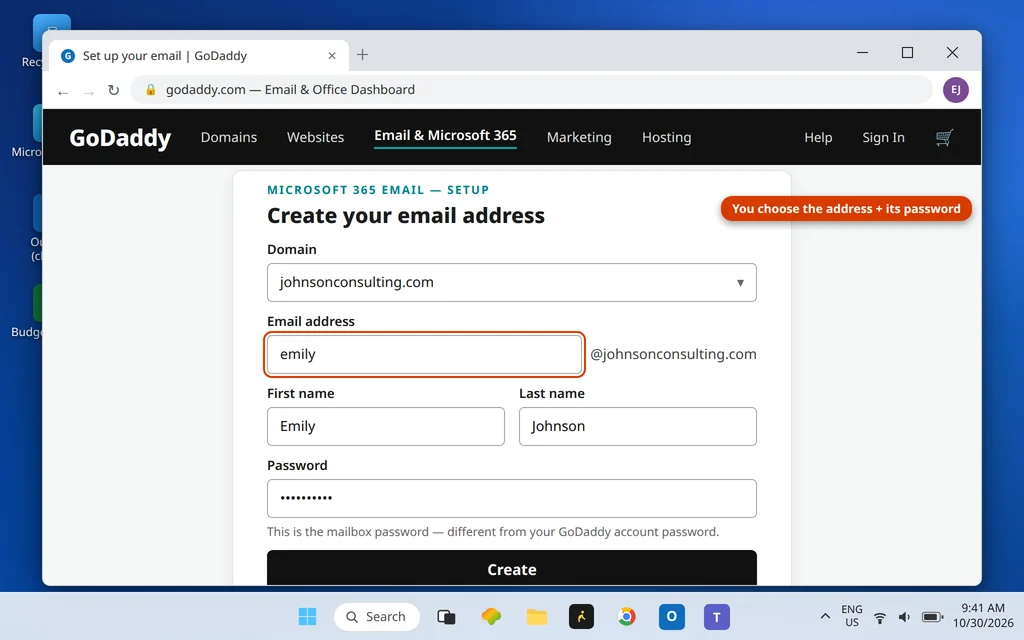
- Choose the domain the email should use (johnsonconsulting.com in our example).
- Type the address you want — for example emily — and the person’s first and last name.
- Create a password for this mailbox. Make it different from your GoDaddy account password, and save it somewhere safe; you will type it into Outlook in Step 5.
- Submit. GoDaddy now creates the mailbox and moves you into the domain connection step.
You can add more addresses for your team later from the same dashboard — each person needs their own user on the plan.
Step 3: Connect Your Domain (the DNS Step)
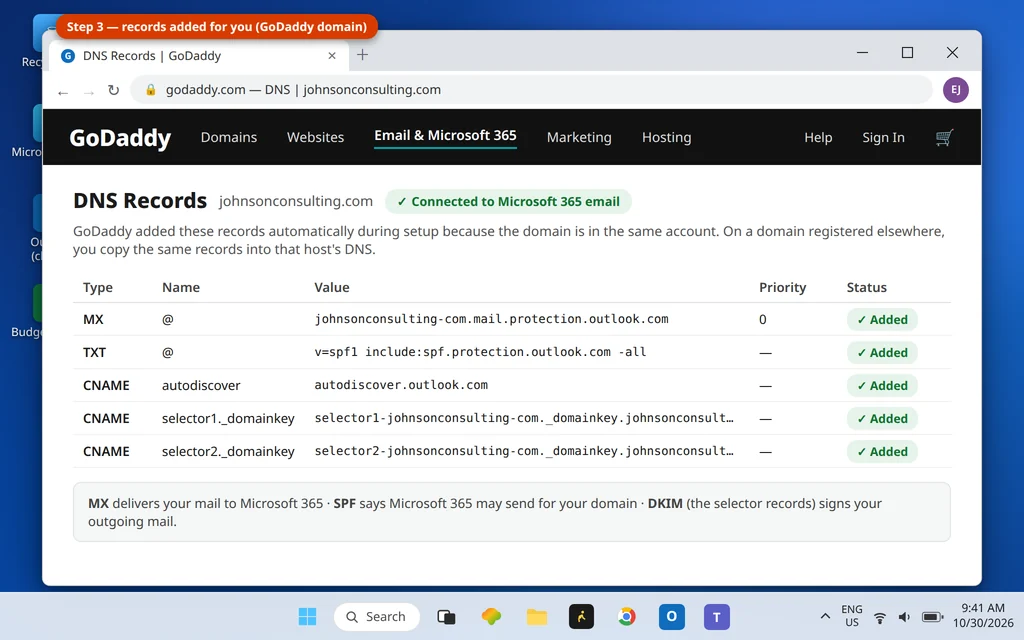
For email to reach your new mailbox, your domain’s DNS records must point at Microsoft 365. There are three records that matter, in plain English:
- MX — tells the internet which server receives your domain’s mail (Microsoft 365).
- SPF — a TXT record that says Microsoft 365 is allowed to send mail for your domain, which keeps your messages out of spam folders.
- DKIM — CNAME records that let your outgoing mail carry a digital signature proving it is really from you.
How this plays out depends on where your domain lives:
If your domain is registered at GoDaddy (the common case): you mostly do nothing. During setup, GoDaddy adds the required records to your domain automatically — you will see the setup confirm the domain is connected. Your job is just to finish the setup wizard and wait.
If your domain is registered elsewhere: the dashboard shows you the exact records to add, and you copy them into the DNS settings at your domain host (the company where the domain is registered). GoDaddy then checks for them. Copy values exactly — one wrong character in the MX or TXT value and mail will not flow.
If your domain already has email somewhere else (for example an old provider), adding the Microsoft 365 MX record redirects new mail to the new mailboxes. Plan the switch for a quiet moment, and do not cancel the old service until the new one is verified working.
Step 4: Wait for Setup to Finish
After the records are in place, there is a short wait while the mailbox is created and DNS spreads. Check the Email & Office dashboard: your mailbox appears there with its status, and once setup completes you can manage the user, reset the mailbox password, and open webmail from that screen.
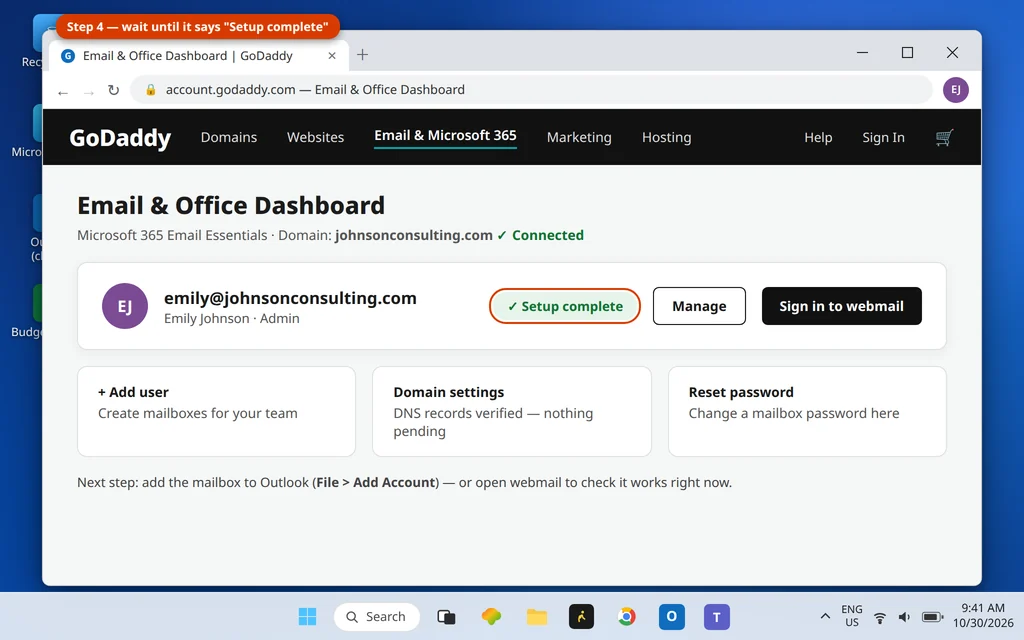
If the dashboard still shows setup as pending after an hour or two with a GoDaddy domain, something in Step 3 needs attention — see the troubleshooting section below. With an outside domain, allow longer: DNS changes can occasionally take most of a day to be visible everywhere, even though they usually land much faster.
Step 5: Add Your GoDaddy Microsoft 365 Email to Outlook
Now the part most people actually searched for. On a Windows PC with classic Outlook:
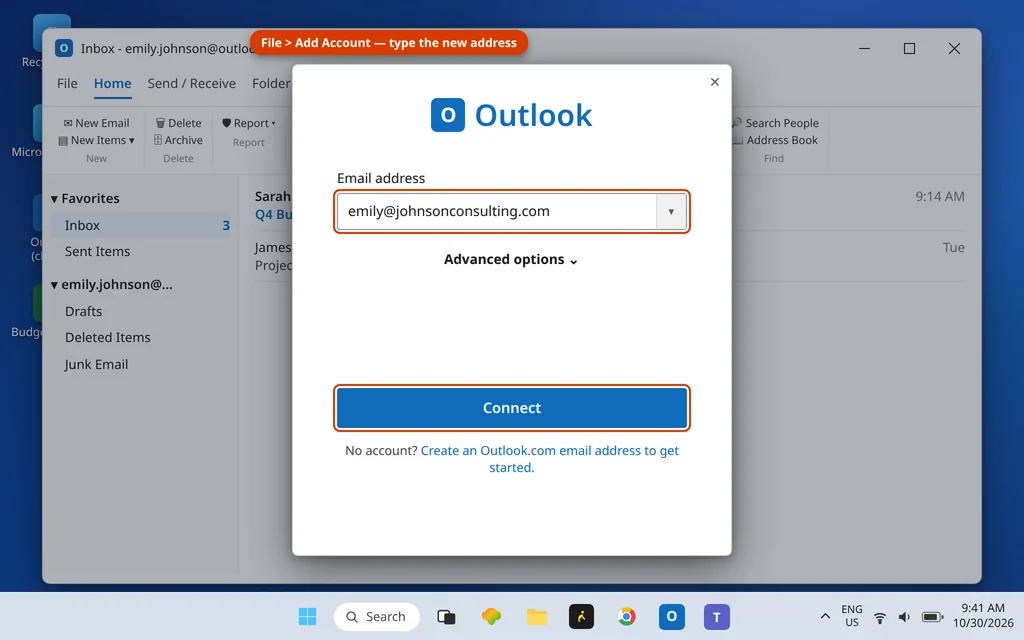
- Open Outlook and click File > Add Account.
- Type your new address (emily@johnsonconsulting.com) and click Connect.
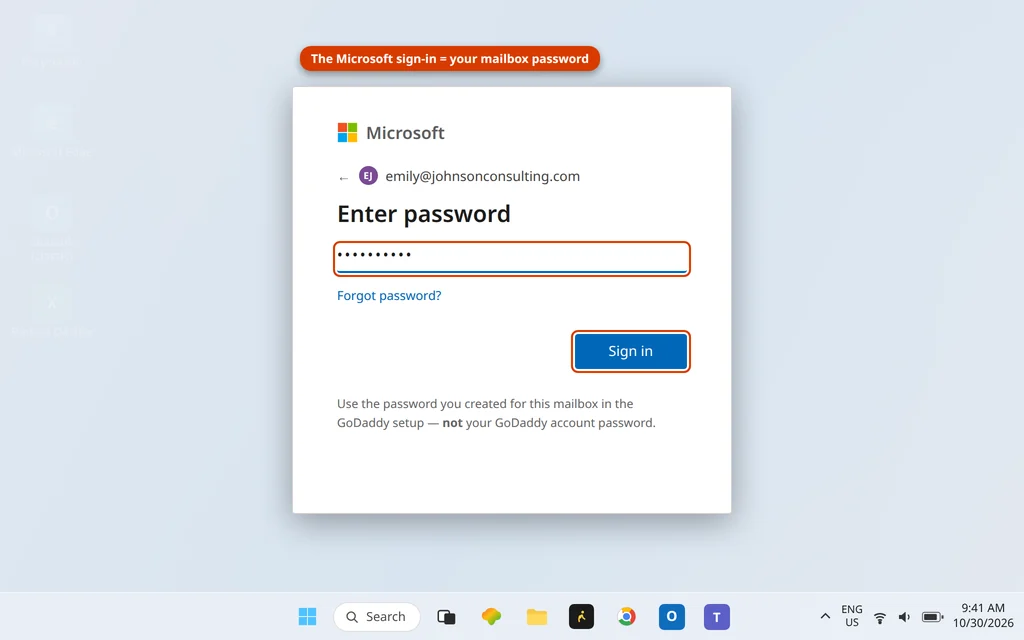
- A Microsoft sign-in window opens. Enter the mailbox password you created in Step 2 — not your GoDaddy account password — and sign in.
- Outlook reports the account was added. Click Done, and if Outlook asks, restart it. Your mailbox appears in the folder pane and starts filling with mail.
There are no server settings to type in. A GoDaddy Microsoft 365 mailbox connects as a Microsoft 365 / Exchange account using automatic discovery. If Outlook ever prompts you to choose POP or IMAP for this address, back out and re-add it — you took a wrong turn; the automatic path is the right one.
New Outlook and mobile: the flow is the same idea — add the account, type the address, and sign in on the Microsoft sign-in page. In the Outlook app on your phone: Settings > Add Account, enter the address, and complete the sign-in. The mailbox syncs mail, calendar and contacts automatically because it is an Exchange account.
Check Your Email in a Browser (Webmail)
You do not need Outlook to read this mailbox. Two routes, both landing in the same place:
- From GoDaddy: sign in at godaddy.com, open the Email & Office dashboard, find your mailbox, and choose the option to sign in to the mailbox / open webmail.
- Directly from Microsoft: go to outlook.office.com and sign in with your new email address and mailbox password.
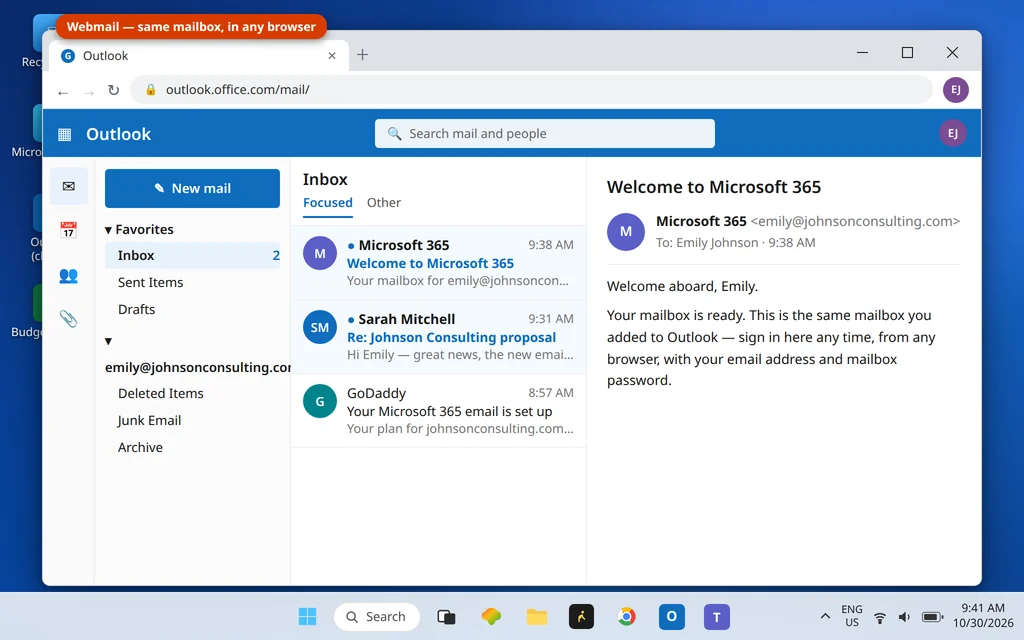
One warning that saves real frustration: the old GoDaddy Workspace Email sign-in page (email.godaddy.com) is for GoDaddy’s older email product — Microsoft 365 mailboxes do not sign in there. If you land on a page that does not recognize your address, you are probably on the wrong sign-in page, not using the wrong password.
Troubleshooting Your GoDaddy Microsoft 365 Email Setup
You added the account to Outlook, but no mail arrives. Almost always the DNS step is not finished — either the records are still spreading, or (for domains registered elsewhere) a record was copied wrong or never added. Open the Email & Office dashboard and check the domain/DNS status it shows; fix the records it flags, then give it time. Test by sending yourself a message from a personal account and watching webmail first, since webmail bypasses Outlook entirely.
Sign-in keeps failing or looping. Check which password you are using. The GoDaddy account password (for buying and managing products) and the mailbox password (created in Step 2) are different credentials. Also check where you are signing in: godaddy.com’s sign-in opens your GoDaddy account, not your mailbox. Reset the mailbox password in the Email & Office dashboard if you are not sure what it is.
Outlook asks for server settings, or adds the account as IMAP. Delete the account from Outlook and re-add it with File > Add Account, letting automatic setup run. Manually configured IMAP loses calendar and contacts sync and is the wrong setup for a Microsoft 365 mailbox.
Your sent mail lands in spam. Make sure the domain connection completed fully — SPF and DKIM are what prove your mail is legitimate, and both are part of the records from Step 3. If the dashboard shows a pending step for domain authentication, finish it there. Brand-new domains can also take a little time to build a sending reputation; that part resolves itself with normal use.
Setup shows as stuck or pending in the dashboard. With a domain at another registrar, one missing record is the usual cause — compare the records in your DNS host character by character with what GoDaddy lists. With a GoDaddy domain, pending usually just means it needs more time; if it is still pending the next day, that is a GoDaddy support question, since they manage the seller side of the account.
And if Outlook itself will not open or misbehaves after the account is added, that is an app problem, not an email problem — our guide to fixing Outlook not opening on Windows 11 covers those fixes.
Frequently Asked Questions
Is GoDaddy Microsoft 365 email the same as buying Microsoft 365 from Microsoft?
The mailbox service is the same Microsoft 365. The difference is the seller: GoDaddy handles your billing, plan management and first-line support, and you manage mailboxes in GoDaddy’s Email & Office dashboard instead of Microsoft’s admin center.
Where do I sign in to my GoDaddy Microsoft 365 email?
For webmail, use the sign-in option in your GoDaddy Email & Office dashboard, or go to outlook.office.com and sign in with your email address and mailbox password. The godaddy.com sign-in opens your GoDaddy account, which is a different thing.
How do I set up GoDaddy email in the Outlook app on my phone?
Open the Outlook app, go to Settings > Add Account, type your address, and sign in on the Microsoft sign-in page with your mailbox password. It adds as an Exchange account, so mail, calendar and contacts all sync.
Does GoDaddy Microsoft 365 email work in the new Outlook?
Yes. Add the account with your email address and sign in; new Outlook supports Microsoft 365 accounts natively, and no manual server settings are needed.
How long does the whole setup take?
The buying and address creation take about 15–20 minutes. DNS is the variable part: with a GoDaddy domain the records are automatic and mail usually flows quickly; with a domain elsewhere, allow a few hours for the records to spread before judging it broken.
Do I need IMAP or POP server settings for Outlook?
No. Use the automatic setup and let Outlook connect as Microsoft 365 / Exchange. Manual IMAP setup exists, but it skips calendar and contacts sync and causes most of the “it half works” complaints.
Can I use a domain I bought from another company?
Yes. Keep the domain where it is and add the DNS records GoDaddy shows you at that registrar during Step 3. There is no requirement to transfer the domain to GoDaddy.
You’re Done — What Next?
Your business email is live: it works in Outlook, on your phone, and in a browser, and it sends from your own domain. From here, add addresses for the rest of your team in the Email & Office dashboard, and set the mailbox up on any other computers with the same File > Add Account steps.
If you get stuck at any step — or your setup has been “pending” far longer than it should be — tell us exactly where it stopped on our Contact page — servicedesk@howtofixerroronline.com, available 24 hours — and we will point you at the right fix.