
Windows Update Error 0x80070643 on Windows 11? 9 Fixes
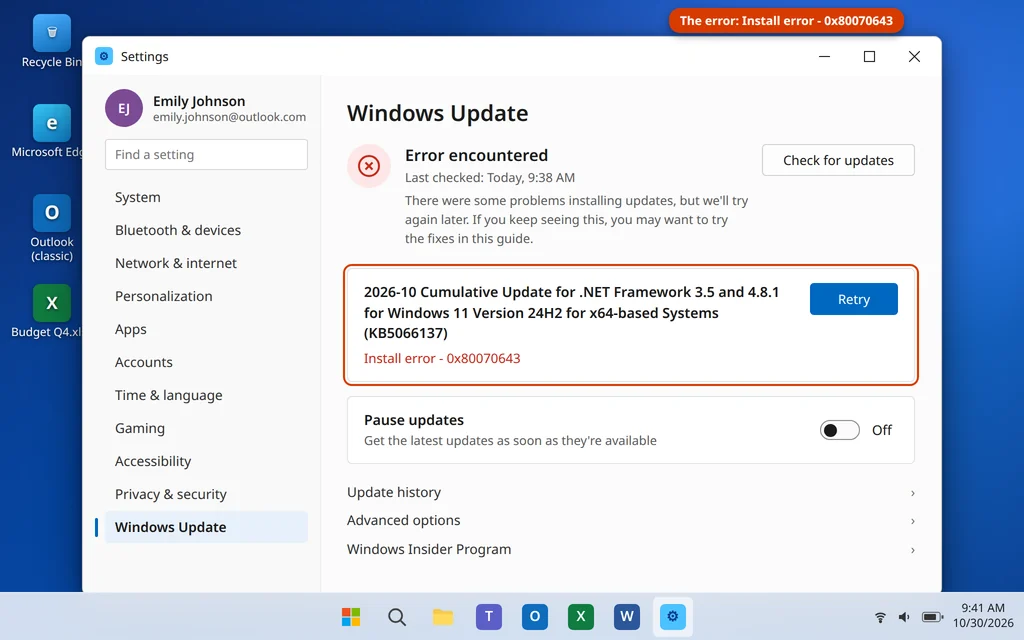
Windows Update downloads the update, the install bar starts moving — and then it stops with a short line: Install error – 0x80070643. You click Retry and the Windows Update error 0x80070643 comes straight back. This is one of the most common update failures on Windows 11, and also one of the most misunderstood, because 0x80070643 is not one problem — it is a general “the install failed” code that several different updates fail with, for different reasons.
That is why the first step in this guide is not a fix at all: it is finding out which update failed. A .NET Framework update failing with 0x80070643 needs a different repair from a security update failing because your recovery partition is too small. Once you know which update you are dealing with, the right fix below is usually quick.
Quick Answer: Open Settings > Windows Update > Update history and note which update failed with 0x80070643 — the right fix depends on it. If it is a .NET Framework update, run Microsoft’s .NET Framework Repair Tool (Fix 3). If it is a definition or security update, clear the update download cache (Fix 4). If it is a recovery/WinRE servicing update, your recovery partition may be too small (Fix 7). Whatever the update, start with a restart and the built-in troubleshooter (Fixes 1–2).
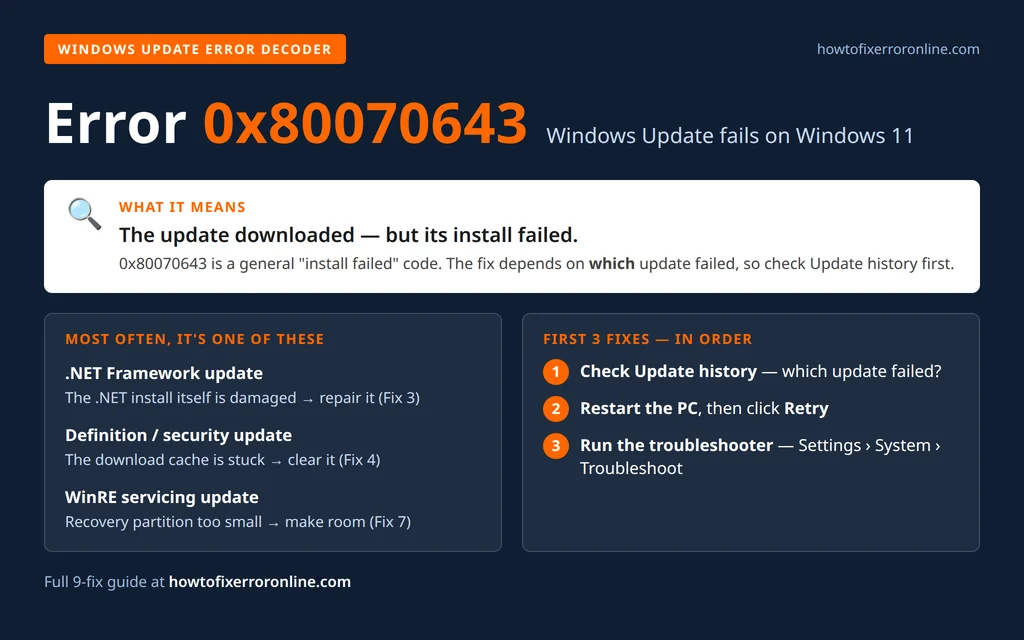
Table of Contents
What Does Windows Update Error 0x80070643 Mean?
Under the hood, 0x80070643 is the Windows Installer “fatal error during installation” code (you may also see it written as error 1603 in installer logs). In Windows Update it simply means: the update downloaded, but its installation failed. Unlike a download error, the file usually arrived fine — something on the PC blocked the install itself. The triggers depend on the type of update:
- .NET Framework updates. The most classic cause. If the .NET Framework installation on your PC is damaged, every .NET update fails with 0x80070643 until the framework itself is repaired.
- Windows Security definition updates. A stuck or corrupted download cache can make the daily antivirus definition updates fail with this code.
- A recovery partition that is too small. Some security updates service the Windows Recovery Environment (WinRE) — the built-in repair environment. If the recovery partition does not have enough free space (Microsoft’s guidance works on roughly 250 MB), the update cannot install the new WinRE image and fails with 0x80070643.
- Damaged Windows system files, or an interrupted earlier install. If the update components are damaged — or a shutdown or crash interrupted a previous install — installs fail even when downloads are healthy.
None of these mean your PC is broken. Match the fix to the failed update and you will usually be done quickly.
Fix 1: Check Which Update Failed, Restart, and Retry
Start by identifying the failing update — every later fix in this guide is aimed at a specific one.
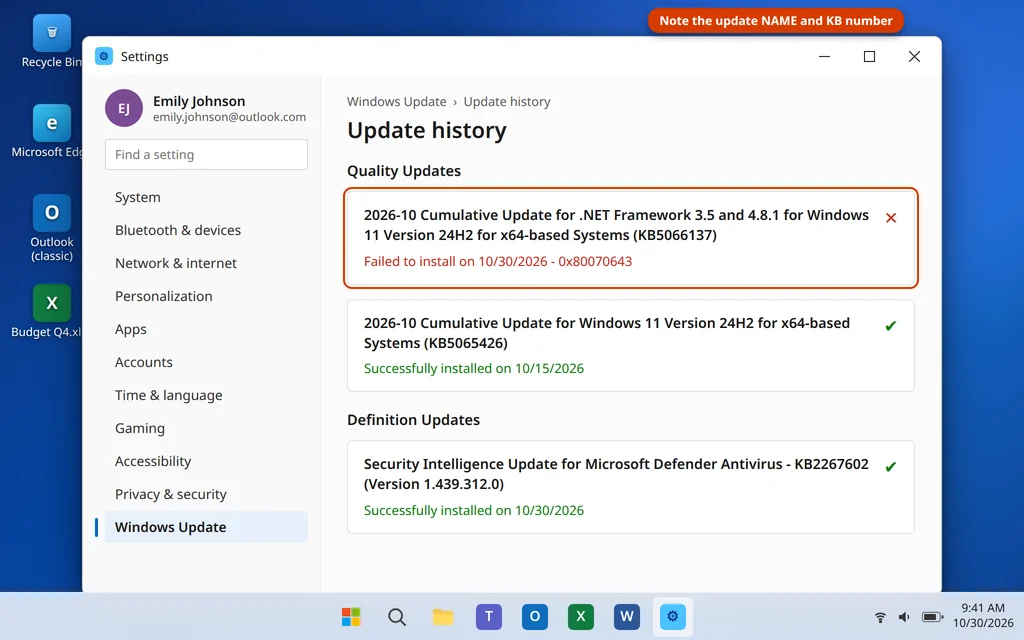
- Open Settings > Windows Update > Update history.
- Find the entry marked Failed to install with error 0x80070643 and note its full name — especially whether it says .NET Framework, Security Intelligence / Definition Update, or a plain cumulative/security update, plus its KB number.
- Now restart properly: Start > Power > Restart (Restart, not Shut down — Restart fully reloads Windows services and finishes anything waiting on a reboot).
- After signing back in, open Settings > Windows Update and click Check for updates, or Retry next to the failed update.
If the update installs after the restart, you are done — a stuck pending install was the whole problem. If 0x80070643 returns, continue to the fix that matches your update type.
Fix 2: Run the Windows Update Troubleshooter
Windows 11’s built-in troubleshooter checks the update services, the download cache and common configuration problems, and repairs what it finds automatically. It takes two minutes and is worth running whatever update failed.
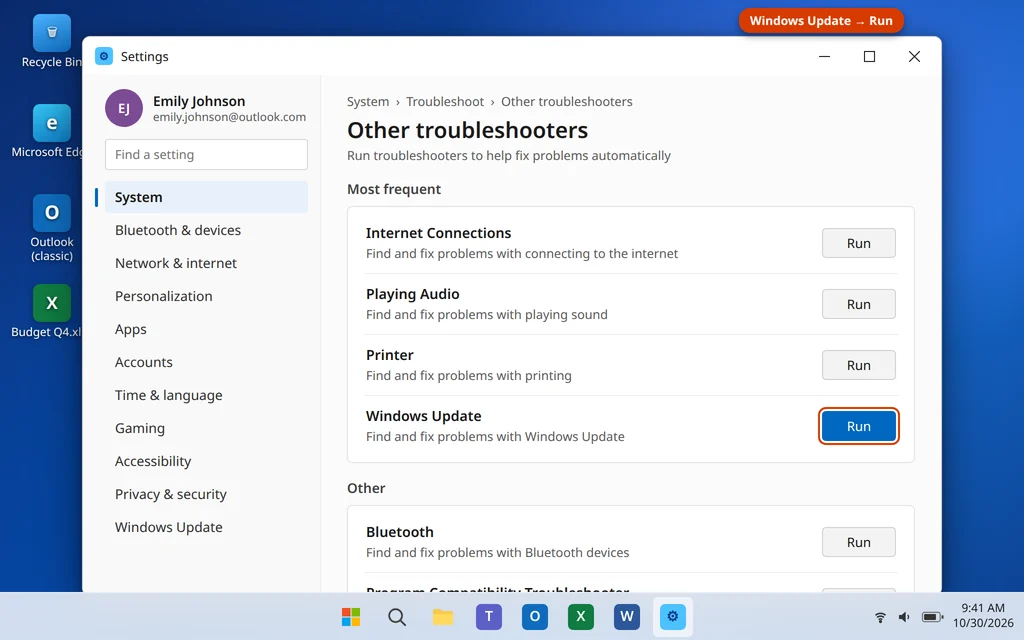
- Open Settings > System > Troubleshoot > Other troubleshooters.
- Find Windows Update in the list and click Run.
- Let the checks run and apply any fixes it offers. (On some PCs the troubleshooter opens inside the Get Help app instead — follow the same prompts there.)
- Restart the PC if it asks, then run Windows Update again.
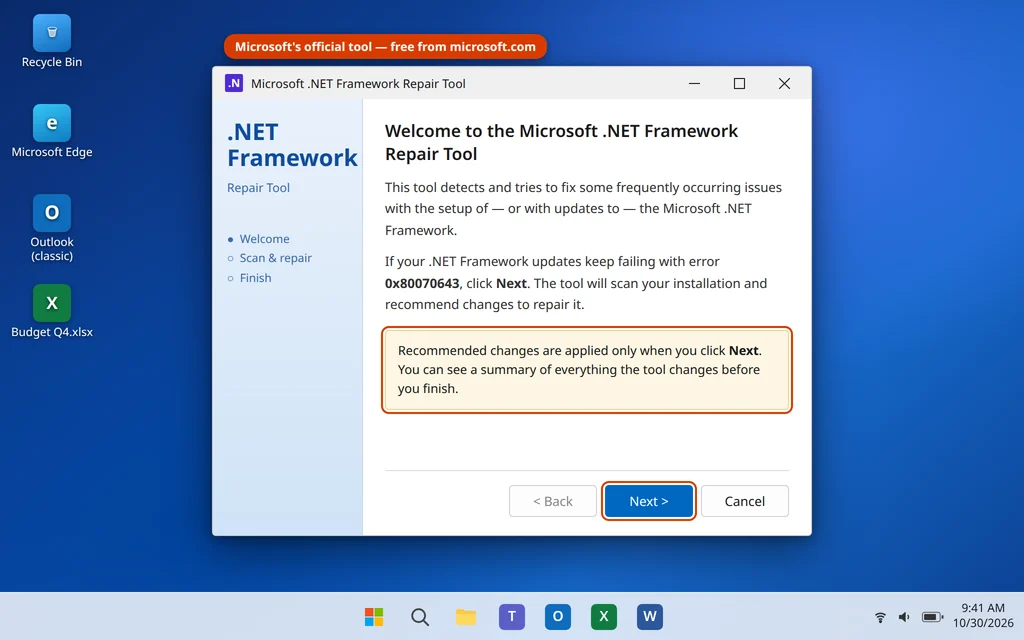
Fix 3: Run the .NET Framework Repair Tool (for .NET Updates)
If Update history showed a .NET Framework update failing, this is your most likely fix. A damaged .NET installation makes every .NET update fail with 0x80070643, and Microsoft publishes a free tool built exactly for this.
- Download the Microsoft .NET Framework Repair Tool from Microsoft’s official website (search Microsoft for “.NET Framework Repair Tool” — the file is named
NetFxRepairTool.exe). - Double-click the downloaded file and accept the license terms.
- The tool scans your .NET installation and suggests fixes — click Next to apply them.
- When it finishes, click Finish, restart your PC, and run Windows Update again.
If the tool reports it could not fix the problem, skip its offer to collect logs and continue with Fix 4 and Fix 5 instead.
Fix 4: Clear the Windows Update Download Cache
If the failing update is a definition update — or any update that fails the same way every time — the downloaded copy in the cache is probably damaged. Deleting the cache forces Windows to download a clean copy. The files are only a temporary cache, so this is safe.
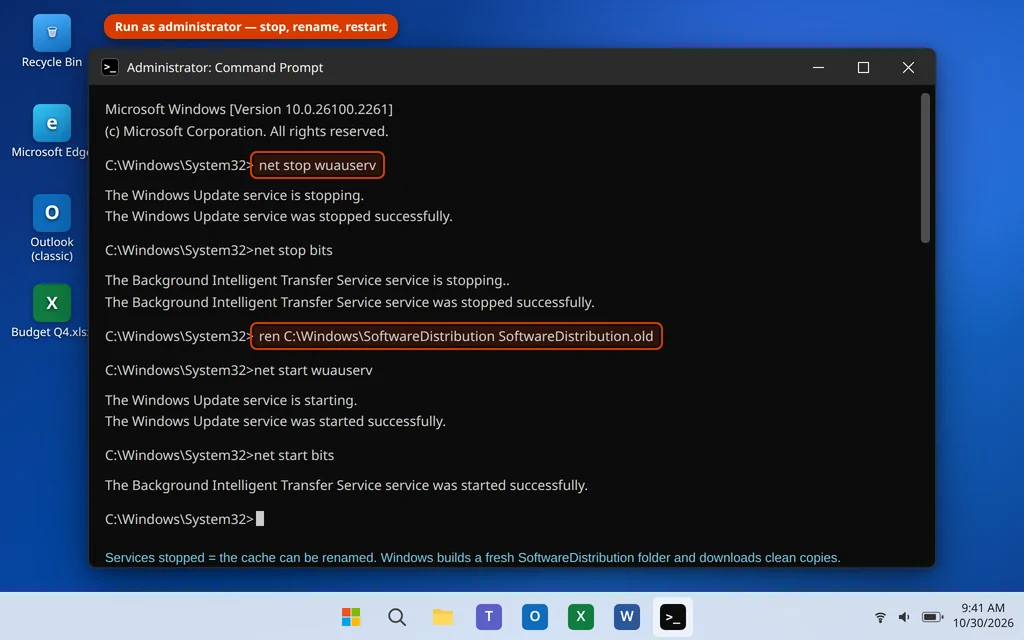
Step 1 — stop the update services (files in use cannot be moved):
- Type
cmdin Windows search, right-click Command Prompt and choose Run as administrator. - Type each line below, pressing Enter after each. You should see a “service was stopped successfully” message:
net stop wuauserv
net stop bits
Step 2 — rename the cache folder (renaming keeps a backup; Windows builds a fresh folder):
ren C:\Windows\SoftwareDistribution SoftwareDistribution.oldStep 3 — restart the services and retry:
net start wuauserv
net start bits- Open Settings > Windows Update and click Check for updates. The update downloads fresh from the beginning.
- Once updates are working again, you can delete the
SoftwareDistribution.oldfolder fromC:\Windowsto reclaim the space.
This same cache is behind several other update codes — our guide to Windows Update error 0x80070002 covers the “file not found” variant of a broken download.
Fix 5: Repair Windows Files With DISM and SFC
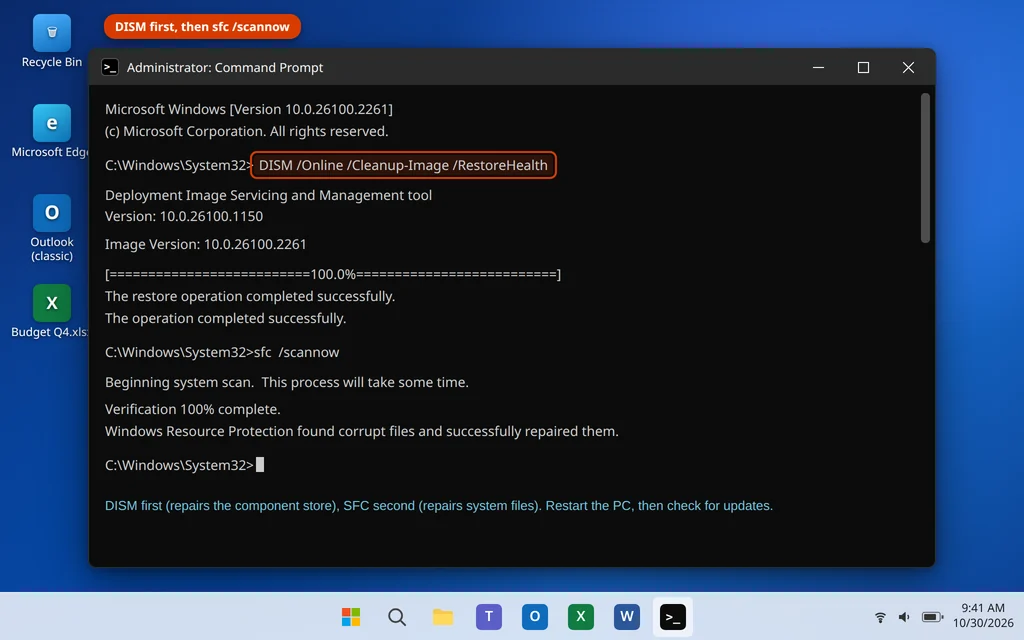
If the update components themselves are damaged, installs keep failing no matter how clean the downloads are. Two built-in repair tools fix this. Run them in an administrator Command Prompt, in this order:
- Type
cmdin Windows search, right-click Command Prompt and choose Run as administrator. - Type this command and press Enter. It repairs the Windows component store that updates are built from, and can take 10–20 minutes — stay connected to the internet while it runs:
DISM /Online /Cleanup-Image /RestoreHealth- When DISM finishes, type this second command and press Enter to check and repair protected system files:
sfc /scannow- Restart your PC and run Windows Update again.
Fix 6: Install the Failed Update Manually From the Microsoft Update Catalog
If one specific update keeps failing while everything else installs, skip Windows Update and install that update yourself from Microsoft’s official catalog.
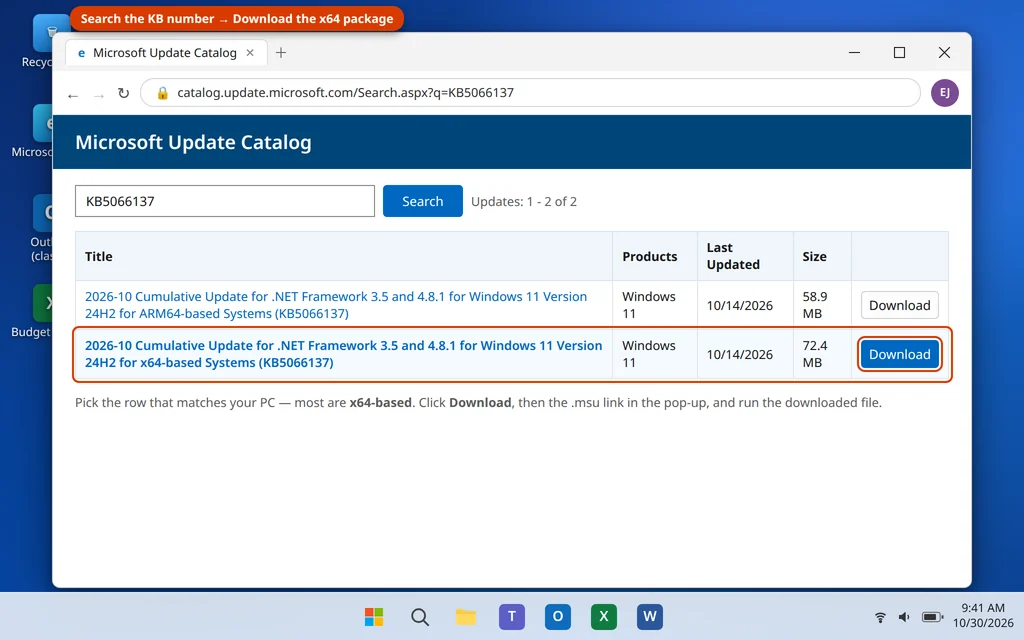
- Note the update’s KB number from Settings > Windows Update > Update history (it is in the failed update’s name, for example KB5066137).
- In your browser, go to catalog.update.microsoft.com.
- Type the KB number into the catalog search box and press Search.
- Find the row that matches your system — for most PCs that is the Windows 11 version marked x64-based (choose ARM64-based only if your PC has an ARM processor) — and click its Download button.
- In the small pop-up window, click the
.msufile link to download it. - Double-click the downloaded
.msufile. The Windows Update Standalone Installer opens — click Yes and let it install, then restart.
If the manual install also fails with 0x80070643, note which update it is: a .NET update points back to Fix 3, and a WinRE/security update points to Fix 7.
Fix 7: Fix a Too-Small Recovery Partition (for WinRE Updates Only)
Only use this fix if the failing update is the recovery/WinRE servicing update — typically a security update whose description mentions the Windows Recovery Environment. Skip it for .NET and definition updates; it will not help them.
First, confirm WinRE’s status. In an administrator Command Prompt, type:
reagentc /info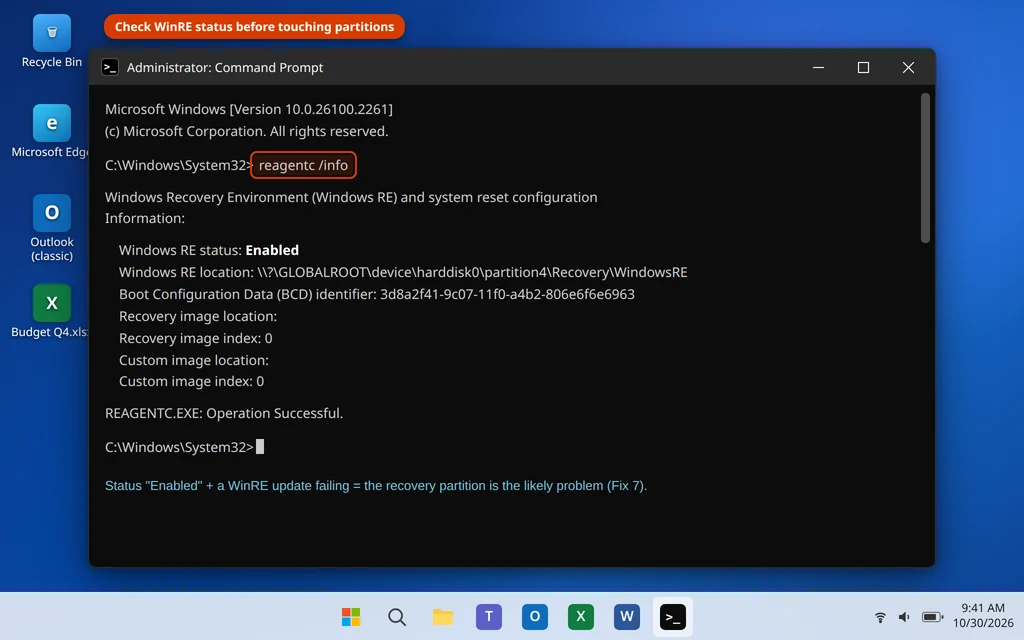
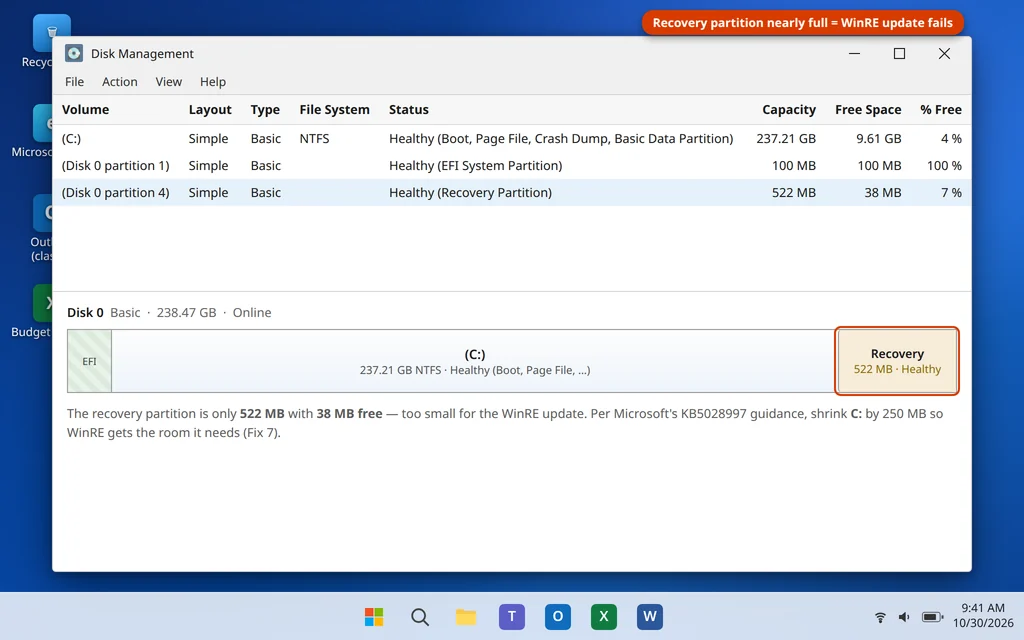
If it reports Windows RE status: Enabled and the failing update is the WinRE one, the recovery partition most likely does not have the roughly 250 MB of free space the update needs. Microsoft’s documented fix (support guidance KB5028997) is to make room by shrinking the Windows partition slightly and letting WinRE use the extra space. In outline:
- Back up anything important first. Partition changes are normally safe, but this is the one fix in this guide where a backup is a must, not a nicety.
- In the admin Command Prompt, run
reagentc /disableto temporarily turn WinRE off. - Open Disk Management (right-click Start > Disk Management), right-click your C: drive and choose Shrink Volume, and shrink it by 250 MB.
- Run
reagentc /enableto turn WinRE back on in its larger home, then runreagentc /infoagain to confirm it shows Enabled. - Run Windows Update again — the WinRE update should now install.
Microsoft’s full walkthrough adds steps for deleting and recreating the old recovery partition on some layouts. If Disk Management will not shrink your drive, or your layout does not match the outline above, follow the KB5028997 article step by step rather than improvising — or take this one fix to a technician. It is the only advanced fix in this guide.
Fix 8: Reset the Windows Update Components Fully
If the plain cache rename in Fix 4 was not enough, reset the whole update machinery — the download cache and the catalog database Windows uses to verify updates.
- Open an administrator Command Prompt (type
cmdin search, right-click Command Prompt, Run as administrator). - Stop all four update-related services, pressing Enter after each line:
net stop wuauserv
net stop cryptSvc
net stop bits
net stop msiserver- Rename both component folders:
ren C:\Windows\SoftwareDistribution SoftwareDistribution.old
ren C:\Windows\System32\catroot2 catroot2.old- Start the services again:
net start wuauserv
net start cryptSvc
net start bits
net start msiserver- Restart the PC and run Windows Update. Expect the first check to take longer than usual — Windows is rebuilding its update database from scratch, which is exactly what you want.
Fix 9: Repair Install Windows 11 (Keep Files and Apps)
If 0x80070643 survives everything above, the Windows installation itself is damaged in a way the smaller repairs cannot reach. A repair install reinstalls Windows 11 over the top of itself, replacing all system and update components, while keeping your files, apps and settings.
- Open Settings > System > Recovery.
- Under Fix problems using Windows Update, click Reinstall now. Windows downloads a fresh copy of your current version and reinstalls it.
- Follow the prompts and restart when asked. Your apps, files and settings are kept.
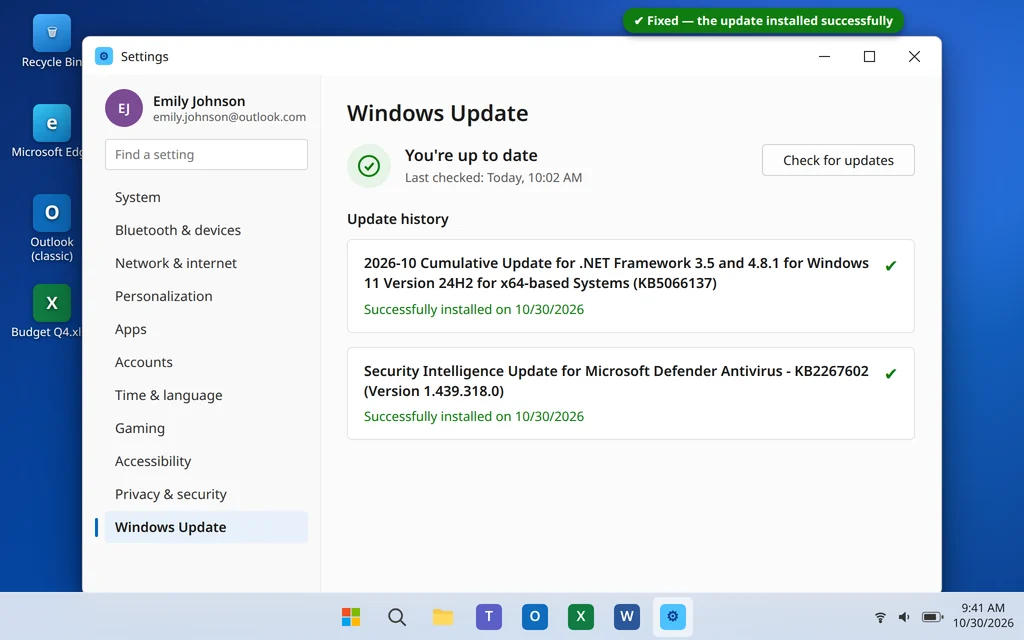
Alternatively, download the Windows 11 ISO from Microsoft’s official Windows 11 download page, double-click the ISO file to mount it, run setup.exe, and when asked what to keep, choose Keep personal files and apps. After the repair install, run Windows Update — the failing update should install normally. Treat this as the last resort: it is safe, but it takes the longest.
How to Stop Error 0x80070643 Coming Back
- Let updates finish. Avoid forcing the PC off while an update is installing — an interrupted install is a common trigger for repeat failures.
- Keep some space free. Try to keep at least 10 GB free on the C: drive so downloads and installs never run out of room. If your PC is slow on Windows 11, the clean-up steps in that guide free space and speed the machine up at the same time.
- Restart now and then. If you only ever sleep your PC, half-finished installs pile up. A weekly restart keeps the update system clean.
- One antivirus at a time. Running two real-time security tools can make them fight over the definition updates. Windows Security alone, or one third-party tool, is enough.
Frequently Asked Questions
What does install error 0x80070643 mean on Windows 11?
It means an update downloaded but its installation failed. 0x80070643 is a general installer failure code, so the real cause depends on the update: a damaged .NET Framework for .NET updates, a corrupted download cache for definition updates, or a recovery partition that is too small for WinRE servicing updates. That is why Fix 1 — checking Update history to see which update failed — comes first.
Why does 0x80070643 keep coming back on the same update?
Because the underlying cause is still there: Windows retries the same update, hits the same damaged .NET installation, stuck cache or small recovery partition, and fails the same way. Match the fix to the update type — Fixes 3, 4 and 7 cover the three main causes — instead of just clicking Retry.
Is 0x80070643 a “fatal error”?
Sort of. The code comes from the Windows Installer and appears in installer logs as “fatal error during installation” (error 1603). “Fatal” sounds alarming, but in Windows Update it simply means that one update’s install stopped — it does not mean your PC or your files are damaged.
Does error 0x80070643 happen on Windows 10 too?
Yes. The code means the same thing on Windows 10 — including the famous recovery-partition failures on WinRE updates there. The fixes in this guide are written for Windows 11 menus, but the repair tool, cache reset and DISM/SFC steps work the same way on Windows 10.
Will resetting the update components delete my installed updates?
No. Fixes 4 and 8 rename the SoftwareDistribution and catroot2 folders, which hold the download cache and verification database. Updates already installed on your PC are untouched, and Windows rebuilds both folders automatically.
How do I know if my problem is the recovery partition?
Two clues: the failing update is a security/WinRE servicing update rather than a .NET or definition update, and the manual install in Fix 6 fails with the same code while other updates install fine. Run reagentc /info to confirm WinRE is enabled, then use Fix 7.
Can I just skip or hide the failing update?
You can pause updates briefly in Settings > Windows Update > Pause updates, but do not ignore a failing update permanently — these updates carry security fixes, and .NET updates in particular are needed by many apps. If one update refuses to install through Windows Update, install it manually with Fix 6 instead.
Still getting error 0x80070643? Tell us the name and KB number of the update that fails and which fix you reached, on our Contact page — servicedesk@howtofixerroronline.com, available 24 hours. Our Windows Errors category has step-by-step fixes for more update problems, including the companion guides linked above for error 0x80070002 and for a slow PC after an update.